Discounted Products
-
 Home Garage 210 TC Cotton King Floral Fitted (Elastic) Bedsheet(Pack of 1, Grey)
Original price was: ₹999.00.₹299.00Current price is: ₹299.00.
Home Garage 210 TC Cotton King Floral Fitted (Elastic) Bedsheet(Pack of 1, Grey)
Original price was: ₹999.00.₹299.00Current price is: ₹299.00.
-
 Goodrik 140 TC Cotton Double 3D Printed Flat Bedsheet(Pack of 1, Brown)
Original price was: ₹499.00.₹229.00Current price is: ₹229.00.
Goodrik 140 TC Cotton Double 3D Printed Flat Bedsheet(Pack of 1, Brown)
Original price was: ₹499.00.₹229.00Current price is: ₹229.00.
-
 GLOBALSHOP 350 TC Microfiber Double Floral Flat Bedsheet(Pack of 1, Multicolor)
Original price was: ₹1,250.00.₹263.00Current price is: ₹263.00.
GLOBALSHOP 350 TC Microfiber Double Floral Flat Bedsheet(Pack of 1, Multicolor)
Original price was: ₹1,250.00.₹263.00Current price is: ₹263.00.
-
 RisingStar 250 TC Microfiber King Printed Fitted (Elastic) Bedsheet(Pack of 1, FITTED-ROUND-CIRCLES-PREMIUM)
Original price was: ₹2,299.00.₹299.00Current price is: ₹299.00.
RisingStar 250 TC Microfiber King Printed Fitted (Elastic) Bedsheet(Pack of 1, FITTED-ROUND-CIRCLES-PREMIUM)
Original price was: ₹2,299.00.₹299.00Current price is: ₹299.00.
-
 Home Garage 210 TC Cotton King Floral Fitted (Elastic) Bedsheet(Pack of 1, Fitted Black Green)
Original price was: ₹1,299.00.₹299.00Current price is: ₹299.00.
Home Garage 210 TC Cotton King Floral Fitted (Elastic) Bedsheet(Pack of 1, Fitted Black Green)
Original price was: ₹1,299.00.₹299.00Current price is: ₹299.00.
-
 Home Garage 180 TC Cotton King 3D Printed Flat Bedsheet(Pack of 1, White)
Original price was: ₹999.00.₹229.00Current price is: ₹229.00.
Home Garage 180 TC Cotton King 3D Printed Flat Bedsheet(Pack of 1, White)
Original price was: ₹999.00.₹229.00Current price is: ₹229.00.
-
 Panipat Textile Hub 152.4 cm (5 ft) Polyester Window Curtain (Pack Of 2)(Solid, Aqua)
Original price was: ₹1,899.00.₹299.00Current price is: ₹299.00.
Panipat Textile Hub 152.4 cm (5 ft) Polyester Window Curtain (Pack Of 2)(Solid, Aqua)
Original price was: ₹1,899.00.₹299.00Current price is: ₹299.00.
-
 Home Sizzler 214 cm (7 ft) Polyester Semi Transparent Door Curtain (Pack Of 2)(Floral, Maroon)
Original price was: ₹1,199.00.₹399.00Current price is: ₹399.00.
Home Sizzler 214 cm (7 ft) Polyester Semi Transparent Door Curtain (Pack Of 2)(Floral, Maroon)
Original price was: ₹1,199.00.₹399.00Current price is: ₹399.00.
-
 Home Sizzler 153 cm (5 ft) Polyester Room Darkening Window Curtain (Pack Of 2)(Floral, Brown)
Original price was: ₹799.00.₹299.00Current price is: ₹299.00.
Home Sizzler 153 cm (5 ft) Polyester Room Darkening Window Curtain (Pack Of 2)(Floral, Brown)
Original price was: ₹799.00.₹299.00Current price is: ₹299.00.
-
 Stella Creations 214 cm (7 ft) Polyester Room Darkening Door Curtain (Pack Of 2)(Abstract, Brown)
Original price was: ₹1,299.00.₹449.00Current price is: ₹449.00.
Stella Creations 214 cm (7 ft) Polyester Room Darkening Door Curtain (Pack Of 2)(Abstract, Brown)
Original price was: ₹1,299.00.₹449.00Current price is: ₹449.00.
-
 Homefab India 152.5 cm (5 ft) Polyester Room Darkening Window Curtain (Pack Of 2)(Floral, Light Blue)
Original price was: ₹1,199.00.₹319.00Current price is: ₹319.00.
Homefab India 152.5 cm (5 ft) Polyester Room Darkening Window Curtain (Pack Of 2)(Floral, Light Blue)
Original price was: ₹1,199.00.₹319.00Current price is: ₹319.00.
-
 Urban Home 214 cm (7 ft) PVC Transparent Door Curtain Single Curtain(Solid, Off White)
Original price was: ₹699.00.₹203.00Current price is: ₹203.00.
Urban Home 214 cm (7 ft) PVC Transparent Door Curtain Single Curtain(Solid, Off White)
Original price was: ₹699.00.₹203.00Current price is: ₹203.00.
-
 Panipat Textile Hub 213 cm (7 ft) Polyester Door Curtain (Pack Of 2)(Solid, Brown)
Original price was: ₹1,199.00.₹349.00Current price is: ₹349.00.
Panipat Textile Hub 213 cm (7 ft) Polyester Door Curtain (Pack Of 2)(Solid, Brown)
Original price was: ₹1,199.00.₹349.00Current price is: ₹349.00.
-
 Home Sizzler 214 cm (7 ft) Polyester Semi Transparent Door Curtain (Pack Of 2)(Floral, Brown)
Original price was: ₹999.00.₹349.00Current price is: ₹349.00.
Home Sizzler 214 cm (7 ft) Polyester Semi Transparent Door Curtain (Pack Of 2)(Floral, Brown)
Original price was: ₹999.00.₹349.00Current price is: ₹349.00.
-
 Panipat Textile Hub 213 cm (7 ft) Polyester Semi Transparent Door Curtain (Pack Of 2)(Floral, Brown)
Original price was: ₹899.00.₹299.00Current price is: ₹299.00.
Panipat Textile Hub 213 cm (7 ft) Polyester Semi Transparent Door Curtain (Pack Of 2)(Floral, Brown)
Original price was: ₹899.00.₹299.00Current price is: ₹299.00.
If the Microsoft Store suddenly stops opening on your Windows 11 PC and you see an error such as 0x800704EC, you are probably wondering what went wrong. The frustrating part is that Windows does not always clearly explain why the Store has been blocked.
The problem can be related to Windows settings, Group Policy restrictions, a disabled service, corrupted Store components, registry settings, malware, or even security software interfering with the application.
In some cases, the Microsoft Store icon may still appear normally, but clicking it does nothing. In other situations, Windows may display a message saying that the app has been blocked by an administrator.
Fortunately, there are several things you can try before considering more drastic solutions such as resetting Windows 11.
Let’s go through them one by one.
What Does Microsoft Store Error 0x800704EC Mean?
The 0x800704EC error generally indicates that access to an application has been restricted or blocked.
If it appears when you try to open the Microsoft Store, Windows may have a policy, configuration, security setting, or system issue preventing the Store from running.
There isn’t one universal cause behind this error. That’s why you may need to try several troubleshooting methods.
Before making advanced changes, start with the simplest solutions.
1. Restart Your Windows 11 PC
It sounds obvious, but restarting Windows can fix temporary problems with system services and Microsoft Store processes.
If the Store was working normally before and suddenly stopped opening, restart your computer first.
Click Start, select the Power button, and choose Restart.
After Windows starts again, open the Microsoft Store.
If the Store still doesn’t work, continue with the next method.
2. Check Whether the Microsoft Store Is Blocked by Your Organization
If you’re using a work or school computer, the Microsoft Store may intentionally be restricted by an administrator.
Windows administrators can use Group Policy or other management tools to prevent users from accessing certain applications.
Press Windows + R, type:
gpedit.msc
and press Enter.
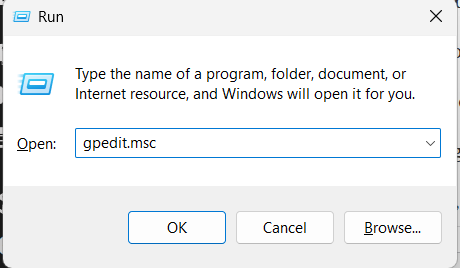
If Group Policy Editor is available on your version of Windows, navigate to:
Computer Configuration > Administrative Templates > Windows Components > Store
Look for policies related to disabling or turning off the Microsoft Store.
If a Store-related policy is enabled, it may prevent the application from opening.
However, don’t change organizational policies on a work or school computer without permission. The restriction may be intentional.
If this is your personal PC, continue troubleshooting.
3. Run the Windows Store Apps Troubleshooter
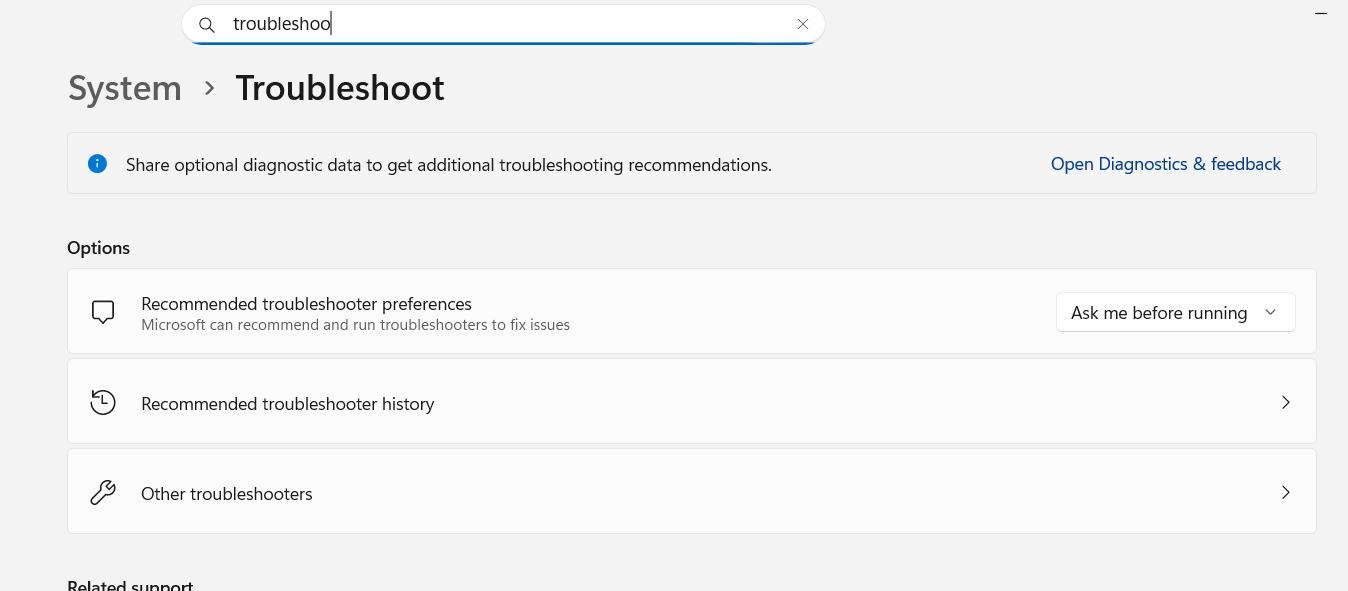
Windows 11 includes troubleshooting tools that can automatically detect certain problems with Microsoft Store applications.
Open Settings and go to:
System > Troubleshoot > Other troubleshooters
Look for Windows Store Apps.
Click Run if the troubleshooter is available.
Windows will check for common problems involving Store apps and attempt to correct them.
Once the process finishes, restart your PC and try opening the Microsoft Store again.
If you don’t see the Windows Store Apps troubleshooter, don’t worry. Microsoft has changed the availability of some legacy troubleshooters across Windows 11 versions.
4. Reset the Microsoft Store Cache
A corrupted Store cache can cause applications to behave unexpectedly.
Fortunately, Windows provides a simple command for clearing the Microsoft Store cache.
Press Windows + R to open the Run dialog.
Type:
wsreset.exe
Then press Enter.
A blank Command Prompt window may appear for a short time. Don’t close it manually.
Windows will clear the Store cache and eventually attempt to launch the Microsoft Store.
If the Store opens afterward, the problem was likely related to its cached data.
5. Repair the Microsoft Store
Windows 11 allows you to repair some applications without deleting their data.
Open:
Settings > Apps > Installed apps
Find Microsoft Store.
Click the three-dot menu next to it and select Advanced options.
Under the Reset section, click Repair.
Windows will attempt to repair the application.
After the process completes, launch the Microsoft Store.
If Repair doesn’t solve the problem, return to the same screen and select Reset.
Keep in mind that resetting an app can remove its stored app data and settings.
6. Make Sure Microsoft Store Services Are Running
The Microsoft Store depends on Windows services to function correctly.
A disabled or malfunctioning service can cause Store-related errors.
Press Windows + R, type:
services.msc
and press Enter.
Look through the list for services associated with Microsoft Store and Windows app functionality.
Pay particular attention to services such as Microsoft Store Install Service.
If an important service is disabled, open its properties and check its startup configuration.
Don’t randomly disable or modify Windows services. If you’re unsure about a service, leave its configuration unchanged.
Restart your PC after making any legitimate changes.
7. Check Your Windows Account
Sometimes the problem can be connected to your Windows user profile.
Open:
Settings > Accounts
Check that you’re signed into the correct Microsoft account.
If you’re using a local account, you can also test whether the Store works from another Windows user account.
To create a test account, go to:
Settings > Accounts > Other users
Select Add account and follow the instructions.
After creating the account, sign into it and try opening Microsoft Store.
If the Store works normally in the new account, your original Windows profile may have a configuration or permission problem.
8. Check Windows Update
Microsoft Store problems can sometimes appear after Windows system components become outdated or corrupted.
Open:
Settings > Windows Update
Click Check for updates.
Install any available updates and restart the computer if Windows asks you to.
If the Store stopped working immediately after a particular update, the situation may be different. In that case, check Microsoft’s support information for known issues with your specific Windows 11 version before removing an update.
Avoid uninstalling security updates unless you have a specific reason and understand the consequences.
9. Repair Windows System Files
If Windows system files have become corrupted, several built-in applications can stop working correctly.
You can use Microsoft’s System File Checker tool to look for damaged system files.
Right-click the Start button and select Terminal (Admin).
Then run:
sfc /scannow
Press Enter and wait for the scan to finish.
The process may take several minutes.
If Windows reports that it found corrupted files and successfully repaired them, restart your computer.
You can also use the Deployment Image Servicing and Management tool if SFC cannot repair the problem.
In Windows Terminal or Command Prompt as administrator, run:
DISM /Online /Cleanup-Image /RestoreHealth
Allow the command to finish completely.
Then run:
sfc /scannow
again.
Restart Windows when you’re finished.
10. Check Group Policy Settings
If you’re using Windows 11 Pro, Enterprise, or another edition that includes Group Policy Editor, a policy could be responsible for blocking Microsoft Store.
Press Windows + R, type:
gpedit.msc
and press Enter.
Navigate to:
Computer Configuration > Administrative Templates > Windows Components > Store
Check whether a policy is configured to disable Microsoft Store.
For a personal computer, a Store-blocking policy that you did not intentionally configure deserves further investigation.
For a company-managed computer, contact your administrator instead of changing the policy yourself.
11. Check the Windows Registry Carefully
Registry settings can also control Windows components and applications.
However, this is an advanced troubleshooting method. An incorrect registry modification can cause additional Windows problems.
Before changing anything, create a backup or restore point.
Press Windows + R, type:
regedit
and press Enter.
Look for policies related to Microsoft Store under Windows policy locations.
If you find a setting that explicitly disables the Store and you know it was created unintentionally, you can investigate it further.
Don’t delete random registry keys simply because they mention Microsoft Store.
If you aren’t comfortable working with the Registry, skip this step.
12. Scan Your PC for Malware
This is particularly important if the Microsoft Store became blocked unexpectedly.
Malware, potentially unwanted software, or unauthorized system modifications can change Windows settings and policies.
Open Windows Security.
Go to:
Virus & threat protection
Run a Quick scan first.
If you suspect something more serious, consider running a Full scan.
You can also use Microsoft Defender Offline scan when appropriate. This allows Windows Defender to check the system in an environment outside normal Windows operation.
Don’t download random “Microsoft Store repair” programs from unfamiliar websites. Some tools advertised as Windows repair utilities can introduce additional unwanted software.
13. Re-register Microsoft Store
If the Store installation itself is damaged, re-registering the application may help.
Open Windows Terminal as administrator.
Depending on your Windows configuration, PowerShell commands can be used to re-register Store components.
Because application package names and Windows configurations can vary between Windows 11 releases, avoid copying random commands from untrusted websites.
If you’re comfortable with PowerShell, use Microsoft’s current documentation or trusted Microsoft support resources for the appropriate command for your Windows version.
14. Perform a System Restore
If Microsoft Store worked normally recently and the problem started after a software installation, configuration change, or system modification, System Restore may help.
Search for:
Create a restore point
Open it and select System Restore.
Choose a restore point created before the problem began.
System Restore can roll back certain system files, drivers, applications, and settings without deleting your personal documents.
However, not every Windows installation has a usable restore point.
15. Reset Windows 11 as a Last Resort
If nothing else works and Microsoft Store remains blocked, you may need to consider resetting Windows.
Go to:
Settings > System > Recovery
Under Reset this PC, select Reset PC.
Windows provides options that can preserve your personal files or remove everything.
Read the options carefully before proceeding.
A Windows reset is much more disruptive than repairing or resetting the Microsoft Store, so it should be treated as a last resort.
If your computer contains important files, make a proper backup before starting.
Why Is Microsoft Store Still Blocked?
If you’ve tried the common fixes and the error keeps returning, the underlying problem may be deeper.
Possible causes include:
- A Group Policy restriction
- A company or school management policy
- Corrupted Windows system files
- A damaged Microsoft Store installation
- Malware or unwanted software
- Registry modifications
- A damaged Windows user profile
- Problems with Windows services
- A problematic third-party security application
- A recent Windows configuration or software change
The important thing is not to assume that the 0x800704EC code itself identifies the exact cause.
It is better to work through the troubleshooting process systematically.
Final Thoughts
The Microsoft Store is an important part of Windows 11 because it provides applications, updates, and other digital content. When it suddenly becomes inaccessible, an error such as 0x800704EC can make the problem look more serious than it actually is.
Start with the easy fixes. Restart Windows, clear the Store cache, repair the application, check Windows Update, and run the built-in system repair tools.
If the Store appears to have been deliberately blocked, investigate Group Policy and organizational restrictions. And if the problem appeared unexpectedly alongside other strange Windows behavior, don’t ignore the possibility of malware. Run a security scan before making major system changes.
Most importantly, avoid making unnecessary Registry changes or downloading questionable repair utilities. If you reach the point where advanced troubleshooting is required, backing up your important files first is always a smart move.
Disclaimer:
The troubleshooting steps in this article are intended for general Windows 11 troubleshooting. Advanced options such as Group Policy and Registry changes can affect system behavior if configured incorrectly. Always back up important data before making major system changes.

- How to Remotely Control Another Computer Using Windows Quick Assist

- 5 Must-Have Electronics Gadgets for a More Comfortable Living Room

- How to Create a Windows 11 System Backup on an External Hard Drive

- 10 Smart Home Ideas That Make Everyday Life Easier

- Gemini Live Avatar: How to Talk to Gemini Face-to-Face

Products
-
![Apple Watch Ultra 3 [GPS + Cellular 49mm] Running & Multisport Smartwatch w/Rugged Titanium Case w/Black Titanium Milanese Loop - M. Satellite Communications, Advanced Health & Fitness Tracking](https://bazaronweb.com/retailstores/wp-content/uploads/2025/09/apple-watch-320x320.jpg) Apple Watch Ultra 3 [GPS + Cellular 49mm] Running & Multisport Smartwatch w/Rugged Titanium Case w/Black Titanium Milanese Loop - M. Satellite Communications, Advanced Health & Fitness Tracking
Apple Watch Ultra 3 [GPS + Cellular 49mm] Running & Multisport Smartwatch w/Rugged Titanium Case w/Black Titanium Milanese Loop - M. Satellite Communications, Advanced Health & Fitness Tracking
-
 Apple iPad mini (A17 Pro): Apple Intelligence, 8.3-inch Liquid Retina Display, 256GB, Wi-Fi 6E, 12MP Front/12MP Back Camera, Touch ID, All-Day Battery Life — Purple
-
 Apple AirPods Max Wireless Over-Ear Headphones, Active Noise Cancelling, Transparency Mode, Personalized Spatial Audio, Dolby Atmos, Bluetooth Headphones for iPhone – Space Gray
-
 Apple AirPods Pro 2 Wireless Earbuds, Active Noise Cancellation, Hearing Aid Feature, Bluetooth Headphones, Transparency, Personalized Spatial Audio, High-Fidelity Sound, H2 Chip, USB-C Charging
-
Home Garage 210 TC Cotton King Floral Fitted (Elastic) Bedsheet(Pack of 1, Grey)
Original price was: ₹999.00.₹299.00Current price is: ₹299.00.
Leave a Reply