Discounted Products
-
 Home Garage 210 TC Cotton King Floral Fitted (Elastic) Bedsheet(Pack of 1, Grey)
Original price was: ₹999.00.₹299.00Current price is: ₹299.00.
Home Garage 210 TC Cotton King Floral Fitted (Elastic) Bedsheet(Pack of 1, Grey)
Original price was: ₹999.00.₹299.00Current price is: ₹299.00.
-
 Goodrik 140 TC Cotton Double 3D Printed Flat Bedsheet(Pack of 1, Brown)
Original price was: ₹499.00.₹229.00Current price is: ₹229.00.
Goodrik 140 TC Cotton Double 3D Printed Flat Bedsheet(Pack of 1, Brown)
Original price was: ₹499.00.₹229.00Current price is: ₹229.00.
-
 GLOBALSHOP 350 TC Microfiber Double Floral Flat Bedsheet(Pack of 1, Multicolor)
Original price was: ₹1,250.00.₹263.00Current price is: ₹263.00.
GLOBALSHOP 350 TC Microfiber Double Floral Flat Bedsheet(Pack of 1, Multicolor)
Original price was: ₹1,250.00.₹263.00Current price is: ₹263.00.
-
 RisingStar 250 TC Microfiber King Printed Fitted (Elastic) Bedsheet(Pack of 1, FITTED-ROUND-CIRCLES-PREMIUM)
Original price was: ₹2,299.00.₹299.00Current price is: ₹299.00.
RisingStar 250 TC Microfiber King Printed Fitted (Elastic) Bedsheet(Pack of 1, FITTED-ROUND-CIRCLES-PREMIUM)
Original price was: ₹2,299.00.₹299.00Current price is: ₹299.00.
-
 Home Garage 210 TC Cotton King Floral Fitted (Elastic) Bedsheet(Pack of 1, Fitted Black Green)
Original price was: ₹1,299.00.₹299.00Current price is: ₹299.00.
Home Garage 210 TC Cotton King Floral Fitted (Elastic) Bedsheet(Pack of 1, Fitted Black Green)
Original price was: ₹1,299.00.₹299.00Current price is: ₹299.00.
-
 Home Garage 180 TC Cotton King 3D Printed Flat Bedsheet(Pack of 1, White)
Original price was: ₹999.00.₹229.00Current price is: ₹229.00.
Home Garage 180 TC Cotton King 3D Printed Flat Bedsheet(Pack of 1, White)
Original price was: ₹999.00.₹229.00Current price is: ₹229.00.
-
 Panipat Textile Hub 152.4 cm (5 ft) Polyester Window Curtain (Pack Of 2)(Solid, Aqua)
Original price was: ₹1,899.00.₹299.00Current price is: ₹299.00.
Panipat Textile Hub 152.4 cm (5 ft) Polyester Window Curtain (Pack Of 2)(Solid, Aqua)
Original price was: ₹1,899.00.₹299.00Current price is: ₹299.00.
-
 Home Sizzler 214 cm (7 ft) Polyester Semi Transparent Door Curtain (Pack Of 2)(Floral, Maroon)
Original price was: ₹1,199.00.₹399.00Current price is: ₹399.00.
Home Sizzler 214 cm (7 ft) Polyester Semi Transparent Door Curtain (Pack Of 2)(Floral, Maroon)
Original price was: ₹1,199.00.₹399.00Current price is: ₹399.00.
-
 Home Sizzler 153 cm (5 ft) Polyester Room Darkening Window Curtain (Pack Of 2)(Floral, Brown)
Original price was: ₹799.00.₹299.00Current price is: ₹299.00.
Home Sizzler 153 cm (5 ft) Polyester Room Darkening Window Curtain (Pack Of 2)(Floral, Brown)
Original price was: ₹799.00.₹299.00Current price is: ₹299.00.
-
 Stella Creations 214 cm (7 ft) Polyester Room Darkening Door Curtain (Pack Of 2)(Abstract, Brown)
Original price was: ₹1,299.00.₹449.00Current price is: ₹449.00.
Stella Creations 214 cm (7 ft) Polyester Room Darkening Door Curtain (Pack Of 2)(Abstract, Brown)
Original price was: ₹1,299.00.₹449.00Current price is: ₹449.00.
-
 Homefab India 152.5 cm (5 ft) Polyester Room Darkening Window Curtain (Pack Of 2)(Floral, Light Blue)
Original price was: ₹1,199.00.₹319.00Current price is: ₹319.00.
Homefab India 152.5 cm (5 ft) Polyester Room Darkening Window Curtain (Pack Of 2)(Floral, Light Blue)
Original price was: ₹1,199.00.₹319.00Current price is: ₹319.00.
-
 Urban Home 214 cm (7 ft) PVC Transparent Door Curtain Single Curtain(Solid, Off White)
Original price was: ₹699.00.₹203.00Current price is: ₹203.00.
Urban Home 214 cm (7 ft) PVC Transparent Door Curtain Single Curtain(Solid, Off White)
Original price was: ₹699.00.₹203.00Current price is: ₹203.00.
-
 Panipat Textile Hub 213 cm (7 ft) Polyester Door Curtain (Pack Of 2)(Solid, Brown)
Original price was: ₹1,199.00.₹349.00Current price is: ₹349.00.
Panipat Textile Hub 213 cm (7 ft) Polyester Door Curtain (Pack Of 2)(Solid, Brown)
Original price was: ₹1,199.00.₹349.00Current price is: ₹349.00.
-
 Home Sizzler 214 cm (7 ft) Polyester Semi Transparent Door Curtain (Pack Of 2)(Floral, Brown)
Original price was: ₹999.00.₹349.00Current price is: ₹349.00.
Home Sizzler 214 cm (7 ft) Polyester Semi Transparent Door Curtain (Pack Of 2)(Floral, Brown)
Original price was: ₹999.00.₹349.00Current price is: ₹349.00.
-
 Panipat Textile Hub 213 cm (7 ft) Polyester Semi Transparent Door Curtain (Pack Of 2)(Floral, Brown)
Original price was: ₹899.00.₹299.00Current price is: ₹299.00.
Panipat Textile Hub 213 cm (7 ft) Polyester Semi Transparent Door Curtain (Pack Of 2)(Floral, Brown)
Original price was: ₹899.00.₹299.00Current price is: ₹299.00.
Streaming apps like Netflix, YouTube, Hulu, Disney+, and Spotify have become a big part of our daily lives. We use them for movies, music, TV shows, podcasts, and even live sports. But sometimes, you may notice that these apps work fine on Wi-Fi, yet they stop working when you switch to cellular data on your iPhone. This can be extremely frustrating, especially if you are outside your home, traveling, or just relying on mobile data for entertainment.
The good news is that this is a common issue, and it can be fixed with the right steps. In this blog, I’ll guide you through the reasons why streaming apps may not work on cellular data, and I’ll share practical troubleshooting methods that you can try one by one. By the end, you’ll know exactly how to get your iPhone streaming apps working again smoothly.
Why Streaming Apps May Not Work on Cellular Data
Before fixing the problem, let’s first understand what may cause it:
- Cellular Data is Disabled for the App
iPhones allow you to control which apps can use cellular data. If it’s disabled, the app will only work on Wi-Fi. - Low Data Mode is Turned On
iPhones have a Low Data Mode that restricts background activity and high data usage, which can affect streaming apps. - Poor Network Signal
Weak cellular signal can cause apps like Netflix or YouTube to buffer or not load at all. - Carrier Restrictions
Some mobile carriers restrict video streaming on cellular networks or reduce quality to save bandwidth. - App Settings
Some apps (like Netflix or Spotify) have their own data settings that may be turned off for mobile data. - iOS or App Bugs
Sometimes the issue isn’t your network, but a temporary bug in iOS or the app itself. - Outdated App or iOS Version
Running an older version of the app or iOS can cause compatibility problems with streaming services.
Step-by-Step Fixes for Streaming Apps Not Working on Cellular Data
Now, let’s go through all the possible solutions you can try:
1. Check Cellular Data Settings for the App
- Go to Settings > Cellular (or Mobile Data).
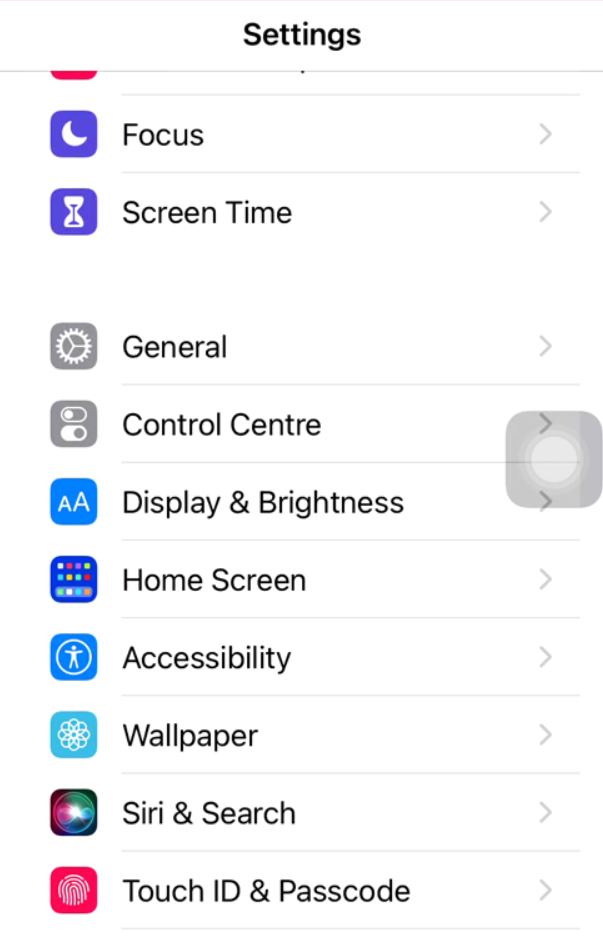
- Scroll down to see the list of apps.
- Make sure the switch is turned ON for the streaming app (Netflix, YouTube, Spotify, etc.).
If it’s off, the app won’t use mobile data at all. Turning it back on usually solves the problem immediately.
2. Ensure Cellular Data is Enabled
- Go to Settings > Cellular.
- Make sure Cellular Data at the top is switched ON.
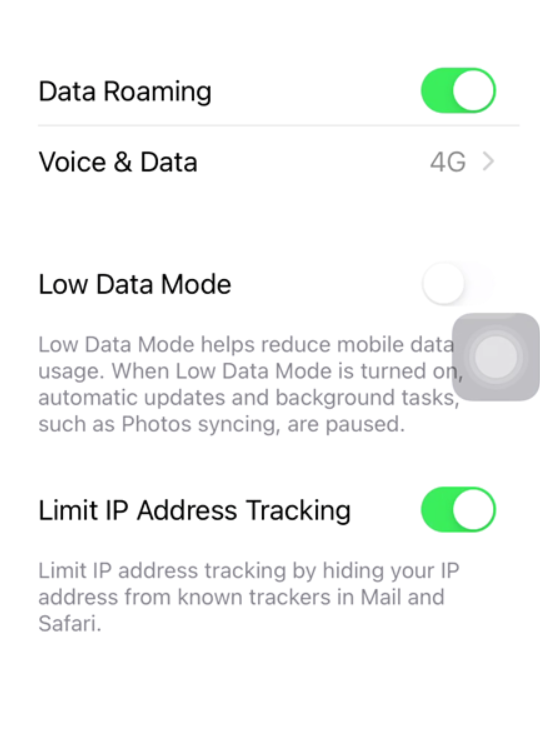
- Also check if Roaming is enabled (if you’re traveling abroad).
3. Check Low Data Mode
- Go to Settings > Cellular > Cellular Data Options.
- See if Low Data Mode is ON.
- If yes, turn it OFF, as it can restrict streaming quality and even stop background activity.
4. Restart Your iPhone
Sometimes a simple restart can solve the issue. To restart:
- Hold the power button + volume down button until the slider appears.
- Slide to power off, wait a few seconds, then turn the phone back on.
5. Update the Streaming App
- Open the App Store.
- Tap your profile icon on the top right.
- Scroll down and see if updates are available for Netflix, YouTube, Hulu, or the app that’s not working.
- Update to the latest version.
6. Update iOS
- Go to Settings > General > Software Update.
- If an update is available, tap Download and Install.
- Many streaming app issues are fixed in the latest iOS patches.
7. Check App-Specific Settings
Each streaming app has its own settings for mobile data:
- Netflix:
Open the Netflix app → Tap your profile → App Settings → Cellular Data Usage → Make sure it’s set to Automatic or Wi-Fi and Cellular Data. - YouTube:
Open YouTube → Tap your profile picture → Settings → Video Quality Preferences → Check that mobile network quality is not restricted to the lowest option. - Spotify:
Open Spotify → Settings → Data Saver → Make sure it’s OFF if you want normal streaming.
8. Reset Network Settings
If none of the above work, reset your iPhone’s network settings.
- Go to Settings > General > Transfer or Reset iPhone > Reset > Reset Network Settings.
- Enter your passcode, confirm reset.
⚠️ Note: This will remove saved Wi-Fi networks and Bluetooth pairings, so you’ll need to reconnect later.
9. Reinstall the Streaming App
- Tap and hold the app → Tap Remove App → Delete.
- Go to the App Store and reinstall it.
This clears any corrupted cache or settings in the app.
10. Contact Carrier Support
If the issue persists, it may be due to carrier restrictions. Some carriers limit high-definition streaming or block certain services on mobile networks. Call your carrier to check.
Bonus Tips
- Try Airplane Mode: Turn on Airplane Mode for 10 seconds, then turn it off. This refreshes the connection.
- Switch to 5G/4G: Go to Settings > Cellular > Cellular Data Options > Voice & Data and switch between 5G and 4G. Sometimes forcing 4G helps.
- Check Data Limit: Make sure you haven’t exceeded your monthly data cap. Some carriers cut off streaming when the limit is reached.
Common FAQs
Q1: Why does Netflix work on Wi-Fi but not on cellular?
A: Most likely, cellular data for Netflix is disabled in your iPhone settings or restricted in the Netflix app settings.
Q2: Does Apple block streaming on mobile data?
A: No, Apple doesn’t. But your carrier may restrict video streaming quality on cellular to save bandwidth.
Q3: Will resetting network settings delete my photos or data?
A: No, it only resets Wi-Fi, Bluetooth, and VPN settings.
Final Thoughts
Streaming apps not working on cellular data on your iPhone can be annoying, but it’s usually caused by simple settings or network issues. Start by checking your cellular data permissions, Low Data Mode, and app-specific settings. If that doesn’t work, try restarting, updating apps and iOS, resetting network settings, or even reinstalling the app.
In most cases, one of these fixes will solve the problem and you’ll be back to watching movies or listening to music on the go without any issues.
✅ With these troubleshooting methods, you should now have your iPhone streaming apps working perfectly on cellular data again.

- How to Remove a Bluetooth Device That Won’t Remove in Windows 11

- Perplexity and NVIDIA launch local AI tools protecting user data privacy.

- Top 5 Chrome Browser VPN Extensions and How to Add Them on Your PC

- How to Delete Locked Files in Windows Using Command Prompt

- How to Connect an External SSD with MacBook, Step by Step Guide

Products
-
![Apple Watch Ultra 3 [GPS + Cellular 49mm] Running & Multisport Smartwatch w/Rugged Titanium Case w/Black Titanium Milanese Loop - M. Satellite Communications, Advanced Health & Fitness Tracking](https://bazaronweb.com/retailstores/wp-content/uploads/2025/09/apple-watch-320x320.jpg) Apple Watch Ultra 3 [GPS + Cellular 49mm] Running & Multisport Smartwatch w/Rugged Titanium Case w/Black Titanium Milanese Loop - M. Satellite Communications, Advanced Health & Fitness Tracking
Apple Watch Ultra 3 [GPS + Cellular 49mm] Running & Multisport Smartwatch w/Rugged Titanium Case w/Black Titanium Milanese Loop - M. Satellite Communications, Advanced Health & Fitness Tracking
-
 Apple iPad mini (A17 Pro): Apple Intelligence, 8.3-inch Liquid Retina Display, 256GB, Wi-Fi 6E, 12MP Front/12MP Back Camera, Touch ID, All-Day Battery Life — Purple
-
 Apple AirPods Max Wireless Over-Ear Headphones, Active Noise Cancelling, Transparency Mode, Personalized Spatial Audio, Dolby Atmos, Bluetooth Headphones for iPhone – Space Gray
-
 Apple AirPods Pro 2 Wireless Earbuds, Active Noise Cancellation, Hearing Aid Feature, Bluetooth Headphones, Transparency, Personalized Spatial Audio, High-Fidelity Sound, H2 Chip, USB-C Charging
-
Home Garage 210 TC Cotton King Floral Fitted (Elastic) Bedsheet(Pack of 1, Grey)
Original price was: ₹999.00.₹299.00Current price is: ₹299.00.
Leave a Reply