Discounted Products
-
 Home Garage 210 TC Cotton King Floral Fitted (Elastic) Bedsheet(Pack of 1, Grey)
Original price was: ₹999.00.₹299.00Current price is: ₹299.00.
Home Garage 210 TC Cotton King Floral Fitted (Elastic) Bedsheet(Pack of 1, Grey)
Original price was: ₹999.00.₹299.00Current price is: ₹299.00.
-
 Goodrik 140 TC Cotton Double 3D Printed Flat Bedsheet(Pack of 1, Brown)
Original price was: ₹499.00.₹229.00Current price is: ₹229.00.
Goodrik 140 TC Cotton Double 3D Printed Flat Bedsheet(Pack of 1, Brown)
Original price was: ₹499.00.₹229.00Current price is: ₹229.00.
-
 GLOBALSHOP 350 TC Microfiber Double Floral Flat Bedsheet(Pack of 1, Multicolor)
Original price was: ₹1,250.00.₹263.00Current price is: ₹263.00.
GLOBALSHOP 350 TC Microfiber Double Floral Flat Bedsheet(Pack of 1, Multicolor)
Original price was: ₹1,250.00.₹263.00Current price is: ₹263.00.
-
 RisingStar 250 TC Microfiber King Printed Fitted (Elastic) Bedsheet(Pack of 1, FITTED-ROUND-CIRCLES-PREMIUM)
Original price was: ₹2,299.00.₹299.00Current price is: ₹299.00.
RisingStar 250 TC Microfiber King Printed Fitted (Elastic) Bedsheet(Pack of 1, FITTED-ROUND-CIRCLES-PREMIUM)
Original price was: ₹2,299.00.₹299.00Current price is: ₹299.00.
-
 Home Garage 210 TC Cotton King Floral Fitted (Elastic) Bedsheet(Pack of 1, Fitted Black Green)
Original price was: ₹1,299.00.₹299.00Current price is: ₹299.00.
Home Garage 210 TC Cotton King Floral Fitted (Elastic) Bedsheet(Pack of 1, Fitted Black Green)
Original price was: ₹1,299.00.₹299.00Current price is: ₹299.00.
-
 Home Garage 180 TC Cotton King 3D Printed Flat Bedsheet(Pack of 1, White)
Original price was: ₹999.00.₹229.00Current price is: ₹229.00.
Home Garage 180 TC Cotton King 3D Printed Flat Bedsheet(Pack of 1, White)
Original price was: ₹999.00.₹229.00Current price is: ₹229.00.
-
 Panipat Textile Hub 152.4 cm (5 ft) Polyester Window Curtain (Pack Of 2)(Solid, Aqua)
Original price was: ₹1,899.00.₹299.00Current price is: ₹299.00.
Panipat Textile Hub 152.4 cm (5 ft) Polyester Window Curtain (Pack Of 2)(Solid, Aqua)
Original price was: ₹1,899.00.₹299.00Current price is: ₹299.00.
-
 Home Sizzler 214 cm (7 ft) Polyester Semi Transparent Door Curtain (Pack Of 2)(Floral, Maroon)
Original price was: ₹1,199.00.₹399.00Current price is: ₹399.00.
Home Sizzler 214 cm (7 ft) Polyester Semi Transparent Door Curtain (Pack Of 2)(Floral, Maroon)
Original price was: ₹1,199.00.₹399.00Current price is: ₹399.00.
-
 Home Sizzler 153 cm (5 ft) Polyester Room Darkening Window Curtain (Pack Of 2)(Floral, Brown)
Original price was: ₹799.00.₹299.00Current price is: ₹299.00.
Home Sizzler 153 cm (5 ft) Polyester Room Darkening Window Curtain (Pack Of 2)(Floral, Brown)
Original price was: ₹799.00.₹299.00Current price is: ₹299.00.
-
 Stella Creations 214 cm (7 ft) Polyester Room Darkening Door Curtain (Pack Of 2)(Abstract, Brown)
Original price was: ₹1,299.00.₹449.00Current price is: ₹449.00.
Stella Creations 214 cm (7 ft) Polyester Room Darkening Door Curtain (Pack Of 2)(Abstract, Brown)
Original price was: ₹1,299.00.₹449.00Current price is: ₹449.00.
-
 Homefab India 152.5 cm (5 ft) Polyester Room Darkening Window Curtain (Pack Of 2)(Floral, Light Blue)
Original price was: ₹1,199.00.₹319.00Current price is: ₹319.00.
Homefab India 152.5 cm (5 ft) Polyester Room Darkening Window Curtain (Pack Of 2)(Floral, Light Blue)
Original price was: ₹1,199.00.₹319.00Current price is: ₹319.00.
-
 Urban Home 214 cm (7 ft) PVC Transparent Door Curtain Single Curtain(Solid, Off White)
Original price was: ₹699.00.₹203.00Current price is: ₹203.00.
Urban Home 214 cm (7 ft) PVC Transparent Door Curtain Single Curtain(Solid, Off White)
Original price was: ₹699.00.₹203.00Current price is: ₹203.00.
-
 Panipat Textile Hub 213 cm (7 ft) Polyester Door Curtain (Pack Of 2)(Solid, Brown)
Original price was: ₹1,199.00.₹349.00Current price is: ₹349.00.
Panipat Textile Hub 213 cm (7 ft) Polyester Door Curtain (Pack Of 2)(Solid, Brown)
Original price was: ₹1,199.00.₹349.00Current price is: ₹349.00.
-
 Home Sizzler 214 cm (7 ft) Polyester Semi Transparent Door Curtain (Pack Of 2)(Floral, Brown)
Original price was: ₹999.00.₹349.00Current price is: ₹349.00.
Home Sizzler 214 cm (7 ft) Polyester Semi Transparent Door Curtain (Pack Of 2)(Floral, Brown)
Original price was: ₹999.00.₹349.00Current price is: ₹349.00.
-
 Panipat Textile Hub 213 cm (7 ft) Polyester Semi Transparent Door Curtain (Pack Of 2)(Floral, Brown)
Original price was: ₹899.00.₹299.00Current price is: ₹299.00.
Panipat Textile Hub 213 cm (7 ft) Polyester Semi Transparent Door Curtain (Pack Of 2)(Floral, Brown)
Original price was: ₹899.00.₹299.00Current price is: ₹299.00.
Removing a Bluetooth device from Windows 11 is normally a simple process. You can open Settings, find the Bluetooth device you no longer want to use, select it, and choose the option to remove or forget it. Once removed, Windows should stop maintaining the existing connection, allowing you to pair the device again later if needed.
However, things do not always work as expected. Sometimes, Windows 11 may continue showing an old Bluetooth device even after you try to remove it. In other situations, clicking Remove device may do nothing, the removal process may fail with an error, or the device may disappear temporarily and return after restarting the computer.
These problems can happen for several reasons. A temporary Windows glitch, malfunctioning Bluetooth services, outdated drivers, corrupted device information, or interference from another Bluetooth connection can prevent a device from being removed correctly.
The good news is that you usually do not need to reset Windows or make complicated system changes. There are several troubleshooting methods you can try, starting with the simplest options and gradually moving toward more advanced solutions.
In this guide, I’ll walk you through the best ways to remove a Bluetooth device that refuses to disappear from Windows 11.
Why Won’t Windows 11 Remove a Bluetooth Device?
Before jumping into troubleshooting, it helps to understand why the problem can occur.
One common reason is a temporary Windows 11 glitch. The Bluetooth settings interface may fail to communicate properly with the Bluetooth service running in the background.
Another possibility is that Windows still considers the device active. This can happen when headphones, keyboards, mice, speakers, or other accessories are connected or attempting to reconnect.
Bluetooth drivers can also cause problems. If the driver is outdated, corrupted, or malfunctioning, Windows may have trouble managing paired devices.
In some cases, the device’s stored pairing information may become corrupted. Windows may continue displaying an incomplete or incorrect record of the device, preventing normal removal.
Fortunately, the solutions below address most of these situations.
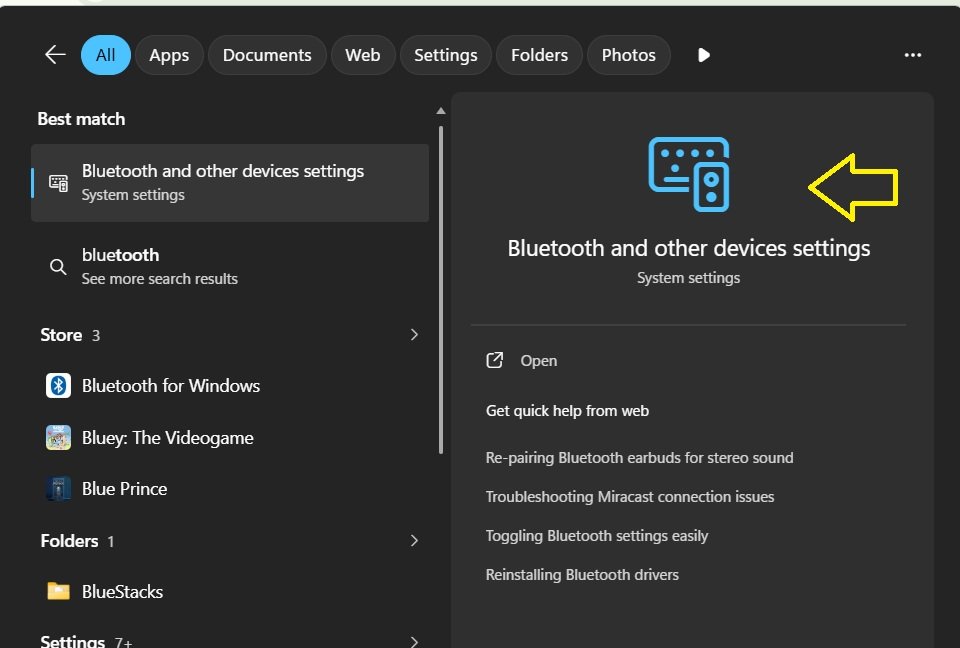
Method 1: Turn Bluetooth Off and On
Before trying advanced troubleshooting, start with a basic Bluetooth reset.
Open Settings using the Windows + I keyboard shortcut.
Select Bluetooth & devices from the left sidebar.
Turn the Bluetooth switch off.
Wait for a few seconds and then turn Bluetooth back on.
Now select Devices and look for the Bluetooth device you want to remove.
Select the three-dot menu next to the device and choose Remove device.
Turning Bluetooth off temporarily can force Windows to refresh its Bluetooth hardware and software state. If the problem was caused by a temporary communication glitch, this simple step may be enough.
If the device still refuses to disappear, move on to the next method.
Method 2: Disconnect the Bluetooth Device First
A Bluetooth device that is currently connected may sometimes be more difficult to remove.
If you’re trying to remove Bluetooth headphones, a mouse, keyboard, speaker, controller, or another accessory, turn the device off first.
You can also move the accessory away from the computer or disable Bluetooth on the accessory if it has such an option.
Then return to:
Settings > Bluetooth & devices > Devices
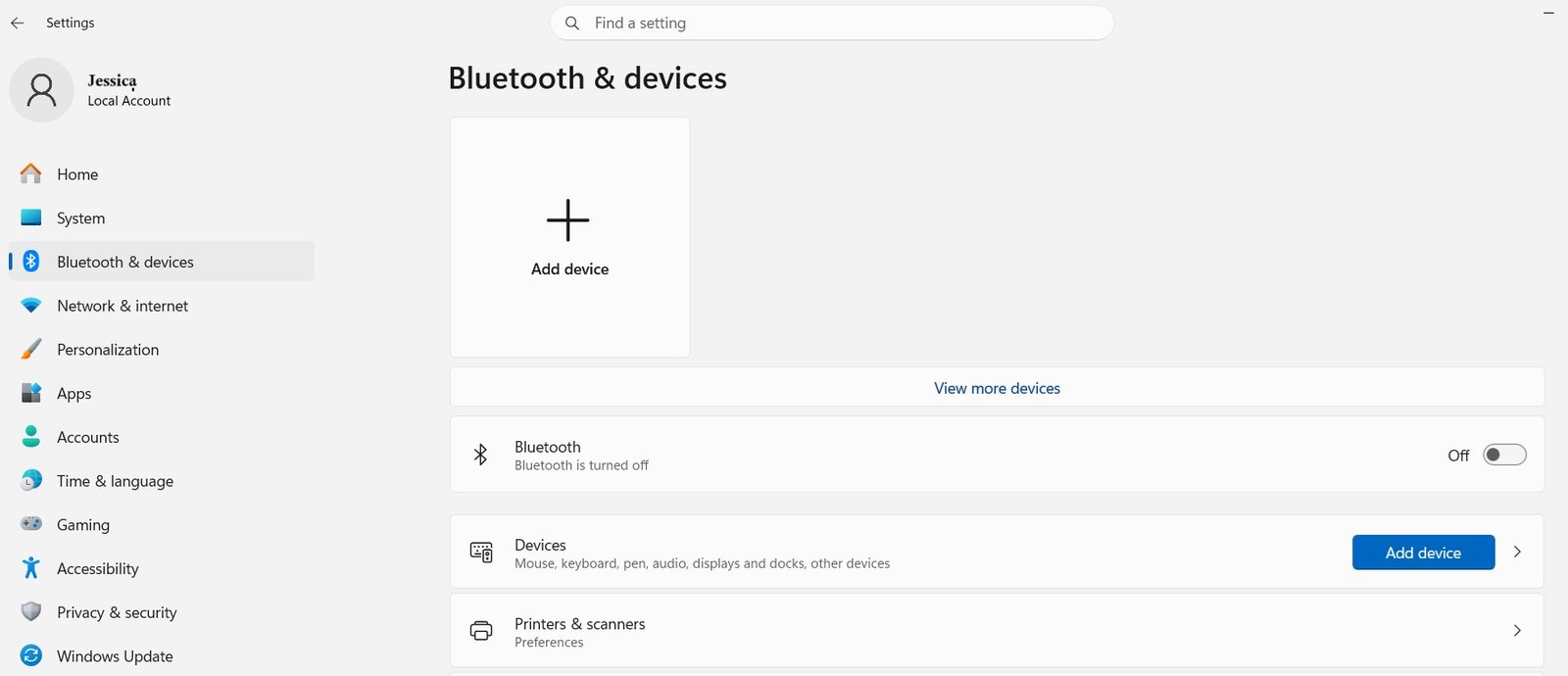
Find the problematic device and select the three-dot menu.
Choose Remove device.
If Windows successfully removes it, restart your PC before pairing the accessory again.
This method is particularly useful when a Bluetooth accessory keeps automatically reconnecting while you’re trying to remove it.
Method 3: Restart the Computer
It may sound obvious, but restarting Windows can resolve Bluetooth problems surprisingly often.
A restart clears temporary system states and reloads important Windows services and drivers.
Select Start > Power > Restart.
After Windows starts again, open Settings > Bluetooth & devices > Devices.
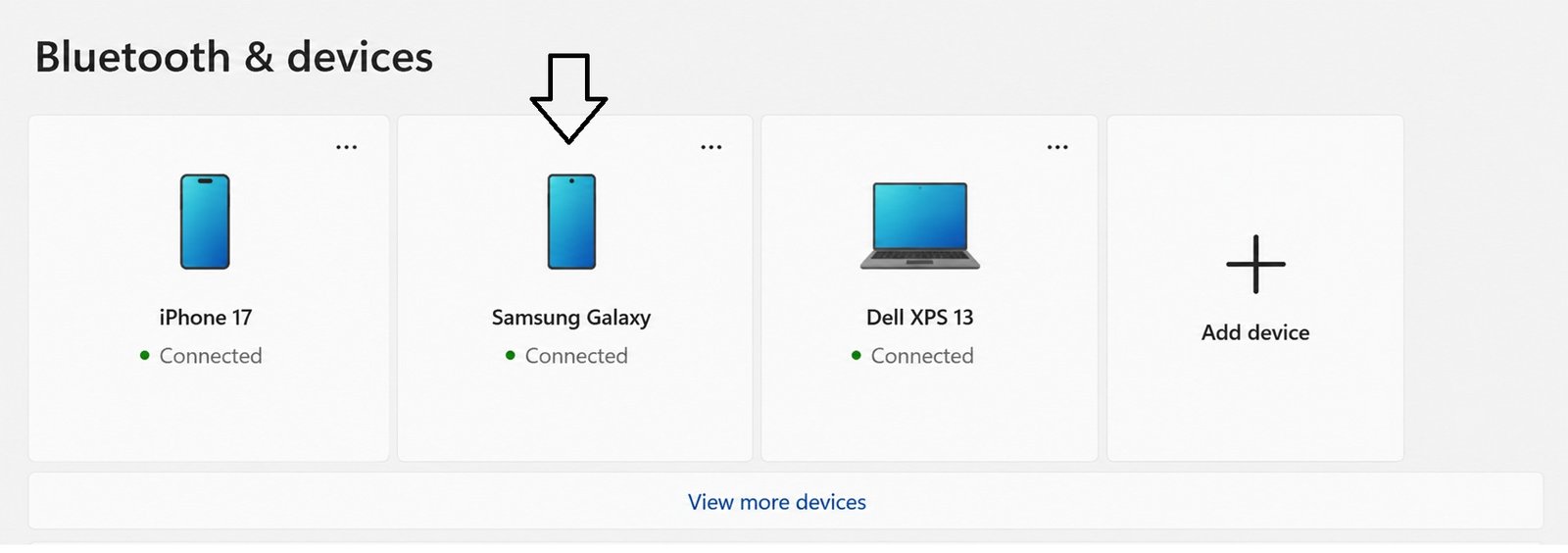
Check whether the unwanted Bluetooth device is still listed.
If it is, try removing it again.
If the device was stuck because of a temporary Windows process or service issue, a restart may resolve the problem without requiring any additional changes.
Method 4: Restart the Bluetooth Support Service
Windows relies on background services to manage Bluetooth functionality. If one of these services becomes stuck, Bluetooth devices may not behave normally.
You can manually restart the Bluetooth Support Service.
Press Windows + R to open the Run dialog.
Type:
services.msc
Press Enter.
The Services window will appear.
Scroll down and locate Bluetooth Support Service.
Right-click it and select Restart.
If Restart is unavailable, select Start.
You can also double-click the service and check its Startup type. For normal Bluetooth operation, Windows should be able to start the service when required.
After restarting the service, return to Bluetooth settings and try removing the device again.
This is one of the most useful fixes when Windows detects Bluetooth devices but cannot properly manage them.
Method 5: Run the Bluetooth Troubleshooter
Windows 11 includes troubleshooting tools designed to identify and fix common hardware and system problems.
Open Settings.
Go to:
System > Troubleshoot > Other troubleshooters
Look for the available Bluetooth-related troubleshooting option.
Run the troubleshooter and follow the instructions shown on the screen.
Depending on your Windows 11 version, Microsoft may provide troubleshooting through the Get Help application instead of the older standalone troubleshooter interface.
The troubleshooting process can check common configuration and connectivity problems and recommend appropriate fixes.
Once it finishes, restart your computer and check the Bluetooth device list again.
Method 6: Update the Bluetooth Driver
An outdated or corrupted Bluetooth driver can cause problems when Windows tries to manage paired devices.
To check the driver, right-click the Start button and select Device Manager.
Expand:
Bluetooth
You should see your computer’s Bluetooth adapter and related devices.
Right-click the Bluetooth adapter and select Update driver.
Choose Search automatically for drivers and allow Windows to check for an available driver.
If Windows reports that the best driver is already installed, you can also check your computer manufacturer’s website for a newer Bluetooth driver.
This is especially useful for laptops because manufacturers sometimes provide customized Bluetooth drivers that are newer or more appropriate than the generic driver available through Windows.
After updating the driver, restart Windows and try removing the Bluetooth device again.
Method 7: Remove the Bluetooth Adapter in Device Manager
If the Bluetooth device remains stuck, you can take a more aggressive approach by removing the Bluetooth adapter from Device Manager.
Open Device Manager.
Expand Bluetooth.
Right-click your primary Bluetooth adapter.
Select Uninstall device.
Windows may display a confirmation window. Follow the instructions to uninstall the device.
Afterward, restart your computer.
Windows will usually detect the Bluetooth hardware during startup and reinstall the appropriate driver automatically.
This process can clear problems caused by a malfunctioning Bluetooth driver or a corrupted driver state.
However, don’t randomly uninstall every entry under Bluetooth. Identify the main Bluetooth adapter first, and if you’re unsure which device it is, check your PC manufacturer’s documentation.
Method 8: Remove Hidden Bluetooth Devices
Sometimes Windows retains information about Bluetooth devices that are no longer actively connected.
Device Manager can help you locate hidden device entries.
Open Device Manager.
Select View from the top menu.
Enable Show hidden devices.
Expand the Bluetooth section.
Look for greyed-out entries associated with the device you are trying to remove.
If you are certain an old device is no longer needed, you can right-click its entry and select Uninstall device.
Be careful when using this method. Do not remove your active Bluetooth adapter simply because its entry appears in the list.
The goal is to remove the stale device entry rather than accidentally disabling Bluetooth functionality on your computer.
Method 9: Use Windows PowerShell
If the graphical Settings interface refuses to remove a Bluetooth device, advanced users can try PowerShell.
First, open PowerShell or Windows Terminal with administrator privileges.
You can find Windows Terminal by searching for it from the Start menu and selecting Run as administrator.
PowerShell can be used to inspect devices installed on Windows and, depending on the device and Windows configuration, remove problematic device entries.
However, this method requires greater caution because commands executed with administrator privileges can affect hardware configuration.
If you aren’t comfortable identifying the correct device instance, it is better to use the Settings, Services, Device Manager, and driver methods first.
For most users, there is no reason to jump directly to command-line troubleshooting.
Method 10: Reset Bluetooth by Reinstalling the Driver
If none of the previous methods work, reinstalling the Bluetooth driver can provide a deeper reset.
Open Device Manager.
Expand Bluetooth.
Right-click your Bluetooth adapter.
Select Uninstall device.
Restart your PC.
After Windows loads, check whether the Bluetooth adapter has been detected again.
If Windows does not automatically install the driver, download the latest Bluetooth driver from your laptop or motherboard manufacturer’s official support website.
Install the driver and restart the computer.
Then open Bluetooth settings and check whether the problematic device can now be removed.
This method is particularly useful if Bluetooth has started behaving strangely across multiple devices rather than just one accessory.
What to Do After Removing the Device
Once Windows successfully removes the Bluetooth device, don’t immediately assume the problem is over.
Restart the computer if you used Device Manager or changed Bluetooth drivers.
If you want to use the same accessory again, place it into pairing mode.
Then go to:
Settings > Bluetooth & devices > Devices > Add device
Select Bluetooth.
Wait for Windows to discover the accessory and select it from the list.
Pair the device again and test its functionality.
If the device works normally after being paired again, the original problem was probably related to corrupted pairing information or a temporary Windows Bluetooth issue.
If the Bluetooth Device Keeps Coming Back
One particularly annoying situation is when a removed Bluetooth device reappears.
This can happen when the accessory is still powered on and attempting to connect, or when Windows retains another associated device entry.
Turn off the physical Bluetooth accessory before removing it.
If it has previously been paired with another nearby phone, tablet, laptop, or computer, temporarily disable Bluetooth on those devices as well.
Then restart your Windows 11 computer and try removing the accessory again.
For headphones and speakers, putting the device into a fresh pairing or factory-reset mode may also help if the accessory itself is retaining old pairing information.
Check the manufacturer’s instructions before performing a factory reset because the exact procedure differs between devices.
When Should You Reset Windows?
You generally should not reset Windows 11 simply because one Bluetooth device cannot be removed.
A Windows reset is a major troubleshooting step and can affect applications, settings, and personal files depending on the reset option selected.
Bluetooth problems are usually much smaller and can often be resolved by restarting the Bluetooth service, updating or reinstalling drivers, removing stale device entries, or restarting the computer.
Consider a larger Windows repair only if Bluetooth is one of several hardware features experiencing persistent system-wide problems and normal troubleshooting has failed.
Conclusion
A Bluetooth device that refuses to disappear from Windows 11 can be frustrating, especially when you simply want to reconnect the accessory or clean up an old device list.
Fortunately, there are several ways to solve the problem.
Start with simple solutions such as turning Bluetooth off and on, disconnecting the accessory, and restarting Windows. If those don’t work, restart the Bluetooth Support Service and run the available Windows troubleshooting tools.
For persistent problems, updating or reinstalling the Bluetooth driver can often restore normal functionality. Device Manager can also help remove stale or hidden device entries that the regular Settings application cannot manage correctly.
The most important thing is to work through the solutions gradually. There is usually no need to make major system changes just because one Bluetooth device refuses to be removed.
In most cases, refreshing the Bluetooth service, clearing the problematic device entry, or reinstalling the Bluetooth driver is enough to get Windows 11 back to normal.
Disclaimer
This article is provided for general informational and educational purposes only. Windows 11 features, menus, troubleshooting tools, Bluetooth drivers, and device-management options may vary depending on the Windows version, hardware manufacturer, installed updates, and device configuration.
Some troubleshooting methods described in this guide, particularly those involving Device Manager, Services, PowerShell, or driver removal, can affect system hardware configuration. Users should proceed carefully and avoid uninstalling devices or drivers unless they are confident they have identified the correct component.
Before making significant system changes, it is recommended to create an appropriate backup or restore point where available. Driver downloads should be obtained from the computer, motherboard, or Bluetooth device manufacturer’s official website whenever possible.
The author and publisher are not responsible for data loss, hardware problems, software issues, connectivity problems, or other consequences resulting from the use or misuse of the information provided in this article.

- How to Remotely Control Another Computer Using Windows Quick Assist

- 5 Must-Have Electronics Gadgets for a More Comfortable Living Room

- How to Create a Windows 11 System Backup on an External Hard Drive

- 10 Smart Home Ideas That Make Everyday Life Easier

- Gemini Live Avatar: How to Talk to Gemini Face-to-Face

Products
-
![Apple Watch Ultra 3 [GPS + Cellular 49mm] Running & Multisport Smartwatch w/Rugged Titanium Case w/Black Titanium Milanese Loop - M. Satellite Communications, Advanced Health & Fitness Tracking](https://bazaronweb.com/retailstores/wp-content/uploads/2025/09/apple-watch-320x320.jpg) Apple Watch Ultra 3 [GPS + Cellular 49mm] Running & Multisport Smartwatch w/Rugged Titanium Case w/Black Titanium Milanese Loop - M. Satellite Communications, Advanced Health & Fitness Tracking
Apple Watch Ultra 3 [GPS + Cellular 49mm] Running & Multisport Smartwatch w/Rugged Titanium Case w/Black Titanium Milanese Loop - M. Satellite Communications, Advanced Health & Fitness Tracking
-
 Apple iPad mini (A17 Pro): Apple Intelligence, 8.3-inch Liquid Retina Display, 256GB, Wi-Fi 6E, 12MP Front/12MP Back Camera, Touch ID, All-Day Battery Life — Purple
-
 Apple AirPods Max Wireless Over-Ear Headphones, Active Noise Cancelling, Transparency Mode, Personalized Spatial Audio, Dolby Atmos, Bluetooth Headphones for iPhone – Space Gray
-
 Apple AirPods Pro 2 Wireless Earbuds, Active Noise Cancellation, Hearing Aid Feature, Bluetooth Headphones, Transparency, Personalized Spatial Audio, High-Fidelity Sound, H2 Chip, USB-C Charging
-
Home Garage 210 TC Cotton King Floral Fitted (Elastic) Bedsheet(Pack of 1, Grey)
Original price was: ₹999.00.₹299.00Current price is: ₹299.00.
Leave a Reply