Discounted Products
-
 Home Garage 210 TC Cotton King Floral Fitted (Elastic) Bedsheet(Pack of 1, Grey)
Original price was: ₹999.00.₹299.00Current price is: ₹299.00.
Home Garage 210 TC Cotton King Floral Fitted (Elastic) Bedsheet(Pack of 1, Grey)
Original price was: ₹999.00.₹299.00Current price is: ₹299.00.
-
 Goodrik 140 TC Cotton Double 3D Printed Flat Bedsheet(Pack of 1, Brown)
Original price was: ₹499.00.₹229.00Current price is: ₹229.00.
Goodrik 140 TC Cotton Double 3D Printed Flat Bedsheet(Pack of 1, Brown)
Original price was: ₹499.00.₹229.00Current price is: ₹229.00.
-
 GLOBALSHOP 350 TC Microfiber Double Floral Flat Bedsheet(Pack of 1, Multicolor)
Original price was: ₹1,250.00.₹263.00Current price is: ₹263.00.
GLOBALSHOP 350 TC Microfiber Double Floral Flat Bedsheet(Pack of 1, Multicolor)
Original price was: ₹1,250.00.₹263.00Current price is: ₹263.00.
-
 RisingStar 250 TC Microfiber King Printed Fitted (Elastic) Bedsheet(Pack of 1, FITTED-ROUND-CIRCLES-PREMIUM)
Original price was: ₹2,299.00.₹299.00Current price is: ₹299.00.
RisingStar 250 TC Microfiber King Printed Fitted (Elastic) Bedsheet(Pack of 1, FITTED-ROUND-CIRCLES-PREMIUM)
Original price was: ₹2,299.00.₹299.00Current price is: ₹299.00.
-
 Home Garage 210 TC Cotton King Floral Fitted (Elastic) Bedsheet(Pack of 1, Fitted Black Green)
Original price was: ₹1,299.00.₹299.00Current price is: ₹299.00.
Home Garage 210 TC Cotton King Floral Fitted (Elastic) Bedsheet(Pack of 1, Fitted Black Green)
Original price was: ₹1,299.00.₹299.00Current price is: ₹299.00.
-
 Home Garage 180 TC Cotton King 3D Printed Flat Bedsheet(Pack of 1, White)
Original price was: ₹999.00.₹229.00Current price is: ₹229.00.
Home Garage 180 TC Cotton King 3D Printed Flat Bedsheet(Pack of 1, White)
Original price was: ₹999.00.₹229.00Current price is: ₹229.00.
-
 Panipat Textile Hub 152.4 cm (5 ft) Polyester Window Curtain (Pack Of 2)(Solid, Aqua)
Original price was: ₹1,899.00.₹299.00Current price is: ₹299.00.
Panipat Textile Hub 152.4 cm (5 ft) Polyester Window Curtain (Pack Of 2)(Solid, Aqua)
Original price was: ₹1,899.00.₹299.00Current price is: ₹299.00.
-
 Home Sizzler 214 cm (7 ft) Polyester Semi Transparent Door Curtain (Pack Of 2)(Floral, Maroon)
Original price was: ₹1,199.00.₹399.00Current price is: ₹399.00.
Home Sizzler 214 cm (7 ft) Polyester Semi Transparent Door Curtain (Pack Of 2)(Floral, Maroon)
Original price was: ₹1,199.00.₹399.00Current price is: ₹399.00.
-
 Home Sizzler 153 cm (5 ft) Polyester Room Darkening Window Curtain (Pack Of 2)(Floral, Brown)
Original price was: ₹799.00.₹299.00Current price is: ₹299.00.
Home Sizzler 153 cm (5 ft) Polyester Room Darkening Window Curtain (Pack Of 2)(Floral, Brown)
Original price was: ₹799.00.₹299.00Current price is: ₹299.00.
-
 Stella Creations 214 cm (7 ft) Polyester Room Darkening Door Curtain (Pack Of 2)(Abstract, Brown)
Original price was: ₹1,299.00.₹449.00Current price is: ₹449.00.
Stella Creations 214 cm (7 ft) Polyester Room Darkening Door Curtain (Pack Of 2)(Abstract, Brown)
Original price was: ₹1,299.00.₹449.00Current price is: ₹449.00.
-
 Homefab India 152.5 cm (5 ft) Polyester Room Darkening Window Curtain (Pack Of 2)(Floral, Light Blue)
Original price was: ₹1,199.00.₹319.00Current price is: ₹319.00.
Homefab India 152.5 cm (5 ft) Polyester Room Darkening Window Curtain (Pack Of 2)(Floral, Light Blue)
Original price was: ₹1,199.00.₹319.00Current price is: ₹319.00.
-
 Urban Home 214 cm (7 ft) PVC Transparent Door Curtain Single Curtain(Solid, Off White)
Original price was: ₹699.00.₹203.00Current price is: ₹203.00.
Urban Home 214 cm (7 ft) PVC Transparent Door Curtain Single Curtain(Solid, Off White)
Original price was: ₹699.00.₹203.00Current price is: ₹203.00.
-
 Panipat Textile Hub 213 cm (7 ft) Polyester Door Curtain (Pack Of 2)(Solid, Brown)
Original price was: ₹1,199.00.₹349.00Current price is: ₹349.00.
Panipat Textile Hub 213 cm (7 ft) Polyester Door Curtain (Pack Of 2)(Solid, Brown)
Original price was: ₹1,199.00.₹349.00Current price is: ₹349.00.
-
 Home Sizzler 214 cm (7 ft) Polyester Semi Transparent Door Curtain (Pack Of 2)(Floral, Brown)
Original price was: ₹999.00.₹349.00Current price is: ₹349.00.
Home Sizzler 214 cm (7 ft) Polyester Semi Transparent Door Curtain (Pack Of 2)(Floral, Brown)
Original price was: ₹999.00.₹349.00Current price is: ₹349.00.
-
 Panipat Textile Hub 213 cm (7 ft) Polyester Semi Transparent Door Curtain (Pack Of 2)(Floral, Brown)
Original price was: ₹899.00.₹299.00Current price is: ₹299.00.
Panipat Textile Hub 213 cm (7 ft) Polyester Semi Transparent Door Curtain (Pack Of 2)(Floral, Brown)
Original price was: ₹899.00.₹299.00Current price is: ₹299.00.
Introduction
If you’ve ever needed to contact customer support, file an insurance claim, resell your phone, or block a lost device, chances are you were asked for your iPhone’s IMEI number. As someone who manages both work and family tech (and yes, kids dropping phones is a real thing 😅), I’ve learned that knowing where to find this number can save a lot of time and stress. IMEI, which stands for International Mobile Equipment Identity, is a unique 15-digit number that identifies your specific iPhone on mobile networks worldwide.
What many users don’t realize is that Apple gives you multiple ways to find the IMEI number—some digital, some physical. Whether your iPhone is working perfectly, stuck on the setup screen, or even lost or damaged, there’s almost always a way to retrieve the IMEI. This guide is designed for everyday iPhone users, not tech experts. I’ll walk you through all the reliable methods step by step, so you can quickly find your IMEI without confusion.
This article focuses on simple, practical instructions that work across most modern iPhone models, including the latest versions. You don’t need extra apps, special tools, or technical knowledge. Just follow along and choose the method that fits your situation best. By the end, you’ll not only know how to find your iPhone’s IMEI number, but also when and why each method is useful.
Method 1: Find IMEI from iPhone Settings
The easiest and most common way to find your IMEI number is directly through your iPhone’s settings. This method works when your phone is powered on and accessible. Start by unlocking your iPhone and opening the Settings app. Scroll down and tap on General, then select About. On this screen, you’ll see detailed information about your device, including the IMEI number.
The IMEI is usually listed clearly with a label, making it easy to identify. If you have a dual SIM iPhone, you may see two IMEI numbers—one for the physical SIM and one for the eSIM. In that case, note down both if required by your carrier or service provider. You can press and hold the IMEI number to copy it instantly, which is helpful when filling online forms or sending details via email or messaging apps.
This method is ideal for quick access and is especially useful during support calls or while setting up mobile services. Since it’s built directly into iOS, it’s reliable and safe. For most users, this will be the fastest and most convenient way to find the IMEI number on an iPhone.
Method 2: Find IMEI Using the Phone Dial Code
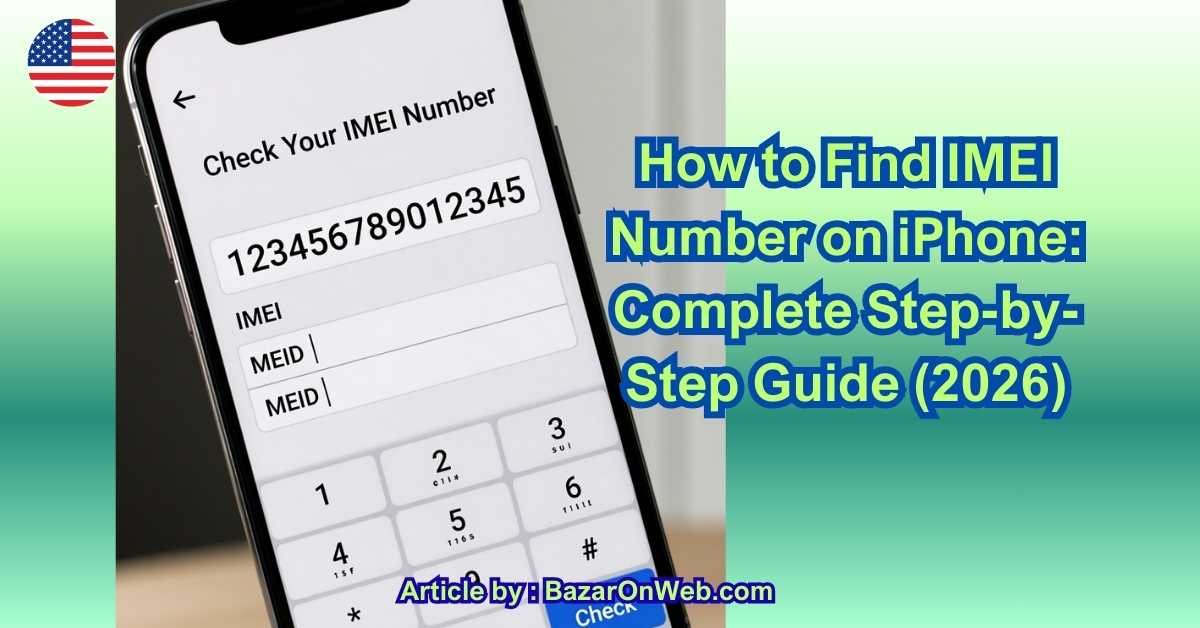
Another quick method to find your iPhone’s IMEI number doesn’t even require opening settings. Apple supports a universal GSM code that instantly displays your IMEI on the screen. Open the Phone app on your iPhone and go to the keypad. Dial *#06# exactly as shown, and within seconds, a screen will pop up displaying your IMEI number.
This method works on almost all iPhones and doesn’t require an active internet connection. It’s especially useful if you’re in a hurry or if navigating settings feels time-consuming. The IMEI shown here can also be copied by long-pressing on the number, depending on your iOS version.
One advantage of this method is that it works even if your iPhone is not fully set up, as long as the Phone app is accessible. However, if your device screen is damaged or unresponsive, you may need to rely on other methods covered later in this guide. Still, for most working devices, this is one of the fastest ways to retrieve the IMEI.
Method 3: Find IMEI on the iPhone Box
If you no longer have access to your iPhone or it won’t turn on, don’t worry. The original iPhone box contains the IMEI number printed on a label. This label is usually located on the back or side of the box and includes other details like the serial number and model number.
This method is extremely useful if your iPhone is lost, stolen, or sent for repair. Many people keep the box stored away, not realizing how important it can be in such situations. If you’re filing a police report or requesting your carrier to block the device, the IMEI from the box is fully valid.
For families like mine, where multiple devices are in use, I recommend taking a photo of the box label or noting down the IMEI somewhere secure. It’s a simple habit that can save hours of trouble later.
Method 4: Find IMEI via Apple ID (iCloud)
You can also find your iPhone’s IMEI number using your Apple ID on another device. Open a browser and sign in to your Apple ID account. Navigate to Devices and select the iPhone linked to your account. The IMEI number will be displayed along with other device details.
This method is perfect if your iPhone is lost or stolen but still linked to your Apple ID. As long as you remember your login credentials, you can access this information from any computer or phone. It’s one of the most reliable backup methods and works even when the device is completely offline.
Method 5: Find IMEI on the SIM Tray or Back of iPhone
On some iPhone models, Apple prints the IMEI number physically on the SIM tray or on the back of the device. You’ll need good lighting and possibly a magnifying glass, as the text can be quite small. Remove the SIM tray carefully and look for the engraved IMEI number.
This method is helpful when the phone won’t power on but the hardware is still intact. However, not all newer models include the IMEI on the SIM tray, so availability may vary depending on your iPhone version.
Conclusion
Finding the IMEI number on an iPhone may seem like a small technical task, but in real-life situations, it becomes incredibly important. Whether you’re dealing with a lost phone, switching carriers, claiming insurance, or reselling your device, the IMEI acts as your iPhone’s unique identity. Knowing multiple ways to access it ensures you’re never stuck, even if your phone is damaged, misplaced, or inaccessible.
What I personally like about Apple’s ecosystem is that it doesn’t limit you to just one method. If your iPhone is working, the Settings app gives you the fastest and clearest access. If you’re in a hurry, the dial code method works instantly. And if your phone is lost or not powering on, options like the original box or your Apple ID account become lifesavers. Each method exists for a reason, and together they cover almost every possible situation.
For dual SIM users, it’s also important to be aware that you may see more than one IMEI number. This isn’t a mistake—it simply reflects how modern iPhones handle physical SIMs and eSIMs. Always confirm which IMEI is required by your carrier or service provider before sharing it. Taking a moment to double-check can prevent unnecessary delays or confusion.
One practical habit I highly recommend—especially for families or professionals managing multiple devices—is to store IMEI numbers securely. A password manager, a secure notes app, or even a printed record kept at home can make a big difference during emergencies. It’s one of those “prepare once, benefit later” things that you don’t realize the value of until you actually need it.
In short, finding your iPhone’s IMEI isn’t complicated, but knowing where and how to find it in different scenarios gives you confidence and control over your device. With this guide, you now have all the tools you need—no guesswork, no stress, just clear steps you can rely on whenever the situation demands it.
Disclaimer
This article is for informational purposes only. Steps and interface options may vary slightly depending on iOS version and iPhone model. Apple may update system settings or device layouts over time. Always refer to official Apple support documentation or your mobile carrier for the most accurate and up-to-date information.

- Killer Network Service: Is It a Virus or Safe to Disable?

- How to Set Up Parental Controls on Windows 11: A Step-by-Step Guide

- How to Extract Audio From a Video: Easy Ways to Save Audio

- How to Set a Photo Album as Your Wallpaper on iPhone: Step-by-Step Guide

- How to Convert a Bootable USB Drive to an ISO File in Windows

Products
-
![Apple Watch Ultra 3 [GPS + Cellular 49mm] Running & Multisport Smartwatch w/Rugged Titanium Case w/Black Titanium Milanese Loop - M. Satellite Communications, Advanced Health & Fitness Tracking](https://bazaronweb.com/retailstores/wp-content/uploads/2025/09/apple-watch-320x320.jpg) Apple Watch Ultra 3 [GPS + Cellular 49mm] Running & Multisport Smartwatch w/Rugged Titanium Case w/Black Titanium Milanese Loop - M. Satellite Communications, Advanced Health & Fitness Tracking
Apple Watch Ultra 3 [GPS + Cellular 49mm] Running & Multisport Smartwatch w/Rugged Titanium Case w/Black Titanium Milanese Loop - M. Satellite Communications, Advanced Health & Fitness Tracking
-
 Apple iPad mini (A17 Pro): Apple Intelligence, 8.3-inch Liquid Retina Display, 256GB, Wi-Fi 6E, 12MP Front/12MP Back Camera, Touch ID, All-Day Battery Life — Purple
-
 Apple AirPods Max Wireless Over-Ear Headphones, Active Noise Cancelling, Transparency Mode, Personalized Spatial Audio, Dolby Atmos, Bluetooth Headphones for iPhone – Space Gray
-
 Apple AirPods Pro 2 Wireless Earbuds, Active Noise Cancellation, Hearing Aid Feature, Bluetooth Headphones, Transparency, Personalized Spatial Audio, High-Fidelity Sound, H2 Chip, USB-C Charging
-
Home Garage 210 TC Cotton King Floral Fitted (Elastic) Bedsheet(Pack of 1, Grey)
Original price was: ₹999.00.₹299.00Current price is: ₹299.00.
Leave a Reply