Discounted Products
-
 Home Garage 210 TC Cotton King Floral Fitted (Elastic) Bedsheet(Pack of 1, Grey)
Original price was: ₹999.00.₹299.00Current price is: ₹299.00.
Home Garage 210 TC Cotton King Floral Fitted (Elastic) Bedsheet(Pack of 1, Grey)
Original price was: ₹999.00.₹299.00Current price is: ₹299.00.
-
 Goodrik 140 TC Cotton Double 3D Printed Flat Bedsheet(Pack of 1, Brown)
Original price was: ₹499.00.₹229.00Current price is: ₹229.00.
Goodrik 140 TC Cotton Double 3D Printed Flat Bedsheet(Pack of 1, Brown)
Original price was: ₹499.00.₹229.00Current price is: ₹229.00.
-
 GLOBALSHOP 350 TC Microfiber Double Floral Flat Bedsheet(Pack of 1, Multicolor)
Original price was: ₹1,250.00.₹263.00Current price is: ₹263.00.
GLOBALSHOP 350 TC Microfiber Double Floral Flat Bedsheet(Pack of 1, Multicolor)
Original price was: ₹1,250.00.₹263.00Current price is: ₹263.00.
-
 RisingStar 250 TC Microfiber King Printed Fitted (Elastic) Bedsheet(Pack of 1, FITTED-ROUND-CIRCLES-PREMIUM)
Original price was: ₹2,299.00.₹299.00Current price is: ₹299.00.
RisingStar 250 TC Microfiber King Printed Fitted (Elastic) Bedsheet(Pack of 1, FITTED-ROUND-CIRCLES-PREMIUM)
Original price was: ₹2,299.00.₹299.00Current price is: ₹299.00.
-
 Home Garage 210 TC Cotton King Floral Fitted (Elastic) Bedsheet(Pack of 1, Fitted Black Green)
Original price was: ₹1,299.00.₹299.00Current price is: ₹299.00.
Home Garage 210 TC Cotton King Floral Fitted (Elastic) Bedsheet(Pack of 1, Fitted Black Green)
Original price was: ₹1,299.00.₹299.00Current price is: ₹299.00.
-
 Home Garage 180 TC Cotton King 3D Printed Flat Bedsheet(Pack of 1, White)
Original price was: ₹999.00.₹229.00Current price is: ₹229.00.
Home Garage 180 TC Cotton King 3D Printed Flat Bedsheet(Pack of 1, White)
Original price was: ₹999.00.₹229.00Current price is: ₹229.00.
-
 Panipat Textile Hub 152.4 cm (5 ft) Polyester Window Curtain (Pack Of 2)(Solid, Aqua)
Original price was: ₹1,899.00.₹299.00Current price is: ₹299.00.
Panipat Textile Hub 152.4 cm (5 ft) Polyester Window Curtain (Pack Of 2)(Solid, Aqua)
Original price was: ₹1,899.00.₹299.00Current price is: ₹299.00.
-
 Home Sizzler 214 cm (7 ft) Polyester Semi Transparent Door Curtain (Pack Of 2)(Floral, Maroon)
Original price was: ₹1,199.00.₹399.00Current price is: ₹399.00.
Home Sizzler 214 cm (7 ft) Polyester Semi Transparent Door Curtain (Pack Of 2)(Floral, Maroon)
Original price was: ₹1,199.00.₹399.00Current price is: ₹399.00.
-
 Home Sizzler 153 cm (5 ft) Polyester Room Darkening Window Curtain (Pack Of 2)(Floral, Brown)
Original price was: ₹799.00.₹299.00Current price is: ₹299.00.
Home Sizzler 153 cm (5 ft) Polyester Room Darkening Window Curtain (Pack Of 2)(Floral, Brown)
Original price was: ₹799.00.₹299.00Current price is: ₹299.00.
-
 Stella Creations 214 cm (7 ft) Polyester Room Darkening Door Curtain (Pack Of 2)(Abstract, Brown)
Original price was: ₹1,299.00.₹449.00Current price is: ₹449.00.
Stella Creations 214 cm (7 ft) Polyester Room Darkening Door Curtain (Pack Of 2)(Abstract, Brown)
Original price was: ₹1,299.00.₹449.00Current price is: ₹449.00.
-
 Homefab India 152.5 cm (5 ft) Polyester Room Darkening Window Curtain (Pack Of 2)(Floral, Light Blue)
Original price was: ₹1,199.00.₹319.00Current price is: ₹319.00.
Homefab India 152.5 cm (5 ft) Polyester Room Darkening Window Curtain (Pack Of 2)(Floral, Light Blue)
Original price was: ₹1,199.00.₹319.00Current price is: ₹319.00.
-
 Urban Home 214 cm (7 ft) PVC Transparent Door Curtain Single Curtain(Solid, Off White)
Original price was: ₹699.00.₹203.00Current price is: ₹203.00.
Urban Home 214 cm (7 ft) PVC Transparent Door Curtain Single Curtain(Solid, Off White)
Original price was: ₹699.00.₹203.00Current price is: ₹203.00.
-
 Panipat Textile Hub 213 cm (7 ft) Polyester Door Curtain (Pack Of 2)(Solid, Brown)
Original price was: ₹1,199.00.₹349.00Current price is: ₹349.00.
Panipat Textile Hub 213 cm (7 ft) Polyester Door Curtain (Pack Of 2)(Solid, Brown)
Original price was: ₹1,199.00.₹349.00Current price is: ₹349.00.
-
 Home Sizzler 214 cm (7 ft) Polyester Semi Transparent Door Curtain (Pack Of 2)(Floral, Brown)
Original price was: ₹999.00.₹349.00Current price is: ₹349.00.
Home Sizzler 214 cm (7 ft) Polyester Semi Transparent Door Curtain (Pack Of 2)(Floral, Brown)
Original price was: ₹999.00.₹349.00Current price is: ₹349.00.
-
 Panipat Textile Hub 213 cm (7 ft) Polyester Semi Transparent Door Curtain (Pack Of 2)(Floral, Brown)
Original price was: ₹899.00.₹299.00Current price is: ₹299.00.
Panipat Textile Hub 213 cm (7 ft) Polyester Semi Transparent Door Curtain (Pack Of 2)(Floral, Brown)
Original price was: ₹899.00.₹299.00Current price is: ₹299.00.
Hey, it’s Jessica.
You download the latest iOS update. Everything seems fine. The progress bar moves. The file installs.
Then suddenly…
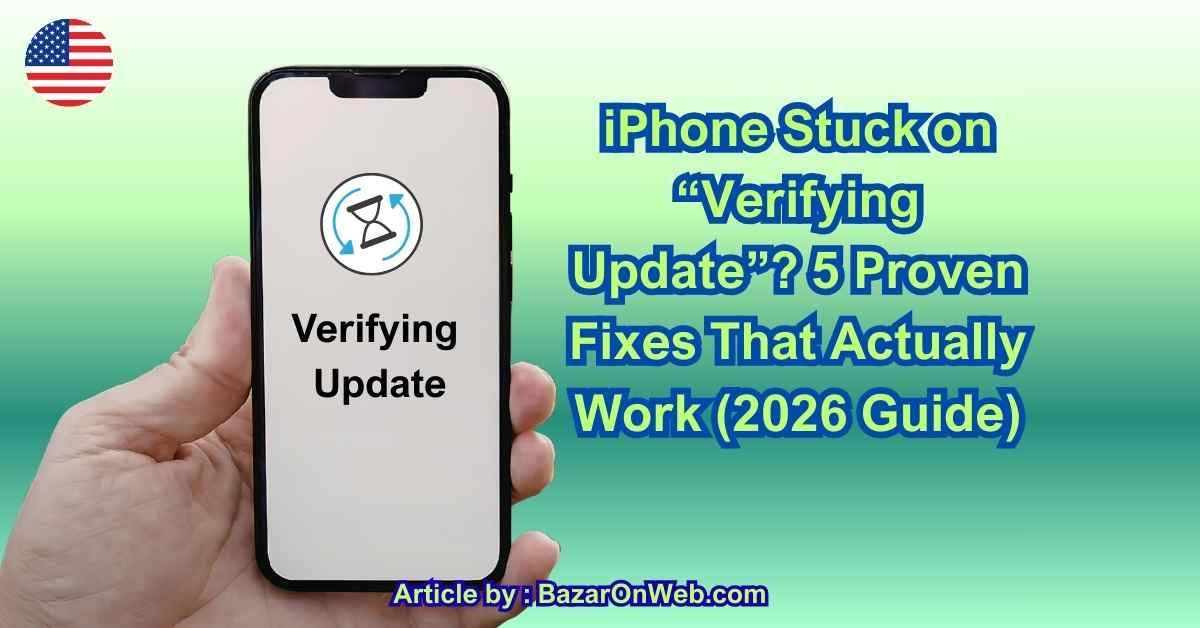
Your iPhone says: “Verifying Update”
And it just sits there.
No progress. No movement. No error message. Just stuck.
If your iPhone is frozen on the “Verifying Update” screen, I know how stressful that feels. You don’t want to force anything and risk damaging the device. You’re wondering:
Is it bricked?
Did the update fail?
Will I lose my data?
Take a breath.
In most cases, this issue is completely fixable — and your data is safe. The “Verifying Update” stage is part of Apple’s security process. When it gets stuck, it’s usually due to connection issues, corrupted update files, low storage, or temporary software glitches.
In this guide, I’ll walk you step-by-step through why this happens and the 5 most effective fixes that actually work in 2026.
Let’s fix it properly.
Why iPhone Gets Stuck on “Verifying Update”
Before jumping to solutions, it helps to understand what’s happening.
When your iPhone says “Verifying Update,” it’s doing three things:
-
Checking update file integrity
-
Verifying compatibility with your device
-
Confirming Apple’s digital security signature
If any of these fail or stall, the process freezes.
Common causes include:
-
Weak or unstable Wi-Fi
-
Corrupted update download
-
Low storage space
-
Apple server delay
-
Software glitch
-
Background app interference
The key is fixing the interruption without causing more problems.
Fix 1: Be Patient (Sometimes It’s Not Actually Stuck)
First, how long has it been stuck?
If it’s been:
-
Less than 10–15 minutes → Wait.
-
30+ minutes with no movement → Likely frozen.
Large iOS updates can take time — especially on older iPhones.
If your device is warm, that’s normal during verification.
But if nothing changes after 30–40 minutes, move to the next fix.
Fix 2: Force Restart Your iPhone (Safe and Effective)
This is the most common solution.
A force restart does NOT erase your data.
Here’s how:
For iPhone 8 and later:
-
Quickly press Volume Up.
-
Quickly press Volume Down.
-
Press and hold the Side button until Apple logo appears.
Let it reboot fully.
If the update was partially verified, the iPhone may resume installation automatically.
If it returns to the Home screen, check:
Settings → General → Software Update
If update still appears pending, continue.
Fix 3: Delete the Update File and Re-Download
Sometimes the update file itself is corrupted.
To remove it:
-
Go to Settings
-
Tap General
-
Tap iPhone Storage
-
Scroll until you see the iOS update file
-
Tap it
-
Tap Delete Update
Now:
-
Restart your iPhone.
-
Connect to strong Wi-Fi.
-
Go back to Settings → General → Software Update
-
Download the update again.
This forces a fresh copy from Apple’s servers.
Corrupted update files are one of the most common reasons for verification freeze.
Fix 4: Check Wi-Fi and Internet Stability
Verification requires internet connection.
If your Wi-Fi drops even briefly, the process may stall.
Do this:
-
Turn Wi-Fi off.
-
Wait 10 seconds.
-
Turn it back on.
-
Move closer to router.
If possible:
Restart your router.
Better yet, try updating using a different Wi-Fi network if available.
Avoid public Wi-Fi during updates.
If internet is unstable, verification cannot complete.
Fix 5: Update Using a Computer (Most Reliable Method)
If the update keeps freezing, using a Mac or Windows PC is the most stable solution.
On Mac (macOS Catalina or later):
-
Connect iPhone via cable.
-
Open Finder.
-
Select your device.
-
Click Check for Update.
-
Choose Update.
On Windows or older Mac:
-
Open iTunes.
-
Connect your iPhone.
-
Click device icon.
-
Click Update.
This method downloads firmware directly and bypasses on-device verification glitches.
Your data remains safe if you choose “Update” instead of “Restore.”
Check Storage Space (Very Important)
If your iPhone storage is almost full, verification may freeze.
Go to:
Settings → General → iPhone Storage
Try to keep:
At least 5–8 GB free before updating.
Delete:
-
Old videos
-
Unused apps
-
Large downloads
Low storage interrupts update verification.
Disable VPN If Active
If you’re using a VPN:
Turn it off temporarily.
VPNs can interfere with Apple server verification.
After update completes, you can turn VPN back on.
Make Sure Date & Time Are Correct
Incorrect date/time can block digital signature verification.
Go to:
Settings → General → Date & Time
Turn on Set Automatically
Restart and retry update.
When It’s Likely an Apple Server Issue
If:
-
Many users report update issues
-
Social media mentions iOS update problems
-
You updated immediately after release
Apple servers may be overloaded.
In that case:
Wait a few hours and try again.
Major iOS releases often cause temporary server congestion.
What NOT to Do
Do NOT:
-
Repeatedly force restart multiple times in a row
-
Attempt random third-party “iOS repair” tools
-
Disconnect device during active installation
-
Panic and restore unless necessary
Most verification freezes are software hiccups — not device failure.
When You Should Use Recovery Mode
If your iPhone is stuck and won’t reboot normally:
-
Connect to computer.
-
Force restart.
-
Keep holding Side button until Recovery Mode screen appears.
Then choose:
Update (not Restore)
This reinstalls iOS without deleting data.
Only use Restore if Update fails repeatedly.
Final Thoughts Before We Continue
When your iPhone gets stuck on “Verifying Update,” it’s usually caused by:
-
Corrupted update file
-
Unstable internet
-
Low storage
-
VPN conflict
-
Temporary software glitch
Start simple:
Wait patiently
Force restart
Delete update file
If needed:
Use computer update method
Most cases are resolved without losing data.
In the next section, we’ll go deeper into recovery mode steps, DFU mode (advanced), and what to do if the screen stays frozen even after restart.
Stay calm — we’ll solve it completely.
If your iPhone is still stuck on “Verifying Update” even after force restarting, deleting the update file, and retrying on strong Wi-Fi, don’t panic. At this stage, we’re moving into structured recovery methods — the kind Apple Support would guide you through.
Your data is still usually safe. We just need to reset the update process properly.
Use Recovery Mode (Safe Advanced Fix)
Recovery Mode reinstalls iOS without erasing your data — as long as you choose Update instead of Restore.
Step 1: Connect to a Computer
Use:
-
A Mac (macOS Catalina or later → Finder)
-
A Windows PC or older Mac → iTunes
Connect your iPhone with a cable.
Step 2: Put iPhone into Recovery Mode
For iPhone 8 and later:
-
Quickly press Volume Up
-
Quickly press Volume Down
-
Press and hold the Side button
-
Keep holding until you see the Recovery Mode screen (cable + computer icon)
Do not release when you see the Apple logo — keep holding.
Step 3: Choose “Update”
Your computer will detect:
“There is a problem with the iPhone that requires it to be updated or restored.”
Click Update.
This downloads a fresh iOS file and reinstalls the system without deleting your data.
This method fixes most stubborn verification freezes.
If Recovery Mode Update Fails
If the update fails again and your iPhone returns to Recovery Mode, you may need to use DFU Mode.
This is more advanced — but extremely powerful.
Use DFU Mode (Deep Firmware Reset)
DFU (Device Firmware Update) mode bypasses the normal boot process entirely and reinstalls firmware from scratch.
Important:
This will erase your data unless you have a backup.
Only use DFU if:
-
Recovery Mode fails
-
Device keeps freezing repeatedly
-
iPhone won’t boot normally
Steps for DFU Mode (iPhone 8 and later)
-
Connect iPhone to computer.
-
Quickly press Volume Up.
-
Quickly press Volume Down.
-
Hold Side button until screen turns black.
-
While holding Side button, press Volume Down for 5 seconds.
-
Release Side button but keep holding Volume Down for 10 seconds.
If screen stays black and computer detects device in recovery, DFU mode worked.
Then choose Restore iPhone.
This installs a completely fresh iOS copy.
What If iPhone Is Frozen and Unresponsive?
If the screen is completely frozen and force restart doesn’t work:
-
Let battery drain fully.
-
Charge it again.
-
Then attempt update or recovery process.
Sometimes a forced power cycle clears deep system freezes.
Check Apple System Status
Occasionally, the issue isn’t your phone at all.
Check:
https://www.apple.com/support/systemstatus/
If iOS Software Update is marked yellow or red, Apple servers may be experiencing delays.
In that case:
Wait and try again later.
Why This Happens During Major iOS Releases
Verification freezes are more common:
-
On day-one updates
-
When millions update simultaneously
-
On older iPhones with limited storage
-
When battery is below 50%
-
When device overheats
Always:
-
Update with at least 50% battery
-
Keep device plugged in
-
Use stable Wi-Fi
-
Have at least 5–8GB free storage
Preparation prevents verification freezes.
How to Prevent This in the Future
Once your iPhone is updated successfully:
1. Free Up Storage Regularly
Keep at least 20% storage free.
2. Restart Before Updating
A quick restart clears background processes.
3. Disable VPN Before Updates
VPN can interrupt Apple server authentication.
4. Avoid Public Wi-Fi
Use secure, stable home Wi-Fi.
5. Update During Off-Peak Hours
Avoid first few hours after major iOS release.
When It Might Be Hardware
Rarely, persistent verification issues may indicate:
-
Failing NAND storage
-
Severe overheating
-
Hardware-level corruption
If:
-
Update fails repeatedly
-
Device overheats excessively
-
iPhone reboots randomly
Visit an Apple Store or authorized service provider.
But this is rare. Most cases are software-level.
The Calm Truth About “Verifying Update” Freezes
When your iPhone gets stuck on “Verifying Update,” it feels like something serious broke.
But in reality, most cases are caused by:
-
Corrupted update file
-
Weak internet
-
Server overload
-
Low storage
-
Minor system glitch
The structured solution path is:
Wait → Force restart → Delete update → Re-download → Update via computer → Recovery Mode → DFU (last resort)
Almost every device can be recovered without permanent damage.
Conclusion
An iPhone stuck on “Verifying Update” is frustrating — but rarely catastrophic.
Start with the simple fixes:
Force restart
Delete and re-download update
Check Wi-Fi stability
If needed:
Use computer update method
Enter Recovery Mode
Use DFU as last resort
Most verification issues are temporary and software-based.
With the right steps — taken calmly and in order — your iPhone can complete the update safely and return to normal operation.
You’re not bricked.
You’re just mid-update.
And now you know exactly how to fix it.
Disclaimer
This guide is for informational purposes only. Recovery Mode and DFU Mode should be performed carefully. Always back up your data before attempting full restore procedures.

- How to Transcribe Audio Live on Your iPhone

- Killer Network Service: Is It a Virus or Safe to Disable?

- How to Set Up Parental Controls on Windows 11: A Step-by-Step Guide

- How to Extract Audio From a Video: Easy Ways to Save Audio

- How to Set a Photo Album as Your Wallpaper on iPhone: Step-by-Step Guide

Products
-
![Apple Watch Ultra 3 [GPS + Cellular 49mm] Running & Multisport Smartwatch w/Rugged Titanium Case w/Black Titanium Milanese Loop - M. Satellite Communications, Advanced Health & Fitness Tracking](https://bazaronweb.com/retailstores/wp-content/uploads/2025/09/apple-watch-320x320.jpg) Apple Watch Ultra 3 [GPS + Cellular 49mm] Running & Multisport Smartwatch w/Rugged Titanium Case w/Black Titanium Milanese Loop - M. Satellite Communications, Advanced Health & Fitness Tracking
Apple Watch Ultra 3 [GPS + Cellular 49mm] Running & Multisport Smartwatch w/Rugged Titanium Case w/Black Titanium Milanese Loop - M. Satellite Communications, Advanced Health & Fitness Tracking
-
 Apple iPad mini (A17 Pro): Apple Intelligence, 8.3-inch Liquid Retina Display, 256GB, Wi-Fi 6E, 12MP Front/12MP Back Camera, Touch ID, All-Day Battery Life — Purple
-
 Apple AirPods Max Wireless Over-Ear Headphones, Active Noise Cancelling, Transparency Mode, Personalized Spatial Audio, Dolby Atmos, Bluetooth Headphones for iPhone – Space Gray
-
 Apple AirPods Pro 2 Wireless Earbuds, Active Noise Cancellation, Hearing Aid Feature, Bluetooth Headphones, Transparency, Personalized Spatial Audio, High-Fidelity Sound, H2 Chip, USB-C Charging
-
Home Garage 210 TC Cotton King Floral Fitted (Elastic) Bedsheet(Pack of 1, Grey)
Original price was: ₹999.00.₹299.00Current price is: ₹299.00.
Leave a Reply