Discounted Products
-
 Home Garage 210 TC Cotton King Floral Fitted (Elastic) Bedsheet(Pack of 1, Grey)
Original price was: ₹999.00.₹299.00Current price is: ₹299.00.
Home Garage 210 TC Cotton King Floral Fitted (Elastic) Bedsheet(Pack of 1, Grey)
Original price was: ₹999.00.₹299.00Current price is: ₹299.00.
-
 Goodrik 140 TC Cotton Double 3D Printed Flat Bedsheet(Pack of 1, Brown)
Original price was: ₹499.00.₹229.00Current price is: ₹229.00.
Goodrik 140 TC Cotton Double 3D Printed Flat Bedsheet(Pack of 1, Brown)
Original price was: ₹499.00.₹229.00Current price is: ₹229.00.
-
 GLOBALSHOP 350 TC Microfiber Double Floral Flat Bedsheet(Pack of 1, Multicolor)
Original price was: ₹1,250.00.₹263.00Current price is: ₹263.00.
GLOBALSHOP 350 TC Microfiber Double Floral Flat Bedsheet(Pack of 1, Multicolor)
Original price was: ₹1,250.00.₹263.00Current price is: ₹263.00.
-
 RisingStar 250 TC Microfiber King Printed Fitted (Elastic) Bedsheet(Pack of 1, FITTED-ROUND-CIRCLES-PREMIUM)
Original price was: ₹2,299.00.₹299.00Current price is: ₹299.00.
RisingStar 250 TC Microfiber King Printed Fitted (Elastic) Bedsheet(Pack of 1, FITTED-ROUND-CIRCLES-PREMIUM)
Original price was: ₹2,299.00.₹299.00Current price is: ₹299.00.
-
 Home Garage 210 TC Cotton King Floral Fitted (Elastic) Bedsheet(Pack of 1, Fitted Black Green)
Original price was: ₹1,299.00.₹299.00Current price is: ₹299.00.
Home Garage 210 TC Cotton King Floral Fitted (Elastic) Bedsheet(Pack of 1, Fitted Black Green)
Original price was: ₹1,299.00.₹299.00Current price is: ₹299.00.
-
 Home Garage 180 TC Cotton King 3D Printed Flat Bedsheet(Pack of 1, White)
Original price was: ₹999.00.₹229.00Current price is: ₹229.00.
Home Garage 180 TC Cotton King 3D Printed Flat Bedsheet(Pack of 1, White)
Original price was: ₹999.00.₹229.00Current price is: ₹229.00.
-
 Panipat Textile Hub 152.4 cm (5 ft) Polyester Window Curtain (Pack Of 2)(Solid, Aqua)
Original price was: ₹1,899.00.₹299.00Current price is: ₹299.00.
Panipat Textile Hub 152.4 cm (5 ft) Polyester Window Curtain (Pack Of 2)(Solid, Aqua)
Original price was: ₹1,899.00.₹299.00Current price is: ₹299.00.
-
 Home Sizzler 214 cm (7 ft) Polyester Semi Transparent Door Curtain (Pack Of 2)(Floral, Maroon)
Original price was: ₹1,199.00.₹399.00Current price is: ₹399.00.
Home Sizzler 214 cm (7 ft) Polyester Semi Transparent Door Curtain (Pack Of 2)(Floral, Maroon)
Original price was: ₹1,199.00.₹399.00Current price is: ₹399.00.
-
 Home Sizzler 153 cm (5 ft) Polyester Room Darkening Window Curtain (Pack Of 2)(Floral, Brown)
Original price was: ₹799.00.₹299.00Current price is: ₹299.00.
Home Sizzler 153 cm (5 ft) Polyester Room Darkening Window Curtain (Pack Of 2)(Floral, Brown)
Original price was: ₹799.00.₹299.00Current price is: ₹299.00.
-
 Stella Creations 214 cm (7 ft) Polyester Room Darkening Door Curtain (Pack Of 2)(Abstract, Brown)
Original price was: ₹1,299.00.₹449.00Current price is: ₹449.00.
Stella Creations 214 cm (7 ft) Polyester Room Darkening Door Curtain (Pack Of 2)(Abstract, Brown)
Original price was: ₹1,299.00.₹449.00Current price is: ₹449.00.
-
 Homefab India 152.5 cm (5 ft) Polyester Room Darkening Window Curtain (Pack Of 2)(Floral, Light Blue)
Original price was: ₹1,199.00.₹319.00Current price is: ₹319.00.
Homefab India 152.5 cm (5 ft) Polyester Room Darkening Window Curtain (Pack Of 2)(Floral, Light Blue)
Original price was: ₹1,199.00.₹319.00Current price is: ₹319.00.
-
 Urban Home 214 cm (7 ft) PVC Transparent Door Curtain Single Curtain(Solid, Off White)
Original price was: ₹699.00.₹203.00Current price is: ₹203.00.
Urban Home 214 cm (7 ft) PVC Transparent Door Curtain Single Curtain(Solid, Off White)
Original price was: ₹699.00.₹203.00Current price is: ₹203.00.
-
 Panipat Textile Hub 213 cm (7 ft) Polyester Door Curtain (Pack Of 2)(Solid, Brown)
Original price was: ₹1,199.00.₹349.00Current price is: ₹349.00.
Panipat Textile Hub 213 cm (7 ft) Polyester Door Curtain (Pack Of 2)(Solid, Brown)
Original price was: ₹1,199.00.₹349.00Current price is: ₹349.00.
-
 Home Sizzler 214 cm (7 ft) Polyester Semi Transparent Door Curtain (Pack Of 2)(Floral, Brown)
Original price was: ₹999.00.₹349.00Current price is: ₹349.00.
Home Sizzler 214 cm (7 ft) Polyester Semi Transparent Door Curtain (Pack Of 2)(Floral, Brown)
Original price was: ₹999.00.₹349.00Current price is: ₹349.00.
-
 Panipat Textile Hub 213 cm (7 ft) Polyester Semi Transparent Door Curtain (Pack Of 2)(Floral, Brown)
Original price was: ₹899.00.₹299.00Current price is: ₹299.00.
Panipat Textile Hub 213 cm (7 ft) Polyester Semi Transparent Door Curtain (Pack Of 2)(Floral, Brown)
Original price was: ₹899.00.₹299.00Current price is: ₹299.00.
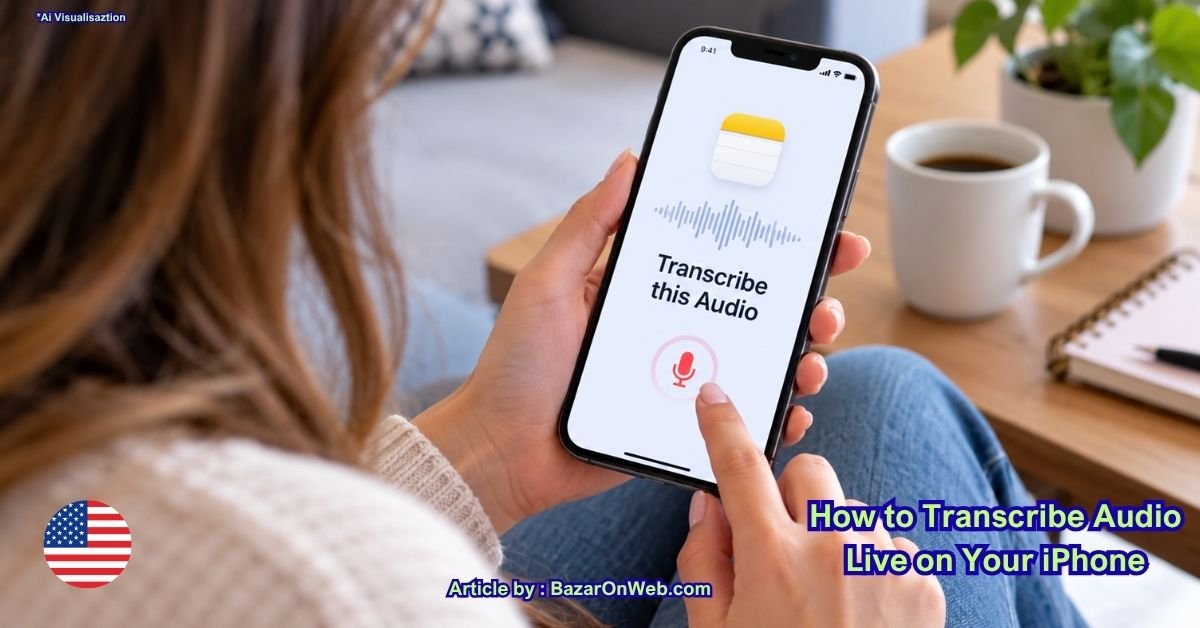
There are plenty of situations where having a written copy of something you hear can be incredibly useful. Maybe you’re recording a meeting, taking notes during a lecture, capturing an interview, or simply recording an idea before you forget it. Typing everything manually can be slow, especially when someone is speaking quickly.
That’s where live audio transcription on iPhone can help.
Apple includes audio transcription directly in the Notes app on supported iPhones. Instead of listening to a recording later and typing everything yourself, your iPhone can convert spoken words into text.
The feature is particularly handy because you don’t necessarily need a separate transcription app. If your iPhone supports the feature and you’re using a supported language, you can record audio and view the spoken content as text.
There is one important catch, though: audio transcription isn’t available on every iPhone or in every language.
Currently, Apple supports Audio Transcription in English varieties including Australia, Canada, Ireland, New Zealand, South Africa, the UK, and the U.S. The feature is also available only on iPhone 12 and later.
So, if you have an iPhone 11 or an older model, you won’t be able to use this particular feature. And if you have a compatible iPhone but your device is configured for an unsupported language or region, you may need to adjust those settings first.
Let’s walk through how the feature works and what you need to know before you start.
What Is Live Audio Transcription on iPhone?
Live audio transcription converts spoken words from an audio recording into written text.
On a supported iPhone, you can use the audio recording feature in Apple’s Notes app and have your spoken audio transcribed. This means the recording and its text can be kept together in the same note.
Think of it as having your iPhone listen while you record and create a written version of what was said.
This can be useful for:
- Meetings and presentations
- College or school lectures
- Interviews
- Personal voice notes
- Brainstorming sessions
- Research
- Conversations you are permitted to record
- Creating written notes from spoken ideas
The biggest advantage is convenience. You don’t have to manually type everything while someone is talking.
Does iPhone Transcribe Audio in Real Time?
Yes, on supported devices and supported languages, iPhone can provide a transcription while you work with an audio recording in Notes.
However, the exact experience can depend on your iOS version, device language, region, and the type of audio you’re recording.
If you don’t see transcription options even though your iPhone appears compatible, checking your language and region settings is one of the first things I recommend.
Which iPhones Support Audio Transcription?
This is an important compatibility requirement.
Apple’s Audio Transcription feature in Notes is available on iPhone 12 and later.
That includes newer generations such as:
- iPhone 12 series
- iPhone 13 series
- iPhone 14 series
- iPhone 15 series
- iPhone 16 series
- iPhone 17 series
- Later compatible iPhone models
If you’re using an iPhone 11, iPhone XS, iPhone XR, or an older model, you shouldn’t expect this specific Notes transcription feature to appear.
How to Check Your iPhone Model
If you’re not sure which iPhone you have, here’s the easiest way to check.
- Open Settings.
- Tap General.
- Tap About.
- Look for Model Name.
You’ll see the exact model of your iPhone listed there.
If the model is iPhone 12 or newer, your hardware meets the basic requirement.
Keep in mind that having a compatible iPhone doesn’t automatically guarantee that every transcription feature will be available. Language and software requirements can also matter.
Which Languages Does iPhone Audio Transcription Support?
Language support is another important part of the equation.
According to the information provided for this feature, Audio Transcription in Notes is currently available in these English variants:
- English (Australia)
- English (Canada)
- English (Ireland)
- English (New Zealand)
- English (South Africa)
- English (UK)
- English (U.S.)
So, if your iPhone is configured with one of these supported language settings, you can use the transcription feature when your device and iOS version meet the other requirements.
What If My Language Isn’t Supported?
This is where things can get a little confusing.
You might have an iPhone 12 or newer and still not see the transcription option because your iPhone is using an unsupported language or regional configuration.
In that situation, you may need to change your Language & Region settings to a supported configuration.
There’s one important thing to keep in mind: changing your iPhone’s language or region can affect other parts of the system. So don’t change these settings casually if you rely on a particular language or regional format.
How to Change Language and Region on iPhone
If your iPhone is compatible but transcription isn’t appearing because of your language or region settings, you can check them from Settings.
Change the iPhone Language
- Open Settings.
- Tap General.
- Select Language & Region.
- Look for iPhone Language.
- Select a supported English language.
- Confirm the change if iPhone asks you to do so.
Your iPhone may briefly update its interface after you change the language.
Check Your Region
While you’re inside Language & Region, also check the Region setting.
Choose an appropriate supported region if necessary.
For example, depending on your requirements, you may see options such as Australia, Canada, Ireland, New Zealand, South Africa, the United Kingdom, or the United States.
After changing these settings, give your iPhone a moment to apply them. Then open Notes again and check whether the transcription option is available.
How to Use Audio Transcription in Apple Notes
Once your iPhone meets the requirements, you can start using the feature from Notes.
Step 1: Open the Notes App
Open Apple’s built-in Notes app.
You can create a new note or open an existing note where you want to keep the recording.
If you’re recording something important, I recommend creating a separate note. That makes it easier to find the recording and its transcription later.
Step 2: Start an Audio Recording
Inside your note, look for the option to add or record audio.
Depending on your iOS version, the interface and icons may look slightly different.
Tap the audio recording option and begin recording.
Speak normally and keep the iPhone close enough to capture the audio clearly.
Step 3: Let Your iPhone Capture the Audio
While you’re recording, try to reduce unnecessary background noise.
For example, if you’re recording a meeting, placing the iPhone somewhere central can produce better results than leaving it at the far end of a large room.
The clearer the audio, the easier it is for the transcription system to understand the words.
Step 4: View the Transcription
After recording, open the audio recording within your note.
If transcription is supported for your device, language, and region, you should be able to access the generated text.
The transcription gives you a written version of the spoken content, making it much easier to review the recording without listening to the entire thing again.
Step 5: Review the Text
Don’t assume that automatic transcription will always be perfect.
Names, technical terms, accents, background conversations, and unclear audio can sometimes result in incorrect words.
Take a moment to read through the transcription and correct anything important.
This is especially useful if you’re planning to use the transcript for work, school, research, or publishing.
How Accurate Is iPhone Audio Transcription?
Audio transcription can be surprisingly useful, but it shouldn’t be treated as a perfect replacement for human proofreading.
Accuracy can depend on several factors.
Speak Clearly
Clear speech generally gives transcription technology a better chance of producing accurate text.
Try not to speak extremely quickly, mumble, or talk while moving the iPhone around.
Reduce Background Noise
A quiet environment can make a noticeable difference.
Air conditioners, televisions, traffic, multiple conversations, and loud music can make it harder to identify the primary speaker.
Keep the iPhone Close
If you’re recording one person speaking, keep the iPhone reasonably close to the speaker.
For meetings with several people, placing the iPhone somewhere central may work better.
Watch Out for Names and Technical Terms
Automatic transcription can struggle with unusual names, company names, product names, abbreviations, and specialized terminology.
If you’re recording something important, always review the text afterward.
Why Can’t I See the Transcription Option?
If you’re looking at your Notes app and don’t see an option for transcription, don’t panic.
There are several things worth checking.
Check Your iPhone Model
First, confirm that you’re using an iPhone 12 or later.
Go to:
Settings > General > About > Model Name
If your iPhone is older than the supported generation, that may explain why the feature isn’t available.
Check Your iOS Version
Make sure your iPhone is running a version of iOS that supports the feature.
To check for updates:
- Open Settings.
- Tap General.
- Tap Software Update.
- Check whether an update is available.
If an update is available and you’re comfortable installing it, update your iPhone and check Notes again.
Check Language and Region
If you have a compatible iPhone but still can’t access transcription, check:
Settings > General > Language & Region
Make sure you’re using a supported language configuration.
This is particularly important if your iPhone is currently configured for a language that isn’t supported by Audio Transcription.
Restart Your iPhone
Sometimes a simple restart is enough to refresh a feature after changing system settings.
After changing your language or region, restart the iPhone and then open Notes again.
Tips for Getting Better Transcriptions
Once you’ve got the feature working, a few simple habits can improve the experience.
Put the iPhone in a Good Position
Don’t cover the microphones with your hand or place the phone somewhere where the microphone could be obstructed.
Record in a Quiet Location
If you’re recording an interview or meeting, choose the quietest practical location.
You don’t need a studio. Even reducing unnecessary background noise can help.
Don’t Talk Over Other People
If multiple people speak at the same time, automatic transcription can become much less reliable.
For interviews or meetings, letting people finish their sentences can make the resulting transcript easier to understand.
Review Important Transcripts
If the transcription will be used for something important, proofread it.
A small transcription mistake can change the meaning of a sentence, particularly when names, numbers, dates, or technical terms are involved.
Can You Use iPhone Transcription for Meetings and Lectures?
Yes, this is one of the situations where the feature can be particularly useful.
For example, a student could record a lecture and later use the transcript to find important sections. A professional could record a meeting and use the written text as a reference while reviewing the original audio.
However, there’s an important practical and legal consideration.
Always make sure you have permission to record other people when required.
Recording laws vary depending on where you live, and workplaces, schools, and organizations may also have their own rules.
The transcription feature itself doesn’t change those requirements.
Live Transcription vs. Manually Typing Notes
If you’ve ever tried to take notes while someone is speaking, you already know how difficult it can be.
You hear a sentence, start typing, miss the next sentence, stop typing, and suddenly you’re trying to catch up.
Audio transcription gives you another option.
Instead of attempting to capture every word manually, you can concentrate on listening and use the transcript as a written reference afterward.
You can still add your own notes around the recording. In many cases, that combination is more useful than trying to create a word-for-word record manually.
Is a Separate Transcription App Necessary?
Not necessarily.
If you have a compatible iPhone and supported language configuration, Apple’s built-in Notes functionality may already provide what you need.
That’s one of the nicest things about using a built-in feature: there’s no need to immediately install another application simply to convert speech into text.
Of course, dedicated transcription services can offer additional features, depending on what you’re trying to accomplish. But for straightforward recordings and notes, Apple’s built-in option is a convenient place to start.
Final Thoughts
Live audio transcription can turn your iPhone into a surprisingly useful note-taking tool.
The biggest thing to remember is that your iPhone needs to meet the compatibility requirements. Audio Transcription in Notes is available on iPhone 12 and later, and the feature currently supports several English language variants, including English for Australia, Canada, Ireland, New Zealand, South Africa, the UK, and the U.S.
If you have a compatible iPhone but can’t find the feature, don’t immediately assume something is wrong with your device. Check your iOS version, language, and region settings first.
Once everything is configured correctly, the process is quite straightforward: open Notes, record your audio, and access the resulting transcription.
And honestly, this is one of those iPhone features that can be easy to overlook until you actually need it. Whether you’re recording a lecture, capturing an interview, remembering an idea, or keeping a written record of a permitted conversation, having your iPhone turn speech into text can save a lot of typing.
The good news is that you don’t need to be particularly technical to use it. Once your iPhone supports the feature, the hardest part may simply be remembering that it’s there.
Disclaimer
Apple’s features, supported devices, languages, and menu names can change with future iOS updates. The availability of Audio Transcription may also vary by device, language, region, and software version. Always check Apple’s current documentation and respect applicable recording and privacy laws before recording other people.

- How to Remotely Control Another Computer Using Windows Quick Assist

- 5 Must-Have Electronics Gadgets for a More Comfortable Living Room

- How to Create a Windows 11 System Backup on an External Hard Drive

- 10 Smart Home Ideas That Make Everyday Life Easier

- Gemini Live Avatar: How to Talk to Gemini Face-to-Face

Products
-
![Apple Watch Ultra 3 [GPS + Cellular 49mm] Running & Multisport Smartwatch w/Rugged Titanium Case w/Black Titanium Milanese Loop - M. Satellite Communications, Advanced Health & Fitness Tracking](https://bazaronweb.com/retailstores/wp-content/uploads/2025/09/apple-watch-320x320.jpg) Apple Watch Ultra 3 [GPS + Cellular 49mm] Running & Multisport Smartwatch w/Rugged Titanium Case w/Black Titanium Milanese Loop - M. Satellite Communications, Advanced Health & Fitness Tracking
Apple Watch Ultra 3 [GPS + Cellular 49mm] Running & Multisport Smartwatch w/Rugged Titanium Case w/Black Titanium Milanese Loop - M. Satellite Communications, Advanced Health & Fitness Tracking
-
 Apple iPad mini (A17 Pro): Apple Intelligence, 8.3-inch Liquid Retina Display, 256GB, Wi-Fi 6E, 12MP Front/12MP Back Camera, Touch ID, All-Day Battery Life — Purple
-
 Apple AirPods Max Wireless Over-Ear Headphones, Active Noise Cancelling, Transparency Mode, Personalized Spatial Audio, Dolby Atmos, Bluetooth Headphones for iPhone – Space Gray
-
 Apple AirPods Pro 2 Wireless Earbuds, Active Noise Cancellation, Hearing Aid Feature, Bluetooth Headphones, Transparency, Personalized Spatial Audio, High-Fidelity Sound, H2 Chip, USB-C Charging
-
Home Garage 210 TC Cotton King Floral Fitted (Elastic) Bedsheet(Pack of 1, Grey)
Original price was: ₹999.00.₹299.00Current price is: ₹299.00.
Leave a Reply