Discounted Products
-
 Home Garage 210 TC Cotton King Floral Fitted (Elastic) Bedsheet(Pack of 1, Grey)
Original price was: ₹999.00.₹299.00Current price is: ₹299.00.
Home Garage 210 TC Cotton King Floral Fitted (Elastic) Bedsheet(Pack of 1, Grey)
Original price was: ₹999.00.₹299.00Current price is: ₹299.00.
-
 Goodrik 140 TC Cotton Double 3D Printed Flat Bedsheet(Pack of 1, Brown)
Original price was: ₹499.00.₹229.00Current price is: ₹229.00.
Goodrik 140 TC Cotton Double 3D Printed Flat Bedsheet(Pack of 1, Brown)
Original price was: ₹499.00.₹229.00Current price is: ₹229.00.
-
 GLOBALSHOP 350 TC Microfiber Double Floral Flat Bedsheet(Pack of 1, Multicolor)
Original price was: ₹1,250.00.₹263.00Current price is: ₹263.00.
GLOBALSHOP 350 TC Microfiber Double Floral Flat Bedsheet(Pack of 1, Multicolor)
Original price was: ₹1,250.00.₹263.00Current price is: ₹263.00.
-
 RisingStar 250 TC Microfiber King Printed Fitted (Elastic) Bedsheet(Pack of 1, FITTED-ROUND-CIRCLES-PREMIUM)
Original price was: ₹2,299.00.₹299.00Current price is: ₹299.00.
RisingStar 250 TC Microfiber King Printed Fitted (Elastic) Bedsheet(Pack of 1, FITTED-ROUND-CIRCLES-PREMIUM)
Original price was: ₹2,299.00.₹299.00Current price is: ₹299.00.
-
 Home Garage 210 TC Cotton King Floral Fitted (Elastic) Bedsheet(Pack of 1, Fitted Black Green)
Original price was: ₹1,299.00.₹299.00Current price is: ₹299.00.
Home Garage 210 TC Cotton King Floral Fitted (Elastic) Bedsheet(Pack of 1, Fitted Black Green)
Original price was: ₹1,299.00.₹299.00Current price is: ₹299.00.
-
 Home Garage 180 TC Cotton King 3D Printed Flat Bedsheet(Pack of 1, White)
Original price was: ₹999.00.₹229.00Current price is: ₹229.00.
Home Garage 180 TC Cotton King 3D Printed Flat Bedsheet(Pack of 1, White)
Original price was: ₹999.00.₹229.00Current price is: ₹229.00.
-
 Panipat Textile Hub 152.4 cm (5 ft) Polyester Window Curtain (Pack Of 2)(Solid, Aqua)
Original price was: ₹1,899.00.₹299.00Current price is: ₹299.00.
Panipat Textile Hub 152.4 cm (5 ft) Polyester Window Curtain (Pack Of 2)(Solid, Aqua)
Original price was: ₹1,899.00.₹299.00Current price is: ₹299.00.
-
 Home Sizzler 214 cm (7 ft) Polyester Semi Transparent Door Curtain (Pack Of 2)(Floral, Maroon)
Original price was: ₹1,199.00.₹399.00Current price is: ₹399.00.
Home Sizzler 214 cm (7 ft) Polyester Semi Transparent Door Curtain (Pack Of 2)(Floral, Maroon)
Original price was: ₹1,199.00.₹399.00Current price is: ₹399.00.
-
 Home Sizzler 153 cm (5 ft) Polyester Room Darkening Window Curtain (Pack Of 2)(Floral, Brown)
Original price was: ₹799.00.₹299.00Current price is: ₹299.00.
Home Sizzler 153 cm (5 ft) Polyester Room Darkening Window Curtain (Pack Of 2)(Floral, Brown)
Original price was: ₹799.00.₹299.00Current price is: ₹299.00.
-
 Stella Creations 214 cm (7 ft) Polyester Room Darkening Door Curtain (Pack Of 2)(Abstract, Brown)
Original price was: ₹1,299.00.₹449.00Current price is: ₹449.00.
Stella Creations 214 cm (7 ft) Polyester Room Darkening Door Curtain (Pack Of 2)(Abstract, Brown)
Original price was: ₹1,299.00.₹449.00Current price is: ₹449.00.
-
 Homefab India 152.5 cm (5 ft) Polyester Room Darkening Window Curtain (Pack Of 2)(Floral, Light Blue)
Original price was: ₹1,199.00.₹319.00Current price is: ₹319.00.
Homefab India 152.5 cm (5 ft) Polyester Room Darkening Window Curtain (Pack Of 2)(Floral, Light Blue)
Original price was: ₹1,199.00.₹319.00Current price is: ₹319.00.
-
 Urban Home 214 cm (7 ft) PVC Transparent Door Curtain Single Curtain(Solid, Off White)
Original price was: ₹699.00.₹203.00Current price is: ₹203.00.
Urban Home 214 cm (7 ft) PVC Transparent Door Curtain Single Curtain(Solid, Off White)
Original price was: ₹699.00.₹203.00Current price is: ₹203.00.
-
 Panipat Textile Hub 213 cm (7 ft) Polyester Door Curtain (Pack Of 2)(Solid, Brown)
Original price was: ₹1,199.00.₹349.00Current price is: ₹349.00.
Panipat Textile Hub 213 cm (7 ft) Polyester Door Curtain (Pack Of 2)(Solid, Brown)
Original price was: ₹1,199.00.₹349.00Current price is: ₹349.00.
-
 Home Sizzler 214 cm (7 ft) Polyester Semi Transparent Door Curtain (Pack Of 2)(Floral, Brown)
Original price was: ₹999.00.₹349.00Current price is: ₹349.00.
Home Sizzler 214 cm (7 ft) Polyester Semi Transparent Door Curtain (Pack Of 2)(Floral, Brown)
Original price was: ₹999.00.₹349.00Current price is: ₹349.00.
-
 Panipat Textile Hub 213 cm (7 ft) Polyester Semi Transparent Door Curtain (Pack Of 2)(Floral, Brown)
Original price was: ₹899.00.₹299.00Current price is: ₹299.00.
Panipat Textile Hub 213 cm (7 ft) Polyester Semi Transparent Door Curtain (Pack Of 2)(Floral, Brown)
Original price was: ₹899.00.₹299.00Current price is: ₹299.00.
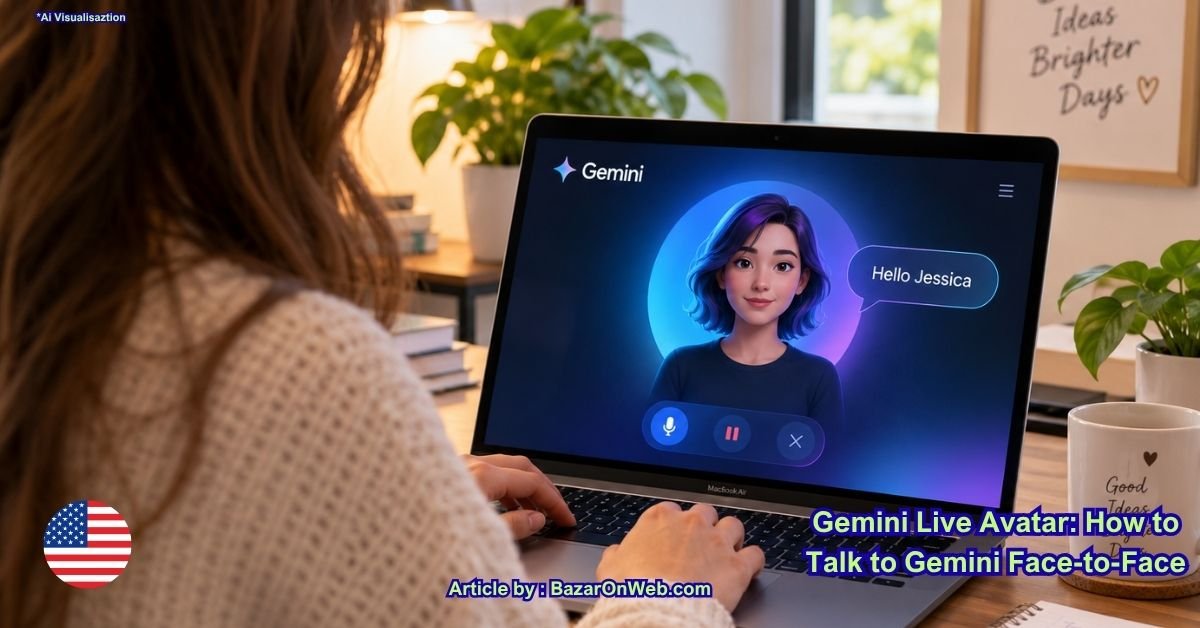
Hello friends, Jessica here! Today, I’m trying something exciting from Google: Gemini 3.8 Live. Imagine talking to an AI assistant instead of typing every question. I’ll show you how to try its voice conversation feature on your Mac and explain what you need to access the animated Live Avatar. Let’s get started!
Meet Gemini 3.8 Live: A More Natural Way to Talk to AI
I enjoy experimenting with Google’s AI tools, and one reason I keep coming back to Gemini is that it gives me plenty of ways to explore ideas, learn new things, and get everyday tasks done.
Now, Google is taking conversational AI a step further with Gemini 3.8 Live.
Imagine sitting at your Mac, asking an AI assistant a question aloud, and hearing its response without having to type a detailed prompt. That’s the idea behind Gemini Live.
The more interesting part is Live Avatar, which adds an animated character with synchronized speech and facial expressions. Instead of hearing a voice alone, you can see an avatar responding as the conversation unfolds.
However, there’s an important distinction. You can try the voice-only Gemini 3.8 Live experience on a computer through Google AI Studio, but the Live Avatar feature is available through Gemini Enterprise. These are two different access routes.
Let’s walk through what you can actually do on your Mac.
Part 1: How to Use Gemini 3.8 Live on a Mac
You don’t need to build an application or write code to try the voice-only experience. Google AI Studio provides a browser-based way to experiment with Gemini models.
Step 1: Open Google AI Studio
On your Mac, open Safari, Chrome, or another supported browser.
Visit Google AI Studio.
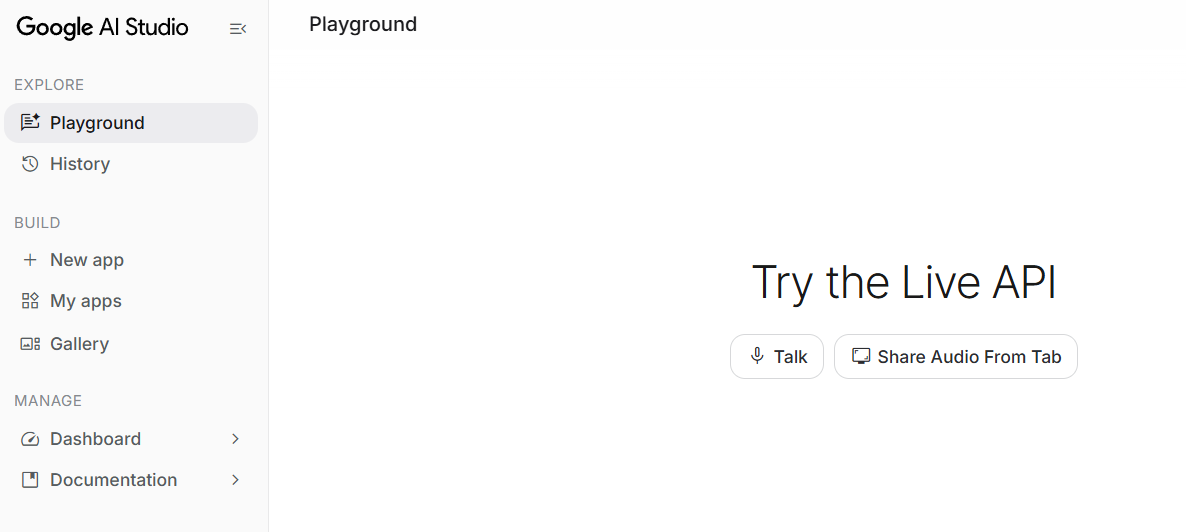
Sign in with your Google account if prompted. Once you’re in, explore the available models and real-time conversation options.
The interface may change as Google updates AI Studio, so the exact position of individual controls can vary.
Step 2: Find the Gemini 3.8 Live Model
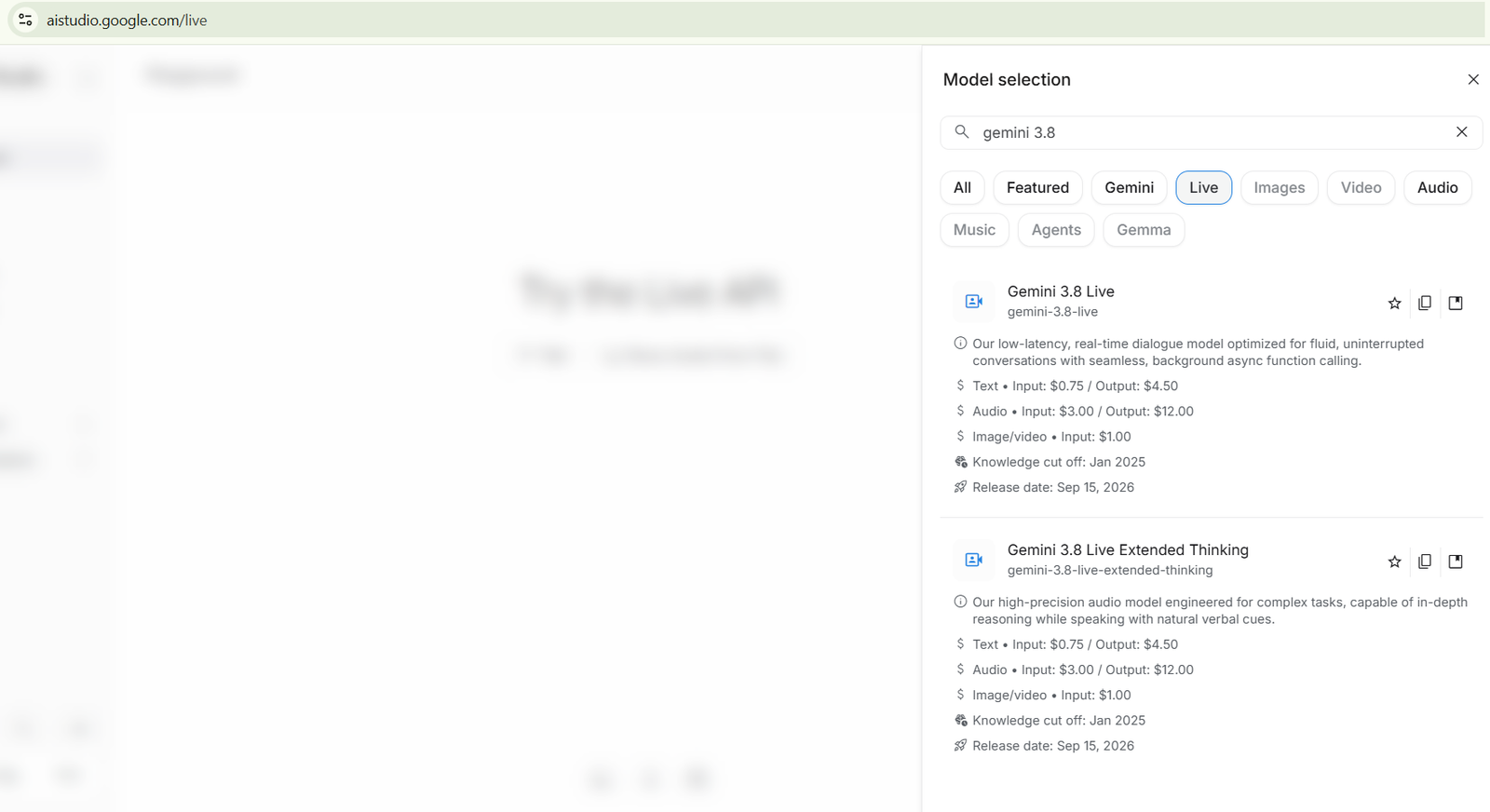
Look for the model selection or real-time interaction interface.
Select Gemini 3.8 Live if it appears among the models available to you.
This is the voice-conversation route, not the animated avatar setup.
If the model isn’t available in your interface, check your account access, regional availability, and the current model list rather than assuming you’ve missed a button.
Step 3: Start a Voice Conversation
Once the real-time interface is ready, follow the available controls to start the session.
Your browser may request microphone permission. Allow access if you’re comfortable speaking to Gemini through your Mac.
Now ask something simple, such as:
“I’m planning my week. Can you help me organize my priorities?”
Gemini can respond conversationally, allowing you to continue with follow-up questions rather than typing each one separately.
Step 4: Try a Longer Conversation
This is where I find voice-based AI particularly useful.
Instead of preparing a perfect prompt, start with an idea and develop it as you go.
For example, say:
“I want to learn a new technology skill. Help me decide where to begin.”
Then ask Gemini to compare your options, explain unfamiliar concepts, or suggest a practical learning plan.
You can explore an idea naturally without repeatedly starting a new chat.
Remember: This procedure gives you the voice-only experience. It does not automatically activate Live Avatar.
Part 2: How to Access Gemini 3.8 Live with Live Avatar
Now let’s get to the animated character shown in demonstrations of Gemini 3.8 Live.
According to Google’s announcement, Live Avatar is available through Gemini Enterprise. It isn’t a feature that every personal Gemini user can activate simply by opening the regular Gemini app.
Step 1: Check Your Enterprise Access
Start by confirming whether you have access to Gemini Enterprise and the Live Avatar experience.
If you’re using a personal Google account, you shouldn’t assume that the feature will appear automatically.
Enterprise availability and access permissions matter here.
Google’s official announcement is available at Introducing Gemini 3.8 Live with Live Avatar.
Step 2: Open the Available Live Avatar Experience
If your organization has access, follow the setup route provided for your Gemini Enterprise environment.
The exact interface depends on the access method and configuration available to your organization. Don’t expect the ordinary Gemini chat screen to necessarily contain an avatar button.
If you’re an administrator or developer setting up the feature, consult Google’s Gemini API documentation for the applicable integration instructions.
Step 3: Choose an Available Avatar
The Live Avatar experience includes a library of preset characters.
Where the relevant controls are available, select an avatar and configure the supported voice options for the session.
The avatar supplies the visual presence, while Gemini provides the conversational intelligence behind the interaction.
Step 4: Start Talking
Once the session is configured and started, speak naturally to the assistant.
Ask a question, wait for its response, and continue the conversation.
The experience combines spoken interaction with synchronized avatar video, including lip movements and facial expressions.
It’s a different experience from a conventional chatbot because you’re seeing a visual character respond as the conversation happens.
Can You Create Your Own Gemini Avatar?
Yes, Google has described custom Live Avatars, but there’s an important restriction.
Custom avatar creation currently requires enterprise allowlisting.
That means you shouldn’t expect to upload any photograph to a personal Gemini account and instantly turn it into a custom live character.
Google describes the ability to create animated avatars from suitable reference images while preserving elements such as a person’s likeness or a brand’s visual identity.
This could be useful for businesses building virtual assistants, interactive customer support experiences, or branded conversational agents.
However, organizations need the appropriate access and should have permission to use the likeness of anyone represented by a custom avatar.
What Can You Do With Gemini Live?
Whether you’re experimenting with voice-only conversations or using an available avatar experience, there are several practical ways to work with conversational AI.
Brainstorm Content Ideas
You could ask Gemini to help you plan a video, develop article topics, or think through a marketing campaign.
Start with a rough idea and ask follow-up questions until you have something useful.
Learn a New Skill
Ask Gemini to explain a technical concept in everyday language. If the explanation is confusing, request a simpler example.
You can also ask questions as you learn rather than preparing a long list in advance.
Practice Conversations
You can use conversational AI to rehearse an interview, prepare for a presentation, or practice a customer-service scenario.
The voice-based format makes it possible to practice speaking rather than merely reading suggested responses.
Work Through Everyday Problems
Need help planning a trip, organizing a schedule, or comparing a couple of options? Start talking through the problem and ask Gemini to help you evaluate possible solutions.
Just remember to verify important information rather than assuming every AI response is correct.
What If You Cannot Find Live Avatar?
If you open Gemini and can’t find an avatar option, don’t spend half an hour searching through the settings.
Check these points first:
- You’re using the right product: Regular Gemini Live and Gemini 3.8 Live with Live Avatar aren’t interchangeable.
- Your account has access: The avatar experience is an enterprise offering, with availability dependent on the relevant access arrangements.
- You’re following the appropriate setup instructions: Google AI Studio is the route for trying the voice-only model on a computer; it doesn’t automatically provide the enterprise avatar experience.
- Your browser has microphone permission: This matters when starting a voice conversation.
- You’re checking current documentation: Google can update model availability, interfaces, and access requirements.
If the model or feature isn’t listed, it may simply not be available to your account.
My Take: Is Gemini 3.8 Live Worth Trying?
Absolutely, if you enjoy experimenting with AI.
I like being able to talk through an idea without having to stop and type every thought. Voice interaction can make brainstorming, learning, and exploring unfamiliar subjects feel much more natural.
The animated avatar takes that concept further by giving the conversation a visual presence. I can see why businesses might find it interesting for virtual assistants, customer support, and interactive experiences.
But I also want to be clear about the distinction: trying voice-only Gemini Live on your Mac is not the same as accessing Live Avatar.
If you simply want to experiment, start with Google AI Studio. If you specifically want the animated character, check whether you have access to the Gemini Enterprise feature.
That way, you can try the experience that is actually available to you without wasting time looking for controls that may not exist in your account.
Disclaimer: Google’s model names, interfaces, availability, and access requirements may change. Live Avatar availability is subject to Google’s current enterprise access arrangements. Check official Google documentation before setting up the feature.

- How to Remotely Control Another Computer Using Windows Quick Assist

- 5 Must-Have Electronics Gadgets for a More Comfortable Living Room

- How to Create a Windows 11 System Backup on an External Hard Drive

- 10 Smart Home Ideas That Make Everyday Life Easier

- Gemini Live Avatar: How to Talk to Gemini Face-to-Face

Products
-
![Apple Watch Ultra 3 [GPS + Cellular 49mm] Running & Multisport Smartwatch w/Rugged Titanium Case w/Black Titanium Milanese Loop - M. Satellite Communications, Advanced Health & Fitness Tracking](https://bazaronweb.com/retailstores/wp-content/uploads/2025/09/apple-watch-320x320.jpg) Apple Watch Ultra 3 [GPS + Cellular 49mm] Running & Multisport Smartwatch w/Rugged Titanium Case w/Black Titanium Milanese Loop - M. Satellite Communications, Advanced Health & Fitness Tracking
Apple Watch Ultra 3 [GPS + Cellular 49mm] Running & Multisport Smartwatch w/Rugged Titanium Case w/Black Titanium Milanese Loop - M. Satellite Communications, Advanced Health & Fitness Tracking
-
 Apple iPad mini (A17 Pro): Apple Intelligence, 8.3-inch Liquid Retina Display, 256GB, Wi-Fi 6E, 12MP Front/12MP Back Camera, Touch ID, All-Day Battery Life — Purple
-
 Apple AirPods Max Wireless Over-Ear Headphones, Active Noise Cancelling, Transparency Mode, Personalized Spatial Audio, Dolby Atmos, Bluetooth Headphones for iPhone – Space Gray
-
 Apple AirPods Pro 2 Wireless Earbuds, Active Noise Cancellation, Hearing Aid Feature, Bluetooth Headphones, Transparency, Personalized Spatial Audio, High-Fidelity Sound, H2 Chip, USB-C Charging
-
Home Garage 210 TC Cotton King Floral Fitted (Elastic) Bedsheet(Pack of 1, Grey)
Original price was: ₹999.00.₹299.00Current price is: ₹299.00.
Leave a Reply