Discounted Products
-
 Home Garage 210 TC Cotton King Floral Fitted (Elastic) Bedsheet(Pack of 1, Grey)
Original price was: ₹999.00.₹299.00Current price is: ₹299.00.
Home Garage 210 TC Cotton King Floral Fitted (Elastic) Bedsheet(Pack of 1, Grey)
Original price was: ₹999.00.₹299.00Current price is: ₹299.00.
-
 Goodrik 140 TC Cotton Double 3D Printed Flat Bedsheet(Pack of 1, Brown)
Original price was: ₹499.00.₹229.00Current price is: ₹229.00.
Goodrik 140 TC Cotton Double 3D Printed Flat Bedsheet(Pack of 1, Brown)
Original price was: ₹499.00.₹229.00Current price is: ₹229.00.
-
 GLOBALSHOP 350 TC Microfiber Double Floral Flat Bedsheet(Pack of 1, Multicolor)
Original price was: ₹1,250.00.₹263.00Current price is: ₹263.00.
GLOBALSHOP 350 TC Microfiber Double Floral Flat Bedsheet(Pack of 1, Multicolor)
Original price was: ₹1,250.00.₹263.00Current price is: ₹263.00.
-
 RisingStar 250 TC Microfiber King Printed Fitted (Elastic) Bedsheet(Pack of 1, FITTED-ROUND-CIRCLES-PREMIUM)
Original price was: ₹2,299.00.₹299.00Current price is: ₹299.00.
RisingStar 250 TC Microfiber King Printed Fitted (Elastic) Bedsheet(Pack of 1, FITTED-ROUND-CIRCLES-PREMIUM)
Original price was: ₹2,299.00.₹299.00Current price is: ₹299.00.
-
 Home Garage 210 TC Cotton King Floral Fitted (Elastic) Bedsheet(Pack of 1, Fitted Black Green)
Original price was: ₹1,299.00.₹299.00Current price is: ₹299.00.
Home Garage 210 TC Cotton King Floral Fitted (Elastic) Bedsheet(Pack of 1, Fitted Black Green)
Original price was: ₹1,299.00.₹299.00Current price is: ₹299.00.
-
 Home Garage 180 TC Cotton King 3D Printed Flat Bedsheet(Pack of 1, White)
Original price was: ₹999.00.₹229.00Current price is: ₹229.00.
Home Garage 180 TC Cotton King 3D Printed Flat Bedsheet(Pack of 1, White)
Original price was: ₹999.00.₹229.00Current price is: ₹229.00.
-
 Panipat Textile Hub 152.4 cm (5 ft) Polyester Window Curtain (Pack Of 2)(Solid, Aqua)
Original price was: ₹1,899.00.₹299.00Current price is: ₹299.00.
Panipat Textile Hub 152.4 cm (5 ft) Polyester Window Curtain (Pack Of 2)(Solid, Aqua)
Original price was: ₹1,899.00.₹299.00Current price is: ₹299.00.
-
 Home Sizzler 214 cm (7 ft) Polyester Semi Transparent Door Curtain (Pack Of 2)(Floral, Maroon)
Original price was: ₹1,199.00.₹399.00Current price is: ₹399.00.
Home Sizzler 214 cm (7 ft) Polyester Semi Transparent Door Curtain (Pack Of 2)(Floral, Maroon)
Original price was: ₹1,199.00.₹399.00Current price is: ₹399.00.
-
 Home Sizzler 153 cm (5 ft) Polyester Room Darkening Window Curtain (Pack Of 2)(Floral, Brown)
Original price was: ₹799.00.₹299.00Current price is: ₹299.00.
Home Sizzler 153 cm (5 ft) Polyester Room Darkening Window Curtain (Pack Of 2)(Floral, Brown)
Original price was: ₹799.00.₹299.00Current price is: ₹299.00.
-
 Stella Creations 214 cm (7 ft) Polyester Room Darkening Door Curtain (Pack Of 2)(Abstract, Brown)
Original price was: ₹1,299.00.₹449.00Current price is: ₹449.00.
Stella Creations 214 cm (7 ft) Polyester Room Darkening Door Curtain (Pack Of 2)(Abstract, Brown)
Original price was: ₹1,299.00.₹449.00Current price is: ₹449.00.
-
 Homefab India 152.5 cm (5 ft) Polyester Room Darkening Window Curtain (Pack Of 2)(Floral, Light Blue)
Original price was: ₹1,199.00.₹319.00Current price is: ₹319.00.
Homefab India 152.5 cm (5 ft) Polyester Room Darkening Window Curtain (Pack Of 2)(Floral, Light Blue)
Original price was: ₹1,199.00.₹319.00Current price is: ₹319.00.
-
 Urban Home 214 cm (7 ft) PVC Transparent Door Curtain Single Curtain(Solid, Off White)
Original price was: ₹699.00.₹203.00Current price is: ₹203.00.
Urban Home 214 cm (7 ft) PVC Transparent Door Curtain Single Curtain(Solid, Off White)
Original price was: ₹699.00.₹203.00Current price is: ₹203.00.
-
 Panipat Textile Hub 213 cm (7 ft) Polyester Door Curtain (Pack Of 2)(Solid, Brown)
Original price was: ₹1,199.00.₹349.00Current price is: ₹349.00.
Panipat Textile Hub 213 cm (7 ft) Polyester Door Curtain (Pack Of 2)(Solid, Brown)
Original price was: ₹1,199.00.₹349.00Current price is: ₹349.00.
-
 Home Sizzler 214 cm (7 ft) Polyester Semi Transparent Door Curtain (Pack Of 2)(Floral, Brown)
Original price was: ₹999.00.₹349.00Current price is: ₹349.00.
Home Sizzler 214 cm (7 ft) Polyester Semi Transparent Door Curtain (Pack Of 2)(Floral, Brown)
Original price was: ₹999.00.₹349.00Current price is: ₹349.00.
-
 Panipat Textile Hub 213 cm (7 ft) Polyester Semi Transparent Door Curtain (Pack Of 2)(Floral, Brown)
Original price was: ₹899.00.₹299.00Current price is: ₹299.00.
Panipat Textile Hub 213 cm (7 ft) Polyester Semi Transparent Door Curtain (Pack Of 2)(Floral, Brown)
Original price was: ₹899.00.₹299.00Current price is: ₹299.00.
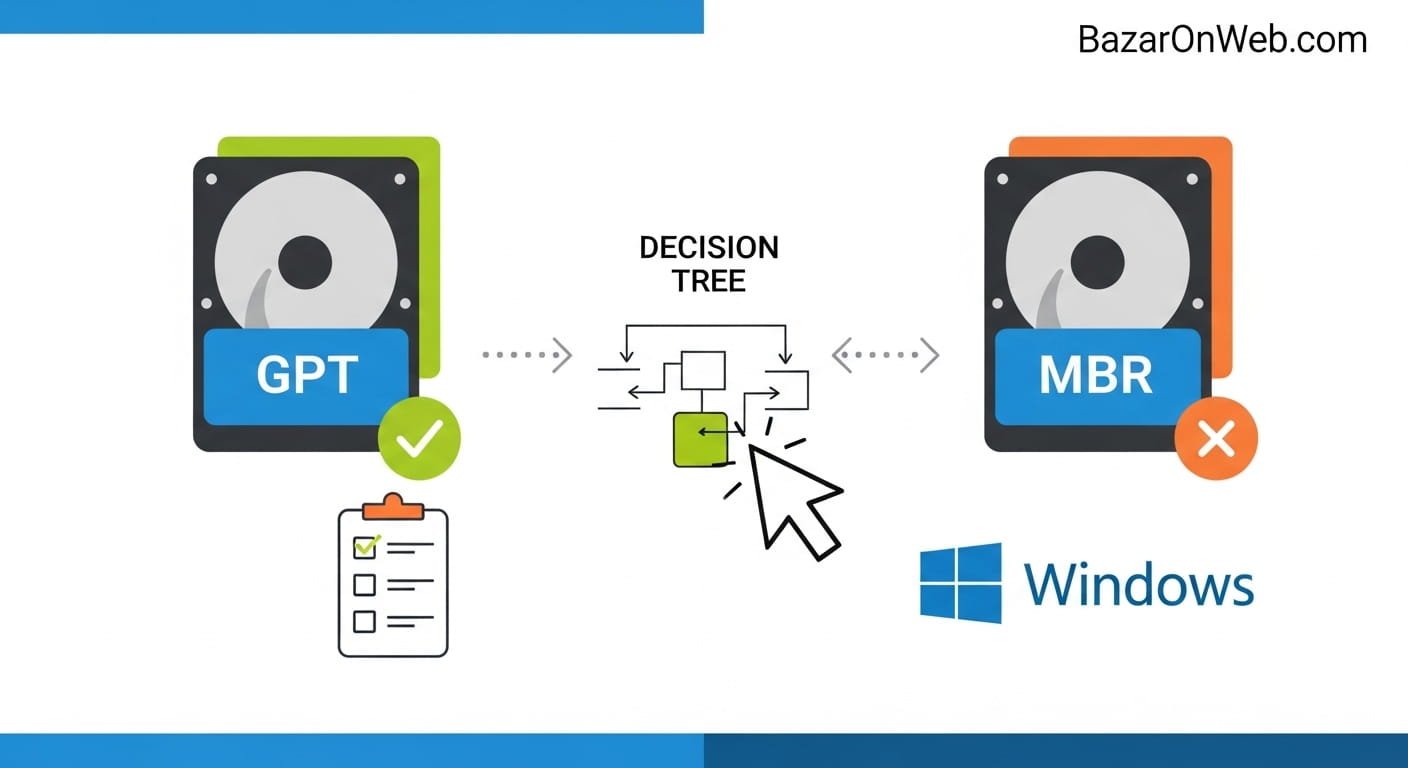
Hi, I’m Jessica, and I still remember the first time I tried installing Windows on my laptop after upgrading the SSD. Everything seemed fine until I hit a confusing error about partitions—GPT, MBR, UEFI, BIOS… it felt like a different language altogether. If you’ve ever faced a similar situation, you’re definitely not alone. Understanding whether your disk is using GPT or MBR is one of those small but crucial steps that can make or break your Windows installation process.
In simple terms, GPT (GUID Partition Table) and MBR (Master Boot Record) are two different ways your disk is structured. The choice between them affects how your system boots and what features you can use. Modern systems prefer GPT because it works with UEFI firmware and supports larger drives, while MBR is tied to older BIOS systems. Knowing which one your disk uses helps you avoid installation errors, compatibility issues, and unnecessary frustration.
In this guide, I’ll walk you through everything you need to know—clearly and practically—so you can check your disk type in Windows and make the right decisions for your system setup.
What Are GPT and MBR Partition Styles?
Before jumping into the steps, it’s important to understand what GPT and MBR actually mean. These are partition styles that define how data is organized on your storage drive. They determine how your system reads the disk and where important information like boot data is stored.
MBR, or Master Boot Record, is the older partitioning system that has been around for decades. It stores partition information in a small section at the beginning of the disk and supports up to four primary partitions. While it works well for older systems, it has limitations in terms of disk size and flexibility.
GPT, or GUID Partition Table, is the modern alternative. It’s designed to overcome the limitations of MBR. GPT allows for a large number of partitions and supports disks larger than 2TB. It also stores multiple copies of partition data, making it more reliable and less prone to corruption.
Understanding these differences helps you see why GPT is preferred in modern Windows installations, especially when using UEFI firmware.
Why It Matters Whether Your Disk Is GPT or MBR
You might be wondering why this distinction is so important. The answer lies in compatibility and performance. The partition style of your disk directly affects how your system boots and how efficiently it runs.
If your system uses UEFI firmware, it typically requires a GPT disk to boot Windows. On the other hand, systems running legacy BIOS mode depend on MBR. If there’s a mismatch—for example, trying to install Windows in UEFI mode on an MBR disk—you’ll encounter errors during installation.
Additionally, GPT offers better performance and reliability. It supports larger drives, allows more partitions, and includes redundancy features that help prevent data loss. MBR, while still functional, lacks these advantages.
For users installing newer versions of Windows like Windows 10 or Windows 11, GPT is usually the recommended option. Knowing your disk type ensures you’re using the right setup and avoids unnecessary troubleshooting.
Method 1: Check Disk Type Using Disk Management
One of the easiest ways to check whether your disk is GPT or MBR is through the built-in Disk Management tool in Windows. This method doesn’t require any technical expertise and can be done in just a few clicks.
Start by right-clicking on the Start menu and selecting “Disk Management.” Once the window opens, you’ll see a list of all connected drives. Locate the disk you want to check, then right-click on its label (for example, Disk 0) and choose “Properties.”
In the Properties window, navigate to the “Volumes” tab. Here, you’ll find a field labeled “Partition style.” This will clearly indicate whether your disk is using GUID Partition Table (GPT) or Master Boot Record (MBR).
This method is particularly useful for beginners because it provides a visual interface and straightforward information. It’s also safe, as you’re only viewing details and not making any changes to your disk.
Method 2: Use Command Prompt to Identify Disk Type
If you prefer a more technical approach or want a quicker method, Command Prompt is a powerful tool for checking disk types. It’s especially useful for advanced users or those comfortable with command-line interfaces.
Begin by opening Command Prompt as an administrator. Type “diskpart” and press Enter. This will launch the DiskPart utility. Next, type “list disk” and press Enter again. You’ll see a table displaying all available disks.
Look for a column labeled “GPT.” If there’s an asterisk (*) under this column next to a disk, it means the disk is using GPT. If there’s no asterisk, the disk is using MBR.
This method is efficient and provides instant results. However, it requires careful handling, as DiskPart is a powerful tool that can modify disk structures if used incorrectly. Always ensure you’re only using commands meant for checking information.
Method 3: Check Disk Type Using Windows PowerShell
Windows PowerShell offers another reliable way to determine whether your disk is GPT or MBR. It combines the power of command-line tools with a more modern interface, making it a great option for users who want precision and flexibility.
To begin, right-click the Start menu and select “Windows PowerShell (Admin).” Once the window opens, type the command “Get-Disk” and press Enter. This will display a list of all disks along with their details.
In the output, look for the “Partition Style” column. It will clearly show whether each disk is GPT or MBR. This method is straightforward and provides additional information about your disks, such as size and status.
PowerShell is particularly useful for IT professionals and advanced users who want to manage multiple disks or automate tasks. It’s a versatile tool that goes beyond simple checks.
Differences Between GPT and MBR in Practical Use
Understanding the practical differences between GPT and MBR can help you make informed decisions when setting up or upgrading your system. These differences go beyond technical definitions and directly impact usability.
GPT supports disks larger than 2TB, making it ideal for modern storage solutions. It also allows for more partitions without the need for extended partitions, which simplifies disk management. Additionally, GPT includes redundancy features that store multiple copies of partition data, enhancing reliability.
MBR, on the other hand, is limited to 2TB and supports only four primary partitions. While it’s compatible with older systems, it lacks the advanced features of GPT. This makes it less suitable for modern computing environments.
In real-world scenarios, GPT is the better choice for most users, especially those using newer hardware and operating systems.
When Should You Convert MBR to GPT?
There are situations where converting your disk from MBR to GPT becomes necessary. This is especially true if you’re upgrading your system or installing a newer version of Windows.
If your system supports UEFI and you want to take advantage of faster boot times and improved security features, switching to GPT is a smart move. It’s also essential if your disk size exceeds 2TB, as MBR cannot handle larger capacities.
However, converting a disk is not something to take lightly. It may require backing up your data, as some methods involve deleting existing partitions. Fortunately, Windows provides tools like MBR2GPT that allow conversion without data loss in certain cases.
Always ensure your system supports UEFI before making the switch. Proper planning can save you from data loss and compatibility issues.
Common Errors Related to GPT and MBR
Many users encounter errors during Windows installation بسبب incorrect partition styles. One of the most common messages is “Windows cannot be installed on this disk,” which often points to a mismatch between disk type and boot mode.
For example, trying to install Windows in UEFI mode on an MBR disk will result in an error. Similarly, attempting installation in BIOS mode on a GPT disk can also cause issues. These errors can be frustrating but are usually easy to fix once you understand the root cause.
The key is to ensure that your disk type matches your system’s firmware mode. If needed, you can convert the disk or change the boot mode in your BIOS/UEFI settings.
Being aware of these common errors helps you troubleshoot quickly and avoid unnecessary delays during installation.
How to Check BIOS or UEFI Mode in Windows
Knowing your disk type is only part of the equation. You also need to check whether your system is using BIOS or UEFI mode. This determines which partition style is compatible with your setup.
To check this, press Windows + R, type “msinfo32,” and press Enter. In the System Information window, look for “BIOS Mode.” It will display either “Legacy” or “UEFI.”
If your system is using UEFI, GPT is the recommended partition style. If it’s using Legacy BIOS, MBR is required. Matching these correctly ensures smooth system operation and successful Windows installation.
This simple check can save you from many common errors and helps you configure your system properly.
Best Practices for Choosing Between GPT and MBR
Choosing between GPT and MBR depends on your system configuration and future needs. For most modern users, GPT is the preferred option due to its advanced features and compatibility with UEFI systems.
If you’re building a new PC or installing Windows on a new drive, always opt for GPT. It provides better performance, supports larger disks, and offers improved reliability. It’s also the standard for newer operating systems.
However, if you’re working with older hardware that only supports BIOS, MBR may still be necessary. In such cases, compatibility takes priority over features.
Planning ahead and understanding your system requirements will help you make the right choice and avoid complications later.
Final Thoughts on Checking Disk Partition Style
Checking whether your disk is GPT or MBR is a simple yet essential step in managing your system effectively. It helps you ensure compatibility, avoid installation errors, and make informed decisions about upgrades and configurations.
With tools like Disk Management, Command Prompt, and PowerShell, Windows makes it easy to identify your disk type. Each method offers a different level of detail and convenience, allowing you to choose what works best for you.
By understanding the differences between GPT and MBR and knowing when to use each, you can confidently handle system setups and avoid common pitfalls. Whether you’re a beginner or an experienced user, this knowledge is invaluable.
Disclaimer
This guide is intended for informational and educational purposes only. While every effort has been made to ensure accuracy, system configurations and results may vary. Always back up your data before making changes to disk partitions or system settings. The author is not responsible for any data loss or system issues arising from the use of this information.






Products
-
![Apple Watch Ultra 3 [GPS + Cellular 49mm] Running & Multisport Smartwatch w/Rugged Titanium Case w/Black Titanium Milanese Loop - M. Satellite Communications, Advanced Health & Fitness Tracking](https://bazaronweb.com/retailstores/wp-content/uploads/2025/09/apple-watch-320x320.jpg) Apple Watch Ultra 3 [GPS + Cellular 49mm] Running & Multisport Smartwatch w/Rugged Titanium Case w/Black Titanium Milanese Loop - M. Satellite Communications, Advanced Health & Fitness Tracking
Apple Watch Ultra 3 [GPS + Cellular 49mm] Running & Multisport Smartwatch w/Rugged Titanium Case w/Black Titanium Milanese Loop - M. Satellite Communications, Advanced Health & Fitness Tracking
-
 Apple iPad mini (A17 Pro): Apple Intelligence, 8.3-inch Liquid Retina Display, 256GB, Wi-Fi 6E, 12MP Front/12MP Back Camera, Touch ID, All-Day Battery Life — Purple
-
 Apple AirPods Max Wireless Over-Ear Headphones, Active Noise Cancelling, Transparency Mode, Personalized Spatial Audio, Dolby Atmos, Bluetooth Headphones for iPhone – Space Gray
-
 Apple AirPods Pro 2 Wireless Earbuds, Active Noise Cancellation, Hearing Aid Feature, Bluetooth Headphones, Transparency, Personalized Spatial Audio, High-Fidelity Sound, H2 Chip, USB-C Charging
-
Home Garage 210 TC Cotton King Floral Fitted (Elastic) Bedsheet(Pack of 1, Grey)
Original price was: ₹999.00.₹299.00Current price is: ₹299.00.
Leave a Reply