Discounted Products
-
 Home Garage 210 TC Cotton King Floral Fitted (Elastic) Bedsheet(Pack of 1, Grey)
Original price was: ₹999.00.₹299.00Current price is: ₹299.00.
Home Garage 210 TC Cotton King Floral Fitted (Elastic) Bedsheet(Pack of 1, Grey)
Original price was: ₹999.00.₹299.00Current price is: ₹299.00.
-
 Goodrik 140 TC Cotton Double 3D Printed Flat Bedsheet(Pack of 1, Brown)
Original price was: ₹499.00.₹229.00Current price is: ₹229.00.
Goodrik 140 TC Cotton Double 3D Printed Flat Bedsheet(Pack of 1, Brown)
Original price was: ₹499.00.₹229.00Current price is: ₹229.00.
-
 GLOBALSHOP 350 TC Microfiber Double Floral Flat Bedsheet(Pack of 1, Multicolor)
Original price was: ₹1,250.00.₹263.00Current price is: ₹263.00.
GLOBALSHOP 350 TC Microfiber Double Floral Flat Bedsheet(Pack of 1, Multicolor)
Original price was: ₹1,250.00.₹263.00Current price is: ₹263.00.
-
 RisingStar 250 TC Microfiber King Printed Fitted (Elastic) Bedsheet(Pack of 1, FITTED-ROUND-CIRCLES-PREMIUM)
Original price was: ₹2,299.00.₹299.00Current price is: ₹299.00.
RisingStar 250 TC Microfiber King Printed Fitted (Elastic) Bedsheet(Pack of 1, FITTED-ROUND-CIRCLES-PREMIUM)
Original price was: ₹2,299.00.₹299.00Current price is: ₹299.00.
-
 Home Garage 210 TC Cotton King Floral Fitted (Elastic) Bedsheet(Pack of 1, Fitted Black Green)
Original price was: ₹1,299.00.₹299.00Current price is: ₹299.00.
Home Garage 210 TC Cotton King Floral Fitted (Elastic) Bedsheet(Pack of 1, Fitted Black Green)
Original price was: ₹1,299.00.₹299.00Current price is: ₹299.00.
-
 Home Garage 180 TC Cotton King 3D Printed Flat Bedsheet(Pack of 1, White)
Original price was: ₹999.00.₹229.00Current price is: ₹229.00.
Home Garage 180 TC Cotton King 3D Printed Flat Bedsheet(Pack of 1, White)
Original price was: ₹999.00.₹229.00Current price is: ₹229.00.
-
 Panipat Textile Hub 152.4 cm (5 ft) Polyester Window Curtain (Pack Of 2)(Solid, Aqua)
Original price was: ₹1,899.00.₹299.00Current price is: ₹299.00.
Panipat Textile Hub 152.4 cm (5 ft) Polyester Window Curtain (Pack Of 2)(Solid, Aqua)
Original price was: ₹1,899.00.₹299.00Current price is: ₹299.00.
-
 Home Sizzler 214 cm (7 ft) Polyester Semi Transparent Door Curtain (Pack Of 2)(Floral, Maroon)
Original price was: ₹1,199.00.₹399.00Current price is: ₹399.00.
Home Sizzler 214 cm (7 ft) Polyester Semi Transparent Door Curtain (Pack Of 2)(Floral, Maroon)
Original price was: ₹1,199.00.₹399.00Current price is: ₹399.00.
-
 Home Sizzler 153 cm (5 ft) Polyester Room Darkening Window Curtain (Pack Of 2)(Floral, Brown)
Original price was: ₹799.00.₹299.00Current price is: ₹299.00.
Home Sizzler 153 cm (5 ft) Polyester Room Darkening Window Curtain (Pack Of 2)(Floral, Brown)
Original price was: ₹799.00.₹299.00Current price is: ₹299.00.
-
 Stella Creations 214 cm (7 ft) Polyester Room Darkening Door Curtain (Pack Of 2)(Abstract, Brown)
Original price was: ₹1,299.00.₹449.00Current price is: ₹449.00.
Stella Creations 214 cm (7 ft) Polyester Room Darkening Door Curtain (Pack Of 2)(Abstract, Brown)
Original price was: ₹1,299.00.₹449.00Current price is: ₹449.00.
-
 Homefab India 152.5 cm (5 ft) Polyester Room Darkening Window Curtain (Pack Of 2)(Floral, Light Blue)
Original price was: ₹1,199.00.₹319.00Current price is: ₹319.00.
Homefab India 152.5 cm (5 ft) Polyester Room Darkening Window Curtain (Pack Of 2)(Floral, Light Blue)
Original price was: ₹1,199.00.₹319.00Current price is: ₹319.00.
-
 Urban Home 214 cm (7 ft) PVC Transparent Door Curtain Single Curtain(Solid, Off White)
Original price was: ₹699.00.₹203.00Current price is: ₹203.00.
Urban Home 214 cm (7 ft) PVC Transparent Door Curtain Single Curtain(Solid, Off White)
Original price was: ₹699.00.₹203.00Current price is: ₹203.00.
-
 Panipat Textile Hub 213 cm (7 ft) Polyester Door Curtain (Pack Of 2)(Solid, Brown)
Original price was: ₹1,199.00.₹349.00Current price is: ₹349.00.
Panipat Textile Hub 213 cm (7 ft) Polyester Door Curtain (Pack Of 2)(Solid, Brown)
Original price was: ₹1,199.00.₹349.00Current price is: ₹349.00.
-
 Home Sizzler 214 cm (7 ft) Polyester Semi Transparent Door Curtain (Pack Of 2)(Floral, Brown)
Original price was: ₹999.00.₹349.00Current price is: ₹349.00.
Home Sizzler 214 cm (7 ft) Polyester Semi Transparent Door Curtain (Pack Of 2)(Floral, Brown)
Original price was: ₹999.00.₹349.00Current price is: ₹349.00.
-
 Panipat Textile Hub 213 cm (7 ft) Polyester Semi Transparent Door Curtain (Pack Of 2)(Floral, Brown)
Original price was: ₹899.00.₹299.00Current price is: ₹299.00.
Panipat Textile Hub 213 cm (7 ft) Polyester Semi Transparent Door Curtain (Pack Of 2)(Floral, Brown)
Original price was: ₹899.00.₹299.00Current price is: ₹299.00.
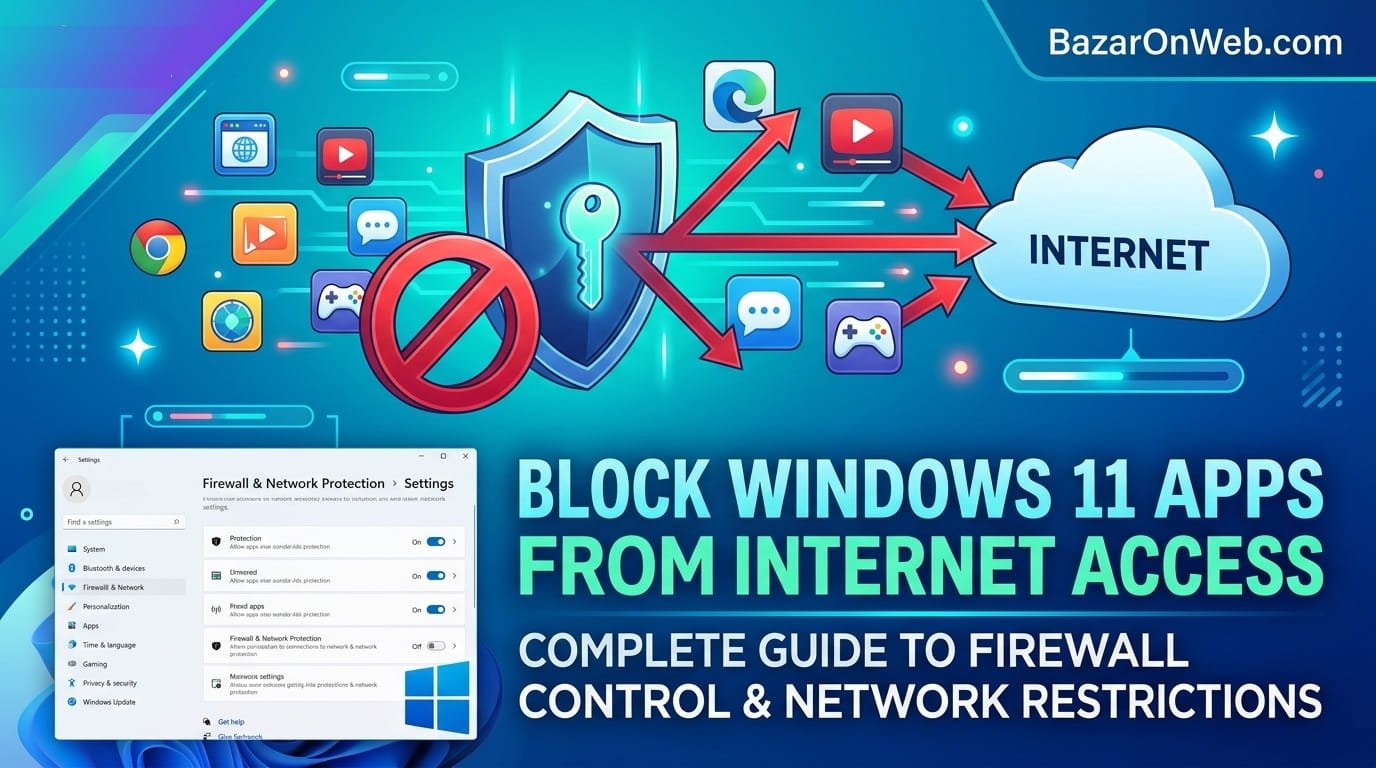
Why You’d Actually Want to Do This
Most people don’t think about controlling which apps can access the internet. Your apps just connect. That’s how the internet works, right? You install something, it works, it occasionally talks to servers somewhere, and life goes on. But there are genuinely good reasons to block specific apps from accessing the internet, and Windows 11 gives you the tools to do it—they’re just buried so deep that most people never discover them.
I started thinking about this when I noticed an app I’d installed was making network requests constantly, even when I wasn’t actively using it. Every thirty seconds or so, it would ping some server. I had no idea why. It might have been legitimate data syncing. It might have been analytics tracking me. It might have been something weirder. Rather than guessing or uninstalling the app entirely, I decided to just block it from accessing the internet and see if I actually needed it to be online.
Turns out I didn’t. The app worked fine offline. But if I hadn’t blocked it from the firewall, I never would have discovered that it was doing background stuff I didn’t authorize.
This is what firewall blocking is actually about. It’s not paranoia. It’s control. You decide what your computer does, not the software. And Windows Firewall lets you enforce that decision.
Understanding Windows Defender Firewall: What It Actually Does
Before you start blocking things, understanding what you’re actually controlling helps you avoid breaking stuff accidentally.
Windows Defender Firewall is your computer’s network gatekeeper. It sits between your applications and the internet, deciding what network traffic gets allowed through and what gets blocked. Every time an app tries to connect to the internet—whether it’s your browser loading a webpage, Discord sending a message, or some background service phoning home to corporate servers—the firewall either lets it through or stops it.
By default, Windows Defender Firewall allows most apps to access the internet. The assumption is that if you installed something, you probably want it to work. But the firewall can be configured more restrictively. You can tell it “everything is blocked by default, and I’ll specifically allow only what I trust.” Or you can go the other direction: “everything is allowed, but these specific apps are blocked.”
The second approach is what most people want. You trust most of your apps. You just want to block a specific few that you don’t want accessing the internet.
Understanding that the firewall operates at the application level matters. You’re not blocking specific websites or specific types of traffic. You’re saying “this application cannot connect to anything on the internet.” It’s all-or-nothing per app.
When You Actually Need to Block App Internet Access
Blocking apps from the internet isn’t a daily activity for most people. But there are legitimate scenarios where it’s useful.
Background tracking and analytics: Some applications collect data about your usage constantly. They track what you do, when you do it, and send it back to company servers. You might not want this. Blocking internet access prevents the tracking from happening.
Aggressive update checks: Some apps check for updates constantly, generating unnecessary network traffic and battery drain (on laptops). Blocking internet access stops the constant checking.
Unwanted cloud sync: Some applications sync everything to cloud servers automatically. You might use the app locally but don’t want your files uploading to their servers. Firewall blocking prevents the sync.
Testing if an app actually needs internet: Sometimes you’re curious whether an app requires internet to function. Block it and see if it still works. If it does, you’ve discovered it doesn’t need internet and you can leave it blocked.
Security research: If you’ve installed something suspicious and want to study what it does without letting it access the internet, firewall blocking provides that isolation.
Controlling data usage on metered connections: If you’re on a limited data plan, blocking background apps from using your internet prevents unexpected overage charges.
Privacy concerns: Some apps request internet access for reasons that seem unnecessary. You want to use the app but prevent it from communicating with external servers.
These aren’t paranoid reasons. They’re practical reasons. You own your computer. You get to decide what it does.
The Manual Way: Using Windows Defender Firewall Advanced Security
Windows Defender Firewall has a graphical interface buried in your system settings, and it gives you complete control over what apps can access the internet.
Open Windows Defender Firewall by searching for it in the Start menu. You’ll find “Windows Defender Firewall.” Click it. This opens a basic interface showing whether the firewall is on (it should be) and providing access to more advanced settings.
Look for “Advanced settings” or “Allow an app through firewall” link. Click it to open the more detailed interface. This is Windows Defender Firewall with Advanced Security—basically the firewall’s control panel.
In this advanced interface, you’ll see two sections: Inbound Rules and Outbound Rules. Inbound rules control what external traffic can reach your computer. Outbound rules control what traffic your applications send out to the internet. For blocking apps, you’re interested in outbound rules because you want to prevent applications from sending traffic out.
Click “Outbound Rules” in the left sidebar. You’ll see a list of existing rules. Some are built into Windows. Some were created by applications during installation. The list is probably pretty long.
To block a specific app, you need to create a new outbound rule. Click “New Rule” in the right sidebar. A dialog appears asking what type of rule you want to create.
Select “Program” because you’re blocking a specific application. Click Next.
Now you need to specify which program to block. Select “This program path” and browse to find the application’s executable file. This is usually in Program Files or Program Files (x86). For example, if you want to block Discord, you’d navigate to something like C:\Users[YourUsername]\AppData\Local\Discord\app-[version]\Discord.exe
Finding the exact executable can be annoying. An easier approach is using “Select from a list of programs” if the application is prominent enough to appear there.
After selecting the application, click Next.
Now you specify what you’re blocking. Select “Block the connection.” This is the option that actually prevents the app from accessing the internet.
Click Next.
You’ll see checkboxes for Private, Public, and Domain networks. These determine whether the rule applies to different network types. For most personal computers, just check “Private” (which is your home network). If you’re on a business network, you might also check “Domain.” Leave “Public” unchecked unless you specifically want this rule applying on public WiFi.
Click Next, and you’ll get to name your rule. Give it a descriptive name like “Discord blocked” or “Spotify no internet” so you remember what it does.
Click Finish. The rule is now created and active.
The moment you create this rule, the application stops being able to access the internet. If you open Discord, it won’t be able to connect to Discord servers. If you open Spotify, it won’t be able to stream music or log in.
Finding the Right Executable: Why This Is Harder Than It Should Be
The most frustrating part of manually creating firewall rules is finding the correct executable file for the app you want to block.
Some applications have one obvious executable. You install Visual Studio Code, find code.exe, block it, done. But some applications are more complex. They have multiple executable files. Blocking the wrong one doesn’t actually block the app.
For example, Discord has discord.exe, but it might also have update.exe or other support processes. If you only block discord.exe, the update process might still access the internet. Not a huge deal, but it’s not complete blocking.
For applications installed from Microsoft Store, finding executables is even more annoying because Store apps use weird internal naming. They might be installed in C:\Program Files\WindowsApps\ with cryptic folder names.
The practical approach: go to Task Manager (Ctrl+Shift+Esc), find the application running, right-click it, and select “Open file location.” This takes you directly to the executable. Then you can use that path when creating your firewall rule.
If the application isn’t currently running, search for it manually. Go to C:\Program Files\ or C:\Program Files (x86)\ and look for a folder with the application’s name. Most applications create a folder with an obvious name. Inside, you’ll find an executable—usually the one matching the application’s name.
If you genuinely can’t find it, creating a rule for the application name without the full path works sometimes. Windows tries to match the rule to running applications based on the name. It’s less reliable than using the full path, but it works when you can’t locate the executable.
The Easier Way: Using Third-Party Firewall Tools
Windows Defender Firewall’s advanced settings are powerful but clunky. Creating rules manually involves multiple dialog boxes and requires knowing where executable files live. For most people, this is more complexity than they want to deal with.
Third-party firewall applications exist specifically to make this easier. Programs like ZoneAlarm, Glasswire, and others provide graphical interfaces that make blocking apps much simpler. You open the application, see a list of apps that have internet access, and click a button to block whichever ones you want.
These third-party firewalls usually sit on top of Windows Defender Firewall—they don’t replace it, they just make it easier to control. Some even provide additional functionality like real-time monitoring showing which apps are trying to access the internet, network activity visualization, and alerts when unusual applications try connecting.
The trade-off is that third-party firewalls sometimes have their own learning curve, and some are paid applications. But if you regularly want to block app internet access, the convenience is worth it.
Glasswire, specifically, is excellent at this. It shows you network activity in real-time, displays which applications are using internet, and lets you block apps with a single click. It’s more user-friendly than Windows Defender Firewall’s advanced settings.
Troubleshooting When Blocking Breaks Things
The dangerous part of blocking apps from the internet is that you might block something that actually needs internet to function. Applications get creative about what they consider “necessary” internet access. A weather app needs internet. A note-taking app probably doesn’t. But a note-taking app that syncs to cloud storage does.
The most common problem: you block an app, try to use it, and it completely fails to function. The solution is simple—unblock it. Open Windows Defender Firewall Advanced Settings, find the rule you created, right-click it, and select “Disable” or “Delete.” The app immediately regains internet access.
If you’re not sure which rule to disable because you created multiple ones, you can temporarily disable all your custom rules to see if that fixes the problem. Then re-enable them one by one until you identify which rule is causing the issue.
Another approach: instead of outright blocking, configure the rule more carefully. When creating a rule, you can specify whether it applies to all protocols (TCP, UDP), all ports, or specific ports and protocols. Advanced users can create rules blocking only specific types of traffic while allowing others. But this requires understanding network protocols, which isn’t beginner-friendly.
For most people, the approach is: try blocking, see if the app still works, unblock if it doesn’t.
Finding Hidden Applications Accessing the Internet
Part of why you might want to block internet access is discovering which applications are accessing the internet without your knowledge. Windows Defender Firewall doesn’t directly show you this, but third-party tools do.
Glasswire (mentioned earlier) shows real-time network activity. It displays active connections, which applications are using them, how much data they’re transferring, and where they’re connecting to. This transparency helps you identify apps doing background communication.
Netstat, a command-line tool built into Windows, shows network connections. Open Command Prompt and type “netstat -b” to see all active network connections and which applications created them. The output is technical, but it’s free and doesn’t require installing anything.
Resource Monitor, built into Windows, also shows network activity. Open it by searching for “Resource Monitor” in the Start menu, then click the Network tab. You’ll see connections and associated applications.
These tools help you discover which apps are communicating with the internet. Once you identify ones you don’t want accessing the internet, you can create firewall rules to block them.
VPN and Proxy Considerations When Blocking Apps
If you use a VPN, firewall blocking becomes more complex. A VPN application itself needs to access the internet to function. But applications using the VPN don’t directly access the internet—they route through the VPN.
When you block an application from the firewall, you’re blocking direct internet access. But if the application is configured to use a VPN or proxy, it might still bypass the firewall restriction because the connection is mediated through the VPN/proxy application.
This can be useful or problematic depending on what you’re trying to accomplish. If you want to block an app but allow it to work through VPN, that might be fine. But if you want complete blocking, you need to understand that VPN-routed connections might bypass firewall rules.
Similarly, if you block an application but it’s configured to use a proxy server, the proxy might allow connection despite the firewall block.
These nuances only matter if you’re using VPNs or proxies. For standard direct internet connections, firewall blocking works as expected.
Best Practices: What You Should Actually Block
Not every app is a candidate for blocking. Blocking the wrong thing breaks functionality or causes frustration. Here’s what makes sense to block:
Analytics applications: If an app’s only job is tracking and reporting data to servers, blocking it makes sense. You lose analytics tracking, but the app still works locally.
Update checkers: Applications that constantly check for updates generate unnecessary network traffic. Blocking update checks stops the behavior. You can manually check for updates when you want them.
Cloud sync for apps you don’t want syncing: If an app syncs everything to cloud by default and you don’t want it, blocking prevents sync. You just lose the sync functionality.
Test applications: If you installed something and want to see if it works offline, block it temporarily. This proves whether it needs internet.
Applications you barely use: If an app is installed but you rarely use it and it’s accessing the internet, blocking it doesn’t hurt much. If you need it to work online, you can unblock it then.
Legitimate applications with features you don’t want: Some applications have features that require internet (analytics, cloud saving, automatic updates). If you don’t want those features, blocking prevents them without losing the core application functionality.
What you probably shouldn’t block:
Essential system applications: Block Windows Update, network services, or system components and you’ll break Windows. Stick to third-party applications you installed.
Browsers: Blocking your browser from the internet defeats its purpose. If you don’t want your browser accessing specific websites, use website blocks instead.
Communication applications: Discord, Slack, Teams, and similar applications need internet to function. Blocking them means they can’t send or receive messages.
Streaming or online-only applications: Apps like Spotify, Netflix, or Google Drive need internet. Blocking them makes them useless.
When Rules Don’t Apply (And Why)
Sometimes you create a firewall rule and the application still accesses the internet. This is frustrating and confusing. Possible reasons:
You blocked the wrong executable: The application has multiple processes. You blocked one, but another is actually making the internet connection. Run Task Manager to see all processes the application has running. You might need to block multiple executables.
Administrator bypass: Applications running with administrator privileges sometimes bypass firewall rules. Try running the application without administrator privileges.
Group Policy override: On business networks or managed computers, Group Policy settings can override firewall rules. If you can’t modify firewall behavior, check Group Policy settings (gpedit.msc on Windows Pro/Enterprise).
Third-party firewall interference: If multiple firewalls are running, they can conflict. Disable third-party firewalls if they’re causing issues with Windows Defender Firewall rules.
Rule isn’t actually created: Sometimes the rule creation process looks successful but the rule doesn’t actually save. Check the Advanced Firewall settings to verify the rule exists.
Rules apply to specific network profiles: If you created a rule for “Domain” networks but you’re on a “Private” network, the rule won’t apply. Check which network profiles your rule applies to.
These edge cases are rare, but when they happen, they’re frustrating because you think you’ve blocked something and it’s still accessing the internet.
When This Doesn’t Work: Alternative Blocking Methods
If Windows Defender Firewall blocking isn’t working or feels too complicated, alternatives exist.
Router-level blocking: Your WiFi router can be configured to block specific devices from accessing the internet. This is network-level control rather than firewall control. If your router supports it, you can restrict internet access at the router level, which affects all devices, not just specific apps.
DNS-level blocking: DNS controls which websites are accessible. Tools like Pi-hole or cloudflared allow blocking at the DNS level. This prevents applications from resolving website addresses, effectively blocking internet access.
Application-level controls: Some applications have built-in settings to disable specific features. Rather than using firewall blocking, you might disable cloud sync, disable analytics, or disable auto-update through the app’s preferences.
Uninstall: The most reliable way to stop an application from accessing the internet is removing it entirely. If you don’t trust it or don’t want it accessing the internet, uninstalling prevents any possibility of it doing so.
Containerization: Advanced users can run applications in containers or virtual machines, completely isolating them from the main network. This is overkill for most situations.
For most people, Windows Defender Firewall is sufficient. It’s built-in, free, and works for basic blocking needs. Only pursue alternatives if the firewall isn’t meeting your needs.
Preventing Accidental Internet Access Issues
After creating firewall rules, test that affected applications still work if they need internet. Open the application and try its core functions. If it fails, you’ve blocked something it needs. Unblock and reconfigure.
Additionally, document what you’ve blocked. You’ll remember for a while, but six months from now when something isn’t working, you’ll forget you created a firewall rule blocking it. Keep a note: “Discord is blocked from internet access” so you remember what you’ve configured.
Finally, periodically review your firewall rules and clean up unused ones. If you uninstall applications, their associated firewall rules still exist. Delete obsolete rules so your firewall configuration doesn’t become cluttered.
The Practical Reality
Blocking apps from the internet is genuinely useful for maintaining control over your computer. But it’s not something most people need to do frequently. Use it for specific situations—curiosity about what an app actually does, privacy concerns about background tracking, or controlling unwanted background activity.
For routine usage, Windows Defender Firewall’s default permissive approach works fine. Only create blocking rules when you have a specific reason to do so.
When you do need to block apps, Windows Defender Firewall provides the tools. They’re not immediately intuitive, but they work reliably. Third-party tools like Glasswire make it easier if you do this regularly.
Most importantly, understand that blocking is reversible. You can always unblock if you discover the app actually needs internet. This makes experimenting safe—try blocking something, see what happens, unblock if necessary.
Your computer is yours. You should be able to control what it does and who it talks to on the internet.
Disclaimer: This article provides educational troubleshooting guidance. Procedures may have unintended consequences including data loss or system damage. Results vary by device model, OS version, and configuration. Always backup critical data before attempting system modifications. Seek professional support if problems persist or you’re uncomfortable with technical procedures. Users assume full responsibility for outcomes.

- How to Fix Windows 11 When You Can’t Eject an External Hard Drive or Pen Drive

- How to Fix iPhone Updates Not Installing Overnight

- How to Add Notes or Comments to Folders in Windows 11

- How to Fix “Unable to Initialize Windows App SDK” Error in Windows 11

- How to Fix “Try Again Later – Something Happened on Our End” Error in Microsoft Store

Products
-
![Apple Watch Ultra 3 [GPS + Cellular 49mm] Running & Multisport Smartwatch w/Rugged Titanium Case w/Black Titanium Milanese Loop - M. Satellite Communications, Advanced Health & Fitness Tracking](https://bazaronweb.com/retailstores/wp-content/uploads/2025/09/apple-watch-320x320.jpg) Apple Watch Ultra 3 [GPS + Cellular 49mm] Running & Multisport Smartwatch w/Rugged Titanium Case w/Black Titanium Milanese Loop - M. Satellite Communications, Advanced Health & Fitness Tracking
Apple Watch Ultra 3 [GPS + Cellular 49mm] Running & Multisport Smartwatch w/Rugged Titanium Case w/Black Titanium Milanese Loop - M. Satellite Communications, Advanced Health & Fitness Tracking
-
 Apple iPad mini (A17 Pro): Apple Intelligence, 8.3-inch Liquid Retina Display, 256GB, Wi-Fi 6E, 12MP Front/12MP Back Camera, Touch ID, All-Day Battery Life — Purple
-
 Apple AirPods Max Wireless Over-Ear Headphones, Active Noise Cancelling, Transparency Mode, Personalized Spatial Audio, Dolby Atmos, Bluetooth Headphones for iPhone – Space Gray
-
 Apple AirPods Pro 2 Wireless Earbuds, Active Noise Cancellation, Hearing Aid Feature, Bluetooth Headphones, Transparency, Personalized Spatial Audio, High-Fidelity Sound, H2 Chip, USB-C Charging
-
Home Garage 210 TC Cotton King Floral Fitted (Elastic) Bedsheet(Pack of 1, Grey)
Original price was: ₹999.00.₹299.00Current price is: ₹299.00.
Leave a Reply