Discounted Products
-
 Home Garage 210 TC Cotton King Floral Fitted (Elastic) Bedsheet(Pack of 1, Grey)
Original price was: ₹999.00.₹299.00Current price is: ₹299.00.
Home Garage 210 TC Cotton King Floral Fitted (Elastic) Bedsheet(Pack of 1, Grey)
Original price was: ₹999.00.₹299.00Current price is: ₹299.00.
-
 Goodrik 140 TC Cotton Double 3D Printed Flat Bedsheet(Pack of 1, Brown)
Original price was: ₹499.00.₹229.00Current price is: ₹229.00.
Goodrik 140 TC Cotton Double 3D Printed Flat Bedsheet(Pack of 1, Brown)
Original price was: ₹499.00.₹229.00Current price is: ₹229.00.
-
 GLOBALSHOP 350 TC Microfiber Double Floral Flat Bedsheet(Pack of 1, Multicolor)
Original price was: ₹1,250.00.₹263.00Current price is: ₹263.00.
GLOBALSHOP 350 TC Microfiber Double Floral Flat Bedsheet(Pack of 1, Multicolor)
Original price was: ₹1,250.00.₹263.00Current price is: ₹263.00.
-
 RisingStar 250 TC Microfiber King Printed Fitted (Elastic) Bedsheet(Pack of 1, FITTED-ROUND-CIRCLES-PREMIUM)
Original price was: ₹2,299.00.₹299.00Current price is: ₹299.00.
RisingStar 250 TC Microfiber King Printed Fitted (Elastic) Bedsheet(Pack of 1, FITTED-ROUND-CIRCLES-PREMIUM)
Original price was: ₹2,299.00.₹299.00Current price is: ₹299.00.
-
 Home Garage 210 TC Cotton King Floral Fitted (Elastic) Bedsheet(Pack of 1, Fitted Black Green)
Original price was: ₹1,299.00.₹299.00Current price is: ₹299.00.
Home Garage 210 TC Cotton King Floral Fitted (Elastic) Bedsheet(Pack of 1, Fitted Black Green)
Original price was: ₹1,299.00.₹299.00Current price is: ₹299.00.
-
 Home Garage 180 TC Cotton King 3D Printed Flat Bedsheet(Pack of 1, White)
Original price was: ₹999.00.₹229.00Current price is: ₹229.00.
Home Garage 180 TC Cotton King 3D Printed Flat Bedsheet(Pack of 1, White)
Original price was: ₹999.00.₹229.00Current price is: ₹229.00.
-
 Panipat Textile Hub 152.4 cm (5 ft) Polyester Window Curtain (Pack Of 2)(Solid, Aqua)
Original price was: ₹1,899.00.₹299.00Current price is: ₹299.00.
Panipat Textile Hub 152.4 cm (5 ft) Polyester Window Curtain (Pack Of 2)(Solid, Aqua)
Original price was: ₹1,899.00.₹299.00Current price is: ₹299.00.
-
 Home Sizzler 214 cm (7 ft) Polyester Semi Transparent Door Curtain (Pack Of 2)(Floral, Maroon)
Original price was: ₹1,199.00.₹399.00Current price is: ₹399.00.
Home Sizzler 214 cm (7 ft) Polyester Semi Transparent Door Curtain (Pack Of 2)(Floral, Maroon)
Original price was: ₹1,199.00.₹399.00Current price is: ₹399.00.
-
 Home Sizzler 153 cm (5 ft) Polyester Room Darkening Window Curtain (Pack Of 2)(Floral, Brown)
Original price was: ₹799.00.₹299.00Current price is: ₹299.00.
Home Sizzler 153 cm (5 ft) Polyester Room Darkening Window Curtain (Pack Of 2)(Floral, Brown)
Original price was: ₹799.00.₹299.00Current price is: ₹299.00.
-
 Stella Creations 214 cm (7 ft) Polyester Room Darkening Door Curtain (Pack Of 2)(Abstract, Brown)
Original price was: ₹1,299.00.₹449.00Current price is: ₹449.00.
Stella Creations 214 cm (7 ft) Polyester Room Darkening Door Curtain (Pack Of 2)(Abstract, Brown)
Original price was: ₹1,299.00.₹449.00Current price is: ₹449.00.
-
 Homefab India 152.5 cm (5 ft) Polyester Room Darkening Window Curtain (Pack Of 2)(Floral, Light Blue)
Original price was: ₹1,199.00.₹319.00Current price is: ₹319.00.
Homefab India 152.5 cm (5 ft) Polyester Room Darkening Window Curtain (Pack Of 2)(Floral, Light Blue)
Original price was: ₹1,199.00.₹319.00Current price is: ₹319.00.
-
 Urban Home 214 cm (7 ft) PVC Transparent Door Curtain Single Curtain(Solid, Off White)
Original price was: ₹699.00.₹203.00Current price is: ₹203.00.
Urban Home 214 cm (7 ft) PVC Transparent Door Curtain Single Curtain(Solid, Off White)
Original price was: ₹699.00.₹203.00Current price is: ₹203.00.
-
 Panipat Textile Hub 213 cm (7 ft) Polyester Door Curtain (Pack Of 2)(Solid, Brown)
Original price was: ₹1,199.00.₹349.00Current price is: ₹349.00.
Panipat Textile Hub 213 cm (7 ft) Polyester Door Curtain (Pack Of 2)(Solid, Brown)
Original price was: ₹1,199.00.₹349.00Current price is: ₹349.00.
-
 Home Sizzler 214 cm (7 ft) Polyester Semi Transparent Door Curtain (Pack Of 2)(Floral, Brown)
Original price was: ₹999.00.₹349.00Current price is: ₹349.00.
Home Sizzler 214 cm (7 ft) Polyester Semi Transparent Door Curtain (Pack Of 2)(Floral, Brown)
Original price was: ₹999.00.₹349.00Current price is: ₹349.00.
-
 Panipat Textile Hub 213 cm (7 ft) Polyester Semi Transparent Door Curtain (Pack Of 2)(Floral, Brown)
Original price was: ₹899.00.₹299.00Current price is: ₹299.00.
Panipat Textile Hub 213 cm (7 ft) Polyester Semi Transparent Door Curtain (Pack Of 2)(Floral, Brown)
Original price was: ₹899.00.₹299.00Current price is: ₹299.00.
The Problem Nobody Talks About
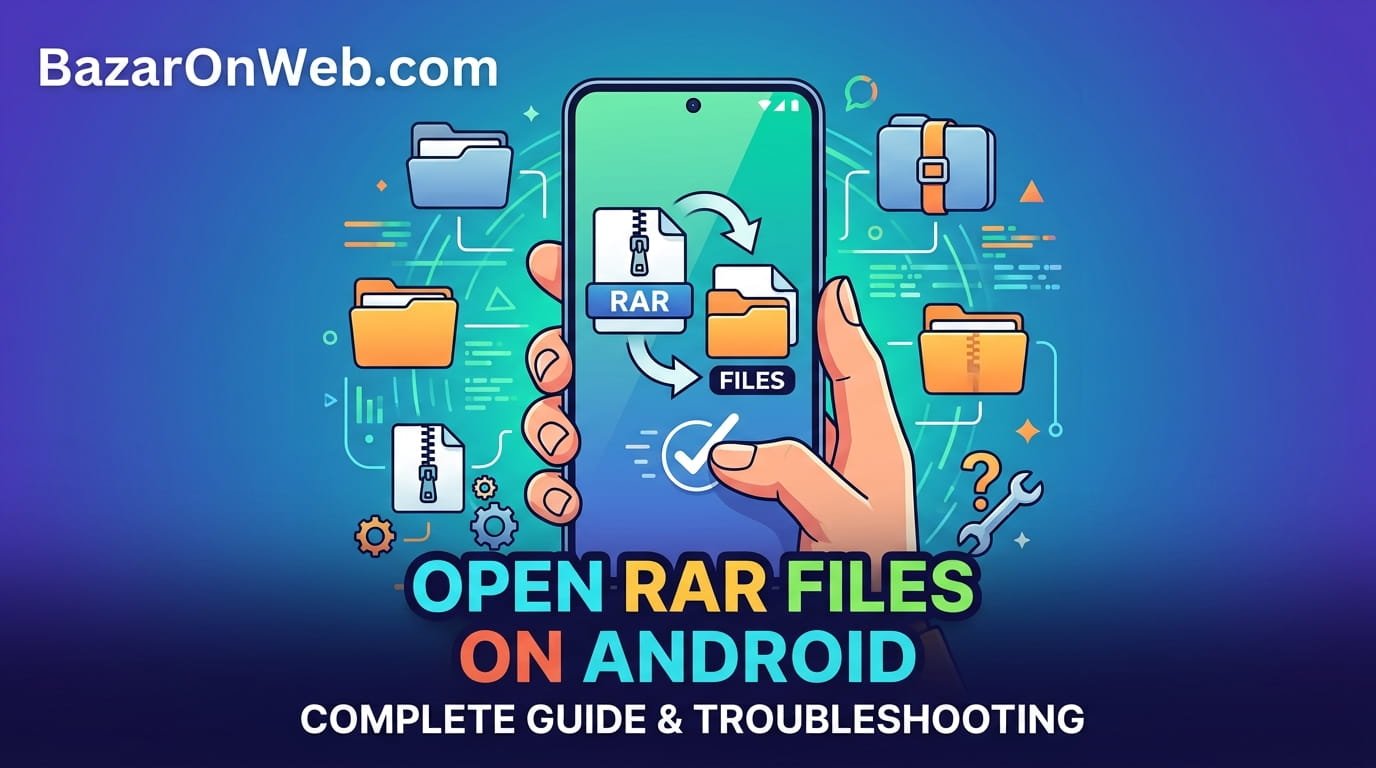
I inherited a folder of files from a project that ended years ago. My old colleague handed me a USB drive with everything archived in RAR format because apparently that’s what people were doing in 2015. I thought nothing of it. Then I tried opening one on my Android phone and discovered Android just… doesn’t support RAR files. Not built-in. Not through any default app. Android looks at a RAR file and essentially says “I have no idea what this is.”
This isn’t incompetence on Google’s part. It’s just that RAR compression is proprietary, and Google probably decided building native support wasn’t worth the licensing hassle. But for people like me who periodically encounter RAR files, this creates a problem. You can’t open them. You can’t extract them. Your phone basically treats them like alien technology.
The solution is using third-party apps from the Google Play Store. These applications handle RAR extraction on Android, making compressed files accessible. But not all RAR apps are equal. Some are slow, some have annoying ads, some extract incorrectly, and some are probably security nightmares you should avoid entirely.
After testing through various apps to extract those old project files, I realized most people have no idea which RAR apps are actually decent versus which ones are basically malware wearing a RAR extractor disguise.
Why Android Doesn’t Support RAR Natively (And Why This Matters)
Understanding why RAR files aren’t supported natively on Android helps explain why you need third-party solutions in the first place.
Android does support ZIP compression natively. You can handle ZIP files directly through File Manager without installing anything. RAR is different. RAR is proprietary compression technology owned by a company called RARLabs. It’s effective compression—RAR files are often smaller than equivalent ZIP files—but the compression algorithm is proprietary.
Google could theoretically license RAR support and build it into Android, but it would cost money and complexity. RAR is also less common than ZIP nowadays. Most files you encounter are probably ZIP. So Google decided ZIP support was sufficient and left RAR to third parties.
This creates a situation where Android users need external apps to handle RAR files. It’s not ideal, but it’s the reality of the ecosystem. On Windows and Mac, you often have RAR support built in or easily available. On Android, you’re dependent on whatever third-party developers created.
The silver lining is that several excellent RAR extraction apps exist on Google Play Store, and most are free. You just need to know which ones are actually good versus which ones are problematic.
The Best RAR Apps Actually Available (And Why Some Are Better Than Others)
WinRAR Mobile
Yes, there’s an official WinRAR app for Android made by RARLabs themselves. This is the most reliable option because it’s literally the creators of RAR technology providing the extraction app.
The app opens RAR files, extracts them, and handles pretty much every RAR format variant you’ll encounter. It’s straightforward—no confusing interface, no weird ads interrupting everything, just solid RAR extraction.
The main downside is that WinRAR Mobile isn’t free. It costs a few dollars (usually around $3-4). For people who occasionally extract RAR files, this seems annoying. But if you extract RAR files regularly, paying for the official app is worth it for reliability and simplicity.
WinRAR Mobile also handles other compression formats (ZIP, 7Z, etc.) making it versatile. But its main job is RAR extraction and it does that excellently.
RAR (by RARLAB)
There’s also a free version sometimes available directly from RARLAB. This is literally the official RAR app, free version. It does essentially everything WinRAR Mobile does, just without the paid version’s potential extra features.
If you can find this on Google Play Store, it’s basically the best free option because it’s official and reliable. Some regions might have it, others might not—Google Play Store availability varies by location.
ZArchiver
ZArchiver is a popular free option that handles multiple archive formats including RAR, ZIP, 7Z, and others. It’s developed by an independent developer and has a massive user base.
The app works well for extracting RAR files. The interface is functional if not beautiful. The main downside is that ZArchiver includes ads, and some users report the ads are somewhat aggressive. But if you can tolerate occasional ads, ZArchiver is solid.
The advantage of ZArchiver is versatility—it handles basically every compression format you might encounter, not just RAR. If you work with various archive types, having one app that handles everything is convenient.
ES File Explorer
ES File Explorer is more of a general file manager that includes RAR extraction capability. It’s useful if you want a comprehensive file management app that also happens to handle RAR.
ES File Explorer provides file browsing, file operations (copying, moving, deleting), and archive extraction all in one application. For people who want comprehensive file management, not just RAR extraction, this is useful.
The downside is that ES File Explorer has had privacy concerns in the past. Some reviews suggest aggressive data collection and questionable practices. If privacy is a concern, ES File Explorer might not be your best choice.
RAR for Android
Another option is straightforward “RAR for Android” app—another free option with a simple interface focused specifically on RAR extraction.
The app does what it says—opens and extracts RAR files. It’s not fancy, but it works. Like most free apps, it includes ads, but they’re reportedly not as aggressive as some competitors.
How to Actually Extract RAR Files Using These Apps
Once you’ve installed a RAR extraction app, the process is straightforward, but the exact steps vary depending which app you’re using.
With WinRAR Mobile (Paid):
Open the app. Navigate to where your RAR file is stored (usually Downloads folder or wherever you saved it). Select the RAR file. The app displays the contents of the RAR archive—all the files compressed inside.
Tap “Extract” or “Extract All.” The app asks where you want to extract the files. Usually you want them going to the same folder as the RAR file or to a specific folder you designate.
Select the location, confirm, and the app extracts the files. This takes seconds for small archives, longer for large ones depending on file size and your phone’s speed.
Once extracted, you can access the files normally through your File Manager.
With ZArchiver (Free):
Open ZArchiver. Navigate to your RAR file. Long-press the RAR file to open a context menu. Select “Extract” or “Extract Here.”
ZArchiver asks confirmation about extraction location, then proceeds. The extracted files appear in the same location as the RAR file.
The process is nearly identical to WinRAR Mobile, just with slightly different menu naming.
With ES File Explorer:
Open ES File Explorer. Navigate to your RAR file. Tap the RAR file—ES File Explorer opens it showing the archived contents.
Look for an “Extract” button or menu option. Tap it, select destination folder, and confirm. The extraction happens.
General Pattern:
Most RAR apps follow this pattern: open app, navigate to file, select extract, confirm location, done. The specifics vary but the concept is identical.
One thing worth noting: extraction can take time if you have a large RAR file on an older phone. Don’t assume the app is frozen—it might just be slowly extracting hundreds of megabytes of files. Let it work.
When Extraction Fails: Troubleshooting Common Problems
RAR extraction usually works fine, but sometimes things go wrong. Here’s what to do when extraction fails or produces errors.
“File is corrupted” or “Cannot open file”
Your RAR file might be actually corrupted—downloaded incorrectly, damaged in transfer, or corrupted for unknown reasons. Try downloading the file again or getting it from whoever sent it to you.
Alternatively, your RAR file might be password-protected. Some RAR apps handle password protection, others don’t. If the file is password-protected and your app doesn’t support it, you’re stuck—try a different app that supports password-protected RAR files.
“Not enough storage space”
RAR extraction requires temporary storage space while extracting. If your phone’s storage is nearly full, extraction fails. Free up storage by deleting unnecessary apps or files, then try again.
Extracted files are corrupted or won’t open
The extraction succeeded but the files inside are broken. This usually means the original RAR file was corrupted. Try extracting again—sometimes extraction succeeds partially. If files remain broken, the RAR file itself is probably damaged.
App crashes during extraction
Older phones with limited RAM sometimes can’t handle large RAR file extraction. Close other apps to free up memory, then try again. If extraction still crashes, the file might be too large for your phone to handle—try extracting on a computer instead.
Extraction takes forever
Large RAR files on older phones extract slowly. This is normal, not a problem. Let it complete. Extracting a gigabyte-sized archive on a mid-range phone can literally take 30+ minutes. Be patient.
Special characters in filenames cause problems
Some RAR archives contain files with special characters or non-Latin characters in filenames. Some Android apps handle these poorly, creating files with corrupted names or failing extraction entirely. If this happens, try a different extraction app—some handle special characters better than others.
Security Concerns When Extracting RAR Files
Opening untrusted RAR files on your Android phone carries security risks, just like on any device.
Malware in RAR files: Compressed files can contain malware just like any other files. If you extract a RAR from an untrusted source, you might extract malware onto your phone. Only extract RAR files from sources you trust.
Third-party app risks: The extraction apps themselves could potentially be malicious or poorly secured. Stick with well-reviewed apps from established developers. WinRAR Mobile from RARLabs is official and trustworthy. ZArchiver has millions of downloads and reviews—if it were malware, someone would have noticed by now.
Permissions concerns: Some RAR extraction apps request excessive permissions (access to your contacts, messages, location, etc.). Why does a RAR extractor need access to your contacts? It doesn’t. Avoid apps requesting permissions unrelated to file extraction.
Data collection: Some free apps collect data about what files you’re extracting or what your phone contains. This is creepy but not necessarily dangerous. If you’re privacy-conscious, paid apps like WinRAR Mobile avoid this concern.
The practical approach: only extract RAR files from trusted sources, use well-reviewed apps, and check permissions before installing. Don’t extract random RAR files from internet downloads without thinking about where they came from.
Alternative Methods: When App-Based Extraction Isn’t Available
If you can’t or don’t want to install a RAR extraction app, alternatives exist.
Extract on a different device: If you have access to a computer (Windows, Mac, Linux), extract the RAR file there. Transfer the extracted files to your phone using cloud storage, USB transfer, or whatever method works. This requires access to a computer but avoids installing apps on your phone.
Use online extraction services: Websites exist that extract archives without installing software. Upload your RAR file, they extract it, you download the results. This requires internet connection and trusts your files to random internet services (privacy and security concerns).
Cloud storage integration: Some cloud storage services (Google Drive, Dropbox, etc.) might handle RAR extraction through web interface. Upload the RAR file to cloud storage, access through web browser, and some services provide extraction options. This is inconsistent across services.
Emailing files to yourself: If your RAR file is small enough, email it to yourself, open the email on a computer, extract there, then transfer files back to your phone. Annoying but functional.
Use Termux with command-line tools: Advanced Android users can use Termux (a terminal emulator) to install command-line tools like unrar and extract files through the command line. This requires technical knowledge most users don’t have.
These alternatives are slower or less convenient than just installing an extraction app. But if you have strong reasons to avoid apps (privacy concerns, storage limitations, etc.), alternatives exist.
Comparing Apps: Which One You Actually Should Use
Choosing between RAR apps depends on your specific needs and preferences.
If you want official, most reliable, and don’t mind paying: WinRAR Mobile. It’s made by the people who invented RAR. It works perfectly. It costs money but the price is reasonable.
If you want free and reliable: ZArchiver. It has millions of users, solid reviews, and handles RAR extraction well. The ads are tolerable.
If you want comprehensive file management beyond just RAR: ES File Explorer does file management plus extraction. But check current reviews—past privacy concerns might make you uncomfortable.
If you want simple and focused: “RAR for Android” app is straightforward and free. Does one job, does it well.
If you find it available in your region: Free RAR from RARLAB is technically the best option since it’s official and free.
The honest answer is that for occasional RAR extraction, any of these apps work fine. Download whichever sounds easiest, extract your files, and you’re done. Don’t overthink it.
Preventing RAR Files in the Future
If you’re tired of dealing with RAR files, ask people sending you files to use ZIP instead. ZIP is more universal, doesn’t require special apps on Android, and is perfectly fine for compression.
When archiving your own files for others, use ZIP unless you have specific reasons to use RAR. Compatibility with Android and other devices matters more than saving a few percent in file size.
For personal archives you’re only extracting on your own devices, RAR is fine if you’re comfortable with the extra app. But for sharing with others, ZIP is more user-friendly.
The Reality
Android doesn’t support RAR natively. That’s frustrating but not catastrophic. Installing an extraction app takes 30 seconds. Then you can open any RAR file. It’s an extra step compared to built-in ZIP support, but it works.
The best app depends on your priorities. Official WinRAR Mobile is most reliable. ZArchiver offers free reliability. Others work fine but have tradeoffs.
Once you’ve extracted your RAR files, they’re just normal files accessible through your File Manager. The extraction is usually the only slightly inconvenient part.
Don’t overthink it. Install an app that sounds good, extract your files, and move on with your life. RAR extraction on Android isn’t complicated—it just requires an extra app that iOS and Windows have built-in.

- How to Fix Windows 11 When You Can’t Eject an External Hard Drive or Pen Drive

- How to Fix iPhone Updates Not Installing Overnight

- How to Add Notes or Comments to Folders in Windows 11

- How to Fix “Unable to Initialize Windows App SDK” Error in Windows 11

- How to Fix “Try Again Later – Something Happened on Our End” Error in Microsoft Store

Products
-
![Apple Watch Ultra 3 [GPS + Cellular 49mm] Running & Multisport Smartwatch w/Rugged Titanium Case w/Black Titanium Milanese Loop - M. Satellite Communications, Advanced Health & Fitness Tracking](https://bazaronweb.com/retailstores/wp-content/uploads/2025/09/apple-watch-320x320.jpg) Apple Watch Ultra 3 [GPS + Cellular 49mm] Running & Multisport Smartwatch w/Rugged Titanium Case w/Black Titanium Milanese Loop - M. Satellite Communications, Advanced Health & Fitness Tracking
Apple Watch Ultra 3 [GPS + Cellular 49mm] Running & Multisport Smartwatch w/Rugged Titanium Case w/Black Titanium Milanese Loop - M. Satellite Communications, Advanced Health & Fitness Tracking
-
 Apple iPad mini (A17 Pro): Apple Intelligence, 8.3-inch Liquid Retina Display, 256GB, Wi-Fi 6E, 12MP Front/12MP Back Camera, Touch ID, All-Day Battery Life — Purple
-
 Apple AirPods Max Wireless Over-Ear Headphones, Active Noise Cancelling, Transparency Mode, Personalized Spatial Audio, Dolby Atmos, Bluetooth Headphones for iPhone – Space Gray
-
 Apple AirPods Pro 2 Wireless Earbuds, Active Noise Cancellation, Hearing Aid Feature, Bluetooth Headphones, Transparency, Personalized Spatial Audio, High-Fidelity Sound, H2 Chip, USB-C Charging
-
Home Garage 210 TC Cotton King Floral Fitted (Elastic) Bedsheet(Pack of 1, Grey)
Original price was: ₹999.00.₹299.00Current price is: ₹299.00.
Leave a Reply