Discounted Products
-
 Home Garage 210 TC Cotton King Floral Fitted (Elastic) Bedsheet(Pack of 1, Grey)
Original price was: ₹999.00.₹299.00Current price is: ₹299.00.
Home Garage 210 TC Cotton King Floral Fitted (Elastic) Bedsheet(Pack of 1, Grey)
Original price was: ₹999.00.₹299.00Current price is: ₹299.00.
-
 Goodrik 140 TC Cotton Double 3D Printed Flat Bedsheet(Pack of 1, Brown)
Original price was: ₹499.00.₹229.00Current price is: ₹229.00.
Goodrik 140 TC Cotton Double 3D Printed Flat Bedsheet(Pack of 1, Brown)
Original price was: ₹499.00.₹229.00Current price is: ₹229.00.
-
 GLOBALSHOP 350 TC Microfiber Double Floral Flat Bedsheet(Pack of 1, Multicolor)
Original price was: ₹1,250.00.₹263.00Current price is: ₹263.00.
GLOBALSHOP 350 TC Microfiber Double Floral Flat Bedsheet(Pack of 1, Multicolor)
Original price was: ₹1,250.00.₹263.00Current price is: ₹263.00.
-
 RisingStar 250 TC Microfiber King Printed Fitted (Elastic) Bedsheet(Pack of 1, FITTED-ROUND-CIRCLES-PREMIUM)
Original price was: ₹2,299.00.₹299.00Current price is: ₹299.00.
RisingStar 250 TC Microfiber King Printed Fitted (Elastic) Bedsheet(Pack of 1, FITTED-ROUND-CIRCLES-PREMIUM)
Original price was: ₹2,299.00.₹299.00Current price is: ₹299.00.
-
 Home Garage 210 TC Cotton King Floral Fitted (Elastic) Bedsheet(Pack of 1, Fitted Black Green)
Original price was: ₹1,299.00.₹299.00Current price is: ₹299.00.
Home Garage 210 TC Cotton King Floral Fitted (Elastic) Bedsheet(Pack of 1, Fitted Black Green)
Original price was: ₹1,299.00.₹299.00Current price is: ₹299.00.
-
 Home Garage 180 TC Cotton King 3D Printed Flat Bedsheet(Pack of 1, White)
Original price was: ₹999.00.₹229.00Current price is: ₹229.00.
Home Garage 180 TC Cotton King 3D Printed Flat Bedsheet(Pack of 1, White)
Original price was: ₹999.00.₹229.00Current price is: ₹229.00.
-
 Panipat Textile Hub 152.4 cm (5 ft) Polyester Window Curtain (Pack Of 2)(Solid, Aqua)
Original price was: ₹1,899.00.₹299.00Current price is: ₹299.00.
Panipat Textile Hub 152.4 cm (5 ft) Polyester Window Curtain (Pack Of 2)(Solid, Aqua)
Original price was: ₹1,899.00.₹299.00Current price is: ₹299.00.
-
 Home Sizzler 214 cm (7 ft) Polyester Semi Transparent Door Curtain (Pack Of 2)(Floral, Maroon)
Original price was: ₹1,199.00.₹399.00Current price is: ₹399.00.
Home Sizzler 214 cm (7 ft) Polyester Semi Transparent Door Curtain (Pack Of 2)(Floral, Maroon)
Original price was: ₹1,199.00.₹399.00Current price is: ₹399.00.
-
 Home Sizzler 153 cm (5 ft) Polyester Room Darkening Window Curtain (Pack Of 2)(Floral, Brown)
Original price was: ₹799.00.₹299.00Current price is: ₹299.00.
Home Sizzler 153 cm (5 ft) Polyester Room Darkening Window Curtain (Pack Of 2)(Floral, Brown)
Original price was: ₹799.00.₹299.00Current price is: ₹299.00.
-
 Stella Creations 214 cm (7 ft) Polyester Room Darkening Door Curtain (Pack Of 2)(Abstract, Brown)
Original price was: ₹1,299.00.₹449.00Current price is: ₹449.00.
Stella Creations 214 cm (7 ft) Polyester Room Darkening Door Curtain (Pack Of 2)(Abstract, Brown)
Original price was: ₹1,299.00.₹449.00Current price is: ₹449.00.
-
 Homefab India 152.5 cm (5 ft) Polyester Room Darkening Window Curtain (Pack Of 2)(Floral, Light Blue)
Original price was: ₹1,199.00.₹319.00Current price is: ₹319.00.
Homefab India 152.5 cm (5 ft) Polyester Room Darkening Window Curtain (Pack Of 2)(Floral, Light Blue)
Original price was: ₹1,199.00.₹319.00Current price is: ₹319.00.
-
 Urban Home 214 cm (7 ft) PVC Transparent Door Curtain Single Curtain(Solid, Off White)
Original price was: ₹699.00.₹203.00Current price is: ₹203.00.
Urban Home 214 cm (7 ft) PVC Transparent Door Curtain Single Curtain(Solid, Off White)
Original price was: ₹699.00.₹203.00Current price is: ₹203.00.
-
 Panipat Textile Hub 213 cm (7 ft) Polyester Door Curtain (Pack Of 2)(Solid, Brown)
Original price was: ₹1,199.00.₹349.00Current price is: ₹349.00.
Panipat Textile Hub 213 cm (7 ft) Polyester Door Curtain (Pack Of 2)(Solid, Brown)
Original price was: ₹1,199.00.₹349.00Current price is: ₹349.00.
-
 Home Sizzler 214 cm (7 ft) Polyester Semi Transparent Door Curtain (Pack Of 2)(Floral, Brown)
Original price was: ₹999.00.₹349.00Current price is: ₹349.00.
Home Sizzler 214 cm (7 ft) Polyester Semi Transparent Door Curtain (Pack Of 2)(Floral, Brown)
Original price was: ₹999.00.₹349.00Current price is: ₹349.00.
-
 Panipat Textile Hub 213 cm (7 ft) Polyester Semi Transparent Door Curtain (Pack Of 2)(Floral, Brown)
Original price was: ₹899.00.₹299.00Current price is: ₹299.00.
Panipat Textile Hub 213 cm (7 ft) Polyester Semi Transparent Door Curtain (Pack Of 2)(Floral, Brown)
Original price was: ₹899.00.₹299.00Current price is: ₹299.00.
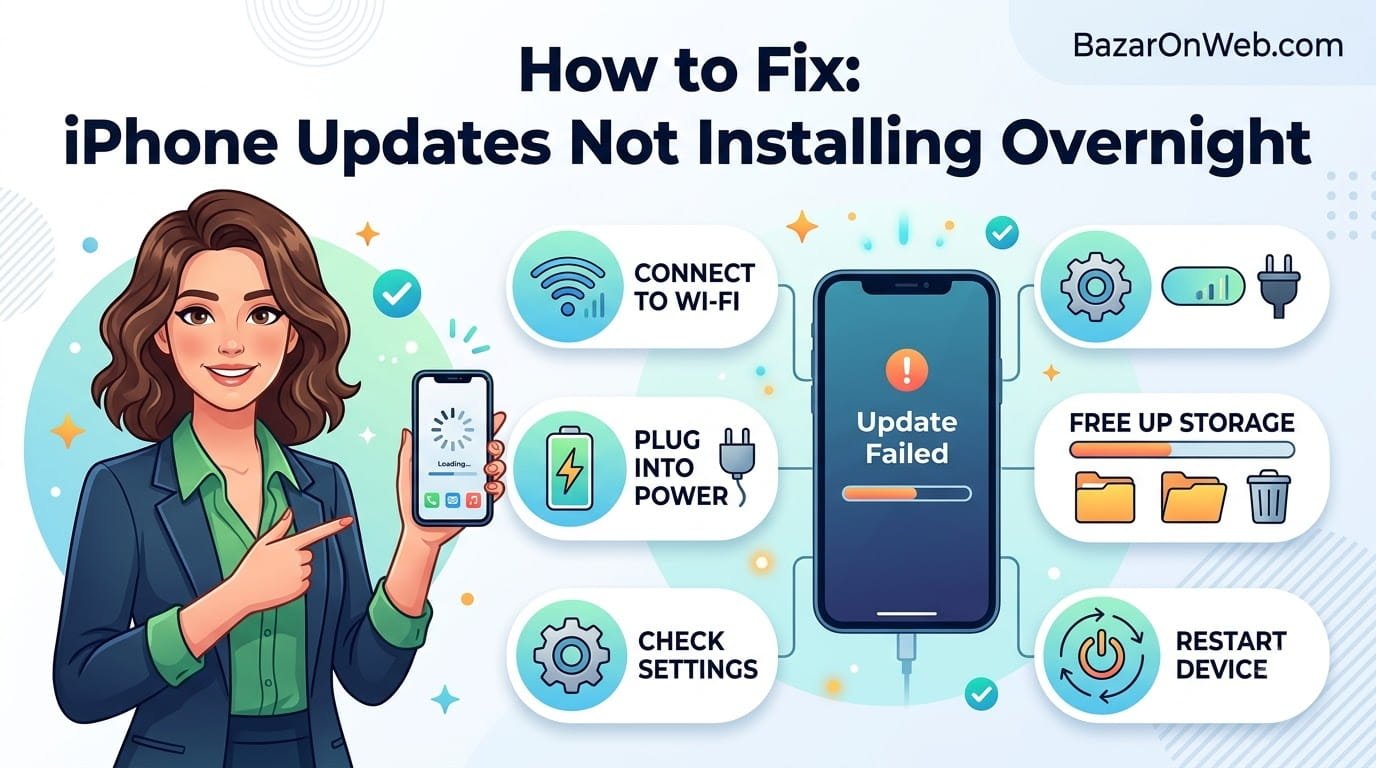
Many iPhone users expect iOS updates to install automatically while they are sleeping. After all, Apple provides automatic update settings specifically so you don’t have to check for new software every time an update is released. But sometimes, an iPhone may download an update and then fail to install it overnight.
You might wake up in the morning expecting to see the latest iOS version, only to find that your iPhone is still running the previous version. In some cases, the update may remain listed under Software Update for days. In others, the iPhone may appear to have downloaded the update but never complete the installation.
This can happen for several reasons. Your automatic update settings may be disabled, the iPhone may not meet the conditions required for automatic installation, storage could be limited, or the update itself may be experiencing a temporary problem.
Fortunately, most of these issues are relatively easy to troubleshoot. If your iPhone isn’t installing iOS updates overnight, here’s what you should check.
1. Check Automatic Updates
The first thing to check is whether automatic updates are actually enabled.
Open the Settings app on your iPhone and go to General > Software Update > Automatic Updates.
Depending on your iOS version, you may see options related to automatically downloading and installing iOS updates.
Make sure automatic updates are enabled. If you see separate options for downloading updates and installing updates, enable both where appropriate.
This is important because automatic downloading and automatic installation aren’t necessarily the same thing. Your iPhone might download an update but wait before installing it if automatic installation isn’t enabled.
After changing the setting, leave the iPhone connected to power overnight and check for the update again the following morning.
2. Connect Your iPhone to Power
One of the simplest things you can do is connect your iPhone to a charger before going to bed.
Automatic updates are designed to take place under suitable conditions, and keeping your iPhone connected to power removes one important limitation.
If your battery is relatively low when you go to sleep, your iPhone may not install a major software update immediately. Installing iOS can take time, and the device may need to restart during the process.
For that reason, plug your iPhone into a reliable charger before you go to bed.
If you’re using wireless charging, make sure the phone is properly aligned and actually charging. A phone that appears to be sitting on a charging pad but isn’t receiving power obviously won’t benefit from being connected to power overnight.
3. Make Sure Your iPhone Is Connected to Wi-Fi
A stable internet connection is another important requirement.
Go to Settings > Wi-Fi and make sure your iPhone is connected to your usual Wi-Fi network.
If Wi-Fi disconnects frequently overnight, an update may not download properly. This is particularly relevant for larger iOS updates, which can require a substantial download.
Try restarting your router if your Wi-Fi connection has been unreliable. You can also disconnect from the network and reconnect.
If the update has already been downloaded, Wi-Fi may be less relevant to the installation itself, but maintaining a reliable connection is still useful for the overall update process.
4. Check Your iPhone’s Storage
Not having enough free storage is another common reason an iOS update may not complete.
Open Settings > General > iPhone Storage.
Here, you’ll see how much storage your iPhone is using and which apps or files are consuming the most space.
If your storage is nearly full, consider removing things you no longer need.
Large videos, downloaded movies, old podcasts, unused apps, duplicate photos and large message attachments can consume significant amounts of storage.
You don’t necessarily need to delete everything just to install an update. However, having some free space gives iOS room to download, unpack and install the required software.
If your iPhone displays a storage-related warning when you attempt to update, deal with that issue first.
5. Restart Your iPhone
Sometimes the problem isn’t a complicated software failure. A simple restart can clear a temporary system issue.
Restart your iPhone normally and then check Settings > General > Software Update.
If an update is available, see whether the installation options have changed.
For iPhones with Face ID, press and hold either volume button and the side button until the power-off slider appears. Drag the slider and wait for the iPhone to turn off. After a few seconds, press and hold the side button to turn it back on.
If you have an iPhone model with a different button configuration, use the appropriate restart procedure for that device.
Once the phone starts again, connect it to Wi-Fi and power and check for the update.
6. Check Whether the Update Has Already Downloaded
Before trying to download the update again, check whether iOS has already downloaded it.
Go to Settings > General > iPhone Storage and look through the list for an iOS update.
If an update appears there, the installation may simply not have completed.
You may be given the option to delete the update. If the update appears to be stuck or corrupted, deleting it and checking for the update again can sometimes resolve the problem.
After removing it, return to Settings > General > Software Update and allow your iPhone to download the update again.
Don’t interrupt the process unnecessarily once the download begins.
7. Give the iPhone Enough Time
It can be tempting to assume something is wrong if an update doesn’t appear immediately after you enable automatic updates.
However, automatic updates aren’t necessarily performed at exactly the same time every night.
Your iPhone may wait until appropriate conditions are available before installing the update. A major iOS release may also take longer than a small security or bug-fix update.
If you’ve just enabled automatic updates, connect the iPhone to power and Wi-Fi and give it another night.
You can also manually check for the update if you don’t want to wait.
8. Check Your iPhone’s Date and Time
Incorrect date and time settings can cause unexpected problems with online services and system functions.
Open Settings > General > Date & Time.
If available, enable Set Automatically.
Your iPhone should normally determine the correct date and time automatically based on your network and location settings.
If the date or time is significantly incorrect, correct it and then restart the iPhone.
Afterward, check Software Update again.
9. Make Sure the iPhone Is Supported
Not every iPhone can install every version of iOS.
If your iPhone is an older model, the latest iOS release may not be compatible with it. In that situation, the absence of a new update isn’t necessarily an error.
Go to Settings > General > About to check your iPhone model and current software version.
Then compare the model with Apple’s compatibility information for the iOS version you’re trying to install.
If the device isn’t supported, automatic updating won’t install that version.
10. Check Your Internet Connection
Even if your iPhone says it is connected to Wi-Fi, the connection may not be reliable enough for a large software download.
Try opening Safari and visiting a few websites.
If pages load slowly or fail to open, troubleshoot the Wi-Fi connection.
You can also try connecting to another trusted Wi-Fi network and checking for the update again.
If you’re using a workplace, school or hotel network, there may also be restrictions that interfere with certain Apple services.
For a home iPhone, restarting the router is often worth trying if the connection has become unreliable.
11. Try Updating Manually
If automatic installation continues to fail, you don’t have to wait for another overnight attempt.
Open:
Settings > General > Software Update
If an update is available, tap the appropriate option to download and install it.
Follow the instructions shown on the screen and keep your iPhone connected to power while the update is being installed.
Manual installation can also help you identify the actual problem. For example, the iPhone may display an error message explaining that there isn’t enough storage or that the update couldn’t be verified.
Pay attention to that message instead of repeatedly attempting the installation.
12. Check for an Error Message
If the update repeatedly fails, look for a specific error message.
An iOS update can fail because of problems involving storage, internet connectivity, Apple’s update servers or the software package itself.
If your iPhone displays an error code or message, search for that exact message rather than simply searching for “iPhone won’t update.”
The exact error can point toward a much more specific solution.
If the update is stuck on a screen for an unusually long period, don’t immediately force the device to restart. Give it some time first, particularly during the installation stage.
13. Update Using a Mac or Windows PC
If the update won’t install directly on your iPhone, another option is updating the device using a computer.
On a Mac, you can use Finder to manage and update a connected iPhone.
On Windows, Apple’s Devices app can be used to manage supported iPhones.
Connect your iPhone with a suitable USB cable, make sure the computer recognizes the device, and check for an available software update.
Before performing major software maintenance, make sure you have a current backup of important information.
A computer-based update can be particularly useful when the iPhone’s normal Software Update process isn’t working correctly.
14. Don’t Keep Forcing the Update
If an update repeatedly fails, downloading it again and again isn’t always the best solution.
First determine what is actually preventing the installation.
Check:
- Automatic Update settings
- Battery and charging
- Wi-Fi
- Available storage
- iPhone compatibility
- Existing downloaded update files
- Error messages
- Apple’s service status if there appears to be a widespread issue
Once you’ve identified the likely cause, address that issue and try again.
15. Reset Network Settings as a Last Resort
If your iPhone has persistent Wi-Fi or network problems, resetting network settings can sometimes help.
Go to:
Settings > General > Transfer or Reset iPhone > Reset > Reset Network Settings
Be careful before using this option.
Resetting network settings removes saved Wi-Fi networks and passwords along with other network-related settings. You’ll need to reconnect to your Wi-Fi networks afterward.
Because of this, don’t use the option simply because an update hasn’t installed once. Consider it only when you’re also experiencing persistent network problems.
16. Contact Apple Support
If you’ve checked everything and your iPhone still refuses to install an available update, there may be a deeper software or device-specific issue.
At this point, contacting Apple Support or visiting an Apple Store or authorized service provider can be useful.
Have your iPhone model, current iOS version and any error message available when asking for help.
If the issue started immediately after another software change, mention that as well.
Why Doesn’t My iPhone Always Update Overnight?
It’s important to understand that automatic updates aren’t simply a timer that forces your iPhone to install an update at a particular hour.
The device needs to determine whether the update can be downloaded and installed successfully. Factors such as power, connectivity, storage, compatibility and the state of the update package can affect the process.
That’s why an iPhone may remain on an older version even though automatic updates are enabled.
The Bottom Line
If your iPhone isn’t installing iOS updates overnight, start with the basics. Check that automatic updates are enabled, connect the phone to a charger, use a reliable Wi-Fi connection and make sure enough storage is available.
If that doesn’t work, restart the iPhone and check whether an update has already been downloaded. You can then try manually installing the update or updating the iPhone through a computer.
Most importantly, don’t assume that automatic updates have stopped working simply because an update wasn’t installed after one night. Automatic installation depends on the conditions available on the device, and giving the iPhone a reliable power and Wi-Fi connection can resolve the issue without requiring more complicated troubleshooting.

- How to Remotely Control Another Computer Using Windows Quick Assist

- 5 Must-Have Electronics Gadgets for a More Comfortable Living Room

- How to Create a Windows 11 System Backup on an External Hard Drive

- 10 Smart Home Ideas That Make Everyday Life Easier

- Gemini Live Avatar: How to Talk to Gemini Face-to-Face

Products
-
![Apple Watch Ultra 3 [GPS + Cellular 49mm] Running & Multisport Smartwatch w/Rugged Titanium Case w/Black Titanium Milanese Loop - M. Satellite Communications, Advanced Health & Fitness Tracking](https://bazaronweb.com/retailstores/wp-content/uploads/2025/09/apple-watch-320x320.jpg) Apple Watch Ultra 3 [GPS + Cellular 49mm] Running & Multisport Smartwatch w/Rugged Titanium Case w/Black Titanium Milanese Loop - M. Satellite Communications, Advanced Health & Fitness Tracking
Apple Watch Ultra 3 [GPS + Cellular 49mm] Running & Multisport Smartwatch w/Rugged Titanium Case w/Black Titanium Milanese Loop - M. Satellite Communications, Advanced Health & Fitness Tracking
-
 Apple iPad mini (A17 Pro): Apple Intelligence, 8.3-inch Liquid Retina Display, 256GB, Wi-Fi 6E, 12MP Front/12MP Back Camera, Touch ID, All-Day Battery Life — Purple
-
 Apple AirPods Max Wireless Over-Ear Headphones, Active Noise Cancelling, Transparency Mode, Personalized Spatial Audio, Dolby Atmos, Bluetooth Headphones for iPhone – Space Gray
-
 Apple AirPods Pro 2 Wireless Earbuds, Active Noise Cancellation, Hearing Aid Feature, Bluetooth Headphones, Transparency, Personalized Spatial Audio, High-Fidelity Sound, H2 Chip, USB-C Charging
-
Home Garage 210 TC Cotton King Floral Fitted (Elastic) Bedsheet(Pack of 1, Grey)
Original price was: ₹999.00.₹299.00Current price is: ₹299.00.
Leave a Reply