Discounted Products
-
 Home Garage 210 TC Cotton King Floral Fitted (Elastic) Bedsheet(Pack of 1, Grey)
Original price was: ₹999.00.₹299.00Current price is: ₹299.00.
Home Garage 210 TC Cotton King Floral Fitted (Elastic) Bedsheet(Pack of 1, Grey)
Original price was: ₹999.00.₹299.00Current price is: ₹299.00.
-
 Goodrik 140 TC Cotton Double 3D Printed Flat Bedsheet(Pack of 1, Brown)
Original price was: ₹499.00.₹229.00Current price is: ₹229.00.
Goodrik 140 TC Cotton Double 3D Printed Flat Bedsheet(Pack of 1, Brown)
Original price was: ₹499.00.₹229.00Current price is: ₹229.00.
-
 GLOBALSHOP 350 TC Microfiber Double Floral Flat Bedsheet(Pack of 1, Multicolor)
Original price was: ₹1,250.00.₹263.00Current price is: ₹263.00.
GLOBALSHOP 350 TC Microfiber Double Floral Flat Bedsheet(Pack of 1, Multicolor)
Original price was: ₹1,250.00.₹263.00Current price is: ₹263.00.
-
 RisingStar 250 TC Microfiber King Printed Fitted (Elastic) Bedsheet(Pack of 1, FITTED-ROUND-CIRCLES-PREMIUM)
Original price was: ₹2,299.00.₹299.00Current price is: ₹299.00.
RisingStar 250 TC Microfiber King Printed Fitted (Elastic) Bedsheet(Pack of 1, FITTED-ROUND-CIRCLES-PREMIUM)
Original price was: ₹2,299.00.₹299.00Current price is: ₹299.00.
-
 Home Garage 210 TC Cotton King Floral Fitted (Elastic) Bedsheet(Pack of 1, Fitted Black Green)
Original price was: ₹1,299.00.₹299.00Current price is: ₹299.00.
Home Garage 210 TC Cotton King Floral Fitted (Elastic) Bedsheet(Pack of 1, Fitted Black Green)
Original price was: ₹1,299.00.₹299.00Current price is: ₹299.00.
-
 Home Garage 180 TC Cotton King 3D Printed Flat Bedsheet(Pack of 1, White)
Original price was: ₹999.00.₹229.00Current price is: ₹229.00.
Home Garage 180 TC Cotton King 3D Printed Flat Bedsheet(Pack of 1, White)
Original price was: ₹999.00.₹229.00Current price is: ₹229.00.
-
 Panipat Textile Hub 152.4 cm (5 ft) Polyester Window Curtain (Pack Of 2)(Solid, Aqua)
Original price was: ₹1,899.00.₹299.00Current price is: ₹299.00.
Panipat Textile Hub 152.4 cm (5 ft) Polyester Window Curtain (Pack Of 2)(Solid, Aqua)
Original price was: ₹1,899.00.₹299.00Current price is: ₹299.00.
-
 Home Sizzler 214 cm (7 ft) Polyester Semi Transparent Door Curtain (Pack Of 2)(Floral, Maroon)
Original price was: ₹1,199.00.₹399.00Current price is: ₹399.00.
Home Sizzler 214 cm (7 ft) Polyester Semi Transparent Door Curtain (Pack Of 2)(Floral, Maroon)
Original price was: ₹1,199.00.₹399.00Current price is: ₹399.00.
-
 Home Sizzler 153 cm (5 ft) Polyester Room Darkening Window Curtain (Pack Of 2)(Floral, Brown)
Original price was: ₹799.00.₹299.00Current price is: ₹299.00.
Home Sizzler 153 cm (5 ft) Polyester Room Darkening Window Curtain (Pack Of 2)(Floral, Brown)
Original price was: ₹799.00.₹299.00Current price is: ₹299.00.
-
 Stella Creations 214 cm (7 ft) Polyester Room Darkening Door Curtain (Pack Of 2)(Abstract, Brown)
Original price was: ₹1,299.00.₹449.00Current price is: ₹449.00.
Stella Creations 214 cm (7 ft) Polyester Room Darkening Door Curtain (Pack Of 2)(Abstract, Brown)
Original price was: ₹1,299.00.₹449.00Current price is: ₹449.00.
-
 Homefab India 152.5 cm (5 ft) Polyester Room Darkening Window Curtain (Pack Of 2)(Floral, Light Blue)
Original price was: ₹1,199.00.₹319.00Current price is: ₹319.00.
Homefab India 152.5 cm (5 ft) Polyester Room Darkening Window Curtain (Pack Of 2)(Floral, Light Blue)
Original price was: ₹1,199.00.₹319.00Current price is: ₹319.00.
-
 Urban Home 214 cm (7 ft) PVC Transparent Door Curtain Single Curtain(Solid, Off White)
Original price was: ₹699.00.₹203.00Current price is: ₹203.00.
Urban Home 214 cm (7 ft) PVC Transparent Door Curtain Single Curtain(Solid, Off White)
Original price was: ₹699.00.₹203.00Current price is: ₹203.00.
-
 Panipat Textile Hub 213 cm (7 ft) Polyester Door Curtain (Pack Of 2)(Solid, Brown)
Original price was: ₹1,199.00.₹349.00Current price is: ₹349.00.
Panipat Textile Hub 213 cm (7 ft) Polyester Door Curtain (Pack Of 2)(Solid, Brown)
Original price was: ₹1,199.00.₹349.00Current price is: ₹349.00.
-
 Home Sizzler 214 cm (7 ft) Polyester Semi Transparent Door Curtain (Pack Of 2)(Floral, Brown)
Original price was: ₹999.00.₹349.00Current price is: ₹349.00.
Home Sizzler 214 cm (7 ft) Polyester Semi Transparent Door Curtain (Pack Of 2)(Floral, Brown)
Original price was: ₹999.00.₹349.00Current price is: ₹349.00.
-
 Panipat Textile Hub 213 cm (7 ft) Polyester Semi Transparent Door Curtain (Pack Of 2)(Floral, Brown)
Original price was: ₹899.00.₹299.00Current price is: ₹299.00.
Panipat Textile Hub 213 cm (7 ft) Polyester Semi Transparent Door Curtain (Pack Of 2)(Floral, Brown)
Original price was: ₹899.00.₹299.00Current price is: ₹299.00.
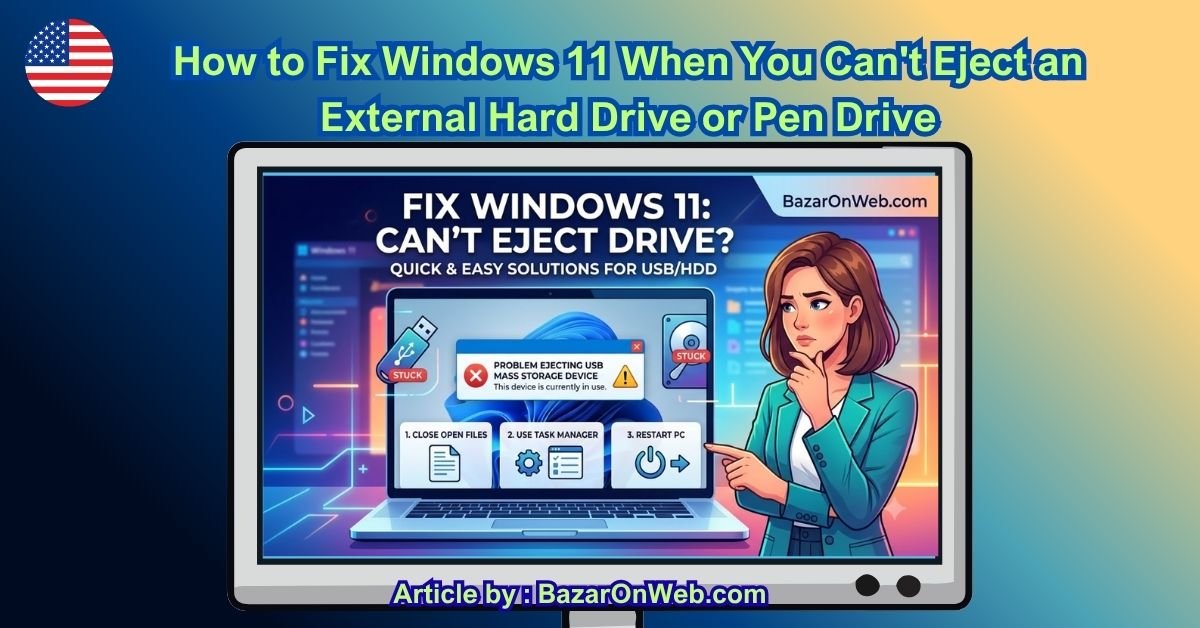
Removing a USB pen drive or external hard drive from a Windows 11 PC seems like one of the simplest things you can do. Usually, you click the Safely Remove Hardware and Eject Media icon, select your USB device, and unplug it.
However, Windows 11 sometimes refuses to eject an external hard drive, SSD, memory card reader, or pen drive. You may see a message saying that Windows is unable to stop the device because it is currently being used. In some cases, the notification appears even when no obvious application is using the drive.
This can happen because a background application, File Explorer, antivirus software, Windows Search, cloud synchronization service, or another Windows process still has access to the USB drive.
Simply pulling the drive out may work, but doing so while Windows is actively reading or writing data can potentially cause file corruption or data loss.
Fortunately, there are several ways to safely disconnect the device in Windows 11. Start with the simplest solutions and move toward the more advanced methods if the problem continues.
Why Windows 11 Won’t Eject Your USB Drive
Before trying different fixes, it helps to understand why Windows refuses to eject a USB device.
The most common reason is that another program or process still has a file open on the drive. For example, you might have opened a document, image, video, or folder from the USB drive and closed the visible window, but another application may still be accessing it.
File Explorer itself can sometimes keep the drive busy. Other possible causes include media players, backup programs, antivirus applications, indexing services, synchronization software, and command-line applications.
Windows may also be performing a background operation that isn’t immediately visible.
If you’re copying files, moving data, deleting files, or waiting for a program to finish writing information to the drive, you should allow the operation to complete before trying to eject it.
Once you understand that Windows is usually preventing removal to protect your data, the error becomes easier to troubleshoot.
1. Close All Programs and File Explorer Windows
The first thing to try is also the easiest.
Close every application that might be accessing the external drive. This includes Word, Excel, media players, photo editors, backup applications, torrent clients, archive utilities, and other programs.
Then close all File Explorer windows.
Don’t just close the folder that displays the USB drive. If you have several File Explorer windows open, close them all temporarily.
After that, wait a few seconds and try ejecting the device again.
You can use the taskbar’s Safely Remove Hardware and Eject Media icon to do this.
Right-click the USB-related icon in the notification area and select your external drive. Alternatively, open Settings > Bluetooth & devices > USB if the relevant device-management option is available on your Windows 11 installation.
If Windows allows the device to be stopped, you can safely disconnect it.
If the same error appears again, continue with the next solution.
2. Check Whether Files Are Still Being Copied
Sometimes the problem is caused by an operation that is still running in the background.
Open File Explorer and check the USB drive for any file transfers. If you recently copied a large folder, moved videos, created a backup, or deleted a large number of files, Windows may still be processing the operation.
Look for the file transfer window or any progress indicator.
You should also wait a little after a large transfer finishes before removing the drive. Some applications continue writing metadata or completing background operations after the main transfer appears to be finished.
Once you’re certain that no data is being transferred, try the eject option again.
This is particularly important with external hard drives because they may have mechanical components that continue operating after a file operation has apparently finished.
3. Restart Windows File Explorer
If no application appears to be using the drive, File Explorer itself may be keeping a connection open.
You can restart Windows Explorer through Task Manager.
Press Ctrl + Shift + Esc to open Task Manager.
Find Windows Explorer in the list of running processes. Right-click it and select Restart.
Your taskbar and File Explorer windows may briefly disappear and then reload. This is normal.
Once Windows Explorer restarts, try ejecting the external drive or pen drive again.
Restarting Explorer is useful because it refreshes the Windows shell and can release handles associated with folders, thumbnails, previews, and other Explorer-related operations.
If this doesn’t solve the problem, move on to Task Manager.
4. Use Task Manager to Close the Problem Application
A background application may be using the USB drive without showing an obvious window.
Open Task Manager by pressing Ctrl + Shift + Esc.
Look through the Processes section for applications that may be accessing your external drive.
For example, check for:
- Media players
- Backup software
- Photo applications
- File compression programs
- Cloud storage applications
- Antivirus utilities
- Command Prompt
- PowerShell
- Video editing software
- Office applications
If you recognize an application that may be accessing the drive, save your work and close it.
You can also right-click an unresponsive application and choose End task, but be careful. Ending a process can cause unsaved work to be lost.
After closing the suspected application, wait a few seconds and try ejecting the USB device.
5. Restart Windows 11
If you cannot determine which program is keeping the drive busy, restarting Windows can be one of the simplest solutions.
Close your applications and save your work.
Then select Start > Power > Restart.
Allow Windows 11 to shut down and restart completely.
Once you return to the desktop, don’t immediately open files from the external drive. Instead, try the eject option first.
If Windows recognizes the device and allows you to safely remove it, the problem was probably caused by a temporary background process.
If you’re regularly experiencing this problem, however, there may be a more specific process or configuration causing it.
6. Use Disk Management to Check the Drive
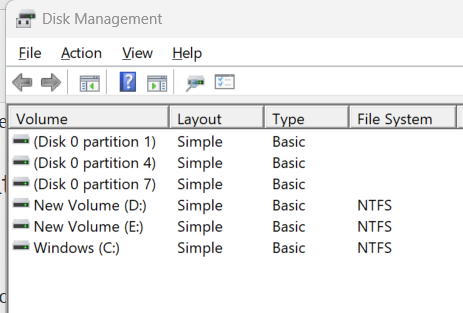
Windows 11’s Disk Management utility provides another way to work with connected storage devices.
Right-click the Start button and select Disk Management.
Locate your external hard drive or USB flash drive in the list.
Be extremely careful here. Disk Management allows you to modify partitions and volumes, so don’t delete, format, or initialize anything unless you know exactly what you’re doing.
You can use Disk Management to confirm that Windows properly recognizes the external device and that it has a drive letter.
If the drive appears normally but still refuses to eject, close Disk Management and try the normal safe-eject option again.
Avoid making unnecessary changes to the disk simply because it won’t eject.
7. Find Out Which Process Is Using the Drive
For stubborn cases, Windows provides a more advanced method for identifying the process holding the drive.
One approach is to use Resource Monitor.
Press Windows + R, type:
resmon
and press Enter.
Open the CPU section and look for the Associated Handles area.
You can search for your drive letter, such as E: or F:.
Windows may show processes that currently have handles associated with files or folders on that drive.
If you find a process that is clearly accessing the external drive, you can close the associated application.
Be careful when ending Windows system processes. If you’re unsure what a process does, don’t terminate it simply because it appears in the search results.
This method is particularly useful when Windows says the drive is being used but doesn’t tell you which application is responsible.
8. Check Windows Search Indexing
Windows Search may occasionally access files on removable storage.
If your USB drive contains many documents, photos, videos, or other searchable files, Windows may be indexing the contents.
Give Windows a little time after connecting or transferring a large amount of data.
You can also check Windows Search settings by opening Settings > Privacy & security > Searching Windows.
The exact indexing behavior depends on your Windows configuration and which locations are included.
If the drive is frequently used for large collections of files and Windows repeatedly accesses it after connection, indexing may be one of the processes worth investigating.
9. Temporarily Pause Cloud and Backup Applications
Applications that automatically synchronize or back up files can prevent removable storage from being ejected.
If your external drive contains folders monitored by a cloud-storage or backup application, the software may continue checking or synchronizing files in the background.
Look at your system tray for applications such as cloud storage clients or backup utilities.
Pause synchronization if the application provides that option, then wait for any active transfer to finish.
After synchronization stops, try ejecting the USB drive again.
This is especially important if you use an external drive as a backup destination.
Never disconnect the drive while a backup program is actively writing data to it.
10. Scan for Malware if the Problem Happens Frequently
Occasional problems ejecting a USB drive are usually not a serious security issue.
However, if Windows consistently reports that removable drives are being used even when you aren’t opening files, it’s worth checking your PC for unwanted software.
Open Windows Security and go to Virus & threat protection.
Run a scan and allow Windows Security to check your system.
You should also keep Windows 11 and your security software updated.
Don’t install random “USB eject fixer” programs simply because a website recommends them. Many Windows troubleshooting problems can be resolved using tools already included with the operating system.
11. Try the Command Prompt Method
Advanced users can also use Command Prompt to investigate and manage storage devices.
Search for Command Prompt from the Start menu.
Depending on what you need to do, Windows includes command-line utilities for viewing disks, volumes, and mounted drives.
However, be careful with commands that modify disks.
Commands related to disk partitioning can permanently erase data if used incorrectly.
For simply ejecting a device, the graphical Windows interface is generally preferable unless you already understand Windows storage commands.
If you decide to use command-line disk management, double-check the drive number and volume before executing any command that changes the device.
12. Change the Drive’s Removal Policy
Windows also provides policies controlling how removable storage is handled.
Open Device Manager by right-clicking Start and selecting Device Manager.
Expand Disk drives and locate your external storage device.
Right-click it and select Properties.
Depending on the device and Windows version, you may see a Policies tab containing removal-related options.
Windows commonly offers settings designed around quick removal or better performance.
If you choose a performance-oriented policy, Windows may rely more heavily on write caching. In that situation, using the safe-eject procedure becomes even more important.
Do not change this setting casually if you are not sure how it affects your workflow.
13. Update USB and Storage Drivers
Outdated or malfunctioning drivers can sometimes cause strange behavior with USB storage.
Open Device Manager and expand categories such as Disk drives and Universal Serial Bus controllers.
Look for devices showing warning symbols.
You can right-click relevant hardware and check for driver updates.
Also install pending Windows 11 updates through Settings > Windows Update.
Driver behavior can vary between computers, USB controllers, external-drive enclosures, and manufacturers. If the problem began after connecting a particular external drive, check the manufacturer’s support resources for firmware or driver information.
14. Use the Safest Option: Shut Down the PC
If Windows absolutely refuses to eject the device and you’ve already stopped applications and transfers, shutting down the computer is a conservative option.
First, make sure there are no active file transfers.
Then shut down Windows normally.
After the computer has completely powered off, disconnect the external drive.
This avoids removing the device while Windows is actively accessing it.
For a pen drive containing important files, this approach can be preferable to repeatedly pulling the device out while Windows is reporting that it is still in use.
What You Should Not Do
The most important rule is simple: don’t repeatedly unplug the device while Windows says it is being used.
You might get away with it many times, but an active write operation can potentially result in corrupted files.
You should also avoid:
- Removing the drive during a file transfer
- Disconnecting an external hard drive during a backup
- Closing programs by force without saving your work
- Formatting the drive as a troubleshooting step
- Changing disk partitions unnecessarily
- Running unfamiliar disk-management commands
- Installing unknown utilities that promise to “force eject” USB devices
If the drive contains important information, take the cautious approach.
Final Thoughts
Windows 11 refusing to eject an external hard drive or pen drive is usually caused by a program or background process that still has access to the device.
Start by closing applications and File Explorer windows. Then check for ongoing file transfers, restart Windows Explorer, and use Task Manager to identify applications that may still be accessing the drive.
For more difficult cases, Resource Monitor can help identify processes associated with the drive. You can also investigate Windows Search, cloud synchronization, backup software, security scans, drivers, and removable-storage policies.
If none of these solutions work, restarting Windows or shutting down the computer before disconnecting the drive provides a safer way to remove it.
Most importantly, don’t treat the Windows warning as something you should simply ignore. The purpose of safe removal is to give Windows an opportunity to finish pending operations and release the device properly.
Once you identify which application or service is keeping the drive busy, the problem usually becomes much easier to solve.
Disclaimer: The troubleshooting steps are intended for general Windows 11 guidance. Always back up important data and avoid disconnecting a storage device while files are being transferred or written.






Products
-
![Apple Watch Ultra 3 [GPS + Cellular 49mm] Running & Multisport Smartwatch w/Rugged Titanium Case w/Black Titanium Milanese Loop - M. Satellite Communications, Advanced Health & Fitness Tracking](https://bazaronweb.com/retailstores/wp-content/uploads/2025/09/apple-watch-320x320.jpg) Apple Watch Ultra 3 [GPS + Cellular 49mm] Running & Multisport Smartwatch w/Rugged Titanium Case w/Black Titanium Milanese Loop - M. Satellite Communications, Advanced Health & Fitness Tracking
Apple Watch Ultra 3 [GPS + Cellular 49mm] Running & Multisport Smartwatch w/Rugged Titanium Case w/Black Titanium Milanese Loop - M. Satellite Communications, Advanced Health & Fitness Tracking
-
 Apple iPad mini (A17 Pro): Apple Intelligence, 8.3-inch Liquid Retina Display, 256GB, Wi-Fi 6E, 12MP Front/12MP Back Camera, Touch ID, All-Day Battery Life — Purple
-
 Apple AirPods Max Wireless Over-Ear Headphones, Active Noise Cancelling, Transparency Mode, Personalized Spatial Audio, Dolby Atmos, Bluetooth Headphones for iPhone – Space Gray
-
 Apple AirPods Pro 2 Wireless Earbuds, Active Noise Cancellation, Hearing Aid Feature, Bluetooth Headphones, Transparency, Personalized Spatial Audio, High-Fidelity Sound, H2 Chip, USB-C Charging
-
Home Garage 210 TC Cotton King Floral Fitted (Elastic) Bedsheet(Pack of 1, Grey)
Original price was: ₹999.00.₹299.00Current price is: ₹299.00.
Leave a Reply