Discounted Products
-
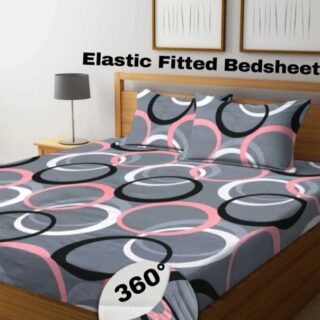 Home Garage 210 TC Cotton King Floral Fitted (Elastic) Bedsheet(Pack of 1, Grey)
Original price was: ₹999.00.₹299.00Current price is: ₹299.00.
-
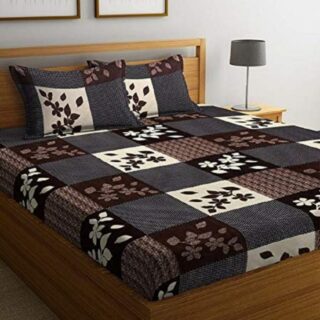 Goodrik 140 TC Cotton Double 3D Printed Flat Bedsheet(Pack of 1, Brown)
Original price was: ₹499.00.₹229.00Current price is: ₹229.00.
-
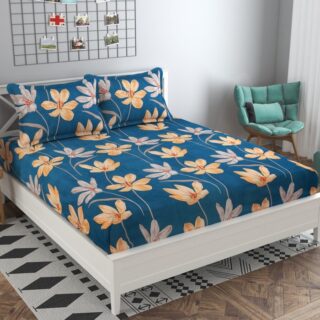 GLOBALSHOP 350 TC Microfiber Double Floral Flat Bedsheet(Pack of 1, Multicolor)
Original price was: ₹1,250.00.₹263.00Current price is: ₹263.00.
-
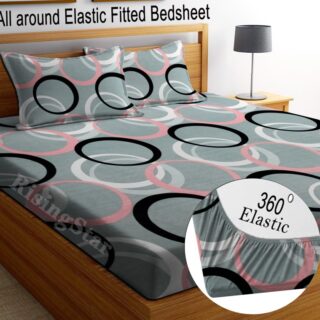 RisingStar 250 TC Microfiber King Printed Fitted (Elastic) Bedsheet(Pack of 1, FITTED-ROUND-CIRCLES-PREMIUM)
Original price was: ₹2,299.00.₹299.00Current price is: ₹299.00.
-
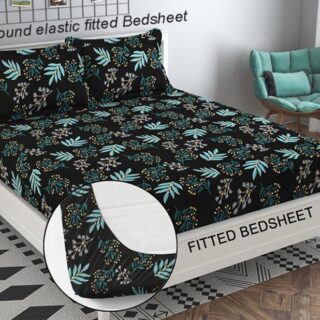 Home Garage 210 TC Cotton King Floral Fitted (Elastic) Bedsheet(Pack of 1, Fitted Black Green)
Original price was: ₹1,299.00.₹299.00Current price is: ₹299.00.
-
 Home Garage 180 TC Cotton King 3D Printed Flat Bedsheet(Pack of 1, White)
Original price was: ₹999.00.₹229.00Current price is: ₹229.00.
-
 Panipat Textile Hub 152.4 cm (5 ft) Polyester Window Curtain (Pack Of 2)(Solid, Aqua)
Original price was: ₹1,899.00.₹299.00Current price is: ₹299.00.
-
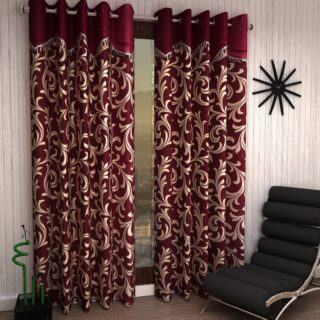 Home Sizzler 214 cm (7 ft) Polyester Semi Transparent Door Curtain (Pack Of 2)(Floral, Maroon)
Original price was: ₹1,199.00.₹399.00Current price is: ₹399.00.
-
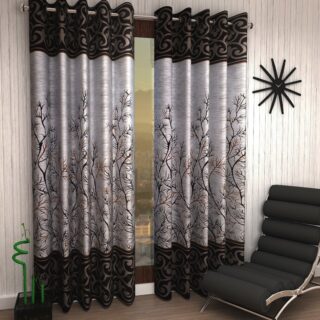 Home Sizzler 153 cm (5 ft) Polyester Room Darkening Window Curtain (Pack Of 2)(Floral, Brown)
Original price was: ₹799.00.₹299.00Current price is: ₹299.00.
-
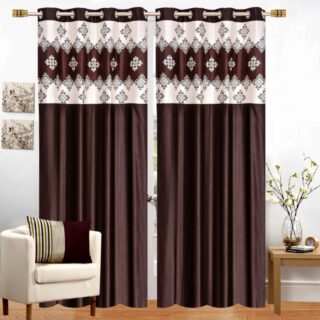 Stella Creations 214 cm (7 ft) Polyester Room Darkening Door Curtain (Pack Of 2)(Abstract, Brown)
Original price was: ₹1,299.00.₹449.00Current price is: ₹449.00.
-
 Homefab India 152.5 cm (5 ft) Polyester Room Darkening Window Curtain (Pack Of 2)(Floral, Light Blue)
Original price was: ₹1,199.00.₹319.00Current price is: ₹319.00.
-
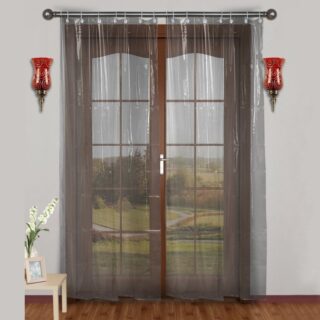 Urban Home 214 cm (7 ft) PVC Transparent Door Curtain Single Curtain(Solid, Off White)
Original price was: ₹699.00.₹203.00Current price is: ₹203.00.
-
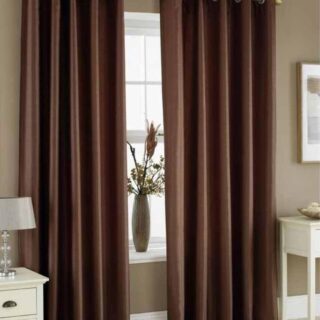 Panipat Textile Hub 213 cm (7 ft) Polyester Door Curtain (Pack Of 2)(Solid, Brown)
Original price was: ₹1,199.00.₹349.00Current price is: ₹349.00.
-
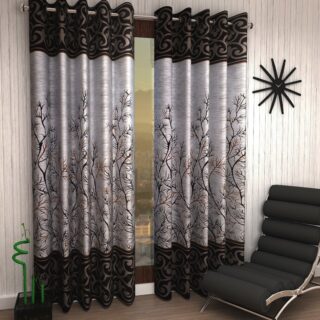 Home Sizzler 214 cm (7 ft) Polyester Semi Transparent Door Curtain (Pack Of 2)(Floral, Brown)
Original price was: ₹999.00.₹349.00Current price is: ₹349.00.
-
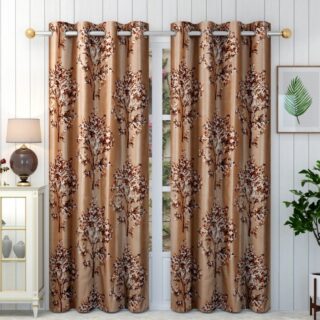 Panipat Textile Hub 213 cm (7 ft) Polyester Semi Transparent Door Curtain (Pack Of 2)(Floral, Brown)
Original price was: ₹899.00.₹299.00Current price is: ₹299.00.
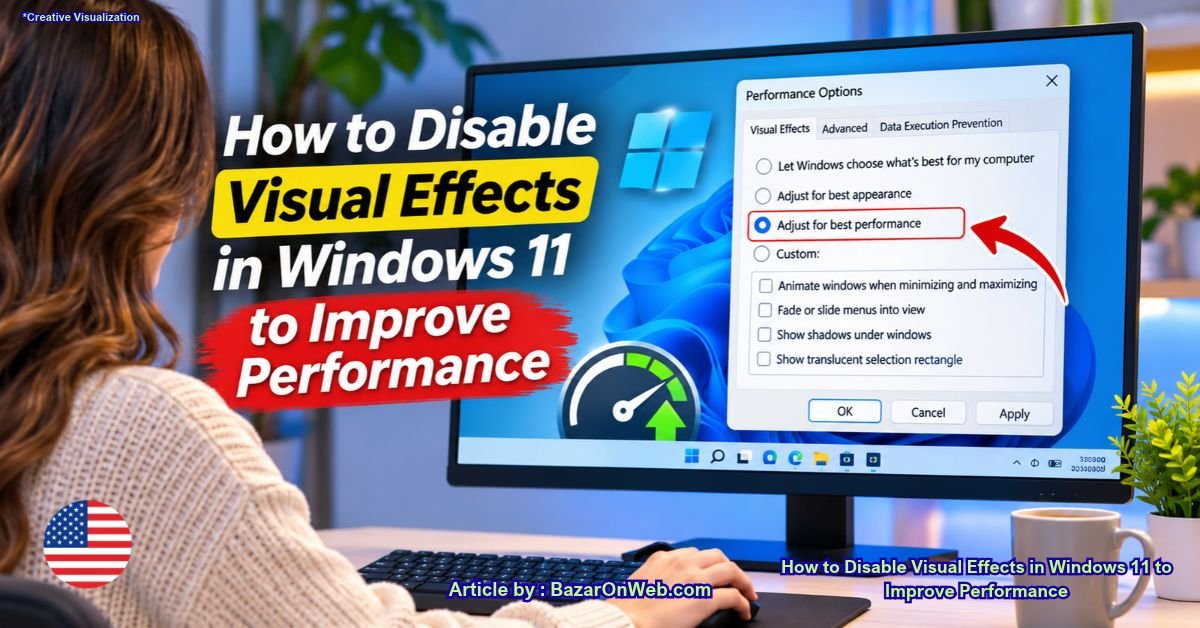
Windows 11 comes with a modern interface that looks noticeably different from previous versions of Windows. Rounded corners, animations, transparency effects, shadows, and other visual elements make the operating system look attractive. However, these features also require system resources to work properly.
If you have a PC with less than 4GB of RAM, you may notice that Windows 11 does not always run smoothly. Applications might take longer to open, switching between windows can feel sluggish, and even basic activities such as browsing files or opening the Start menu may become frustrating.
One possible reason behind these performance problems is Windows 11’s visual effects.
Visual effects are designed to improve the overall appearance and usability of the operating system. However, not everyone needs them, especially when using an older computer or a device with limited hardware resources.
The good news is that Windows 11 allows you to customize these settings. You can disable unnecessary animations, shadows, transparency, and other visual effects to reduce some of the graphical workload on your PC.
In this guide, I’ll walk you through different ways to disable visual effects in Windows 11. You don’t need any additional software, and you can reverse these changes whenever you want.
Let’s get started!
Why Should You Disable Visual Effects in Windows 11?
Before changing anything, it’s important to understand why disabling visual effects might help your computer.
Windows 11 uses different graphical effects to make everyday interactions look smoother. For example, when you minimize a window, open the Start menu, or move between applications, you may notice animations.
Similarly, transparency effects make certain interface elements appear slightly see-through, while shadows add depth around application windows.
Although these features look good, they require additional graphics processing and system resources.
Here are some reasons why disabling them can be helpful:
-
Reduce graphical workload: Turning off unnecessary animations and effects can reduce the work required to display certain interface elements.
-
Improve responsiveness: Menus and windows may feel quicker when animations are disabled.
-
Help older computers: PCs with older processors and integrated graphics may benefit from a simpler interface.
-
Improve everyday usability: You can avoid unnecessary visual transitions while switching between applications.
-
Make Windows feel lighter: Removing decorative effects can make the interface feel less demanding.
One important thing to remember is that disabling visual effects will not magically increase your physical RAM. However, it can reduce some graphical overhead and improve the perceived responsiveness of your computer.
Now, let’s look at how to do it.
Method 1: Disable Visual Effects Using Windows 11 Settings
This is probably the easiest way to turn off unnecessary visual effects in Windows 11.
Microsoft provides dedicated options for controlling animations and transparency. You can access these settings directly from the Windows Settings application.
Follow these steps:
Step 1: Press the Windows + I keyboard shortcut to open Windows Settings.
Step 2: From the left sidebar, click on Accessibility.
Step 3: Select Visual effects under the Accessibility section.
Step 4: You will find different options related to visual effects.
Look for the following settings:
-
Animation effects
-
Transparency effects
Step 5: Turn off the toggle next to Animation effects.
Step 6: Turn off Transparency effects as well.
Settings path: Settings → Accessibility → Visual effects
That’s it! Windows 11 will now disable these visual features.
You should notice that certain interface transitions are no longer animated. The Start menu, taskbar, and other interface elements will also stop using some transparency effects.
If you prefer a simpler Windows experience, these settings are worth disabling.
However, these two options do not control every visual effect available in Windows 11. If you want more control, try the next method.
Method 2: Adjust Visual Effects for Best Performance
Windows 11 includes another useful feature that allows you to control individual visual effects.
Instead of disabling only animations and transparency, you can turn off several additional effects, including window shadows, menu animations, and thumbnail previews.
This method is particularly useful if you are using an older PC with limited hardware resources.
Here’s how to access it.
Step 1: Press Windows + R on your keyboard to open the Run dialog box.
Step 2: Type the following command:
sysdm.cpl
Step 3: Press Enter.
Step 4: The System Properties window will appear.
Step 5: Select the Advanced tab.
Step 6: Under the Performance section, click on the Settings button.
Step 7: A new window called Performance Options will open.
Step 8: Under the Visual Effects tab, select:
Adjust for best performance
System Properties → Advanced → Performance → Settings → Visual Effects
Windows will automatically disable most of the available visual effects.
You may notice that the Windows interface looks considerably simpler after applying this setting. Some animations, shadows, and other decorative elements will disappear.
Step 9: Click Apply and then OK to save your changes.
Close the remaining windows and continue using your computer.
You should now have a simpler Windows 11 interface with fewer visual effects.
Which Visual Effects Should You Keep Enabled?
There is one small problem with selecting Adjust for best performance.
Windows may disable certain features that are useful for everyday activities. For example, font smoothing can make text appear more comfortable to read.
If you don’t like the appearance of Windows after disabling everything, you can manually enable a few options.
Here are some settings worth considering:
| Visual effect | Recommendation |
|---|---|
| Animate controls and elements inside windows | Disable |
| Animate windows when minimizing and maximizing | Disable |
| Animations in the taskbar | Disable |
| Fade or slide menus into view | Disable |
| Fade or slide ToolTips into view | Disable |
| Show shadows under windows | Disable |
| Show shadows under mouse pointer | Disable |
| Show thumbnails instead of icons | Keep enabled if useful |
| Smooth edges of screen fonts | Keep enabled |
| Show window contents while dragging | Personal preference |
I recommend keeping Smooth edges of screen fonts enabled because it makes text easier to read.
You can also keep thumbnail previews enabled if you frequently work with images and videos.
The idea is to disable unnecessary decorative effects without making your computer uncomfortable to use.
Method 3: Turn Off Transparency Effects Using Personalization Settings
Windows 11 also allows you to control transparency through the Personalization section.
Although the Accessibility settings provide a direct way to disable transparency, you can also access the same feature through Windows personalization options.
Follow these steps:
Step 1: Open Windows Settings by pressing Windows + I.
Step 2: Select Personalization from the left sidebar.
Step 3: Click on Colors.
Step 4: Find the Transparency effects option.
Step 5: Turn the toggle off.
Windows will immediately remove transparency from supported interface elements.
This can make the Start menu, taskbar, and other interface components appear more solid.
If you are using a low-end PC, disabling transparency is a reasonable customization because you don’t necessarily need these decorative effects for everyday tasks.
Method 4: Disable Unnecessary Startup Applications
Disabling visual effects is useful, but there is another thing you should consider if your Windows 11 computer has limited RAM.
Several applications may automatically start when you turn on your PC.
For example, messaging applications, cloud storage services, game launchers, and other programs may continue running in the background.
These applications can consume memory even when you are not actively using them.
You can reduce this unnecessary background activity by disabling applications you don’t need at startup.
Here’s how:
Step 1: Press Ctrl + Shift + Esc to open Task Manager.
Step 2: Select the Startup apps section from the left sidebar.
Step 3: Review the list of applications that launch automatically when Windows starts.
Step 4: Identify applications that you don’t need immediately after starting your computer.
Step 5: Right-click an unnecessary application and select Disable.
Repeat these steps for other applications you don’t need at startup.
Be careful not to disable essential security software, hardware utilities, or applications that you depend on.
Disabling startup applications can free up memory and reduce background activity, which may be particularly helpful on computers with limited RAM.
How to Restore Visual Effects in Windows 11
What if you don’t like the appearance of Windows after disabling visual effects?
Don’t worry. You can restore the original settings whenever you want.
To do this, follow these steps:
-
Press Windows + R to open the Run dialog box.
-
Type
sysdm.cpland press Enter. -
Open the Advanced tab.
-
Under Performance, click Settings.
-
Select Let Windows choose what’s best for my computer.
-
Click Apply and then OK.
Windows will restore its automatically selected visual effects.
Alternatively, you can revisit Settings → Accessibility → Visual effects and turn Animation effects and Transparency effects back on.
You can customize these options whenever you want.
Troubleshooting: Visual Effects Settings Not Working
Sometimes, you may disable visual effects but notice that your computer is still running slowly.
This is because Windows performance depends on several factors, not just graphical effects.
Here are a few things you can check.
1. Restart Your Computer
After making multiple system changes, restarting your computer is a good idea.
It allows Windows to reload its interface and apply the updated settings properly.
2. Check Your RAM Usage
Open Task Manager using Ctrl + Shift + Esc.
Select the Processes section and look at the Memory column.
This will help you identify which applications are consuming the most RAM.
If your memory usage is consistently high, consider closing unnecessary applications.
3. Check Available Storage
A computer with very little free storage can also experience performance problems.
Open File Explorer, select This PC, and check how much storage space is available on your Windows drive.
If necessary, remove temporary files and applications you no longer use.
4. Update Your Graphics Drivers
Outdated graphics drivers can sometimes cause display-related problems.
Check Windows Update for available driver updates or use the official support software provided by your graphics hardware manufacturer.
5. Consider Upgrading Your RAM
If your computer frequently runs out of memory, disabling visual effects may not be enough.
For a better Windows 11 experience, consider upgrading your RAM if your hardware supports it.
Having more memory can make a noticeable difference when multitasking, browsing with multiple tabs, and running demanding applications.
Conclusion
Windows 11 offers several visual effects that make its interface look modern and attractive. However, if you are using an older computer with limited RAM, these features may not be worth keeping enabled.
Disabling animations, transparency, window shadows, and other unnecessary graphical effects can help reduce some of the graphical workload and make the operating system feel more responsive.
I recommend starting with the Accessibility settings and then using the Performance Options window if you want more control over individual visual effects.
You can also disable unnecessary startup applications to reduce background memory usage.
Remember that these changes cannot replace a proper hardware upgrade. However, they are simple, free adjustments that you can try before spending money on new hardware.
Disclaimer: The performance improvements from disabling visual effects vary depending on your computer’s hardware, Windows configuration, and running applications. These changes do not increase physical RAM or guarantee faster performance on every PC.

- How to Disable Visual Effects in Windows 11 to Improve Performance
- How to Record Conversations and Automatically Convert Them into Text on iPhone

- How to Add Multiple Email Accounts on Windows 11

- How to Fix Wi-Fi Disconnecting Automatically on Windows 11
- How to Remotely Control Another Computer Using Windows Quick Assist
Products
-
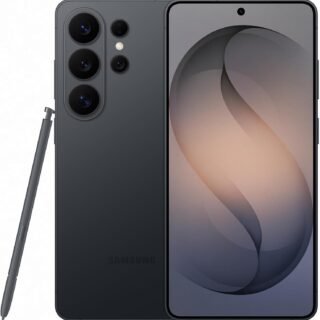 Samsung Galaxy S26 Ultra Unlocked Android Smartphone, 256GB, Black, Privacy Display, 200MP Camera, 5000mAh Battery, US 1 Year Warranty
-
 Apple Watch Ultra 3 [GPS + Cellular 49mm] Running & Multisport Smartwatch w/Rugged Titanium Case w/Black Titanium Milanese Loop - M. Satellite Communications, Advanced Health & Fitness Tracking
-
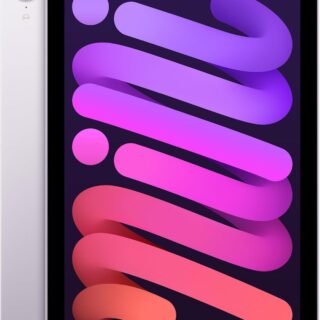 Apple iPad mini (A17 Pro): Apple Intelligence, 8.3-inch Liquid Retina Display, 256GB, Wi-Fi 6E, 12MP Front/12MP Back Camera, Touch ID, All-Day Battery Life — Purple
-
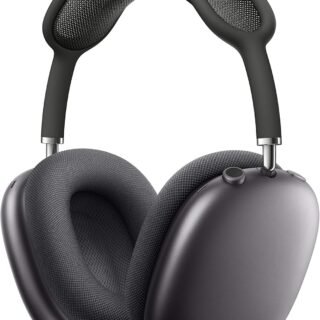 Apple AirPods Max Wireless Over-Ear Headphones, Active Noise Cancelling, Transparency Mode, Personalized Spatial Audio, Dolby Atmos, Bluetooth Headphones for iPhone – Space Gray
-
 Apple AirPods Pro 2 Wireless Earbuds, Active Noise Cancellation, Hearing Aid Feature, Bluetooth Headphones, Transparency, Personalized Spatial Audio, High-Fidelity Sound, H2 Chip, USB-C Charging
Leave a Reply