Discounted Products
-
 Home Garage 210 TC Cotton King Floral Fitted (Elastic) Bedsheet(Pack of 1, Grey)
Original price was: ₹999.00.₹299.00Current price is: ₹299.00.
Home Garage 210 TC Cotton King Floral Fitted (Elastic) Bedsheet(Pack of 1, Grey)
Original price was: ₹999.00.₹299.00Current price is: ₹299.00.
-
 Goodrik 140 TC Cotton Double 3D Printed Flat Bedsheet(Pack of 1, Brown)
Original price was: ₹499.00.₹229.00Current price is: ₹229.00.
Goodrik 140 TC Cotton Double 3D Printed Flat Bedsheet(Pack of 1, Brown)
Original price was: ₹499.00.₹229.00Current price is: ₹229.00.
-
 GLOBALSHOP 350 TC Microfiber Double Floral Flat Bedsheet(Pack of 1, Multicolor)
Original price was: ₹1,250.00.₹263.00Current price is: ₹263.00.
GLOBALSHOP 350 TC Microfiber Double Floral Flat Bedsheet(Pack of 1, Multicolor)
Original price was: ₹1,250.00.₹263.00Current price is: ₹263.00.
-
 RisingStar 250 TC Microfiber King Printed Fitted (Elastic) Bedsheet(Pack of 1, FITTED-ROUND-CIRCLES-PREMIUM)
Original price was: ₹2,299.00.₹299.00Current price is: ₹299.00.
RisingStar 250 TC Microfiber King Printed Fitted (Elastic) Bedsheet(Pack of 1, FITTED-ROUND-CIRCLES-PREMIUM)
Original price was: ₹2,299.00.₹299.00Current price is: ₹299.00.
-
 Home Garage 210 TC Cotton King Floral Fitted (Elastic) Bedsheet(Pack of 1, Fitted Black Green)
Original price was: ₹1,299.00.₹299.00Current price is: ₹299.00.
Home Garage 210 TC Cotton King Floral Fitted (Elastic) Bedsheet(Pack of 1, Fitted Black Green)
Original price was: ₹1,299.00.₹299.00Current price is: ₹299.00.
-
 Home Garage 180 TC Cotton King 3D Printed Flat Bedsheet(Pack of 1, White)
Original price was: ₹999.00.₹229.00Current price is: ₹229.00.
Home Garage 180 TC Cotton King 3D Printed Flat Bedsheet(Pack of 1, White)
Original price was: ₹999.00.₹229.00Current price is: ₹229.00.
-
 Panipat Textile Hub 152.4 cm (5 ft) Polyester Window Curtain (Pack Of 2)(Solid, Aqua)
Original price was: ₹1,899.00.₹299.00Current price is: ₹299.00.
Panipat Textile Hub 152.4 cm (5 ft) Polyester Window Curtain (Pack Of 2)(Solid, Aqua)
Original price was: ₹1,899.00.₹299.00Current price is: ₹299.00.
-
 Home Sizzler 214 cm (7 ft) Polyester Semi Transparent Door Curtain (Pack Of 2)(Floral, Maroon)
Original price was: ₹1,199.00.₹399.00Current price is: ₹399.00.
Home Sizzler 214 cm (7 ft) Polyester Semi Transparent Door Curtain (Pack Of 2)(Floral, Maroon)
Original price was: ₹1,199.00.₹399.00Current price is: ₹399.00.
-
 Home Sizzler 153 cm (5 ft) Polyester Room Darkening Window Curtain (Pack Of 2)(Floral, Brown)
Original price was: ₹799.00.₹299.00Current price is: ₹299.00.
Home Sizzler 153 cm (5 ft) Polyester Room Darkening Window Curtain (Pack Of 2)(Floral, Brown)
Original price was: ₹799.00.₹299.00Current price is: ₹299.00.
-
 Stella Creations 214 cm (7 ft) Polyester Room Darkening Door Curtain (Pack Of 2)(Abstract, Brown)
Original price was: ₹1,299.00.₹449.00Current price is: ₹449.00.
Stella Creations 214 cm (7 ft) Polyester Room Darkening Door Curtain (Pack Of 2)(Abstract, Brown)
Original price was: ₹1,299.00.₹449.00Current price is: ₹449.00.
-
 Homefab India 152.5 cm (5 ft) Polyester Room Darkening Window Curtain (Pack Of 2)(Floral, Light Blue)
Original price was: ₹1,199.00.₹319.00Current price is: ₹319.00.
Homefab India 152.5 cm (5 ft) Polyester Room Darkening Window Curtain (Pack Of 2)(Floral, Light Blue)
Original price was: ₹1,199.00.₹319.00Current price is: ₹319.00.
-
 Urban Home 214 cm (7 ft) PVC Transparent Door Curtain Single Curtain(Solid, Off White)
Original price was: ₹699.00.₹203.00Current price is: ₹203.00.
Urban Home 214 cm (7 ft) PVC Transparent Door Curtain Single Curtain(Solid, Off White)
Original price was: ₹699.00.₹203.00Current price is: ₹203.00.
-
 Panipat Textile Hub 213 cm (7 ft) Polyester Door Curtain (Pack Of 2)(Solid, Brown)
Original price was: ₹1,199.00.₹349.00Current price is: ₹349.00.
Panipat Textile Hub 213 cm (7 ft) Polyester Door Curtain (Pack Of 2)(Solid, Brown)
Original price was: ₹1,199.00.₹349.00Current price is: ₹349.00.
-
 Home Sizzler 214 cm (7 ft) Polyester Semi Transparent Door Curtain (Pack Of 2)(Floral, Brown)
Original price was: ₹999.00.₹349.00Current price is: ₹349.00.
Home Sizzler 214 cm (7 ft) Polyester Semi Transparent Door Curtain (Pack Of 2)(Floral, Brown)
Original price was: ₹999.00.₹349.00Current price is: ₹349.00.
-
 Panipat Textile Hub 213 cm (7 ft) Polyester Semi Transparent Door Curtain (Pack Of 2)(Floral, Brown)
Original price was: ₹899.00.₹299.00Current price is: ₹299.00.
Panipat Textile Hub 213 cm (7 ft) Polyester Semi Transparent Door Curtain (Pack Of 2)(Floral, Brown)
Original price was: ₹899.00.₹299.00Current price is: ₹299.00.
Have you ever received a call from a friend or family member saying, “My computer isn’t working. Can you fix it?”
There’s just one problem: you’re sitting somewhere else.
Normally, you might try explaining where to click over the phone. And we all know how that conversation usually goes.
“Click Settings.”
“Where is Settings?”
“Press the Windows key.”
“Which one is that?”
“Never mind. Send me a picture.”
Thankfully, Windows has a much easier option.
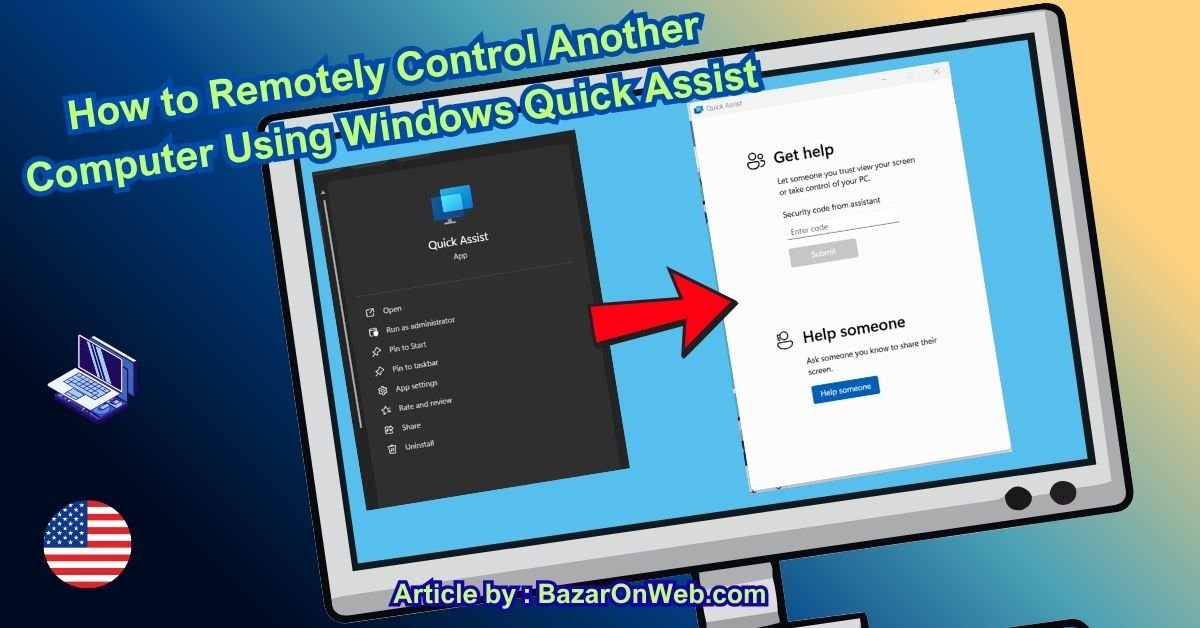
Microsoft Quick Assist lets you remotely connect to another Windows computer so you can see what’s happening on the screen and, when permission is granted, control the computer to help troubleshoot a problem.
The best part is that you don’t necessarily need to install a separate remote desktop application for a basic support session.
In this guide, I’ll walk you through how Quick Assist works, how to connect two computers, how to request control, and—just as importantly—how to avoid giving remote access to the wrong person.
What Is Windows Quick Assist?
Quick Assist is a Windows feature designed to help one person provide remote assistance to another person.
Think of it as a virtual version of sitting beside someone’s computer.
There are generally two people involved:
- The person receiving help — this is the PC with the problem.
- The helper — this is the person who will connect remotely.
For example:
PC 1: “My computer has a problem.”
PC 2: “Okay, I’ll connect and take a look.”
The person providing assistance can view the other computer’s screen and, when the user allows it, request control of the PC.
That means you can demonstrate a setting, troubleshoot an application, or show someone exactly what they need to do without being physically present.
There’s one important thing to understand, though: remote access is powerful.
You should only use Quick Assist with someone you trust and only give access when you understand who is connecting to your computer.
What Do You Need to Use Quick Assist?
Before starting, make sure both computers are ready.
You generally need:
- Two Windows PCs
- An internet connection
- Quick Assist available on both computers
- Someone on the other computer who can approve the connection
- A trusted person providing or receiving assistance
The exact appearance of Quick Assist can vary slightly depending on your Windows version and updates.
If you don’t see Quick Assist immediately, use Windows Search and type Quick Assist.
You can also open it from the Start menu if it appears in your installed applications.
How to Remotely Control Another PC With Quick Assist
Let’s walk through a complete example.
Imagine your friend has a Windows PC that isn’t working correctly, and you’re going to help them from your own computer.
Step 1: Open Quick Assist on Both Computers
Start by opening Quick Assist on both PCs.
On either computer, click the Start button and search for:
Quick Assist
Open the application.
You’ll see options for providing or receiving assistance.
The person helping should use the option to help someone, while the person receiving assistance needs to enter the security code provided by the helper.
This is where the connection begins.
Step 2: The Helper Generates a Security Code
On the helper’s computer, choose the option to assist another person.
Quick Assist will generate a temporary security code.
This code is important because it helps establish the connection between the two computers.
Now you have a simple conversation:
PC 2:
“Okay, I’ve got the code.”
PC 1:
“Send it to me.”
You can communicate the code through a method you already trust, such as a phone call or private message.
Don’t post the code publicly.
Step 3: Enter the Code on the Computer Receiving Help
Now switch to the computer that needs assistance.
Open Quick Assist there and look for the field asking for the code.
Enter the code supplied by the helper.
Then continue with the connection process.
At this point, Windows will begin establishing the Quick Assist session.
If everything is working correctly, you’ll see a prompt asking the person receiving assistance to allow the connection.
Step 4: Approve the Connection
This is an important security step.
The person sitting at the computer receiving help should carefully review the prompt before allowing the session.
If you’re the person who initiated the support request, this is where you confirm that you’re comfortable allowing the other person to connect.
This isn’t something you should blindly approve.
Make sure you know who you’re connecting with.
Once the connection is approved, the helper can begin viewing the remote computer.
And this is where things get interesting.
Step 5: View the Other Computer’s Screen
Once connected, the helper can see the remote computer’s screen.
Instead of saying:
“Go to Settings.”
“Which Settings?”
“Open System.”
“Where is System?”
You can simply look at the screen yourself.
That makes troubleshooting much easier.
For example, imagine your friend says:
“Something is wrong with my browser.”
You can now actually see what they’re seeing.
You might notice an error message, a setting they accidentally changed, or something else that explains the problem.
This is one of the biggest advantages of remote assistance.
You’re no longer trying to solve a visual problem using a telephone conversation.
Step 6: Request Control of the Computer
Seeing someone’s screen is useful, but sometimes you need to actually operate the computer.
Quick Assist can allow the helper to request control.
The person receiving help will generally see a request asking whether they want to allow the helper to control the computer.
They need to approve that request.
Once permission is granted, the helper can interact with the remote PC.
You can move the mouse, open applications, navigate Windows settings, and perform troubleshooting steps within the permissions available during the session.
The important word here is permission.
The person sitting at the remote computer remains involved in the process.
Here’s Where You Can Make the Video More Interesting
If you’re creating a tutorial video about Quick Assist, don’t just connect two computers and move the mouse around.
Actually demonstrate a small troubleshooting situation.
For example:
PC 1:
“My computer has a problem.”
PC 2:
“What happened?”
PC 1:
“I don’t know. Something isn’t working.”
PC 2:
“Okay. Let me connect.”
Then establish the Quick Assist connection.
Once connected:
PC 2:
“Okay, I can see your screen.”
PC 1:
“Can you fix it?”
PC 2:
“Give me control.”
And that’s your transition into the actual demonstration.
It makes the tutorial feel like a real-world situation instead of a list of instructions.
What Can You Use Quick Assist For?
Quick Assist is particularly useful for relatively straightforward computer-support situations.
For example, you could use it to help someone:
- Find a Windows setting
- Troubleshoot a basic application problem
- Navigate unfamiliar Windows menus
- Understand an error message
- Change a configuration
- Find a file or folder
- Learn how to use a Windows feature
- Perform simple troubleshooting steps
It’s also handy when helping less technical friends or family members.
Instead of spending 20 minutes explaining where a button is, you can show them directly.
Quick Assist Isn’t Just for Friends and Family
Although helping friends and family is an obvious use case, Quick Assist can also be useful in other situations.
For example, imagine you’re working remotely and a colleague needs help with a Windows setting.
Rather than asking them to describe every detail of their screen, you can use a remote assistance session if your organization’s policies allow it.
Small businesses can also use remote assistance as part of informal technical support.
However, businesses should have proper security policies around remote access, especially when computers contain customer information, financial information, business documents, or other sensitive data.
How to End a Quick Assist Session
Once you’ve finished troubleshooting, don’t leave the remote session running unnecessarily.
Simply end the Quick Assist connection.
The exact controls can vary depending on the current version of the application, but you’ll have an option to stop or end the session.
After disconnecting, the remote assistance session is no longer active.
If you were helping someone troubleshoot a problem, it’s a good habit to explicitly tell them:
“We’re disconnected now.”
That way, both people know the support session has ended.
The Most Important Part: Quick Assist Security
Now let’s talk about something much more important than the actual buttons.
Never give remote access to a stranger simply because they contacted you and claimed there is something wrong with your computer.
This is one of the most important things to remember when using remote-access software.
Imagine you receive a phone call.
The person says:
“Hello, we’re calling because we’ve detected a virus on your computer.”
They then tell you to open Quick Assist and provide a code.
Stop.
Don’t do it just because the caller sounds professional.
If you weren’t expecting the support call, treat the request with suspicion.
A remote connection can give another person significant visibility into your computer. Depending on the permissions granted, they may be able to interact with your system.
That’s why you should only establish a Quick Assist session with someone you intended to contact or trust.
Never Share a Quick Assist Code Publicly
The security code used to establish a support session should be treated as private.
Don’t post it on social media.
Don’t put it in a public chat.
Don’t share it with random people.
If you’re receiving assistance, make sure you know exactly who you’re giving the code to.
And if someone unexpectedly asks you for a Quick Assist code, don’t provide it.
What If Someone Calls Claiming to Be Microsoft Support?
This is worth repeating.
If someone unexpectedly calls and says:
“We’re from Microsoft. Your computer has a serious problem.”
Don’t automatically trust them.
Microsoft and other legitimate companies have specific support processes, and an unexpected caller asking you to provide remote access should be treated very carefully.
When in doubt, end the call and contact the company through an official support channel that you find yourself.
Don’t use a phone number or website supplied by a suspicious caller.
Quick Assist vs. Traditional Remote Desktop Tools
You may have heard of applications such as TeamViewer or AnyDesk.
Those tools can provide remote access capabilities too, but Quick Assist has a different focus.
Quick Assist is particularly convenient when you simply need to help another Windows user with a problem.
You don’t necessarily need to build a permanent remote-access setup.
You open the tool, establish a session, provide the required permission, troubleshoot the computer, and disconnect when you’re finished.
For occasional family or friend support, that can be very convenient.
Quick Troubleshooting if Quick Assist Doesn’t Work
Sometimes the connection won’t work on the first attempt.
Here are a few things to check.
Check the Internet Connection
Both computers need a working internet connection.
If either computer has unstable connectivity, the remote session may fail or become unreliable.
Restart Quick Assist
If the application isn’t behaving correctly, close it and open it again.
You can also restart the computer if necessary.
Check Windows Updates
Windows features can change with updates.
If Quick Assist isn’t working as expected, make sure Windows is reasonably up to date.
Generate a New Code
If a code doesn’t work, don’t keep trying indefinitely.
Start a new assistance session and generate a fresh code.
Check Your Organization’s Policies
If you’re using a company-managed computer, your organization may restrict remote assistance features.
In that situation, contact your IT administrator instead of trying to bypass the restriction.
A Simple Way to Remember How Quick Assist Works
If you forget the process, remember this simple sequence:
Open → Generate Code → Enter Code → Approve → View → Request Control → Troubleshoot → Disconnect
That’s basically the entire workflow.
The helper creates the connection.
The person receiving help enters the code and approves the session.
The helper can then view the screen and request control when necessary.
Once the problem is solved, disconnect.
Final Thoughts
Windows Quick Assist is one of those features that can seem almost too simple until you actually need it.
If your parents, friends, coworkers, or family members regularly call you with computer problems, it can save you from a lot of frustrating conversations.
Instead of trying to explain every click over the phone, you can connect remotely, see the problem yourself, and—when permission is granted—help control the computer.
Just remember that convenience should never replace security.
Only give remote access to people you trust. Never provide a Quick Assist code to an unexpected caller or stranger.
Once you understand that basic rule, Quick Assist becomes a surprisingly useful tool for everyday Windows troubleshooting.
Disclaimer:
Windows Quick Assist features and interface options may vary depending on your Windows version, updates, account type, and device settings. Only use remote access with people you trust, and never share access codes with unknown callers.

- How to Remotely Control Another Computer Using Windows Quick Assist

- 5 Must-Have Electronics Gadgets for a More Comfortable Living Room

- How to Create a Windows 11 System Backup on an External Hard Drive

- 10 Smart Home Ideas That Make Everyday Life Easier

- Gemini Live Avatar: How to Talk to Gemini Face-to-Face

Products
-
![Apple Watch Ultra 3 [GPS + Cellular 49mm] Running & Multisport Smartwatch w/Rugged Titanium Case w/Black Titanium Milanese Loop - M. Satellite Communications, Advanced Health & Fitness Tracking](https://bazaronweb.com/retailstores/wp-content/uploads/2025/09/apple-watch-320x320.jpg) Apple Watch Ultra 3 [GPS + Cellular 49mm] Running & Multisport Smartwatch w/Rugged Titanium Case w/Black Titanium Milanese Loop - M. Satellite Communications, Advanced Health & Fitness Tracking
Apple Watch Ultra 3 [GPS + Cellular 49mm] Running & Multisport Smartwatch w/Rugged Titanium Case w/Black Titanium Milanese Loop - M. Satellite Communications, Advanced Health & Fitness Tracking
-
 Apple iPad mini (A17 Pro): Apple Intelligence, 8.3-inch Liquid Retina Display, 256GB, Wi-Fi 6E, 12MP Front/12MP Back Camera, Touch ID, All-Day Battery Life — Purple
-
 Apple AirPods Max Wireless Over-Ear Headphones, Active Noise Cancelling, Transparency Mode, Personalized Spatial Audio, Dolby Atmos, Bluetooth Headphones for iPhone – Space Gray
-
 Apple AirPods Pro 2 Wireless Earbuds, Active Noise Cancellation, Hearing Aid Feature, Bluetooth Headphones, Transparency, Personalized Spatial Audio, High-Fidelity Sound, H2 Chip, USB-C Charging
-
Home Garage 210 TC Cotton King Floral Fitted (Elastic) Bedsheet(Pack of 1, Grey)
Original price was: ₹999.00.₹299.00Current price is: ₹299.00.
Leave a Reply