Discounted Products
-
 Home Garage 210 TC Cotton King Floral Fitted (Elastic) Bedsheet(Pack of 1, Grey)
Original price was: ₹999.00.₹299.00Current price is: ₹299.00.
-
 Goodrik 140 TC Cotton Double 3D Printed Flat Bedsheet(Pack of 1, Brown)
Original price was: ₹499.00.₹229.00Current price is: ₹229.00.
-
 GLOBALSHOP 350 TC Microfiber Double Floral Flat Bedsheet(Pack of 1, Multicolor)
Original price was: ₹1,250.00.₹263.00Current price is: ₹263.00.
-
 RisingStar 250 TC Microfiber King Printed Fitted (Elastic) Bedsheet(Pack of 1, FITTED-ROUND-CIRCLES-PREMIUM)
Original price was: ₹2,299.00.₹299.00Current price is: ₹299.00.
-
 Home Garage 210 TC Cotton King Floral Fitted (Elastic) Bedsheet(Pack of 1, Fitted Black Green)
Original price was: ₹1,299.00.₹299.00Current price is: ₹299.00.
-
 Home Garage 180 TC Cotton King 3D Printed Flat Bedsheet(Pack of 1, White)
Original price was: ₹999.00.₹229.00Current price is: ₹229.00.
-
 Panipat Textile Hub 152.4 cm (5 ft) Polyester Window Curtain (Pack Of 2)(Solid, Aqua)
Original price was: ₹1,899.00.₹299.00Current price is: ₹299.00.
-
 Home Sizzler 214 cm (7 ft) Polyester Semi Transparent Door Curtain (Pack Of 2)(Floral, Maroon)
Original price was: ₹1,199.00.₹399.00Current price is: ₹399.00.
-
 Home Sizzler 153 cm (5 ft) Polyester Room Darkening Window Curtain (Pack Of 2)(Floral, Brown)
Original price was: ₹799.00.₹299.00Current price is: ₹299.00.
-
 Stella Creations 214 cm (7 ft) Polyester Room Darkening Door Curtain (Pack Of 2)(Abstract, Brown)
Original price was: ₹1,299.00.₹449.00Current price is: ₹449.00.
-
 Homefab India 152.5 cm (5 ft) Polyester Room Darkening Window Curtain (Pack Of 2)(Floral, Light Blue)
Original price was: ₹1,199.00.₹319.00Current price is: ₹319.00.
-
 Urban Home 214 cm (7 ft) PVC Transparent Door Curtain Single Curtain(Solid, Off White)
Original price was: ₹699.00.₹203.00Current price is: ₹203.00.
-
 Panipat Textile Hub 213 cm (7 ft) Polyester Door Curtain (Pack Of 2)(Solid, Brown)
Original price was: ₹1,199.00.₹349.00Current price is: ₹349.00.
-
 Home Sizzler 214 cm (7 ft) Polyester Semi Transparent Door Curtain (Pack Of 2)(Floral, Brown)
Original price was: ₹999.00.₹349.00Current price is: ₹349.00.
-
 Panipat Textile Hub 213 cm (7 ft) Polyester Semi Transparent Door Curtain (Pack Of 2)(Floral, Brown)
Original price was: ₹899.00.₹299.00Current price is: ₹299.00.
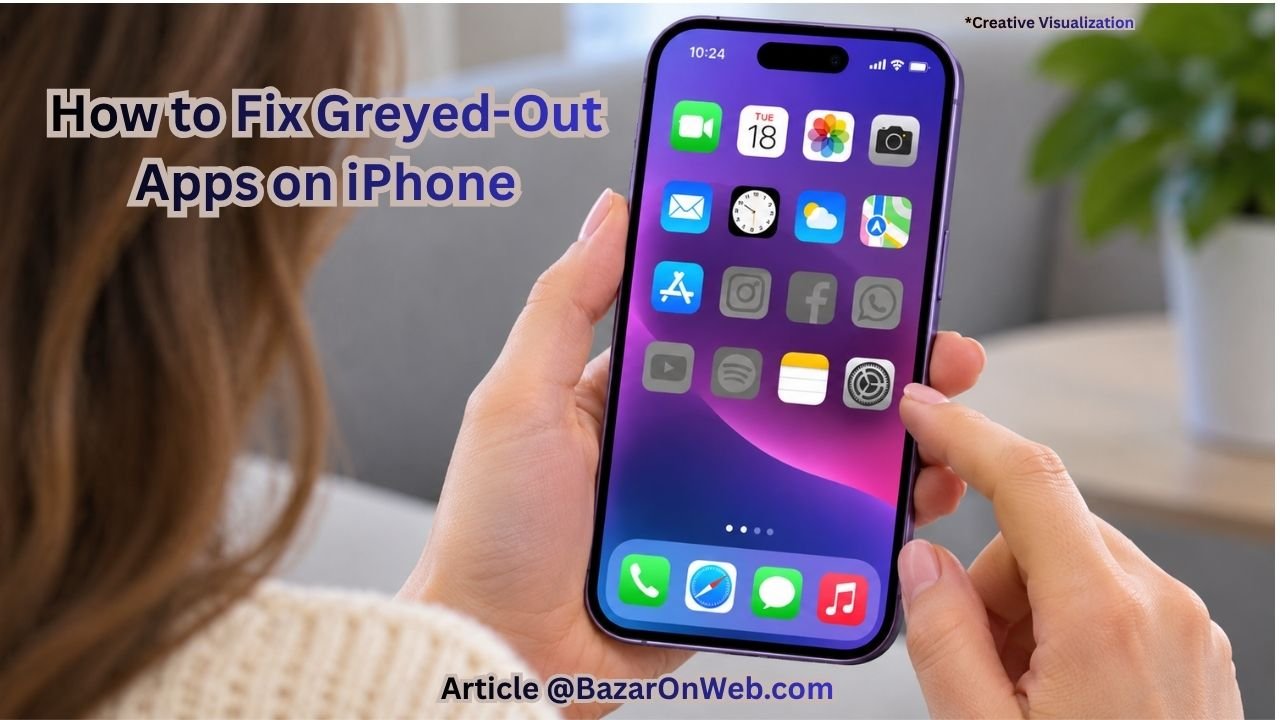
Have you recently updated your iPhone and noticed that some app icons have turned grey? Perhaps you are trying to open an app, but nothing happens. Instead, the icon displays a Waiting message, or the app appears to be stuck during installation.
This can be frustrating, especially when you need to use an app immediately.
The good news is that greyed-out app icons do not always indicate a serious problem with your iPhone. In many cases, the app is still downloading, installing an update, or waiting for a stable internet connection. Sometimes, the problem can also occur because of insufficient storage, an interrupted installation, or an outdated app that does not work properly with your current iOS version.
Fortunately, there are several ways to fix this issue without resetting your iPhone or deleting all your data.
In this guide, I’ll walk you through some simple solutions to fix greyed-out apps on your iPhone. You can follow these steps one by one until your apps start working normally again.
Why Are Apps Greyed Out on iPhone?
Before trying the fixes, it helps to understand why this happens.
When an app icon becomes grey, it generally means that iOS cannot open the app normally at that moment. There can be several reasons behind this behaviour.
Here are some common causes:
- App installation is incomplete: The app may still be downloading or installing in the background.
- Interrupted app update: An update may have stopped because of an unstable internet connection.
- Insufficient storage: Your iPhone may not have enough free space to complete the installation.
- iOS compatibility: Some older apps may not work properly with a newer iOS release.
- Network problems: A weak Wi-Fi or mobile data connection can interrupt app downloads.
- Temporary iOS issue: Sometimes, a minor software glitch can prevent apps from opening.
- App restrictions: Screen Time settings may restrict access to certain apps.
Now that you know the possible reasons, let’s look at how to fix the problem.
1. Check Whether the App Is Still Downloading
The first thing you should do is check whether the greyed-out app is still downloading or installing.
When you download an app from the App Store, its icon appears on your Home Screen. During installation, the icon may look grey, and you might see messages such as Waiting, Loading, or Installing.
If this is happening, your iPhone may simply need more time to finish installing the app.
Follow these steps:
- Go to your iPhone Home Screen.
- Find the greyed-out app.
- Check whether the icon displays Waiting or Loading.
- Connect your iPhone to a stable Wi-Fi network.
- Keep your iPhone connected to the internet for a few minutes.
If the installation starts progressing, wait until it finishes.
You can also tap the app icon once to pause or resume its download, depending on its current status.
If the app remains stuck on Waiting for a long time, move to the next solution.
2. Check Your Internet Connection
A poor internet connection is another common reason why apps get stuck during installation or updates.
Your iPhone needs a working internet connection to download app files from Apple’s servers. If the connection drops during installation, the app may remain greyed out.
Here’s what you can do:
- Open the Settings app on your iPhone.
- Tap Wi-Fi.
- Check whether your iPhone is connected to a working Wi-Fi network.
- If necessary, disconnect and reconnect to your Wi-Fi.
- Open Safari and visit a website to check whether the internet is working.
If you are using mobile data, open Settings and tap Cellular or Mobile Service. Make sure mobile data is enabled.
You can also switch between Wi-Fi and mobile data to see whether the app download resumes.
Once your internet connection is working properly, check whether the greyed-out app starts installing.
3. Pause and Resume the App Download
Sometimes, an app download gets stuck even when your internet connection is working properly.
In this situation, pausing and resuming the download can help.
Follow these steps:
- Go to your iPhone Home Screen.
- Find the greyed-out app.
- Tap its icon once if the download is in progress.
- Wait a few seconds.
- Tap the icon again to resume the download.
Depending on the app’s current status, you may see a progress indicator or a Waiting message.
If the app starts downloading again, allow it to complete.
You can also open the App Store, search for the affected app, and check whether an update or download is available.
This simple method can resolve temporary installation problems without removing the app.
4. Restart Your iPhone
If your apps are still greyed out, try restarting your iPhone.
Restarting can resolve temporary software glitches that may prevent apps from opening correctly. It also refreshes background processes that manage app installation and updates.
Here’s how to restart your iPhone:
For iPhones with Face ID:
- Press and hold the Side button and either Volume button together.
- Wait until the power-off slider appears.
- Drag the slider to turn off your iPhone.
- Wait approximately 30 seconds.
- Press and hold the Side button until the Apple logo appears.
For iPhones with a Home button:
- Press and hold the Side or Top button.
- Wait for the power-off slider.
- Drag the slider to turn off your iPhone.
- Wait a few seconds.
- Press and hold the Side or Top button until the Apple logo appears.
Once your iPhone restarts, check whether the affected apps are working.
5. Check Your iPhone Storage
Insufficient storage can prevent apps from downloading, updating, or installing properly.
For example, if your iPhone has very little free space available, an app update may fail to complete. As a result, the app icon might remain greyed out.
To check your available storage:
- Open Settings.
- Tap General.
- Select iPhone Storage.
- Wait for your iPhone to calculate the storage usage.
- Check how much free space is available.
You will also see a list of installed apps and how much storage each one uses.
If your iPhone is running low on storage, consider removing unnecessary downloads, large videos, duplicate photos, or apps you no longer use.
You can also enable the Offload Unused Apps feature.
To find it, open Settings, go to Apps or General depending on your iOS version, and look for the App Store settings or iPhone Storage recommendations.
Offloading an app removes the app itself while keeping its documents and data. This can help free up space without losing the app’s saved information.
After freeing up some storage, restart the affected download and check whether the app becomes available.
6. Update the Problematic App
If an app becomes greyed out after installing a new iOS version, it may need an update.
App developers regularly release updates to improve compatibility with newer versions of iOS. An older app version may experience problems after a major software update.
You can manually check for app updates.
- Open the App Store.
- Tap your profile picture in the upper-right corner.
- Scroll down to see available updates.
- Find the affected app.
- Tap Update if an update is available.
You can also tap Update All to install all available app updates.
Wait until the updates finish installing and then try opening the affected app.
If no update is available, the developer may not have released a newer version yet. In that case, check whether the app supports your current iOS version.
7. Check Screen Time Restrictions
Another possibility is that Screen Time restrictions are preventing you from accessing certain apps.
Screen Time includes settings that allow you to manage app usage, restrict specific apps, and control access to certain features.
If you have accidentally enabled restrictions, some apps may become unavailable.
Here’s how to check:
- Open Settings.
- Tap Screen Time.
- Select Content & Privacy Restrictions.
- Check whether Content & Privacy Restrictions is enabled.
- Review the available settings and check whether any restrictions are affecting the problematic app.
Also, check the App Limits section under Screen Time.
If an app category or individual app has a usage limit, you may need to adjust that setting.
If your iPhone is managed by a parent, school, or workplace, you may not be able to change certain restrictions yourself.
8. Delete and Reinstall the Affected App
If only one or two apps are greyed out and none of the previous solutions work, you can try deleting and reinstalling them.
This can help when an app installation is corrupted or an update has failed repeatedly.
Follow these steps:
- Find the affected app on your Home Screen.
- Touch and hold its icon.
- Tap Remove App.
- Select Delete App.
- Open the App Store.
- Search for the app.
- Tap the download button to install it again.
Important: Before deleting an app, make sure its important information is backed up or synced with your account. Some apps store information locally, and deleting them may remove that data.
If the app is no longer compatible with your iOS version or has been removed from the App Store, you may not be able to reinstall it.
9. Reset Network Settings
If multiple apps are stuck on Waiting or greyed out, your iPhone’s network configuration may be causing the problem.
Resetting network settings can help resolve certain Wi-Fi and connectivity issues.
However, keep in mind that this action removes saved Wi-Fi networks and passwords, along with other network-related settings.
To reset network settings:
- Open Settings.
- Tap General.
- Scroll down and select Transfer or Reset iPhone.
- Tap Reset.
- Select Reset Network Settings.
- Enter your iPhone passcode if requested.
- Confirm your selection.
Your iPhone will restart, and the network settings will return to their default configuration.
After restarting, reconnect to your Wi-Fi network and check whether the affected apps are downloading properly.
Do not select Erase All Content and Settings. That option removes your personal data and is not required for this fix.
10. Check for Another iOS Update
If the greyed-out apps issue started immediately after updating your iPhone, Apple may release another software update to address related bugs.
It is worth checking whether a newer iOS version is available.
- Open Settings.
- Tap General.
- Select Software Update.
- Wait while your iPhone checks for available updates.
- If an update is available, review its details.
- Tap Update Now or Update Tonight.
Before installing an update, connect your iPhone to Wi-Fi, ensure the battery is sufficiently charged, and preferably create a backup.
If your iPhone is already running the latest available iOS version, you can skip this step.
Troubleshooting: What If Your iPhone Apps Are Still Greyed Out?
If you have tried the solutions above and the problem continues, consider these additional points.
The app is greyed out but does not show Waiting: Check whether the app is restricted through Screen Time or whether its developer still supports your iOS version.
Only one app is affected: The problem may be related to that particular app. Check for updates or contact the app developer.
All apps are stuck after an iOS update: Restart your iPhone, check your storage, and make sure the software update has finished installing.
The app disappears after deleting it: Search for it in the App Store. If it is unavailable, the developer may have removed it or stopped supporting your device.
The app is showing a cloud download symbol: This generally means the app needs to be downloaded again. Tap the cloud icon to reinstall it, provided it is still available.
Conclusion
Greyed-out apps on an iPhone can be annoying, particularly when they appear immediately after installing a new iOS update. However, this does not necessarily mean that your iPhone has a serious software problem.
In most cases, the issue is related to an interrupted download, an incomplete installation, insufficient storage, or a temporary software glitch.
I recommend starting with the simplest solutions, such as checking your internet connection, pausing and resuming the download, and restarting your iPhone. If that does not work, check your storage, update the affected apps, and review your Screen Time restrictions.
Hopefully, one of these solutions will help restore your greyed-out app icons and allow you to use your iPhone normally again.
Disclaimer: The steps in this guide are intended for general troubleshooting. Menu names and settings may vary depending on your iPhone model and iOS version. Always back up important app data before deleting applications or resetting network settings.





Products
-
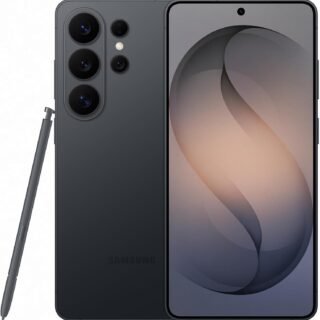 Samsung Galaxy S26 Ultra Unlocked Android Smartphone, 256GB, Black, Privacy Display, 200MP Camera, 5000mAh Battery, US 1 Year Warranty
-
 Apple Watch Ultra 3 [GPS + Cellular 49mm] Running & Multisport Smartwatch w/Rugged Titanium Case w/Black Titanium Milanese Loop - M. Satellite Communications, Advanced Health & Fitness Tracking
-
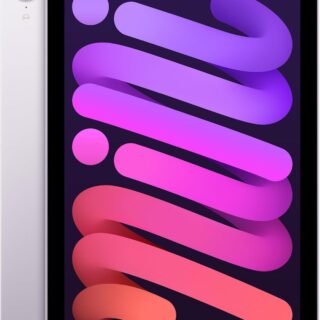 Apple iPad mini (A17 Pro): Apple Intelligence, 8.3-inch Liquid Retina Display, 256GB, Wi-Fi 6E, 12MP Front/12MP Back Camera, Touch ID, All-Day Battery Life — Purple
-
 Apple AirPods Max Wireless Over-Ear Headphones, Active Noise Cancelling, Transparency Mode, Personalized Spatial Audio, Dolby Atmos, Bluetooth Headphones for iPhone – Space Gray
-
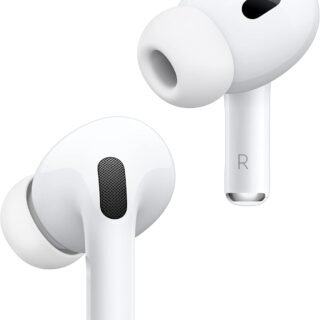 Apple AirPods Pro 2 Wireless Earbuds, Active Noise Cancellation, Hearing Aid Feature, Bluetooth Headphones, Transparency, Personalized Spatial Audio, High-Fidelity Sound, H2 Chip, USB-C Charging
Leave a Reply