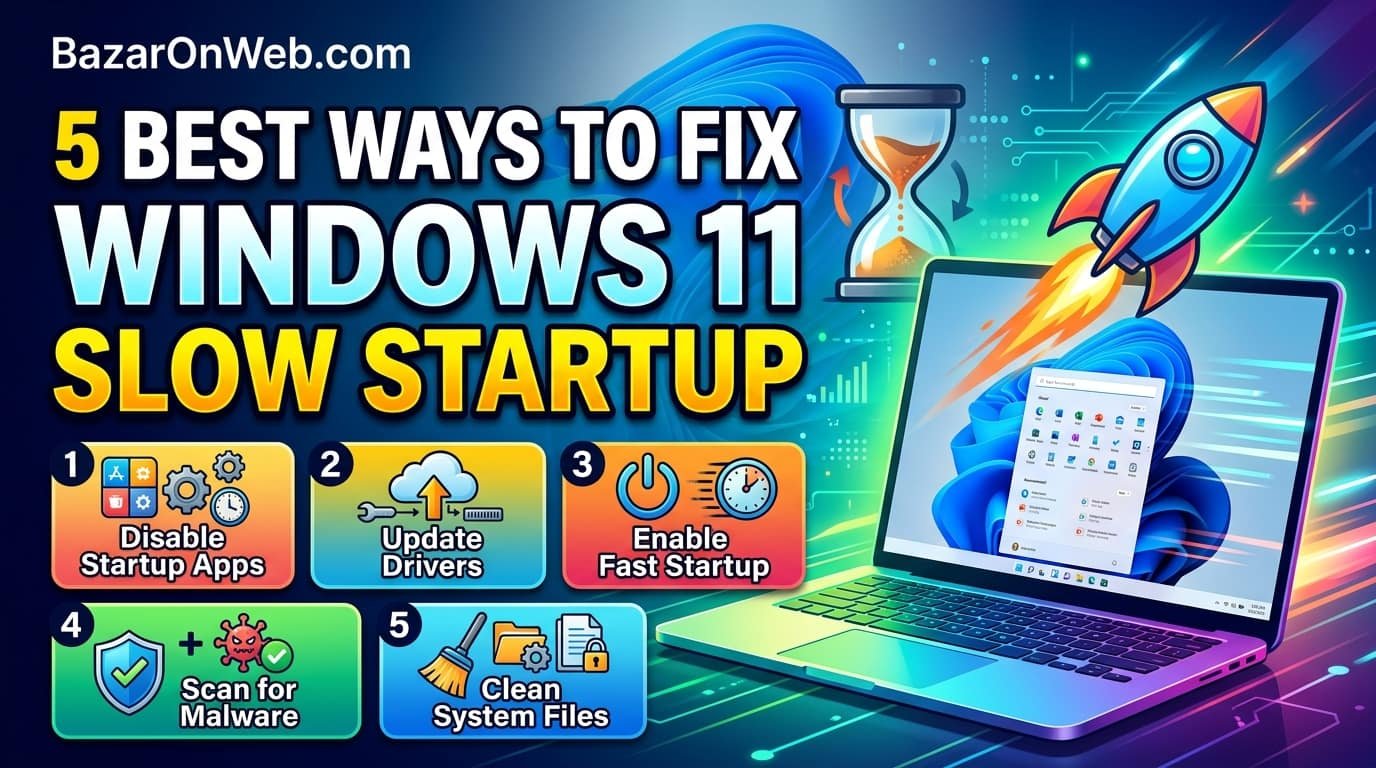
5 Best Ways to Fix Windows 11 Slow Startup

5 Best Ways to Fix Windows 11 Slow Startup

Hi, I’m Jessica, and if you’ve ever pressed the power button on your Windows 11 PC only to wait endlessly for the desktop to appear, you’re not alone. Slow startup is one of the most frustrating issues Windows users face. Whether you’re working from home, attending online classes, gaming, or simply browsing the web, a sluggish boot process can waste valuable time every day. Fortunately, Windows 11 includes several built-in tools and settings that can dramatically improve startup speed. Understanding what causes slow startup is the first step toward fixing the problem and restoring your computer’s performance. This guide explores the five best ways to fix Windows 11 slow startup and explains how each solution can help reduce boot times and improve overall system responsiveness.

Windows 11 startup delays can result from excessive startup programs, outdated drivers, fragmented storage, corrupted system files, or power settings that are not optimized for fast booting. By identifying the root cause and applying proven troubleshooting methods, users can significantly reduce loading times and enjoy a smoother computing experience. Whether you use a laptop or desktop, these practical solutions can help your system start faster and perform better without requiring expensive hardware upgrades.

Understanding Why Windows 11 Starts Slowly

Before attempting any fixes, it is important to understand why Windows 11 may take longer than expected to boot. Startup performance depends on several factors, including hardware specifications, operating system configuration, installed applications, and background services. When Windows starts, it loads essential system processes, drivers, security software, and programs configured to launch automatically. The more items that load during startup, the longer the boot process becomes.

Modern computers typically use SSD storage, which significantly reduces startup times compared to traditional hard drives. However, even systems with SSDs can experience delays if too many startup applications are enabled. Antivirus programs, cloud synchronization tools, communication apps, and manufacturer utilities often compete for system resources immediately after login.

Another common cause of slow startup is outdated drivers. Device drivers help Windows communicate with hardware components. If they become outdated or corrupted, the startup sequence can be interrupted or delayed. Windows updates can also sometimes introduce compatibility issues that affect boot performance.

Additionally, malware infections and corrupted system files can increase startup duration. These problems force Windows to spend additional time checking and correcting errors during boot. Understanding these underlying causes helps users choose the most effective solution instead of applying random fixes that may not address the actual issue.

Disable Unnecessary Startup Programs

One of the most effective ways to improve Windows 11 startup speed is by disabling unnecessary startup applications. Many programs automatically configure themselves to launch whenever Windows starts. While some applications are essential, many consume resources without providing immediate benefits.

Over time, users install software such as messaging platforms, cloud storage services, media players, and utility tools. Each program adds additional processes to the startup sequence. Individually, these applications may have a minimal impact, but collectively they can significantly increase boot times.

To review startup applications, open Task Manager by pressing Ctrl + Shift + Esc and navigate to the Startup Apps section. Here, Windows displays all applications configured to launch during startup along with their estimated impact on performance. High-impact applications are often the best candidates for disabling.

Users should carefully evaluate which programs truly need to start automatically. Applications such as video conferencing tools, music players, and update utilities can usually be launched manually when needed. Disabling them reduces the workload placed on the processor, memory, and storage during boot.

Regularly reviewing startup applications also prevents performance degradation over time. As new software is installed, periodically checking startup settings helps maintain optimal system responsiveness and ensures Windows boots as efficiently as possible.

Enable Fast Startup Feature

Windows 11 includes a feature called Fast Startup that combines elements of traditional shutdown and hibernation to reduce boot times. When enabled, Windows saves critical system information to a file during shutdown, allowing the operating system to load more quickly during the next startup.

Fast Startup works by preserving kernel and driver information rather than fully closing every system process. During the next boot, Windows loads this saved information instead of rebuilding everything from scratch. This approach can significantly reduce startup duration, especially on systems with traditional hard drives.

To enable Fast Startup, open Control Panel, navigate to Power Options, select “Choose what the power buttons do,” and then click “Change settings that are currently unavailable.” Under Shutdown Settings, ensure that the Fast Startup option is enabled.

While Fast Startup benefits many users, it may occasionally cause compatibility issues with certain hardware configurations or dual-boot systems. If startup problems persist after enabling the feature, temporarily disabling it can help determine whether it contributes to the issue.

For most Windows 11 users, however, Fast Startup provides a simple and effective way to reduce boot times without requiring additional software or hardware upgrades. Combined with other optimization methods, it can noticeably improve the startup experience.

Update Drivers and Windows Components

Keeping Windows 11 and device drivers updated is essential for maintaining fast startup performance. Drivers serve as the communication bridge between Windows and hardware components such as graphics cards, storage controllers, network adapters, and chipsets.

Outdated drivers can introduce delays during system initialization. In some cases, Windows may spend extra time attempting to load incompatible drivers or recover from driver-related errors. These delays often manifest as longer startup times, frozen loading screens, or slow login experiences.

Users should regularly check Windows Update for system updates and optional driver updates. Microsoft frequently releases performance improvements, bug fixes, and compatibility enhancements that can improve startup efficiency. Device manufacturers also publish updated drivers that address specific hardware issues.

For critical hardware such as graphics cards and storage controllers, downloading drivers directly from the manufacturer’s website often provides the latest optimizations. Updated drivers can improve communication between hardware and the operating system, resulting in faster initialization during startup.

In addition to drivers, firmware updates for SSDs and motherboards may also enhance boot performance. Firmware improvements can optimize storage access, hardware compatibility, and power management, contributing to a faster and more stable startup process.

Check for Malware and Unwanted Software

Malware infections are a frequently overlooked cause of slow Windows startup. Malicious software often installs hidden processes that launch automatically during boot, consuming system resources and delaying normal startup operations.

Some forms of malware run background tasks such as data collection, advertising injections, cryptocurrency mining, or unauthorized network communications. These activities can significantly increase startup times while also reducing overall system performance.

Windows 11 includes Microsoft Defender, which provides built-in malware protection. Running a full system scan can help identify and remove malicious software that may be affecting startup performance. Users should also consider performing offline scans when persistent issues occur.

In addition to malware, potentially unwanted programs can contribute to startup delays. Browser toolbars, bundled software, system optimizers, and unnecessary utilities often install background services that launch automatically. These programs may not be malicious but can still negatively impact boot times.

Regularly reviewing installed applications and removing software that is no longer needed helps keep the system clean and efficient. Maintaining strong cybersecurity practices, downloading software only from trusted sources, and keeping security tools updated can prevent startup issues caused by unwanted software.

Repair Corrupted System Files

Corrupted system files can significantly affect Windows startup performance. Essential operating system files may become damaged due to improper shutdowns, failed updates, storage errors, malware infections, or hardware problems.

When Windows detects corrupted files during startup, it may attempt repairs or error recovery processes that extend boot times. In some cases, users may notice prolonged loading screens, unexpected restarts, or delayed desktop availability after login.

Windows includes powerful built-in tools for repairing system files. The System File Checker (SFC) scans protected operating system files and replaces corrupted versions with healthy copies. The Deployment Image Servicing and Management (DISM) tool repairs the underlying Windows image used for system recovery.

Running these tools periodically can help maintain operating system integrity and resolve hidden issues affecting startup performance. Users can execute these commands from an elevated Command Prompt to identify and repair corruption.

Beyond improving startup speed, repairing system files enhances overall system stability, reduces crashes, and ensures Windows components function correctly. Regular maintenance using these utilities can prevent minor issues from developing into major performance problems.

Optimize Storage Performance

Storage devices play a major role in startup speed. The operating system must load thousands of files during boot, making storage performance one of the most critical factors affecting startup times.

Users still relying on traditional hard drives may experience significantly slower startup compared to SSD users. Upgrading to an SSD is often the single most effective hardware improvement for reducing boot times. SSDs provide much faster data access and significantly improve overall system responsiveness.

For existing SSD users, maintaining sufficient free space is important. Storage devices perform best when they have adequate room for temporary files, updates, and system operations. Nearly full drives can experience reduced performance and slower startup speeds.

Windows Storage Sense helps automatically remove unnecessary files and maintain healthy storage conditions. Users should also periodically delete temporary files and uninstall unused applications to free valuable disk space.

Checking drive health using built-in diagnostic tools can identify potential hardware problems before they cause significant performance degradation. Healthy storage devices ensure faster file access and more efficient startup operations.

Adjust Power Settings for Better Performance

Windows power settings can influence startup speed, particularly on laptops. Power-saving modes prioritize energy efficiency over performance, which may affect boot times and system responsiveness.

Users seeking faster startup performance can review their power plans and select options that emphasize performance rather than maximum battery conservation. The Balanced plan generally provides a good compromise between speed and efficiency, while higher-performance plans may improve responsiveness further.

Advanced power settings also affect how hardware components behave during startup. Processor power management, storage device settings, and sleep configurations can influence boot performance.

Laptop users should balance startup speed improvements with battery life considerations. Aggressive performance settings may reduce battery runtime but provide a more responsive computing experience.

Regularly reviewing power configurations ensures the system operates according to user preferences and avoids unnecessary limitations that may contribute to slow startup behavior.

Manage Background Services Carefully

Windows relies on numerous background services to support system functionality. However, some third-party services may be unnecessary and can increase startup duration.

Services associated with software updates, monitoring tools, remote access programs, and manufacturer utilities often launch automatically when Windows starts. While some services are essential, others may provide limited value relative to their impact on startup performance.

Using the System Configuration utility allows users to review non-Microsoft services and identify potential candidates for optimization. Disabling unnecessary services can reduce system workload and improve boot times.

Care should be taken when modifying services, as disabling critical system components can cause instability. Users should focus primarily on third-party services they recognize and understand.

A carefully managed service environment contributes to faster startup, lower memory usage, and improved overall system performance without compromising functionality.

Keep Your System Maintained Regularly

Maintaining Windows 11 regularly is one of the most effective long-term strategies for preventing slow startup issues. Performance problems often develop gradually as software accumulates, updates are installed, and system configurations change over time.

Routine maintenance includes installing updates, removing unused applications, checking startup programs, scanning for malware, repairing system files, and monitoring storage health. These practices help identify problems early and prevent them from affecting startup performance.

Users should also periodically review browser extensions, synchronization software, and cloud services that may contribute to increased startup workload. Keeping only necessary applications installed reduces complexity and improves system efficiency.

Creating restore points before major system changes provides a safety net for troubleshooting performance issues. Regular backups ensure important data remains protected while users perform maintenance activities.

By adopting a proactive maintenance approach, Windows 11 users can enjoy consistently fast startup times, improved reliability, and a smoother overall computing experience.

Conclusion

Slow startup in Windows 11 can be frustrating, but it is often caused by manageable issues such as excessive startup programs, outdated drivers, malware, storage problems, or corrupted system files. By disabling unnecessary startup applications, enabling Fast Startup, updating drivers, repairing system files, optimizing storage, and maintaining the operating system regularly, users can significantly reduce boot times and improve performance.

Most startup problems can be resolved without advanced technical expertise or expensive hardware upgrades. A systematic approach to troubleshooting and maintenance helps keep Windows 11 running efficiently, ensuring faster startups and a better overall user experience.

Disclaimer

This article is intended for educational and informational purposes only. Windows 11 settings, features, and troubleshooting methods may vary depending on device manufacturer, hardware configuration, operating system version, and installed software. Always create a system restore point and back up important data before making significant system changes. The information provided does not guarantee specific performance improvements and should be applied carefully according to your system requirements. Neither the author nor the publisher is responsible for any data loss, hardware issues, software conflicts, or system instability resulting from the use of the methods discussed in this article.

Leave a Reply

Your email address will not be published. Required fields are marked *

Select the fields to be shown. Others will be hidden. Drag and drop to rearrange the order.
  • Image
  • SKU
  • Rating
  • Price
  • Stock
  • Availability
  • Add to cart
  • Description
  • Content
  • Weight
  • Dimensions
  • Additional information
Click outside to hide the comparison bar
Compare