Discounted Products
-
 Home Garage 210 TC Cotton King Floral Fitted (Elastic) Bedsheet(Pack of 1, Grey)
Original price was: ₹999.00.₹299.00Current price is: ₹299.00.
Home Garage 210 TC Cotton King Floral Fitted (Elastic) Bedsheet(Pack of 1, Grey)
Original price was: ₹999.00.₹299.00Current price is: ₹299.00.
-
 Goodrik 140 TC Cotton Double 3D Printed Flat Bedsheet(Pack of 1, Brown)
Original price was: ₹499.00.₹229.00Current price is: ₹229.00.
Goodrik 140 TC Cotton Double 3D Printed Flat Bedsheet(Pack of 1, Brown)
Original price was: ₹499.00.₹229.00Current price is: ₹229.00.
-
 GLOBALSHOP 350 TC Microfiber Double Floral Flat Bedsheet(Pack of 1, Multicolor)
Original price was: ₹1,250.00.₹263.00Current price is: ₹263.00.
GLOBALSHOP 350 TC Microfiber Double Floral Flat Bedsheet(Pack of 1, Multicolor)
Original price was: ₹1,250.00.₹263.00Current price is: ₹263.00.
-
 RisingStar 250 TC Microfiber King Printed Fitted (Elastic) Bedsheet(Pack of 1, FITTED-ROUND-CIRCLES-PREMIUM)
Original price was: ₹2,299.00.₹299.00Current price is: ₹299.00.
RisingStar 250 TC Microfiber King Printed Fitted (Elastic) Bedsheet(Pack of 1, FITTED-ROUND-CIRCLES-PREMIUM)
Original price was: ₹2,299.00.₹299.00Current price is: ₹299.00.
-
 Home Garage 210 TC Cotton King Floral Fitted (Elastic) Bedsheet(Pack of 1, Fitted Black Green)
Original price was: ₹1,299.00.₹299.00Current price is: ₹299.00.
Home Garage 210 TC Cotton King Floral Fitted (Elastic) Bedsheet(Pack of 1, Fitted Black Green)
Original price was: ₹1,299.00.₹299.00Current price is: ₹299.00.
-
 Home Garage 180 TC Cotton King 3D Printed Flat Bedsheet(Pack of 1, White)
Original price was: ₹999.00.₹229.00Current price is: ₹229.00.
Home Garage 180 TC Cotton King 3D Printed Flat Bedsheet(Pack of 1, White)
Original price was: ₹999.00.₹229.00Current price is: ₹229.00.
-
 Panipat Textile Hub 152.4 cm (5 ft) Polyester Window Curtain (Pack Of 2)(Solid, Aqua)
Original price was: ₹1,899.00.₹299.00Current price is: ₹299.00.
Panipat Textile Hub 152.4 cm (5 ft) Polyester Window Curtain (Pack Of 2)(Solid, Aqua)
Original price was: ₹1,899.00.₹299.00Current price is: ₹299.00.
-
 Home Sizzler 214 cm (7 ft) Polyester Semi Transparent Door Curtain (Pack Of 2)(Floral, Maroon)
Original price was: ₹1,199.00.₹399.00Current price is: ₹399.00.
Home Sizzler 214 cm (7 ft) Polyester Semi Transparent Door Curtain (Pack Of 2)(Floral, Maroon)
Original price was: ₹1,199.00.₹399.00Current price is: ₹399.00.
-
 Home Sizzler 153 cm (5 ft) Polyester Room Darkening Window Curtain (Pack Of 2)(Floral, Brown)
Original price was: ₹799.00.₹299.00Current price is: ₹299.00.
Home Sizzler 153 cm (5 ft) Polyester Room Darkening Window Curtain (Pack Of 2)(Floral, Brown)
Original price was: ₹799.00.₹299.00Current price is: ₹299.00.
-
 Stella Creations 214 cm (7 ft) Polyester Room Darkening Door Curtain (Pack Of 2)(Abstract, Brown)
Original price was: ₹1,299.00.₹449.00Current price is: ₹449.00.
Stella Creations 214 cm (7 ft) Polyester Room Darkening Door Curtain (Pack Of 2)(Abstract, Brown)
Original price was: ₹1,299.00.₹449.00Current price is: ₹449.00.
-
 Homefab India 152.5 cm (5 ft) Polyester Room Darkening Window Curtain (Pack Of 2)(Floral, Light Blue)
Original price was: ₹1,199.00.₹319.00Current price is: ₹319.00.
Homefab India 152.5 cm (5 ft) Polyester Room Darkening Window Curtain (Pack Of 2)(Floral, Light Blue)
Original price was: ₹1,199.00.₹319.00Current price is: ₹319.00.
-
 Urban Home 214 cm (7 ft) PVC Transparent Door Curtain Single Curtain(Solid, Off White)
Original price was: ₹699.00.₹203.00Current price is: ₹203.00.
Urban Home 214 cm (7 ft) PVC Transparent Door Curtain Single Curtain(Solid, Off White)
Original price was: ₹699.00.₹203.00Current price is: ₹203.00.
-
 Panipat Textile Hub 213 cm (7 ft) Polyester Door Curtain (Pack Of 2)(Solid, Brown)
Original price was: ₹1,199.00.₹349.00Current price is: ₹349.00.
Panipat Textile Hub 213 cm (7 ft) Polyester Door Curtain (Pack Of 2)(Solid, Brown)
Original price was: ₹1,199.00.₹349.00Current price is: ₹349.00.
-
 Home Sizzler 214 cm (7 ft) Polyester Semi Transparent Door Curtain (Pack Of 2)(Floral, Brown)
Original price was: ₹999.00.₹349.00Current price is: ₹349.00.
Home Sizzler 214 cm (7 ft) Polyester Semi Transparent Door Curtain (Pack Of 2)(Floral, Brown)
Original price was: ₹999.00.₹349.00Current price is: ₹349.00.
-
 Panipat Textile Hub 213 cm (7 ft) Polyester Semi Transparent Door Curtain (Pack Of 2)(Floral, Brown)
Original price was: ₹899.00.₹299.00Current price is: ₹299.00.
Panipat Textile Hub 213 cm (7 ft) Polyester Semi Transparent Door Curtain (Pack Of 2)(Floral, Brown)
Original price was: ₹899.00.₹299.00Current price is: ₹299.00.
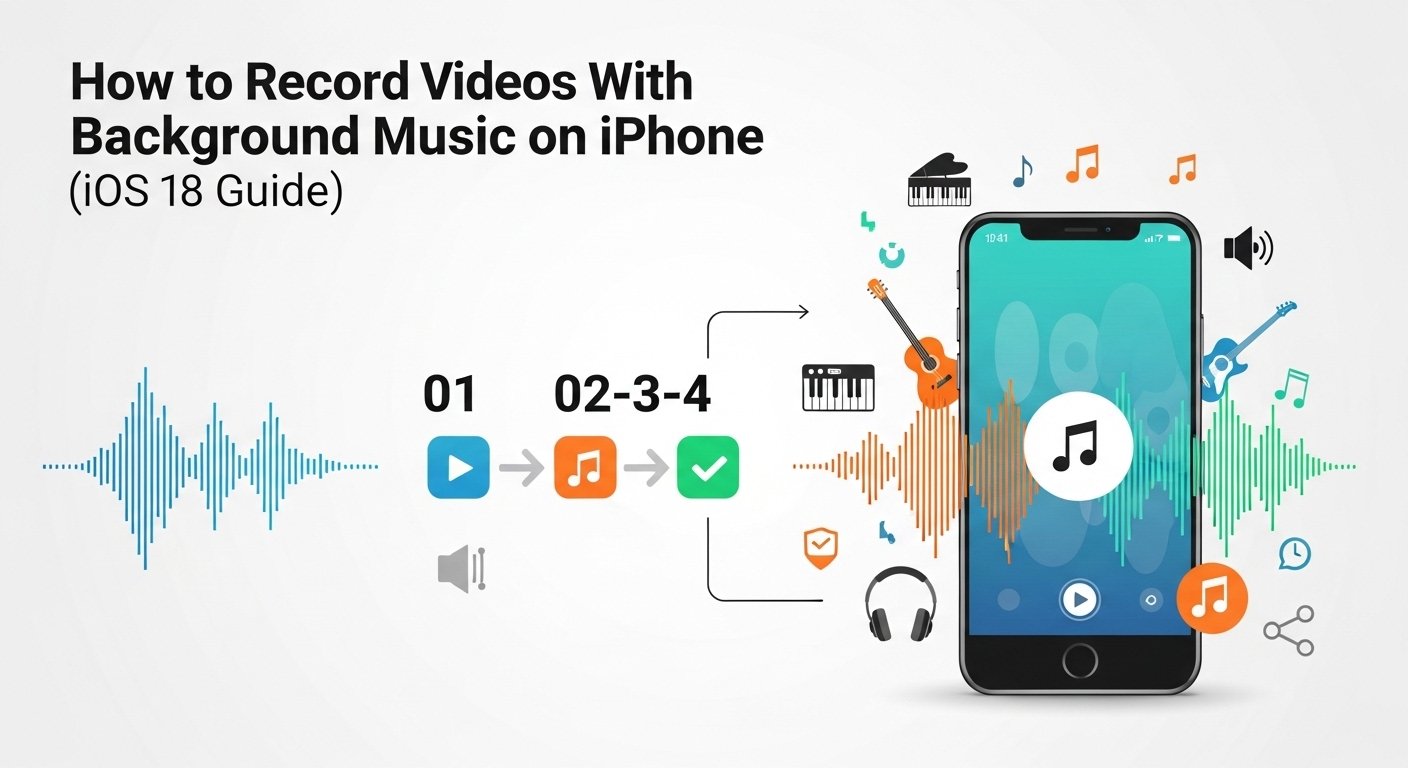
I’ll admit something: I used to think recording videos with music playing in the background on iPhone required editing apps, complicated workarounds, or filming from another device. If I wanted to capture my kids dancing to their favorite song or record a quick aesthetic coffee reel with background music, I had to record silently and then add music later in an editing app. It felt unnecessary and time-consuming.
But with the latest version of iOS, Apple quietly introduced something incredibly useful: the native Camera app can now record video while music continues playing in the background. That means you can stream music from any app — whether it’s Apple Music, Spotify, YouTube Music, or even a podcast — and capture video at the same time without the audio stopping.
As someone who shares family moments, quick tutorials, and lifestyle clips regularly, this feature feels like a small but powerful upgrade. It simplifies content creation and removes the need for extra apps in many everyday scenarios.
Let’s break down how this works, when it works best, and what you need to know before pressing record.
Why Music Used to Stop When Recording Video
In earlier versions of iOS, the system automatically paused background audio when you opened the Camera app in Video mode. This happened because iOS prioritized the microphone input over playback audio. As soon as the camera started recording, background music stopped.
This design made sense for professional recording scenarios — you usually don’t want system audio interfering. But for social media creators, parents, or anyone capturing casual moments, it felt limiting.
Now, in newer versions of iOS, Apple gives users the option to allow audio playback to continue while recording video.
What You Need Before Recording
Before you try recording video with music in the background, make sure:
-
Your iPhone is updated to the latest version of iOS
-
Your music app supports background playback
-
Your volume is set appropriately
To check for updates:
-
Open Settings
-
Tap General
-
Select Software Update
-
Install the latest iOS version if available
Keeping your iPhone updated ensures compatibility with newer camera features.
How to Enable Background Audio Recording in Camera
Here’s the exact process:
-
Open Settings
-
Scroll down and tap Camera
-
Look for the option called Record Video with Audio Playback
-
Turn it ON
Once this setting is enabled, your iPhone will allow music playing from another app to continue while recording video in the Camera app.
This is the key step many people miss.
How to Record a Video With Music Playing
After enabling the setting:
-
Open your preferred music app (Apple Music, Spotify, etc.)
-
Start playing the song you want
-
Adjust volume to your preferred level
-
Now open the Camera app
-
Switch to Video mode
-
Tap Record
The music will continue playing and will be captured through the microphone as ambient audio.
It’s important to understand that the music is not being digitally embedded into the video file. Instead, the iPhone records the sound as it plays in your environment — similar to how your microphone captures any surrounding audio.
Best Use Cases for This Feature
From my personal experience, this feature is perfect for:
-
Recording dance videos at home
-
Capturing workout sessions with music
-
Shooting casual lifestyle content
-
Filming aesthetic clips for Instagram Reels
-
Recording kids performing to their favorite song
-
Quick behind-the-scenes clips
It’s not meant for professional music-quality audio capture. If you need clean, studio-level sound, editing apps are still better.
But for everyday videos? This works beautifully.
Important Audio Quality Considerations
Because the iPhone captures music through the microphone:
-
Audio quality depends on speaker volume
-
External speakers improve clarity
-
Background noise affects recording
-
Room acoustics matter
If you want better results:
-
Use a Bluetooth speaker instead of the phone speaker
-
Record in a quiet room
-
Avoid echo-heavy spaces
-
Keep volume balanced (not too loud, not too low)
Too much volume may cause distortion. Too little volume may sound faint.
What If Music Still Stops?
If music pauses when you open the Camera app:
-
Double-check that Record Video with Audio Playback is enabled
-
Restart your iPhone
-
Ensure your music app allows background playback
-
Close and reopen both apps
In rare cases, third-party apps may override audio permissions.
Can You Record With Wired or Bluetooth Headphones?
If you’re using headphones:
-
The music may not be recorded clearly because it’s playing directly into your ears
-
The microphone may not capture it well
If your goal is to record music clearly, play it externally rather than through headphones.
Is This Legal for Social Media?
This is an important point.
If you upload videos with copyrighted music recorded through your microphone, platforms like Instagram, YouTube, or TikTok may still detect copyrighted audio and restrict monetization or mute your video.
Recording music this way does not bypass copyright rules.
For monetized content, consider using platform-approved music libraries.
Alternative: Add Music After Recording
If you want cleaner sound:
-
Record your video silently.
-
Use apps like iMovie or Instagram’s built-in editor.
-
Add licensed music directly inside the app.
This gives better balance and avoids distortion.
Why This Feature Matters
Small upgrades like this reflect how Apple continues refining everyday usability inside iOS. The iPhone camera isn’t just a camera anymore — it’s a social content tool, memory recorder, and creative studio in your pocket.
For parents like me, it means capturing spontaneous moments without stopping the music first. For creators, it means faster workflow. For casual users, it just makes things simpler.
Sometimes the best features aren’t flashy — they’re the ones that remove friction.






Products
-
![Apple Watch Ultra 3 [GPS + Cellular 49mm] Running & Multisport Smartwatch w/Rugged Titanium Case w/Black Titanium Milanese Loop - M. Satellite Communications, Advanced Health & Fitness Tracking](https://bazaronweb.com/retailstores/wp-content/uploads/2025/09/apple-watch-320x320.jpg) Apple Watch Ultra 3 [GPS + Cellular 49mm] Running & Multisport Smartwatch w/Rugged Titanium Case w/Black Titanium Milanese Loop - M. Satellite Communications, Advanced Health & Fitness Tracking
Apple Watch Ultra 3 [GPS + Cellular 49mm] Running & Multisport Smartwatch w/Rugged Titanium Case w/Black Titanium Milanese Loop - M. Satellite Communications, Advanced Health & Fitness Tracking
-
 Apple iPad mini (A17 Pro): Apple Intelligence, 8.3-inch Liquid Retina Display, 256GB, Wi-Fi 6E, 12MP Front/12MP Back Camera, Touch ID, All-Day Battery Life — Purple
-
 Apple AirPods Max Wireless Over-Ear Headphones, Active Noise Cancelling, Transparency Mode, Personalized Spatial Audio, Dolby Atmos, Bluetooth Headphones for iPhone – Space Gray
-
 Apple AirPods Pro 2 Wireless Earbuds, Active Noise Cancellation, Hearing Aid Feature, Bluetooth Headphones, Transparency, Personalized Spatial Audio, High-Fidelity Sound, H2 Chip, USB-C Charging
-
Home Garage 210 TC Cotton King Floral Fitted (Elastic) Bedsheet(Pack of 1, Grey)
Original price was: ₹999.00.₹299.00Current price is: ₹299.00.
Leave a Reply