Discounted Products
-
 Home Garage 210 TC Cotton King Floral Fitted (Elastic) Bedsheet(Pack of 1, Grey)
Original price was: ₹999.00.₹299.00Current price is: ₹299.00.
Home Garage 210 TC Cotton King Floral Fitted (Elastic) Bedsheet(Pack of 1, Grey)
Original price was: ₹999.00.₹299.00Current price is: ₹299.00.
-
 Goodrik 140 TC Cotton Double 3D Printed Flat Bedsheet(Pack of 1, Brown)
Original price was: ₹499.00.₹229.00Current price is: ₹229.00.
Goodrik 140 TC Cotton Double 3D Printed Flat Bedsheet(Pack of 1, Brown)
Original price was: ₹499.00.₹229.00Current price is: ₹229.00.
-
 GLOBALSHOP 350 TC Microfiber Double Floral Flat Bedsheet(Pack of 1, Multicolor)
Original price was: ₹1,250.00.₹263.00Current price is: ₹263.00.
GLOBALSHOP 350 TC Microfiber Double Floral Flat Bedsheet(Pack of 1, Multicolor)
Original price was: ₹1,250.00.₹263.00Current price is: ₹263.00.
-
 RisingStar 250 TC Microfiber King Printed Fitted (Elastic) Bedsheet(Pack of 1, FITTED-ROUND-CIRCLES-PREMIUM)
Original price was: ₹2,299.00.₹299.00Current price is: ₹299.00.
RisingStar 250 TC Microfiber King Printed Fitted (Elastic) Bedsheet(Pack of 1, FITTED-ROUND-CIRCLES-PREMIUM)
Original price was: ₹2,299.00.₹299.00Current price is: ₹299.00.
-
 Home Garage 210 TC Cotton King Floral Fitted (Elastic) Bedsheet(Pack of 1, Fitted Black Green)
Original price was: ₹1,299.00.₹299.00Current price is: ₹299.00.
Home Garage 210 TC Cotton King Floral Fitted (Elastic) Bedsheet(Pack of 1, Fitted Black Green)
Original price was: ₹1,299.00.₹299.00Current price is: ₹299.00.
-
 Home Garage 180 TC Cotton King 3D Printed Flat Bedsheet(Pack of 1, White)
Original price was: ₹999.00.₹229.00Current price is: ₹229.00.
Home Garage 180 TC Cotton King 3D Printed Flat Bedsheet(Pack of 1, White)
Original price was: ₹999.00.₹229.00Current price is: ₹229.00.
-
 Panipat Textile Hub 152.4 cm (5 ft) Polyester Window Curtain (Pack Of 2)(Solid, Aqua)
Original price was: ₹1,899.00.₹299.00Current price is: ₹299.00.
Panipat Textile Hub 152.4 cm (5 ft) Polyester Window Curtain (Pack Of 2)(Solid, Aqua)
Original price was: ₹1,899.00.₹299.00Current price is: ₹299.00.
-
 Home Sizzler 214 cm (7 ft) Polyester Semi Transparent Door Curtain (Pack Of 2)(Floral, Maroon)
Original price was: ₹1,199.00.₹399.00Current price is: ₹399.00.
Home Sizzler 214 cm (7 ft) Polyester Semi Transparent Door Curtain (Pack Of 2)(Floral, Maroon)
Original price was: ₹1,199.00.₹399.00Current price is: ₹399.00.
-
 Home Sizzler 153 cm (5 ft) Polyester Room Darkening Window Curtain (Pack Of 2)(Floral, Brown)
Original price was: ₹799.00.₹299.00Current price is: ₹299.00.
Home Sizzler 153 cm (5 ft) Polyester Room Darkening Window Curtain (Pack Of 2)(Floral, Brown)
Original price was: ₹799.00.₹299.00Current price is: ₹299.00.
-
 Stella Creations 214 cm (7 ft) Polyester Room Darkening Door Curtain (Pack Of 2)(Abstract, Brown)
Original price was: ₹1,299.00.₹449.00Current price is: ₹449.00.
Stella Creations 214 cm (7 ft) Polyester Room Darkening Door Curtain (Pack Of 2)(Abstract, Brown)
Original price was: ₹1,299.00.₹449.00Current price is: ₹449.00.
-
 Homefab India 152.5 cm (5 ft) Polyester Room Darkening Window Curtain (Pack Of 2)(Floral, Light Blue)
Original price was: ₹1,199.00.₹319.00Current price is: ₹319.00.
Homefab India 152.5 cm (5 ft) Polyester Room Darkening Window Curtain (Pack Of 2)(Floral, Light Blue)
Original price was: ₹1,199.00.₹319.00Current price is: ₹319.00.
-
 Urban Home 214 cm (7 ft) PVC Transparent Door Curtain Single Curtain(Solid, Off White)
Original price was: ₹699.00.₹203.00Current price is: ₹203.00.
Urban Home 214 cm (7 ft) PVC Transparent Door Curtain Single Curtain(Solid, Off White)
Original price was: ₹699.00.₹203.00Current price is: ₹203.00.
-
 Panipat Textile Hub 213 cm (7 ft) Polyester Door Curtain (Pack Of 2)(Solid, Brown)
Original price was: ₹1,199.00.₹349.00Current price is: ₹349.00.
Panipat Textile Hub 213 cm (7 ft) Polyester Door Curtain (Pack Of 2)(Solid, Brown)
Original price was: ₹1,199.00.₹349.00Current price is: ₹349.00.
-
 Home Sizzler 214 cm (7 ft) Polyester Semi Transparent Door Curtain (Pack Of 2)(Floral, Brown)
Original price was: ₹999.00.₹349.00Current price is: ₹349.00.
Home Sizzler 214 cm (7 ft) Polyester Semi Transparent Door Curtain (Pack Of 2)(Floral, Brown)
Original price was: ₹999.00.₹349.00Current price is: ₹349.00.
-
 Panipat Textile Hub 213 cm (7 ft) Polyester Semi Transparent Door Curtain (Pack Of 2)(Floral, Brown)
Original price was: ₹899.00.₹299.00Current price is: ₹299.00.
Panipat Textile Hub 213 cm (7 ft) Polyester Semi Transparent Door Curtain (Pack Of 2)(Floral, Brown)
Original price was: ₹899.00.₹299.00Current price is: ₹299.00.
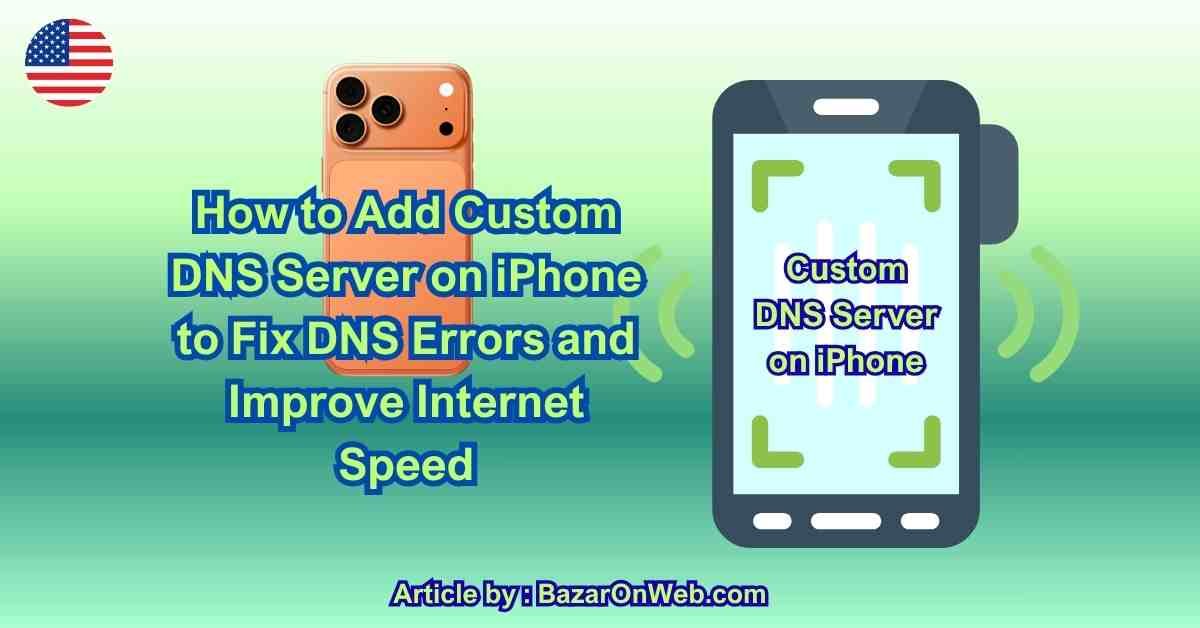
Hi, I’m Jessica, and I still remember the frustration of trying to open a simple website on my iPhone, only to be hit with annoying errors like “DNS server not responding” or endless loading screens. It felt like my internet was working, yet nothing would load properly. After some research and trial-and-error, I discovered that the issue wasn’t my internet connection—it was the DNS settings.
Changing the DNS server on my iPhone made a huge difference in both speed and reliability. If you’ve ever faced issues like DNS lookup failures or slow browsing, you’re definitely not alone. Many users don’t realize that their default DNS server provided by their ISP may not always be the fastest or most reliable option.
In this guide, I’ll walk you through everything you need to know about adding a custom DNS server on your iPhone, why it matters, and how it can significantly improve your browsing experience.
What is DNS and Why It Matters for iPhone Users
DNS, or Domain Name System, acts like the internet’s phonebook. When you type a website name into your browser, DNS translates that name into an IP address that your device can understand. Without DNS, you would have to remember complex numerical IP addresses instead of simple domain names. On an iPhone, DNS plays a crucial role in determining how quickly and accurately websites load.
Most iPhones automatically use DNS servers provided by your internet service provider. While this is convenient, it’s not always optimal. ISP DNS servers can sometimes be slow, overloaded, or even unreliable, leading to errors like “DNS probe started” or “DNS server not responding.” These issues can disrupt your browsing experience and cause unnecessary frustration.
By switching to a custom DNS server, you gain more control over your internet performance. Faster DNS servers can reduce loading times, improve responsiveness, and even enhance security by blocking malicious websites. For users who frequently browse, stream, or work online, optimizing DNS settings can make a noticeable difference in overall performance.
Common DNS Errors on iPhone and Their Causes
Many iPhone users encounter DNS-related issues without fully understanding what causes them. Errors like “DNS Lookup Failed,” “Server Not Found,” or “DNS Probe Started” are common indicators of DNS problems. These errors usually occur when your device cannot communicate properly with the DNS server.
One of the most common causes is a slow or unresponsive DNS server provided by your ISP. When too many users rely on the same server, it can become overloaded, leading to delays or failures in resolving domain names. Another cause could be temporary network glitches, such as weak Wi-Fi signals or unstable internet connections.
Incorrect network configurations can also contribute to DNS errors. Sometimes, outdated settings or conflicts between network profiles can interfere with proper DNS resolution. Additionally, certain restrictions or filters imposed by ISPs may block access to specific websites, resulting in errors.
Understanding these causes helps you realize why switching to a custom DNS server is often the best solution. Instead of relying on default settings, you can choose a more reliable and faster DNS provider, reducing the chances of encountering such issues in the future.
Benefits of Using a Custom DNS Server on iPhone
Switching to a custom DNS server offers several advantages that go beyond just fixing errors. One of the most noticeable benefits is improved browsing speed. High-performance DNS servers can resolve domain names faster, reducing the time it takes for websites to load.
Another significant benefit is enhanced reliability. Public DNS providers are often more stable and better maintained than ISP-provided servers. This means fewer outages, fewer errors, and a smoother browsing experience overall. For users who depend on their iPhones for work or communication, this reliability is essential.
Security is another important factor. Some DNS services offer built-in protection against phishing attacks, malware, and harmful websites. By filtering out malicious domains, they help keep your data and device safe while browsing.
Additionally, custom DNS servers can bypass certain restrictions or censorship imposed by ISPs. This allows users to access a wider range of content without limitations. Overall, using a custom DNS server gives you more control, better performance, and improved security for your iPhone’s internet connection.
Popular DNS Servers You Can Use on iPhone
There are several well-known DNS providers that you can use on your iPhone. Each offers unique benefits, depending on your needs. One of the most popular options is Google DNS, which provides fast and reliable performance with IP addresses like 8.8.8.8 and 8.8.4.4.
Another excellent choice is Cloudflare DNS, known for its speed and strong privacy focus. It uses IP addresses such as 1.1.1.1 and 1.0.0.1. Cloudflare emphasizes user privacy and does not log browsing data, making it a preferred option for many users.
OpenDNS is another widely used DNS service that offers additional features like content filtering and parental controls. This makes it ideal for families or users who want more control over accessible content.
There are also specialized DNS services designed for security or performance optimization. Choosing the right DNS server depends on your priorities, whether it’s speed, privacy, or security. Experimenting with different providers can help you find the best option for your specific needs.
Step-by-Step Guide to Add Custom DNS on iPhone
Adding a custom DNS server on your iPhone is a straightforward process that doesn’t require technical expertise. First, open the Settings app on your iPhone and navigate to Wi-Fi. Find the network you are currently connected to and tap the “i” icon next to it.
Scroll down until you see the “Configure DNS” option. By default, it is set to Automatic. Tap on it and switch to Manual. Once you do this, you will see an option to add a server. Remove any existing DNS entries if necessary and then tap “Add Server.”
Enter the DNS server addresses you want to use, such as 1.1.1.1 or 8.8.8.8. You can add multiple servers for backup purposes. After entering the details, tap Save to apply the changes.
Once completed, your iPhone will start using the new DNS settings immediately. You can test your connection by opening a website to ensure everything is working smoothly. This simple process can significantly improve your browsing experience.
How to Verify If Your DNS Settings Are Working
After configuring a custom DNS server, it’s important to verify that the changes are working correctly. One of the easiest ways to do this is by browsing different websites and checking if they load faster or without errors.
You can also use online DNS testing tools to confirm which DNS server your device is using. These tools display information about your current DNS configuration, helping you ensure that the new settings have been applied successfully.
Another method is to observe any improvements in browsing performance. If previously slow-loading websites now open quickly, it’s a good sign that your new DNS server is functioning effectively.
In case you still experience issues, double-check the DNS addresses you entered. Even a small mistake can prevent proper functioning. Verifying your settings ensures that you are getting the full benefits of your custom DNS configuration.
Troubleshooting DNS Issues After Configuration
Sometimes, even after setting a custom DNS server, you may encounter issues. This can happen due to incorrect entries, network conflicts, or temporary glitches. The first step in troubleshooting is to recheck the DNS addresses you entered.
If everything appears correct, try reconnecting to your Wi-Fi network. Turning Wi-Fi off and on again can refresh the connection and resolve minor issues. Restarting your iPhone is another simple yet effective solution.
You can also switch back to automatic DNS settings temporarily to see if the problem persists. If it does, the issue may not be related to DNS but rather to your internet connection or network provider.
In some cases, certain networks may block custom DNS settings. If you’re using a public or restricted network, this could interfere with your configuration. Understanding these possibilities helps you quickly identify and fix any issues that arise.
When You Should Change Your DNS Settings
Changing your DNS settings is not always necessary, but there are specific situations where it can be highly beneficial. If you frequently encounter DNS-related errors or slow browsing speeds, switching to a custom DNS server can provide immediate improvements.
Users who value privacy may also choose to change their DNS settings. Some DNS providers prioritize user privacy and do not log browsing activity, offering a more secure browsing experience.
Another scenario is when you need to bypass certain restrictions or access blocked content. Custom DNS servers can sometimes help you achieve this by routing your requests differently.
Additionally, if you use your iPhone for professional purposes, such as remote work or online business, having a reliable and fast DNS server is essential. Recognizing when to change your DNS settings ensures that you get the best possible performance from your device.
Tips to Optimize Internet Performance on iPhone
While changing DNS settings can improve performance, there are additional steps you can take to optimize your iPhone’s internet experience. Keeping your iOS updated ensures that you have the latest performance improvements and bug fixes.
Using a strong and stable Wi-Fi connection is equally important. Weak signals can cause delays regardless of your DNS settings. Positioning your router properly and minimizing interference can help maintain a stable connection.
Clearing your browser cache and data can also improve performance. Over time, stored data can slow down browsing, making it important to clean it periodically.
Additionally, limiting background apps and unnecessary network usage can free up bandwidth, allowing for faster browsing. Combining these tips with a custom DNS setup can significantly enhance your overall internet experience on your iPhone.
Disclaimer
This article is for informational and educational purposes only. DNS settings and network configurations may vary depending on your device, iOS version, and internet provider. Always ensure you enter correct DNS details and understand the implications before making changes. The author is not responsible for any connectivity issues or data loss resulting from incorrect configurations.

- How to Fix “Unable to Initialize Windows App SDK” Error in Windows 11

- How to Fix “Try Again Later – Something Happened on Our End” Error in Microsoft Store

- What Are iPhone Background Sounds? Their Uses and How to Enable Them
- How to Run a Safety Check in Google Chrome and Protect Your Browser

- Samsung Phone’s Keyboard Not Working? Here’s How to Fix It

Products
-
![Apple Watch Ultra 3 [GPS + Cellular 49mm] Running & Multisport Smartwatch w/Rugged Titanium Case w/Black Titanium Milanese Loop - M. Satellite Communications, Advanced Health & Fitness Tracking](https://bazaronweb.com/retailstores/wp-content/uploads/2025/09/apple-watch-320x320.jpg) Apple Watch Ultra 3 [GPS + Cellular 49mm] Running & Multisport Smartwatch w/Rugged Titanium Case w/Black Titanium Milanese Loop - M. Satellite Communications, Advanced Health & Fitness Tracking
Apple Watch Ultra 3 [GPS + Cellular 49mm] Running & Multisport Smartwatch w/Rugged Titanium Case w/Black Titanium Milanese Loop - M. Satellite Communications, Advanced Health & Fitness Tracking
-
 Apple iPad mini (A17 Pro): Apple Intelligence, 8.3-inch Liquid Retina Display, 256GB, Wi-Fi 6E, 12MP Front/12MP Back Camera, Touch ID, All-Day Battery Life — Purple
-
 Apple AirPods Max Wireless Over-Ear Headphones, Active Noise Cancelling, Transparency Mode, Personalized Spatial Audio, Dolby Atmos, Bluetooth Headphones for iPhone – Space Gray
-
 Apple AirPods Pro 2 Wireless Earbuds, Active Noise Cancellation, Hearing Aid Feature, Bluetooth Headphones, Transparency, Personalized Spatial Audio, High-Fidelity Sound, H2 Chip, USB-C Charging
-
Home Garage 210 TC Cotton King Floral Fitted (Elastic) Bedsheet(Pack of 1, Grey)
Original price was: ₹999.00.₹299.00Current price is: ₹299.00.
Leave a Reply