Category
Popular Articles
- AI (20)
- Android (51)
- App Suggest (13)
- Apple (42)
- Apple TV (4)
- Bluetooth (3)
- Cars (2)
- ChatGpt (1)
- Chrome (3)
- Did you know? (1)
- E-Commerce News (1)
- Ecommerce Websites business (7)
- Electronics Shopping (5)
- Fashion Tips (3)
- Gaming (6)
- Google Gemini (3)
- Hair Care Tips (2)
- How to (13)
- iCloud (1)
- Infotainment System (1)
- Iphone (149)
- Job Posting (1)
- Lifestyle (3)
- Mac (25)
- Mobile Games (1)
- Netflix (1)
- Online Shopping Websites (2)
- Personal Finance Management (3)
- Product Reviews (3)
- Roku TV (4)
- Samsung (10)
- Shopping Tips (13)
- Spotify (1)
- Tech (161)
- VPN (2)
- Windows 11 (80)
- Youtube (1)
- Zero Waste (3)
Discounted Products
-

Leo Creation 144 TC Cotton Double Jaipuri Prints Flat Bedsheet(Pack of 1, Blue, Gree, Red, Grey, Light Grey)
₹2,999.00Original price was: ₹2,999.00.₹329.00Current price is: ₹329.00. -
Home Garage 210 TC Cotton King Floral Fitted (Elastic) Bedsheet(Pack of 1, Grey)
₹999.00Original price was: ₹999.00.₹299.00Current price is: ₹299.00. -

Goodrik 140 TC Cotton Double 3D Printed Flat Bedsheet(Pack of 1, Brown)
₹499.00Original price was: ₹499.00.₹229.00Current price is: ₹229.00. -

GLOBALSHOP 350 TC Microfiber Double Floral Flat Bedsheet(Pack of 1, Multicolor)
₹1,250.00Original price was: ₹1,250.00.₹263.00Current price is: ₹263.00. -

RisingStar 250 TC Microfiber King Printed Fitted (Elastic) Bedsheet(Pack of 1, FITTED-ROUND-CIRCLES-PREMIUM)
₹2,299.00Original price was: ₹2,299.00.₹299.00Current price is: ₹299.00. -

Home Garage 210 TC Cotton King Floral Fitted (Elastic) Bedsheet(Pack of 1, Fitted Black Green)
₹1,299.00Original price was: ₹1,299.00.₹299.00Current price is: ₹299.00. -

Home Garage 180 TC Cotton King 3D Printed Flat Bedsheet(Pack of 1, White)
₹999.00Original price was: ₹999.00.₹229.00Current price is: ₹229.00. -

Home Sizzler 153 cm (5 ft) Polyester Room Darkening Window Curtain (Pack Of 2)(Floral, Maroon)
₹799.00Original price was: ₹799.00.₹299.00Current price is: ₹299.00. -

Panipat Textile Hub 152.4 cm (5 ft) Polyester Window Curtain (Pack Of 2)(Solid, Aqua)
₹1,899.00Original price was: ₹1,899.00.₹299.00Current price is: ₹299.00. -
Home Sizzler 214 cm (7 ft) Polyester Semi Transparent Door Curtain (Pack Of 2)(Floral, Maroon)
₹1,199.00Original price was: ₹1,199.00.₹399.00Current price is: ₹399.00. -

Home Sizzler 153 cm (5 ft) Polyester Room Darkening Window Curtain (Pack Of 2)(Floral, Brown)
₹799.00Original price was: ₹799.00.₹299.00Current price is: ₹299.00. -

Stella Creations 214 cm (7 ft) Polyester Room Darkening Door Curtain (Pack Of 2)(Abstract, Brown)
₹1,299.00Original price was: ₹1,299.00.₹449.00Current price is: ₹449.00. -

Homefab India 152.5 cm (5 ft) Polyester Room Darkening Window Curtain (Pack Of 2)(Floral, Light Blue)
₹1,199.00Original price was: ₹1,199.00.₹319.00Current price is: ₹319.00. -

Urban Home 214 cm (7 ft) PVC Transparent Door Curtain Single Curtain(Solid, Off White)
₹699.00Original price was: ₹699.00.₹203.00Current price is: ₹203.00. -

Panipat Textile Hub 213 cm (7 ft) Polyester Door Curtain (Pack Of 2)(Solid, Brown)
₹1,199.00Original price was: ₹1,199.00.₹349.00Current price is: ₹349.00.
Affiliate Links
Promotion
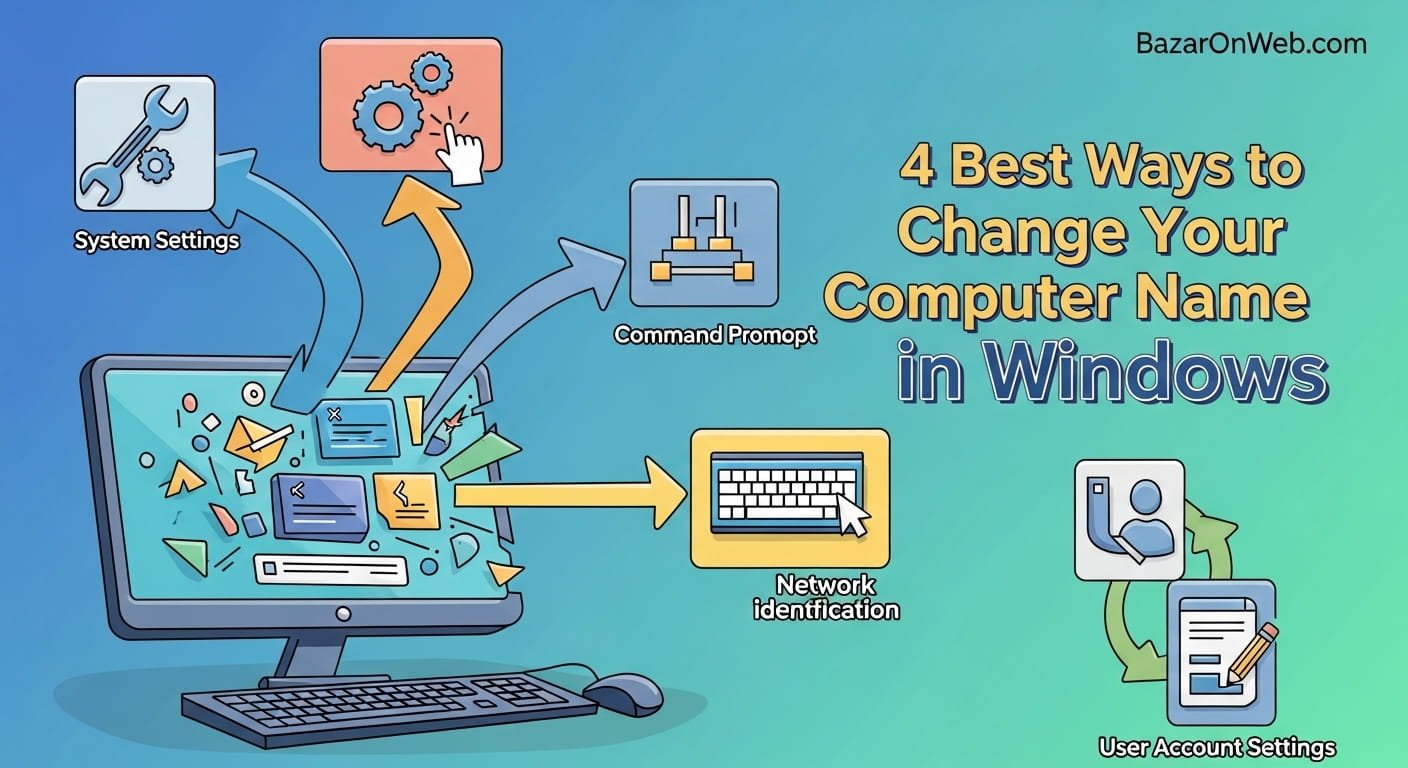
Hi, I’m Jessica, and I still remember the moment I got confused while trying to share files between my laptop and my husband’s desktop. Both devices showed up on the network with random names like “DESKTOP-8F3H2K.” I had no idea which one was mine, and it turned a simple file transfer into a frustrating guessing game. That’s when I realized how important it is to rename your computer for clarity and organization. If you’re using multiple devices at home or in the office, changing your computer name can make your digital life much easier. It helps you quickly identify devices on a network, improves file sharing, and keeps things organized. Whether you’re a beginner or someone who just hasn’t explored this setting yet, Windows offers multiple easy ways to rename your computer. In this guide, I’ll walk you through the four best methods to change your computer name in Windows, along with practical insights so you can choose the method that works best for you.
Why Changing Your Computer Name Is Important
Changing your computer name might seem like a small and unnecessary step, but it can significantly improve how you manage devices on your network. When you connect multiple devices like laptops, desktops, tablets, or even smart TVs to the same Wi-Fi network, each device is assigned a default name. These names are usually random and not user-friendly, making it difficult to identify which device is which. This becomes especially frustrating when you are sharing files, accessing remote systems, or troubleshooting connectivity issues.
A customized computer name helps you instantly recognize your device. For example, instead of seeing a confusing name like “DESKTOP-7GHTY4,” you can rename it to something meaningful like “Jessica-Laptop” or “Office-PC.” This is particularly useful in households with multiple users or in small office environments where multiple systems are connected to the same network.
Another advantage is improved organization and security awareness. When you clearly identify devices, it becomes easier to spot unknown or unauthorized devices on your network. This adds an extra layer of control and awareness, especially if you are concerned about network safety. Overall, renaming your computer is a simple yet powerful step toward better digital organization.
Method 1: Change Computer Name Using Windows Settings
One of the easiest and most user-friendly ways to change your computer name is through the Windows Settings app. This method is perfect for beginners because it does not require any technical knowledge or command-line usage. The interface is clean, simple, and designed to guide users step by step.
To begin, open the Settings menu on your Windows computer. You can do this by clicking on the Start menu and selecting the gear icon. Once inside Settings, navigate to the “System” section and then click on “About.” Here, you will find basic information about your device, including its current name.
You will notice an option labeled “Rename this PC.” Clicking this button will open a prompt where you can enter your desired computer name. Make sure the name is simple, unique, and easy to recognize. Avoid using special characters or overly long names, as they may cause compatibility issues.
After entering the new name, click “Next” and follow the on-screen instructions. Windows will prompt you to restart your computer for the changes to take effect. Once restarted, your computer will appear with the new name across your network and system settings. This method is straightforward and ideal for most users who want a quick solution.
Method 2: Rename Your PC via Control Panel
If you prefer using traditional Windows tools, the Control Panel provides another reliable way to change your computer name. Although newer versions of Windows emphasize the Settings app, the Control Panel still offers detailed system-level controls that many users find familiar and dependable.
To start, open the Control Panel from the Start menu. Once inside, navigate to “System and Security” and then click on “System.” This section displays important information about your computer, including its current name and workgroup settings. On the left-hand side, you will find an option called “Advanced system settings.” Click on it to open a new window.
In the System Properties window, go to the “Computer Name” tab. Here, you will see your current device name along with options to change it. Click the “Change” button, and a new dialog box will appear where you can enter your desired computer name.
After typing the new name, click “OK” and confirm your changes. Windows will prompt you to restart your computer so the new name can be applied. Once your system reboots, the updated name will be visible across all network connections. This method is slightly more detailed but gives you deeper access to system-level configurations.
Method 3: Change Computer Name Using Command Prompt
For users who are comfortable with command-line tools, the Command Prompt offers a fast and efficient way to rename your computer. This method is especially useful for advanced users, IT professionals, or anyone who prefers quick execution without navigating through multiple menus.
To begin, open the Command Prompt as an administrator. You can do this by typing “cmd” in the search bar, right-clicking on Command Prompt, and selecting “Run as administrator.” Once the command window opens, you can use a specific command to rename your computer.
The command involves using system management tools that allow you to update the computer name directly. You will need to enter the current name and specify the new name you want to assign. After executing the command, the system will process the change.
Although the command executes instantly, the new computer name will only take effect after a system restart. Once you reboot your device, the updated name will appear across all system settings and network environments. This method is highly efficient and ideal for those who want to perform quick changes without relying on graphical interfaces.
Method 4: Rename Computer Using PowerShell
PowerShell is another powerful tool in Windows that allows you to perform advanced system tasks, including renaming your computer. It is similar to Command Prompt but offers more flexibility and modern scripting capabilities. This method is particularly useful for users who manage multiple systems or want more control over system configurations.
To use this method, open PowerShell as an administrator. You can search for “PowerShell” in the Start menu, right-click on it, and choose “Run as administrator.” Once the PowerShell window opens, you can use a specific command designed to rename your computer.
The command is straightforward and allows you to specify the new name directly. You also have the option to restart your computer automatically after executing the command, which makes the process more convenient. PowerShell provides a clean and efficient way to perform this task with minimal steps.
After running the command and restarting your system, the new computer name will be applied across all settings and network connections. This method is ideal for users who prefer automation or manage multiple devices in a professional environment.
Tips for Choosing the Right Computer Name
Selecting the right computer name is more important than it might seem. A well-chosen name can make your digital environment more organized and easier to manage. When naming your computer, always aim for clarity and simplicity. Avoid complicated names that include unnecessary numbers or symbols.
It’s a good idea to use names that reflect the user or purpose of the device. For example, you can use names like “Home-Laptop,” “Office-PC,” or “Kids-Tablet.” This makes it easier to identify devices, especially in shared environments. If multiple people use the same network, including the user’s name in the device name can be very helpful.
Consistency is another important factor. If you have multiple devices, try to follow a naming pattern. For instance, you could use a format like “Jessica-Desktop,” “Jessica-Laptop,” and “Jessica-Tablet.” This keeps everything organized and easy to recognize.
Also, remember to keep names short and avoid spaces or special characters. Some network systems may not support complex naming formats, which can lead to connectivity issues. A simple, clean name ensures better compatibility across different platforms and devices.
Things to Avoid While Renaming Your PC
While renaming your computer is a simple process, there are a few common mistakes that you should avoid. One of the biggest mistakes is using special characters such as symbols, punctuation marks, or spaces. These can cause compatibility issues, especially when connecting to networks or sharing files across different systems.
Another mistake is choosing names that are too long or complicated. Long names can be difficult to remember and may not display properly in certain network environments. Keeping the name short and meaningful ensures better usability and readability.
Avoid using duplicate names on the same network. If two devices share the same name, it can create confusion and may even lead to connectivity problems. Always ensure that each device has a unique identifier.
It’s also important not to change your computer name too frequently. Constant changes can disrupt network connections and create confusion, especially in shared environments. Choose a name that you can stick with for a long time.
By avoiding these common mistakes, you can ensure a smooth and hassle-free experience when renaming your computer.
How Renaming Affects Network and File Sharing
Renaming your computer can have a noticeable impact on how your device interacts with other systems on a network. When you change the name, it becomes the new identifier for your device in all network-related activities, including file sharing, remote access, and device discovery.
For example, when you share files over a local network, your computer name is used to identify your system. A clear and recognizable name makes it easier for others to locate your device and access shared resources. This is especially useful in home networks where multiple devices are connected simultaneously.
However, it’s important to note that renaming your computer may temporarily disrupt existing network connections. Some shared folders or saved network paths may need to be reconfigured after the name change. This is usually a one-time adjustment and does not cause long-term issues.
In professional environments, renaming a computer may also require updates in network configurations or administrative settings. It’s always a good idea to inform other users or administrators before making changes. Overall, the benefits of improved organization and clarity far outweigh any minor adjustments required after renaming.
When You Should Consider Renaming Your Computer
There are several situations where renaming your computer becomes necessary or highly beneficial. One common scenario is when you purchase a new device. Most computers come with default names that are not user-friendly, making it a good idea to rename them right away.
Another situation is when you connect multiple devices to the same network. If you have a home setup with laptops, desktops, smartphones, and smart devices, renaming each device helps you keep everything organized. This is particularly useful for file sharing and troubleshooting network issues.
You should also consider renaming your computer if you are using it for professional purposes. In office environments, clear device names help teams collaborate more efficiently and reduce confusion. It also makes it easier for IT administrators to manage systems.
Additionally, if you notice unknown devices on your network, having clearly named systems helps you quickly identify which devices belong to you. This can improve your overall network security awareness. Renaming your computer is a small step that can make a big difference in both personal and professional settings.
Troubleshooting Issues After Renaming Your PC
In most cases, renaming your computer is a smooth process, but occasionally you may encounter minor issues. One common problem is that the new name does not appear immediately. This usually happens if the system has not been restarted. A simple reboot typically resolves this issue.
Another issue may involve network visibility. After renaming your computer, it might not show up correctly on the network. This can often be fixed by refreshing the network view or restarting your router. In some cases, you may need to reconnect to shared folders or re-enter network credentials.
If you are using your computer in a work environment, you might face restrictions due to administrative policies. Some organizations limit the ability to rename devices. In such cases, you may need permission from your IT administrator.
Additionally, ensure that your new computer name follows proper naming conventions. If the name includes unsupported characters or formats, it may not be recognized correctly. Keeping the name simple and standard helps avoid such issues.
With these troubleshooting steps, you can quickly resolve any minor problems and enjoy the benefits of a clearly named and well-organized system.
Disclaimer
This article is for informational purposes only. The steps and methods described may vary slightly depending on your Windows version and system configuration. Always ensure you have proper permissions before making system changes, especially in organizational or managed environments.
Written by Bazaronweb
Latest Tech Articles
- 4 Best Ways to Change Your Computer Name in Windows (Step-by-Step Guide for Easy Network Identification)

- What is Background App Refresh? How to Enable & Manage It for Better Performance

- Best Ways to Open MSConfig in Windows 11 Complete Step-by-Step Guide for Beginners and Professionals

- How to Run Gemma 4 Locally on Android Phone: Complete Step-by-Step Guide for Beginners

- How to Open ‘Devices and Printers’ in Windows 11 (Step-by-Step Guide)

Products
-
Apple Watch Ultra 3 [GPS + Cellular 49mm] Running & Multisport Smartwatch w/Rugged Titanium Case w/Black Titanium Milanese Loop - M. Satellite Communications, Advanced Health & Fitness Tracking
-

Apple iPad mini (A17 Pro): Apple Intelligence, 8.3-inch Liquid Retina Display, 256GB, Wi-Fi 6E, 12MP Front/12MP Back Camera, Touch ID, All-Day Battery Life — Purple
-

Apple AirPods Max Wireless Over-Ear Headphones, Active Noise Cancelling, Transparency Mode, Personalized Spatial Audio, Dolby Atmos, Bluetooth Headphones for iPhone – Space Gray
-

Apple AirPods Pro 2 Wireless Earbuds, Active Noise Cancellation, Hearing Aid Feature, Bluetooth Headphones, Transparency, Personalized Spatial Audio, High-Fidelity Sound, H2 Chip, USB-C Charging
-
Leo Creation 144 TC Cotton Double Jaipuri Prints Flat Bedsheet(Pack of 1, Blue, Gree, Red, Grey, Light Grey)
₹2,999.00Original price was: ₹2,999.00.₹329.00Current price is: ₹329.00.
Leave a Reply