Discounted Products
-
 Home Garage 210 TC Cotton King Floral Fitted (Elastic) Bedsheet(Pack of 1, Grey)
Original price was: ₹999.00.₹299.00Current price is: ₹299.00.
Home Garage 210 TC Cotton King Floral Fitted (Elastic) Bedsheet(Pack of 1, Grey)
Original price was: ₹999.00.₹299.00Current price is: ₹299.00.
-
 Goodrik 140 TC Cotton Double 3D Printed Flat Bedsheet(Pack of 1, Brown)
Original price was: ₹499.00.₹229.00Current price is: ₹229.00.
Goodrik 140 TC Cotton Double 3D Printed Flat Bedsheet(Pack of 1, Brown)
Original price was: ₹499.00.₹229.00Current price is: ₹229.00.
-
 GLOBALSHOP 350 TC Microfiber Double Floral Flat Bedsheet(Pack of 1, Multicolor)
Original price was: ₹1,250.00.₹263.00Current price is: ₹263.00.
GLOBALSHOP 350 TC Microfiber Double Floral Flat Bedsheet(Pack of 1, Multicolor)
Original price was: ₹1,250.00.₹263.00Current price is: ₹263.00.
-
 RisingStar 250 TC Microfiber King Printed Fitted (Elastic) Bedsheet(Pack of 1, FITTED-ROUND-CIRCLES-PREMIUM)
Original price was: ₹2,299.00.₹299.00Current price is: ₹299.00.
RisingStar 250 TC Microfiber King Printed Fitted (Elastic) Bedsheet(Pack of 1, FITTED-ROUND-CIRCLES-PREMIUM)
Original price was: ₹2,299.00.₹299.00Current price is: ₹299.00.
-
 Home Garage 210 TC Cotton King Floral Fitted (Elastic) Bedsheet(Pack of 1, Fitted Black Green)
Original price was: ₹1,299.00.₹299.00Current price is: ₹299.00.
Home Garage 210 TC Cotton King Floral Fitted (Elastic) Bedsheet(Pack of 1, Fitted Black Green)
Original price was: ₹1,299.00.₹299.00Current price is: ₹299.00.
-
 Home Garage 180 TC Cotton King 3D Printed Flat Bedsheet(Pack of 1, White)
Original price was: ₹999.00.₹229.00Current price is: ₹229.00.
Home Garage 180 TC Cotton King 3D Printed Flat Bedsheet(Pack of 1, White)
Original price was: ₹999.00.₹229.00Current price is: ₹229.00.
-
 Panipat Textile Hub 152.4 cm (5 ft) Polyester Window Curtain (Pack Of 2)(Solid, Aqua)
Original price was: ₹1,899.00.₹299.00Current price is: ₹299.00.
Panipat Textile Hub 152.4 cm (5 ft) Polyester Window Curtain (Pack Of 2)(Solid, Aqua)
Original price was: ₹1,899.00.₹299.00Current price is: ₹299.00.
-
 Home Sizzler 214 cm (7 ft) Polyester Semi Transparent Door Curtain (Pack Of 2)(Floral, Maroon)
Original price was: ₹1,199.00.₹399.00Current price is: ₹399.00.
Home Sizzler 214 cm (7 ft) Polyester Semi Transparent Door Curtain (Pack Of 2)(Floral, Maroon)
Original price was: ₹1,199.00.₹399.00Current price is: ₹399.00.
-
 Home Sizzler 153 cm (5 ft) Polyester Room Darkening Window Curtain (Pack Of 2)(Floral, Brown)
Original price was: ₹799.00.₹299.00Current price is: ₹299.00.
Home Sizzler 153 cm (5 ft) Polyester Room Darkening Window Curtain (Pack Of 2)(Floral, Brown)
Original price was: ₹799.00.₹299.00Current price is: ₹299.00.
-
 Stella Creations 214 cm (7 ft) Polyester Room Darkening Door Curtain (Pack Of 2)(Abstract, Brown)
Original price was: ₹1,299.00.₹449.00Current price is: ₹449.00.
Stella Creations 214 cm (7 ft) Polyester Room Darkening Door Curtain (Pack Of 2)(Abstract, Brown)
Original price was: ₹1,299.00.₹449.00Current price is: ₹449.00.
-
 Homefab India 152.5 cm (5 ft) Polyester Room Darkening Window Curtain (Pack Of 2)(Floral, Light Blue)
Original price was: ₹1,199.00.₹319.00Current price is: ₹319.00.
Homefab India 152.5 cm (5 ft) Polyester Room Darkening Window Curtain (Pack Of 2)(Floral, Light Blue)
Original price was: ₹1,199.00.₹319.00Current price is: ₹319.00.
-
 Urban Home 214 cm (7 ft) PVC Transparent Door Curtain Single Curtain(Solid, Off White)
Original price was: ₹699.00.₹203.00Current price is: ₹203.00.
Urban Home 214 cm (7 ft) PVC Transparent Door Curtain Single Curtain(Solid, Off White)
Original price was: ₹699.00.₹203.00Current price is: ₹203.00.
-
 Panipat Textile Hub 213 cm (7 ft) Polyester Door Curtain (Pack Of 2)(Solid, Brown)
Original price was: ₹1,199.00.₹349.00Current price is: ₹349.00.
Panipat Textile Hub 213 cm (7 ft) Polyester Door Curtain (Pack Of 2)(Solid, Brown)
Original price was: ₹1,199.00.₹349.00Current price is: ₹349.00.
-
 Home Sizzler 214 cm (7 ft) Polyester Semi Transparent Door Curtain (Pack Of 2)(Floral, Brown)
Original price was: ₹999.00.₹349.00Current price is: ₹349.00.
Home Sizzler 214 cm (7 ft) Polyester Semi Transparent Door Curtain (Pack Of 2)(Floral, Brown)
Original price was: ₹999.00.₹349.00Current price is: ₹349.00.
-
 Panipat Textile Hub 213 cm (7 ft) Polyester Semi Transparent Door Curtain (Pack Of 2)(Floral, Brown)
Original price was: ₹899.00.₹299.00Current price is: ₹299.00.
Panipat Textile Hub 213 cm (7 ft) Polyester Semi Transparent Door Curtain (Pack Of 2)(Floral, Brown)
Original price was: ₹899.00.₹299.00Current price is: ₹299.00.
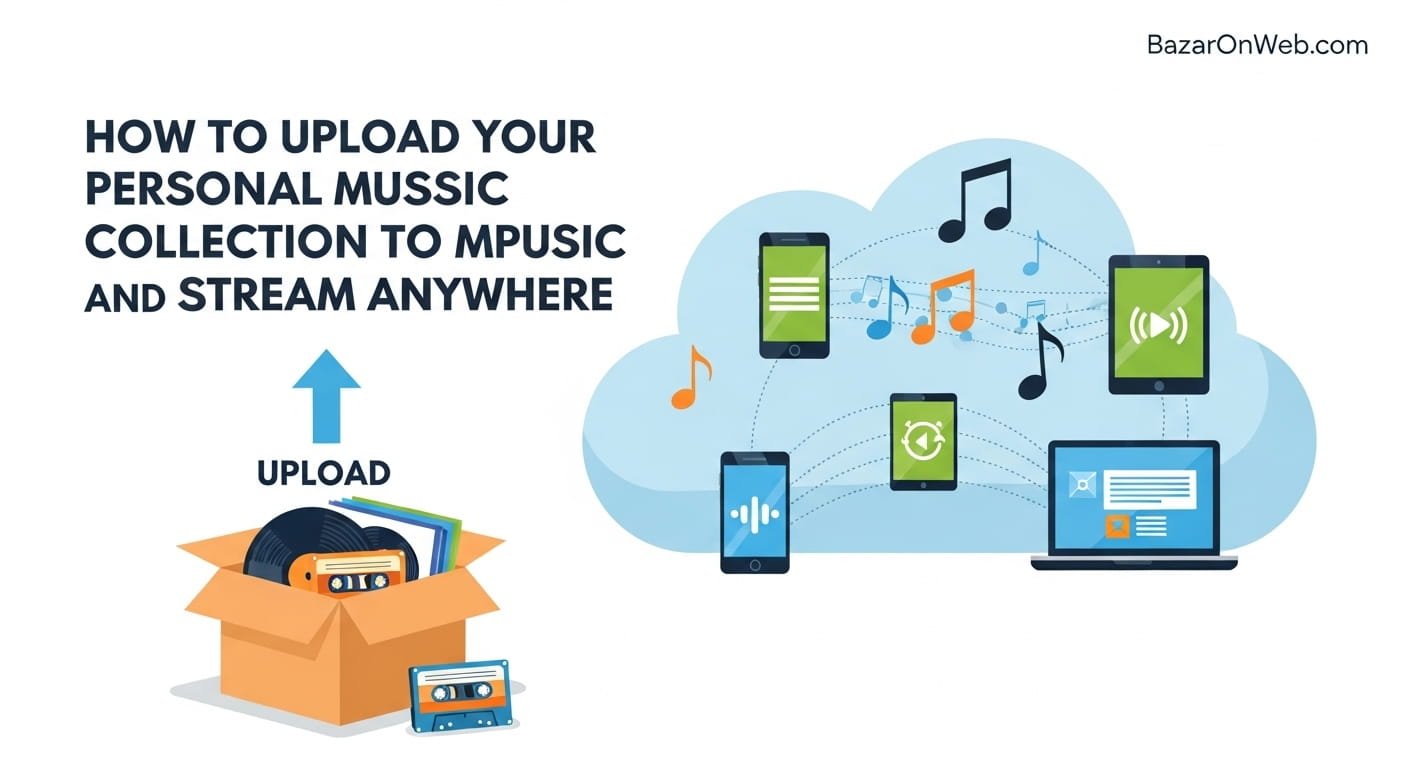
Hi, I’m Jessica, and I still remember the day I found my old hard drive packed with songs I had collected over the years—rare tracks, college playlists, and even some CDs I had ripped myself. The problem? None of it was available on my phone, and I didn’t want to lose those memories. That’s when I discovered how to upload my personal music library to Apple Music and stream it across all my devices.
If you’ve built a personal music collection over the years, you don’t have to leave it behind. Apple provides a powerful way to sync your music to the cloud so you can access it anywhere—on your iPhone, iPad, Mac, or even Windows PC. This feature lets you combine your personal tracks with Apple’s massive streaming library, creating one seamless listening experience.
In this guide, I’ll walk you through everything you need to know—from preparing your files to uploading them and accessing them on all your devices. Whether you have rare MP3s, old albums, or custom mixes, you’ll finally be able to carry your entire music history in your pocket without hassle.
What Is iCloud Music Library and How It Works
To upload and stream your personal songs, Apple uses a feature called iCloud Music Library, which is part of an Apple Music subscription. This service scans your local music files and either matches them with Apple’s existing catalog or uploads them directly to Apple’s servers. Once processed, your songs become available across all your devices signed into the same Apple ID.
The matching process is what makes this system efficient. If Apple already has a high-quality version of your song, it doesn’t upload your file—instead, it links your library to their version. This saves time and storage space. However, if a track isn’t available in Apple’s catalog, it gets uploaded exactly as it is, preserving your unique collection.
This system ensures that even rare or custom tracks remain accessible. Once everything is synced, your music appears alongside Apple Music tracks, playlists, and recommendations. The experience feels unified, meaning you don’t need separate apps or storage systems. It’s all integrated into one platform, making your listening experience smoother and more convenient than ever before.
Preparing Your Music Files Before Uploading
Before uploading your music, it’s important to organize your files properly. Start by ensuring all your songs are in supported formats such as MP3, AAC, ALAC, or WAV. Apple Music works best when your files are clean, well-tagged, and properly named. Poor metadata can lead to mismatched songs or incorrect album artwork after syncing.
Take time to update song titles, artist names, album names, and genres using a music editor or your system’s built-in tools. Consistent metadata ensures that your library appears organized across all devices. It also improves how Apple matches your songs with its catalog, increasing the chances of higher-quality versions being used.
Another key step is removing duplicate files. Having multiple versions of the same song can create confusion during syncing. Clean your library by keeping only the best-quality version of each track. Additionally, check for missing artwork and add album covers where possible. These small steps significantly improve your experience once your music is uploaded and displayed within Apple Music’s interface.
Setting Up Apple Music on Your Device
To begin uploading your songs, you need an active Apple Music subscription and the app installed on your device. On Mac, you’ll use the Music app, while Windows users will use iTunes. Both platforms support music syncing through Apple’s cloud services.
Once installed, sign in using your Apple ID and navigate to the settings or preferences section. Here, you’ll find an option to enable “Sync Library” or iCloud Music Library. Turning this on allows your device to communicate with Apple’s servers and prepare your library for upload.
Make sure your internet connection is stable before proceeding. Uploading large music collections can take time, especially if you have thousands of tracks. Also, ensure you’re logged into the same Apple ID across all your devices. This ensures that once your music is uploaded, it will automatically appear everywhere without additional setup. Proper configuration at this stage is essential for a smooth and error-free syncing process.
How to Upload Songs Using a Mac
If you’re using a Mac, uploading your music is straightforward. Open the Music app and simply drag and drop your files into the library. You can also use the “File” menu to import songs or entire folders. Once added, the app automatically begins processing your files.
After importing, make sure the “Sync Library” option is enabled. The Music app will start matching and uploading your songs in the background. You can monitor progress by checking the cloud status column, which indicates whether a song is matched, uploaded, or waiting to process.
It’s important to keep your Mac connected to the internet during this process. Interruptions can delay syncing or cause incomplete uploads. Once the process is complete, your songs will be available across all your Apple devices. This seamless integration allows you to switch from your Mac to your iPhone without losing access to your personal music collection.
How to Upload Songs Using Windows (iTunes)
Windows users can upload their music using iTunes, which still supports Apple Music syncing features. Start by installing the latest version of iTunes and signing in with your Apple ID. Once logged in, go to preferences and enable iCloud Music Library.
Next, import your music by selecting “Add File to Library” or “Add Folder to Library.” iTunes will begin scanning your files and preparing them for upload. Similar to the Mac process, songs will either be matched or uploaded depending on their availability in Apple’s database.
Keep your system connected to the internet and avoid closing iTunes during the process. Large libraries may take several hours to fully sync. Once complete, your music will appear on all devices linked to your Apple ID. This ensures that even if you primarily use Windows, you can still enjoy Apple Music’s full ecosystem and access your personal collection anywhere.
Accessing Your Uploaded Music on iPhone and iPad
After your songs are uploaded, accessing them on your iPhone or iPad is incredibly easy. Simply open the Apple Music app and ensure that “Sync Library” is enabled in your device settings. Your uploaded songs will appear alongside your playlists and Apple Music tracks.
You can stream your music instantly without downloading it, which saves storage space on your device. However, if you want offline access, you can download specific songs or albums directly to your device. This flexibility allows you to enjoy your music even without an internet connection.
Your personal tracks are treated just like any other song in Apple Music. You can add them to playlists, mark them as favorites, and even use them in mixes. This integration ensures that your personal collection becomes part of your daily listening experience rather than something stored separately and forgotten.
Managing Storage and Upload Limits
Apple Music allows you to upload a large number of songs, but there are limits to keep in mind. Typically, you can upload up to 100,000 songs, which is more than enough for most users. However, this count does not include songs already available in Apple’s streaming catalog.
Managing your storage efficiently is important, especially if you have a large library. Remove low-quality files and duplicates before uploading to make the most of your available space. Keep your library organized to avoid clutter and ensure smooth navigation across devices.
Another factor to consider is file size and quality. High-resolution audio files take longer to upload and consume more storage. While Apple preserves original files when necessary, optimizing your collection can improve performance. Regularly reviewing and cleaning your library helps maintain a smooth and enjoyable music experience across all your devices.
Common Issues and How to Fix Them
While the process is generally smooth, users sometimes encounter issues during syncing. One common problem is songs not appearing on other devices. This is usually caused by Sync Library being disabled on one of the devices. Double-check your settings to ensure everything is properly configured.
Another issue is incorrect song matching. Sometimes Apple may match your file with a different version of the same song. If this happens, you can remove the track and re-upload it to ensure the correct version is used. Proper metadata also reduces the chances of mismatches.
Slow uploads can also be frustrating, especially with large libraries. Ensure you have a stable internet connection and avoid interrupting the process. Restarting the app or signing out and back in can sometimes resolve syncing issues. Understanding these common problems and their solutions can save you time and help you maintain a seamless music experience.
Benefits of Uploading Your Personal Music Collection
Uploading your music to Apple Music offers significant advantages. First, it centralizes your entire music library in one place, eliminating the need for external storage or multiple apps. You can access everything from any device without transferring files manually.
Another major benefit is convenience. Whether you’re traveling, working, or relaxing at home, your music is always available. You no longer need to carry physical storage devices or worry about losing your files. Everything is securely stored in the cloud.
Additionally, integration with Apple Music enhances your listening experience. Your uploaded songs can be combined with streaming tracks, curated playlists, and personalized recommendations. This creates a rich and dynamic music environment that adapts to your preferences. It’s not just about storage—it’s about transforming how you experience your music collection every day.
Tips to Optimize Your Apple Music Experience
To get the most out of Apple Music, take advantage of its organizational features. Create playlists that combine your uploaded songs with streaming tracks for a more personalized experience. Use smart playlists to automatically organize music based on criteria like genre, play count, or release date.
Keep your metadata updated regularly to maintain a clean and professional-looking library. This ensures that your music is easy to browse and visually appealing. Also, explore Apple Music’s recommendation system, which can introduce you to new songs that match your existing collection.
Finally, enable offline downloads for your favorite tracks to ensure uninterrupted listening. This is especially useful when traveling or in areas with limited connectivity. By combining these strategies, you can fully leverage Apple Music’s capabilities and create a seamless, enjoyable music experience tailored to your tastes.
Disclaimer
This article is for informational purposes only. Features and functionality of Apple Music and iCloud Music Library may change over time based on updates from Apple. Always refer to official Apple documentation or support for the latest instructions and compatibility details.

- How to Force Quit a Frozen App on MacBook: 7 Easy Ways to Close Unresponsive Apps

- Windows 10/11 Desktop Icons Disappeared: Why Your Desktop Is Empty and How to Get Your Icons Back

- How to Fix File Explorer Not Responding in Windows 11

- Windows Update “Undoing Changes” Error: Why Your Computer Gets Stuck and How to Actually Fix It

- How to Record High-Quality Sound on Mac: 8 Easy Methods

Products
-
![Apple Watch Ultra 3 [GPS + Cellular 49mm] Running & Multisport Smartwatch w/Rugged Titanium Case w/Black Titanium Milanese Loop - M. Satellite Communications, Advanced Health & Fitness Tracking](https://bazaronweb.com/retailstores/wp-content/uploads/2025/09/apple-watch-320x320.jpg) Apple Watch Ultra 3 [GPS + Cellular 49mm] Running & Multisport Smartwatch w/Rugged Titanium Case w/Black Titanium Milanese Loop - M. Satellite Communications, Advanced Health & Fitness Tracking
Apple Watch Ultra 3 [GPS + Cellular 49mm] Running & Multisport Smartwatch w/Rugged Titanium Case w/Black Titanium Milanese Loop - M. Satellite Communications, Advanced Health & Fitness Tracking
-
 Apple iPad mini (A17 Pro): Apple Intelligence, 8.3-inch Liquid Retina Display, 256GB, Wi-Fi 6E, 12MP Front/12MP Back Camera, Touch ID, All-Day Battery Life — Purple
-
 Apple AirPods Max Wireless Over-Ear Headphones, Active Noise Cancelling, Transparency Mode, Personalized Spatial Audio, Dolby Atmos, Bluetooth Headphones for iPhone – Space Gray
-
 Apple AirPods Pro 2 Wireless Earbuds, Active Noise Cancellation, Hearing Aid Feature, Bluetooth Headphones, Transparency, Personalized Spatial Audio, High-Fidelity Sound, H2 Chip, USB-C Charging
-
Home Garage 210 TC Cotton King Floral Fitted (Elastic) Bedsheet(Pack of 1, Grey)
Original price was: ₹999.00.₹299.00Current price is: ₹299.00.
Leave a Reply