Discounted Products
-
 Home Garage 210 TC Cotton King Floral Fitted (Elastic) Bedsheet(Pack of 1, Grey)
Original price was: ₹999.00.₹299.00Current price is: ₹299.00.
Home Garage 210 TC Cotton King Floral Fitted (Elastic) Bedsheet(Pack of 1, Grey)
Original price was: ₹999.00.₹299.00Current price is: ₹299.00.
-
 Goodrik 140 TC Cotton Double 3D Printed Flat Bedsheet(Pack of 1, Brown)
Original price was: ₹499.00.₹229.00Current price is: ₹229.00.
Goodrik 140 TC Cotton Double 3D Printed Flat Bedsheet(Pack of 1, Brown)
Original price was: ₹499.00.₹229.00Current price is: ₹229.00.
-
 GLOBALSHOP 350 TC Microfiber Double Floral Flat Bedsheet(Pack of 1, Multicolor)
Original price was: ₹1,250.00.₹263.00Current price is: ₹263.00.
GLOBALSHOP 350 TC Microfiber Double Floral Flat Bedsheet(Pack of 1, Multicolor)
Original price was: ₹1,250.00.₹263.00Current price is: ₹263.00.
-
 RisingStar 250 TC Microfiber King Printed Fitted (Elastic) Bedsheet(Pack of 1, FITTED-ROUND-CIRCLES-PREMIUM)
Original price was: ₹2,299.00.₹299.00Current price is: ₹299.00.
RisingStar 250 TC Microfiber King Printed Fitted (Elastic) Bedsheet(Pack of 1, FITTED-ROUND-CIRCLES-PREMIUM)
Original price was: ₹2,299.00.₹299.00Current price is: ₹299.00.
-
 Home Garage 210 TC Cotton King Floral Fitted (Elastic) Bedsheet(Pack of 1, Fitted Black Green)
Original price was: ₹1,299.00.₹299.00Current price is: ₹299.00.
Home Garage 210 TC Cotton King Floral Fitted (Elastic) Bedsheet(Pack of 1, Fitted Black Green)
Original price was: ₹1,299.00.₹299.00Current price is: ₹299.00.
-
 Home Garage 180 TC Cotton King 3D Printed Flat Bedsheet(Pack of 1, White)
Original price was: ₹999.00.₹229.00Current price is: ₹229.00.
Home Garage 180 TC Cotton King 3D Printed Flat Bedsheet(Pack of 1, White)
Original price was: ₹999.00.₹229.00Current price is: ₹229.00.
-
 Panipat Textile Hub 152.4 cm (5 ft) Polyester Window Curtain (Pack Of 2)(Solid, Aqua)
Original price was: ₹1,899.00.₹299.00Current price is: ₹299.00.
Panipat Textile Hub 152.4 cm (5 ft) Polyester Window Curtain (Pack Of 2)(Solid, Aqua)
Original price was: ₹1,899.00.₹299.00Current price is: ₹299.00.
-
 Home Sizzler 214 cm (7 ft) Polyester Semi Transparent Door Curtain (Pack Of 2)(Floral, Maroon)
Original price was: ₹1,199.00.₹399.00Current price is: ₹399.00.
Home Sizzler 214 cm (7 ft) Polyester Semi Transparent Door Curtain (Pack Of 2)(Floral, Maroon)
Original price was: ₹1,199.00.₹399.00Current price is: ₹399.00.
-
 Home Sizzler 153 cm (5 ft) Polyester Room Darkening Window Curtain (Pack Of 2)(Floral, Brown)
Original price was: ₹799.00.₹299.00Current price is: ₹299.00.
Home Sizzler 153 cm (5 ft) Polyester Room Darkening Window Curtain (Pack Of 2)(Floral, Brown)
Original price was: ₹799.00.₹299.00Current price is: ₹299.00.
-
 Stella Creations 214 cm (7 ft) Polyester Room Darkening Door Curtain (Pack Of 2)(Abstract, Brown)
Original price was: ₹1,299.00.₹449.00Current price is: ₹449.00.
Stella Creations 214 cm (7 ft) Polyester Room Darkening Door Curtain (Pack Of 2)(Abstract, Brown)
Original price was: ₹1,299.00.₹449.00Current price is: ₹449.00.
-
 Homefab India 152.5 cm (5 ft) Polyester Room Darkening Window Curtain (Pack Of 2)(Floral, Light Blue)
Original price was: ₹1,199.00.₹319.00Current price is: ₹319.00.
Homefab India 152.5 cm (5 ft) Polyester Room Darkening Window Curtain (Pack Of 2)(Floral, Light Blue)
Original price was: ₹1,199.00.₹319.00Current price is: ₹319.00.
-
 Urban Home 214 cm (7 ft) PVC Transparent Door Curtain Single Curtain(Solid, Off White)
Original price was: ₹699.00.₹203.00Current price is: ₹203.00.
Urban Home 214 cm (7 ft) PVC Transparent Door Curtain Single Curtain(Solid, Off White)
Original price was: ₹699.00.₹203.00Current price is: ₹203.00.
-
 Panipat Textile Hub 213 cm (7 ft) Polyester Door Curtain (Pack Of 2)(Solid, Brown)
Original price was: ₹1,199.00.₹349.00Current price is: ₹349.00.
Panipat Textile Hub 213 cm (7 ft) Polyester Door Curtain (Pack Of 2)(Solid, Brown)
Original price was: ₹1,199.00.₹349.00Current price is: ₹349.00.
-
 Home Sizzler 214 cm (7 ft) Polyester Semi Transparent Door Curtain (Pack Of 2)(Floral, Brown)
Original price was: ₹999.00.₹349.00Current price is: ₹349.00.
Home Sizzler 214 cm (7 ft) Polyester Semi Transparent Door Curtain (Pack Of 2)(Floral, Brown)
Original price was: ₹999.00.₹349.00Current price is: ₹349.00.
-
 Panipat Textile Hub 213 cm (7 ft) Polyester Semi Transparent Door Curtain (Pack Of 2)(Floral, Brown)
Original price was: ₹899.00.₹299.00Current price is: ₹299.00.
Panipat Textile Hub 213 cm (7 ft) Polyester Semi Transparent Door Curtain (Pack Of 2)(Floral, Brown)
Original price was: ₹899.00.₹299.00Current price is: ₹299.00.
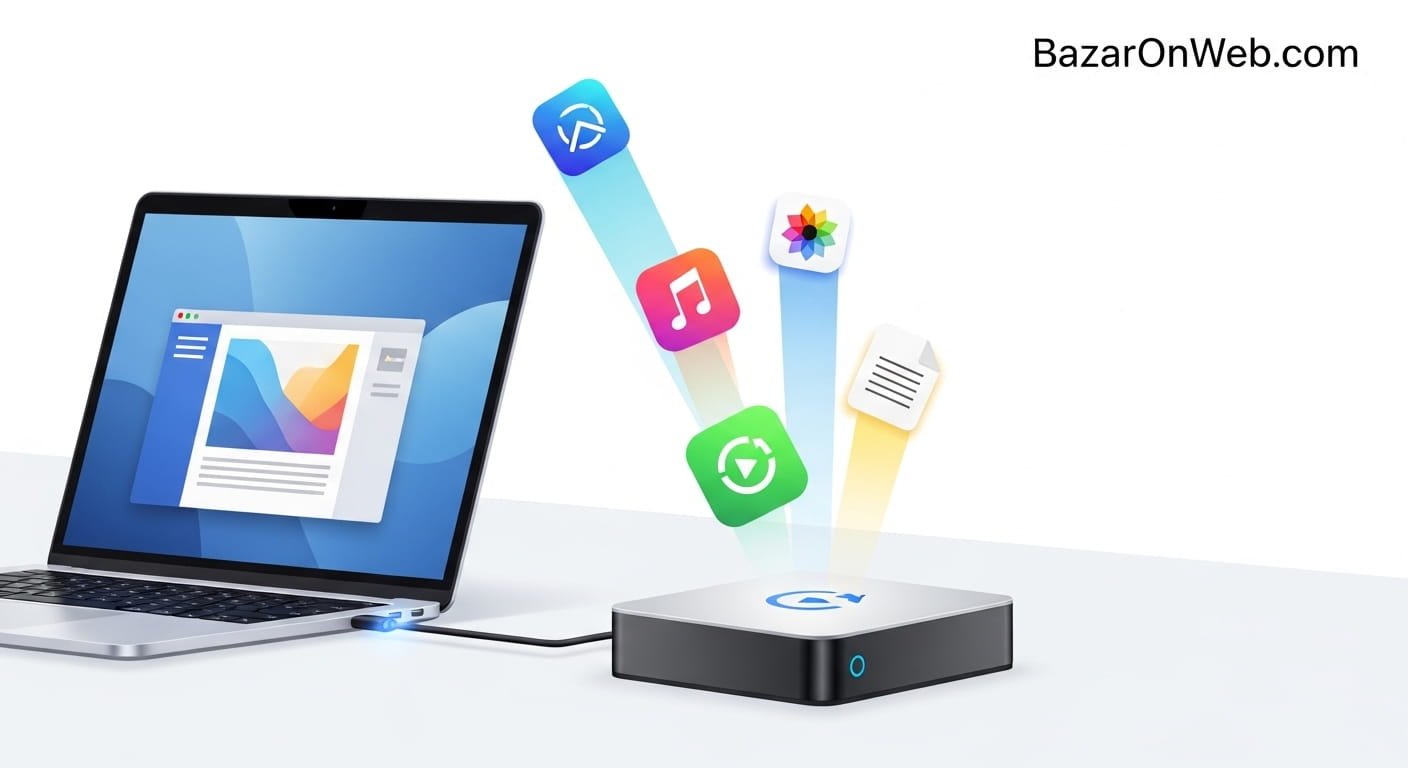
Hi, I’m Jessica, and I remember the first time I plugged in my external SSD to quickly access my video editing software—only to realize I had to manually open everything, every single time. It felt like such a small inconvenience, but when you do it daily, it adds up. If you’re someone who frequently connects external storage like USB drives, SD cards, or external hard disks to your Mac, you’ve probably experienced the same repetitive workflow.
This guide walks you through a smart automation trick that eliminates that friction entirely. By leveraging built-in tools in macOS, you can automatically launch a specific app the moment your external drive is connected. Whether you’re a designer opening Photoshop, a developer launching VS Code, or a data analyst opening Excel, this setup can save time and streamline your workflow.
In this step-by-step tutorial, I’ll show you exactly how to create this automation using native Mac tools—no complicated coding required. By the end, your Mac will feel more responsive, personalized, and efficient. Let’s dive into how you can make your system work smarter for you.
Understanding the Use Case of Automation on Mac
Automation on Mac is designed to reduce repetitive manual tasks and improve productivity. When you frequently use external drives, the process often involves plugging in the device, locating it in Finder, and manually opening a specific application to interact with its content. Over time, this routine becomes inefficient, especially for professionals who rely on quick access to files and tools.
By setting up an automation that triggers when a drive is connected, you eliminate these repetitive steps. This is particularly useful for workflows such as video editing, where connecting an SSD should instantly open editing software, or for developers who want their coding environment ready as soon as a project drive is mounted.
The beauty of macOS automation lies in its flexibility. You can customize actions based on triggers like device connection, time of day, or file changes. In this case, the trigger is the mounting of an external storage device. Once detected, the system executes a predefined action—opening a specific application.
This approach not only saves time but also reduces cognitive load. You no longer need to remember what to open or where to navigate. The system anticipates your needs and acts accordingly, making your workflow smoother and more intuitive.
Tools You’ll Use for This Automation
To create this automation, you won’t need any third-party apps. macOS provides built-in tools that are powerful enough to handle this task efficiently. The primary tools involved are Automator and Folder Actions, both of which are designed to help users create workflows without coding.
Automator is a native macOS application that allows you to build custom workflows by dragging and dropping actions. It supports various triggers and actions, making it ideal for creating simple to moderately complex automations. In this tutorial, Automator will be used to define what happens when your external drive is connected.
Folder Actions is another feature that enables you to attach scripts or workflows to specific folders. When changes occur in those folders—such as a new item being added—the attached action is triggered. Since external drives appear as mounted volumes, they can be monitored using this feature.
Additionally, Finder plays a supporting role by managing how external drives are displayed and accessed. While you won’t directly configure Finder, understanding how it interacts with mounted volumes is helpful.
Together, these tools form a seamless ecosystem that allows you to automate tasks efficiently without needing advanced technical knowledge.
Preparing Your Mac for Automation Setup
Before creating the automation, it’s important to ensure your Mac is properly configured. Start by checking that Automator is available on your system. You can find it in the Applications folder or by using Spotlight search. Once opened, familiarize yourself with its interface, which includes a library of actions on the left and a workflow builder on the right.
Next, connect your external drive to confirm how it appears on your system. Take note of its exact name, as this will be important when setting up the automation trigger. External drives typically appear under “Locations” in Finder and are mounted under the /Volumes directory.
Make sure your system permissions allow Automator and related services to access files and folders. You can verify this in System Settings under Privacy & Security. If permissions are restricted, the automation may not function correctly.
It’s also a good idea to test your external drive by opening it and launching the app you want to automate. This ensures there are no compatibility issues and that everything works as expected before automation is introduced.
By preparing your system in advance, you reduce the chances of errors during setup and ensure a smoother experience.
Creating a Folder Action Workflow in Automator
To begin building the automation, open Automator and choose “Folder Action” as the document type. This type of workflow is specifically designed to trigger actions when changes occur in a selected folder. In this case, you’ll configure it to monitor the system’s volume directory.
Once the Folder Action template is selected, you’ll see an option at the top to choose a folder. Set this to monitor the /Volumes directory, which is where all external drives are mounted when connected. This ensures that the workflow is triggered whenever a new drive is added.
Next, you’ll start adding actions to the workflow. Automator provides a wide range of actions, but for this task, you’ll focus on identifying the connected drive and launching an application. You can use filters to narrow down actions based on file or folder names.
The interface allows you to drag actions from the library into the workflow area. Each action performs a specific function, and they can be chained together to create a complete process.
This step forms the foundation of your automation, as it defines when and how the system responds to external drive connections.
Configuring the Trigger for External Drive Detection
The trigger is a critical part of the automation. It determines when the workflow should run. Since external drives are mounted in the /Volumes directory, the Folder Action monitors this location for changes.
When a new drive is connected, it appears as a new folder within /Volumes. The Folder Action detects this addition and initiates the workflow. However, to ensure the automation only responds to specific drives, you need to add a filtering step.
Use the “Filter Finder Items” action in Automator to specify conditions. For example, you can set the filter to match the name of your external drive. This ensures that the automation only runs when that particular drive is connected, avoiding unnecessary triggers.
You can also configure multiple conditions if you use different drives for different purposes. This adds flexibility and allows you to create multiple workflows tailored to specific devices.
Properly configuring the trigger ensures that your automation is precise and reliable, activating only when needed.
Setting Up the App Launch Action
Once the trigger is configured, the next step is to define what happens when the external drive is detected. In this case, the goal is to automatically open a specific application.
In Automator, add the “Launch Application” action to your workflow. This action allows you to select the app you want to open when the drive is connected. Choose the application from the list or browse your Applications folder to find it.
You can also add multiple “Launch Application” actions if you want to open more than one app. For example, you might open both a file manager and a specialized tool depending on your workflow.
This step is straightforward but powerful. It transforms a manual process into an automatic one, ensuring that your workspace is ready the moment your external drive is connected.
Make sure the selected application is compatible with the files on your drive to avoid errors during execution.
Testing Your Automation Workflow
After setting up the workflow, it’s essential to test it to ensure everything works correctly. Disconnect your external drive and then reconnect it to trigger the automation.
Observe whether the selected application launches automatically. If it does, your setup is successful. If not, revisit the workflow and check for issues such as incorrect folder selection, mismatched drive names, or missing permissions.
Testing helps identify potential problems early and ensures that your automation behaves as expected in real-world scenarios. You can also experiment with different drives or applications to verify flexibility.
It’s a good practice to test multiple times to confirm consistency. This ensures that the automation is reliable and doesn’t fail intermittently.
A well-tested workflow gives you confidence that your system will respond correctly every time you connect your external drive.
Customizing Automation for Multiple Drives
If you use multiple external drives for different tasks, you can create separate automations for each one. This allows you to tailor actions based on the specific drive being connected.
For example, you might have one drive for video editing and another for backups. Each drive can trigger a different set of applications, making your workflow more efficient and organized.
To achieve this, create additional Folder Action workflows in Automator and configure filters for each drive name. Assign different applications or actions based on your needs.
You can also combine multiple conditions within a single workflow, although separate workflows are often easier to manage and troubleshoot.
Customization enhances the usefulness of automation, allowing you to adapt it to various scenarios and workflows without manual intervention.
Troubleshooting Common Issues
Even with careful setup, you may encounter issues with your automation. Common problems include the workflow not triggering, the wrong application opening, or permissions blocking execution.
If the automation doesn’t trigger, check that the Folder Action is correctly attached to the /Volumes directory. Also, verify that Folder Actions are enabled in your system settings.
If the wrong app opens or nothing happens, review the filtering conditions. Ensure that the drive name matches exactly, including capitalization and spacing.
Permissions can also be a barrier. Make sure Automator has access to necessary files and folders under Privacy & Security settings.
Restarting your Mac or re-saving the workflow can sometimes resolve unexpected issues. Troubleshooting systematically helps identify the root cause and ensures your automation works smoothly.
Benefits of Automating External Drive Workflows
Automating app launches when connecting external drives offers several advantages. The most obvious benefit is time savings. You no longer need to manually open applications every time you connect a device.
It also improves workflow consistency. Your system behaves predictably, ensuring that the right tools are always ready when needed. This is especially valuable for professionals who rely on efficiency.
Automation reduces the risk of forgetting steps, which can be critical in tasks like data processing or content creation. It also enhances the overall user experience by making your Mac feel more intelligent and responsive.
Over time, these small improvements add up, leading to significant productivity gains. By leveraging built-in macOS tools, you can create a smarter, more efficient working environment without additional software.
Disclaimer
This tutorial is for educational and informational purposes only. Steps may vary slightly depending on your macOS version and system configuration. Always review system permissions and test workflows carefully before relying on automation for critical tasks.






Products
-
![Apple Watch Ultra 3 [GPS + Cellular 49mm] Running & Multisport Smartwatch w/Rugged Titanium Case w/Black Titanium Milanese Loop - M. Satellite Communications, Advanced Health & Fitness Tracking](https://bazaronweb.com/retailstores/wp-content/uploads/2025/09/apple-watch-320x320.jpg) Apple Watch Ultra 3 [GPS + Cellular 49mm] Running & Multisport Smartwatch w/Rugged Titanium Case w/Black Titanium Milanese Loop - M. Satellite Communications, Advanced Health & Fitness Tracking
Apple Watch Ultra 3 [GPS + Cellular 49mm] Running & Multisport Smartwatch w/Rugged Titanium Case w/Black Titanium Milanese Loop - M. Satellite Communications, Advanced Health & Fitness Tracking
-
 Apple iPad mini (A17 Pro): Apple Intelligence, 8.3-inch Liquid Retina Display, 256GB, Wi-Fi 6E, 12MP Front/12MP Back Camera, Touch ID, All-Day Battery Life — Purple
-
 Apple AirPods Max Wireless Over-Ear Headphones, Active Noise Cancelling, Transparency Mode, Personalized Spatial Audio, Dolby Atmos, Bluetooth Headphones for iPhone – Space Gray
-
 Apple AirPods Pro 2 Wireless Earbuds, Active Noise Cancellation, Hearing Aid Feature, Bluetooth Headphones, Transparency, Personalized Spatial Audio, High-Fidelity Sound, H2 Chip, USB-C Charging
-
Home Garage 210 TC Cotton King Floral Fitted (Elastic) Bedsheet(Pack of 1, Grey)
Original price was: ₹999.00.₹299.00Current price is: ₹299.00.
Leave a Reply