Discounted Products
-
 Home Garage 210 TC Cotton King Floral Fitted (Elastic) Bedsheet(Pack of 1, Grey)
Original price was: ₹999.00.₹299.00Current price is: ₹299.00.
Home Garage 210 TC Cotton King Floral Fitted (Elastic) Bedsheet(Pack of 1, Grey)
Original price was: ₹999.00.₹299.00Current price is: ₹299.00.
-
 Goodrik 140 TC Cotton Double 3D Printed Flat Bedsheet(Pack of 1, Brown)
Original price was: ₹499.00.₹229.00Current price is: ₹229.00.
Goodrik 140 TC Cotton Double 3D Printed Flat Bedsheet(Pack of 1, Brown)
Original price was: ₹499.00.₹229.00Current price is: ₹229.00.
-
 GLOBALSHOP 350 TC Microfiber Double Floral Flat Bedsheet(Pack of 1, Multicolor)
Original price was: ₹1,250.00.₹263.00Current price is: ₹263.00.
GLOBALSHOP 350 TC Microfiber Double Floral Flat Bedsheet(Pack of 1, Multicolor)
Original price was: ₹1,250.00.₹263.00Current price is: ₹263.00.
-
 RisingStar 250 TC Microfiber King Printed Fitted (Elastic) Bedsheet(Pack of 1, FITTED-ROUND-CIRCLES-PREMIUM)
Original price was: ₹2,299.00.₹299.00Current price is: ₹299.00.
RisingStar 250 TC Microfiber King Printed Fitted (Elastic) Bedsheet(Pack of 1, FITTED-ROUND-CIRCLES-PREMIUM)
Original price was: ₹2,299.00.₹299.00Current price is: ₹299.00.
-
 Home Garage 210 TC Cotton King Floral Fitted (Elastic) Bedsheet(Pack of 1, Fitted Black Green)
Original price was: ₹1,299.00.₹299.00Current price is: ₹299.00.
Home Garage 210 TC Cotton King Floral Fitted (Elastic) Bedsheet(Pack of 1, Fitted Black Green)
Original price was: ₹1,299.00.₹299.00Current price is: ₹299.00.
-
 Home Garage 180 TC Cotton King 3D Printed Flat Bedsheet(Pack of 1, White)
Original price was: ₹999.00.₹229.00Current price is: ₹229.00.
Home Garage 180 TC Cotton King 3D Printed Flat Bedsheet(Pack of 1, White)
Original price was: ₹999.00.₹229.00Current price is: ₹229.00.
-
 Panipat Textile Hub 152.4 cm (5 ft) Polyester Window Curtain (Pack Of 2)(Solid, Aqua)
Original price was: ₹1,899.00.₹299.00Current price is: ₹299.00.
Panipat Textile Hub 152.4 cm (5 ft) Polyester Window Curtain (Pack Of 2)(Solid, Aqua)
Original price was: ₹1,899.00.₹299.00Current price is: ₹299.00.
-
 Home Sizzler 214 cm (7 ft) Polyester Semi Transparent Door Curtain (Pack Of 2)(Floral, Maroon)
Original price was: ₹1,199.00.₹399.00Current price is: ₹399.00.
Home Sizzler 214 cm (7 ft) Polyester Semi Transparent Door Curtain (Pack Of 2)(Floral, Maroon)
Original price was: ₹1,199.00.₹399.00Current price is: ₹399.00.
-
 Home Sizzler 153 cm (5 ft) Polyester Room Darkening Window Curtain (Pack Of 2)(Floral, Brown)
Original price was: ₹799.00.₹299.00Current price is: ₹299.00.
Home Sizzler 153 cm (5 ft) Polyester Room Darkening Window Curtain (Pack Of 2)(Floral, Brown)
Original price was: ₹799.00.₹299.00Current price is: ₹299.00.
-
 Stella Creations 214 cm (7 ft) Polyester Room Darkening Door Curtain (Pack Of 2)(Abstract, Brown)
Original price was: ₹1,299.00.₹449.00Current price is: ₹449.00.
Stella Creations 214 cm (7 ft) Polyester Room Darkening Door Curtain (Pack Of 2)(Abstract, Brown)
Original price was: ₹1,299.00.₹449.00Current price is: ₹449.00.
-
 Homefab India 152.5 cm (5 ft) Polyester Room Darkening Window Curtain (Pack Of 2)(Floral, Light Blue)
Original price was: ₹1,199.00.₹319.00Current price is: ₹319.00.
Homefab India 152.5 cm (5 ft) Polyester Room Darkening Window Curtain (Pack Of 2)(Floral, Light Blue)
Original price was: ₹1,199.00.₹319.00Current price is: ₹319.00.
-
 Urban Home 214 cm (7 ft) PVC Transparent Door Curtain Single Curtain(Solid, Off White)
Original price was: ₹699.00.₹203.00Current price is: ₹203.00.
Urban Home 214 cm (7 ft) PVC Transparent Door Curtain Single Curtain(Solid, Off White)
Original price was: ₹699.00.₹203.00Current price is: ₹203.00.
-
 Panipat Textile Hub 213 cm (7 ft) Polyester Door Curtain (Pack Of 2)(Solid, Brown)
Original price was: ₹1,199.00.₹349.00Current price is: ₹349.00.
Panipat Textile Hub 213 cm (7 ft) Polyester Door Curtain (Pack Of 2)(Solid, Brown)
Original price was: ₹1,199.00.₹349.00Current price is: ₹349.00.
-
 Home Sizzler 214 cm (7 ft) Polyester Semi Transparent Door Curtain (Pack Of 2)(Floral, Brown)
Original price was: ₹999.00.₹349.00Current price is: ₹349.00.
Home Sizzler 214 cm (7 ft) Polyester Semi Transparent Door Curtain (Pack Of 2)(Floral, Brown)
Original price was: ₹999.00.₹349.00Current price is: ₹349.00.
-
 Panipat Textile Hub 213 cm (7 ft) Polyester Semi Transparent Door Curtain (Pack Of 2)(Floral, Brown)
Original price was: ₹899.00.₹299.00Current price is: ₹299.00.
Panipat Textile Hub 213 cm (7 ft) Polyester Semi Transparent Door Curtain (Pack Of 2)(Floral, Brown)
Original price was: ₹899.00.₹299.00Current price is: ₹299.00.
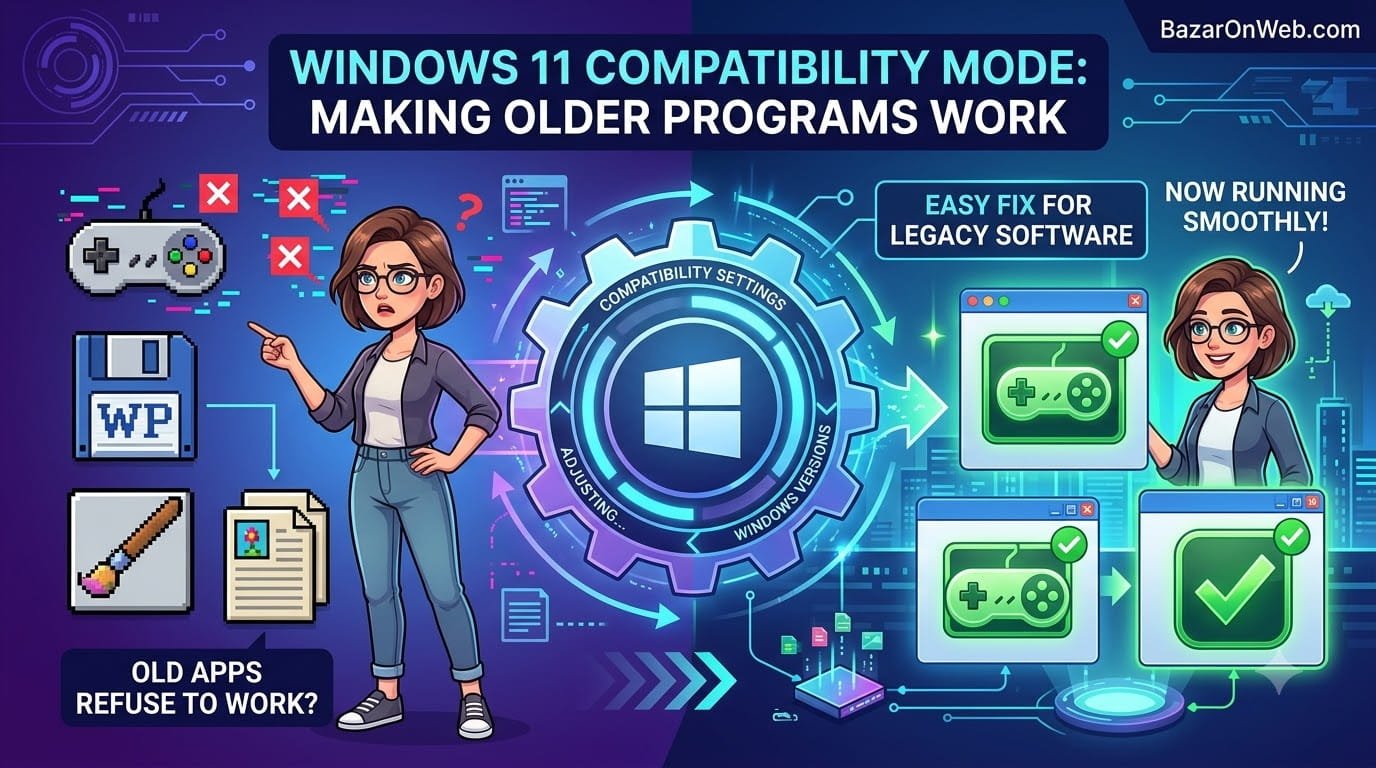
What to do When your Old Software become Completely Broken:
I had specialized software I’d used for years. Critical for my work. Then I upgraded to Windows 11 and tried launching it.
The program launched, hung for 30 seconds, then crashed with an error message I didn’t understand. Something about the program being incompatible with this version of Windows.
I tried again. Same result. Every time I attempted to launch it, the same crash.
I checked the software company’s website. They’d gone out of business years ago. No support. No updates. No Windows 11 version available.
I was stuck. I had a program I needed that Windows 11 refused to run. I’d already paid for the software. I wasn’t going to buy a replacement. I just needed Windows to let me run it.
That’s when someone mentioned Compatibility Mode. Apparently, Windows has a feature that lets you run older programs by pretending to be an older Windows version. The program thinks it’s running on Windows 7 or Windows 8, even though it’s actually running on Windows 11.
I was skeptical. But I was desperate. I right-clicked the program and found Compatibility Mode options. Selected Windows 7 compatibility. Launched it.
It worked. Completely worked. The program ran perfectly as if Windows 11 didn’t even exist.
I was shocked that this feature existed and worked so well. Apparently, Windows has been doing this for years, but most people don’t know about it because it’s not obvious where to find it.
Compatibility Mode saved me from having to replace software I’d already invested in. It’s a lifesaver for anyone running older programs on new Windows versions.
Understanding Compatibility Mode: What It Actually Does
Before using Compatibility Mode, understanding what it does and doesn’t do helps set realistic expectations.
Compatibility Mode is a Windows feature that allows running older programs by making them think they’re running on an older Windows version.
Your program was written for Windows 7 or Windows XP or Windows 95. It contains assumptions about how Windows works—specific API calls, system behavior, or feature availability that changed in newer Windows versions.
When you run that old program on Windows 11 directly, it encounters features or behaviors it doesn’t understand, causing crashes or errors.
Compatibility Mode works by intercepting how the program interacts with Windows. When the program asks “What version of Windows are you?” Compatibility Mode tells it “I’m Windows 7” even though it’s actually Windows 11.
The program then uses Windows 7 compatibility mode, and often works without problems.
What Compatibility Mode Can Fix:
- Programs that crash due to Windows version incompatibility
- Programs expecting specific system APIs that changed
- Programs with display or graphics issues
- Programs with sound or audio problems
- Programs with permission/privilege issues
What Compatibility Mode Cannot Fix:
- Hardware incompatibility (64-bit program on 32-bit system)
- Missing system components that were removed from Windows
- Programs requiring specific hardware (old modems, obsolete devices)
- Programs relying on unsupported network protocols
- Security issues that Windows 11 deliberately blocks
Compatibility Mode is a workaround, not a complete solution. It helps many older programs run, but won’t fix everything.
Method 1: Using the Compatibility Mode Wizard (Easiest)
Windows includes an automatic compatibility troubleshooter that tries to figure out the right compatibility settings for you.
Right-click the program’s .exe file. Select “Troubleshoot compatibility” or “Run compatibility troubleshooter.”
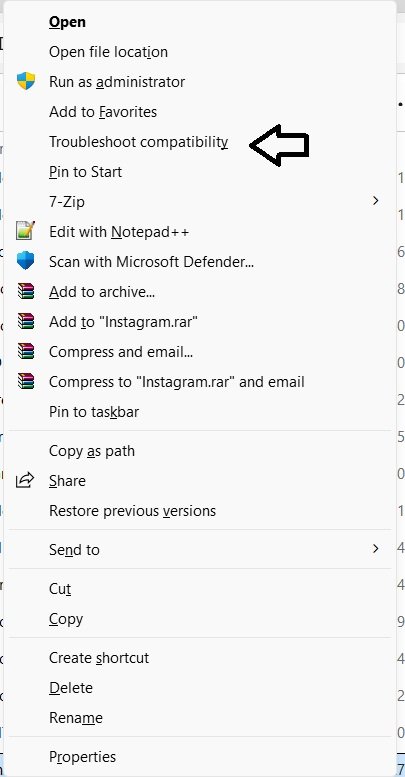
Windows launches a wizard that tests running the program with different compatibility settings.
The wizard tries running the program in various compatibility modes (Windows 7, Windows 8, etc.) and asks if the program runs better.
When it finds a setting that works, it asks if you want to keep that setting for future runs.
Click “Yes, save these settings for this program.”
The program now uses those compatibility settings every time you launch it.
This automatic approach works for many programs because the wizard usually identifies the right compatibility mode.
Method 2: Manual Compatibility Mode Settings (More Control)
If the automatic troubleshooter doesn’t work, you can manually set compatibility mode.
Right-click the program’s .exe file. Select “Properties.”
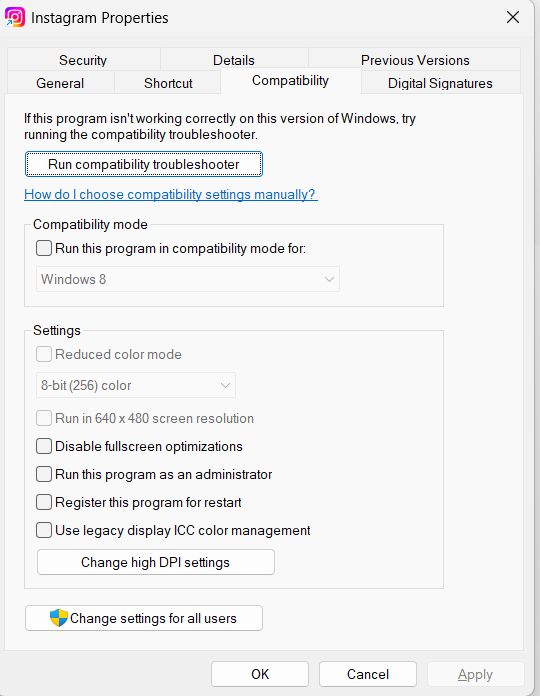
Click the “Compatibility” tab.
Under “Compatibility mode,” check the box “Run this program in compatibility mode for:” and select a Windows version from the dropdown.
Options typically include Windows XP Service Pack 3, Windows 7, Windows 8, etc.
Start with the Windows version the program was originally designed for. If you don’t know, try Windows 7 (most commonly works).
Click “Apply” then “OK.”
The program now runs in that compatibility mode.
Test if the program works. If not, try a different Windows version.
Method 3: Additional Compatibility Settings
Beyond just Windows version, several other compatibility options can help.
In the same Compatibility tab (Properties > Compatibility):
Reduced Color Mode:
Check this if the program has display or graphics issues. Select 16-bit color or 8-bit color depending on the program’s age.
Disable fullscreen optimizations:
Check this if the program has performance issues or crashes in fullscreen mode.
Run this program as an administrator:
Check this if the program needs elevated privileges to function properly.
Run in windowed mode:
Check this if fullscreen causes issues. The program runs in a window instead of fullscreen.
Try enabling these one at a time. Sometimes a combination of settings is necessary.
Method 4: Change Display Settings (Advanced Compatibility)
Some older programs have issues with display resolution or scaling.
Still in the Compatibility tab, click “Change high DPI settings” button (if available).
Check “Override high DPI scaling behavior” if the program displays at wrong size or resolution.
This helps programs that don’t properly handle modern high-resolution displays.
For extreme scaling issues, you might need to set specific resolution and scaling options.
Test if these display settings help.
Understanding What Each Compatibility Mode Does
Different Windows versions support different features and behave differently. Understanding these helps choose the right mode.
Windows XP Service Pack 3:
Very old mode. Only use if your program specifically requires it. Most programs from this era work in Windows 7 mode instead.
Windows 7:
Most versatile compatibility mode. Fixes many compatibility issues with programs from Windows XP through Windows 8 era. Try this first if unsure.
Windows 8:
Less commonly needed. Use if program specifically requires Windows 8.
Windows 95/98:
Extremely old. Rarely works properly even in compatibility mode. Most programs this old won’t function on modern Windows.
Windows 7 mode is the most commonly successful compatibility mode for older programs. Start there and escalate to older modes only if needed.
Cause 1: Program Won’t Launch At All
Sometimes the program won’t even launch, just crashes instantly.
Try different compatibility modes:
Start with Windows 7. If that doesn’t work, try Windows 8, then Windows XP.
Different programs require different compatibility modes.
Enable “Run as administrator”:
Many older programs need administrator privileges. Check this box in Compatibility settings.
Disable fullscreen optimizations:
Some programs crash with fullscreen optimizations enabled. Disable this setting.
Disable reduced color mode initially:
If you’ve enabled reduced color mode, disable it initially. Color mode can sometimes prevent launching.
Cause 2: Program Crashes During Use
Program launches but crashes after running for a bit.
Try different Windows compatibility versions:
The program might work initially but fail on specific functions that behave differently in older Windows versions.
Try Windows 8, then XP if Windows 7 doesn’t work.
Enable “Disable fullscreen optimizations”:
Fullscreen mode sometimes causes crashes. Disabling this optimization helps.
Check for updates:
Even if the company is defunct, patches sometimes exist online.
Search “(Program Name) Windows 11 patch” or “(Program Name) Windows 10 fix” to see if anyone created compatibility patches.
Run in windowed mode:
Enable “Run in windowed mode” if the program crashes in fullscreen.
Cause 3: Graphics or Display Issues
Program runs but displays incorrectly—wrong colors, wrong resolution, graphics glitches.
Enable reduced color mode:
Check “Reduced color mode” and select 16-bit or 8-bit color.
Some older programs have graphics drivers or display code that doesn’t work with modern color depth.
Disable fullscreen optimizations:
Graphics issues often relate to fullscreen mode. Disabling optimizations helps.
Enable “Run in windowed mode”:
Windowed mode sometimes avoids graphics issues that occur in fullscreen.
Change resolution:
Right-click desktop > Display settings > Resolution. Try setting a resolution the program was designed for (1024×768, 1280×1024, etc.).
Then enable “Override high DPI scaling behavior” in Compatibility settings to match that resolution.
Cause 4: Audio or Sound Problems
Program runs but sound doesn’t work or audio is glitchy.
Enable reduced color mode:
This seems unrelated, but reduced color mode sometimes fixes audio issues on older programs.
Run as administrator:
Sound access sometimes requires administrator privileges.
Try different Windows versions:
Audio handling changed between Windows versions. Different compatibility modes might fix it.
Check audio drivers:
Outdated audio drivers might not support older programs. Update your audio drivers:
Device Manager > Sound, video and game controllers > right-click audio device > Update driver.
Cause 5: Program Won’t Save Files
Program runs but can’t save files or gives permission errors.
Run as administrator:
File saving often requires administrator privileges. Enable “Run this program as an administrator.”
Check folder permissions:
The folder where the program is trying to save might have restricted permissions.
Create a new folder with full permissions and configure the program to save there instead.
Enable virtualization:
Some older programs expect write access to system folders. Enable “Run this program in compatibility mode” along with “Run as administrator.”
When Compatibility Mode Doesn’t Work
Sometimes compatibility mode can’t solve the problem.
Program uses obsolete hardware:
Program requires an old modem, scanner, or other hardware Windows 11 doesn’t support. Hardware compatibility can’t be fixed with Compatibility Mode.
Program requires 16-bit or DOS:
Windows 11 is 64-bit only. 16-bit and DOS programs won’t run. No compatibility mode fixes this.
Program requires removed system components:
Some old Windows features were completely removed in newer versions. If program depends on these, Compatibility Mode can’t restore them.
Program is genuinely incompatible:
Some programs are too old or rely on too many deprecated features. They simply won’t work on modern Windows no matter what.
Alternatives:
- Use a virtual machine running the original Windows version the program requires
- Use Wine or similar compatibility layer software (Linux-based, can run some Windows programs)
- Look for updated version or replacement software
- Stick with an older Windows version on a separate computer
Virtual Machines: When Compatibility Mode Fails
If Compatibility Mode can’t make the program work, running an older Windows version in a virtual machine might work.
Virtual machines like VirtualBox or VMware let you run an entire older Windows operating system inside a window on Windows 11.
You can install Windows 7 or Windows XP in the virtual machine and run your program there.
This is more complex than Compatibility Mode but works for programs that Compatibility Mode can’t fix.
The downside is performance overhead and needing to own or have access to the older Windows license.
Best Practices for Compatibility Mode
After getting a program working:
Test thoroughly:
Don’t just assume it works. Use the program for its intended purpose. Test saving files, loading files, all major features.
Keep backups:
If the program creates important files, back them up. Older programs sometimes have data corruption issues.
Document what works:
Note which Windows compatibility version works for which program. This helps if you need to reconfigure it later.
Don’t enable everything:
Only enable the compatibility settings you actually need. Extra settings can sometimes cause problems.
Keep Windows updated:
Even though you’re using Compatibility Mode, keep Windows 11 updated. Updates sometimes improve compatibility.
Monitor for issues:
Older programs might work initially then develop issues as Windows changes. Monitor their behavior.
For Developers: Understanding Compatibility Issues
If you’re creating programs, understanding why compatibility issues occur helps prevent them.
Avoid hard-coding assumptions about Windows version or APIs that might change. Use abstraction layers.
Test programs on multiple Windows versions.
Don’t rely on deprecated features or APIs that might be removed in future Windows versions.
Use modern programming practices that remain compatible across Windows versions.
The Reality
Compatibility Mode works surprisingly well for many older programs. It won’t fix everything, but it resolves a significant portion of compatibility issues.
Most people don’t know this feature exists. They assume old programs won’t work on new Windows and buy replacements.
But before replacing software, try Compatibility Mode. It takes 30 seconds to enable and often completely solves the problem.
For programs that Compatibility Mode can’t fix, you have options: virtual machines, alternative software, or accepting that some programs are too old for modern Windows.
The key is trying Compatibility Mode first because it’s simple and often works.
Quick Priority List: Running Incompatible Programs
Program won’t run on Windows 11?
- Right-click program > Troubleshoot compatibility (let Windows figure it out)
- Right-click program > Properties > Compatibility tab > select Windows 7 compatibility mode
- Enable “Run this program as an administrator” in Compatibility settings
- Try different Windows versions (7, 8, XP) if initial choice doesn’t work
- Enable “Disable fullscreen optimizations” if program crashes or has display issues
- Enable “Reduced color mode” if graphics are corrupted
- Enable “Run in windowed mode” if fullscreen causes problems
- Create a virtual machine with older Windows if Compatibility Mode fails
- Look for replacement software if Compatibility Mode can’t fix it
- Accept program incompatibility if alternatives don’t exist
One of these will usually work or identify that the program is genuinely incompatible.
See Other Windows 11 Related Tips and Troubleshooting Tips here
Disclaimer: This article provides guidance on using Windows 11 Compatibility Mode to run older programs. Compatibility Mode helps many programs but not all. Success depends on program age, complexity, and specific incompatibility cause. Compatibility Mode does not fix hardware incompatibility, missing system components, or 16-bit/DOS programs. Programs run in Compatibility Mode may exhibit instability, data loss, or security vulnerabilities not present in properly updated software. Users assume responsibility for understanding compatibility limitations. Running older software carries security risks—outdated programs may have unpatched vulnerabilities. Professional or business-critical work should use properly maintained, up-to-date software whenever possible. Virtual machines can run older Windows versions but require adequate system resources and appropriate Windows licensing. Users assume responsibility for ensuring they have proper licensing for any Windows versions run in virtual machines. Seek professional support if business-critical programs fail to run in Compatibility Mode.

- How to Remotely Control Another Computer Using Windows Quick Assist

- 5 Must-Have Electronics Gadgets for a More Comfortable Living Room

- How to Create a Windows 11 System Backup on an External Hard Drive

- 10 Smart Home Ideas That Make Everyday Life Easier

- Gemini Live Avatar: How to Talk to Gemini Face-to-Face

Products
-
![Apple Watch Ultra 3 [GPS + Cellular 49mm] Running & Multisport Smartwatch w/Rugged Titanium Case w/Black Titanium Milanese Loop - M. Satellite Communications, Advanced Health & Fitness Tracking](https://bazaronweb.com/retailstores/wp-content/uploads/2025/09/apple-watch-320x320.jpg) Apple Watch Ultra 3 [GPS + Cellular 49mm] Running & Multisport Smartwatch w/Rugged Titanium Case w/Black Titanium Milanese Loop - M. Satellite Communications, Advanced Health & Fitness Tracking
Apple Watch Ultra 3 [GPS + Cellular 49mm] Running & Multisport Smartwatch w/Rugged Titanium Case w/Black Titanium Milanese Loop - M. Satellite Communications, Advanced Health & Fitness Tracking
-
 Apple iPad mini (A17 Pro): Apple Intelligence, 8.3-inch Liquid Retina Display, 256GB, Wi-Fi 6E, 12MP Front/12MP Back Camera, Touch ID, All-Day Battery Life — Purple
-
 Apple AirPods Max Wireless Over-Ear Headphones, Active Noise Cancelling, Transparency Mode, Personalized Spatial Audio, Dolby Atmos, Bluetooth Headphones for iPhone – Space Gray
-
 Apple AirPods Pro 2 Wireless Earbuds, Active Noise Cancellation, Hearing Aid Feature, Bluetooth Headphones, Transparency, Personalized Spatial Audio, High-Fidelity Sound, H2 Chip, USB-C Charging
-
Home Garage 210 TC Cotton King Floral Fitted (Elastic) Bedsheet(Pack of 1, Grey)
Original price was: ₹999.00.₹299.00Current price is: ₹299.00.
Leave a Reply