Discounted Products
-
 Home Garage 210 TC Cotton King Floral Fitted (Elastic) Bedsheet(Pack of 1, Grey)
Original price was: ₹999.00.₹299.00Current price is: ₹299.00.
Home Garage 210 TC Cotton King Floral Fitted (Elastic) Bedsheet(Pack of 1, Grey)
Original price was: ₹999.00.₹299.00Current price is: ₹299.00.
-
 Goodrik 140 TC Cotton Double 3D Printed Flat Bedsheet(Pack of 1, Brown)
Original price was: ₹499.00.₹229.00Current price is: ₹229.00.
Goodrik 140 TC Cotton Double 3D Printed Flat Bedsheet(Pack of 1, Brown)
Original price was: ₹499.00.₹229.00Current price is: ₹229.00.
-
 GLOBALSHOP 350 TC Microfiber Double Floral Flat Bedsheet(Pack of 1, Multicolor)
Original price was: ₹1,250.00.₹263.00Current price is: ₹263.00.
GLOBALSHOP 350 TC Microfiber Double Floral Flat Bedsheet(Pack of 1, Multicolor)
Original price was: ₹1,250.00.₹263.00Current price is: ₹263.00.
-
 RisingStar 250 TC Microfiber King Printed Fitted (Elastic) Bedsheet(Pack of 1, FITTED-ROUND-CIRCLES-PREMIUM)
Original price was: ₹2,299.00.₹299.00Current price is: ₹299.00.
RisingStar 250 TC Microfiber King Printed Fitted (Elastic) Bedsheet(Pack of 1, FITTED-ROUND-CIRCLES-PREMIUM)
Original price was: ₹2,299.00.₹299.00Current price is: ₹299.00.
-
 Home Garage 210 TC Cotton King Floral Fitted (Elastic) Bedsheet(Pack of 1, Fitted Black Green)
Original price was: ₹1,299.00.₹299.00Current price is: ₹299.00.
Home Garage 210 TC Cotton King Floral Fitted (Elastic) Bedsheet(Pack of 1, Fitted Black Green)
Original price was: ₹1,299.00.₹299.00Current price is: ₹299.00.
-
 Home Garage 180 TC Cotton King 3D Printed Flat Bedsheet(Pack of 1, White)
Original price was: ₹999.00.₹229.00Current price is: ₹229.00.
Home Garage 180 TC Cotton King 3D Printed Flat Bedsheet(Pack of 1, White)
Original price was: ₹999.00.₹229.00Current price is: ₹229.00.
-
 Panipat Textile Hub 152.4 cm (5 ft) Polyester Window Curtain (Pack Of 2)(Solid, Aqua)
Original price was: ₹1,899.00.₹299.00Current price is: ₹299.00.
Panipat Textile Hub 152.4 cm (5 ft) Polyester Window Curtain (Pack Of 2)(Solid, Aqua)
Original price was: ₹1,899.00.₹299.00Current price is: ₹299.00.
-
 Home Sizzler 214 cm (7 ft) Polyester Semi Transparent Door Curtain (Pack Of 2)(Floral, Maroon)
Original price was: ₹1,199.00.₹399.00Current price is: ₹399.00.
Home Sizzler 214 cm (7 ft) Polyester Semi Transparent Door Curtain (Pack Of 2)(Floral, Maroon)
Original price was: ₹1,199.00.₹399.00Current price is: ₹399.00.
-
 Home Sizzler 153 cm (5 ft) Polyester Room Darkening Window Curtain (Pack Of 2)(Floral, Brown)
Original price was: ₹799.00.₹299.00Current price is: ₹299.00.
Home Sizzler 153 cm (5 ft) Polyester Room Darkening Window Curtain (Pack Of 2)(Floral, Brown)
Original price was: ₹799.00.₹299.00Current price is: ₹299.00.
-
 Stella Creations 214 cm (7 ft) Polyester Room Darkening Door Curtain (Pack Of 2)(Abstract, Brown)
Original price was: ₹1,299.00.₹449.00Current price is: ₹449.00.
Stella Creations 214 cm (7 ft) Polyester Room Darkening Door Curtain (Pack Of 2)(Abstract, Brown)
Original price was: ₹1,299.00.₹449.00Current price is: ₹449.00.
-
 Homefab India 152.5 cm (5 ft) Polyester Room Darkening Window Curtain (Pack Of 2)(Floral, Light Blue)
Original price was: ₹1,199.00.₹319.00Current price is: ₹319.00.
Homefab India 152.5 cm (5 ft) Polyester Room Darkening Window Curtain (Pack Of 2)(Floral, Light Blue)
Original price was: ₹1,199.00.₹319.00Current price is: ₹319.00.
-
 Urban Home 214 cm (7 ft) PVC Transparent Door Curtain Single Curtain(Solid, Off White)
Original price was: ₹699.00.₹203.00Current price is: ₹203.00.
Urban Home 214 cm (7 ft) PVC Transparent Door Curtain Single Curtain(Solid, Off White)
Original price was: ₹699.00.₹203.00Current price is: ₹203.00.
-
 Panipat Textile Hub 213 cm (7 ft) Polyester Door Curtain (Pack Of 2)(Solid, Brown)
Original price was: ₹1,199.00.₹349.00Current price is: ₹349.00.
Panipat Textile Hub 213 cm (7 ft) Polyester Door Curtain (Pack Of 2)(Solid, Brown)
Original price was: ₹1,199.00.₹349.00Current price is: ₹349.00.
-
 Home Sizzler 214 cm (7 ft) Polyester Semi Transparent Door Curtain (Pack Of 2)(Floral, Brown)
Original price was: ₹999.00.₹349.00Current price is: ₹349.00.
Home Sizzler 214 cm (7 ft) Polyester Semi Transparent Door Curtain (Pack Of 2)(Floral, Brown)
Original price was: ₹999.00.₹349.00Current price is: ₹349.00.
-
 Panipat Textile Hub 213 cm (7 ft) Polyester Semi Transparent Door Curtain (Pack Of 2)(Floral, Brown)
Original price was: ₹899.00.₹299.00Current price is: ₹299.00.
Panipat Textile Hub 213 cm (7 ft) Polyester Semi Transparent Door Curtain (Pack Of 2)(Floral, Brown)
Original price was: ₹899.00.₹299.00Current price is: ₹299.00.
Why This Matters (And Why It’s Infuriating)
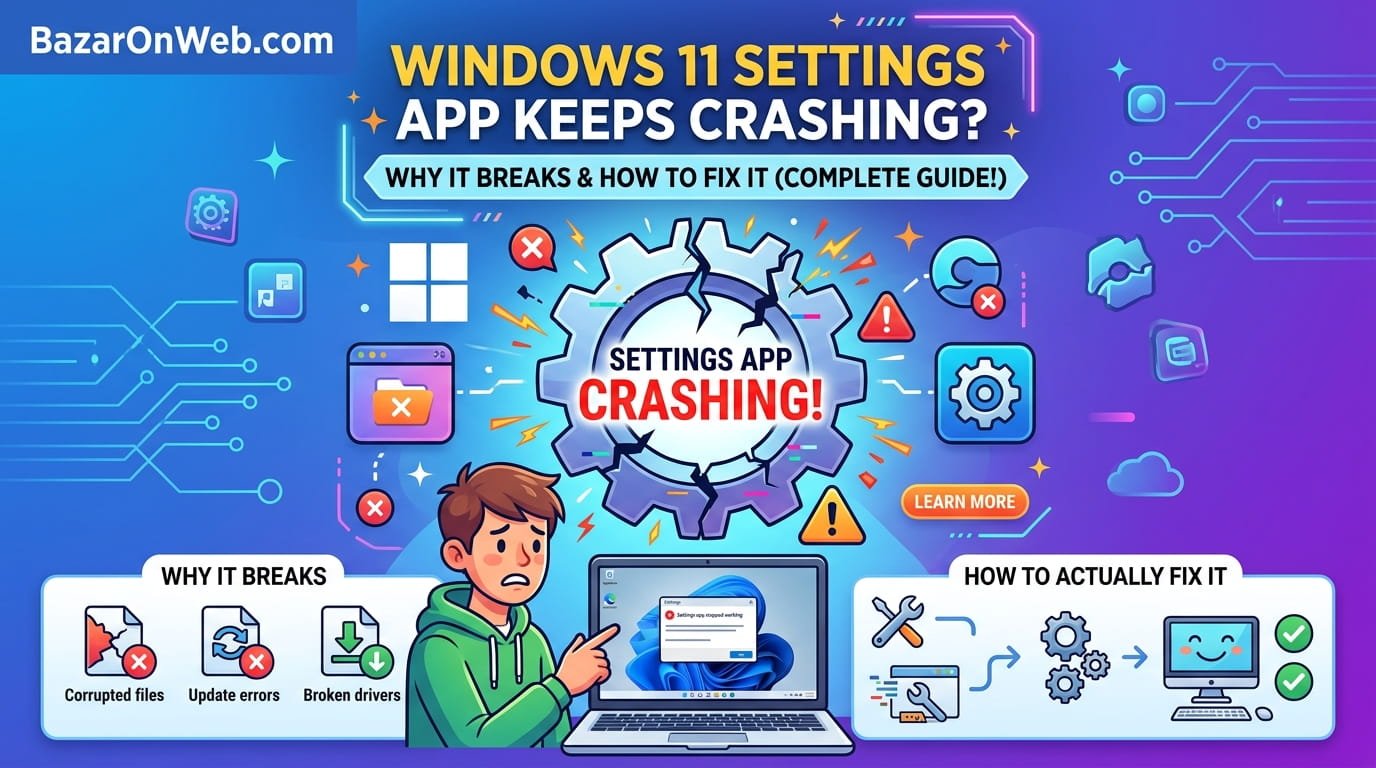
The Settings app in Windows 11 is like your computer’s nervous system. Everything passes through it. Want to change your display resolution? Settings. Need to adjust your sound levels? Settings. Have a privacy concern? Definitely Settings. So when the Settings app starts crashing, your entire ability to configure your computer basically stops working.
I realized how dependent I’d become on the Settings app when mine started crashing every time I tried accessing the Display section. Couldn’t change brightness. Couldn’t adjust scaling. The app would just close without warning. It took me three days of troubleshooting to figure out what was happening because there’s no error message, no warning—just sudden closure.
Most people assume this is normal Windows behavior or that their computer is dying. It’s neither. The Settings app crashing is usually fixable. You just need to know what you’re actually looking for.
The Obvious Stuff That Might Actually Work
Before you dive into the nuclear options, try these first:
Restart your computer. Sounds stupid, right? Restarting fixes an embarrassing percentage of Windows problems. Hold the power button or use Start > Power > Restart. Wait for it to fully boot, then try opening Settings again.
If it still crashes, try this: open Settings, don’t navigate to the section that crashes, just close it normally. Then open it again. Sometimes there’s a temporary glitch that resolves with a fresh launch. This works maybe 30% of the time, but the effort is basically zero so why not.
Make sure Windows is actually updated. Settings crashes sometimes happen because you’re running outdated system files. Go to Settings > System > Windows Update and click “Check for updates.” Install anything available. This is particularly important if you haven’t restarted in weeks—updates sometimes don’t fully install until you restart multiple times.
When Settings Crashes on a Specific Section
This is actually more common than general Settings crashes, and it’s usually easier to fix.
If Settings crashes specifically when you try accessing Display settings, or Bluetooth settings, or whatever, the problem is usually that specific settings component is corrupted or conflicting with something else.
The quick fix: Open Settings using a different method. Press Windows Key + I to open Settings the normal way. But if that specific section crashes, try opening it through Control Panel instead. Search for “Control Panel” in the Start menu, navigate to System and Security > Display, and access those settings there.
Why does this work? Because Control Panel and Settings are basically two different interfaces accessing the same system functions. If one crashes, the other might work fine. It’s not elegant, but it’s effective.
If Control Panel doesn’t help: The component itself might be corrupted. You can reset that specific Settings component through PowerShell. Right-click Start and select “Windows Terminal (Admin).” Paste this: Get-AppxPackage -allusers Microsoft.Windows.SecHealthUI | Reset-AppxPackage
This resets the Windows Settings user interface for that component. Substitute different package names depending on what’s crashing (though honestly, figuring out the exact package name is annoying—this is more of a nuclear option).
Settings Crashing Randomly? Check These First
Random crashes where Settings just closes without warning for no apparent reason usually points to different culprits.
Antivirus software sometimes interferes with Settings. Third-party antivirus occasionally blocks Settings app from accessing system files, causing it to crash when it can’t read what it needs. Check if your antivirus is running aggressive scans or has Settings access restricted. Temporarily disable your antivirus (not Windows Defender, your third-party one) and see if Settings stops crashing.
Corrupted user profile can cause widespread Settings crashes. Your user profile contains personal settings and preferences. If something corrupts in there, Settings struggles to load. This is harder to fix without creating a new user account and testing whether Settings works there.
Windows Defender issues sometimes cause Settings crashes. Open Windows Security (search for it in Start menu) and check if there are any warnings or issues shown. If anything shows red, follow the recommendations. Additionally, try temporarily disabling real-time protection by clicking Virus & threat protection > Manage settings > toggle Real-time protection off.
GPU driver problems occasionally cause Settings crashes, particularly when trying to access Display settings. Update your graphics drivers from your GPU manufacturer’s website (nvidia.com, amd.com, or intel.com). Restart after updating.
The Settings Files Are Literally Broken
Sometimes Windows Settings files get corrupted at the file system level. This is less common but happens, and there’s actually a specific tool Windows provides to fix it.
Open Command Prompt as Administrator. Right-click Start and select “Windows Terminal (Admin).” Then type: DISM.exe /Online /Cleanup-Image /RestoreHealth
This command scans Windows system files and repairs corrupted ones. It takes 15-30 minutes depending on how many corrupted files exist. Let it run completely. Restart your computer after it finishes.
If DISM doesn’t fix it, run System File Checker: sfc /scannow
This is more aggressive and also takes time, but it catches file corruption DISM misses. Restart after this completes.
Between these two commands, 80% of “Settings keeps crashing” issues resolve because they address the underlying corrupted files causing crashes.
Reset Settings (The Nuclear Option)
If nothing else works, you can reset the Settings app completely. This erases all your personalized Settings configurations, so you’ll need to reconfigure everything. But sometimes it’s the only thing that actually works.
Open Settings > System > Troubleshoot > Reset this PC. You’ll see two options: “Keep my files” (removes apps and settings but keeps documents/photos) or “Remove everything” (complete wipe). Select “Keep my files.”
This takes 30 minutes to an hour. Your computer restarts multiple times. After it completes, Settings should work normally. You’ll need to reconfigure your preferences—display settings, privacy options, network configurations, etc.
This is drastic, but if Settings keeps crashing despite everything else, it’s often the only solution. And honestly, most people don’t remember what settings they had customized anyway. Starting fresh isn’t the worst thing.
Quick Diagnosis: Is It Really Settings, Or Is It Something Else?
Before you spend hours troubleshooting, make sure you’re actually dealing with a Settings problem.
If Settings crashes only when accessing a specific section (Display, Bluetooth, Accounts, whatever), the problem is that specific component. Try accessing it through Control Panel or an alternative method. If it works elsewhere, you’ve diagnosed component-specific corruption.
If Settings crashes randomly when opening, it’s probably a system-level issue like corrupted user profile, antivirus interference, or file system corruption.
If Settings opens fine but crashes when you change something, the problem might be permissions. You might not have administrator access to change that setting (even though you’re logged in as admin—weird Windows permission issues are real).
If Settings crashes on a fresh restart but works after a minute, it’s probably just a temporary service initialization issue. Wait longer before opening Settings.
These distinctions matter because the fix for each is different. Misdiagnosing the problem means troubleshooting the wrong thing for hours.
Preventing This From Happening Again
Assuming you got Settings working again, preventing future crashes is worth the effort.
Keep Windows updated. Don’t skip updates even if they seem unrelated to your issue. Windows updates fix Settings-related bugs constantly.
Keep your drivers updated, especially graphics drivers and chipset drivers. Outdated drivers sometimes cause Settings instability.
Avoid installing too many third-party antivirus programs. Stick with one. Windows Defender is actually pretty good these days—if you’re running Kaspersky and Norton and McAfee simultaneously, that’s probably your problem.
Don’t modify Windows system files or registry unless you actually know what you’re doing. Random tweaks from internet guides sometimes break Settings unexpectedly.
Periodically run DISM and SFC scans (even if Settings isn’t crashing) to catch file corruption early. Run them every few months preventatively.
Create regular system restore points. If Settings crashes in the future, you can revert to a previous restore point where everything worked. Settings > System > System protection > Create a restore point.
When to Just Call It and Get Help
If you’ve tried all this and Settings still crashes, it might be time to involve actual professionals. Settings crashing despite multiple troubleshooting attempts suggests either:
- Deep system corruption requiring professional recovery
- Hardware issues (RAM failing, storage drive having problems) manifesting as software crashes
- Malware that’s preventing proper Settings function
Before calling Microsoft support or your tech person, document what you’ve tried. “I restarted, ran DISM, tried Control Panel, disabled antivirus, etc.” gives them actual information instead of just “it crashes.”
Also have your Windows version and build number ready. Settings > System > About shows this information. Knowing your specific build helps support identify whether it’s a known issue with that version.
The Reality Check
Settings crashing is annoying, but it’s almost never a sign your computer is dying. It’s usually fixable with the right approach. The key is systematic troubleshooting: start simple (restart), move to specific fixes (DISM/SFC), escalate to aggressive measures (reset) only if needed.
Most of the time, updating Windows or running system file repairs fixes it. You don’t need to nuke everything and reinstall Windows.
But if you do have to reset, that’s okay too. Windows 11 is designed to be reset relatively painlessly. It sucks to reconfigure everything, but it works.
Just document what you had configured so you remember how to set it back up.
Disclaimer: This article provides educational troubleshooting guidance. Procedures may have unintended consequences including data loss or system damage. Results vary by device model, OS version, and configuration. Always backup critical data before attempting system modifications. Seek professional support if problems persist or you’re uncomfortable with technical procedures. Users assume full responsibility for outcomes.

- How to Fix iPhone Updates Not Installing Overnight

- How to Add Notes or Comments to Folders in Windows 11

- How to Fix “Unable to Initialize Windows App SDK” Error in Windows 11

- How to Fix “Try Again Later – Something Happened on Our End” Error in Microsoft Store

- What Are iPhone Background Sounds? Their Uses and How to Enable Them

Products
-
![Apple Watch Ultra 3 [GPS + Cellular 49mm] Running & Multisport Smartwatch w/Rugged Titanium Case w/Black Titanium Milanese Loop - M. Satellite Communications, Advanced Health & Fitness Tracking](https://bazaronweb.com/retailstores/wp-content/uploads/2025/09/apple-watch-320x320.jpg) Apple Watch Ultra 3 [GPS + Cellular 49mm] Running & Multisport Smartwatch w/Rugged Titanium Case w/Black Titanium Milanese Loop - M. Satellite Communications, Advanced Health & Fitness Tracking
Apple Watch Ultra 3 [GPS + Cellular 49mm] Running & Multisport Smartwatch w/Rugged Titanium Case w/Black Titanium Milanese Loop - M. Satellite Communications, Advanced Health & Fitness Tracking
-
 Apple iPad mini (A17 Pro): Apple Intelligence, 8.3-inch Liquid Retina Display, 256GB, Wi-Fi 6E, 12MP Front/12MP Back Camera, Touch ID, All-Day Battery Life — Purple
-
 Apple AirPods Max Wireless Over-Ear Headphones, Active Noise Cancelling, Transparency Mode, Personalized Spatial Audio, Dolby Atmos, Bluetooth Headphones for iPhone – Space Gray
-
 Apple AirPods Pro 2 Wireless Earbuds, Active Noise Cancellation, Hearing Aid Feature, Bluetooth Headphones, Transparency, Personalized Spatial Audio, High-Fidelity Sound, H2 Chip, USB-C Charging
-
Home Garage 210 TC Cotton King Floral Fitted (Elastic) Bedsheet(Pack of 1, Grey)
Original price was: ₹999.00.₹299.00Current price is: ₹299.00.
Leave a Reply