Discounted Products
-
 Home Garage 210 TC Cotton King Floral Fitted (Elastic) Bedsheet(Pack of 1, Grey)
Original price was: ₹999.00.₹299.00Current price is: ₹299.00.
Home Garage 210 TC Cotton King Floral Fitted (Elastic) Bedsheet(Pack of 1, Grey)
Original price was: ₹999.00.₹299.00Current price is: ₹299.00.
-
 Goodrik 140 TC Cotton Double 3D Printed Flat Bedsheet(Pack of 1, Brown)
Original price was: ₹499.00.₹229.00Current price is: ₹229.00.
Goodrik 140 TC Cotton Double 3D Printed Flat Bedsheet(Pack of 1, Brown)
Original price was: ₹499.00.₹229.00Current price is: ₹229.00.
-
 GLOBALSHOP 350 TC Microfiber Double Floral Flat Bedsheet(Pack of 1, Multicolor)
Original price was: ₹1,250.00.₹263.00Current price is: ₹263.00.
GLOBALSHOP 350 TC Microfiber Double Floral Flat Bedsheet(Pack of 1, Multicolor)
Original price was: ₹1,250.00.₹263.00Current price is: ₹263.00.
-
 RisingStar 250 TC Microfiber King Printed Fitted (Elastic) Bedsheet(Pack of 1, FITTED-ROUND-CIRCLES-PREMIUM)
Original price was: ₹2,299.00.₹299.00Current price is: ₹299.00.
RisingStar 250 TC Microfiber King Printed Fitted (Elastic) Bedsheet(Pack of 1, FITTED-ROUND-CIRCLES-PREMIUM)
Original price was: ₹2,299.00.₹299.00Current price is: ₹299.00.
-
 Home Garage 210 TC Cotton King Floral Fitted (Elastic) Bedsheet(Pack of 1, Fitted Black Green)
Original price was: ₹1,299.00.₹299.00Current price is: ₹299.00.
Home Garage 210 TC Cotton King Floral Fitted (Elastic) Bedsheet(Pack of 1, Fitted Black Green)
Original price was: ₹1,299.00.₹299.00Current price is: ₹299.00.
-
 Home Garage 180 TC Cotton King 3D Printed Flat Bedsheet(Pack of 1, White)
Original price was: ₹999.00.₹229.00Current price is: ₹229.00.
Home Garage 180 TC Cotton King 3D Printed Flat Bedsheet(Pack of 1, White)
Original price was: ₹999.00.₹229.00Current price is: ₹229.00.
-
 Panipat Textile Hub 152.4 cm (5 ft) Polyester Window Curtain (Pack Of 2)(Solid, Aqua)
Original price was: ₹1,899.00.₹299.00Current price is: ₹299.00.
Panipat Textile Hub 152.4 cm (5 ft) Polyester Window Curtain (Pack Of 2)(Solid, Aqua)
Original price was: ₹1,899.00.₹299.00Current price is: ₹299.00.
-
 Home Sizzler 214 cm (7 ft) Polyester Semi Transparent Door Curtain (Pack Of 2)(Floral, Maroon)
Original price was: ₹1,199.00.₹399.00Current price is: ₹399.00.
Home Sizzler 214 cm (7 ft) Polyester Semi Transparent Door Curtain (Pack Of 2)(Floral, Maroon)
Original price was: ₹1,199.00.₹399.00Current price is: ₹399.00.
-
 Home Sizzler 153 cm (5 ft) Polyester Room Darkening Window Curtain (Pack Of 2)(Floral, Brown)
Original price was: ₹799.00.₹299.00Current price is: ₹299.00.
Home Sizzler 153 cm (5 ft) Polyester Room Darkening Window Curtain (Pack Of 2)(Floral, Brown)
Original price was: ₹799.00.₹299.00Current price is: ₹299.00.
-
 Stella Creations 214 cm (7 ft) Polyester Room Darkening Door Curtain (Pack Of 2)(Abstract, Brown)
Original price was: ₹1,299.00.₹449.00Current price is: ₹449.00.
Stella Creations 214 cm (7 ft) Polyester Room Darkening Door Curtain (Pack Of 2)(Abstract, Brown)
Original price was: ₹1,299.00.₹449.00Current price is: ₹449.00.
-
 Homefab India 152.5 cm (5 ft) Polyester Room Darkening Window Curtain (Pack Of 2)(Floral, Light Blue)
Original price was: ₹1,199.00.₹319.00Current price is: ₹319.00.
Homefab India 152.5 cm (5 ft) Polyester Room Darkening Window Curtain (Pack Of 2)(Floral, Light Blue)
Original price was: ₹1,199.00.₹319.00Current price is: ₹319.00.
-
 Urban Home 214 cm (7 ft) PVC Transparent Door Curtain Single Curtain(Solid, Off White)
Original price was: ₹699.00.₹203.00Current price is: ₹203.00.
Urban Home 214 cm (7 ft) PVC Transparent Door Curtain Single Curtain(Solid, Off White)
Original price was: ₹699.00.₹203.00Current price is: ₹203.00.
-
 Panipat Textile Hub 213 cm (7 ft) Polyester Door Curtain (Pack Of 2)(Solid, Brown)
Original price was: ₹1,199.00.₹349.00Current price is: ₹349.00.
Panipat Textile Hub 213 cm (7 ft) Polyester Door Curtain (Pack Of 2)(Solid, Brown)
Original price was: ₹1,199.00.₹349.00Current price is: ₹349.00.
-
 Home Sizzler 214 cm (7 ft) Polyester Semi Transparent Door Curtain (Pack Of 2)(Floral, Brown)
Original price was: ₹999.00.₹349.00Current price is: ₹349.00.
Home Sizzler 214 cm (7 ft) Polyester Semi Transparent Door Curtain (Pack Of 2)(Floral, Brown)
Original price was: ₹999.00.₹349.00Current price is: ₹349.00.
-
 Panipat Textile Hub 213 cm (7 ft) Polyester Semi Transparent Door Curtain (Pack Of 2)(Floral, Brown)
Original price was: ₹899.00.₹299.00Current price is: ₹299.00.
Panipat Textile Hub 213 cm (7 ft) Polyester Semi Transparent Door Curtain (Pack Of 2)(Floral, Brown)
Original price was: ₹899.00.₹299.00Current price is: ₹299.00.
That Embarrassing Moment When You Don’t Know Your Own Number
It happened to me at the worst possible time. I was at a doctor’s office filling out paperwork, and they asked for my phone number. I froze. I genuinely had no idea what my number was. I use my phone constantly—texting, calling, all of it—but I’ve never actually memorized my own phone number. Who does anymore? Your contacts are stored in your phone. You just tap a name and call.
The receptionist stared at me expectantly while I fumbled with my phone trying to figure out how to find my own number. It felt absurd. Here I am with a $1,200 device in my hand and I can’t even tell you what number it’s connected to.
Turns out I’m not alone. Tons of people don’t know their own phone number because they’ve never needed to. Your iPhone handles everything—you don’t memorize numbers, you store them. But occasionally you actually do need to know your own number: giving it to doctors, signing up for new services, setting up two-factor authentication, or just proving you actually know something basic about your own device.
The good news is that finding your iPhone phone number is genuinely simple once you know where to look. Apple put multiple ways to access this information, though none are immediately obvious unless you’ve looked before.
The Settings App Method: The Most Obvious Place (That Nobody Checks)
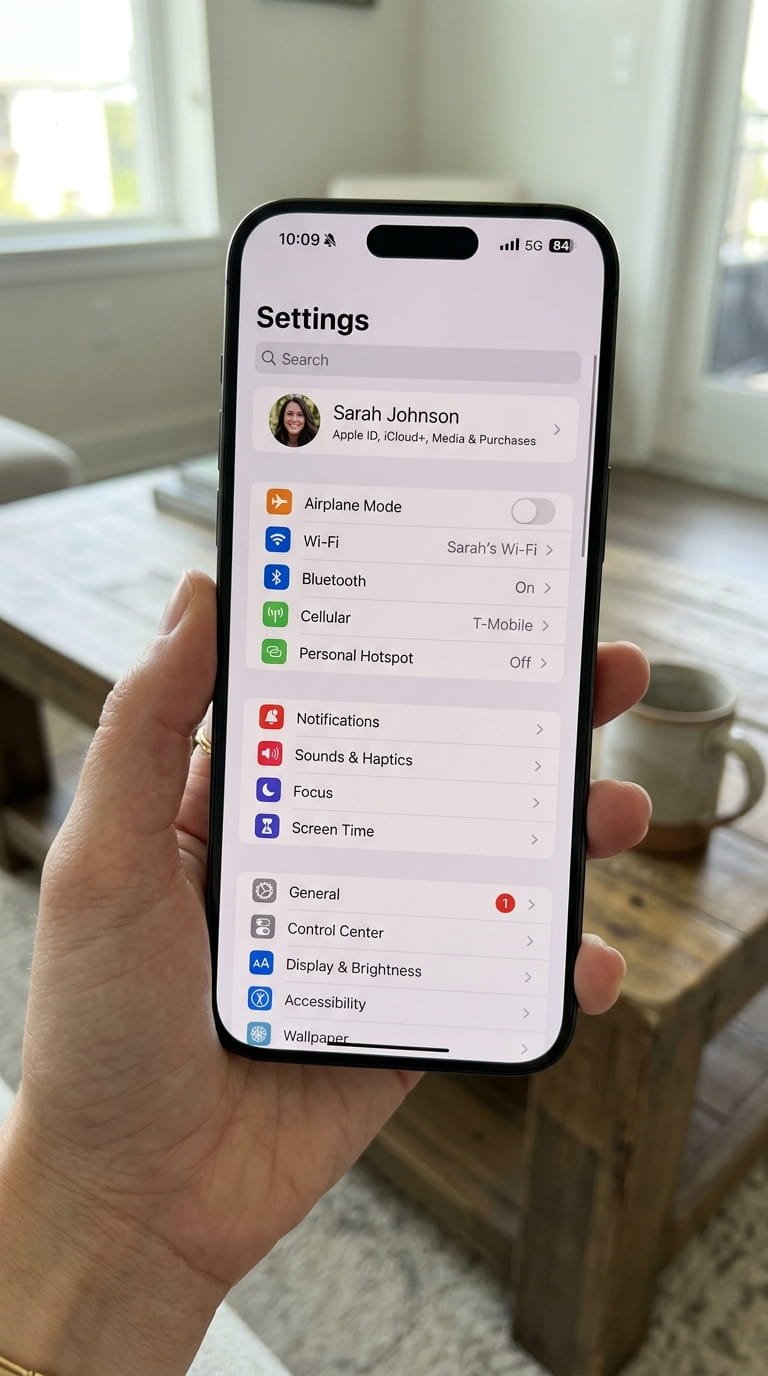
The simplest way to find your phone number is through Settings, which is where iPhone stores basically everything about your device and account.
Open Settings on your iPhone. Scroll down and look for a section labeled “Phone” or sometimes it’s listed under “Cellular” depending on your iOS version. The exact name varies between iOS versions—Apple reorganizes Settings every few releases for no apparent reason—but it’s always in there somewhere.
Tap on that section. You’ll see various phone-related settings like Do Not Disturb, Call Forwarding, Call Waiting, and other calling features. Look for “My Number” or sometimes it’s labeled as “Phone Number.”
Your phone number displays right there. Write it down, screenshot it, memorize it, whatever you need to do. It’s literally that straightforward.
The reason most people don’t find this is because they never open that particular Settings section. Settings is massive. There are dozens of subsections. Most people know a handful of them and never explore beyond that. But if you’re looking for your phone number, Settings is genuinely where Apple put it.
The About Section: Where All Your Device Information Lives
If “My Number” doesn’t appear in the Phone section (which occasionally happens on older iOS versions or certain carrier setups), try the About section.
Open Settings > General > About. This screen shows all your device information: device name, iOS version, storage capacity, serial number, IMEI, and various other technical details about your iPhone.
Scroll down through the About section and look for “Phone Number” or “Mobile Number.” On some iOS versions it’s labeled differently—sometimes it shows up as just the raw number without a label.
This screen is where Apple centralizes all your device’s identifying information. If your number doesn’t show in the Phone settings, it’s almost certainly here. This is also useful if you need other device information like your IMEI or serial number.
Asking Siri (The Lazy Person’s Method)
If navigating Settings feels like too much effort—and sometimes it does—you can just ask Siri.
Press and hold the Home button (or use “Hey Siri” if you have it enabled). When Siri activates, simply ask “What’s my phone number?” or “What is my number?”
Siri responds by displaying your phone number on screen. You can even ask “What’s my phone number?” and Siri will read it aloud so you don’t even have to look at the screen.
This is genuinely the fastest method if you know how to activate Siri. It’s also useful if you’re driving or otherwise occupied and can’t navigate Settings. Just talk to Siri and get your number instantly.
The only caveat is that Siri sometimes gets confused or misunderstands. If you mumble or have an accent, Siri might not understand what you’re asking. But typically “What’s my phone number?” is clear enough that Siri figures it out.
Checking Your SIM Card Information
Your phone number is technically tied to your SIM card, not your iPhone itself. Your SIM card is what actually stores your number and connects you to your carrier’s network. The iPhone is just the device that uses that SIM.
You can check your phone number directly from your SIM card information in Settings. Open Settings > Cellular (or Mobile Data depending on iOS version) > SIM.
This screen shows information about your active SIM card, including your phone number. Different carriers format this differently, so it might not be immediately obvious, but the information is there.
This method is useful if you want to verify your number directly from your SIM card as a source of truth. It’s technically the “real” number since it’s stored on the actual SIM, not just cached in your phone’s settings.
When Your Number Doesn’t Show Up (And Why This Happens)
Sometimes you follow these steps and your phone number just… isn’t there. This is frustrating and usually indicates a problem with your SIM card, carrier setup, or iOS installation.
SIM card not recognized properly: If your iPhone doesn’t recognize your SIM card, it won’t display your phone number because technically you don’t have an active mobile service at that moment. Remove your SIM card and reinsert it firmly. Make sure it’s fully inserted and the tray is closed properly. Restart your iPhone. This resolves most SIM recognition issues.
Recently switched carriers: If you recently switched phone carriers, your new number might not immediately show in all places. Sometimes it takes 24-48 hours for the system to fully update. The number should appear eventually.
Newly activated phone: If you just got a new iPhone and activated it, sometimes the number doesn’t immediately display in Settings. Give it 30 minutes to an hour for activation to fully process through your carrier’s systems.
eSIM instead of physical SIM: If you’re using eSIM (digital SIM stored in your iPhone rather than a physical card), the number might appear in slightly different places. Go to Settings > Cellular > Cellular Plans and check there.
Jailbroken or modified iPhone: If you’ve jailbroken your iPhone or otherwise modified its system files, information might display incorrectly or not at all. This is yet another reason why jailbreaking causes problems.
Network connectivity issues: If your iPhone isn’t connected to your carrier’s network (airplane mode is on, cellular is disabled, etc.), some settings might not display properly. Make sure cellular is enabled and airplane mode is off.
If your number still won’t display after troubleshooting, contact your carrier. There might be an activation issue or account problem that requires their technical support.
Why Your iPhone Stores This Information Anyway
You might wonder why your iPhone needs to know your own phone number at all. The answer is practical: your iPhone needs to know your number for various system functions.
When you make calls, your iPhone needs to know which number is making the call so the carrier can properly route the call and bill it correctly. When you send texts, your number needs to be included so recipients know who’s texting them. When you set up two-factor authentication or password recovery, your number is used.
Additionally, your number is stored so that if you’re using features like Wi-Fi Calling or VoIP services that rely on your actual phone number, the system knows which number to use. Various Apple services might need your number for account verification purposes.
Basically, storing your number in Settings makes sense from a technical standpoint. It allows your iPhone to know which number it represents on the cellular network, which is necessary for it to function properly as a phone.
Backup Methods: When You Need Your Number But Settings Fails
If you’ve tried everything and Settings still isn’t showing your number, you have backup options.
Call someone and check caller ID: Make a call to someone (friend, family, voicemail, whatever). When you call them, your number displays on their caller ID. You can then ask them what number showed up. This works but requires involving someone else.
Send yourself an email: Use your iPhone’s email app to send yourself an email. Depending on your email provider, it might show your phone number in the email headers or other metadata. This is unreliable but might work.
Check your carrier’s website or app: Most carriers have apps or websites where you can log in to your account and see your phone number. If you can access your carrier’s website, log in and check your account details.
Call your carrier’s customer service: The nuclear option—actually call your carrier and tell them you need to know your own phone number. They can look it up in your account instantly. It’s ridiculous to need to do this, but it works.
Look at old phone bills or account documents: If you have email confirmation of your account setup or old phone bills, your number might be listed there.
These backup methods are more complicated than just checking Settings, but they work when Settings fails.
For Dual SIM iPhones: Which Number Do You Actually Have?
If you have an iPhone with dual SIM capability (two active SIM cards simultaneously), you technically have two phone numbers. This complicates things if you ask “what’s my phone number?”
Open Settings > Cellular and you’ll see sections for “Primary” and “Secondary” (or similar naming) showing both active SIMs. Each has its own phone number. You can check both individually.
When people ask your phone number, you’d typically give them your primary number unless you’ve specifically set up your secondary number for certain purposes. But technically you have both numbers active.
If you need to know both numbers, check both SIM sections in Settings. Both numbers are equally valid—calls to either will reach you. But when listing a single number, use your primary SIM’s number unless you have reasons to do otherwise.
International Roaming: When Your Number Changes Temporarily
If you’re traveling internationally and using your iPhone with a local SIM card from another country, your phone number changes. You temporarily have a local number instead of your home country number.
This is important to understand: while internationally, your number in Settings will be your temporary local number, not your home country number. This is correct—you actually do have a different number while using a foreign SIM.
When you return home and switch back to your original SIM, your home country number returns in Settings. This isn’t a problem or error; it’s how international SIMs work.
Just be aware that if you’re traveling and check your phone number, it’ll show the local country’s number, not your home number. This is expected behavior.
Memorizing Your Number: Should You Actually Do This?
Now that you’ve found your phone number, should you memorize it?
In the modern era, memorizing your own phone number is actually less common than it used to be. Everyone stores contacts digitally. You rarely need to give out your number verbally. Most situations where you need your number, you can just pull it up on your phone.
That said, there are situations where memorizing your number is useful. If your phone dies, gets stolen, or is otherwise unavailable, knowing your number allows you to use someone else’s phone to call your family or arrange recovery. For emergency situations, knowing your number is genuinely helpful.
Additionally, memorizing your number prevents situations like the doctor’s office incident I described. It’s mildly embarrassing not to know something that basic about yourself.
The practical approach: write it down somewhere you can reference it, and if it comes up multiple times in your memory work, you’ll naturally remember it. Don’t force memorization, but having it written down or easily accessible means you’re never caught off guard.
Changing Your Phone Number: A Completely Different Process
Finding your phone number is different from changing it. If you actually want to change your number (different from just finding it), that’s handled through your carrier, not your iPhone.
Contact your carrier’s customer service (call them, use their app or website) and request a phone number change. They can facilitate changing your number, though some carriers charge for this and some require you to have had your current number for a certain period before changing it.
This is a carrier-side operation, not something you do in Settings. Your iPhone can’t change your phone number on its own—it’s connected to your SIM card and your carrier’s account, both of which are outside iPhone’s control.
If you’re looking to change your number for privacy or harassment reasons, contact your carrier. They handle all the technical details. Your iPhone just receives the new number once the carrier updates your SIM and account.
When You Need Your Number for Account Setup
Finding your phone number is often necessary for account setup or two-factor authentication. Many online services ask for your phone number during signup or for account recovery purposes.
When entering your phone number online, make sure you include the country code if you’re in a different country than the website’s origin. For the US, this is +1. For other countries, it varies. International phone numbers should include the country code at the beginning.
Additionally, when setting up two-factor authentication, your phone number is often used to receive verification codes via text message. Make sure you use your actual, active phone number so you can receive these codes. If you enter a wrong number, you might lock yourself out of your account later.
Privacy Concerns: Should You Share Your Number?
Once you know your phone number, the question becomes: who should you share it with?
Your phone number is semi-private information. It’s not as sensitive as passwords or credit card numbers, but it’s not completely public either. Giving your number to trusted contacts is fine. Giving it to random websites is risky.
Be cautious about providing your number to:
- Websites you don’t fully trust
- Services with unclear privacy policies
- Situations where you’re not sure why they need it
- Anyone who seems to be collecting numbers for unclear purposes
Your phone number can be used to look up your address through reverse phone lookup services, to target you with spam calls or texts, or even for SIM swapping attacks where someone tricks your carrier into switching your number to their SIM.
Protect your number like you’d protect other personal information. It’s not hyper-sensitive, but it’s worth being selective about who you give it to.
The Takeaway: It’s Actually Simple
Finding your iPhone phone number is genuinely straightforward once you know where to look. Settings > Phone (or Cellular) > My Number. That’s it. Done in 30 seconds.
If you prefer voice, ask Siri. If you need to verify it from the source, check your SIM card information.
The only time it gets complicated is if your number isn’t displaying for technical reasons, which is rare and usually fixable through basic troubleshooting.
Most people feel mildly stupid for not knowing their own number. Don’t. It’s completely normal in the modern era. You’re not expected to memorize phone numbers anymore. Your iPhone stores them. The fact that most people don’t know their own number is just how technology works now.
Just know where to find it if you need it. Which now you do.

- How to Run a Safety Check in Google Chrome and Protect Your Browser

- Samsung Phone’s Keyboard Not Working? Here’s How to Fix It

- How to Take Screenshot While in Gaming on My Windows 11 PC

- Microsoft Store Blocked on Windows 11 Error 0x800704EC, How to Fix It

- What Is Spotlight Search on Mac and How Do You Open It?

Products
-
![Apple Watch Ultra 3 [GPS + Cellular 49mm] Running & Multisport Smartwatch w/Rugged Titanium Case w/Black Titanium Milanese Loop - M. Satellite Communications, Advanced Health & Fitness Tracking](https://bazaronweb.com/retailstores/wp-content/uploads/2025/09/apple-watch-320x320.jpg) Apple Watch Ultra 3 [GPS + Cellular 49mm] Running & Multisport Smartwatch w/Rugged Titanium Case w/Black Titanium Milanese Loop - M. Satellite Communications, Advanced Health & Fitness Tracking
Apple Watch Ultra 3 [GPS + Cellular 49mm] Running & Multisport Smartwatch w/Rugged Titanium Case w/Black Titanium Milanese Loop - M. Satellite Communications, Advanced Health & Fitness Tracking
-
 Apple iPad mini (A17 Pro): Apple Intelligence, 8.3-inch Liquid Retina Display, 256GB, Wi-Fi 6E, 12MP Front/12MP Back Camera, Touch ID, All-Day Battery Life — Purple
-
 Apple AirPods Max Wireless Over-Ear Headphones, Active Noise Cancelling, Transparency Mode, Personalized Spatial Audio, Dolby Atmos, Bluetooth Headphones for iPhone – Space Gray
-
 Apple AirPods Pro 2 Wireless Earbuds, Active Noise Cancellation, Hearing Aid Feature, Bluetooth Headphones, Transparency, Personalized Spatial Audio, High-Fidelity Sound, H2 Chip, USB-C Charging
-
Home Garage 210 TC Cotton King Floral Fitted (Elastic) Bedsheet(Pack of 1, Grey)
Original price was: ₹999.00.₹299.00Current price is: ₹299.00.
Leave a Reply