Discounted Products
-
 Home Garage 210 TC Cotton King Floral Fitted (Elastic) Bedsheet(Pack of 1, Grey)
Original price was: ₹999.00.₹299.00Current price is: ₹299.00.
Home Garage 210 TC Cotton King Floral Fitted (Elastic) Bedsheet(Pack of 1, Grey)
Original price was: ₹999.00.₹299.00Current price is: ₹299.00.
-
 Goodrik 140 TC Cotton Double 3D Printed Flat Bedsheet(Pack of 1, Brown)
Original price was: ₹499.00.₹229.00Current price is: ₹229.00.
Goodrik 140 TC Cotton Double 3D Printed Flat Bedsheet(Pack of 1, Brown)
Original price was: ₹499.00.₹229.00Current price is: ₹229.00.
-
 GLOBALSHOP 350 TC Microfiber Double Floral Flat Bedsheet(Pack of 1, Multicolor)
Original price was: ₹1,250.00.₹263.00Current price is: ₹263.00.
GLOBALSHOP 350 TC Microfiber Double Floral Flat Bedsheet(Pack of 1, Multicolor)
Original price was: ₹1,250.00.₹263.00Current price is: ₹263.00.
-
 RisingStar 250 TC Microfiber King Printed Fitted (Elastic) Bedsheet(Pack of 1, FITTED-ROUND-CIRCLES-PREMIUM)
Original price was: ₹2,299.00.₹299.00Current price is: ₹299.00.
RisingStar 250 TC Microfiber King Printed Fitted (Elastic) Bedsheet(Pack of 1, FITTED-ROUND-CIRCLES-PREMIUM)
Original price was: ₹2,299.00.₹299.00Current price is: ₹299.00.
-
 Home Garage 210 TC Cotton King Floral Fitted (Elastic) Bedsheet(Pack of 1, Fitted Black Green)
Original price was: ₹1,299.00.₹299.00Current price is: ₹299.00.
Home Garage 210 TC Cotton King Floral Fitted (Elastic) Bedsheet(Pack of 1, Fitted Black Green)
Original price was: ₹1,299.00.₹299.00Current price is: ₹299.00.
-
 Home Garage 180 TC Cotton King 3D Printed Flat Bedsheet(Pack of 1, White)
Original price was: ₹999.00.₹229.00Current price is: ₹229.00.
Home Garage 180 TC Cotton King 3D Printed Flat Bedsheet(Pack of 1, White)
Original price was: ₹999.00.₹229.00Current price is: ₹229.00.
-
 Panipat Textile Hub 152.4 cm (5 ft) Polyester Window Curtain (Pack Of 2)(Solid, Aqua)
Original price was: ₹1,899.00.₹299.00Current price is: ₹299.00.
Panipat Textile Hub 152.4 cm (5 ft) Polyester Window Curtain (Pack Of 2)(Solid, Aqua)
Original price was: ₹1,899.00.₹299.00Current price is: ₹299.00.
-
 Home Sizzler 214 cm (7 ft) Polyester Semi Transparent Door Curtain (Pack Of 2)(Floral, Maroon)
Original price was: ₹1,199.00.₹399.00Current price is: ₹399.00.
Home Sizzler 214 cm (7 ft) Polyester Semi Transparent Door Curtain (Pack Of 2)(Floral, Maroon)
Original price was: ₹1,199.00.₹399.00Current price is: ₹399.00.
-
 Home Sizzler 153 cm (5 ft) Polyester Room Darkening Window Curtain (Pack Of 2)(Floral, Brown)
Original price was: ₹799.00.₹299.00Current price is: ₹299.00.
Home Sizzler 153 cm (5 ft) Polyester Room Darkening Window Curtain (Pack Of 2)(Floral, Brown)
Original price was: ₹799.00.₹299.00Current price is: ₹299.00.
-
 Stella Creations 214 cm (7 ft) Polyester Room Darkening Door Curtain (Pack Of 2)(Abstract, Brown)
Original price was: ₹1,299.00.₹449.00Current price is: ₹449.00.
Stella Creations 214 cm (7 ft) Polyester Room Darkening Door Curtain (Pack Of 2)(Abstract, Brown)
Original price was: ₹1,299.00.₹449.00Current price is: ₹449.00.
-
 Homefab India 152.5 cm (5 ft) Polyester Room Darkening Window Curtain (Pack Of 2)(Floral, Light Blue)
Original price was: ₹1,199.00.₹319.00Current price is: ₹319.00.
Homefab India 152.5 cm (5 ft) Polyester Room Darkening Window Curtain (Pack Of 2)(Floral, Light Blue)
Original price was: ₹1,199.00.₹319.00Current price is: ₹319.00.
-
 Urban Home 214 cm (7 ft) PVC Transparent Door Curtain Single Curtain(Solid, Off White)
Original price was: ₹699.00.₹203.00Current price is: ₹203.00.
Urban Home 214 cm (7 ft) PVC Transparent Door Curtain Single Curtain(Solid, Off White)
Original price was: ₹699.00.₹203.00Current price is: ₹203.00.
-
 Panipat Textile Hub 213 cm (7 ft) Polyester Door Curtain (Pack Of 2)(Solid, Brown)
Original price was: ₹1,199.00.₹349.00Current price is: ₹349.00.
Panipat Textile Hub 213 cm (7 ft) Polyester Door Curtain (Pack Of 2)(Solid, Brown)
Original price was: ₹1,199.00.₹349.00Current price is: ₹349.00.
-
 Home Sizzler 214 cm (7 ft) Polyester Semi Transparent Door Curtain (Pack Of 2)(Floral, Brown)
Original price was: ₹999.00.₹349.00Current price is: ₹349.00.
Home Sizzler 214 cm (7 ft) Polyester Semi Transparent Door Curtain (Pack Of 2)(Floral, Brown)
Original price was: ₹999.00.₹349.00Current price is: ₹349.00.
-
 Panipat Textile Hub 213 cm (7 ft) Polyester Semi Transparent Door Curtain (Pack Of 2)(Floral, Brown)
Original price was: ₹899.00.₹299.00Current price is: ₹299.00.
Panipat Textile Hub 213 cm (7 ft) Polyester Semi Transparent Door Curtain (Pack Of 2)(Floral, Brown)
Original price was: ₹899.00.₹299.00Current price is: ₹299.00.
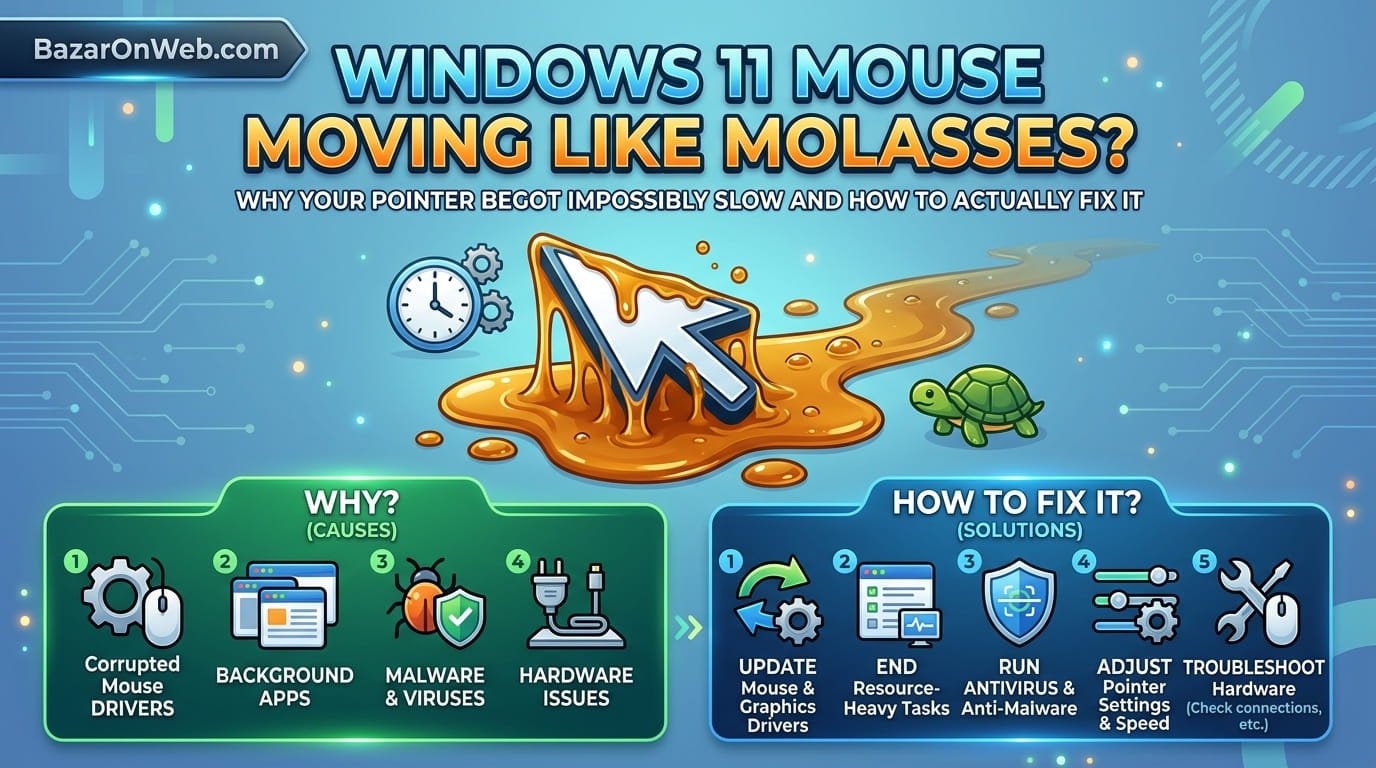
The Moment Your Mouse Became Unusable
Friday afternoon. I’m in the middle of work, trying to click something specific on my screen, and my mouse cursor moves like it’s traveling through peanut butter. Not slightly sluggish. Not just a little unresponsive. Completely, frustratingly, make-you-want-to-throw-your-mouse slow.
I tried moving the mouse faster. The cursor moved faster. I tried moving it slower to get precision. It still lagged. There was a noticeable delay between moving the physical mouse and the cursor actually moving on screen. A fraction of a second might not sound like much, but when you’re trying to click something specific, a quarter-second lag is absolutely maddening.
I panicked. Did something break? Is my mouse dying? Did Windows update break something? I unplugged and replugged the mouse. Nothing. I restarted Windows. Still slow. I was genuinely concerned I’d need to replace hardware that was working fine thirty minutes earlier.
Turns out the problem wasn’t hardware at all. My mouse was fine. Windows 11 just had something enabled that was making pointer sensitivity completely unusable. After finding the culprit, it took maybe thirty seconds to fix. But without knowing what to look for, I would have spent hours troubleshooting or bought a new mouse unnecessarily.
This is apparently happening to a lot of Windows 11 users. One day everything’s fine. Next day your mouse feels broken. And because there’s no obvious error message or warning, you have no idea what changed.
Understanding Pointer Sensitivity: What You’re Actually Dealing With
Before troubleshooting, it helps to understand what pointer sensitivity actually is and why Windows has multiple settings that affect it.
Pointer sensitivity controls how far your cursor moves relative to physical mouse movement. High sensitivity means your cursor moves a lot when you barely move the mouse. Low sensitivity means you have to move the mouse significantly to move the cursor even a little. Most people find a middle ground—your cursor moves proportionally to your mouse movement without being too twitchy or too sluggish.
Windows 11 has multiple settings affecting pointer speed and sensitivity, which is part of why this problem is frustrating. A slow pointer might be caused by any of several different settings. Find the wrong one and you’ll think you fixed it, but it’s still slow. This is why people get frustrated and give up.
The settings that affect pointer speed include: mouse DPI settings (on the mouse itself), pointer speed in Windows settings, mouse acceleration settings, and various accessibility features. Additionally, outdated drivers, background processes, or USB power management can all affect pointer responsiveness.
The reason so many people suddenly experience slow pointers after Windows updates is that updates sometimes reset these settings to defaults, or enable accessibility features you didn’t ask for, or install driver updates that break pointer responsiveness.
The Obvious First Step: Check Your Mouse DPI Settings
Before diving into Windows settings, check if your mouse itself has DPI settings that got changed.
Many gaming and productivity mice have physical DPI buttons on the mouse itself. You press the button to cycle through DPI settings (usually 800, 1600, 3200, etc.). If someone pressed that button—you in your sleep, your cat walking across your desk, whatever—your DPI might have changed to an extremely low setting, making pointer movement glacially slow.
Check your mouse. Look for a button labeled “DPI” or sometimes it’s indicated with dots or a symbol. If you find it, press it to cycle through DPI settings. Watch your pointer movement change as you cycle through. Find a DPI setting that feels responsive and stick with it.
For most people, 1600 DPI is a good default. Gaming mice often default higher. Office mice might default lower. There’s no universal “correct” DPI—it’s personal preference. Just find whatever makes your pointer movement feel natural.
If your mouse doesn’t have physical DPI buttons, check if it has software installed on your computer. Many mice come with companion software for configuring DPI, polling rate, button mapping, and other settings. If you have a Logitech mouse, check for Logitech G HUB or SetPoint. Razer mice use Razer Synapse. SteelSeries mice use GG app. Open the companion software and verify DPI settings are appropriate.
If you have a basic mouse with no special software and no DPI buttons, it doesn’t have adjustable DPI. The problem isn’t your mouse hardware.
Windows Pointer Speed Settings: Where Most People Forget They Changed Things
Windows has a straightforward pointer speed setting in Settings. Most people have adjusted this at some point and either forgotten or it got reset to default after an update.
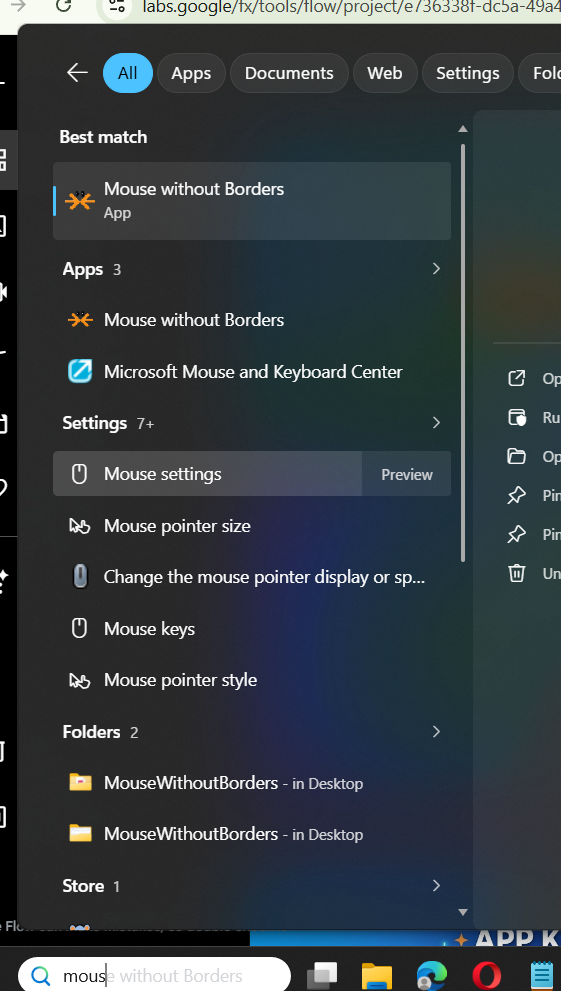
Open Settings and search for “mouse.” You’ll find “Mouse settings” in the results. Click it.
Look for “Pointer speed” or “Mouse pointer speed.” You’ll see a slider ranging from slow to fast. The setting determines how far your cursor moves relative to physical mouse movement.
If this slider is set all the way to the left (slow), that’s why your pointer is sluggish. Drag it toward the right to increase pointer speed. Don’t max it out immediately—find a comfortable middle ground. Most people feel the default position (around the middle-right area) is natural.
This is the most common culprit for slow pointers. Someone adjusted this slider, forgot about it, or a Windows update reset it to default, and suddenly pointer movement feels wrong.
While you’re in this menu, check if “Enhance pointer precision” is enabled. This setting applies acceleration to your mouse movement—the faster you move the mouse, the faster the cursor moves, up to a maximum. Some people love this. Others hate it. If your pointer movement feels inconsistent (starts slow, then accelerates), this setting is probably enabled.
Disable “Enhance pointer precision” if you want consistent pointer speed regardless of how fast you move your mouse. Enable it if you want acceleration. Neither is wrong—it’s personal preference. But if pointer behavior suddenly changed, this setting might have been toggled.
The Accessibility Settings That Secretly Sabotage Pointer Speed
Windows 11 has numerous accessibility features that affect pointer behavior. These are genuinely useful for people who need them, but if you don’t realize they’re enabled, they just make your pointer feel broken.
Open Settings > Accessibility > Pointer and touch. Look for settings related to pointer size, pointer trails, or pointer behavior.
Pointer trails: This feature leaves a trail behind your cursor as you move it, making it easier to track. If enabled, it can make the pointer appear to move more slowly because you’re seeing the entire trail rather than just the cursor. This is usually a visual effect only—the actual pointer speed is normal, it just looks slow. Disable pointer trails if you don’t want them.
Pointer size: Sometimes larger pointer sizes can make movement seem slower because the larger target appears to move slower. If your pointer is set to maximum size and you don’t want it that large, reduce the size.
Sticky keys or filter keys: These are supposed to help people with mobility issues but can interfere with normal pointer behavior. If enabled, they can cause unexpected pointer behavior or slowness. Open Settings > Accessibility > Keyboard and disable these if you don’t need them.
Slow pointer speed in accessibility settings: Beyond the standard pointer speed setting, there’s an accessibility-specific pointer speed setting. Settings > Accessibility > Pointer and touch > Pointer speed. This is separate from the main pointer speed setting and might be set to a slower value than your main pointer speed setting.
Check all of these. They’re hidden in the accessibility menu, which means most people never look there, but they directly affect pointer behavior.
Mouse Driver Issues: When Windows Downloaded Something That Broke Everything
Windows automatically updates drivers when you install updates or when it detects new hardware. Mouse drivers usually update automatically without issues, but occasionally an update breaks pointer responsiveness.
Check your mouse driver by opening Device Manager. Right-click Start and select “Device Manager.”
Look for “Mice and other pointing devices” category. Expand it. You should see your mouse listed.
Right-click your mouse and select “Properties.” Look for the Driver tab. It shows your driver version and when it was last updated.
If the driver was recently updated (check Windows Update history to see when the last update was), the new driver might be causing pointer issues. You can roll back to the previous driver by right-clicking the mouse in Device Manager, selecting “Properties,” going to the Driver tab, and clicking “Roll Back Driver.”
Alternatively, uninstall the driver entirely. Right-click the mouse and select “Uninstall device.” Restart Windows. Windows will reinstall the mouse driver automatically, usually with an older, more stable version than the newest one.
If rolling back doesn’t help, check if your mouse manufacturer has driver updates. Visit the manufacturer’s website, download the latest driver directly from them (not from Windows Update), and install it. Manufacturer drivers are sometimes more stable than Windows’s generic drivers.
USB Power Saving: When Windows Decides to Slow Your Mouse Down Secretly
Windows has a feature that reduces USB device power consumption by entering low-power modes. This is useful for laptops trying to save battery, but it can make USB mice extremely sluggish.
Open Device Manager (right-click Start > Device Manager). Expand “Universal Serial Bus controllers.”
Look for your USB root hub or USB controller. Right-click it and select “Properties.”
Go to the Power Management tab. You’ll see a checkbox for “Allow the computer to turn off this device to save power.” If this is enabled, Windows might be putting your USB controller into low-power mode, affecting your mouse.
Uncheck this option. Click OK. This tells Windows to keep your USB controller running at full power instead of downclocking to save energy.
You might need to do this for multiple USB controllers or root hubs. Check all of them.
This is particularly common on laptops, but it affects desktops too. If pointer speed suddenly became sluggish and nothing else has fixed it, USB power saving is a likely culprit.
Multiple Pointing Devices Conflicting: When Two Mice Fight Over Control
If you have multiple pointing devices connected (mouse, touchpad, external mouse, drawing tablet, etc.), they sometimes conflict, causing pointer behavior to be erratic or slow.
Check Device Manager’s “Mice and other pointing devices” section. Count how many devices are listed.
If you have more than one, and you’re only using one actively, disable the others. Right-click the device you’re not using and select “Disable device.”
For example, if you have a laptop with an internal touchpad and you’re using an external mouse, disable the touchpad. Having both active sometimes causes pointer conflicts.
This isn’t always the culprit, but it’s worth checking if you have multiple pointing devices.
Background Processes Consuming Resources: When Something Else Is Stealing Your Mouse
Rarely, pointer slowness results from background processes consuming so much CPU or GPU resources that the system can’t keep up with pointer movement. This is unusual but possible on older computers or when something resource-intensive is running.
Open Task Manager (Ctrl+Shift+Esc). Look at CPU and GPU usage. If either is consistently above 50%, something is consuming resources heavily.
Identify what’s consuming resources and close it. If it’s a necessary process, you might need to upgrade hardware or reduce what else is running simultaneously.
This is uncommon as the sole cause of pointer slowness, but combined with other issues, heavy resource usage can make pointer movement feel sluggish.
Windows Update Issues: When Updates Broke Pointer Responsiveness
Sometimes Windows 11 updates specifically break pointer behavior. This is usually fixed in subsequent updates, but you might need to temporarily work around it.
Check Windows Update history. Settings > System > Windows Update > Update history. Look at when the last update installed and if pointer slowness started around the same time.
If a recent update caused the problem, options include:
Wait for the next update: Microsoft usually releases fixes relatively quickly. A patch update might fix the issue.
Uninstall the problematic update: Settings > System > Windows Update > Update history > Uninstall updates. Find the recent update, uninstall it, and restart. This rolls back to the previous Windows version.
Update drivers: Sometimes updating drivers after a Windows update fixes compatibility issues. Check for driver updates from your motherboard or device manufacturers.
Clean boot Windows: Start with only essential services running to narrow down which component is causing problems. Search for “msconfig” and configure a clean boot.
Most of the time, waiting for the next update resolves Windows Update-related pointer issues. But if you need immediate workaround, rolling back the update is an option.
When You’ve Tried Everything: Nuclear Options
If none of this has worked, more drastic solutions might be necessary.
Fresh mouse driver installation: Completely uninstall your mouse driver through Device Manager, delete the driver files manually, restart, and let Windows reinstall from scratch. This is more thorough than rolling back and sometimes fixes persistent driver issues.
USB port change: Try connecting your mouse to a different USB port. Different USB controllers sometimes behave differently. If your mouse works fine in one port but not another, the port or controller is the issue, not the mouse.
Different USB cable (if applicable): For USB mice, try a different USB cable if you have one. Degraded cables sometimes cause intermittent connection issues that manifest as sluggish pointer behavior.
Disable USB Selective Suspend: Open Device Manager, expand “Universal Serial Bus controllers,” right-click “USB Root Hub,” go to Power Management tab, and uncheck “Allow the computer to turn off this device to save power.” Do this for all USB Root Hubs.
Factory reset your mouse: Some mice have reset procedures (holding a button for 10 seconds, etc.). Check your mouse manual for factory reset instructions.
Test with a different mouse: If you have access to another mouse, try it. If the other mouse works fine, your original mouse is the problem. If the other mouse also feels slow, the problem is Windows, not your mouse.
Preventing This From Happening Again
Once you’ve fixed slow pointer issues, preventing recurrence helps avoid frustration later.
Document your settings: Write down your preferred pointer speed, DPI settings, and any accessibility features you use. If something resets these, you know what to restore.
Disable automatic driver updates: In Device Manager, right-click your mouse, Properties, Driver tab, and note the version. Before major Windows updates, check if a new mouse driver is available. If the current driver works fine, avoid updating it.
Skip optional updates: Windows Update shows optional updates separately from critical updates. Mouse driver updates are often optional. You don’t have to install them if your current driver works fine.
Backup your settings: Use a cloud sync solution or manual backup to store your Windows configuration. If settings get reset, you can restore them from backup.
Use a mouse with onboard memory: Gaming mice often store DPI settings in the mouse itself rather than relying on Windows. This provides more stability because the settings persist regardless of Windows changes.
The Frustrating Reality
Slow pointer issues in Windows 11 are usually software-related, not hardware failure. Your mouse is probably fine. Windows just has something configured wrong.
The challenge is that the cause could be any of several dozen settings or configurations. It’s like debugging when you have fifty possible culprits and no error message telling you which one is actually wrong.
Work through these systematically. Start with the obvious stuff (pointer speed slider, DPI settings). Move to driver issues. Check accessibility features. Most of the time, one of these fixes it.
If you’ve tried everything and it’s still slow, you either have a genuinely broken component or an obscure configuration issue that requires professional assistance. But honestly, nine times out of ten, it’s just a setting someone changed (or Windows changed automatically) and you need to change it back.
Quick Fix Priority List
If you want to skip all the explanation and just fix the problem:
- Check mouse DPI settings (press DPI button if it exists)
- Adjust pointer speed slider in Settings > Mouse
- Check accessibility settings for pointer trails or other interference
- Disable “Enhance pointer precision” and see if that helps
- Disable USB power saving in Device Manager
- Roll back or update mouse drivers
- Try a different USB port
- Test with a different mouse
- Check for recent Windows updates that might be the cause
One of these will almost certainly fix it. If none work, you have a deeper problem requiring more investigation.

- How to Run a Safety Check in Google Chrome and Protect Your Browser

- Samsung Phone’s Keyboard Not Working? Here’s How to Fix It

- How to Take Screenshot While in Gaming on My Windows 11 PC

- Microsoft Store Blocked on Windows 11 Error 0x800704EC, How to Fix It

- What Is Spotlight Search on Mac and How Do You Open It?

Products
-
![Apple Watch Ultra 3 [GPS + Cellular 49mm] Running & Multisport Smartwatch w/Rugged Titanium Case w/Black Titanium Milanese Loop - M. Satellite Communications, Advanced Health & Fitness Tracking](https://bazaronweb.com/retailstores/wp-content/uploads/2025/09/apple-watch-320x320.jpg) Apple Watch Ultra 3 [GPS + Cellular 49mm] Running & Multisport Smartwatch w/Rugged Titanium Case w/Black Titanium Milanese Loop - M. Satellite Communications, Advanced Health & Fitness Tracking
Apple Watch Ultra 3 [GPS + Cellular 49mm] Running & Multisport Smartwatch w/Rugged Titanium Case w/Black Titanium Milanese Loop - M. Satellite Communications, Advanced Health & Fitness Tracking
-
 Apple iPad mini (A17 Pro): Apple Intelligence, 8.3-inch Liquid Retina Display, 256GB, Wi-Fi 6E, 12MP Front/12MP Back Camera, Touch ID, All-Day Battery Life — Purple
-
 Apple AirPods Max Wireless Over-Ear Headphones, Active Noise Cancelling, Transparency Mode, Personalized Spatial Audio, Dolby Atmos, Bluetooth Headphones for iPhone – Space Gray
-
 Apple AirPods Pro 2 Wireless Earbuds, Active Noise Cancellation, Hearing Aid Feature, Bluetooth Headphones, Transparency, Personalized Spatial Audio, High-Fidelity Sound, H2 Chip, USB-C Charging
-
Home Garage 210 TC Cotton King Floral Fitted (Elastic) Bedsheet(Pack of 1, Grey)
Original price was: ₹999.00.₹299.00Current price is: ₹299.00.
Leave a Reply