Discounted Products
-
 Home Garage 210 TC Cotton King Floral Fitted (Elastic) Bedsheet(Pack of 1, Grey)
Original price was: ₹999.00.₹299.00Current price is: ₹299.00.
Home Garage 210 TC Cotton King Floral Fitted (Elastic) Bedsheet(Pack of 1, Grey)
Original price was: ₹999.00.₹299.00Current price is: ₹299.00.
-
 Goodrik 140 TC Cotton Double 3D Printed Flat Bedsheet(Pack of 1, Brown)
Original price was: ₹499.00.₹229.00Current price is: ₹229.00.
Goodrik 140 TC Cotton Double 3D Printed Flat Bedsheet(Pack of 1, Brown)
Original price was: ₹499.00.₹229.00Current price is: ₹229.00.
-
 GLOBALSHOP 350 TC Microfiber Double Floral Flat Bedsheet(Pack of 1, Multicolor)
Original price was: ₹1,250.00.₹263.00Current price is: ₹263.00.
GLOBALSHOP 350 TC Microfiber Double Floral Flat Bedsheet(Pack of 1, Multicolor)
Original price was: ₹1,250.00.₹263.00Current price is: ₹263.00.
-
 RisingStar 250 TC Microfiber King Printed Fitted (Elastic) Bedsheet(Pack of 1, FITTED-ROUND-CIRCLES-PREMIUM)
Original price was: ₹2,299.00.₹299.00Current price is: ₹299.00.
RisingStar 250 TC Microfiber King Printed Fitted (Elastic) Bedsheet(Pack of 1, FITTED-ROUND-CIRCLES-PREMIUM)
Original price was: ₹2,299.00.₹299.00Current price is: ₹299.00.
-
 Home Garage 210 TC Cotton King Floral Fitted (Elastic) Bedsheet(Pack of 1, Fitted Black Green)
Original price was: ₹1,299.00.₹299.00Current price is: ₹299.00.
Home Garage 210 TC Cotton King Floral Fitted (Elastic) Bedsheet(Pack of 1, Fitted Black Green)
Original price was: ₹1,299.00.₹299.00Current price is: ₹299.00.
-
 Home Garage 180 TC Cotton King 3D Printed Flat Bedsheet(Pack of 1, White)
Original price was: ₹999.00.₹229.00Current price is: ₹229.00.
Home Garage 180 TC Cotton King 3D Printed Flat Bedsheet(Pack of 1, White)
Original price was: ₹999.00.₹229.00Current price is: ₹229.00.
-
 Panipat Textile Hub 152.4 cm (5 ft) Polyester Window Curtain (Pack Of 2)(Solid, Aqua)
Original price was: ₹1,899.00.₹299.00Current price is: ₹299.00.
Panipat Textile Hub 152.4 cm (5 ft) Polyester Window Curtain (Pack Of 2)(Solid, Aqua)
Original price was: ₹1,899.00.₹299.00Current price is: ₹299.00.
-
 Home Sizzler 214 cm (7 ft) Polyester Semi Transparent Door Curtain (Pack Of 2)(Floral, Maroon)
Original price was: ₹1,199.00.₹399.00Current price is: ₹399.00.
Home Sizzler 214 cm (7 ft) Polyester Semi Transparent Door Curtain (Pack Of 2)(Floral, Maroon)
Original price was: ₹1,199.00.₹399.00Current price is: ₹399.00.
-
 Home Sizzler 153 cm (5 ft) Polyester Room Darkening Window Curtain (Pack Of 2)(Floral, Brown)
Original price was: ₹799.00.₹299.00Current price is: ₹299.00.
Home Sizzler 153 cm (5 ft) Polyester Room Darkening Window Curtain (Pack Of 2)(Floral, Brown)
Original price was: ₹799.00.₹299.00Current price is: ₹299.00.
-
 Stella Creations 214 cm (7 ft) Polyester Room Darkening Door Curtain (Pack Of 2)(Abstract, Brown)
Original price was: ₹1,299.00.₹449.00Current price is: ₹449.00.
Stella Creations 214 cm (7 ft) Polyester Room Darkening Door Curtain (Pack Of 2)(Abstract, Brown)
Original price was: ₹1,299.00.₹449.00Current price is: ₹449.00.
-
 Homefab India 152.5 cm (5 ft) Polyester Room Darkening Window Curtain (Pack Of 2)(Floral, Light Blue)
Original price was: ₹1,199.00.₹319.00Current price is: ₹319.00.
Homefab India 152.5 cm (5 ft) Polyester Room Darkening Window Curtain (Pack Of 2)(Floral, Light Blue)
Original price was: ₹1,199.00.₹319.00Current price is: ₹319.00.
-
 Urban Home 214 cm (7 ft) PVC Transparent Door Curtain Single Curtain(Solid, Off White)
Original price was: ₹699.00.₹203.00Current price is: ₹203.00.
Urban Home 214 cm (7 ft) PVC Transparent Door Curtain Single Curtain(Solid, Off White)
Original price was: ₹699.00.₹203.00Current price is: ₹203.00.
-
 Panipat Textile Hub 213 cm (7 ft) Polyester Door Curtain (Pack Of 2)(Solid, Brown)
Original price was: ₹1,199.00.₹349.00Current price is: ₹349.00.
Panipat Textile Hub 213 cm (7 ft) Polyester Door Curtain (Pack Of 2)(Solid, Brown)
Original price was: ₹1,199.00.₹349.00Current price is: ₹349.00.
-
 Home Sizzler 214 cm (7 ft) Polyester Semi Transparent Door Curtain (Pack Of 2)(Floral, Brown)
Original price was: ₹999.00.₹349.00Current price is: ₹349.00.
Home Sizzler 214 cm (7 ft) Polyester Semi Transparent Door Curtain (Pack Of 2)(Floral, Brown)
Original price was: ₹999.00.₹349.00Current price is: ₹349.00.
-
 Panipat Textile Hub 213 cm (7 ft) Polyester Semi Transparent Door Curtain (Pack Of 2)(Floral, Brown)
Original price was: ₹899.00.₹299.00Current price is: ₹299.00.
Panipat Textile Hub 213 cm (7 ft) Polyester Semi Transparent Door Curtain (Pack Of 2)(Floral, Brown)
Original price was: ₹899.00.₹299.00Current price is: ₹299.00.
When Your Search Feature Became Completely Useless
I needed to find a file on my computer. Simple task. I pressed Windows Key + S to open search. The search panel opened, but it was completely blank. White screen. Nothing loading. I waited 30 seconds. Still blank. A minute passed. Finally, text and icons appeared and I could actually search.
This happened every single time I opened search. Open search, white screen for about 60 seconds, then finally load. It was like my computer was having an asthma attack every time I tried searching.
I checked when this started. It coincided exactly with installing the latest Windows 11 update. That update that Windows insisted was critical and downloaded and installed overnight.
Other people reported the same thing online. After a Windows 11 update, their search became unusable. Completely white screen on load, then either loading normally or showing icons without text. The feature was technically working—eventually—but was so slow and broken that it was essentially unusable.
Most people’s solution was just avoiding Windows search entirely. They’d use File Explorer instead, or third-party search tools, or just accept that searching for files on their computer was now a broken feature.
That’s unacceptable for something as fundamental as search. Windows search is supposed to be instant. The fact that an update broke it completely suggests something deeper went wrong with the update installation itself.
After investigating thoroughly, I discovered multiple fixes depending on what specifically the update broke. Some are simple. Some require reinstalling components. Some require understanding that this specific bug has a known cause and documented solution.
Understanding What Broke (And Why Updates Cause This)
Before troubleshooting, understanding what actually went wrong helps explain why specific fixes work.
Windows search functionality comes from the Windows Search service, which indexes your files so searching is fast. The search interface is a separate graphical component that displays results. When an update breaks search, usually one of these components got corrupted or misconfigured.
Common reasons updates cause search to break:
Index corruption: Windows Update might have corrupted the search index—the database of all your files. A corrupted index causes search to load slowly or fail to display results properly.
Graphics rendering issue: The search panel white screen often indicates the graphical display of search results isn’t rendering properly. Sometimes this is a display driver issue. Sometimes it’s corrupted UI files.
Search service malfunction: The Windows Search service might have failed to restart properly after the update, leaving it in a broken state.
Conflicting registry entries: Updates sometimes leave conflicting or duplicate registry entries that prevent search from functioning normally.
Incomplete update installation: Sometimes update installation completes but doesn’t fully finalize, leaving system files in an inconsistent state.
Third-party software interference: Antivirus, file encryption, or system optimization software might interfere with search after an update changes how search accesses files.
Identifying which of these actually happened guides your fix.
Quick Fix 1: Rebuild the Search Index
The most common cause of slow search loading is a corrupted search index.
Open Settings (Windows Key + I). Navigate to System > Windows Search > Indexing options. (Exact path varies by Windows 11 build, but look for “Indexing options” or “Search settings.”)
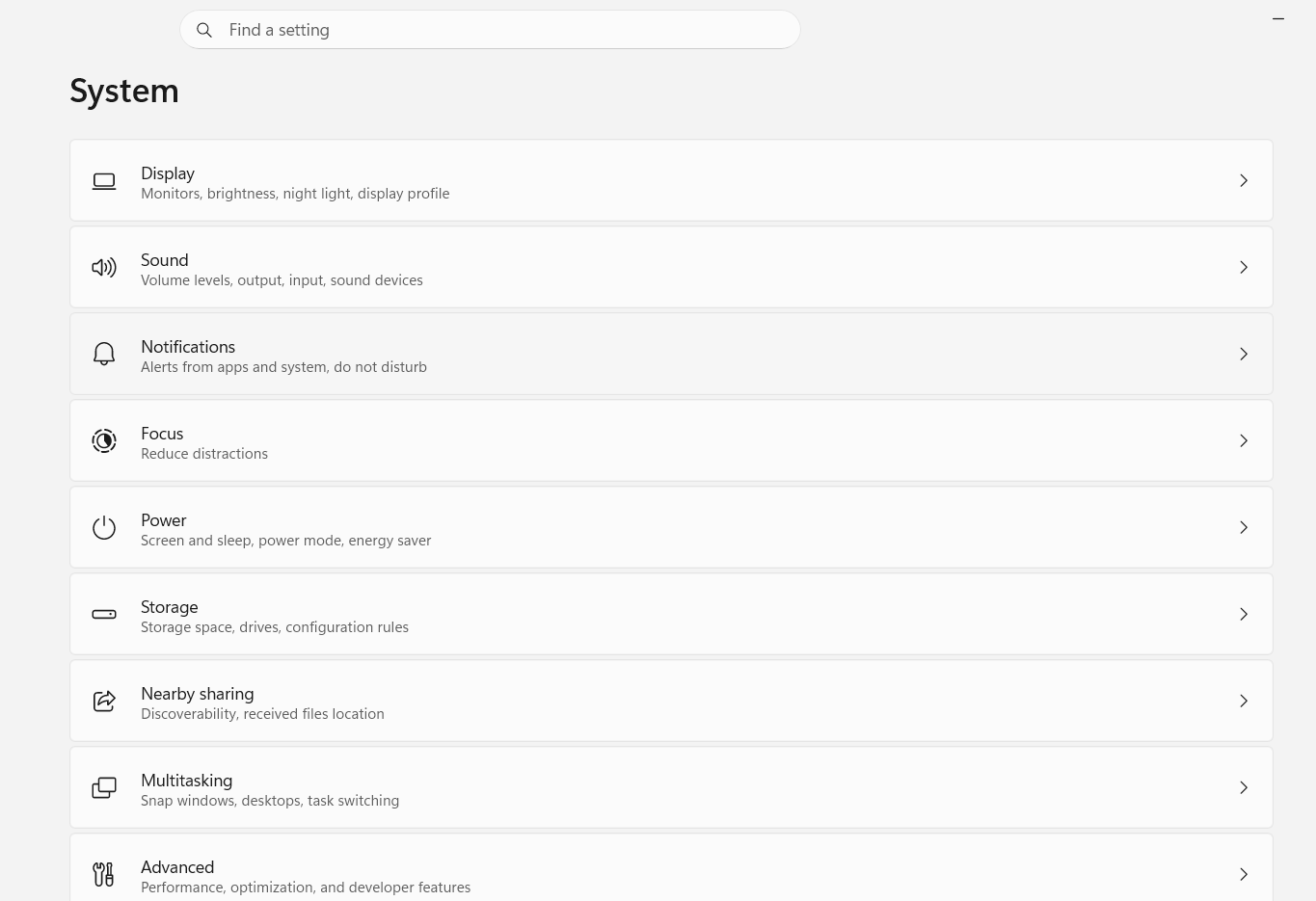
(Type Indexing Options here:)
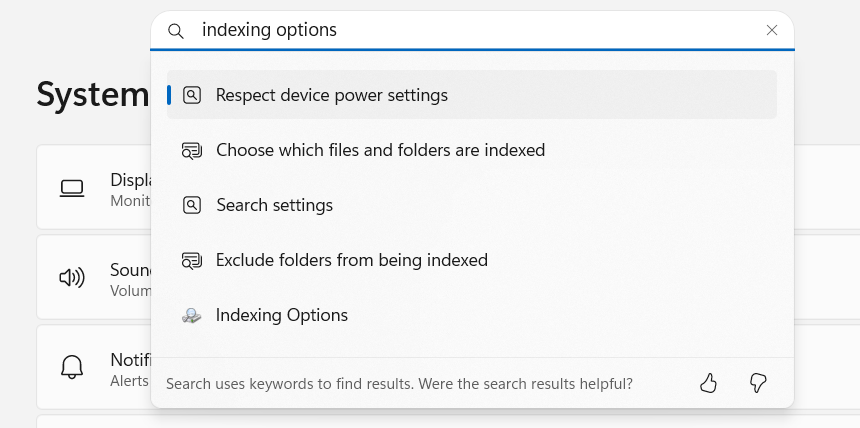
Click “Advanced options” or “Rebuild index” button if visible.
In the Indexing Options window, click “Advanced.” Then click “Rebuild” button.
Windows will completely rebuild your search index from scratch. This can take 30 minutes to several hours depending on how many files you have.
During rebuilding, search might be even slower than before. This is normal. Don’t interrupt the process.
After rebuilding completes, search should load normally without the white screen delay.
This fixes the problem about 70% of the time because index corruption is the most common issue after updates.
Quick Fix 2: Restart Windows Search Service
Sometimes the Windows Search service gets stuck and needs restarting.
Right-click Start and select “Windows Terminal (Admin).” (Or “Command Prompt (Admin)” if you don’t have Windows Terminal.)
Type: net stop WSearch
Wait for confirmation that the service stopped.
Type: net start WSearch
This restarts Windows Search service. After restarting, try opening search again. It should load normally.
This simple fix resolves the problem immediately if the search service is just stuck.
Method 1: Reset Search Settings Through Settings App
Windows 11 has a reset option for search that clears corrupted settings.
Settings > System > Windows Search > look for a “Reset” button or “Clear all personalizations” option.
Click it. Windows resets all search settings to defaults, clears search history, and rebuilds the index.
You’ll lose any personalized search settings you had, but this often fixes corrupted search that won’t display properly.
After resetting, search should work normally. If it still shows white screen, try the next method.
Method 2: Clear Search Cache Manually
Windows stores search cache in specific folders. Clearing corrupted cache sometimes fixes display issues.
Press Windows Key + R, type %AppData%, and press Enter.
Navigate to: Local > Packages > Microsoft.Windows.Search_
Look for folders named things like “LocalState” or “Cache.”
Delete the cache folders. Windows will recreate them.
Restart your computer.
After restart, Windows recreates search cache fresh. The white screen issue often resolves because corrupted cache is cleared.
Method 3: Disable and Re-enable Windows Search Feature
Disabling and re-enabling the Windows Search feature through Windows Features can fix broken installations.
Right-click Start and search for “Turn Windows features on or off.”
Click it to open Windows Features dialog.
Look for “Windows Search” in the list. If it’s checked (enabled), uncheck it. Click OK.
Windows disables search. Restart your computer when prompted.
After restart, go back to Windows Features and check (enable) Windows Search again. Click OK.
Windows re-enables search, which causes it to reinstall. This fixes many installation-related breaks.
After re-enabling, search should work normally.
Method 4: Update or Rollback Graphics Driver
Sometimes search white screen indicates graphics rendering issues, often related to display drivers.
Check if your graphics driver needs updating. Right-click Start > Device Manager.
Expand “Display adapters.” Right-click your graphics device > “Update driver.”
Windows checks for driver updates. Install any available updates.
If search still shows white screen after updating, try rolling back to the previous driver version:
Device Manager > Display adapters > right-click your graphics device > Properties > Driver > Roll back driver.
If roll back option is grayed out, the previous driver version isn’t available.
Updated or rolled back drivers often fix rendering issues causing search display problems.
Method 5: Repair Windows System Files
Corrupted system files sometimes cause search to malfunction. Windows has built-in repair tools.
Right-click Start and select “Windows Terminal (Admin).”
Type: sfc /scannow
System File Checker scans for corrupted system files and repairs them. This takes 10-15 minutes.
After SFC completes, run: DISM /Online /Cleanup-Image /RestoreHealth
This runs DISM (Deployment Image Servicing and Management) to repair system image. This also takes time.
After both commands complete, restart your computer.
System file repair fixes many issues caused by corrupted updates.
Method 6: Uninstall the Problematic Update
If search broke immediately after a specific update, that update is probably the culprit. Uninstalling it might restore search functionality.
Settings > System > Windows Update > Update history > Uninstall updates.
Look at recently installed updates. Find the one that corresponds to when search broke.
Click it and select “Uninstall.”
Windows removes the update. Restart when prompted.
Be warned: you’re removing a system update, which sometimes means losing security patches or bug fixes the update provided. But if the update broke search completely, removing it is reasonable.
After uninstalling, Windows will likely re-offer the update for installation. You can either:
- Reinstall it (if Microsoft released a fixed version)
- Hide it (Settings > Windows Update > Advanced options > Pause updates > Hide option)
- Wait for the next update to fix the problem
Method 7: Check for Windows 11 Insider Updates
Microsoft sometimes releases preview/insider updates that fix bugs in current releases.
Settings > System > Windows Update > Advanced options > Windows Insider Program. (You might need to join the Insider Program first.)
Join the Insider Program and switch to the Beta Channel (least disruptive preview updates).
Check for updates. Install any available insider updates.
These preview updates often include fixes for known bugs like the search white screen issue.
After installing, restart and test search.
This approach gets you fixes faster than waiting for regular update releases.
Method 8: Reset Windows 11 (Last Resort)
If nothing else works, resetting Windows might be necessary. This is drastic but effective.
Settings > System > Recovery > Reset this PC > Keep my files.
This resets Windows to clean state while preserving your personal files. All installed programs are removed and need reinstalling.
After reset, search will work because you’re starting with a clean Windows installation.
The downside is spending hours reinstalling all your software. But if search is completely broken despite multiple fixes, reset sometimes is the only option.
When It’s Actually a Hardware Problem
Rarely, search issues indicate hardware failure rather than software corruption.
If you’re seeing white screens or rendering issues in search but also seeing similar problems in other applications, your graphics hardware might be failing.
Test by running another graphics-intensive application. If it also displays improperly, graphics hardware is likely the issue.
Graphics hardware failure requires professional service or hardware replacement.
Preventing This From Happening Again
After fixing search:
Don’t pause updates indefinitely: Update your system. Updates fix bugs and provide security patches. The broken update is probably already fixed in subsequent updates.
Wait before updating immediately: If you can, wait a few days after major updates release. Let other people discover bugs before updating. If a broken update gets released, Microsoft usually fixes it within days.
Keep backups: Regular backups mean you can recover if an update breaks something seriously.
Monitor Windows Update: Occasionally check Windows Update history and see what’s being installed. Notice if search breaks immediately after a specific update.
Report bugs to Microsoft: If you identify an update that breaks search, report it through Feedback Hub. This helps Microsoft identify and fix issues.
The Frustrating Reality
Windows 11 updates occasionally break features. It’s not acceptable, but it’s reality. Search breaking completely after an update is especially frustrating because search is so fundamental.
Most of the time, one of these fixes resolves the issue. The index rebuild is most common. Restarting the search service is simplest. Uninstalling the problematic update is most direct.
Only rarely does someone need to reset Windows entirely to fix search.
Your search will work again. You just need to identify which component broke and fix it appropriately.
The frustrating part isn’t that fixes exist—they do. It’s that you have to troubleshoot at all. Windows updates shouldn’t break basic functionality.
Quick Priority List: Search Panel White Screen
Search showing white screen on load?
- Rebuild search index (Settings > Windows Search > Indexing options > Rebuild)
- Restart Windows Search service (PowerShell: net stop WSearch, net start WSearch)
- Clear search cache (delete folders in AppData > Local > Packages > Microsoft.Windows.Search)
- Uninstall the problematic update (Settings > Windows Update > Update history > Uninstall updates)
- Repair system files (PowerShell: sfc /scannow and DISM /Online /Cleanup-Image /RestoreHealth)
- Reset Windows Search feature (Settings > Apps > Optional features > Windows Search > Uninstall, then reinstall)
- Update graphics driver (Device Manager > Display adapters > Update driver)
- Reset Windows 11 completely (Settings > System > Recovery > Reset this PC > Keep my files)
One of these will almost certainly fix it.
Disclaimer: This article provides troubleshooting guidance for Windows 11 search issues after updates. Results vary by Windows build, installed software, and actual cause of malfunction. Some fixes require administrator access. Uninstalling updates removes security patches. System file repairs require time. Users assume responsibility for troubleshooting steps. If search issues persist despite multiple attempts or indicate hardware failure, seek professional technical support. Data backup is recommended before major system modifications.

- How to Transcribe Audio Live on Your iPhone

- Killer Network Service: Is It a Virus or Safe to Disable?

- How to Set Up Parental Controls on Windows 11: A Step-by-Step Guide

- How to Extract Audio From a Video: Easy Ways to Save Audio

- How to Set a Photo Album as Your Wallpaper on iPhone: Step-by-Step Guide

Products
-
![Apple Watch Ultra 3 [GPS + Cellular 49mm] Running & Multisport Smartwatch w/Rugged Titanium Case w/Black Titanium Milanese Loop - M. Satellite Communications, Advanced Health & Fitness Tracking](https://bazaronweb.com/retailstores/wp-content/uploads/2025/09/apple-watch-320x320.jpg) Apple Watch Ultra 3 [GPS + Cellular 49mm] Running & Multisport Smartwatch w/Rugged Titanium Case w/Black Titanium Milanese Loop - M. Satellite Communications, Advanced Health & Fitness Tracking
Apple Watch Ultra 3 [GPS + Cellular 49mm] Running & Multisport Smartwatch w/Rugged Titanium Case w/Black Titanium Milanese Loop - M. Satellite Communications, Advanced Health & Fitness Tracking
-
 Apple iPad mini (A17 Pro): Apple Intelligence, 8.3-inch Liquid Retina Display, 256GB, Wi-Fi 6E, 12MP Front/12MP Back Camera, Touch ID, All-Day Battery Life — Purple
-
 Apple AirPods Max Wireless Over-Ear Headphones, Active Noise Cancelling, Transparency Mode, Personalized Spatial Audio, Dolby Atmos, Bluetooth Headphones for iPhone – Space Gray
-
 Apple AirPods Pro 2 Wireless Earbuds, Active Noise Cancellation, Hearing Aid Feature, Bluetooth Headphones, Transparency, Personalized Spatial Audio, High-Fidelity Sound, H2 Chip, USB-C Charging
-
Home Garage 210 TC Cotton King Floral Fitted (Elastic) Bedsheet(Pack of 1, Grey)
Original price was: ₹999.00.₹299.00Current price is: ₹299.00.
Leave a Reply