Discounted Products
-
 Home Garage 210 TC Cotton King Floral Fitted (Elastic) Bedsheet(Pack of 1, Grey)
Original price was: ₹999.00.₹299.00Current price is: ₹299.00.
Home Garage 210 TC Cotton King Floral Fitted (Elastic) Bedsheet(Pack of 1, Grey)
Original price was: ₹999.00.₹299.00Current price is: ₹299.00.
-
 Goodrik 140 TC Cotton Double 3D Printed Flat Bedsheet(Pack of 1, Brown)
Original price was: ₹499.00.₹229.00Current price is: ₹229.00.
Goodrik 140 TC Cotton Double 3D Printed Flat Bedsheet(Pack of 1, Brown)
Original price was: ₹499.00.₹229.00Current price is: ₹229.00.
-
 GLOBALSHOP 350 TC Microfiber Double Floral Flat Bedsheet(Pack of 1, Multicolor)
Original price was: ₹1,250.00.₹263.00Current price is: ₹263.00.
GLOBALSHOP 350 TC Microfiber Double Floral Flat Bedsheet(Pack of 1, Multicolor)
Original price was: ₹1,250.00.₹263.00Current price is: ₹263.00.
-
 RisingStar 250 TC Microfiber King Printed Fitted (Elastic) Bedsheet(Pack of 1, FITTED-ROUND-CIRCLES-PREMIUM)
Original price was: ₹2,299.00.₹299.00Current price is: ₹299.00.
RisingStar 250 TC Microfiber King Printed Fitted (Elastic) Bedsheet(Pack of 1, FITTED-ROUND-CIRCLES-PREMIUM)
Original price was: ₹2,299.00.₹299.00Current price is: ₹299.00.
-
 Home Garage 210 TC Cotton King Floral Fitted (Elastic) Bedsheet(Pack of 1, Fitted Black Green)
Original price was: ₹1,299.00.₹299.00Current price is: ₹299.00.
Home Garage 210 TC Cotton King Floral Fitted (Elastic) Bedsheet(Pack of 1, Fitted Black Green)
Original price was: ₹1,299.00.₹299.00Current price is: ₹299.00.
-
 Home Garage 180 TC Cotton King 3D Printed Flat Bedsheet(Pack of 1, White)
Original price was: ₹999.00.₹229.00Current price is: ₹229.00.
Home Garage 180 TC Cotton King 3D Printed Flat Bedsheet(Pack of 1, White)
Original price was: ₹999.00.₹229.00Current price is: ₹229.00.
-
 Panipat Textile Hub 152.4 cm (5 ft) Polyester Window Curtain (Pack Of 2)(Solid, Aqua)
Original price was: ₹1,899.00.₹299.00Current price is: ₹299.00.
Panipat Textile Hub 152.4 cm (5 ft) Polyester Window Curtain (Pack Of 2)(Solid, Aqua)
Original price was: ₹1,899.00.₹299.00Current price is: ₹299.00.
-
 Home Sizzler 214 cm (7 ft) Polyester Semi Transparent Door Curtain (Pack Of 2)(Floral, Maroon)
Original price was: ₹1,199.00.₹399.00Current price is: ₹399.00.
Home Sizzler 214 cm (7 ft) Polyester Semi Transparent Door Curtain (Pack Of 2)(Floral, Maroon)
Original price was: ₹1,199.00.₹399.00Current price is: ₹399.00.
-
 Home Sizzler 153 cm (5 ft) Polyester Room Darkening Window Curtain (Pack Of 2)(Floral, Brown)
Original price was: ₹799.00.₹299.00Current price is: ₹299.00.
Home Sizzler 153 cm (5 ft) Polyester Room Darkening Window Curtain (Pack Of 2)(Floral, Brown)
Original price was: ₹799.00.₹299.00Current price is: ₹299.00.
-
 Stella Creations 214 cm (7 ft) Polyester Room Darkening Door Curtain (Pack Of 2)(Abstract, Brown)
Original price was: ₹1,299.00.₹449.00Current price is: ₹449.00.
Stella Creations 214 cm (7 ft) Polyester Room Darkening Door Curtain (Pack Of 2)(Abstract, Brown)
Original price was: ₹1,299.00.₹449.00Current price is: ₹449.00.
-
 Homefab India 152.5 cm (5 ft) Polyester Room Darkening Window Curtain (Pack Of 2)(Floral, Light Blue)
Original price was: ₹1,199.00.₹319.00Current price is: ₹319.00.
Homefab India 152.5 cm (5 ft) Polyester Room Darkening Window Curtain (Pack Of 2)(Floral, Light Blue)
Original price was: ₹1,199.00.₹319.00Current price is: ₹319.00.
-
 Urban Home 214 cm (7 ft) PVC Transparent Door Curtain Single Curtain(Solid, Off White)
Original price was: ₹699.00.₹203.00Current price is: ₹203.00.
Urban Home 214 cm (7 ft) PVC Transparent Door Curtain Single Curtain(Solid, Off White)
Original price was: ₹699.00.₹203.00Current price is: ₹203.00.
-
 Panipat Textile Hub 213 cm (7 ft) Polyester Door Curtain (Pack Of 2)(Solid, Brown)
Original price was: ₹1,199.00.₹349.00Current price is: ₹349.00.
Panipat Textile Hub 213 cm (7 ft) Polyester Door Curtain (Pack Of 2)(Solid, Brown)
Original price was: ₹1,199.00.₹349.00Current price is: ₹349.00.
-
 Home Sizzler 214 cm (7 ft) Polyester Semi Transparent Door Curtain (Pack Of 2)(Floral, Brown)
Original price was: ₹999.00.₹349.00Current price is: ₹349.00.
Home Sizzler 214 cm (7 ft) Polyester Semi Transparent Door Curtain (Pack Of 2)(Floral, Brown)
Original price was: ₹999.00.₹349.00Current price is: ₹349.00.
-
 Panipat Textile Hub 213 cm (7 ft) Polyester Semi Transparent Door Curtain (Pack Of 2)(Floral, Brown)
Original price was: ₹899.00.₹299.00Current price is: ₹299.00.
Panipat Textile Hub 213 cm (7 ft) Polyester Semi Transparent Door Curtain (Pack Of 2)(Floral, Brown)
Original price was: ₹899.00.₹299.00Current price is: ₹299.00.
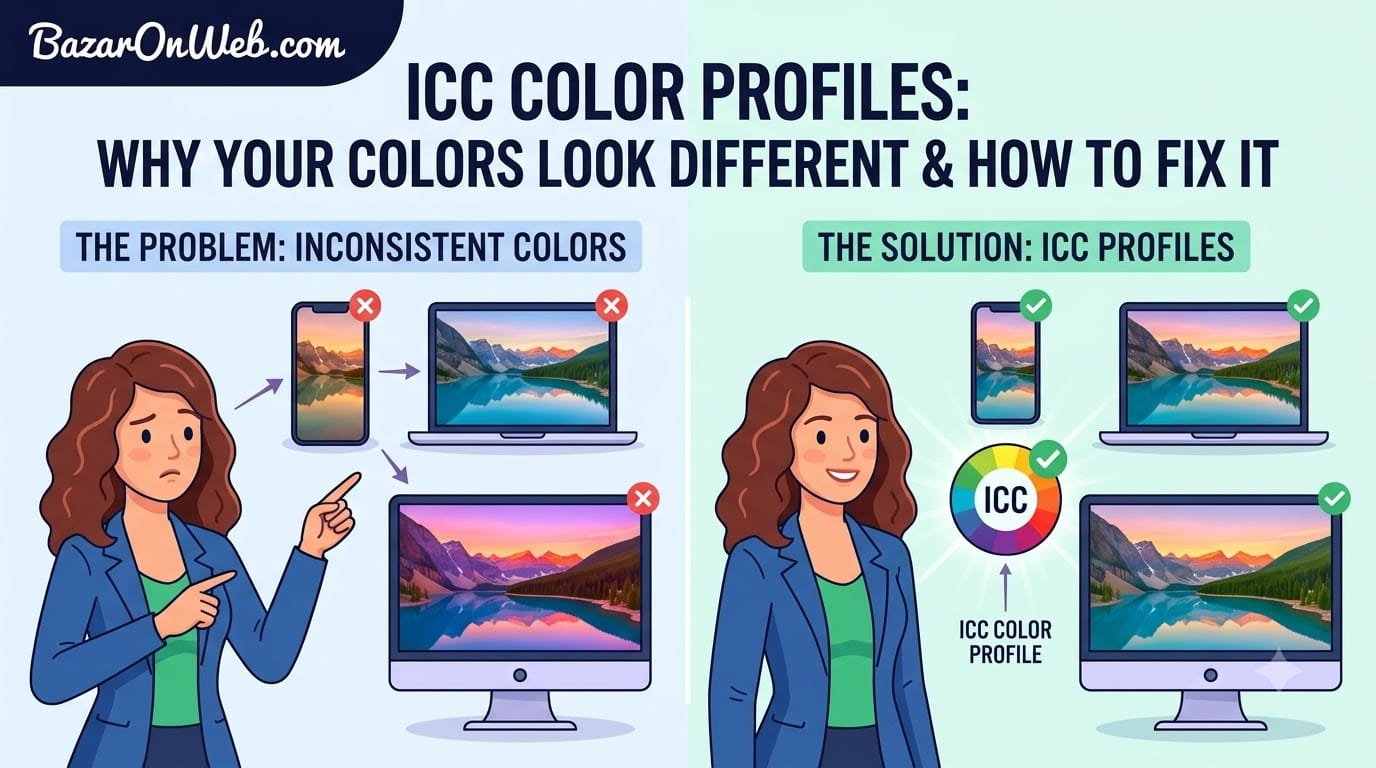
I designed a logo on my computer. Spent hours getting the colors exactly correct. Deep blue background, vibrant orange text. It looked perfect on my monitor.
I sent the design to a client. They immediately complained that the colors were completely different than what we’d agreed on. The blue looked purple-like. The orange looked more red.
I thought they were exaggerating. I looked at my monitor again. The colors looked perfect to me. How could they be seeing something different?
Then I opened the same file on a different computer in my office. The colors were noticeably different. The blue was definitely more purple. The orange was shifted toward red.
I showed my laptop to a colleague. Same file, completely different colors again.
That’s when I realized something: my monitor wasn’t showing me accurate colors. It was showing me its own interpretation of colors based on how it was calibrated. Every monitor interprets color data differently depending on its panel type, age, brightness settings, and calibration.
Without knowing this, I’d been designing colors that looked perfect on my specific monitor but terrible on everyone else’s screens.
That’s where ICC profiles come in. They’re basically translation documents that tell different devices “here’s what these colors are supposed to actually look like.” They ensure that a deep blue looks like deep blue on your monitor, your client’s monitor, your phone, your printer, and everywhere else.
Most people have never heard of ICC profiles. They just assume their monitor shows accurate colors. But professionals in design, photography, and video production depend on ICC profiles to ensure their work looks consistent across all devices and outputs.
What Is An ICC Profile? (The Actual Definition)
An ICC profile is a file that describes how a specific device displays or prints color.
ICC stands for International Color Consortium—an organization that standardized how color management works across different devices.
Think of an ICC profile as a translation document. Your computer stores colors using digital data (RGB values like 255, 128, 0 for orange). But different monitors interpret that same data differently. One monitor might show RGB 255, 128, 0 as bright orange. Another might show it as more reddish. A printer might interpret it completely differently.
An ICC profile bridges this gap. It says: “When you see this digital color data, here’s what it should actually look like.” It provides a mapping between the digital numbers and actual perceived color.
More technically, an ICC profile contains:
- Color space definition: What range of colors the device can display
- Tone curve: How the device converts digital values to actual brightness
- Gamma correction: How the device handles light/dark distribution
- Rendering intent: How out-of-gamut colors (colors the device can’t display) should be handled
Your monitor has an ICC profile. Your printer has an ICC profile. Your smartphone has an ICC profile. Each device has its own unique way of interpreting color data.
The goal of color management is making all these different devices display the same colors consistently by using their individual ICC profiles.
Why Color Consistency Matters (And Why You’re Probably Not Getting It)
Most people never think about color consistency. They assume what they see on their screen is what everyone else sees.
It’s not.
Different monitors display colors differently. Older monitors display colors differently than new ones. Different phone screens display colors differently. Printers interpret colors completely differently than screens.
If you’re doing work where color matters—design, photography, video editing, color-critical applications—color inconsistency is a serious problem.
Why this happens:
Each device has a different color gamut—the range of colors it can actually display. Your monitor might display colors slightly differently than another monitor. Your printer can’t display the exact same colors as your monitor because it uses different technology (pigment vs light).
Without ICC profiles, each device just does its best guess at displaying colors, resulting in inconsistency.
With ICC profiles, every device knows how to display the same colors consistently.
Real-world impact:
Designer works on website using their monitor. Website looks great. Client views it on their monitor. Colors look completely wrong to them. Client complains. Designer is confused because it looked fine to them.
Photographer edits photos on their calibrated monitor. They look beautiful. Client prints the photos. The colors are completely off. The photographer is frustrated because they looked perfect on screen.
These situations happen constantly because ICC profiles aren’t being used to ensure consistency.
Understanding Color Spaces and Gamuts
Before diving into ICC profiles, understanding color spaces helps explain why profiles are necessary.
A color space is a mathematical model for representing colors. Common color spaces include:
RGB (Red, Green, Blue): Used by monitors and screens. Colors are made by mixing red, green, and blue light. RGB 255, 0, 0 is pure red. RGB 0, 255, 0 is pure green.
CMYK (Cyan, Magenta, Yellow, Black): Used by printers. Colors are made by subtracting light using colored inks. The opposite model from RGB.
LAB: Device-independent color space designed to match how humans perceive color. Often used as an intermediate format for color conversion.
sRGB: A specific RGB color space designed for the internet. Most monitors and phones use sRGB or something similar.
Each color space has a gamut—the range of colors it can represent. Some devices can display a wider range of colors (wider gamut) than others.
An ICC profile maps between these different color spaces, translating colors from one device’s gamut to another’s.
How ICC Profiles Actually Work
Understanding the process helps explain why they’re important.
Your computer stores a color as digital data: RGB 100, 150, 200 (a shade of blue).
When this color needs to be displayed, the monitor’s ICC profile tells it: “When you receive RGB 100, 150, 200, here’s how your specific monitor should display it to make it look like the intended blue.”
Different monitors have different ICC profiles because they display colors differently.
When printing, a printer ICC profile says: “When you want to print that RGB 100, 150, 200 blue, here’s the CMYK combination of inks that will produce the closest match to that blue on paper.”
The color management system (built into your operating system and applications) uses these ICC profiles to convert colors appropriately for each device.
Color management workflow:
- You edit an image on your calibrated monitor using its ICC profile
- When you want to print, the color management system uses the printer’s ICC profile to convert RGB colors to CMYK inks
- The printer prints using CMYK values that produce colors matching what you saw on your monitor
- You send the image to a client, including the sRGB ICC profile
- Client’s monitor uses the sRGB profile to display the image correctly on their device
Without ICC profiles at each step, colors would shift unpredictably.
Types of ICC Profiles
Different profiles are used for different devices and purposes.
Monitor Profiles: Describe how a specific monitor displays colors. Professional monitors come with factory ICC profiles. Consumer monitors might not be properly profiled.
Printer Profiles: Describe how a printer converts digital colors to physical ink. Different papers require different profiles because ink behaves differently on different paper types.
Camera Profiles: Describe how a camera captures colors. Different camera models have different color responses.
Working Color Spaces: General profiles like sRGB or Adobe RGB used during editing before converting to device-specific profiles for output.
Display Profiles: Generic profiles for different monitor types (LED, OLED, LCD) when device-specific profiles aren’t available.
How to Use ICC Profiles On Your Device
If you’re doing color-critical work, using ICC profiles requires several steps.
Step 1: Get Your Monitor Profiled
Professional approach: Hire a colorist to profile your specific monitor. They use spectrophotometer equipment to measure your monitor’s actual color output and create a custom ICC profile.
DIY approach: Use a colorimeter device (X-Rite ColorChecker, Datacolor SpyderX) to profile your monitor yourself. The device measures colors and software generates an ICC profile.
Basic approach: Download a generic profile for your monitor model from the manufacturer’s website.
Step 2: Install the Monitor Profile
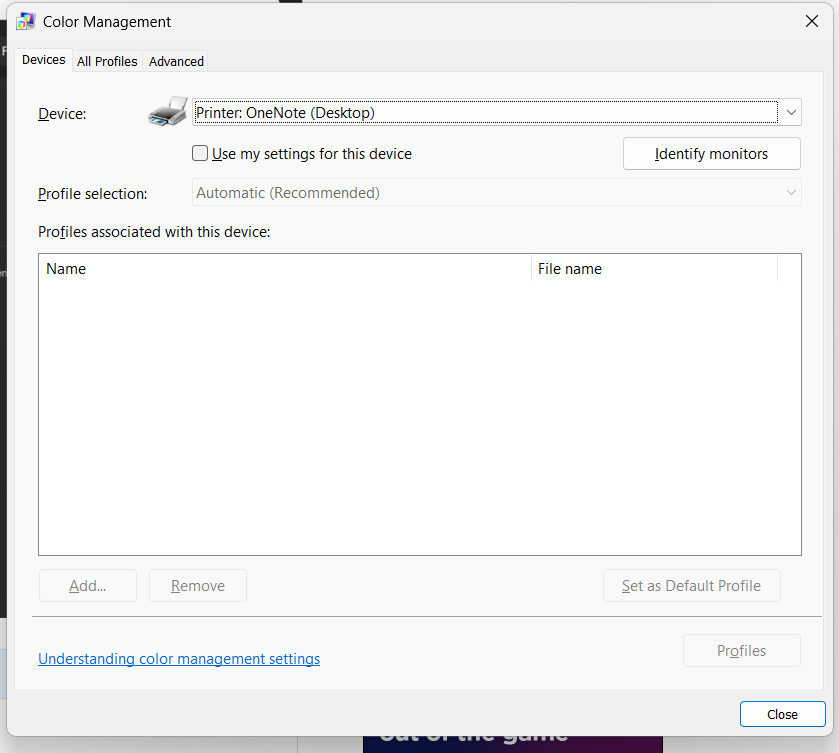
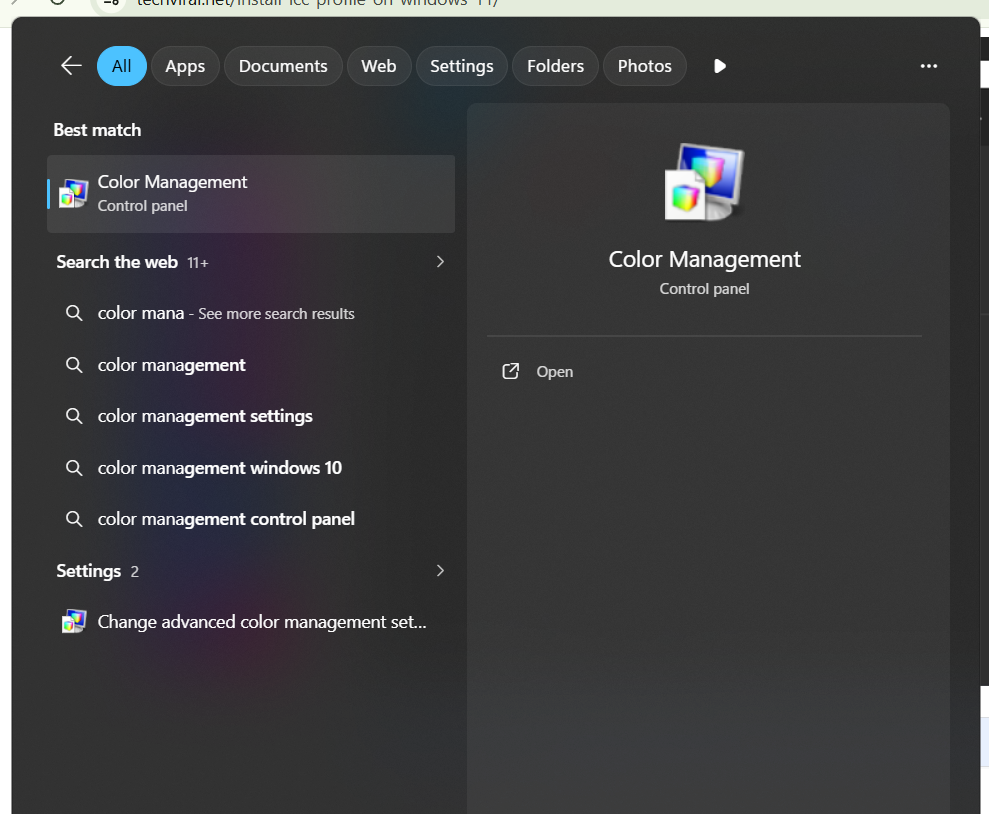
The process varies by operating system.
Windows: Settings > Display > Related settings > Color management > Add > browse to your ICC profile file.
Or place ICC files in: C:\Windows\System32\spool\drivers\color\
Mac: System Preferences > Displays > Color > click “+” to add ICC profile.
Or place ICC files in: ~/Library/ColorSync/Profiles/
Step 3: Configure Applications to Use the Profile
Most professional applications have color management settings.
Open your design/photo editing application. Look for color settings, color management, or color space options.
Configure the application to use your monitor’s ICC profile as the display profile.
Step 4: For Printing
When printing, select the appropriate printer ICC profile.
In print dialog, look for options like “Color Management” or “Color Profile.”
Select the profile matching your printer model and paper type.
Different papers (glossy, matte, fine art paper) require different profiles because ink behaves differently on each surface.
Common Problems With ICC Profiles
Sometimes profiles don’t work as expected.
Problem 1: Colors Look Wrong After Installing Profile
Your new profile might be more accurate than your previous calibration, making colors look “off” compared to what you’re used to.
Give yourself time to adjust. Trust the calibrated profile over your monitor’s factory settings.
Problem 2: Profile Not Loading
The profile file might be corrupted, in the wrong location, or not properly installed.
Solutions:
- Re-download the profile from your device manufacturer
- Verify the file is in the correct system folder
- Restart your computer after installing the profile
- Try a different profile to see if the issue is specific to one file
Problem 3: Different Applications Show Different Colors
Applications that don’t support color management ignore ICC profiles.
Ensure you’re using professional applications (Adobe Creative Suite, Capture One, etc.) that properly support ICC profiles.
Basic applications like MS Paint don’t support color management.
Problem 4: Monitor Profile Not Applying to Entire Screen
Some profiles only apply to specific applications, not system-wide.
Ensure the profile is installed as the default display profile, not just available for specific applications.
Problem 5: Colors Changed After Update
Windows or macOS updates sometimes reset color profiles or remove them.
After major OS updates, reinstall your ICC profiles to ensure they’re still active.
Best Practices for Color-Critical Work
If your work depends on accurate color, follow these practices.
Calibrate Your Monitor Regularly
Don’t just install a profile once. Monitor color accuracy degrades over time.
Recalibrate every 1-3 months for professional work. At minimum, annually.
Use Consistent Lighting
Your monitor’s appearance changes based on ambient lighting. Bright sunlight behind your monitor will affect how you perceive colors.
Control your workspace lighting. Use consistent, neutral lighting (ideally daylight-balanced lighting around 5000K).
Allow Monitor Warm-up Time
Monitors need 15-30 minutes to stabilize after powering on. Colors shift during warm-up.
Turn on your monitor before starting color-critical work.
Use Multiple Reference Points
Don’t rely only on your monitor. Have prints, physical color references, or multiple calibrated devices to compare against.
Communicate About Color Space
When delivering color-critical work, specify what color space and ICC profile was used.
Include the ICC profile with your file so others can view it using the same color interpretation.
Document Your Setup
Keep records of your monitor model, profile used, date of last calibration, and lighting conditions.
This helps troubleshoot color inconsistencies and maintain consistency over time.
For Different Professions
Different work requires different ICC profile approaches.
Graphic Designers:
Use your monitor’s ICC profile during design. Before delivering, convert to sRGB or CMYK depending on output (web vs print).
Photographers:
Calibrate your monitor using a colorimeter. Use Adobe RGB or ProPhoto RGB working space during editing. Convert to sRGB for web delivery.
Video Editors:
Use color space appropriate to your output (Rec. 709 for broadcast, DCI-P3 for cinema). Calibrate your monitor to industry standards.
Web Developers:
Ensure your website displays correctly in sRGB (standard web color space). Many users won’t have properly calibrated monitors, so design for average conditions.
Printers:
Get profiles for each paper type you use. Maintain equipment to ensure profiles remain accurate.
The Reality
ICC profiles solve a real problem: color inconsistency across devices.
Most people never need to think about them. They just accept that colors look different on different screens and don’t worry about it.
But if your work depends on accurate color—designing logos, editing photos, color-critical content creation—ICC profiles matter enormously.
The good news is that modern operating systems and applications handle ICC profiles somewhat automatically. You don’t need complete understanding to benefit.
The bad news is that consumer-grade monitors usually don’t come with proper ICC profiles, and many applications don’t properly implement color management.
For professional color-critical work, investing in monitor calibration and ICC profiles pays for itself through better consistency and fewer color-related client complaints.
Disclaimer: This article provides educational information about ICC Color Profiles and color management. ICC profiles are specific to individual devices and conditions. A profile created for one monitor will not accurately represent colors on a different monitor. Different applications implement color management differently—not all applications properly support or respect ICC profiles. Monitor calibration degrades over time and requires periodic recalibration. Colors displayed on uncalibrated consumer monitors may vary significantly from professional equipment. ICC profiles do not guarantee perfect color reproduction; they improve consistency but cannot eliminate all color variation between devices. Professional color-critical work should be reviewed on multiple properly calibrated devices. Users assume responsibility for understanding their specific device’s color capabilities and limitations. For professional color work, consulting with color management specialists is recommended.

- Killer Network Service: Is It a Virus or Safe to Disable?

- How to Set Up Parental Controls on Windows 11: A Step-by-Step Guide

- How to Extract Audio From a Video: Easy Ways to Save Audio

- How to Set a Photo Album as Your Wallpaper on iPhone: Step-by-Step Guide

- How to Convert a Bootable USB Drive to an ISO File in Windows

Products
-
![Apple Watch Ultra 3 [GPS + Cellular 49mm] Running & Multisport Smartwatch w/Rugged Titanium Case w/Black Titanium Milanese Loop - M. Satellite Communications, Advanced Health & Fitness Tracking](https://bazaronweb.com/retailstores/wp-content/uploads/2025/09/apple-watch-320x320.jpg) Apple Watch Ultra 3 [GPS + Cellular 49mm] Running & Multisport Smartwatch w/Rugged Titanium Case w/Black Titanium Milanese Loop - M. Satellite Communications, Advanced Health & Fitness Tracking
Apple Watch Ultra 3 [GPS + Cellular 49mm] Running & Multisport Smartwatch w/Rugged Titanium Case w/Black Titanium Milanese Loop - M. Satellite Communications, Advanced Health & Fitness Tracking
-
 Apple iPad mini (A17 Pro): Apple Intelligence, 8.3-inch Liquid Retina Display, 256GB, Wi-Fi 6E, 12MP Front/12MP Back Camera, Touch ID, All-Day Battery Life — Purple
-
 Apple AirPods Max Wireless Over-Ear Headphones, Active Noise Cancelling, Transparency Mode, Personalized Spatial Audio, Dolby Atmos, Bluetooth Headphones for iPhone – Space Gray
-
 Apple AirPods Pro 2 Wireless Earbuds, Active Noise Cancellation, Hearing Aid Feature, Bluetooth Headphones, Transparency, Personalized Spatial Audio, High-Fidelity Sound, H2 Chip, USB-C Charging
-
Home Garage 210 TC Cotton King Floral Fitted (Elastic) Bedsheet(Pack of 1, Grey)
Original price was: ₹999.00.₹299.00Current price is: ₹299.00.
Leave a Reply