Discounted Products
-
 Home Garage 210 TC Cotton King Floral Fitted (Elastic) Bedsheet(Pack of 1, Grey)
Original price was: ₹999.00.₹299.00Current price is: ₹299.00.
Home Garage 210 TC Cotton King Floral Fitted (Elastic) Bedsheet(Pack of 1, Grey)
Original price was: ₹999.00.₹299.00Current price is: ₹299.00.
-
 Goodrik 140 TC Cotton Double 3D Printed Flat Bedsheet(Pack of 1, Brown)
Original price was: ₹499.00.₹229.00Current price is: ₹229.00.
Goodrik 140 TC Cotton Double 3D Printed Flat Bedsheet(Pack of 1, Brown)
Original price was: ₹499.00.₹229.00Current price is: ₹229.00.
-
 GLOBALSHOP 350 TC Microfiber Double Floral Flat Bedsheet(Pack of 1, Multicolor)
Original price was: ₹1,250.00.₹263.00Current price is: ₹263.00.
GLOBALSHOP 350 TC Microfiber Double Floral Flat Bedsheet(Pack of 1, Multicolor)
Original price was: ₹1,250.00.₹263.00Current price is: ₹263.00.
-
 RisingStar 250 TC Microfiber King Printed Fitted (Elastic) Bedsheet(Pack of 1, FITTED-ROUND-CIRCLES-PREMIUM)
Original price was: ₹2,299.00.₹299.00Current price is: ₹299.00.
RisingStar 250 TC Microfiber King Printed Fitted (Elastic) Bedsheet(Pack of 1, FITTED-ROUND-CIRCLES-PREMIUM)
Original price was: ₹2,299.00.₹299.00Current price is: ₹299.00.
-
 Home Garage 210 TC Cotton King Floral Fitted (Elastic) Bedsheet(Pack of 1, Fitted Black Green)
Original price was: ₹1,299.00.₹299.00Current price is: ₹299.00.
Home Garage 210 TC Cotton King Floral Fitted (Elastic) Bedsheet(Pack of 1, Fitted Black Green)
Original price was: ₹1,299.00.₹299.00Current price is: ₹299.00.
-
 Home Garage 180 TC Cotton King 3D Printed Flat Bedsheet(Pack of 1, White)
Original price was: ₹999.00.₹229.00Current price is: ₹229.00.
Home Garage 180 TC Cotton King 3D Printed Flat Bedsheet(Pack of 1, White)
Original price was: ₹999.00.₹229.00Current price is: ₹229.00.
-
 Panipat Textile Hub 152.4 cm (5 ft) Polyester Window Curtain (Pack Of 2)(Solid, Aqua)
Original price was: ₹1,899.00.₹299.00Current price is: ₹299.00.
Panipat Textile Hub 152.4 cm (5 ft) Polyester Window Curtain (Pack Of 2)(Solid, Aqua)
Original price was: ₹1,899.00.₹299.00Current price is: ₹299.00.
-
 Home Sizzler 214 cm (7 ft) Polyester Semi Transparent Door Curtain (Pack Of 2)(Floral, Maroon)
Original price was: ₹1,199.00.₹399.00Current price is: ₹399.00.
Home Sizzler 214 cm (7 ft) Polyester Semi Transparent Door Curtain (Pack Of 2)(Floral, Maroon)
Original price was: ₹1,199.00.₹399.00Current price is: ₹399.00.
-
 Home Sizzler 153 cm (5 ft) Polyester Room Darkening Window Curtain (Pack Of 2)(Floral, Brown)
Original price was: ₹799.00.₹299.00Current price is: ₹299.00.
Home Sizzler 153 cm (5 ft) Polyester Room Darkening Window Curtain (Pack Of 2)(Floral, Brown)
Original price was: ₹799.00.₹299.00Current price is: ₹299.00.
-
 Stella Creations 214 cm (7 ft) Polyester Room Darkening Door Curtain (Pack Of 2)(Abstract, Brown)
Original price was: ₹1,299.00.₹449.00Current price is: ₹449.00.
Stella Creations 214 cm (7 ft) Polyester Room Darkening Door Curtain (Pack Of 2)(Abstract, Brown)
Original price was: ₹1,299.00.₹449.00Current price is: ₹449.00.
-
 Homefab India 152.5 cm (5 ft) Polyester Room Darkening Window Curtain (Pack Of 2)(Floral, Light Blue)
Original price was: ₹1,199.00.₹319.00Current price is: ₹319.00.
Homefab India 152.5 cm (5 ft) Polyester Room Darkening Window Curtain (Pack Of 2)(Floral, Light Blue)
Original price was: ₹1,199.00.₹319.00Current price is: ₹319.00.
-
 Urban Home 214 cm (7 ft) PVC Transparent Door Curtain Single Curtain(Solid, Off White)
Original price was: ₹699.00.₹203.00Current price is: ₹203.00.
Urban Home 214 cm (7 ft) PVC Transparent Door Curtain Single Curtain(Solid, Off White)
Original price was: ₹699.00.₹203.00Current price is: ₹203.00.
-
 Panipat Textile Hub 213 cm (7 ft) Polyester Door Curtain (Pack Of 2)(Solid, Brown)
Original price was: ₹1,199.00.₹349.00Current price is: ₹349.00.
Panipat Textile Hub 213 cm (7 ft) Polyester Door Curtain (Pack Of 2)(Solid, Brown)
Original price was: ₹1,199.00.₹349.00Current price is: ₹349.00.
-
 Home Sizzler 214 cm (7 ft) Polyester Semi Transparent Door Curtain (Pack Of 2)(Floral, Brown)
Original price was: ₹999.00.₹349.00Current price is: ₹349.00.
Home Sizzler 214 cm (7 ft) Polyester Semi Transparent Door Curtain (Pack Of 2)(Floral, Brown)
Original price was: ₹999.00.₹349.00Current price is: ₹349.00.
-
 Panipat Textile Hub 213 cm (7 ft) Polyester Semi Transparent Door Curtain (Pack Of 2)(Floral, Brown)
Original price was: ₹899.00.₹299.00Current price is: ₹299.00.
Panipat Textile Hub 213 cm (7 ft) Polyester Semi Transparent Door Curtain (Pack Of 2)(Floral, Brown)
Original price was: ₹899.00.₹299.00Current price is: ₹299.00.
What happens when When Your Computer Won’t Stop Connecting to the Wrong Network
My apartment building has terrible WiFi. The network barely reaches my unit. But my computer remembers it because I connected once months ago. Every time I turn on my laptop, it automatically tries connecting to that terrible network first before I can switch to my mobile hotspot.
It’s annoying. I don’t want to connect to this network anymore. But Windows remembers it and keeps trying to auto-connect.
I figured there must be a way to tell Windows to forget this network entirely. Stop remembering it. Stop trying to auto-connect. Just erase it from memory.
Turns out there are actually multiple ways to forget WiFi networks in Windows 11. Some are obvious. Some are hidden in obscure settings menus. Some require command line tools.
Most people don’t know how to forget networks. They just deal with their computer trying to connect to networks they don’t want to use anymore. But understanding your options means you can clean up your network list and prevent unwanted auto-connections.
What “Forgetting” a Network Actually Means
Before forgetting networks, understanding what this actually does matters.
When you connect to a WiFi network, Windows stores the network name (SSID), password, and connection settings. This allows your computer to auto-connect to that network in the future without asking for the password again.
“Forgetting” a network means deleting this stored information. Your computer no longer remembers the network. If you encounter that network again, you’d need to enter the password fresh.
Forgetting doesn’t affect the network itself—it only removes the stored connection information from your computer.
You might want to forget networks because:
- You no longer need that network (moved away, closed business, etc.)
- The network is unreliable and you keep accidentally connecting to it
- You don’t trust the network anymore
- You want to prevent auto-connecting to a specific network
- You’re giving your computer to someone else and want to remove your saved networks
- You’re troubleshooting connection problems and want a fresh connection
Method 1: Settings App (The Easy Way)
The simplest way to forget a WiFi network is through Windows Settings.
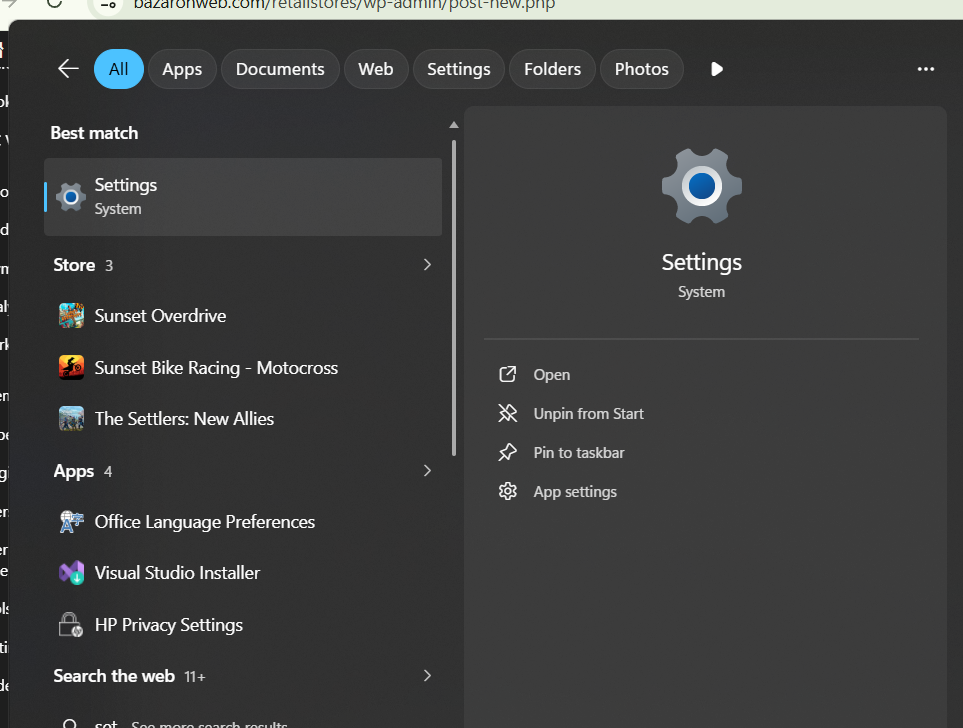
Open Settings (Windows Key + I). Navigate to Network & Internet > WiFi > Manage known networks.
You’ll see a list of all WiFi networks your computer has connected to. This includes networks you’re currently connected to and networks you connected to in the past.
Find the network you want to forget. Click it.
Click “Forget” button.
The network is immediately removed from your remembered networks list. Your computer will no longer auto-connect to it.
This is the most straightforward method and works for most situations.
Method 2: WiFi Quick Settings (Fastest)
For networks you’re currently connected to, you can forget directly from WiFi settings.
Click the network icon in your system tray (bottom-right corner, looks like WiFi bars).
You’ll see a list of available networks and your currently connected network (marked as “Connected”).
Click the network you’re connected to. A menu appears.
Click “Forget” button.
Your computer disconnects and forgets that network immediately.
This is faster than going through full Settings if you’re already near that network.
Method 3: Network Settings Advanced Options
For more detailed network management, advanced network settings provide additional options.
Settings > Network & Internet > Advanced network options > Manage known networks.
(Exact path varies by Windows 11 build, but look for “Manage known networks” or similar.)
This shows detailed information about each network including:
- Network name (SSID)
- When you last connected
- Security type
- Connection status
Right-click the network you want to forget. Select “Forget.”
This method provides the same result as Method 1 but shows more detailed information about each network.
Method 4: Command Prompt (For Technical Users)
If graphical methods don’t work or you prefer command line, PowerShell can forget networks.
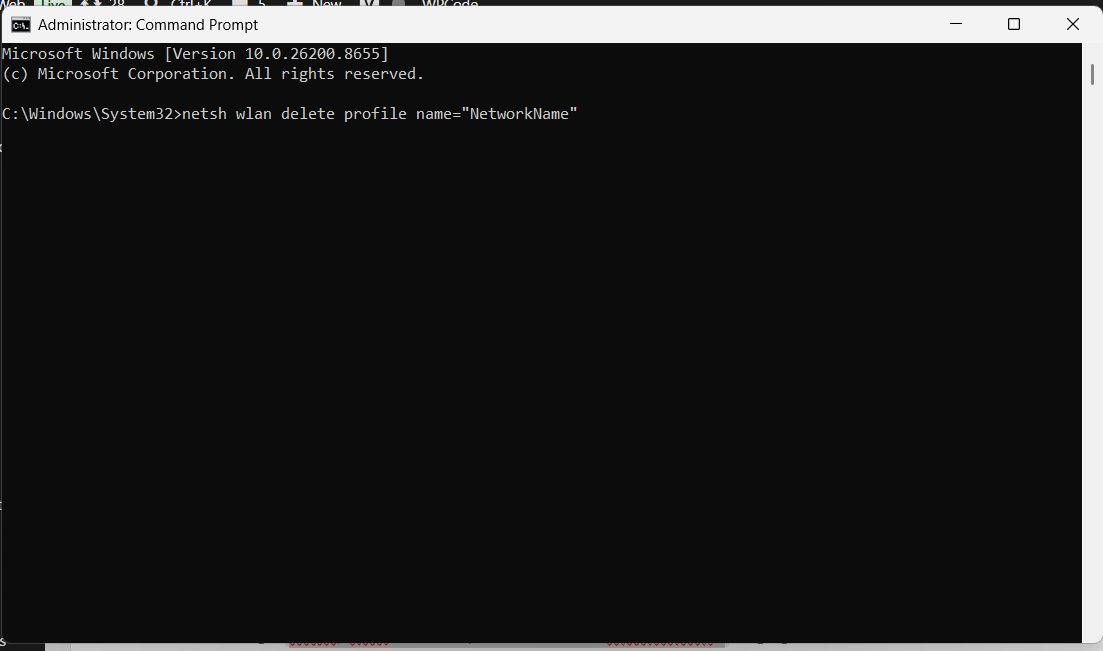
Right-click Start and select “Windows Terminal (Admin)” or “Command Prompt (Admin).”
Type: netsh wlan show profiles
This lists all saved WiFi profiles (networks your computer remembers).
To forget a specific network, type: netsh wlan delete profile name="NetworkName"
Replace “NetworkName” with the exact name of the network you want to forget.
For example: netsh wlan delete profile name="MyOldWiFi"
The network is immediately forgotten.
This method is powerful but requires you to know the exact network name and be comfortable with command line.
Method 5: Settings > Devices > Bluetooth & Devices (Alternative Path)
Depending on your Windows 11 build, networks might also be managed through a different settings location.
Settings > Devices > Bluetooth & devices > WiFi (or similar).
Look for WiFi network management options. Some builds place it here instead of Network & Internet.
Find your saved networks. Right-click the network you want to forget. Select “Forget” or “Delete.”
The network is removed from your saved networks.
This path varies by Windows build, so if previous methods don’t show options, try this alternative location.
Troubleshooting: Can’t Find the Forget Option
Sometimes the Forget option doesn’t appear or isn’t working.
Problem 1: Network Isn’t Listed
You can’t find the network in the Manage known networks list.
The network might have been already forgotten, or it might be listed under a different name (WiFi SSIDs are case-sensitive and special characters matter).
Search for the network name carefully. Try different variations of the name.
Problem 2: Forget Button Is Grayed Out
The Forget button appears but is disabled (grayed out).
This might happen if Windows is preventing you from forgetting certain networks.
Try using Command Prompt method instead (Method 4).
Or, try disconnecting from the network first, then attempting to forget it.
Problem 3: Network Reappears After Forgetting
You forget a network, but it reappears in your list moments later.
This happens when your computer is still in range of the network’s broadcast. It rediscovers the network.
Move to a different location away from the network before forgetting it.
Or, use Command Prompt method which has more aggressive removal.
Problem 4: Can’t Forget on Some Windows Builds
Some earlier Windows 11 builds had bugs with the forget functionality.
Update to the latest Windows 11 version. Settings > System > Windows Update > Check for updates.
Install any available updates and restart.
The forget functionality might work after updating.
When You Accidentally Forget a Network You Need
If you accidentally forgot a network you actually wanted to keep, the fix is simple.
Open WiFi settings and look for the network in the available networks list.
Click it and enter the password.
Your computer reconnects and re-saves the network.
The network is back in your remembered list.
No permanent damage is done—you can always reconnect and re-save networks.
Best Practices for Managing Saved Networks
After forgetting unwanted networks:
Periodically Review Saved Networks:
Every few months, check your saved networks list. Remove networks you no longer use.
This keeps your list clean and prevents auto-connecting to unwanted networks.
Be Selective About Auto-Connect:
Don’t connect to every network you encounter. Only connect to networks you trust and use regularly.
This prevents accumulating a huge list of remembered networks.
Forget Networks Before Giving Away Your Computer:
If you’re selling or giving your computer to someone else, forget all your personal networks first.
This removes stored passwords and prevents the new owner from accessing your networks.
Label Confusing Network Names:
If you have multiple networks with similar names, use descriptive names you’ll recognize later.
This prevents accidentally connecting to the wrong network.
Check Auto-Connect Status:
Some networks might have auto-connect disabled. To check and change this:
Settings > Network & Internet > WiFi > Manage known networks > select network > connection settings > toggle “Connect automatically when in range.”
You can disable auto-connect for specific networks instead of forgetting them entirely.
When You Have Too Many Saved Networks
If your computer has hundreds of saved networks (common for people who travel constantly), managing them becomes tedious.
Bulk Removal Using Command Prompt:
Unfortunately, Windows doesn’t have a “forget all” button. You need to either:
- Forget networks one-by-one through Settings
- Use Command Prompt to delete individual profiles
- Factory reset Windows (extreme measure, loses everything)
For most people, using Method 1 (Settings) and spending 15 minutes systematically removing networks you don’t need is the practical approach.
Understanding Network Profiles vs Network Names
Important distinction: Network profiles (saved connection settings) are different from network names (SSIDs).
Your computer stores profiles for networks you’ve connected to. These profiles include password and connection settings.
A network name is just what the network is called.
When you forget a network, you’re deleting the profile. If the network broadcasts again, your computer can still see it—it just won’t automatically connect.
When Networks Won’t Connect After Forgetting and Reconnecting
If you forget a network and can’t reconnect afterward:
Problem 1: Wrong Password
The password might have changed since you last connected. Enter the current password.
Problem 2: Network Not Broadcasting
The network might not be in range or the router might be off. Move closer or check if the network is actually available.
Problem 3: Corrupted Network Profile
The network profile might be corrupted. Instead of forgetting and reconnecting, try:
Reset network settings entirely (Settings > System > Recovery > Reset this PC > Reset network settings).
This removes all saved networks and resets network configuration to defaults.
Problem 4: Windows Firewall Blocking Connection
Firewall might be blocking the network. Check Windows Firewall settings to ensure the network connection type is allowed.
The Reality
Forgetting WiFi networks is simple once you know how. Most people use Settings method (Method 1) because it’s most straightforward.
Command line method works when graphical methods fail or for bulk operations.
Managing your saved networks prevents auto-connecting to unwanted networks and keeps your connection list organized.
Windows makes it easy to forget networks, but doesn’t prompt you to clean up regularly. Periodically reviewing and removing old networks is good practice.
Your saved networks are just connection information. Forgetting them is reversible—you can always reconnect and re-save if needed.
Quick Priority List: Forgetting WiFi Networks
Need to forget a WiFi network?
- Settings > Network & Internet > WiFi > Manage known networks (easiest)
- Click network icon > click connected network > Forget (fastest if currently connected)
- Settings > Network & Internet > Advanced network options > Manage known networks (alternative)
- Command Prompt:
netsh wlan delete profile name="NetworkName"(if graphical methods fail) - Settings > Devices > Bluetooth & devices > WiFi (if network appears here in your build)
One of these will work.
Disclaimer: This article provides guidance on forgetting WiFi networks in Windows 11. Results vary by Windows build and version. Some network management options may appear in different locations depending on your specific Windows 11 build. Forgetting a network removes stored connection information but doesn’t affect the network itself or other computers. Accidentally forgotten networks can be reconnected and re-saved by entering the password again. Command line methods require administrator privileges. Network removal is permanent until you reconnect and re-save. Users assume responsibility for understanding which networks to forget.

- Killer Network Service: Is It a Virus or Safe to Disable?

- How to Set Up Parental Controls on Windows 11: A Step-by-Step Guide

- How to Extract Audio From a Video: Easy Ways to Save Audio

- How to Set a Photo Album as Your Wallpaper on iPhone: Step-by-Step Guide

- How to Convert a Bootable USB Drive to an ISO File in Windows

Products
-
![Apple Watch Ultra 3 [GPS + Cellular 49mm] Running & Multisport Smartwatch w/Rugged Titanium Case w/Black Titanium Milanese Loop - M. Satellite Communications, Advanced Health & Fitness Tracking](https://bazaronweb.com/retailstores/wp-content/uploads/2025/09/apple-watch-320x320.jpg) Apple Watch Ultra 3 [GPS + Cellular 49mm] Running & Multisport Smartwatch w/Rugged Titanium Case w/Black Titanium Milanese Loop - M. Satellite Communications, Advanced Health & Fitness Tracking
Apple Watch Ultra 3 [GPS + Cellular 49mm] Running & Multisport Smartwatch w/Rugged Titanium Case w/Black Titanium Milanese Loop - M. Satellite Communications, Advanced Health & Fitness Tracking
-
 Apple iPad mini (A17 Pro): Apple Intelligence, 8.3-inch Liquid Retina Display, 256GB, Wi-Fi 6E, 12MP Front/12MP Back Camera, Touch ID, All-Day Battery Life — Purple
-
 Apple AirPods Max Wireless Over-Ear Headphones, Active Noise Cancelling, Transparency Mode, Personalized Spatial Audio, Dolby Atmos, Bluetooth Headphones for iPhone – Space Gray
-
 Apple AirPods Pro 2 Wireless Earbuds, Active Noise Cancellation, Hearing Aid Feature, Bluetooth Headphones, Transparency, Personalized Spatial Audio, High-Fidelity Sound, H2 Chip, USB-C Charging
-
Home Garage 210 TC Cotton King Floral Fitted (Elastic) Bedsheet(Pack of 1, Grey)
Original price was: ₹999.00.₹299.00Current price is: ₹299.00.
Leave a Reply