Discounted Products
-
 Home Garage 210 TC Cotton King Floral Fitted (Elastic) Bedsheet(Pack of 1, Grey)
Original price was: ₹999.00.₹299.00Current price is: ₹299.00.
Home Garage 210 TC Cotton King Floral Fitted (Elastic) Bedsheet(Pack of 1, Grey)
Original price was: ₹999.00.₹299.00Current price is: ₹299.00.
-
 Goodrik 140 TC Cotton Double 3D Printed Flat Bedsheet(Pack of 1, Brown)
Original price was: ₹499.00.₹229.00Current price is: ₹229.00.
Goodrik 140 TC Cotton Double 3D Printed Flat Bedsheet(Pack of 1, Brown)
Original price was: ₹499.00.₹229.00Current price is: ₹229.00.
-
 GLOBALSHOP 350 TC Microfiber Double Floral Flat Bedsheet(Pack of 1, Multicolor)
Original price was: ₹1,250.00.₹263.00Current price is: ₹263.00.
GLOBALSHOP 350 TC Microfiber Double Floral Flat Bedsheet(Pack of 1, Multicolor)
Original price was: ₹1,250.00.₹263.00Current price is: ₹263.00.
-
 RisingStar 250 TC Microfiber King Printed Fitted (Elastic) Bedsheet(Pack of 1, FITTED-ROUND-CIRCLES-PREMIUM)
Original price was: ₹2,299.00.₹299.00Current price is: ₹299.00.
RisingStar 250 TC Microfiber King Printed Fitted (Elastic) Bedsheet(Pack of 1, FITTED-ROUND-CIRCLES-PREMIUM)
Original price was: ₹2,299.00.₹299.00Current price is: ₹299.00.
-
 Home Garage 210 TC Cotton King Floral Fitted (Elastic) Bedsheet(Pack of 1, Fitted Black Green)
Original price was: ₹1,299.00.₹299.00Current price is: ₹299.00.
Home Garage 210 TC Cotton King Floral Fitted (Elastic) Bedsheet(Pack of 1, Fitted Black Green)
Original price was: ₹1,299.00.₹299.00Current price is: ₹299.00.
-
 Home Garage 180 TC Cotton King 3D Printed Flat Bedsheet(Pack of 1, White)
Original price was: ₹999.00.₹229.00Current price is: ₹229.00.
Home Garage 180 TC Cotton King 3D Printed Flat Bedsheet(Pack of 1, White)
Original price was: ₹999.00.₹229.00Current price is: ₹229.00.
-
 Panipat Textile Hub 152.4 cm (5 ft) Polyester Window Curtain (Pack Of 2)(Solid, Aqua)
Original price was: ₹1,899.00.₹299.00Current price is: ₹299.00.
Panipat Textile Hub 152.4 cm (5 ft) Polyester Window Curtain (Pack Of 2)(Solid, Aqua)
Original price was: ₹1,899.00.₹299.00Current price is: ₹299.00.
-
 Home Sizzler 214 cm (7 ft) Polyester Semi Transparent Door Curtain (Pack Of 2)(Floral, Maroon)
Original price was: ₹1,199.00.₹399.00Current price is: ₹399.00.
Home Sizzler 214 cm (7 ft) Polyester Semi Transparent Door Curtain (Pack Of 2)(Floral, Maroon)
Original price was: ₹1,199.00.₹399.00Current price is: ₹399.00.
-
 Home Sizzler 153 cm (5 ft) Polyester Room Darkening Window Curtain (Pack Of 2)(Floral, Brown)
Original price was: ₹799.00.₹299.00Current price is: ₹299.00.
Home Sizzler 153 cm (5 ft) Polyester Room Darkening Window Curtain (Pack Of 2)(Floral, Brown)
Original price was: ₹799.00.₹299.00Current price is: ₹299.00.
-
 Stella Creations 214 cm (7 ft) Polyester Room Darkening Door Curtain (Pack Of 2)(Abstract, Brown)
Original price was: ₹1,299.00.₹449.00Current price is: ₹449.00.
Stella Creations 214 cm (7 ft) Polyester Room Darkening Door Curtain (Pack Of 2)(Abstract, Brown)
Original price was: ₹1,299.00.₹449.00Current price is: ₹449.00.
-
 Homefab India 152.5 cm (5 ft) Polyester Room Darkening Window Curtain (Pack Of 2)(Floral, Light Blue)
Original price was: ₹1,199.00.₹319.00Current price is: ₹319.00.
Homefab India 152.5 cm (5 ft) Polyester Room Darkening Window Curtain (Pack Of 2)(Floral, Light Blue)
Original price was: ₹1,199.00.₹319.00Current price is: ₹319.00.
-
 Urban Home 214 cm (7 ft) PVC Transparent Door Curtain Single Curtain(Solid, Off White)
Original price was: ₹699.00.₹203.00Current price is: ₹203.00.
Urban Home 214 cm (7 ft) PVC Transparent Door Curtain Single Curtain(Solid, Off White)
Original price was: ₹699.00.₹203.00Current price is: ₹203.00.
-
 Panipat Textile Hub 213 cm (7 ft) Polyester Door Curtain (Pack Of 2)(Solid, Brown)
Original price was: ₹1,199.00.₹349.00Current price is: ₹349.00.
Panipat Textile Hub 213 cm (7 ft) Polyester Door Curtain (Pack Of 2)(Solid, Brown)
Original price was: ₹1,199.00.₹349.00Current price is: ₹349.00.
-
 Home Sizzler 214 cm (7 ft) Polyester Semi Transparent Door Curtain (Pack Of 2)(Floral, Brown)
Original price was: ₹999.00.₹349.00Current price is: ₹349.00.
Home Sizzler 214 cm (7 ft) Polyester Semi Transparent Door Curtain (Pack Of 2)(Floral, Brown)
Original price was: ₹999.00.₹349.00Current price is: ₹349.00.
-
 Panipat Textile Hub 213 cm (7 ft) Polyester Semi Transparent Door Curtain (Pack Of 2)(Floral, Brown)
Original price was: ₹899.00.₹299.00Current price is: ₹299.00.
Panipat Textile Hub 213 cm (7 ft) Polyester Semi Transparent Door Curtain (Pack Of 2)(Floral, Brown)
Original price was: ₹899.00.₹299.00Current price is: ₹299.00.
My laptop was running incredibly slowly. Everything felt sluggish. Applications took forever to open. Even scrolling through websites was choppy. I opened Task Manager to see what was consuming all my resources.
There it was: “Desktop Window Manager” using 25-30% CPU constantly. A process I’d never heard of consuming nearly a third of my processor power. That’s why everything felt slow.
I immediately thought it was malware. Some virus or trojan pretending to be a Windows process. I ran malware scans. Nothing. Checked my antivirus. Clean. Looked up the process. Turns out Desktop Window Manager (DWM) is completely legitimate. It’s a core Windows process responsible for creating the visual interface.
But legitimate or not, it was consuming way too much of my CPU. My laptop was running hot. The fan was constantly loud. My battery was draining rapidly. Something was wrong with DWM.
I spent hours researching what causes DWM to spike. The answers were scattered across different forums and support pages. Some said incompatible drivers. Others said too many visual effects. Some suggested disabling transparency. Others recommended restarting the DWM process.
After trying various fixes, I eventually identified the culprit: an incompatible graphics driver update. After rolling back to the previous driver version, DWM CPU usage dropped to 2-3% where it should be. My laptop ran smoothly again.
A frustrated reader emailed: “My computer is running incredibly slowly. Task Manager shows ‘Desktop Window Manager’ using 50% CPU constantly. Is this malware? How do I fix it?”
I walked them through diagnosis and troubleshooting. Their reply: “I updated my graphics driver last week. Rolling back fixed everything. I can’t believe that was the problem.”
Most Windows users don’t know what DWM is. When they see it consuming resources in Task Manager, they panic thinking their computer is infected. But understanding what DWM does and what causes high CPU usage helps you identify and fix the actual problem.
Understanding Desktop Window Manager: What It Actually Is
Before troubleshooting, understanding what DWM does helps explain why it’s important and when high usage is actually a problem.
Desktop Window Manager (DWM) is a legitimate core Windows process created by Microsoft. It’s responsible for creating the visual interface you see on your screen.
Specifically, DWM handles:
Visual rendering: Drawing all the windows, buttons, text, images, and graphical elements you see. Every pixel on your screen goes through DWM.
Visual effects: Transparency effects (like when you hover over taskbar buttons), window shadows, smooth animations, visual transitions, fade effects.
3D animations: Window minimize/maximize animations, Aero effects, desktop switching animations.
Taskbar thumbnails: Those preview images that appear when you hover over taskbar buttons. DWM generates and manages these.
Desktop themes: Your wallpaper, window colors, visual styles. DWM applies these.
Display composition: Combining multiple windows and elements into a single coherent display. This is computationally intensive work.
Without DWM, you’d see a basic text-only interface like old DOS systems. No visual effects. No transparency. No animations. Just raw text and geometric shapes.
DWM normally uses minimal resources because modern graphics cards handle most of the heavy lifting. Your GPU (graphics card) does the actual rendering work. DWM just coordinates it.
But when something goes wrong, DWM can consume excessive CPU resources, making your entire system slow.
Cause 1: Incompatible or Outdated Graphics Drivers
The most common cause of high DWM CPU usage is graphics driver problems.
Graphics drivers are software that tells Windows how to use your graphics card. If drivers are outdated, corrupted, or incompatible with Windows 11, DWM can’t properly offload rendering work to your GPU. Instead, the CPU has to do all the rendering work, causing massive CPU usage.
Check your graphics driver version:
Right-click desktop > Graphics Settings (or Device Manager).
Device Manager approach: Right-click Start > Device Manager > expand “Display adapters” > right-click your graphics card > Properties > Driver tab.
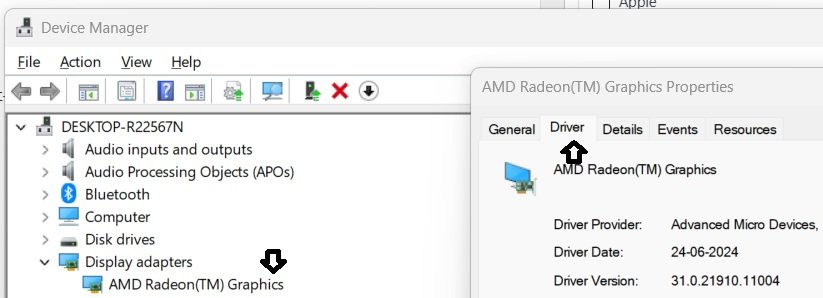
Note your driver version and date.
Update graphics drivers:
Visit your graphics card manufacturer’s website (NVIDIA, AMD, Intel).
Search for your specific graphics card model and download the latest driver.
Install the driver. Usually requires restart.
After restart, check if DWM CPU usage decreased. Most of the time, updating the driver solves the problem immediately.
Rollback if new driver causes problems:
Sometimes the latest driver has bugs. If DWM usage increased after updating, roll back to the previous version.
Device Manager > right-click graphics card > Properties > Driver tab > “Roll back driver” button.
Windows restores the previous driver version.
Cause 2: Too Many Visual Effects and Transparency
If your graphics driver is current, excessive visual effects might be the culprit.
Windows 11 has numerous visual effects enabled by default: window animations, fade effects, transparency, shadows, blur effects, color transitions.
These effects look nice but consume GPU resources. On older computers or with older graphics cards, these effects can overwhelm the GPU, causing DWM to struggle.
Disable unnecessary visual effects:
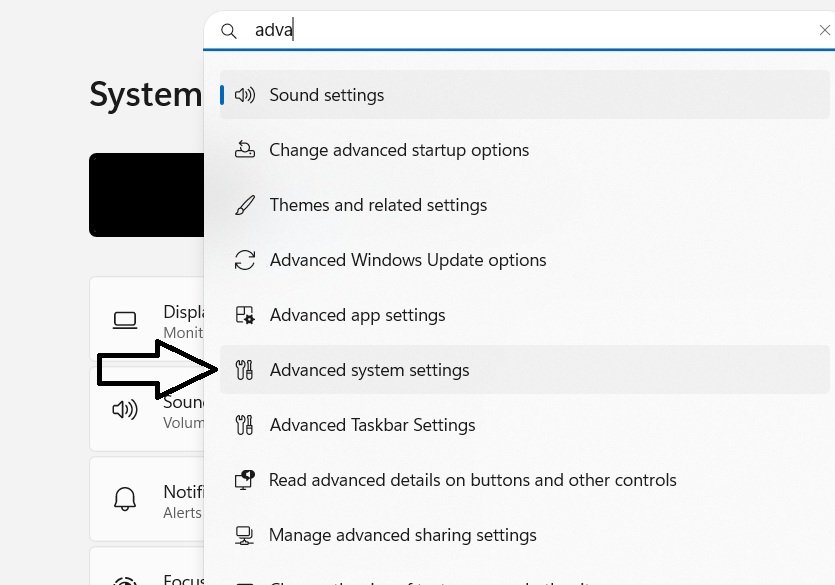
Right-click “This PC” or “My Computer” > Properties > Advanced system settings > Performance section > Settings button.
The Visual Effects window appears showing various effects you can enable/disable:
- Animate windows when minimizing and maximizing
- Fade or slide menus into view
- Fade or slide tooltips into view
- Smooth-scroll list boxes
- Use drop shadows for icon labels on desktop
- Show shadows under mouse pointer
- Show window contents while dragging
- Smooth edges of screen fonts
- Transparent selection rectangle
- And more
You can toggle each effect individually. For minimal CPU usage, disable most effects and keep only what you value most.
Click “Apply” after making changes.
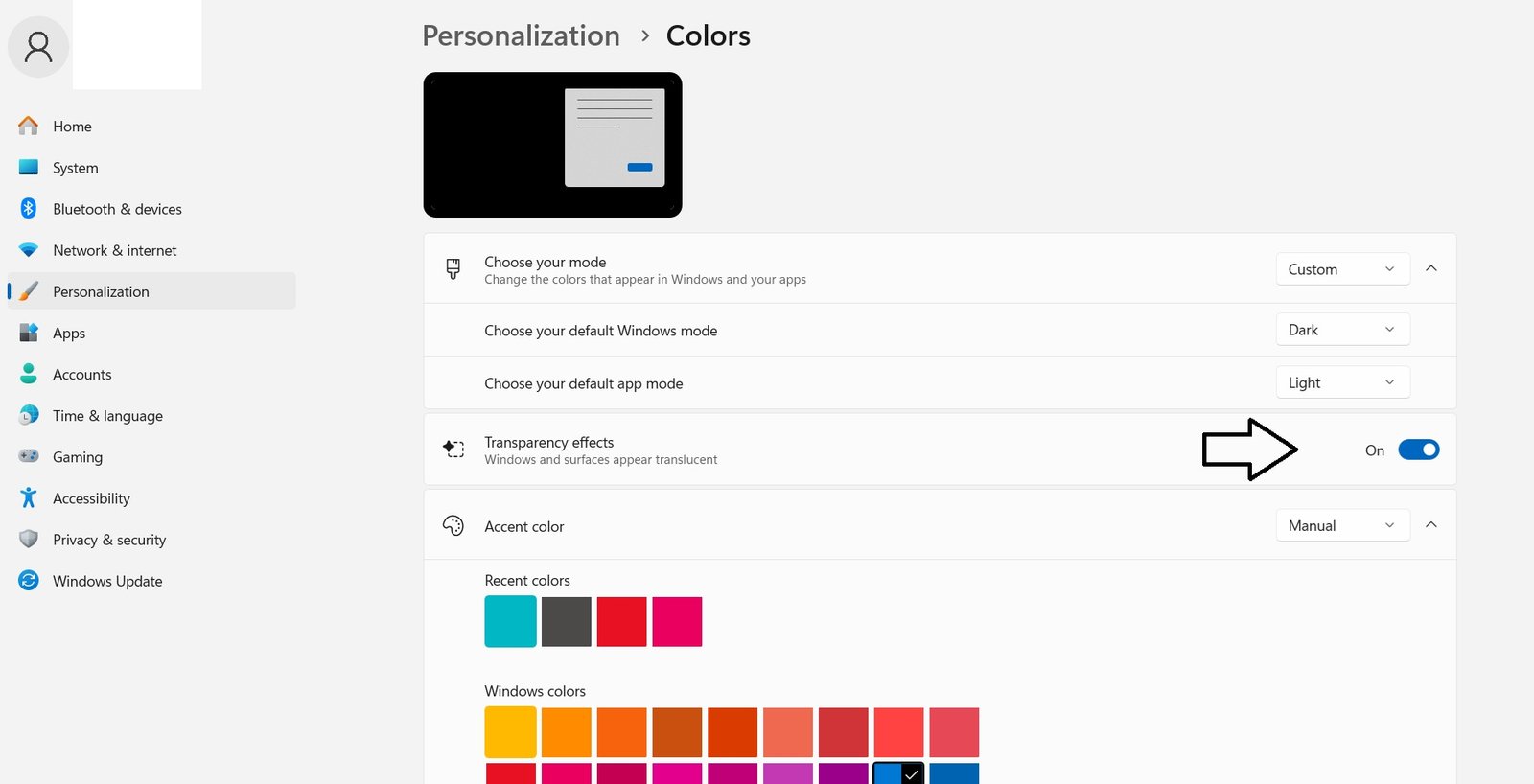
Disable transparency effects specifically:
Settings > Personalization > Colors > toggle “Transparency effects” OFF.
Disabling transparency often significantly reduces DWM CPU usage.
Cause 3: Malware or Unwanted Software
Occasionally, malware disguises itself as DWM or injects code into the DWM process.
Real DWM is always located in: C:\Windows\System32\dwm.exe
Verify DWM location:
Task Manager > Processes tab > right-click Desktop Window Manager > Open file location.
This should open C:\Windows\System32\ folder showing dwm.exe.
If it opens a different location or file doesn’t exist, something is wrong.
Scan for malware:
Run Windows Defender full scan: Windows Security > Virus & threat protection > Scan options > Full scan.
Or use Malwarebytes (free version) for additional malware detection.
If malware is detected, remove it and DWM CPU usage should normalize.
Cause 4: Corrupted DWM Process
Sometimes the DWM process itself becomes corrupted or stuck in a bad state.
Restart DWM process:
Right-click Start > Windows Terminal (Admin).
Type: Get-Process dwm | Stop-Process -Force
This forcefully stops the DWM process.
Windows immediately restarts DWM automatically.
Check if CPU usage decreased.
Sometimes restarting DWM clears whatever corruption or bad state caused high usage.
Cause 5: Multiple Displays or High Resolution Issues
Running multiple monitors, ultra-wide displays, or very high resolution (4K) increases DWM workload significantly.
DWM has to render for each display. The higher the resolution, the more pixels to render.
Solutions:
- Disable one monitor if you don’t need both connected
- Lower resolution temporarily to see if it helps (Settings > Display > Display resolution)
- Update graphics driver specifically for multi-display support
- Disable visual effects on secondary monitors
If high DWM usage only occurs when multiple displays are connected, this is likely the cause.
Cause 6: Background Applications Causing Visual Updates
Applications constantly updating their windows, icons, or visual elements force DWM to re-render constantly.
Examples: Real-time stock tickers, chat applications with notifications, applications with animated icons, constantly refreshing dashboards.
Identify problematic applications:
Disable visual effects for specific applications instead of globally.
Right-click application > Properties > Compatibility > Change high DPI settings > Disable fullscreen optimizations.
Or close resource-heavy background applications temporarily to see if DWM usage decreases.
If closing a specific application decreases DWM usage, that application is causing the problem.
Method 1: Restart Your Computer (Simplest)
Sometimes DWM just gets stuck in a bad state from extended uptime.
Restart your computer. This restarts DWM cleanly.
Often this alone reduces DWM CPU usage significantly.
Method 2: Update All Drivers
Beyond just graphics drivers, update other drivers that might affect DWM.
Windows Update: Settings > System > Windows Update > Check for updates.
This updates chipset drivers, system drivers, and other components that might affect graphics performance.
After updating, restart your computer and check DWM usage.
Method 3: Disable Hardware Acceleration (Last Resort)
Hardware acceleration allows applications to use your graphics card for processing. If your graphics card is problematic, disabling this might help.
Settings > System > Display > Related settings > Graphics settings > Change default graphics settings > toggle “Hardware-accelerated GPU scheduling” OFF.
This forces applications to use CPU instead of GPU. It might reduce DWM issues if your GPU drivers are broken, but it usually makes overall performance worse.
Only try this if other methods fail.
Method 4: Safe Mode Testing
Safe Mode loads Windows with minimal drivers and services. If DWM usage is normal in Safe Mode, the problem is third-party software.
Restart computer, press F8 repeatedly during startup > select “Safe Mode with Networking.”
Open Task Manager, check DWM CPU usage.
If usage is low in Safe Mode but high in normal Windows, something you installed is causing the problem.
Uninstall recently installed applications and drivers to identify the culprit.
Real User Scenario: The Complete Solution
A reader named Jennifer emailed: “My gaming laptop is running incredibly slow. Task Manager shows DWM at 40% CPU. I updated my graphics driver yesterday. My computer has been unusable since.”
Diagnosis: New driver update is incompatible.
Solution:
- Device Manager > Display adapters > right-click graphics card > Properties
- Driver tab > “Roll back driver”
- Confirm rollback
- Restart computer
- DWM CPU usage dropped to 3%
- Laptop runs smoothly again
Jennifer replied: “The new driver was definitely the problem. Rolling back fixed everything. I’ll wait a few weeks before trying that driver again.”
When High DWM Usage Is Normal
Sometimes high DWM usage isn’t a problem. Understanding when it’s expected helps avoid unnecessary troubleshooting.
During visual changes: When switching wallpapers, themes, or visual settings, DWM temporarily uses more CPU. This is normal and temporary.
With many windows open: The more windows you have open, the more DWM has to render. If you have 20 windows open, DWM usage naturally increases.
During animations: When windows are animating (minimizing, maximizing, transitioning), DWM usage increases. This is expected.
During games: Gaming applications sometimes push DWM to render game visuals. Some CPU usage during gaming is normal.
Temporary spikes: Brief spikes to 10-20% are normal. Sustained high usage (consistently above 30%) suggests a problem.
Prevention: Keeping DWM Healthy
After fixing high DWM usage:
Keep graphics drivers updated: Monthly, check for graphics driver updates from your GPU manufacturer.
Avoid beta drivers: Stick with stable, released drivers. Avoid beta or preview versions unless specifically needed.
Monitor Task Manager regularly: Periodically check DWM CPU usage. Catching problems early prevents them from getting worse.
Disable visual effects you don’t use: Just because effects are available doesn’t mean you need them all enabled.
Keep Windows updated: Windows Update often includes fixes for DWM and graphics-related issues.
Maintain your computer: Keep your computer clean (dust from fans can cause overheating and performance issues), check for malware regularly, don’t install unnecessary software.
The Reality
Desktop Window Manager is completely legitimate and necessary for Windows to function visually. High CPU usage from DWM is almost always caused by driver problems, visual effect overload, or malware—not by DWM itself being broken.
Most DWM problems solve through updating or rolling back graphics drivers. That’s usually the first and only thing you need to try.
If basic troubleshooting doesn’t help, the problem is usually something else (malware, failing hardware, corrupted system files) requiring more advanced diagnosis.
Your computer should feel responsive. If DWM is consuming excessive CPU, something is wrong and worth investigating. Most of the time, it’s a simple fix.
Quick Priority List: High DWM CPU Usage
DWM using too much CPU?
- Restart your computer (fixes many transient issues)
- Update graphics driver (fixes most problems)
- Check driver installation location in Task Manager (verify it’s real DWM, not malware)
- Disable visual effects (Settings > Performance > Visual Effects)
- Disable transparency effects (Settings > Personalization > Colors > Transparency effects OFF)
- Roll back graphics driver if it was recently updated
- Run malware scan (Windows Defender full scan)
- Restart DWM process (Task Manager or PowerShell command)
- Test in Safe Mode to identify third-party software causing issue
- Update all Windows and chipset drivers
One of these will almost certainly fix it.
Disclaimer: This article provides guidance on troubleshooting high Desktop Window Manager CPU usage. DWM is a legitimate core Windows process essential for visual interface rendering. High CPU usage can have multiple causes varying by system configuration, hardware, and installed software. Graphics driver updates can improve or worsen DWM performance depending on compatibility. Rolling back drivers may prevent security updates or bug fixes. Disabling visual effects affects Windows appearance but not functionality. Malware mimicking DWM is rare but possible—verify process location before assuming legitimacy. Some applications intentionally stress DWM rendering as part of their function. Users assume responsibility for troubleshooting steps. Hardware failures (failing graphics card, overheating) can cause high DWM usage and require professional service. Seek technical support if high DWM usage persists despite troubleshooting.






Products
-
![Apple Watch Ultra 3 [GPS + Cellular 49mm] Running & Multisport Smartwatch w/Rugged Titanium Case w/Black Titanium Milanese Loop - M. Satellite Communications, Advanced Health & Fitness Tracking](https://bazaronweb.com/retailstores/wp-content/uploads/2025/09/apple-watch-320x320.jpg) Apple Watch Ultra 3 [GPS + Cellular 49mm] Running & Multisport Smartwatch w/Rugged Titanium Case w/Black Titanium Milanese Loop - M. Satellite Communications, Advanced Health & Fitness Tracking
Apple Watch Ultra 3 [GPS + Cellular 49mm] Running & Multisport Smartwatch w/Rugged Titanium Case w/Black Titanium Milanese Loop - M. Satellite Communications, Advanced Health & Fitness Tracking
-
 Apple iPad mini (A17 Pro): Apple Intelligence, 8.3-inch Liquid Retina Display, 256GB, Wi-Fi 6E, 12MP Front/12MP Back Camera, Touch ID, All-Day Battery Life — Purple
-
 Apple AirPods Max Wireless Over-Ear Headphones, Active Noise Cancelling, Transparency Mode, Personalized Spatial Audio, Dolby Atmos, Bluetooth Headphones for iPhone – Space Gray
-
 Apple AirPods Pro 2 Wireless Earbuds, Active Noise Cancellation, Hearing Aid Feature, Bluetooth Headphones, Transparency, Personalized Spatial Audio, High-Fidelity Sound, H2 Chip, USB-C Charging
-
Home Garage 210 TC Cotton King Floral Fitted (Elastic) Bedsheet(Pack of 1, Grey)
Original price was: ₹999.00.₹299.00Current price is: ₹299.00.
Leave a Reply