WiFi Connected But No Internet: Why Your Windows 11 Says “Connected, Secure” Yet Nothing Works

WiFi Connected But No Internet Why Your Windows 11 Says Connected, Secure Yet Nothing Works

I was working from home when my WiFi disconnected. Standard internet hiccup. I expected it to reconnect automatically. It did reconnect—my WiFi network showed as “Connected, Secure” in the system tray.

But then I tried opening a website. Nothing loaded. I waited 10 seconds. Still nothing. I clicked refresh. The page stayed blank.

I checked my WiFi status. It clearly showed “Connected, Secure.” The WiFi symbol in the taskbar showed full signal strength. Everything indicated perfect connection. Yet the internet wasn’t working at all.

This is one of the most frustrating Windows problems. Your computer is telling you everything is fine. The connection looks perfect. But no websites load. No applications can access the internet. You have connectivity without connection.

I spent 30 minutes troubleshooting. Restarted the router. Restarted my computer. Tried different websites. Checked WiFi password. Everything seemed correct, yet nothing worked.

Eventually, I discovered the problem: my Windows IP configuration had gotten corrupted. My computer was connected to the WiFi network but wasn’t properly configured to communicate through it. The “Connected, Secure” status was technically accurate—the WiFi connection existed. But it wasn’t functional because Windows’s network settings were broken.

After resetting my network configuration, the internet worked immediately.

A frustrated reader emailed: “My WiFi says ‘Connected, Secure’ with full signal bars but literally nothing on the internet works. Websites won’t load. Apps can’t connect. My phone works fine on the same WiFi. How is this even possible?”

I walked them through systematic troubleshooting. Their reply: “Flushing DNS cache fixed it! I can’t believe that was all it needed. Thank you.”

Most Windows users don’t realize that “connected” and “working” are two different things. Your computer can be connected to WiFi without having actual internet access. Understanding the difference and how to fix it is crucial for solving this maddening problem.

Understanding This Problem: Connected ≠ Working

Before troubleshooting, understanding what “Connected, Secure” actually means helps explain why your internet doesn’t work.

When Windows shows “Connected, Secure,” it means:

Your computer detected the WiFi network
Your computer authenticated with the network (entered correct password)
Your computer received an IP address from the router
The WiFi connection itself is established

But “connected” doesn’t mean “internet access.” Your computer can be perfectly connected to the WiFi network while having no ability to actually access the internet.

Think of it like being connected to a phone call, the connection exists, the line is open, but you’re not able to hear the other person because something in between is broken.

Multiple things can be broken while maintaining the “Connected, Secure” status:

IP configuration issues: Your computer’s network settings are corrupted or misconfigured. It’s connected to WiFi but using incorrect network settings.

DNS problems: Your computer can’t translate website names (google.com) into IP addresses (142.250.185.46). Websites use names you remember; the internet uses numbers. If DNS doesn’t work, the translation fails.

Gateway issues: Your computer doesn’t know how to reach the internet. The gateway (router) should tell your computer “send internet traffic through me.” If this configuration is missing, traffic has nowhere to go.

Router problems: The router itself is having issues and isn’t forwarding internet traffic properly.

ISP problems: Your internet service provider has issues on their end.

Windows firewall: Firewall is blocking internet traffic.

Each of these shows the same symptom: WiFi connected but no internet. Each requires different solutions.

Network name: “Home WiFi” or similar
Status: “Connected, Secure”
Signal strength: Full bars (4-5 bars)

This is what confuses most users. Your WiFi connection looks perfect. Full signal strength. Clearly connected. Yet the internet doesn’t work.

The “Connected, Secure” status only means the WiFi connection itself is established. It says nothing about whether you have internet access.

To verify the internet actually isn’t working:

Try opening a website in your browser (like google.com)
Try using an application that requires internet (like Slack or Discord)
Ping your router (details below)

If these fail, your internet isn’t working despite the “Connected, Secure” status.

This is where you check if your network configuration is correct.

Click on your connected WiFi network name > “Properties” (or “IP settings” depending on your build).

You’ll see:

IP address (should be something like 192.168.1.x)
Subnet mask (usually 255.255.255.0)
Gateway (usually 192.168.1.1 or similar—this is your router)
DNS servers (the addresses that translate website names to IP addresses)

If IP address shows “169.254.x.x” (starts with 169), your computer failed to get a proper IP from the router. This is a common cause.

If gateway is missing or shows 0.0.0.0, your computer doesn’t know how to reach the internet.

If DNS shows unusual addresses or is blank, DNS might be broken.

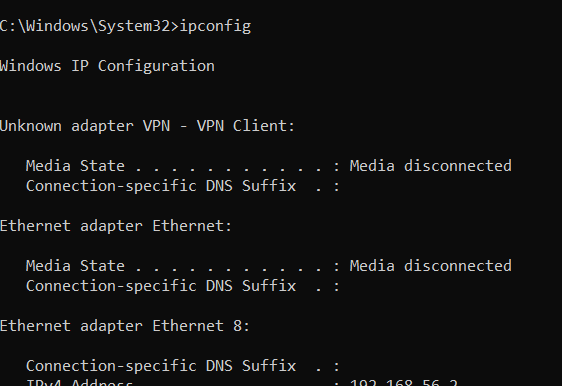
  • “ipconfig” command results showing IP configuration
  • “ipconfig /all” showing detailed network information
  • “ping 8.8.8.8” showing connection to Google’s DNS (showing replies or timeouts)
  • “ping google.com showing DNS resolution working or failing

This is where technical troubleshooting happens. These commands tell you exactly what’s broken.

Open Command Prompt (right-click Start > Windows Terminal or Command Prompt).

Type: ipconfig

This shows your IP configuration. Look for your WiFi network adapter. You should see an IP address like 192.168.1.x (not 169.254.x.x).

Type: ping 8.8.8.8

This tries to reach Google’s public DNS. If you get replies, your internet connection works (at least partially).

If you get “Request timed out,” your internet isn’t working.

Type: ping google.com

This tests DNS resolution. If it works, you get replies. If DNS is broken, you get “Unknown host” error.

These commands quickly identify whether the problem is IP configuration, gateway, DNS, or actual internet connectivity.

IP Config

“Troubleshoot network connection” window
A spinning progress indicator showing “Diagnosing problem…”
Or results showing what was found/fixed
Options like “Try these repairs” or “View detailed information”

This is Windows’s built-in tool for fixing network problems automatically.

Right-click the network icon in system tray > “Troubleshoot network problems” (or “Network troubleshooter”).

Windows runs diagnostics checking IP configuration, gateway connectivity, DNS resolution, and internet access.

Often it identifies and fixes problems automatically. It might:

  • Reset your IP address
  • Fix DNS settings
  • Reset network adapter
  • Fix gateway configuration

Let the troubleshooter complete. It often solves the problem entirely.

Method 1: Restart Your Router and Computer (Simplest)

Sometimes the WiFi connection gets into a weird state that restarting fixes.

Restart your router: Unplug power cable from router. Wait 30 seconds. Plug it back in. Wait for it to fully boot (2-3 minutes).

Restart your computer: Shut down completely (not sleep). Wait 10 seconds. Power back on.

After both restart, test if internet works.

This simple step fixes the problem about 2% of the time because it clears any corrupted state.

Method 2: Flush DNS Cache (Quick Fix)

DNS caching sometimes gets corrupted, preventing domain name resolution.

Right-click Start > Windows Terminal (Admin) or Command Prompt (Admin).

Type: ipconfig /flushdns

This clears your DNS cache. Windows fetches fresh DNS data on next web request.

Type: ipconfig /release then ipconfig /renew

This releases your IP address and requests a fresh one from the router.

Test if internet works. This fixes DNS-related connectivity issues.

Method 3: Reset Network Settings (More Aggressive)

If simple fixes don’t work, reset your entire network configuration.

Settings > System > Recovery > Reset this PC > Advanced options > Reset network settings.

Warning: This removes all saved WiFi networks and resets network configuration to defaults.

Click “Reset network settings.” Your computer restarts.

After restart, reconnect to your WiFi network (you’ll need to re-enter the password since all networks were removed).

This nuclear option often fixes stubborn connection issues because it clears any corrupted configuration.

Method 4: Renew DHCP Lease (Technical)

DHCP is the protocol your router uses to assign IP addresses to your computer.

Right-click Start > Windows Terminal (Admin).

Type: ipconfig /release

This releases your current IP address.

Type: ipconfig /renew

This requests a fresh IP from your router.

Sometimes your IP configuration gets corrupted. Renewing the lease gives you a fresh configuration.

Method 5: Change DNS Servers (Targeted Fix)

If DNS is the problem, using different DNS servers might fix it.

Settings > Network & internet > WiFi > Select your network > DNS server assignment > Edit > Manual.

Change DNS to:

Primary: 8.8.8.8 (Google DNS)
Secondary: 8.8.4.4 (Google DNS backup)

Or use:

Primary: 1.1.1.1 (Cloudflare DNS)
Secondary: 1.0.0.1 (Cloudflare DNS backup)

These are public DNS servers. If your router’s DNS is broken, using public DNS might restore internet access.

Test if websites load. Often this immediately fixes DNS-related issues.

Method 6: Update Network Drivers

Outdated or corrupted network drivers can cause connectivity issues.

Device Manager > Network adapters > right-click your WiFi adapter > Update driver > Search automatically for drivers.

Windows finds and installs the latest driver.

Restart your computer.

Test if internet works.

Sometimes driver updates fix previously broken connectivity.

Method 7: Disable and Re-enable WiFi Adapter

Sometimes the WiFi adapter gets stuck and needs resetting.

Device Manager > Network adapters > right-click WiFi adapter > Disable device.

Wait 10 seconds.

Right-click again > Enable device.

The WiFi adapter reinitializes. Sometimes this clears connectivity problems.

Method 8: Run Windows Network Troubleshooter

Windows has a built-in tool specifically for this problem.

Right-click network icon (system tray) > Troubleshoot network problems.

Or: Settings > System > Troubleshoot > Other troubleshooters > Network adapter > Run.

Windows runs automated diagnostics and attempts to fix issues.

Let it complete. It often identifies and fixes problems automatically.

Method 9: Check Router Settings

Sometimes the problem is your router, not your Windows configuration.

Open router admin panel: Open browser > type 192.168.1.1 (or 192.168.0.1 depending on router).

Log in with admin password (check router sticker if you don’t know it).

Check if:

Internet connection shows as connected on router
DHCP is enabled (router assigns IP addresses)
DNS settings are correct in router

If router shows no internet connection, the problem is upstream (ISP or router hardware). Your Windows configuration isn’t the issue.

If router settings look wrong, reset router: Hold reset button 10 seconds while powered on.

Method 10: Disable Windows Firewall Temporarily

Occasionally Windows Firewall blocks internet access incorrectly.

Settings > Privacy & Security > Windows Defender Firewall > Turn off Windows Defender Firewall (for testing only).

Warning: Only disable temporarily for testing. Re-enable immediately after.

Test if internet works with firewall disabled.

If internet works without firewall, something is wrong with your firewall rules. Add exceptions or reinstall firewall rather than permanently disabling it.

Real User Scenario: The Complete Solution

A reader named David emailed: “My laptop shows ‘Connected, Secure’ to my home WiFi with excellent signal. But absolutely nothing works. Websites won’t load. Discord won’t connect. It’s driving me crazy. My phone works fine on the same WiFi. What’s wrong?”

Diagnosis process:

  • Verified WiFi was actually connected (yes, showed “Connected, Secure”)
  • Opened Command Prompt and ran ping 8.8.8.8 (got timeouts—no internet)
  • Ran ping google.com (got “Unknown host”—DNS broken)
  • Ran ipconfig (showed normal IP configuration)
  • DNS was the problem—not router, not Windows configuration, specifically DNS

Solution: Changed DNS servers in WiFi settings to Google’s public DNS (8.8.8.8 and 8.8.4.4).

Result: Internet immediately started working.

David’s reply: “DNS was the problem! Changing to Google DNS fixed everything. I can’t believe something so specific was breaking everything. Thank you for walking me through the diagnostics.”

Troubleshooting: When Nothing Works

If you’ve tried multiple methods and internet still doesn’t work:

Check if other devices work:

If your phone, tablet, or other devices work on the same WiFi, the problem is specific to your Windows computer.

If no devices work, the problem is your router or ISP, not Windows.

Contact your ISP:

If no devices have internet, your ISP might have issues. Call your internet service provider.

Factory reset router:

Hold reset button on router for 10+ seconds. Router resets to factory defaults. Reconfigure WiFi network name and password.

Replace router:

If router is old (5+ years) or consistently has connectivity issues, it might be failing hardware. Replace it.

Perform clean Windows installation:

As absolute last resort, Windows installation can be corrupted. Reinstall Windows:

Settings > System > Recovery > Reset this PC > Remove everything > Reinstall.

This completely wipes and reinstalls Windows. Only do this if nothing else works and you’re certain it’s a Windows problem, not hardware or ISP.

Prevention: Avoiding This Problem

After fixing your internet:

Keep drivers updated: Periodically update network drivers from Device Manager.

Keep Windows updated: Windows Updates include networking fixes. Install them.

Monitor DNS issues: If you notice DNS problems, switch to public DNS proactively rather than waiting for problems.

Restart router monthly: Monthly restart keeps router healthy and clears cached states.

Document your settings: Write down your WiFi password, router IP, DNS settings. Helpful if you need to troubleshoot later.

The Reality

“Connected but no internet” is frustrating because Windows tells you everything is fine while nothing works. But understanding that connected and working are different things helps you troubleshoot systematically.

Most of the time, the problem is DNS, IP configuration, or gateway settings. These diagnose with command line tools and fix quickly once identified.

Sometimes it’s the router or ISP. These require different solutions.

The key is systematic troubleshooting rather than random restarting and hoping. Use the diagnostic tools to understand exactly what’s broken, then fix specifically what’s broken.

Your internet will work again. Usually within 5 minutes of proper troubleshooting.

Quick Priority List: WiFi Connected But No Internet

No internet despite “Connected, Secure” status?

Restart router (power off, wait 30 seconds, power on)
Restart your computer (full shutdown, not sleep)
Run Windows Network Troubleshooter (Settings > Troubleshoot)
Flush DNS cache (Command Prompt: ipconfig /flushdns)
Renew DHCP lease (ipconfig /release then ipconfig /renew)
Check DNS settings (Settings > WiFi > Properties > DNS server)
Change DNS to Google (8.8.8.8 and 8.8.4.4) if current DNS not working
Update network drivers (Device Manager > Network adapters)
Reset network settings (Settings > Recovery > Reset network settings)
Contact ISP if nothing works and no devices have internet

One of these will almost certainly fix it.

Disclaimer: This article provides troubleshooting guidance for Windows 11 WiFi connectivity issues. Connectivity problems have multiple causes varying by hardware, configuration, and ISP. Diagnosis requires understanding your specific situation. Some fixes require administrator access. Resetting network settings removes all saved WiFi networks and connections. Flushing DNS or renewing DHCP addresses causes temporary connection disruption. Changing DNS servers may affect browsing speed or privacy depending on which DNS service you choose. Some ISPs provide specific DNS servers that should be used for optimal performance. Router reset erases all custom configurations, document settings before resetting. If multiple devices lose internet simultaneously, the problem is likely ISP or router hardware, not Windows. Users assume responsibility for troubleshooting steps. Seek professional support if problems persist or if you’re uncomfortable with technical troubleshooting.

Written by

Jessica is a tech-savvy working mom and marketing professional who translates complex technology into practical, step-by-step advice that everyday readers can understand and apply immediately.

Leave a Reply

Your email address will not be published. Required fields are marked *

Select the fields to be shown. Others will be hidden. Drag and drop to rearrange the order.
  • Image
  • SKU
  • Rating
  • Price
  • Stock
  • Availability
  • Add to cart
  • Description
  • Content
  • Weight
  • Dimensions
  • Additional information
Click outside to hide the comparison bar
Compare