Discounted Products
-
 Home Garage 210 TC Cotton King Floral Fitted (Elastic) Bedsheet(Pack of 1, Grey)
Original price was: ₹999.00.₹299.00Current price is: ₹299.00.
Home Garage 210 TC Cotton King Floral Fitted (Elastic) Bedsheet(Pack of 1, Grey)
Original price was: ₹999.00.₹299.00Current price is: ₹299.00.
-
 Goodrik 140 TC Cotton Double 3D Printed Flat Bedsheet(Pack of 1, Brown)
Original price was: ₹499.00.₹229.00Current price is: ₹229.00.
Goodrik 140 TC Cotton Double 3D Printed Flat Bedsheet(Pack of 1, Brown)
Original price was: ₹499.00.₹229.00Current price is: ₹229.00.
-
 GLOBALSHOP 350 TC Microfiber Double Floral Flat Bedsheet(Pack of 1, Multicolor)
Original price was: ₹1,250.00.₹263.00Current price is: ₹263.00.
GLOBALSHOP 350 TC Microfiber Double Floral Flat Bedsheet(Pack of 1, Multicolor)
Original price was: ₹1,250.00.₹263.00Current price is: ₹263.00.
-
 RisingStar 250 TC Microfiber King Printed Fitted (Elastic) Bedsheet(Pack of 1, FITTED-ROUND-CIRCLES-PREMIUM)
Original price was: ₹2,299.00.₹299.00Current price is: ₹299.00.
RisingStar 250 TC Microfiber King Printed Fitted (Elastic) Bedsheet(Pack of 1, FITTED-ROUND-CIRCLES-PREMIUM)
Original price was: ₹2,299.00.₹299.00Current price is: ₹299.00.
-
 Home Garage 210 TC Cotton King Floral Fitted (Elastic) Bedsheet(Pack of 1, Fitted Black Green)
Original price was: ₹1,299.00.₹299.00Current price is: ₹299.00.
Home Garage 210 TC Cotton King Floral Fitted (Elastic) Bedsheet(Pack of 1, Fitted Black Green)
Original price was: ₹1,299.00.₹299.00Current price is: ₹299.00.
-
 Home Garage 180 TC Cotton King 3D Printed Flat Bedsheet(Pack of 1, White)
Original price was: ₹999.00.₹229.00Current price is: ₹229.00.
Home Garage 180 TC Cotton King 3D Printed Flat Bedsheet(Pack of 1, White)
Original price was: ₹999.00.₹229.00Current price is: ₹229.00.
-
 Panipat Textile Hub 152.4 cm (5 ft) Polyester Window Curtain (Pack Of 2)(Solid, Aqua)
Original price was: ₹1,899.00.₹299.00Current price is: ₹299.00.
Panipat Textile Hub 152.4 cm (5 ft) Polyester Window Curtain (Pack Of 2)(Solid, Aqua)
Original price was: ₹1,899.00.₹299.00Current price is: ₹299.00.
-
 Home Sizzler 214 cm (7 ft) Polyester Semi Transparent Door Curtain (Pack Of 2)(Floral, Maroon)
Original price was: ₹1,199.00.₹399.00Current price is: ₹399.00.
Home Sizzler 214 cm (7 ft) Polyester Semi Transparent Door Curtain (Pack Of 2)(Floral, Maroon)
Original price was: ₹1,199.00.₹399.00Current price is: ₹399.00.
-
 Home Sizzler 153 cm (5 ft) Polyester Room Darkening Window Curtain (Pack Of 2)(Floral, Brown)
Original price was: ₹799.00.₹299.00Current price is: ₹299.00.
Home Sizzler 153 cm (5 ft) Polyester Room Darkening Window Curtain (Pack Of 2)(Floral, Brown)
Original price was: ₹799.00.₹299.00Current price is: ₹299.00.
-
 Stella Creations 214 cm (7 ft) Polyester Room Darkening Door Curtain (Pack Of 2)(Abstract, Brown)
Original price was: ₹1,299.00.₹449.00Current price is: ₹449.00.
Stella Creations 214 cm (7 ft) Polyester Room Darkening Door Curtain (Pack Of 2)(Abstract, Brown)
Original price was: ₹1,299.00.₹449.00Current price is: ₹449.00.
-
 Homefab India 152.5 cm (5 ft) Polyester Room Darkening Window Curtain (Pack Of 2)(Floral, Light Blue)
Original price was: ₹1,199.00.₹319.00Current price is: ₹319.00.
Homefab India 152.5 cm (5 ft) Polyester Room Darkening Window Curtain (Pack Of 2)(Floral, Light Blue)
Original price was: ₹1,199.00.₹319.00Current price is: ₹319.00.
-
 Urban Home 214 cm (7 ft) PVC Transparent Door Curtain Single Curtain(Solid, Off White)
Original price was: ₹699.00.₹203.00Current price is: ₹203.00.
Urban Home 214 cm (7 ft) PVC Transparent Door Curtain Single Curtain(Solid, Off White)
Original price was: ₹699.00.₹203.00Current price is: ₹203.00.
-
 Panipat Textile Hub 213 cm (7 ft) Polyester Door Curtain (Pack Of 2)(Solid, Brown)
Original price was: ₹1,199.00.₹349.00Current price is: ₹349.00.
Panipat Textile Hub 213 cm (7 ft) Polyester Door Curtain (Pack Of 2)(Solid, Brown)
Original price was: ₹1,199.00.₹349.00Current price is: ₹349.00.
-
 Home Sizzler 214 cm (7 ft) Polyester Semi Transparent Door Curtain (Pack Of 2)(Floral, Brown)
Original price was: ₹999.00.₹349.00Current price is: ₹349.00.
Home Sizzler 214 cm (7 ft) Polyester Semi Transparent Door Curtain (Pack Of 2)(Floral, Brown)
Original price was: ₹999.00.₹349.00Current price is: ₹349.00.
-
 Panipat Textile Hub 213 cm (7 ft) Polyester Semi Transparent Door Curtain (Pack Of 2)(Floral, Brown)
Original price was: ₹899.00.₹299.00Current price is: ₹299.00.
Panipat Textile Hub 213 cm (7 ft) Polyester Semi Transparent Door Curtain (Pack Of 2)(Floral, Brown)
Original price was: ₹899.00.₹299.00Current price is: ₹299.00.
If your Windows 11 PC is constantly running low on storage, old and unnecessary files may be one of the reasons. Temporary files, files sitting in the Recycle Bin, unused downloads, previous Windows installation files, and other leftovers can gradually consume a surprising amount of disk space.
The good news is that you do not always have to clean these files manually. Windows 11 includes several built-in tools that can automatically remove certain types of unnecessary files. Once configured properly, these features can help keep your computer cleaner without requiring you to remember to perform regular maintenance.
Deleting old files can also make your computer easier to manage. When unnecessary files are removed, File Explorer becomes less cluttered, important documents are easier to locate, and you have more available storage for applications, photos, videos, and other files.
In this guide, I will show you several practical ways to automatically delete old files on Windows 11, using features that are already available in the operating system.
Why Should You Automatically Delete Old Files?
Most of us accumulate files without realizing it. You download an installer, save a document temporarily, extract a ZIP file, or keep screenshots that are no longer useful. Individually, these files may seem insignificant, but over months or years, they can consume gigabytes of storage.
Windows also creates temporary files while installing updates, running applications, browsing the internet, and performing other system operations. Some temporary files are automatically removed, but others can remain on your computer.
Automatically cleaning unnecessary files has several advantages.
First, it can free up storage space. This becomes especially useful if your computer has a smaller SSD.
Second, it reduces clutter. Instead of manually searching through folders and deciding what to delete every few weeks, Windows can handle certain cleanup tasks automatically.
Third, it can help prevent your storage drive from becoming completely full. Windows needs free disk space for updates, temporary operations, caching, and other system activities.
Finally, automatic cleanup saves time. You can configure Windows once and allow it to handle supported cleanup tasks in the background.
However, there is one important point to remember: automatic cleanup should only be used for files you are comfortable losing. Never configure an automatic deletion process for folders containing important documents, work files, photographs, or other irreplaceable data.
Method 1: Use Windows 11 Storage Sense
The easiest way to automatically delete unnecessary files is Storage Sense.
Storage Sense is a built-in Windows 11 feature designed to manage storage automatically. It can remove temporary files and empty the Recycle Bin according to the settings you choose.
To configure it, open Settings from the Start menu.
Next, select System and then click Storage.
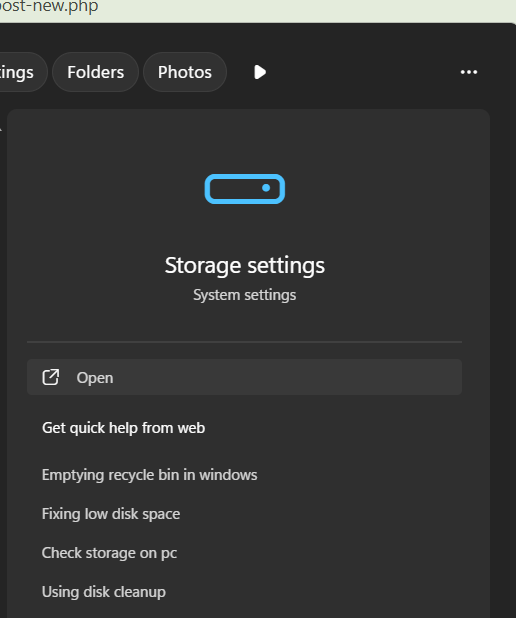
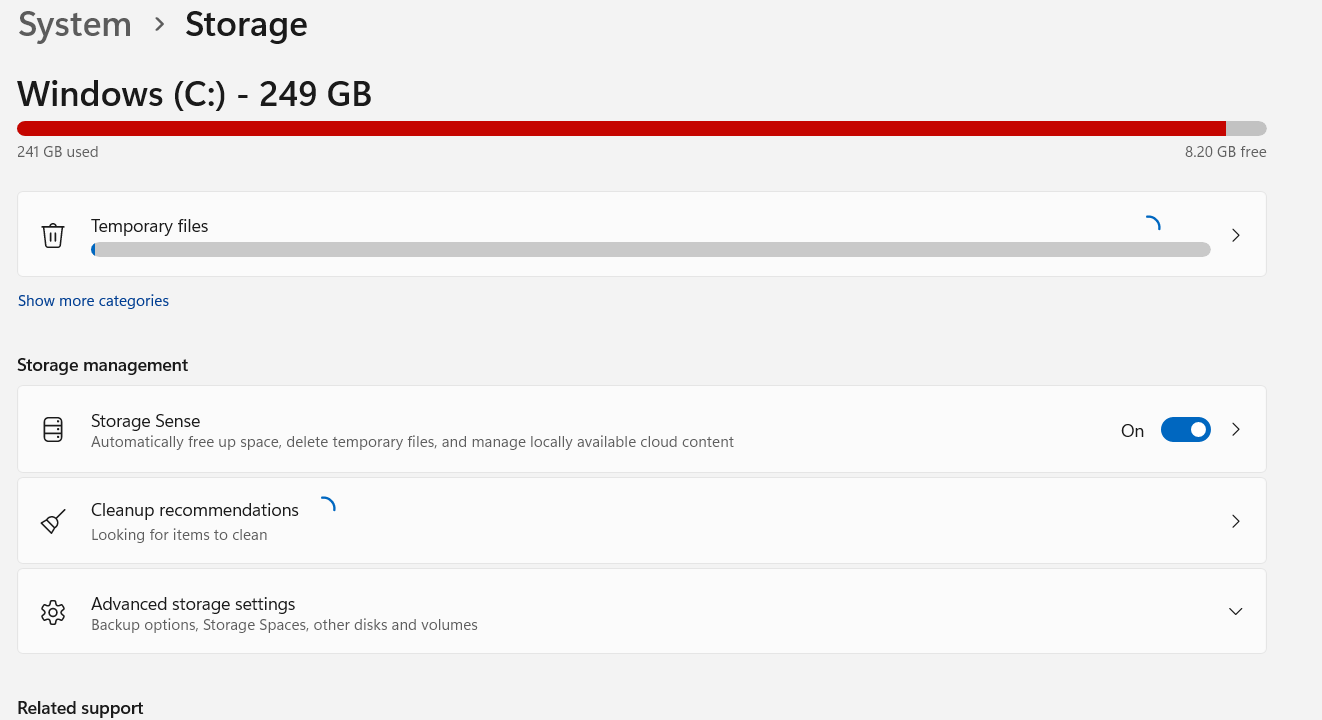
Windows will display information about how your storage is being used. You may see categories such as Installed apps, Temporary files, Documents, Pictures, and Other.
Look for Storage Sense and open it.
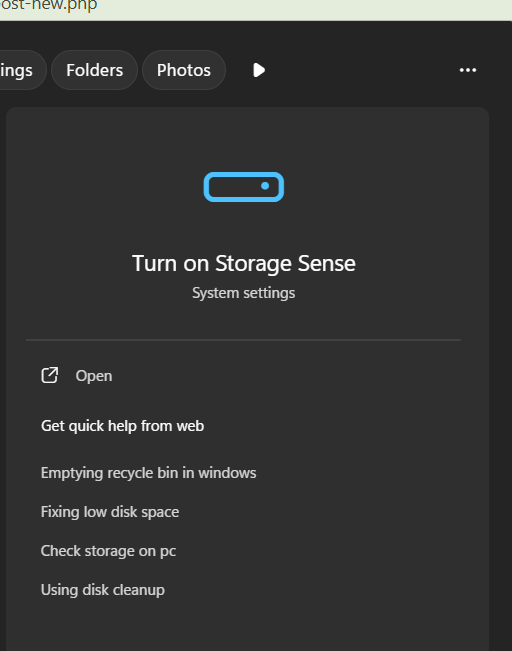
If Storage Sense is turned off, enable the feature.
You can then configure when Windows should run the cleanup. Depending on your Windows version, you may find options related to running Storage Sense automatically, deleting temporary files, and removing files from the Recycle Bin.
One particularly useful setting controls files in the Recycle Bin. For example, you can configure Windows to automatically remove files that have been sitting in the Recycle Bin for a specified period.
There is also an option related to the Downloads folder on supported Windows configurations. Be careful with this setting because your Downloads folder may contain files you still need.
I personally recommend being conservative with automatic deletion. Let Windows clean temporary files and old Recycle Bin contents, but avoid automatically deleting Downloads unless you regularly review that folder.
Method 2: Automatically Clean Temporary Files
Temporary files are another major source of unnecessary storage usage.
Windows and applications create temporary data for many different reasons. Installation processes, updates, application operations, and other activities can generate these files.
Some are removed automatically when they are no longer needed. Others can remain for longer periods.
Storage Sense can help manage many of these files automatically.
Go to:
Settings > System > Storage > Storage Sense
Make sure Storage Sense is enabled.
Windows can then perform supported cleanup tasks automatically according to your configuration.
You can also check what is currently occupying storage by opening Temporary files under the Storage settings.
Windows may display categories such as temporary internet files, thumbnails, delivery optimization files, Windows update cleanup files, and other temporary data.
Before deleting anything manually, read the description associated with each category. Some categories may contain files that are still required for specific purposes.
The goal is not to delete everything simply because Windows labels it as temporary. Instead, understand what is being removed and use automatic cleanup for categories that are safe for your particular workflow.
Method 3: Automatically Empty the Recycle Bin
The Recycle Bin is easy to forget.
When you delete a file normally, Windows often moves it to the Recycle Bin instead of immediately removing it from the drive. This is useful because you can restore something if you accidentally delete it.
However, files in the Recycle Bin continue consuming storage until the bin is emptied.
Storage Sense can automatically remove files that have remained in the Recycle Bin for a specified amount of time.
To configure this feature, open:
Settings > System > Storage > Storage Sense
Then select the appropriate Storage Sense configuration.
Look for the option that controls automatic deletion of files in the Recycle Bin.
Choose a period that gives you enough time to recover accidentally deleted files.
For example, if you frequently delete files but occasionally need to restore them, a longer retention period may be more appropriate.
If you rarely need to recover deleted files and want aggressive storage management, you can choose a shorter period.
Remember that once Windows permanently removes these files, recovering them becomes significantly more difficult. Therefore, do not select an extremely short retention period just to save a small amount of space.
Method 4: Clean the Downloads Folder
The Downloads folder deserves special attention because it can become one of the messiest locations on a Windows computer.
Browsers, messaging applications, email attachments, and other programs can save files there. Over time, you may end up with installers, PDFs, ZIP archives, images, videos, and duplicate documents.
Windows can provide automatic cleanup options for the Downloads folder through Storage Sense on supported configurations.
However, I recommend thinking carefully before enabling automatic deletion of Downloads.
Unlike temporary files, your Downloads folder may contain files that you genuinely want to keep.
For example, you might download a tax document, software installer, course material, project archive, or important PDF and forget about it.
A safer approach is to regularly move important files from Downloads into organized folders such as Documents, Pictures, Videos, or a dedicated project folder.
Once you are confident that your Downloads folder only contains disposable files, automatic cleanup becomes much safer.
Method 5: Use Disk Cleanup for Older Windows Files
Windows 11 also includes the traditional Disk Cleanup utility.
Although Storage Sense is the more modern approach, Disk Cleanup can still be useful when you want to identify and remove specific categories of unnecessary files.
You can open it by searching for Disk Cleanup from the Windows Start menu.
Select the drive you want to clean, usually the C: drive.
Windows will calculate how much space can potentially be recovered.
You may see categories such as temporary internet files, thumbnails, delivery optimization files, temporary files, and other system-related data.
Disk Cleanup can be particularly useful after a major Windows update because old system files may sometimes occupy a significant amount of storage.
Be careful when selecting system cleanup options. Some files exist for recovery or rollback purposes. Removing them may mean that certain recovery options are no longer available.
For this reason, review the categories before clicking the final delete button.
Method 6: Use Windows Storage Recommendations
Another useful feature in Windows 11 is the storage recommendation system.
Go to:
Settings > System > Storage
Windows may provide recommendations for freeing up storage.
These recommendations can include unused applications, temporary files, files synchronized with cloud storage, and files that have not been accessed recently.
This is useful because Windows can help identify areas where storage can be recovered without you having to manually inspect every folder.
However, recommendations should be treated as suggestions rather than automatic instructions.
For example, an application that Windows considers unused might still be important to you. Similarly, an old file may be something you intentionally keep for reference.
Review each recommendation before deleting anything.
Method 7: Use OneDrive Files On-Demand
If you use OneDrive, cloud storage can also help reduce the amount of local disk space being consumed.
With Files On-Demand, some files can remain available through OneDrive without requiring every file to be stored locally on your computer.
This is different from simply deleting your files.
The files remain available in your OneDrive account, while Windows can manage which files need to remain downloaded locally.
This can be particularly useful if you have a large collection of documents or photos but limited SSD storage.
You should still understand the difference between an online-only file and a permanently deleted file.
The goal is to remove unnecessary local copies while retaining access to your files through your cloud storage.
Be Careful With Automatic File Deletion
Automatic cleanup is convenient, but convenience should not come at the expense of your important data.
Before configuring automatic deletion, identify which folders contain important information.
Documents, project folders, photographs, videos, financial records, business files, and backups should generally not be included in an automatic deletion strategy unless you have a separate and reliable backup.
I also recommend maintaining at least one additional backup of important files.
For example, you could keep important documents in cloud storage while also maintaining a local backup on an external drive.
Another good habit is to review your storage settings after configuring them. Do not simply enable every available cleanup option and forget about it.
Your storage requirements can change over time.
A Downloads folder that was disposable six months ago might contain important project files today.
How Often Should Windows Clean Old Files?
There is no single perfect schedule for everyone.
If you download many files and frequently install applications, you may benefit from more frequent cleanup.
If your computer is primarily used for browsing, documents, and occasional personal tasks, less frequent cleanup may be enough.
Storage Sense is useful because you do not have to manually perform the cleanup every time. Once configured, Windows can periodically remove supported unnecessary files.
The important thing is to choose settings that match your habits.
If you frequently recover deleted files, give the Recycle Bin a longer retention period.
If your Downloads folder contains important files, avoid automatically cleaning it.
If temporary files are consuming significant space, allowing Windows to manage them automatically can be a sensible choice.
Final Thoughts
Keeping a Windows 11 PC clean does not necessarily mean spending an hour every month searching through folders and deleting files manually.
Windows already includes several tools that can help manage unnecessary data. Storage Sense is probably the easiest option for most users because it can automatically handle supported temporary files and old Recycle Bin contents.
You can also use Disk Cleanup, Storage Recommendations, and cloud storage features such as OneDrive Files On-Demand to manage storage more efficiently.
The biggest benefit is not simply gaining a few extra gigabytes of storage. A cleaner storage drive is easier to manage, important files are easier to find, and you are less likely to suddenly discover that your SSD is almost full.
My recommendation is to start conservatively. Enable Storage Sense, configure automatic cleanup for temporary files and older Recycle Bin contents, and review the Downloads folder manually.
Once you understand how your files are organized, you can gradually automate more of the process.
A few minutes spent configuring Windows 11 today can save you from repeatedly dealing with unnecessary files later. And if your computer regularly runs low on storage, automatic cleanup can become a simple background habit that keeps your PC organized without requiring constant attention.
Disclaimer: Windows 11 settings and available Storage Sense options can vary depending on the Windows version, device configuration, and Microsoft updates. Always review files before enabling automatic deletion, and maintain backups of important data.

- How to Remotely Control Another Computer Using Windows Quick Assist

- 5 Must-Have Electronics Gadgets for a More Comfortable Living Room

- How to Create a Windows 11 System Backup on an External Hard Drive

- 10 Smart Home Ideas That Make Everyday Life Easier

- Gemini Live Avatar: How to Talk to Gemini Face-to-Face

Products
-
![Apple Watch Ultra 3 [GPS + Cellular 49mm] Running & Multisport Smartwatch w/Rugged Titanium Case w/Black Titanium Milanese Loop - M. Satellite Communications, Advanced Health & Fitness Tracking](https://bazaronweb.com/retailstores/wp-content/uploads/2025/09/apple-watch-320x320.jpg) Apple Watch Ultra 3 [GPS + Cellular 49mm] Running & Multisport Smartwatch w/Rugged Titanium Case w/Black Titanium Milanese Loop - M. Satellite Communications, Advanced Health & Fitness Tracking
Apple Watch Ultra 3 [GPS + Cellular 49mm] Running & Multisport Smartwatch w/Rugged Titanium Case w/Black Titanium Milanese Loop - M. Satellite Communications, Advanced Health & Fitness Tracking
-
 Apple iPad mini (A17 Pro): Apple Intelligence, 8.3-inch Liquid Retina Display, 256GB, Wi-Fi 6E, 12MP Front/12MP Back Camera, Touch ID, All-Day Battery Life — Purple
-
 Apple AirPods Max Wireless Over-Ear Headphones, Active Noise Cancelling, Transparency Mode, Personalized Spatial Audio, Dolby Atmos, Bluetooth Headphones for iPhone – Space Gray
-
 Apple AirPods Pro 2 Wireless Earbuds, Active Noise Cancellation, Hearing Aid Feature, Bluetooth Headphones, Transparency, Personalized Spatial Audio, High-Fidelity Sound, H2 Chip, USB-C Charging
-
Home Garage 210 TC Cotton King Floral Fitted (Elastic) Bedsheet(Pack of 1, Grey)
Original price was: ₹999.00.₹299.00Current price is: ₹299.00.
Leave a Reply