Discounted Products
-
 Home Garage 210 TC Cotton King Floral Fitted (Elastic) Bedsheet(Pack of 1, Grey)
Original price was: ₹999.00.₹299.00Current price is: ₹299.00.
Home Garage 210 TC Cotton King Floral Fitted (Elastic) Bedsheet(Pack of 1, Grey)
Original price was: ₹999.00.₹299.00Current price is: ₹299.00.
-
 Goodrik 140 TC Cotton Double 3D Printed Flat Bedsheet(Pack of 1, Brown)
Original price was: ₹499.00.₹229.00Current price is: ₹229.00.
Goodrik 140 TC Cotton Double 3D Printed Flat Bedsheet(Pack of 1, Brown)
Original price was: ₹499.00.₹229.00Current price is: ₹229.00.
-
 GLOBALSHOP 350 TC Microfiber Double Floral Flat Bedsheet(Pack of 1, Multicolor)
Original price was: ₹1,250.00.₹263.00Current price is: ₹263.00.
GLOBALSHOP 350 TC Microfiber Double Floral Flat Bedsheet(Pack of 1, Multicolor)
Original price was: ₹1,250.00.₹263.00Current price is: ₹263.00.
-
 RisingStar 250 TC Microfiber King Printed Fitted (Elastic) Bedsheet(Pack of 1, FITTED-ROUND-CIRCLES-PREMIUM)
Original price was: ₹2,299.00.₹299.00Current price is: ₹299.00.
RisingStar 250 TC Microfiber King Printed Fitted (Elastic) Bedsheet(Pack of 1, FITTED-ROUND-CIRCLES-PREMIUM)
Original price was: ₹2,299.00.₹299.00Current price is: ₹299.00.
-
 Home Garage 210 TC Cotton King Floral Fitted (Elastic) Bedsheet(Pack of 1, Fitted Black Green)
Original price was: ₹1,299.00.₹299.00Current price is: ₹299.00.
Home Garage 210 TC Cotton King Floral Fitted (Elastic) Bedsheet(Pack of 1, Fitted Black Green)
Original price was: ₹1,299.00.₹299.00Current price is: ₹299.00.
-
 Home Garage 180 TC Cotton King 3D Printed Flat Bedsheet(Pack of 1, White)
Original price was: ₹999.00.₹229.00Current price is: ₹229.00.
Home Garage 180 TC Cotton King 3D Printed Flat Bedsheet(Pack of 1, White)
Original price was: ₹999.00.₹229.00Current price is: ₹229.00.
-
 Panipat Textile Hub 152.4 cm (5 ft) Polyester Window Curtain (Pack Of 2)(Solid, Aqua)
Original price was: ₹1,899.00.₹299.00Current price is: ₹299.00.
Panipat Textile Hub 152.4 cm (5 ft) Polyester Window Curtain (Pack Of 2)(Solid, Aqua)
Original price was: ₹1,899.00.₹299.00Current price is: ₹299.00.
-
 Home Sizzler 214 cm (7 ft) Polyester Semi Transparent Door Curtain (Pack Of 2)(Floral, Maroon)
Original price was: ₹1,199.00.₹399.00Current price is: ₹399.00.
Home Sizzler 214 cm (7 ft) Polyester Semi Transparent Door Curtain (Pack Of 2)(Floral, Maroon)
Original price was: ₹1,199.00.₹399.00Current price is: ₹399.00.
-
 Home Sizzler 153 cm (5 ft) Polyester Room Darkening Window Curtain (Pack Of 2)(Floral, Brown)
Original price was: ₹799.00.₹299.00Current price is: ₹299.00.
Home Sizzler 153 cm (5 ft) Polyester Room Darkening Window Curtain (Pack Of 2)(Floral, Brown)
Original price was: ₹799.00.₹299.00Current price is: ₹299.00.
-
 Stella Creations 214 cm (7 ft) Polyester Room Darkening Door Curtain (Pack Of 2)(Abstract, Brown)
Original price was: ₹1,299.00.₹449.00Current price is: ₹449.00.
Stella Creations 214 cm (7 ft) Polyester Room Darkening Door Curtain (Pack Of 2)(Abstract, Brown)
Original price was: ₹1,299.00.₹449.00Current price is: ₹449.00.
-
 Homefab India 152.5 cm (5 ft) Polyester Room Darkening Window Curtain (Pack Of 2)(Floral, Light Blue)
Original price was: ₹1,199.00.₹319.00Current price is: ₹319.00.
Homefab India 152.5 cm (5 ft) Polyester Room Darkening Window Curtain (Pack Of 2)(Floral, Light Blue)
Original price was: ₹1,199.00.₹319.00Current price is: ₹319.00.
-
 Urban Home 214 cm (7 ft) PVC Transparent Door Curtain Single Curtain(Solid, Off White)
Original price was: ₹699.00.₹203.00Current price is: ₹203.00.
Urban Home 214 cm (7 ft) PVC Transparent Door Curtain Single Curtain(Solid, Off White)
Original price was: ₹699.00.₹203.00Current price is: ₹203.00.
-
 Panipat Textile Hub 213 cm (7 ft) Polyester Door Curtain (Pack Of 2)(Solid, Brown)
Original price was: ₹1,199.00.₹349.00Current price is: ₹349.00.
Panipat Textile Hub 213 cm (7 ft) Polyester Door Curtain (Pack Of 2)(Solid, Brown)
Original price was: ₹1,199.00.₹349.00Current price is: ₹349.00.
-
 Home Sizzler 214 cm (7 ft) Polyester Semi Transparent Door Curtain (Pack Of 2)(Floral, Brown)
Original price was: ₹999.00.₹349.00Current price is: ₹349.00.
Home Sizzler 214 cm (7 ft) Polyester Semi Transparent Door Curtain (Pack Of 2)(Floral, Brown)
Original price was: ₹999.00.₹349.00Current price is: ₹349.00.
-
 Panipat Textile Hub 213 cm (7 ft) Polyester Semi Transparent Door Curtain (Pack Of 2)(Floral, Brown)
Original price was: ₹899.00.₹299.00Current price is: ₹299.00.
Panipat Textile Hub 213 cm (7 ft) Polyester Semi Transparent Door Curtain (Pack Of 2)(Floral, Brown)
Original price was: ₹899.00.₹299.00Current price is: ₹299.00.
Hi, I’m Jessica,
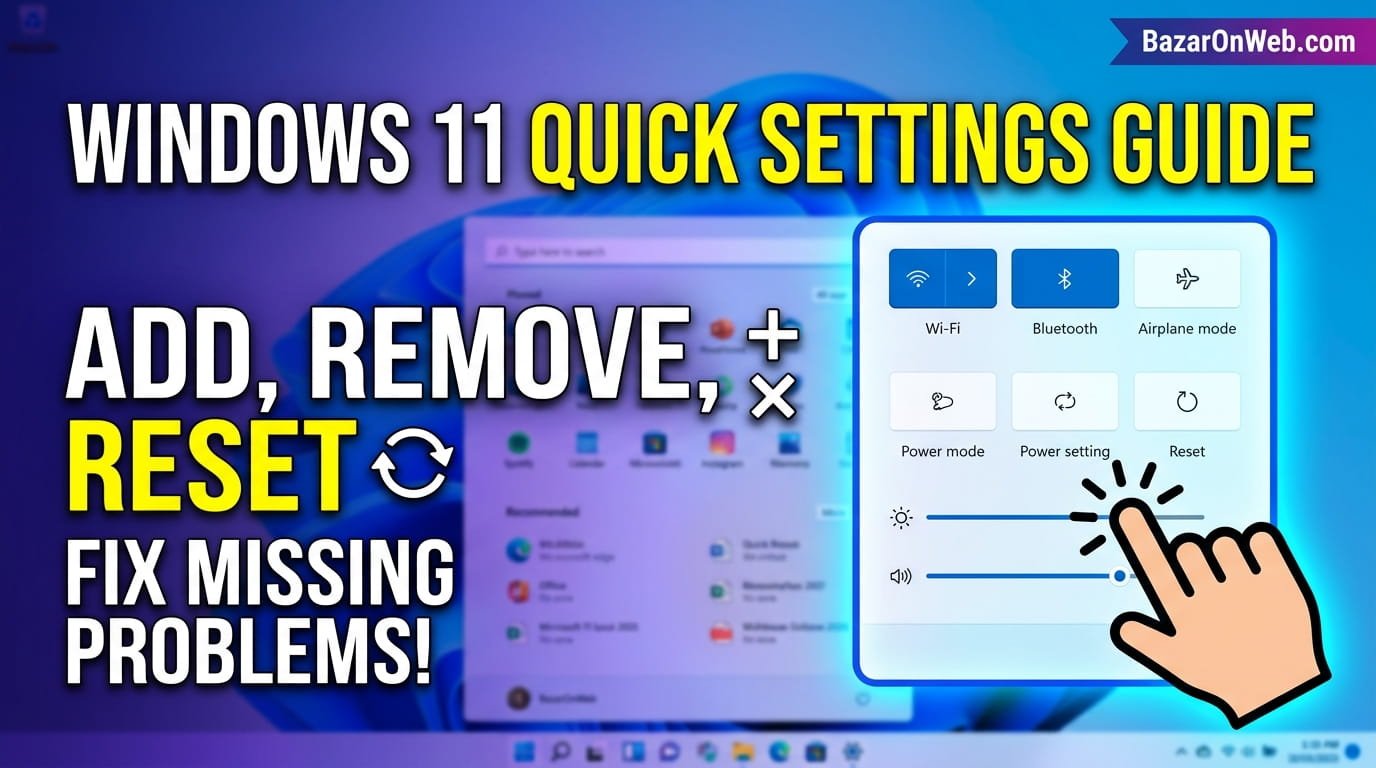
Quick Settings is one of the most convenient features in Windows 11, allowing users to quickly access essential controls such as Wi-Fi, Bluetooth, Airplane Mode, Accessibility settings, Battery Saver, and more without navigating through multiple menus. However, many Windows 11 users have recently reported issues where Quick Settings options disappear, the edit button is missing, the familiar Pencil icon is gone, or the entire Quick Settings panel refuses to open. These problems can significantly impact productivity because commonly used controls become difficult to access. Fortunately, Microsoft has introduced alternative methods for managing Quick Settings, and several troubleshooting solutions can restore missing functionality. In this guide, we will explore everything you need to know about adding, removing, and resetting Quick Settings in Windows 11, along with practical fixes for common issues.
Windows 11 Quick Settings provides fast access to essential system controls, but missing options, broken panels, and disappearing customization features have frustrated many users. This comprehensive guide explains how to customize Quick Settings, restore missing controls, reset configurations, and troubleshoot problems when the panel stops working, helping you regain full control over your Windows 11 experience.
Understanding Quick Settings in Windows 11
Quick Settings is a compact control center introduced by Microsoft to simplify access to frequently used system features. Located on the taskbar near the network, volume, and battery indicators, the Quick Settings panel consolidates important controls into a single interface. Instead of opening multiple system menus, users can instantly manage connectivity, display brightness, accessibility tools, and audio settings.
The feature evolved significantly from the Action Center available in Windows 10. Microsoft redesigned the interface to create a cleaner and more streamlined experience. As a result, Quick Settings became more visually appealing while reducing unnecessary complexity. However, this redesign also led to confusion because some customization options changed location or were removed entirely.
Many users who upgraded from Windows 10 expected familiar editing controls and discovered that certain customization methods no longer exist. Understanding these changes is essential before attempting troubleshooting. Knowing how Quick Settings is designed helps users identify whether they are facing a genuine technical issue or simply adapting to Microsoft’s updated interface approach. Familiarity with the feature makes troubleshooting much easier and reduces unnecessary frustration.
Why the Pencil Icon Is Missing in Windows 11
One of the most common complaints among Windows 11 users involves the disappearance of the Pencil icon previously used for editing Quick Settings. Many tutorials still reference this icon, causing confusion when users cannot locate it on newer Windows 11 versions.
Microsoft gradually modified the Quick Settings customization process through updates. In many current builds, the Pencil icon is either relocated, replaced, or completely removed depending on the version being used. As a result, users may believe their system is malfunctioning when, in reality, Microsoft has changed the user interface.
The missing Pencil icon does not necessarily indicate corruption or system damage. Instead, it often reflects a design decision introduced through Windows updates. Users should first verify their Windows version before attempting advanced repairs. Checking update history can also help determine whether recent changes altered the Quick Settings customization experience.
Understanding this distinction prevents unnecessary troubleshooting steps. Instead of assuming a technical fault, users can focus on locating the updated customization controls or using alternative methods provided by Windows. This awareness saves time and helps users adapt more effectively to Microsoft’s evolving user interface design philosophy.
How to Add Quick Settings Options in Windows 11
Adding Quick Settings options allows users to personalize their workflow and access important features more efficiently. Depending on the Windows version installed, customization methods may vary slightly, but the overall process remains straightforward.
To begin, click the network, battery, or volume area on the taskbar to open Quick Settings. If customization options are available, select the edit or management option displayed within the panel. You will then see a list of available controls that can be added.
Common additions include Mobile Hotspot, Nearby Sharing, Night Light, Focus Assist, Battery Saver, Accessibility features, VPN controls, and Airplane Mode. Selecting desired options places them within the Quick Settings interface, allowing faster access during daily use.
Customizing the panel helps eliminate unnecessary navigation through Settings menus. Users who frequently switch devices, connect wireless accessories, or manage display settings benefit significantly from a personalized Quick Settings layout.
Regularly reviewing available controls also ensures that newly introduced Windows features are incorporated into your workflow. As Microsoft continues releasing updates, additional options may become available, making periodic customization worthwhile for maximizing efficiency and convenience.
How to Remove Unwanted Quick Settings Controls
Just as important as adding controls is removing features that are rarely used. A cluttered Quick Settings panel can reduce usability and make frequently accessed controls harder to locate.
Open the Quick Settings panel and access the customization mode if available. Controls typically display a remove option, allowing users to eliminate unnecessary items from the interface. Removing a control does not uninstall the feature itself; it merely hides the shortcut from Quick Settings.
For example, users who never use Mobile Hotspot or Nearby Sharing may prefer to remove these options and reserve space for more relevant controls. This creates a cleaner, more focused interface tailored to individual usage patterns.
Maintaining a streamlined Quick Settings panel improves productivity because commonly used controls become easier to locate. Users spend less time searching and more time completing tasks efficiently.
Periodic cleanup is especially beneficial after major Windows updates, as new controls may be added automatically. Reviewing the panel occasionally ensures that Quick Settings continues serving as a practical tool rather than becoming crowded with features that provide little value.
How to Reset Quick Settings in Windows 11
Resetting Quick Settings can resolve many customization problems, including missing controls, broken layouts, and synchronization issues caused by updates or corrupted configurations.
Although Windows 11 does not provide a dedicated reset button for Quick Settings, resetting can often be achieved through broader system repair methods. Restarting Windows Explorer, creating a new user profile, or resetting relevant system settings can restore normal behavior.
A common approach involves restarting Windows Explorer through Task Manager. This refreshes the graphical interface and reloads Quick Settings components without requiring a full system reboot. Many temporary glitches disappear immediately after this process.
Users experiencing persistent problems may also consider running built-in repair tools such as System File Checker and Deployment Imaging Service and Management Tool. These utilities can repair damaged system files that may interfere with Quick Settings functionality.
Resetting should generally be considered after simpler troubleshooting methods fail. In many cases, configuration corruption rather than hardware failure is responsible for Quick Settings issues. A proper reset often restores expected behavior without requiring advanced technical intervention.
What to Do If Quick Settings Won’t Open
Some users encounter situations where clicking the network, battery, or volume icons produces no response. When Quick Settings refuses to open, several potential causes should be investigated.
The issue may stem from corrupted system files, Windows Explorer failures, problematic updates, or conflicts involving third-party software. Identifying the root cause is essential for selecting the most effective solution.
Start by restarting the computer and testing Quick Settings again. If the problem persists, restart Windows Explorer through Task Manager. This simple action often resolves temporary interface glitches.
Next, check whether recent Windows updates introduced the issue. Occasionally, newly installed updates contain bugs affecting system components. Reviewing update history can help identify potential causes.
Users should also verify that essential Windows services are functioning correctly. System maintenance tools, including SFC and DISM scans, can detect and repair damaged files contributing to the problem.
Methodical troubleshooting is important because multiple factors can produce identical symptoms. Eliminating possible causes one by one increases the likelihood of successfully restoring Quick Settings functionality.
Using SFC and DISM to Repair Quick Settings Issues
System file corruption is a frequent cause of Windows interface problems. Fortunately, Microsoft includes powerful repair utilities that can restore damaged files without requiring a complete operating system reinstall.
The System File Checker scans protected Windows files and automatically replaces corrupted versions with healthy copies. Running this utility is often one of the first recommended troubleshooting steps when Quick Settings behaves unexpectedly.
DISM complements SFC by repairing the Windows image itself. If system components used by SFC are damaged, DISM can obtain replacement files and restore integrity. Running both tools provides a comprehensive repair strategy.
These utilities are particularly useful after interrupted updates, unexpected shutdowns, malware removal, or storage-related issues. Problems that appear to affect only Quick Settings may actually originate from deeper system corruption.
Regular maintenance using Microsoft’s built-in repair tools helps maintain overall system stability. Even when Quick Settings is not the primary issue, repairing underlying system components can improve performance and prevent future problems from developing.
Checking Windows Updates for Quick Settings Fixes
Windows updates frequently introduce both new features and bug fixes. Therefore, users experiencing Quick Settings problems should always verify that their systems are fully updated before pursuing advanced troubleshooting.
Microsoft regularly releases cumulative updates addressing user-reported issues. Problems affecting the Quick Settings panel may already have a fix available through Windows Update. Installing pending updates often resolves unexpected behavior without requiring additional effort.
At the same time, newly released updates can occasionally introduce bugs. If Quick Settings problems began immediately after a recent update, reviewing update history may provide valuable clues. In some situations, temporarily uninstalling a problematic update can restore functionality until Microsoft releases a permanent correction.
Keeping Windows updated ensures compatibility with current hardware, security standards, and user interface improvements. Updates also deliver enhancements to Quick Settings and related components.
Users should develop a habit of monitoring update status regularly. Staying current reduces the likelihood of encountering known issues and improves overall system reliability, security, and performance.
Creating a New User Profile to Test Quick Settings
When Quick Settings issues affect only one account, the underlying cause may involve profile-specific corruption rather than a system-wide problem. Creating a new user profile is an effective diagnostic technique.
A fresh profile starts with default settings and configurations. If Quick Settings works correctly within the new account, this strongly suggests that the original profile contains corrupted settings or damaged user-specific data.
Testing with a separate profile helps isolate the source of the problem. Rather than spending hours troubleshooting the entire operating system, users can focus specifically on repairing or replacing the affected account.
Migrating personal files to a new profile may sometimes be easier than attempting to repair severe profile corruption. While this approach requires some setup time, it often resolves persistent interface problems that resist traditional troubleshooting methods.
Understanding whether an issue is profile-related or system-wide provides valuable direction for further repairs. This simple test can save considerable time and prevent unnecessary system modifications.
Preventing Future Quick Settings Problems
Preventive maintenance is the most effective strategy for avoiding recurring Quick Settings issues. Many problems arise from outdated software, interrupted updates, corrupted files, or aggressive system modifications.
Keeping Windows updated remains one of the most important preventive measures. Users should also avoid forcefully shutting down their computers, as abrupt power interruptions can damage system files and configurations.
Regular system scans help detect corruption before it causes noticeable problems. Creating restore points before major updates or software installations provides a safety net if issues develop later. Users should also be cautious when installing system optimization tools that modify Windows settings extensively.
Backing up important data and maintaining healthy storage devices further reduces risk. Stable hardware and properly maintained software create an environment where Quick Settings and other Windows components operate reliably.
By adopting these best practices, users can minimize disruptions, improve overall system stability, and enjoy a smoother Windows 11 experience with fewer troubleshooting requirements.
Disclaimer
The information provided in this article is for educational and informational purposes only. Windows 11 features, menus, settings, and troubleshooting methods may vary depending on the version, build number, hardware configuration, and future Microsoft updates. Always create a system restore point and back up important data before making significant system changes. The author and publisher are not responsible for any data loss, system instability, or unintended consequences resulting from the use of the instructions provided in this guide. Always refer to official Microsoft documentation for the most current support information and recommendations.

- How to Transcribe Audio Live on Your iPhone

- Killer Network Service: Is It a Virus or Safe to Disable?

- How to Set Up Parental Controls on Windows 11: A Step-by-Step Guide

- How to Extract Audio From a Video: Easy Ways to Save Audio

- How to Set a Photo Album as Your Wallpaper on iPhone: Step-by-Step Guide

Products
-
![Apple Watch Ultra 3 [GPS + Cellular 49mm] Running & Multisport Smartwatch w/Rugged Titanium Case w/Black Titanium Milanese Loop - M. Satellite Communications, Advanced Health & Fitness Tracking](https://bazaronweb.com/retailstores/wp-content/uploads/2025/09/apple-watch-320x320.jpg) Apple Watch Ultra 3 [GPS + Cellular 49mm] Running & Multisport Smartwatch w/Rugged Titanium Case w/Black Titanium Milanese Loop - M. Satellite Communications, Advanced Health & Fitness Tracking
Apple Watch Ultra 3 [GPS + Cellular 49mm] Running & Multisport Smartwatch w/Rugged Titanium Case w/Black Titanium Milanese Loop - M. Satellite Communications, Advanced Health & Fitness Tracking
-
 Apple iPad mini (A17 Pro): Apple Intelligence, 8.3-inch Liquid Retina Display, 256GB, Wi-Fi 6E, 12MP Front/12MP Back Camera, Touch ID, All-Day Battery Life — Purple
-
 Apple AirPods Max Wireless Over-Ear Headphones, Active Noise Cancelling, Transparency Mode, Personalized Spatial Audio, Dolby Atmos, Bluetooth Headphones for iPhone – Space Gray
-
 Apple AirPods Pro 2 Wireless Earbuds, Active Noise Cancellation, Hearing Aid Feature, Bluetooth Headphones, Transparency, Personalized Spatial Audio, High-Fidelity Sound, H2 Chip, USB-C Charging
-
Home Garage 210 TC Cotton King Floral Fitted (Elastic) Bedsheet(Pack of 1, Grey)
Original price was: ₹999.00.₹299.00Current price is: ₹299.00.
Leave a Reply