Category
Popular Articles
- AI (20)
- Air Tag (1)
- Android (53)
- App Suggest (13)
- Apple (42)
- Apple TV (4)
- Bluetooth (3)
- Cars (2)
- ChatGpt (1)
- Chrome (3)
- Did you know? (1)
- E-Commerce News (1)
- Ecommerce Websites business (7)
- Electronics Shopping (5)
- Fashion Tips (3)
- Gaming (7)
- Google Gemini (3)
- Hair Care Tips (2)
- How to (13)
- iCloud (1)
- Infotainment System (1)
- Iphone (159)
- Job Posting (1)
- Lifestyle (3)
- Mac (27)
- Mobile Games (1)
- Netflix (1)
- Online Shopping Websites (2)
- Personal Finance Management (3)
- Product Reviews (3)
- Roku TV (4)
- Samsung (10)
- Shopping Tips (13)
- Spotify (1)
- Tech (162)
- VPN (2)
- Windows 11 (93)
- Youtube (1)
- Zero Waste (3)
Discounted Products
-

Leo Creation 144 TC Cotton Double Jaipuri Prints Flat Bedsheet(Pack of 1, Blue, Gree, Red, Grey, Light Grey)
₹2,999.00Original price was: ₹2,999.00.₹329.00Current price is: ₹329.00. -
Home Garage 210 TC Cotton King Floral Fitted (Elastic) Bedsheet(Pack of 1, Grey)
₹999.00Original price was: ₹999.00.₹299.00Current price is: ₹299.00. -

Goodrik 140 TC Cotton Double 3D Printed Flat Bedsheet(Pack of 1, Brown)
₹499.00Original price was: ₹499.00.₹229.00Current price is: ₹229.00. -

GLOBALSHOP 350 TC Microfiber Double Floral Flat Bedsheet(Pack of 1, Multicolor)
₹1,250.00Original price was: ₹1,250.00.₹263.00Current price is: ₹263.00. -

RisingStar 250 TC Microfiber King Printed Fitted (Elastic) Bedsheet(Pack of 1, FITTED-ROUND-CIRCLES-PREMIUM)
₹2,299.00Original price was: ₹2,299.00.₹299.00Current price is: ₹299.00. -

Home Garage 210 TC Cotton King Floral Fitted (Elastic) Bedsheet(Pack of 1, Fitted Black Green)
₹1,299.00Original price was: ₹1,299.00.₹299.00Current price is: ₹299.00. -

Home Garage 180 TC Cotton King 3D Printed Flat Bedsheet(Pack of 1, White)
₹999.00Original price was: ₹999.00.₹229.00Current price is: ₹229.00. -

Home Sizzler 153 cm (5 ft) Polyester Room Darkening Window Curtain (Pack Of 2)(Floral, Maroon)
₹799.00Original price was: ₹799.00.₹299.00Current price is: ₹299.00. -

Panipat Textile Hub 152.4 cm (5 ft) Polyester Window Curtain (Pack Of 2)(Solid, Aqua)
₹1,899.00Original price was: ₹1,899.00.₹299.00Current price is: ₹299.00. -
Home Sizzler 214 cm (7 ft) Polyester Semi Transparent Door Curtain (Pack Of 2)(Floral, Maroon)
₹1,199.00Original price was: ₹1,199.00.₹399.00Current price is: ₹399.00. -

Home Sizzler 153 cm (5 ft) Polyester Room Darkening Window Curtain (Pack Of 2)(Floral, Brown)
₹799.00Original price was: ₹799.00.₹299.00Current price is: ₹299.00. -

Stella Creations 214 cm (7 ft) Polyester Room Darkening Door Curtain (Pack Of 2)(Abstract, Brown)
₹1,299.00Original price was: ₹1,299.00.₹449.00Current price is: ₹449.00. -

Homefab India 152.5 cm (5 ft) Polyester Room Darkening Window Curtain (Pack Of 2)(Floral, Light Blue)
₹1,199.00Original price was: ₹1,199.00.₹319.00Current price is: ₹319.00. -

Urban Home 214 cm (7 ft) PVC Transparent Door Curtain Single Curtain(Solid, Off White)
₹699.00Original price was: ₹699.00.₹203.00Current price is: ₹203.00. -

Panipat Textile Hub 213 cm (7 ft) Polyester Door Curtain (Pack Of 2)(Solid, Brown)
₹1,199.00Original price was: ₹1,199.00.₹349.00Current price is: ₹349.00.
Affiliate Links
Promotion
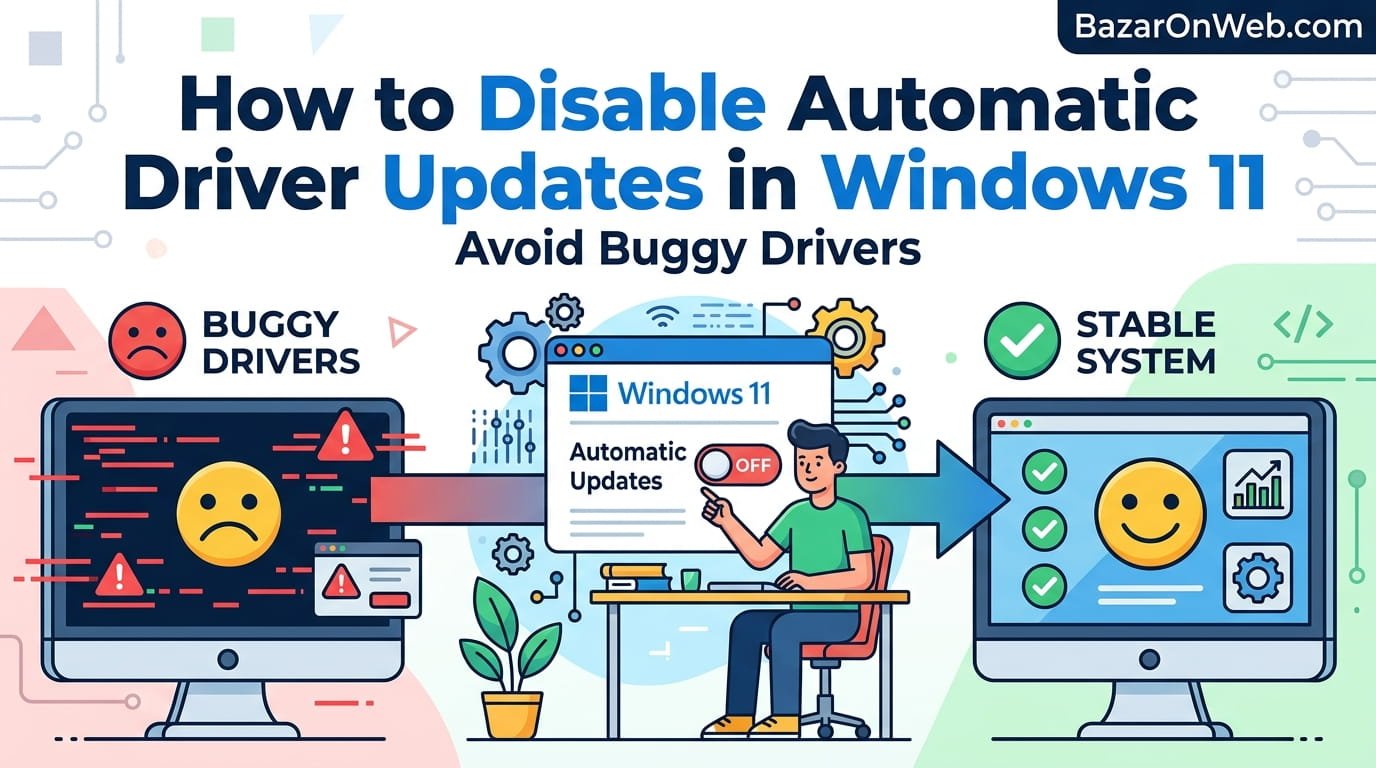
Hi, I’m Jessica, and I learned this lesson the hard way. A few months ago, my laptop suddenly started acting weird—Wi-Fi kept dropping, my display flickered, and even basic tasks slowed down. After hours of troubleshooting, I discovered the culprit: an automatic driver update installed by Windows 11. The update was supposed to improve performance, but instead, it broke everything.
If you’ve ever faced something similar, you’re not alone. Automatic driver updates are meant to keep your system optimized and secure, but they don’t always work as expected. Sometimes, Windows installs unstable or incompatible drivers, leading to frustrating performance issues.
The good news? You’re not stuck with this behavior. You can take control and disable automatic driver updates, ensuring your system only uses stable, tested versions that you trust.
In this guide, I’ll walk you through everything you need to know—from why you should disable automatic updates to step-by-step methods you can use right now. Whether you’re a beginner or someone who likes full control over your system, this guide will help you avoid unnecessary headaches and keep your PC running smoothly.
Why Automatic Driver Updates Can Cause Problems
Automatic driver updates sound convenient, but they often come with hidden risks. Windows 11 pushes updates based on compatibility data, but that doesn’t guarantee stability on every device. Each system has unique hardware combinations, and even a minor mismatch can cause issues.
When Windows installs a buggy driver, you might experience problems like system crashes, hardware malfunction, or reduced performance. For example, a graphics driver update could break display settings, while an audio driver might stop sound output entirely. These issues can appear suddenly, leaving users confused about what went wrong.
Another drawback is the lack of control. Automatic updates happen in the background, meaning you don’t get to review or approve changes. This can be frustrating, especially if you rely on a specific driver version for work or gaming.
Additionally, rolling back drivers is not always straightforward. While Windows provides a rollback option, it doesn’t always work perfectly, and sometimes the older driver may not even be available.
This is why many advanced users and professionals prefer manual control over driver updates. It ensures stability, predictability, and better performance tailored to their specific needs.
Benefits of Disabling Automatic Driver Updates
Disabling automatic driver updates gives you full control over your system’s behavior. Instead of relying on Windows to decide what’s best, you can choose stable and tested drivers that suit your setup.
One major benefit is system stability. When you stick to a known working driver, you avoid unexpected issues caused by new updates. This is especially important for professionals who rely on their systems for critical tasks.
Another advantage is improved performance consistency. Automatic updates can sometimes introduce performance drops, especially in gaming or high-performance applications. By managing updates manually, you ensure that performance remains predictable.
You also gain the ability to test updates before installing them. This means you can check online reviews or community feedback before deciding whether a new driver is worth installing.
Furthermore, disabling automatic updates reduces unnecessary changes. Your system won’t suddenly behave differently after an update, which can save you time and frustration.
Overall, taking control of driver updates allows you to create a more reliable and customized computing experience tailored to your needs.
Method 1: Disable Driver Updates via System Properties
One of the easiest ways to stop automatic driver updates is through System Properties. This method is simple and doesn’t require advanced technical knowledge.
Start by opening the Control Panel and navigating to System settings. From there, select “Advanced system settings” and switch to the Hardware tab. You’ll find an option called “Device Installation Settings.”
When you click on it, a prompt will ask whether you want Windows to automatically download manufacturer apps and custom icons. Choose the option that prevents automatic downloads.
This setting effectively stops Windows from automatically installing drivers from its update service. However, it doesn’t completely disable updates in all scenarios, so it’s often used alongside other methods.
The advantage of this approach is its simplicity. It’s quick, reversible, and doesn’t involve complex configurations. Even beginners can follow these steps without difficulty.
Keep in mind that you’ll need to manually install drivers when needed. This ensures you always use versions that are stable and compatible with your system.
Method 2: Use Group Policy Editor for Better Control
If you’re using a Pro or Enterprise version of Windows 11, the Group Policy Editor provides a more powerful way to disable automatic driver updates.
Open the Group Policy Editor by typing “gpedit.msc” in the Run dialog. Navigate to Computer Configuration, then Administrative Templates, and finally Windows Components. From there, go to Windows Update.
Look for the setting called “Do not include drivers with Windows Updates.” Enable this option to prevent Windows from installing drivers automatically.
This method offers precise control and is widely used by IT professionals. It ensures that driver updates are completely excluded from Windows Update, giving you full authority over what gets installed.
Another benefit is consistency across systems. If you manage multiple devices, you can apply the same policy to all of them, ensuring uniform behavior.
While this method is slightly more advanced, it’s highly effective and recommended for users who want maximum control over their system.
Method 3: Disable via Registry Editor
The Registry Editor provides another way to disable automatic driver updates, especially for users who don’t have access to Group Policy Editor.
Open the Registry Editor and navigate to the Windows Update section. Create or modify the appropriate key to exclude drivers from updates.
This method directly changes system-level settings, making it very effective. However, it requires caution. Incorrect changes in the registry can cause system instability, so it’s important to follow instructions carefully.
Before making any changes, always create a backup of your registry. This ensures you can restore your system if something goes wrong.
The advantage of using the registry is flexibility. It allows you to customize system behavior beyond what standard settings offer.
For advanced users, this method provides a powerful way to control updates and ensure only desired drivers are installed.
Method 4: Pause or Control Windows Updates Temporarily
If you don’t want to permanently disable driver updates, you can pause Windows updates temporarily. This gives you time to review updates before they are installed.
Go to Windows Update settings and select the option to pause updates. You can choose a duration that suits your needs.
This method is useful when you suspect a problematic update is about to be installed. By pausing updates, you can avoid immediate issues and wait for more stable versions.
However, this is not a permanent solution. Once the pause period ends, updates will resume automatically.
Still, it’s a handy option for users who want temporary control without making permanent changes to system settings.
Method 5: Manually Install and Manage Drivers
The best way to ensure stability is to manually install drivers. This approach gives you complete control over what gets installed on your system.
Visit the official website of your hardware manufacturer and download the latest stable driver. Avoid relying solely on Windows Update for critical drivers.
Manual installation allows you to choose specific versions that are known to work well. It also lets you avoid beta or unstable releases.
Another benefit is better compatibility. Manufacturers often provide optimized drivers that perform better than generic ones offered by Windows.
While this method requires a bit more effort, it’s the most reliable way to maintain system performance and stability.
Common Mistakes to Avoid When Disabling Updates
When disabling automatic driver updates, users often make mistakes that can lead to issues. One common mistake is disabling updates entirely, including security updates. This can leave your system vulnerable.
Another mistake is not keeping track of driver versions. If you don’t document your current drivers, it can be difficult to troubleshoot issues later.
Some users also forget to manually update drivers when needed. While disabling automatic updates gives you control, it also adds responsibility.
Additionally, making incorrect changes in the registry or group policy can cause system instability. Always double-check settings before applying them.
Avoiding these mistakes ensures a smooth experience and helps you maintain a stable and secure system.
When You Should NOT Disable Driver Updates
Disabling automatic driver updates isn’t always the best choice. For beginners or casual users, automatic updates can be helpful in maintaining system functionality.
If you’re not comfortable managing drivers manually, it’s better to keep automatic updates enabled. This ensures your system stays up to date without requiring technical knowledge.
Also, in environments where security and compliance are critical, automatic updates can help maintain system integrity.
For devices that rely on frequent updates, such as newer hardware, disabling updates might lead to compatibility issues.
Understanding when to disable updates is just as important as knowing how to do it. Make your decision based on your experience level and specific needs.
Final Thoughts on Managing Driver Updates in Windows 11
Taking control of driver updates in Windows 11 can significantly improve your system’s stability and performance. While automatic updates are designed for convenience, they don’t always deliver the best results.
By disabling automatic driver updates, you gain the ability to choose reliable versions and avoid unexpected issues. Whether you use System Properties, Group Policy, or manual installation, each method offers a way to maintain control.
The key is balance. You don’t have to disable everything permanently—just ensure you’re making informed decisions about updates.
With the right approach, you can enjoy a smoother, more predictable computing experience without the frustration of buggy drivers.
Disclaimer
This article is for informational purposes only. System configurations and results may vary depending on your device and software environment. Always back up your data and create restore points before making changes to system settings.
Written by Bazaronweb
Latest Tech Articles
- How to Disable Automatic Driver Updates in Windows 11 to Avoid Buggy Drivers

- Fix iMessage Sign-In Errors on Mac Complete Troubleshooting Guide (Apple Account Login Issues)

- How to Block Spam Calls on iPhone: Complete Guide to Stop Unwanted Calls Easily

- How to Automatically Open Apps When Connecting External Drives on Mac (Step-by-Step Guide)

- How to Upload Your Personal Music Collection to Apple Music and Stream Anywhere

Products
-
Apple Watch Ultra 3 [GPS + Cellular 49mm] Running & Multisport Smartwatch w/Rugged Titanium Case w/Black Titanium Milanese Loop - M. Satellite Communications, Advanced Health & Fitness Tracking
-

Apple iPad mini (A17 Pro): Apple Intelligence, 8.3-inch Liquid Retina Display, 256GB, Wi-Fi 6E, 12MP Front/12MP Back Camera, Touch ID, All-Day Battery Life — Purple
-

Apple AirPods Max Wireless Over-Ear Headphones, Active Noise Cancelling, Transparency Mode, Personalized Spatial Audio, Dolby Atmos, Bluetooth Headphones for iPhone – Space Gray
-

Apple AirPods Pro 2 Wireless Earbuds, Active Noise Cancellation, Hearing Aid Feature, Bluetooth Headphones, Transparency, Personalized Spatial Audio, High-Fidelity Sound, H2 Chip, USB-C Charging
-
Leo Creation 144 TC Cotton Double Jaipuri Prints Flat Bedsheet(Pack of 1, Blue, Gree, Red, Grey, Light Grey)
₹2,999.00Original price was: ₹2,999.00.₹329.00Current price is: ₹329.00.
Leave a Reply