Discounted Products
-
 Home Garage 210 TC Cotton King Floral Fitted (Elastic) Bedsheet(Pack of 1, Grey)
Original price was: ₹999.00.₹299.00Current price is: ₹299.00.
Home Garage 210 TC Cotton King Floral Fitted (Elastic) Bedsheet(Pack of 1, Grey)
Original price was: ₹999.00.₹299.00Current price is: ₹299.00.
-
 Goodrik 140 TC Cotton Double 3D Printed Flat Bedsheet(Pack of 1, Brown)
Original price was: ₹499.00.₹229.00Current price is: ₹229.00.
Goodrik 140 TC Cotton Double 3D Printed Flat Bedsheet(Pack of 1, Brown)
Original price was: ₹499.00.₹229.00Current price is: ₹229.00.
-
 GLOBALSHOP 350 TC Microfiber Double Floral Flat Bedsheet(Pack of 1, Multicolor)
Original price was: ₹1,250.00.₹263.00Current price is: ₹263.00.
GLOBALSHOP 350 TC Microfiber Double Floral Flat Bedsheet(Pack of 1, Multicolor)
Original price was: ₹1,250.00.₹263.00Current price is: ₹263.00.
-
 RisingStar 250 TC Microfiber King Printed Fitted (Elastic) Bedsheet(Pack of 1, FITTED-ROUND-CIRCLES-PREMIUM)
Original price was: ₹2,299.00.₹299.00Current price is: ₹299.00.
RisingStar 250 TC Microfiber King Printed Fitted (Elastic) Bedsheet(Pack of 1, FITTED-ROUND-CIRCLES-PREMIUM)
Original price was: ₹2,299.00.₹299.00Current price is: ₹299.00.
-
 Home Garage 210 TC Cotton King Floral Fitted (Elastic) Bedsheet(Pack of 1, Fitted Black Green)
Original price was: ₹1,299.00.₹299.00Current price is: ₹299.00.
Home Garage 210 TC Cotton King Floral Fitted (Elastic) Bedsheet(Pack of 1, Fitted Black Green)
Original price was: ₹1,299.00.₹299.00Current price is: ₹299.00.
-
 Home Garage 180 TC Cotton King 3D Printed Flat Bedsheet(Pack of 1, White)
Original price was: ₹999.00.₹229.00Current price is: ₹229.00.
Home Garage 180 TC Cotton King 3D Printed Flat Bedsheet(Pack of 1, White)
Original price was: ₹999.00.₹229.00Current price is: ₹229.00.
-
 Panipat Textile Hub 152.4 cm (5 ft) Polyester Window Curtain (Pack Of 2)(Solid, Aqua)
Original price was: ₹1,899.00.₹299.00Current price is: ₹299.00.
Panipat Textile Hub 152.4 cm (5 ft) Polyester Window Curtain (Pack Of 2)(Solid, Aqua)
Original price was: ₹1,899.00.₹299.00Current price is: ₹299.00.
-
 Home Sizzler 214 cm (7 ft) Polyester Semi Transparent Door Curtain (Pack Of 2)(Floral, Maroon)
Original price was: ₹1,199.00.₹399.00Current price is: ₹399.00.
Home Sizzler 214 cm (7 ft) Polyester Semi Transparent Door Curtain (Pack Of 2)(Floral, Maroon)
Original price was: ₹1,199.00.₹399.00Current price is: ₹399.00.
-
 Home Sizzler 153 cm (5 ft) Polyester Room Darkening Window Curtain (Pack Of 2)(Floral, Brown)
Original price was: ₹799.00.₹299.00Current price is: ₹299.00.
Home Sizzler 153 cm (5 ft) Polyester Room Darkening Window Curtain (Pack Of 2)(Floral, Brown)
Original price was: ₹799.00.₹299.00Current price is: ₹299.00.
-
 Stella Creations 214 cm (7 ft) Polyester Room Darkening Door Curtain (Pack Of 2)(Abstract, Brown)
Original price was: ₹1,299.00.₹449.00Current price is: ₹449.00.
Stella Creations 214 cm (7 ft) Polyester Room Darkening Door Curtain (Pack Of 2)(Abstract, Brown)
Original price was: ₹1,299.00.₹449.00Current price is: ₹449.00.
-
 Homefab India 152.5 cm (5 ft) Polyester Room Darkening Window Curtain (Pack Of 2)(Floral, Light Blue)
Original price was: ₹1,199.00.₹319.00Current price is: ₹319.00.
Homefab India 152.5 cm (5 ft) Polyester Room Darkening Window Curtain (Pack Of 2)(Floral, Light Blue)
Original price was: ₹1,199.00.₹319.00Current price is: ₹319.00.
-
 Urban Home 214 cm (7 ft) PVC Transparent Door Curtain Single Curtain(Solid, Off White)
Original price was: ₹699.00.₹203.00Current price is: ₹203.00.
Urban Home 214 cm (7 ft) PVC Transparent Door Curtain Single Curtain(Solid, Off White)
Original price was: ₹699.00.₹203.00Current price is: ₹203.00.
-
 Panipat Textile Hub 213 cm (7 ft) Polyester Door Curtain (Pack Of 2)(Solid, Brown)
Original price was: ₹1,199.00.₹349.00Current price is: ₹349.00.
Panipat Textile Hub 213 cm (7 ft) Polyester Door Curtain (Pack Of 2)(Solid, Brown)
Original price was: ₹1,199.00.₹349.00Current price is: ₹349.00.
-
 Home Sizzler 214 cm (7 ft) Polyester Semi Transparent Door Curtain (Pack Of 2)(Floral, Brown)
Original price was: ₹999.00.₹349.00Current price is: ₹349.00.
Home Sizzler 214 cm (7 ft) Polyester Semi Transparent Door Curtain (Pack Of 2)(Floral, Brown)
Original price was: ₹999.00.₹349.00Current price is: ₹349.00.
-
 Panipat Textile Hub 213 cm (7 ft) Polyester Semi Transparent Door Curtain (Pack Of 2)(Floral, Brown)
Original price was: ₹899.00.₹299.00Current price is: ₹299.00.
Panipat Textile Hub 213 cm (7 ft) Polyester Semi Transparent Door Curtain (Pack Of 2)(Floral, Brown)
Original price was: ₹899.00.₹299.00Current price is: ₹299.00.
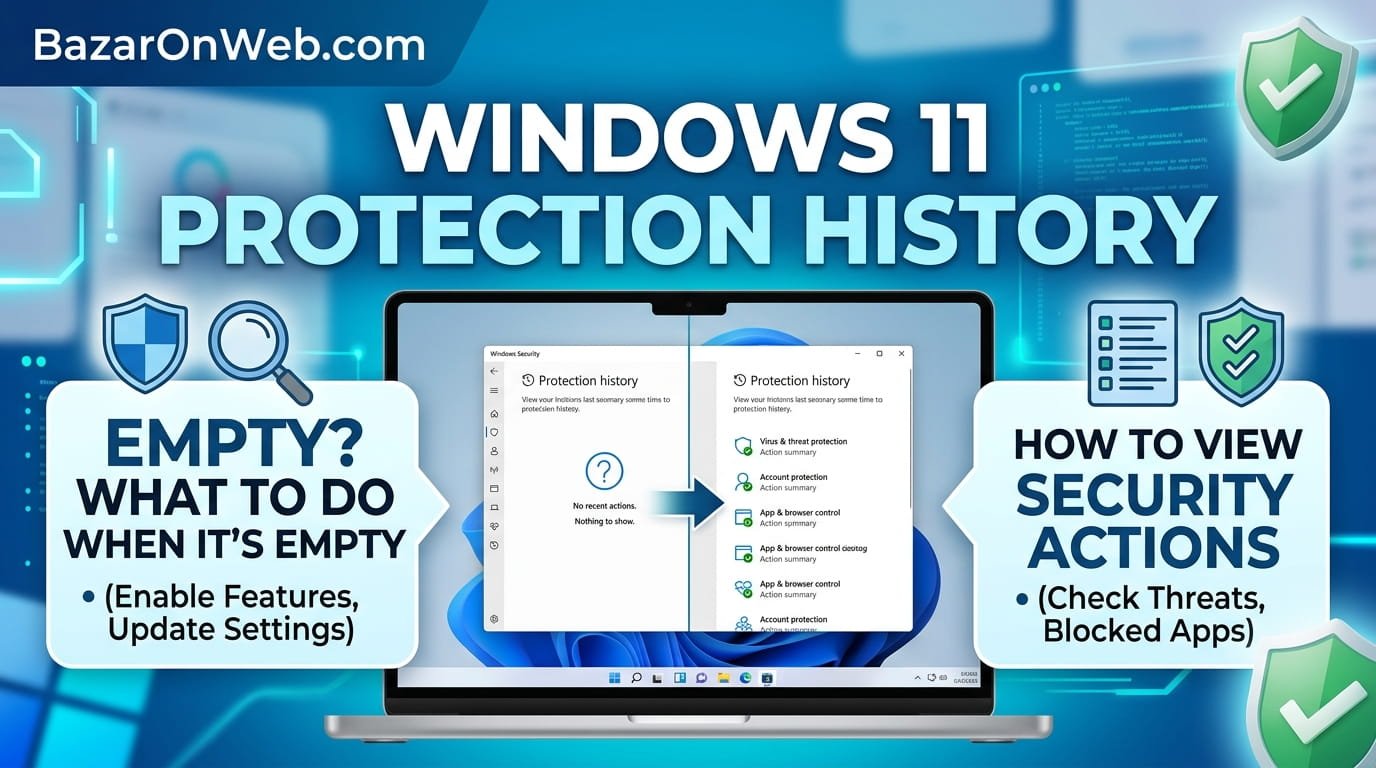
I discovered Windows 11’s Protection History feature somewhat by accident when trying to understand why a legitimate application I’d installed had been blocked by Windows Defender. Protection History is Windows’s detailed record of every security action—blocked apps, quarantined files, detected threats, and more. I realized that most Windows users never explore this feature, missing valuable insights into what their security software is doing behind the scenes. What frustrated me initially was finding Protection History empty when I expected to see records of recent security events. After researching, I discovered that empty Protection History has specific causes ranging from disabled logging to never having any security events to Windows Update issues. Understanding Protection History and troubleshooting why it’s empty transformed how I approach security monitoring on my system.
Protection History serves as your security audit trail, documenting exactly what Windows Defender has done to protect your system. It allows you to allow previously blocked applications if you’ve determined they’re legitimate, restore files from quarantine if they were blocked incorrectly, and verify that your security software is actually functioning. The feature is remarkably underutilized because Windows doesn’t promote awareness of it, and many users don’t know it exists. In this comprehensive guide, I’ll explain what Protection History is, why it matters, how to access and interpret it, what to do when it’s empty, and how to troubleshoot issues preventing proper logging. By understanding Protection History, you’ll gain transparency into your system’s security and ensure your protection mechanisms are working correctly.
1. Understanding Protection History: Purpose and Importance in Windows 11
Protection History is Windows 11’s comprehensive log of security events generated by Windows Defender and other integrated security features. The feature records every instance where Windows blocks malicious files, quarantines suspicious applications, detects potential threats, removes detected malware, and takes other protective actions. Think of Protection History as a security audit trail documenting exactly what your protection system has done. Each entry includes timestamp, type of action, affected file or application, threat detected (if any), and current status of the item. This transparency helps you understand what threats your system encountered and whether your security software successfully protected you.
Protection History’s importance extends beyond mere transparency. If your security software blocks a legitimate application you want to use, Protection History allows you to find that blocked app and allow it to run. If files get quarantined incorrectly, Protection History lets you restore them from quarantine. If you want to verify that your security software is actively protecting you rather than silently failing, Protection History provides evidence of ongoing protection. Additionally, reviewing Protection History helps identify patterns suggesting security problems—if you see repeated threats from the same source or similar applications consistently being blocked, you might have malware attempting persistence or legitimate software repeatedly triggering false positives. Understanding that Protection History is infrastructure for understanding your security posture rather than just a log file explains why ensuring it functions correctly matters.
2. Accessing Protection History: Finding the Feature in Windows 11
Windows Protection History is accessible through Settings, though the path isn’t always obvious since Windows doesn’t prominently advertise the feature. Open Settings by pressing Windows Key + I or clicking Settings in the Start menu. Navigate to Privacy & Security > Virus & threat protection. On this screen, you’ll see options related to Windows Defender and other security features. Look for “Protection history” or “Virus & threat protection history”—this link opens your Protection History dashboard.
Alternatively, search for “Protection history” directly in the Windows search bar and select the result to open it immediately. Once Protection History opens, you’ll see a list of all security events recorded by Windows Defender, organized chronologically with newest events appearing first. Each entry displays the date and time of the event, the type of action (e.g., “Detected and removed,” “Quarantined,” “Allowed”), the name of the file or application affected, and the threat category or name if detected. You can click on any entry to see detailed information about that specific event. The interface provides filtering options allowing you to view only certain types of events, only events from specific time periods, or only events affecting specific applications. Taking time to familiarize yourself with Protection History’s layout and navigation helps you use the feature effectively for monitoring your security.
3. What Protection History Records: Types of Security Events Logged
Protection History captures multiple categories of security events, each important for understanding your system’s protection status. Detection events occur when Windows Defender identifies potentially malicious files or applications and removes them automatically or places them in quarantine. Quarantine events specifically document files placed in a protected area where they cannot execute or harm your system. Allow/Block events record when you or Windows make decisions about whether specific applications should run. Scan results document comprehensive system scans and what they found. Update events record when protection definitions (virus signature databases) update, ensuring your security software can recognize the latest threats.
Additionally, Protection History records real-time protection events occurring as you browse the internet or download files. When Windows Defender detects malicious content in downloads, notifications or blocks appear in Protection History. Exploit protection events document when Windows uses advanced protection techniques to prevent exploit-based attacks. Application guard events record when Windows isolates suspicious applications in a protected environment. Firewall events may appear showing network traffic being blocked. Understanding these different event types helps you interpret what you see in Protection History and what each type means for your system security. A long list of detection events suggests you frequently encounter threats, potentially indicating malware or exposure to risky online behavior. Few or no events suggest either excellent security hygiene or potentially failing protection logging.
4. Why Protection History Might Be Empty: Common Causes
Protection History appears empty when no security events have been logged, but multiple reasons could explain this situation. The most obvious explanation is that your system genuinely hasn’t encountered any threats that Windows Defender detected—if you practice excellent security hygiene, avoid risky websites, and don’t download suspicious files, your Protection History might legitimately be empty or contain very few entries. However, if you expect Protection History to contain entries but it’s empty, other causes apply. Protection History logging might be disabled in Windows settings, preventing events from being recorded even if threats are detected. Windows Defender itself might be disabled, meaning no protection is active to generate events.
Additionally, if you’ve never run scans or accessed risky content, you might not have any events recorded simply because no security actions have occurred. However, if you’ve owned your computer for months or years, completely empty Protection History is suspicious—it suggests either logging is disabled, protection isn’t functioning, or the history has been cleared. Third-party antivirus software might be managing security instead of Windows Defender, meaning events aren’t appearing in Protection History but are being recorded elsewhere. Recently updated Windows sometimes temporarily clears Protection History during updates. Hard drive corruption or Windows system file problems might prevent proper logging. Understanding these various causes helps you diagnose why Protection History appears empty and what to do about it.
5. Troubleshooting Empty Protection History: Enabling Logging and Verification
If Protection History appears empty despite expecting events, the first troubleshooting step is verifying that protection logging is actually enabled. Open Settings > Privacy & Security > Virus & threat protection, then scroll down to “Virus & threat protection settings” and click it. Look for an option related to “Real-time protection” or similar—ensure it’s toggled ON. Additionally, scroll to find “Tamper protection” settings and ensure they’re enabled. If these settings were disabled, Protection History wouldn’t record events. After enabling these settings, restart your computer to ensure changes take effect properly.
Additionally, verify that Windows Defender is your active antivirus. If you installed third-party antivirus software, it might have disabled Windows Defender, meaning security events would be recorded by the third-party software instead. Open Settings > Privacy & Security > Virus & threat protection and check which security provider is listed as active. If it’s a third-party application, Windows Defender is inactive and its Protection History won’t contain events. You can enable Windows Defender by uninstalling the third-party antivirus or disabling it to allow Windows Defender to resume protection. Additionally, run a quick system scan manually by clicking “Scan options” and selecting “Quick scan” or “Full scan” to generate some security events. After scanning completes, check whether Protection History now contains entries documenting the scan results. If scan results appear in Protection History, logging is functioning and the previous emptiness resulted from lack of security events rather than disabled logging.
6. Allowing Previously Blocked Applications Through Protection History
One of Protection History’s most practical uses is allowing legitimate applications that Windows Defender blocked incorrectly. If you know an application is safe but Windows Defender keeps blocking it, Protection History lets you find that application and change its status from blocked to allowed. Open Protection History and search for the blocked application by name using the search feature or by scrolling to find it. When you locate the entry showing the application blocked, click on it to see detailed information.
Look for an “Allow” or “Restore” button in the detailed view—clicking this button removes the application from the blocked list and allows it to run. After allowing an application, Windows Defender will no longer block it in the future. However, only allow applications you’re completely confident are legitimate—allowing malicious applications defeats your security protection. If you’re unsure about an application’s legitimacy, research it online before allowing it. Additionally, allowing an application only affects Windows Defender’s response—if other security features blocked it, you might need to configure those separately. Furthermore, allowing an application doesn’t restore files already deleted by Windows Defender—it only prevents future blocking. If you need to recover deleted files, use the quarantine recovery method described in the next section. This allow feature is valuable for power users who understand application legitimacy and want to use applications Windows Defender’s heuristics falsely identified as threats.
7. Restoring Files from Quarantine Using Protection History
If Windows Defender quarantined files you need to recover, Protection History provides access to quarantined items and the ability to restore them. Open Protection History and look for entries showing “Quarantined” status or entries specifically for files placed in quarantine. Click on a quarantined file entry to see details. If you’re certain the quarantined file is legitimate and not actually malicious, click the “Restore” or “Allow” option in the detailed view.
Restoring a quarantined file removes it from the quarantine folder and returns it to its original location (or your specified location if the original location is no longer available). The restored file then functions normally without quarantine restrictions. However, only restore files you’re absolutely certain are legitimate—restoring genuinely malicious files re-introduces threats to your system. If you’re unsure about a file’s legitimacy, research it online before restoring. Additionally, when restoring files, be aware that if the file was a detected threat, restoring it might reactivate malware. Proceed cautiously with restoration and consider scanning your system after restoring files if you’re not completely confident about their safety. Furthermore, Protection History sometimes doesn’t show all quarantined files—if you need comprehensive quarantine management, access the actual Quarantine folder through Windows Defender settings where you see all quarantined items with more detailed information and options.
8. Clearing and Resetting Protection History When Needed
Occasionally you might want to clear Protection History to remove old entries, start fresh, or troubleshoot logging issues. Protection History can accumulate months or years of entries, making it large and potentially slow to load. Clearing it removes all historical events, giving you a fresh start. However, only clear Protection History if you’re certain you don’t need the historical information—once cleared, you cannot recover deleted entries. Open Protection History and look for a “Clear” or “Clear all” option, typically appearing as a button in the interface or within a menu.
Clicking clear removes all entries from Protection History. After clearing, Protection History appears empty again but will begin logging new events immediately. This approach is useful if you’re troubleshooting logging issues—after clearing, running a manual scan should generate new entries proving the logging functionality works. Additionally, some Windows updates automatically clear Protection History as part of the update process. If you notice Protection History cleared unexpectedly after updates, this explains why. You can prevent this by excluding Protection History data from being cleared, though this requires Registry modifications or group policy changes on business editions of Windows. For most users, allowing Protection History to clear with updates and periodically clearing old entries manually maintains manageable history size without losing critical security information.
9. Configuring Protection History Settings for Optimal Monitoring
Windows provides limited configuration options for Protection History behavior, but understanding available settings helps you optimize what gets logged and how. Open Settings > Privacy & Security > Virus & threat protection > Manage settings to access protection configuration. Look for options related to cloud protection, automatic sample submission, and detailed threat notifications. Cloud protection enables Windows to submit suspicious files to Microsoft for analysis, which can improve detection but involves sending file samples to Microsoft servers—review privacy implications if this concerns you.
Additionally, configure notification settings to control how much detail you see about security events. If you prefer detailed notifications about every blocked item, enable verbose notifications. If you prefer minimal notifications to avoid disruption, configure less detailed alerts. These notification settings don’t affect what’s logged in Protection History—all events are recorded regardless of notification settings. Additionally, consider scheduling regular scans to generate Protection History entries verifying your system is being actively monitored. Many users schedule weekly or monthly scans precisely to verify protection is functioning and generate documentation of scanning activity. Configure scan schedules through Settings > Privacy & Security > Virus & threat protection > Manage settings > Scan options. Regular scans provide both protection benefits and documentation in Protection History that security is actively monitoring your system.
10. Best Practices for Monitoring Protection History and Maintaining System Security
Effectively using Protection History as a security monitoring tool requires developing regular review habits. Set a monthly reminder to review your Protection History, examining what threats your system encountered, what applications were blocked, and whether patterns suggest potential security problems. If you see the same application repeatedly blocked, investigate whether it’s legitimately needed (and allow it if confident) or if it’s potentially problematic software you should uninstall. If you see threats from the same source repeatedly, that source might be malicious or your system might have malware repeatedly attempting infection.
Additionally, when installing new applications, run a manual scan and check Protection History to verify the application didn’t trigger security events. Applications triggering significant security events deserve investigation before you trust them. Furthermore, maintain regular backups so if malware threatens your system despite protection, you can restore from clean backups. Protection History documents what was detected, but backup files provide actual recovery capability if threats succeed. Finally, use Protection History to educate yourself about security. Understanding what threats exist, what applications are risky, and what behaviors trigger security events helps you make better decisions about what websites you visit, what files you download, and what software you install. Protection History is not just a log—it’s an educational tool showing you actual security threats affecting computers similar to yours, helping you understand why protection practices matter.
Disclaimer
This article provides guidance on understanding and using Windows 11 Protection History for security monitoring. The information is intended for educational purposes to help users understand security events and manage protected files. Specific features, procedures, and availability may vary depending on your Windows 11 version, security software configuration, and system settings.
Important Disclaimers:
- Protection History records events from Windows Defender; third-party antivirus software maintains separate logs
- Allowing or restoring blocked files eliminates Windows Defender’s protection for those items; proceed cautiously
- Empty Protection History can result from multiple causes; determining the correct cause requires systematic troubleshooting
- Some security events may not appear in Protection History due to logging limitations or configuration issues
- Restoring quarantined files may reintroduce malware if the files are actually malicious; research file legitimacy before restoration
Security Considerations:
- Only allow applications you’re absolutely certain are legitimate; allowing malicious applications compromises security
- Only restore quarantined files you’ve verified are safe; restoring malware re-introduces threats
- Disabling protection logging reduces security transparency; only disable if necessary
- Regular monitoring of Protection History helps identify potential security threats and compromises
Malware and Threat Context:
- Protection History documents detected threats but doesn’t guarantee all threats were caught
- Some malware attempts to hide from protection logs; Protection History may not show all infection attempts
- If you suspect malware beyond what Protection History shows, professional security scans may be necessary
- Ransomware and other sophisticated threats may operate despite appearing in Protection History
Third-Party Security Software:
- If third-party antivirus is installed, Windows Defender may be disabled and Protection History won’t log events
- Third-party software maintains its own event logs instead
- Running multiple antivirus programs simultaneously can cause conflicts; ensure only one antivirus is active
File Recovery Limitations:
- Quarantined files cannot always be fully recovered after deletion
- The longer files remain in quarantine, the lower recovery chances
- Some file types cannot be safely recovered if they’re confirmed malicious
- Professional data recovery may be necessary if recovery through Protection History fails
System Impact:
- Clearing Protection History removes all event history; this action cannot be undone
- Large Protection History logs may consume disk space; periodically clearing old entries helps
- Enabling detailed logging increases disk space consumption but provides better documentation
Verification and Accuracy:
- Protection History events are accurate but may not capture all security issues
- Some threats exploit zero-day vulnerabilities not yet in protection definitions
- Protection History depends on regular definition updates; ensure definitions stay current
Privacy Considerations:
- Protection History may contain information about files and applications on your system
- Cloud protection submissions send file samples to Microsoft for analysis
- Review privacy implications of cloud protection and sample submission settings
When Professional Help Is Needed:
- If Protection History shows signs of malware infection, professional cleaning services may be necessary
- If you suspect protection logging is being bypassed or tampered with, security professional assessment is appropriate
- If malware persists despite appearing in Protection History, professional remediation may be required
- For enterprise security concerns, managed security services can provide comprehensive monitoring
Liability:
We are not responsible for any security issues, malware infections, data loss, or other consequences resulting from allowing applications, restoring quarantined files, or following guidance in this article. Users assume full responsibility for verifying application and file legitimacy before allowing or restoring them. Most Protection History operations are reversible by re-blocking applications or re-quarantining files, but some actions (like deleting quarantined files) may be permanent. If you’re uncomfortable with security decisions or unsure about application legitimacy, consult professional security assessment before allowing questionable items.
About the Author
Jessica Miller is a marketing manager and security-conscious computer user who believes understanding your system’s security is essential for maintaining it effectively. With expertise in Windows security features, threat detection, and practical security practices, she helps busy professionals monitor and maintain their system security confidently. When she’s not writing comprehensive tech guides or managing her marketing team, she’s staying informed about emerging security threats, testing security features, and helping friends understand their computer’s security posture.

- How to Remotely Control Another Computer Using Windows Quick Assist

- 5 Must-Have Electronics Gadgets for a More Comfortable Living Room

- How to Create a Windows 11 System Backup on an External Hard Drive

- 10 Smart Home Ideas That Make Everyday Life Easier

- Gemini Live Avatar: How to Talk to Gemini Face-to-Face

Products
-
![Apple Watch Ultra 3 [GPS + Cellular 49mm] Running & Multisport Smartwatch w/Rugged Titanium Case w/Black Titanium Milanese Loop - M. Satellite Communications, Advanced Health & Fitness Tracking](https://bazaronweb.com/retailstores/wp-content/uploads/2025/09/apple-watch-320x320.jpg) Apple Watch Ultra 3 [GPS + Cellular 49mm] Running & Multisport Smartwatch w/Rugged Titanium Case w/Black Titanium Milanese Loop - M. Satellite Communications, Advanced Health & Fitness Tracking
Apple Watch Ultra 3 [GPS + Cellular 49mm] Running & Multisport Smartwatch w/Rugged Titanium Case w/Black Titanium Milanese Loop - M. Satellite Communications, Advanced Health & Fitness Tracking
-
 Apple iPad mini (A17 Pro): Apple Intelligence, 8.3-inch Liquid Retina Display, 256GB, Wi-Fi 6E, 12MP Front/12MP Back Camera, Touch ID, All-Day Battery Life — Purple
-
 Apple AirPods Max Wireless Over-Ear Headphones, Active Noise Cancelling, Transparency Mode, Personalized Spatial Audio, Dolby Atmos, Bluetooth Headphones for iPhone – Space Gray
-
 Apple AirPods Pro 2 Wireless Earbuds, Active Noise Cancellation, Hearing Aid Feature, Bluetooth Headphones, Transparency, Personalized Spatial Audio, High-Fidelity Sound, H2 Chip, USB-C Charging
-
Home Garage 210 TC Cotton King Floral Fitted (Elastic) Bedsheet(Pack of 1, Grey)
Original price was: ₹999.00.₹299.00Current price is: ₹299.00.
Leave a Reply