Discounted Products
-
 Home Garage 210 TC Cotton King Floral Fitted (Elastic) Bedsheet(Pack of 1, Grey)
Original price was: ₹999.00.₹299.00Current price is: ₹299.00.
Home Garage 210 TC Cotton King Floral Fitted (Elastic) Bedsheet(Pack of 1, Grey)
Original price was: ₹999.00.₹299.00Current price is: ₹299.00.
-
 Goodrik 140 TC Cotton Double 3D Printed Flat Bedsheet(Pack of 1, Brown)
Original price was: ₹499.00.₹229.00Current price is: ₹229.00.
Goodrik 140 TC Cotton Double 3D Printed Flat Bedsheet(Pack of 1, Brown)
Original price was: ₹499.00.₹229.00Current price is: ₹229.00.
-
 GLOBALSHOP 350 TC Microfiber Double Floral Flat Bedsheet(Pack of 1, Multicolor)
Original price was: ₹1,250.00.₹263.00Current price is: ₹263.00.
GLOBALSHOP 350 TC Microfiber Double Floral Flat Bedsheet(Pack of 1, Multicolor)
Original price was: ₹1,250.00.₹263.00Current price is: ₹263.00.
-
 RisingStar 250 TC Microfiber King Printed Fitted (Elastic) Bedsheet(Pack of 1, FITTED-ROUND-CIRCLES-PREMIUM)
Original price was: ₹2,299.00.₹299.00Current price is: ₹299.00.
RisingStar 250 TC Microfiber King Printed Fitted (Elastic) Bedsheet(Pack of 1, FITTED-ROUND-CIRCLES-PREMIUM)
Original price was: ₹2,299.00.₹299.00Current price is: ₹299.00.
-
 Home Garage 210 TC Cotton King Floral Fitted (Elastic) Bedsheet(Pack of 1, Fitted Black Green)
Original price was: ₹1,299.00.₹299.00Current price is: ₹299.00.
Home Garage 210 TC Cotton King Floral Fitted (Elastic) Bedsheet(Pack of 1, Fitted Black Green)
Original price was: ₹1,299.00.₹299.00Current price is: ₹299.00.
-
 Home Garage 180 TC Cotton King 3D Printed Flat Bedsheet(Pack of 1, White)
Original price was: ₹999.00.₹229.00Current price is: ₹229.00.
Home Garage 180 TC Cotton King 3D Printed Flat Bedsheet(Pack of 1, White)
Original price was: ₹999.00.₹229.00Current price is: ₹229.00.
-
 Panipat Textile Hub 152.4 cm (5 ft) Polyester Window Curtain (Pack Of 2)(Solid, Aqua)
Original price was: ₹1,899.00.₹299.00Current price is: ₹299.00.
Panipat Textile Hub 152.4 cm (5 ft) Polyester Window Curtain (Pack Of 2)(Solid, Aqua)
Original price was: ₹1,899.00.₹299.00Current price is: ₹299.00.
-
 Home Sizzler 214 cm (7 ft) Polyester Semi Transparent Door Curtain (Pack Of 2)(Floral, Maroon)
Original price was: ₹1,199.00.₹399.00Current price is: ₹399.00.
Home Sizzler 214 cm (7 ft) Polyester Semi Transparent Door Curtain (Pack Of 2)(Floral, Maroon)
Original price was: ₹1,199.00.₹399.00Current price is: ₹399.00.
-
 Home Sizzler 153 cm (5 ft) Polyester Room Darkening Window Curtain (Pack Of 2)(Floral, Brown)
Original price was: ₹799.00.₹299.00Current price is: ₹299.00.
Home Sizzler 153 cm (5 ft) Polyester Room Darkening Window Curtain (Pack Of 2)(Floral, Brown)
Original price was: ₹799.00.₹299.00Current price is: ₹299.00.
-
 Stella Creations 214 cm (7 ft) Polyester Room Darkening Door Curtain (Pack Of 2)(Abstract, Brown)
Original price was: ₹1,299.00.₹449.00Current price is: ₹449.00.
Stella Creations 214 cm (7 ft) Polyester Room Darkening Door Curtain (Pack Of 2)(Abstract, Brown)
Original price was: ₹1,299.00.₹449.00Current price is: ₹449.00.
-
 Homefab India 152.5 cm (5 ft) Polyester Room Darkening Window Curtain (Pack Of 2)(Floral, Light Blue)
Original price was: ₹1,199.00.₹319.00Current price is: ₹319.00.
Homefab India 152.5 cm (5 ft) Polyester Room Darkening Window Curtain (Pack Of 2)(Floral, Light Blue)
Original price was: ₹1,199.00.₹319.00Current price is: ₹319.00.
-
 Urban Home 214 cm (7 ft) PVC Transparent Door Curtain Single Curtain(Solid, Off White)
Original price was: ₹699.00.₹203.00Current price is: ₹203.00.
Urban Home 214 cm (7 ft) PVC Transparent Door Curtain Single Curtain(Solid, Off White)
Original price was: ₹699.00.₹203.00Current price is: ₹203.00.
-
 Panipat Textile Hub 213 cm (7 ft) Polyester Door Curtain (Pack Of 2)(Solid, Brown)
Original price was: ₹1,199.00.₹349.00Current price is: ₹349.00.
Panipat Textile Hub 213 cm (7 ft) Polyester Door Curtain (Pack Of 2)(Solid, Brown)
Original price was: ₹1,199.00.₹349.00Current price is: ₹349.00.
-
 Home Sizzler 214 cm (7 ft) Polyester Semi Transparent Door Curtain (Pack Of 2)(Floral, Brown)
Original price was: ₹999.00.₹349.00Current price is: ₹349.00.
Home Sizzler 214 cm (7 ft) Polyester Semi Transparent Door Curtain (Pack Of 2)(Floral, Brown)
Original price was: ₹999.00.₹349.00Current price is: ₹349.00.
-
 Panipat Textile Hub 213 cm (7 ft) Polyester Semi Transparent Door Curtain (Pack Of 2)(Floral, Brown)
Original price was: ₹899.00.₹299.00Current price is: ₹299.00.
Panipat Textile Hub 213 cm (7 ft) Polyester Semi Transparent Door Curtain (Pack Of 2)(Floral, Brown)
Original price was: ₹899.00.₹299.00Current price is: ₹299.00.
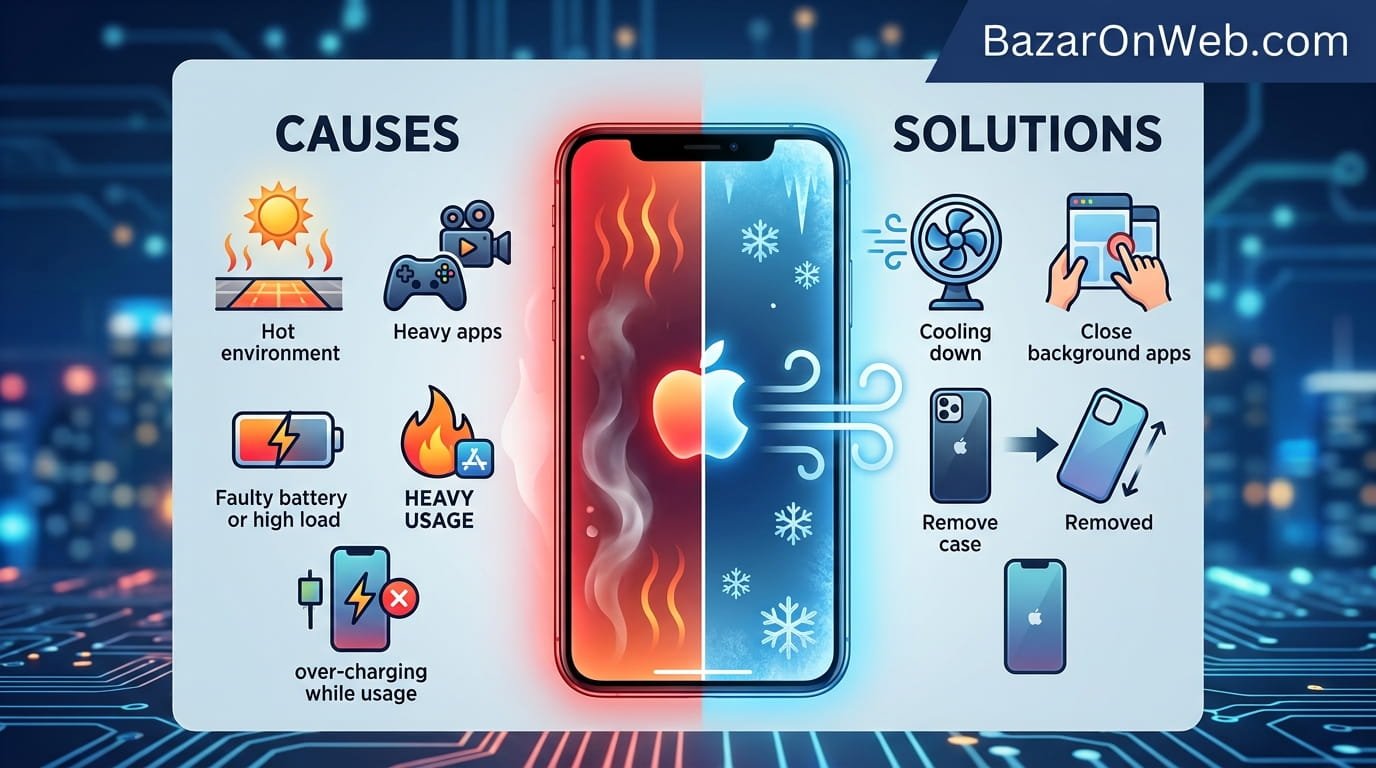
The Moment Your Phone Became a Mini Oven
I was scrolling through Instagram when I noticed my iPhone felt warm. Not just warm. Actively hot. The kind of hot that makes you uncomfortable holding it. I checked the screen expecting to see a warning message, but there was nothing. Just a normal Instagram feed and a phone that felt like it was about to melt.
At first I thought maybe I’d been using it too long. I set it down to cool off. Thirty seconds later, still hot. A minute later, still hot. This wasn’t normal iPhone warmth from light use. This was sustained, concerning heat that didn’t make sense because I was literally just scrolling.
I didn’t panic immediately, but I was definitely concerned. Is the battery failing? Is something overheating? Can phones catch fire? These thoughts ran through my head as I waited for my phone to cool down.
After an hour, it eventually cooled. But then it happened again the next day. And the day after. Random bouts of intense heat that had no obvious cause. I wasn’t playing graphics-intensive games. I wasn’t streaming video. I was just using my phone normally and it would suddenly become concerningly hot.
Turns out iPhone overheating is surprisingly common, and the causes are varied and sometimes hard to identify. Your phone might be actually working hard (in which case the heat is temporary and normal), or something might be wrong with the battery, or background processes might be going haywire, or dozens of other issues. Without investigating, you have no idea what’s happening or whether your phone is actually in danger.
Why iPhones Generate Heat (And When It’s Actually a Problem)
Understanding why phones get hot helps distinguish between normal heat and concerning heat.
Your iPhone contains a processor, battery, display, and various other components. Everything that uses electricity generates heat as a byproduct. When you run demanding apps or do intensive tasks, your processor works harder, generates more heat, and this is completely normal behavior.
Brief heat during intensive activity is expected. Playing a 3D game? Your phone gets warm. Rendering video? Gets hot. Recording 4K video? Definitely hot. This is normal. The heat dissipates when you stop the activity.
What’s not normal is sustained heat during light use. Scrolling through social media shouldn’t make your phone hot. Checking email shouldn’t make it hot. If your phone is hot despite you doing nothing intensive, something is wrong.
Your iPhone has thermal sensors that monitor temperature. If your phone gets extremely hot (above about 35°C/95°F), iOS displays a warning message saying your iPhone needs to cool down. If you see this warning, something is definitely wrong.
But even without a warning message, if your phone is noticeably hot during normal use, investigation is warranted. You’re the best judge of “normal” for your phone. If it’s hotter than usual, something changed.
The Most Common Culprit: Background App Refresh Gone Wild
Background App Refresh is a feature allowing apps to update in the background even when you’re not actively using them. This is useful for getting fresh notifications and data, but sometimes it goes haywire.
An app might get stuck constantly refreshing, consuming processor resources continuously. To you, this manifests as your phone being hot despite you doing nothing intensive.
Check what’s consuming processor resources. Unfortunately, iOS doesn’t have an obvious “Activity Monitor” like MacOS. But you can check battery usage which shows what’s consuming resources.
Settings > Battery > Battery Usage shows which apps consumed the most battery recently. If an app you rarely use is showing significant battery consumption, it’s probably running in the background excessively.
Try disabling Background App Refresh for specific apps. Settings > General > Background App Refresh. You’ll see a list of apps. Toggle off Background App Refresh for apps you don’t need refreshing constantly.
Additionally, check if an app you recently updated is misbehaving. Updates sometimes introduce bugs that cause apps to consume excessive resources. Update the app if an update is available, or uninstall and reinstall the app fresh.
After disabling Background App Refresh for problematic apps, monitor your phone’s temperature. If it cools down, you’ve found your culprit.
Location Services: Constant GPS Drains Your Battery and Heats Your Phone
Location Services uses your iPhone’s GPS constantly to track your location. This is useful for maps and location-aware apps, but constant GPS usage consumes significant processor power and generates heat.
Some apps use Location Services even when you’re not actively using them. Background location tracking for fitness apps, weather apps, or other services can cause sustained heat without you realizing it.
Check which apps have Location Services permissions. Settings > Privacy & Security > Location Services. You’ll see a list of apps and their location access status.
Review each app and think about whether it actually needs constant location access. If an app doesn’t need it, change the setting to “Never” instead of “Always” or “While Using App.”
For apps that need location sometimes but not always, set them to “While Using App” instead of “Always.” This prevents them from tracking your location when you’re not actively using them.
After restricting Location Services permissions, see if your phone stays cooler. If it does, one of these apps was causing the excessive GPS usage.
iCloud Photo Sync Gone Berserk: When Your Photos Cause Overheating
If you use iCloud Photo Library, your iPhone syncs photos and videos to iCloud in the background. If you have a large photo library or just took many photos, this sync process can consume significant resources and generate heat.
First time you enable iCloud Photo Library on a phone with thousands of photos, expect your phone to be hot for hours or even days as it processes and uploads everything.
But if your phone is consistently hot and you’ve had iCloud Photo Library enabled for weeks, something might be wrong with the sync process.
Try temporarily disabling iCloud Photo sync. Settings > [Your Name] > iCloud > Photos > toggle off “iCloud Photos.”
Monitor your phone’s temperature. If it cools down immediately, iCloud sync was the culprit. You can re-enable it later when you’re plugged in and have time for the sync to complete.
Alternatively, if you want to keep iCloud Photos enabled, make sure you’re connected to WiFi and plugged in while syncing. Plugging your phone into power tells iOS to prioritize syncing, clearing the backlog faster.
Update in Progress: When iOS Updates Cause Temporary Overheating
iOS updates sometimes cause your phone to work harder during the update process and shortly after. During an active iOS update installation, your phone might run hot as it installs system files and configures new features.
Similarly, right after updating, your phone might run hot for a while as iOS re-indexes files, re-optimizes the system, and processes the update fully. This can take hours for large updates.
If your phone is hot and you recently updated iOS, give it time. Plug it in, let it cool, and let it finish processing the update. The excessive heat should resolve within a day or two as the system settles.
If heat persists weeks after an update, you have a different problem.
Charging While Using: When You Use Your Phone While Charging
Using your iPhone while charging generates more heat than normal because both charging the battery and running apps use power simultaneously.
If your phone overheats specifically while charging and in active use, this is usually normal behavior. Try using your phone less while charging, or charging when your phone is idle.
However, if your phone overheats while charging even when idle, the charging port or battery might have issues.
Battery Health Degradation: When Your Battery Is Actually Failing
Over time, iPhone batteries degrade. An old battery becomes less efficient, generates more heat, and might fail entirely.
Check your battery health. Settings > Battery > Battery Health & Charging.
This shows your battery’s maximum capacity (how much charge it holds compared to new). If your battery is below 80% health, it’s degraded but probably still functional. Below 50%, your battery is significantly degraded.
If battery health is very low (below 50%) and your phone is overheating, the battery might be failing. Battery replacement is necessary. Apple and authorized service centers can replace batteries.
If battery health is high and phone is overheating, the battery isn’t the problem.
Malware or Adware: When Something Unwanted Is Running
Malware on iPhones is less common than on Android, but it exists. Malicious apps or adware might run background processes consuming resources and generating heat.
Check if you recently installed suspicious apps. Go to Settings > General > iPhone Storage. This shows all installed apps sorted by size.
Look for unfamiliar apps you don’t remember installing. These might be hidden malware or adware. Uninstall suspicious apps.
Additionally, if your phone is jailbroken (which you probably wouldn’t admit but it’s possible), malware risk is significantly higher. Jailbroken phones are vulnerable to malicious software.
For peace of mind, run your iPhone through a security check using Apple’s integrated security features. Settings > Privacy & Security. Check if there are any security warnings or issues.
Processor Intensive Apps: When One App Is Just Too Demanding
Some apps are more processor-intensive than others. Gaming apps, video editing apps, or augmented reality apps use significant processor power.
If your phone overheats when using a specific app, that app is just demanding. This is usually normal. Stop using the app, let your phone cool, and it should be fine.
If the app consistently overheats your phone even during light use within the app, the app has a problem. Check if an update is available. Update the app. If overheating persists, the app might be poorly optimized.
Uninstall the problem app if its overheating is bothersome.
Environmental Heat: When External Temperature Is the Real Problem
Sometimes your phone is hot because your environment is hot, not because your phone is malfunctioning.
If you’re outside on a hot day or in a warm room and your phone is warm, this might just be your phone reflecting environmental temperature rather than actively overheating.
However, iPhones are designed to work in temperatures up to about 35°C (95°F). If your environment exceeds this or if your phone is hot even relative to the environment, there’s still a problem.
Move to a cooler location. If your phone cools quickly in air conditioning, environmental heat was the issue. If your phone stays hot despite being in a cool environment, the phone is actively overheating.
iOS Bugs and Glitches: When Software Has Temporary Problems
iOS updates occasionally introduce bugs that cause excessive processor usage or heat. These are usually fixed in subsequent updates.
If your phone started overheating right after an iOS update and nothing else changed, the update might have a bug.
Check Settings > General > Software Update. If a new update is available, install it. The new update might fix the heat-causing bug.
If no new update is available, try the following:
- Restart your iPhone (turn off and back on)
- Force restart if regular restart doesn’t help (quickly press Volume Up, press Volume Down, then hold Side button until Apple logo appears)
- Clear Safari cache if you primarily use Safari (Settings > Safari > History > Clear History and Website Data)
- Disable Siri temporarily if it’s been active a lot (Settings > Siri & Search)
These steps sometimes clear temporary iOS glitches causing heat.
When It’s Actually Hardware Failure
Sometimes phone overheating indicates actual hardware failure. Your iPhone might need service.
Signs of hardware problems:
- Phone is extremely hot consistently (too hot to hold)
- Heat exists even after disabling all background processes
- Heat persists after restarting multiple times
- Battery is expanding (phone feels swollen or bloated)
- Phone won’t charge
- Screen shows discoloration or strange display issues alongside heat
If you suspect hardware failure, contact Apple Support or visit an Apple Store for diagnostics. They can test your iPhone and determine if hardware replacement is necessary.
If your iPhone is under warranty or AppleCare+, repair might be covered. Out of warranty, repairs are expensive but sometimes necessary.
Preventing Excessive Heat: Long-Term Maintenance
After resolving overheating issues, prevention helps avoid problems recurring.
Keep Location Services restricted: Only allow Location Services for apps that genuinely need it.
Monitor Background App Refresh: Periodically check which apps are consuming battery in Settings > Battery.
Avoid using phone in hot environments: Keep your iPhone cool. Don’t leave it in direct sunlight or in hot cars.
Restart occasionally: Weekly restarts clear temporary background processes that might be accumulating.
Keep iOS updated: New iOS versions include bug fixes for heat-related problems.
Don’t use phone excessively while charging: Limit intensive use while plugged in.
Consider battery replacement if needed: If battery health is very low, replacement improves overall performance including heat management.
The Annoying Reality
iPhone overheating is frustrating because multiple things could cause it. Background app refresh, Location Services, syncing, an update, a bug, or actual hardware failure—troubleshooting requires investigating each possibility.
Most of the time it’s software-related and fixable. Background processes, iCloud sync, or app refresh can all cause heat. Disabling or fixing these usually resolves the issue.
Hardware failure is rarer. If you’ve addressed software issues and your phone still consistently overheats, professional service is appropriate.
Your iPhone probably isn’t going to catch fire or explode. iPhones are engineered with thermal safety. But persistent overheating indicates something wrong that deserves investigation and potentially repair.
Quick Priority List for iPhone Overheating
Phone is uncomfortably hot?
- Check battery usage (Settings > Battery > Battery Usage) for resource hogs
- Disable Background App Refresh for apps you don’t need it for
- Restrict Location Services to only apps that need it
- Temporarily disable iCloud Photo sync if syncing is active
- Restart your iPhone completely
- Check battery health (Settings > Battery > Battery Health & Charging)
- Check for iOS updates and install if available
- Test with Airplane Mode enabled to see if wireless is the problem
- Uninstall recently installed apps that might be problematic
- Contact Apple if overheating persists despite trying everything
One of these will usually identify the cause.

- How to Remotely Control Another Computer Using Windows Quick Assist

- 5 Must-Have Electronics Gadgets for a More Comfortable Living Room

- How to Create a Windows 11 System Backup on an External Hard Drive

- 10 Smart Home Ideas That Make Everyday Life Easier

- Gemini Live Avatar: How to Talk to Gemini Face-to-Face

Products
-
![Apple Watch Ultra 3 [GPS + Cellular 49mm] Running & Multisport Smartwatch w/Rugged Titanium Case w/Black Titanium Milanese Loop - M. Satellite Communications, Advanced Health & Fitness Tracking](https://bazaronweb.com/retailstores/wp-content/uploads/2025/09/apple-watch-320x320.jpg) Apple Watch Ultra 3 [GPS + Cellular 49mm] Running & Multisport Smartwatch w/Rugged Titanium Case w/Black Titanium Milanese Loop - M. Satellite Communications, Advanced Health & Fitness Tracking
Apple Watch Ultra 3 [GPS + Cellular 49mm] Running & Multisport Smartwatch w/Rugged Titanium Case w/Black Titanium Milanese Loop - M. Satellite Communications, Advanced Health & Fitness Tracking
-
 Apple iPad mini (A17 Pro): Apple Intelligence, 8.3-inch Liquid Retina Display, 256GB, Wi-Fi 6E, 12MP Front/12MP Back Camera, Touch ID, All-Day Battery Life — Purple
-
 Apple AirPods Max Wireless Over-Ear Headphones, Active Noise Cancelling, Transparency Mode, Personalized Spatial Audio, Dolby Atmos, Bluetooth Headphones for iPhone – Space Gray
-
 Apple AirPods Pro 2 Wireless Earbuds, Active Noise Cancellation, Hearing Aid Feature, Bluetooth Headphones, Transparency, Personalized Spatial Audio, High-Fidelity Sound, H2 Chip, USB-C Charging
-
Home Garage 210 TC Cotton King Floral Fitted (Elastic) Bedsheet(Pack of 1, Grey)
Original price was: ₹999.00.₹299.00Current price is: ₹299.00.
Leave a Reply