Category
Popular Articles
- AI (24)
- Air Tag (2)
- Android (61)
- App Suggest (13)
- Apple (46)
- Apple TV (4)
- Bluetooth (3)
- Cars (2)
- ChatGpt (1)
- Chrome (6)
- Did you know? (1)
- E-Commerce News (1)
- Ecommerce Websites business (7)
- Electronics Shopping (5)
- Fashion Tips (3)
- Gaming (7)
- Google Gemini (3)
- Hair Care Tips (2)
- How to (13)
- iCloud (1)
- Infotainment System (1)
- iPad (1)
- Iphone (178)
- Job Posting (1)
- Lifestyle (3)
- MacBook (40)
- Mobile Games (1)
- Netflix (1)
- Online Shopping Websites (2)
- Personal Finance Management (3)
- Product Reviews (3)
- Roku TV (4)
- Samsung (10)
- Shopping Tips (13)
- Spotify (1)
- Tech (166)
- VPN (2)
- Whatsapp (1)
- Windows 11 (142)
- Youtube (1)
- Zero Waste (3)
Discounted Products
-

Home Garage 210 TC Cotton King Floral Fitted (Elastic) Bedsheet(Pack of 1, Grey)
₹999.00Original price was: ₹999.00.₹299.00Current price is: ₹299.00. -

Goodrik 140 TC Cotton Double 3D Printed Flat Bedsheet(Pack of 1, Brown)
₹499.00Original price was: ₹499.00.₹229.00Current price is: ₹229.00. -

GLOBALSHOP 350 TC Microfiber Double Floral Flat Bedsheet(Pack of 1, Multicolor)
₹1,250.00Original price was: ₹1,250.00.₹263.00Current price is: ₹263.00. -

RisingStar 250 TC Microfiber King Printed Fitted (Elastic) Bedsheet(Pack of 1, FITTED-ROUND-CIRCLES-PREMIUM)
₹2,299.00Original price was: ₹2,299.00.₹299.00Current price is: ₹299.00. -

Home Garage 210 TC Cotton King Floral Fitted (Elastic) Bedsheet(Pack of 1, Fitted Black Green)
₹1,299.00Original price was: ₹1,299.00.₹299.00Current price is: ₹299.00. -

Home Garage 180 TC Cotton King 3D Printed Flat Bedsheet(Pack of 1, White)
₹999.00Original price was: ₹999.00.₹229.00Current price is: ₹229.00. -

Panipat Textile Hub 152.4 cm (5 ft) Polyester Window Curtain (Pack Of 2)(Solid, Aqua)
₹1,899.00Original price was: ₹1,899.00.₹299.00Current price is: ₹299.00. -

Home Sizzler 214 cm (7 ft) Polyester Semi Transparent Door Curtain (Pack Of 2)(Floral, Maroon)
₹1,199.00Original price was: ₹1,199.00.₹399.00Current price is: ₹399.00. -

Home Sizzler 153 cm (5 ft) Polyester Room Darkening Window Curtain (Pack Of 2)(Floral, Brown)
₹799.00Original price was: ₹799.00.₹299.00Current price is: ₹299.00. -

Stella Creations 214 cm (7 ft) Polyester Room Darkening Door Curtain (Pack Of 2)(Abstract, Brown)
₹1,299.00Original price was: ₹1,299.00.₹449.00Current price is: ₹449.00. -

Homefab India 152.5 cm (5 ft) Polyester Room Darkening Window Curtain (Pack Of 2)(Floral, Light Blue)
₹1,199.00Original price was: ₹1,199.00.₹319.00Current price is: ₹319.00. -

Urban Home 214 cm (7 ft) PVC Transparent Door Curtain Single Curtain(Solid, Off White)
₹699.00Original price was: ₹699.00.₹203.00Current price is: ₹203.00. -

Panipat Textile Hub 213 cm (7 ft) Polyester Door Curtain (Pack Of 2)(Solid, Brown)
₹1,199.00Original price was: ₹1,199.00.₹349.00Current price is: ₹349.00. -

Home Sizzler 214 cm (7 ft) Polyester Semi Transparent Door Curtain (Pack Of 2)(Floral, Brown)
₹999.00Original price was: ₹999.00.₹349.00Current price is: ₹349.00. -

Panipat Textile Hub 213 cm (7 ft) Polyester Semi Transparent Door Curtain (Pack Of 2)(Floral, Brown)
₹899.00Original price was: ₹899.00.₹299.00Current price is: ₹299.00.
Affiliate Links
Promotion
MacBook Fans Running Constantly: Why Your Laptop Sounds Like a Jet Engine and How to Actually Fix It
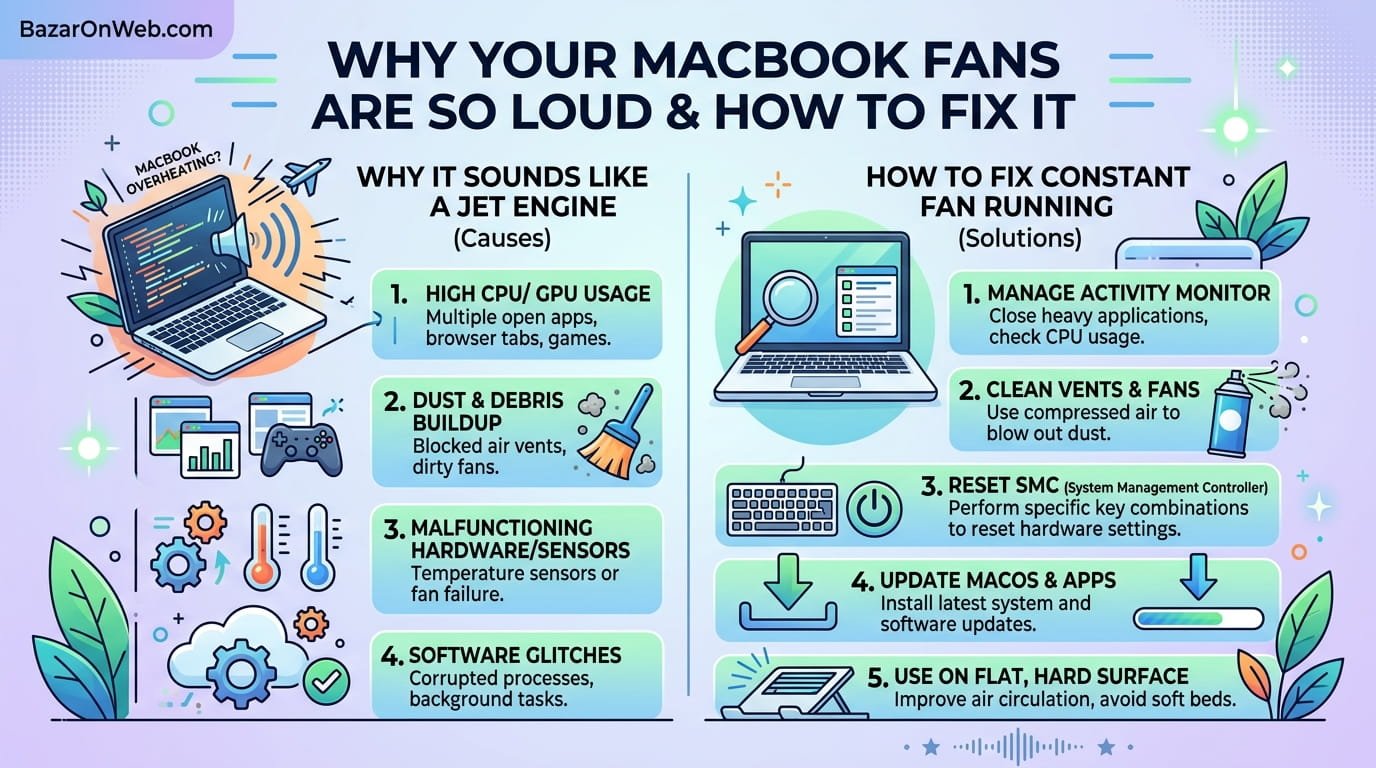
The Noise That Drives You Insane
My MacBook Pro used to be silent. That was literally one of the things I paid extra for—the engineering that keeps these things quiet even under load. Then one day, the fans kicked on and never stopped.
I’m not talking about occasional fan noise when rendering video or doing intensive work. I’m talking about constant, unrelenting fan whirring that makes the machine sound like it’s about to take flight. It was loud enough to be distracting during video calls. Loud enough that I had to move the laptop away from the microphone so people couldn’t hear it.
At first I panicked. Is the machine dying? Is something hardware failing? Apple hardware is supposed to be reliable. But I couldn’t figure out what was wrong by just looking at it. The MacBook seemed fine otherwise. Apps responded normally. The battery still held charge. But the fans… they just wouldn’t shut up.
After spending way too much time investigating, I discovered the problem wasn’t hardware failure at all. Something was making my MacBook think it needed to cool down constantly, even when the processor wasn’t actually under heavy load. The issue was fixable—surprisingly simple once I found it—but Apple’s system doesn’t make it obvious what’s causing excessive fan activity.
Apparently this happens to a lot of MacBook users. One day everything’s fine, the next day your laptop sounds like it’s ready to launch into orbit. And because there’s no error message or warning, you have no idea what changed or how to fix it.
Why Your MacBook’s Fans Even Exist (And Why Understanding This Matters)
MacBooks have cooling systems because processors generate heat when they work. The fans exist to push air through the system, dissipating that heat and keeping components from overheating. When your MacBook is doing light tasks (browsing, email, light document editing), the processor isn’t working hard and the fans run slowly or not at all. When you’re doing intensive work (video editing, compiling code, rendering graphics), the processor works harder, generates more heat, and the fans spin faster.
This is normal behavior. Fans running sometimes is expected. What’s not normal is fans running constantly even when you’re doing nothing intensive.
Modern MacBooks are engineered to be efficient. The processors are supposed to use minimal power when possible. The fans should rarely need to spin up. When they do spin up constantly, something is forcing the processor to work continuously despite you not running anything intensive.
Understanding that your fans are basically a symptom of something else consuming processor resources helps explain why just listening to the fans doesn’t tell you what’s wrong. The fans are just responding to what something else is doing. Find what’s overworking your processor, and the fans usually quiet down.
The Most Common Culprit: Activity Monitor Reveals All
Your first step should be checking what’s actually consuming processor resources. MacOS has a built-in tool that shows exactly what’s hogging CPU.
Open Activity Monitor. You can find it by pressing Command+Space to open Spotlight search, typing “Activity Monitor,” and pressing Enter. Or navigate to Applications > Utilities > Activity Monitor.
When Activity Monitor opens, make sure you’re viewing the “Processes” tab and looking at CPU usage. You’ll see a list of all running processes sorted by CPU usage percentage.
Look at the top of the list. What’s using the most CPU? It should be one or two processes using significant percentage. Click the “% CPU” column header to sort by CPU usage—this puts the biggest resource hogs at the top.
Here’s what you’re looking for: Is it something you actively launched? Something like Chrome, Xcode, or Final Cut Pro making sense? Or is it something unexpected—a background service, an app you forgot about, something you didn’t consciously start?
The unexpected processes are your culprits. They’re running in the background, constantly consuming processor resources, and forcing your fans to spin.
Common processor hogs that catch people by surprise:
Spotlight indexing (mds_stores process): MacOS continuously indexes your files for fast searching. This is usually gentle, but sometimes it goes haywire and indexes everything repeatedly, hammering your CPU.
Xcode or developer tools: If you’ve ever installed Xcode, background processes sometimes remain active even after you close the app, consuming CPU looking for code changes.
Dropbox or cloud sync services: These apps sync files constantly in the background. If you’ve synced a large folder recently or have thousands of files, they might be continuously syncing, consuming CPU.
Chrome or other browsers: Browsers sometimes have memory leaks or runaway tabs using excessive CPU. A single misbehaving website or extension can cause constant CPU load.
Cryptocurrency miners or malware: Less common on Macs than Windows, but malicious software sometimes runs in the background consuming CPU. This would be obvious in Activity Monitor as an unfamiliar process.
Backup processes: Time Machine or other backup software running in the background can spike CPU during backups.
Look through Activity Monitor and identify what’s consuming the most CPU. That’s your problem.
Spotlight Indexing Gone Wrong: The Most Common Reason
Spotlight indexing is supposed to be invisible. It quietly indexes files in the background so searching is fast. Usually you never notice it. But sometimes it misbehaves and constantly re-indexes everything, hammering your CPU.
If you see a process called “mds” or “mdworker” using significant CPU in Activity Monitor, Spotlight is your problem.
Try stopping Spotlight temporarily to see if fans quiet down. Open Terminal (Command+Space, search “Terminal”). Type:
sudo mdutil -a -i off
This disables Spotlight indexing. Your fans should quiet down almost immediately if Spotlight was the culprit. You’ll lose fast searching until you re-enable it, but this test determines if Spotlight is actually the problem.
To re-enable Spotlight:
sudo mdutil -a -i on
If disabling Spotlight fixed the fan noise, you’ve found your culprit. The fix is more permanent: go to System Settings > Siri & Spotlight, and configure Spotlight to exclude folders you don’t need indexed (like your Downloads folder if it contains large files, or external drives). This keeps Spotlight from re-indexing everything constantly.
Alternatively, completely disable Spotlight if you don’t use searching (though most people do find it useful). But if it’s behaving badly, excluding specific folders from indexing often fixes the problem without losing searching entirely.
Chrome and Browser Issues: When Websites Break Your MacBook
Chrome is notorious for consuming processor resources. A single misbehaving website or extension can cause Chrome to use CPU constantly, triggering fan activity.
Check Activity Monitor for Chrome processes. If “Google Chrome” or individual Chrome processes are using significant CPU:
First, try quitting Chrome completely. Force-quit if necessary (Activity Monitor > select Chrome > X button). See if fans quiet down.
If fans quiet down, Chrome or a website/extension was the problem. Restart Chrome but investigate what was causing the issue. Open Activity Monitor again and watch CPU while you visit different websites. If CPU spikes on a specific website, that website has problematic code or excessive ads.
You can:
- Avoid that website (if possible)
- Disable extensions one by one to identify which one is causing problems
- Use Safari instead (which sometimes handles problematic websites better than Chrome)
- Update Chrome to the latest version (updates sometimes fix performance issues)
Additionally, check Chrome’s Task Manager (Command+Option+Esc in Chrome, or Chrome menu > More tools > Task manager) to see which tabs or extensions are consuming the most resources. Close tabs consuming excessive CPU.
Safari is built into MacOS and usually more efficient than Chrome. If your fans are constantly spinning and Chrome is the culprit, switching to Safari for daily browsing might solve the problem permanently.
Background App Refresh and Cloud Services Running Wild
Cloud services (iCloud, Dropbox, Google Drive, OneDrive, etc.) sync files in the background. This is usually efficient, but if you recently added a huge folder or have unstable internet, these services might sync constantly, consuming CPU.
Open Activity Monitor and look for processes named after your cloud service (Dropbox, “Google Drive,” “OneDrive,” “iCloud,” etc.).
If these are using significant CPU:
For iCloud: System Settings > [Your Name] > iCloud. Disable syncing for specific folders you don’t need syncing (Photos, Documents, etc.). Restart your Mac. If CPU usage drops, you’ve identified the culprit.
For Dropbox: Open Dropbox preferences, go to Sync settings, and disable selective sync for folders you don’t need syncing constantly.
For Google Drive: Open Google Drive, go to Preferences, and disable “Sync all files in this folder.”
For OneDrive: Open OneDrive settings and disable syncing for specific folders.
Temporarily disabling cloud sync while you’re not actively working with those folders reduces CPU load. You can re-enable them when needed.
Additionally, check your internet connection. If internet is unstable or very slow, cloud services might be continuously retrying failed sync operations, consuming CPU. Restart your router or connect to a different WiFi network to see if this helps.
Safari or App Updates Causing Problems
Sometimes Safari or other apps get updated and the new version has performance issues. Your fans spin constantly after updating to a new version, but worked fine before.
Check App Store for available updates. If you recently updated and problems started, try reverting to the previous version. This is tricky on MacOS since older versions aren’t easily available, but you can:
- Delete the app completely (drag to Trash)
- Empty Trash
- Reinstall the app fresh from App Store (you’ll get the current version)
- If that doesn’t work, use Time Machine to restore the app from before the update
Alternatively, just wait for the next update which hopefully fixes the performance regression.
For built-in apps like Safari, you can’t selectively downgrade versions—Safari updates with your MacOS version. But if Safari is causing excessive CPU, check Safari > Preferences > Extensions and disable extensions one by one to find which one is misbehaving.
Malware and Adware: Less Common on Mac But Still Possible
Macs are generally safer from malware than Windows, but it’s not impossible. Malware sometimes disguises itself as legitimate applications and consumes CPU while running invisibly.
If you see unfamiliar processes in Activity Monitor that you don’t recognize and don’t remember installing, they might be malware. Google the process name—legitimate processes are documented online. Unfamiliar processes might be suspicious.
Run a malware scan using Malwarebytes for Mac (free) or your installed antivirus software. This identifies and removes malicious software that might be consuming CPU.
For most users, malware isn’t the problem. But if you’ve downloaded random software from untrusted sources or clicked suspicious links, it’s worth checking.
Reset SMC (System Management Controller): The Nuclear Option
If you’ve identified that nothing obvious is consuming CPU but fans are still running constantly, the System Management Controller (which manages fans and thermal management) might be malfunctioning.
Resetting the SMC sometimes fixes thermal management issues. The process varies depending on your MacBook model:
For Intel Macs:
- Shut down your Mac
- Press and hold Shift + Control + Option (all on left side of keyboard) + Power button
- Hold for 10 seconds
- Release all keys
- Wait 5 seconds
- Press Power to turn on
For Apple Silicon Macs (M1, M2, etc.):
Simply shut down and turn on. Apple Silicon Macs reset SMC automatically on shutdown/startup.
After resetting SMC, observe if fan behavior normalizes. Sometimes this fixes thermal management issues where fans were spinning unnecessarily.
When Fans Spinning Actually Means Something’s Overheating
Important note: Sometimes fans spinning constantly is legitimate. Your MacBook might actually be hot. This is different from fans spinning due to unnecessary CPU usage.
Check actual temperature using a utility like Macs Fan Control or Temperature Monitor (free apps from App Store). If your Mac’s actual temperature is high (above 80°C consistently), your fans spinning is appropriate response to actual heat.
High temperatures might indicate:
Dust in vents: Blow compressed air through the vents to clear dust buildup
Blocked vents: Make sure nothing is covering your MacBook’s vents
Heavy workload: If you’re doing intensive work (video editing, compiling), high temperatures are normal
Damaged thermal paste: If your Mac is old, thermal paste between the processor and heatsink might have degraded. This requires professional service
Failing logic board: Rarely, components might be failing and generating excessive heat
If temperature is actually high, fans spinning is correct behavior. Don’t try to silence them—your MacBook needs cooling. Address the underlying heat issue instead.
But if Activity Monitor shows nothing consuming significant CPU and fans are still spinning and temperatures are normal, the problem is unnecessary fan activity, not actual overheating.
Simple Prevention: Keep Your MacBook Clean and Updated
After fixing your fan problem, preventing recurrence helps avoid this frustration in the future.
Keep software updated: System updates and app updates sometimes fix performance issues. Keep your Mac updated.
Restart occasionally: Restarting clears temporary files and resets background processes. Restart your Mac weekly to prevent resource leaks.
Limit startup items: System Settings > General > Login Items. Remove apps you don’t need launching at startup.
Monitor Activity Monitor regularly: Check occasionally what’s consuming CPU even when fans aren’t running. Catching issues early prevents them from getting worse.
Use Safari or Firefox instead of Chrome: If you prioritize battery life and system performance, Safari is more efficient than Chrome.
Disable Spotlight indexing for folders you don’t search: System Settings > Siri & Spotlight. This prevents unnecessary indexing.
Close tabs and browser windows: Multiple browser tabs consume memory and CPU even if individual tabs aren’t active.
When to Admit You Need Professional Help
If you’ve tried all this and fans are still spinning constantly despite nothing obvious consuming CPU, something deeper might be wrong. At this point, professional service is appropriate:
- Logic board failure
- Damaged thermal sensors giving false readings
- Hardware cooling system malfunction
- Corrupted system files requiring clean OS install
Apple Genius Bar can diagnose hardware issues and run tests. Before going there, document what you’ve tried and what Activity Monitor shows. This helps technicians focus on actual problems rather than guessing.
If your Mac is under warranty or AppleCare, hardware issues are usually covered. Out of warranty, repairs are expensive but sometimes necessary.
The Frustrating Reality
MacBooks are generally reliable and quiet. When your fans suddenly run constantly, it’s usually not hardware failure. It’s something consuming processor resources unnecessarily.
Find what’s consuming CPU through Activity Monitor. Fix that one thing. Fans usually quiet down immediately.
The challenge is that dozens of things could be causing the issue. It might be an app, a background service, a cloud sync problem, a browser extension, or something else entirely. But Activity Monitor shows you exactly what’s consuming resources.
Work through the common culprits systematically. Spotlight, Chrome, cloud services, background apps. One of them is probably your problem.
Most of the time it’s not hardware. It’s just your Mac doing something you don’t realize it’s doing. Find what that is and stop it. Problem solved.
Written by Bazaronweb
Latest Tech Articles
- MacBook Fans Running Constantly: Why Your Laptop Sounds Like a Jet Engine and How to Actually Fix It

- Windows 11 Quick Access Disappeared Why Your File Shortcuts Vanished and How to Get Them Back

- Windows 11 Mouse Cursor Moving Like Molasses: Why Your Pointer Became Impossibly Slow and How to Actually Fix It

- How to Find Your Phone Number on iPhone: Multiple Methods When You Have No Idea What It Is

- Opening RAR Files on Android: Complete Guide to File Extraction Apps and Troubleshooting

Products
-
Apple Watch Ultra 3 [GPS + Cellular 49mm] Running & Multisport Smartwatch w/Rugged Titanium Case w/Black Titanium Milanese Loop - M. Satellite Communications, Advanced Health & Fitness Tracking
-

Apple iPad mini (A17 Pro): Apple Intelligence, 8.3-inch Liquid Retina Display, 256GB, Wi-Fi 6E, 12MP Front/12MP Back Camera, Touch ID, All-Day Battery Life — Purple
-

Apple AirPods Max Wireless Over-Ear Headphones, Active Noise Cancelling, Transparency Mode, Personalized Spatial Audio, Dolby Atmos, Bluetooth Headphones for iPhone – Space Gray
-

Apple AirPods Pro 2 Wireless Earbuds, Active Noise Cancellation, Hearing Aid Feature, Bluetooth Headphones, Transparency, Personalized Spatial Audio, High-Fidelity Sound, H2 Chip, USB-C Charging
-
Home Garage 210 TC Cotton King Floral Fitted (Elastic) Bedsheet(Pack of 1, Grey)
₹999.00Original price was: ₹999.00.₹299.00Current price is: ₹299.00.
Leave a Reply




