Category
Popular Articles
- AI (20)
- Air Tag (1)
- Android (53)
- App Suggest (13)
- Apple (42)
- Apple TV (4)
- Bluetooth (3)
- Cars (2)
- ChatGpt (1)
- Chrome (3)
- Did you know? (1)
- E-Commerce News (1)
- Ecommerce Websites business (7)
- Electronics Shopping (5)
- Fashion Tips (3)
- Gaming (7)
- Google Gemini (3)
- Hair Care Tips (2)
- How to (13)
- iCloud (1)
- Infotainment System (1)
- Iphone (159)
- Job Posting (1)
- Lifestyle (3)
- Mac (28)
- Mobile Games (1)
- Netflix (1)
- Online Shopping Websites (2)
- Personal Finance Management (3)
- Product Reviews (3)
- Roku TV (4)
- Samsung (10)
- Shopping Tips (13)
- Spotify (1)
- Tech (162)
- VPN (2)
- Windows 11 (103)
- Youtube (1)
- Zero Waste (3)
Discounted Products
-

Leo Creation 144 TC Cotton Double Jaipuri Prints Flat Bedsheet(Pack of 1, Blue, Gree, Red, Grey, Light Grey)
₹2,999.00Original price was: ₹2,999.00.₹329.00Current price is: ₹329.00. -
Home Garage 210 TC Cotton King Floral Fitted (Elastic) Bedsheet(Pack of 1, Grey)
₹999.00Original price was: ₹999.00.₹299.00Current price is: ₹299.00. -

Goodrik 140 TC Cotton Double 3D Printed Flat Bedsheet(Pack of 1, Brown)
₹499.00Original price was: ₹499.00.₹229.00Current price is: ₹229.00. -

GLOBALSHOP 350 TC Microfiber Double Floral Flat Bedsheet(Pack of 1, Multicolor)
₹1,250.00Original price was: ₹1,250.00.₹263.00Current price is: ₹263.00. -

RisingStar 250 TC Microfiber King Printed Fitted (Elastic) Bedsheet(Pack of 1, FITTED-ROUND-CIRCLES-PREMIUM)
₹2,299.00Original price was: ₹2,299.00.₹299.00Current price is: ₹299.00. -

Home Garage 210 TC Cotton King Floral Fitted (Elastic) Bedsheet(Pack of 1, Fitted Black Green)
₹1,299.00Original price was: ₹1,299.00.₹299.00Current price is: ₹299.00. -

Home Garage 180 TC Cotton King 3D Printed Flat Bedsheet(Pack of 1, White)
₹999.00Original price was: ₹999.00.₹229.00Current price is: ₹229.00. -

Home Sizzler 153 cm (5 ft) Polyester Room Darkening Window Curtain (Pack Of 2)(Floral, Maroon)
₹799.00Original price was: ₹799.00.₹299.00Current price is: ₹299.00. -

Panipat Textile Hub 152.4 cm (5 ft) Polyester Window Curtain (Pack Of 2)(Solid, Aqua)
₹1,899.00Original price was: ₹1,899.00.₹299.00Current price is: ₹299.00. -
Home Sizzler 214 cm (7 ft) Polyester Semi Transparent Door Curtain (Pack Of 2)(Floral, Maroon)
₹1,199.00Original price was: ₹1,199.00.₹399.00Current price is: ₹399.00. -

Home Sizzler 153 cm (5 ft) Polyester Room Darkening Window Curtain (Pack Of 2)(Floral, Brown)
₹799.00Original price was: ₹799.00.₹299.00Current price is: ₹299.00. -

Stella Creations 214 cm (7 ft) Polyester Room Darkening Door Curtain (Pack Of 2)(Abstract, Brown)
₹1,299.00Original price was: ₹1,299.00.₹449.00Current price is: ₹449.00. -

Homefab India 152.5 cm (5 ft) Polyester Room Darkening Window Curtain (Pack Of 2)(Floral, Light Blue)
₹1,199.00Original price was: ₹1,199.00.₹319.00Current price is: ₹319.00. -

Urban Home 214 cm (7 ft) PVC Transparent Door Curtain Single Curtain(Solid, Off White)
₹699.00Original price was: ₹699.00.₹203.00Current price is: ₹203.00. -

Panipat Textile Hub 213 cm (7 ft) Polyester Door Curtain (Pack Of 2)(Solid, Brown)
₹1,199.00Original price was: ₹1,199.00.₹349.00Current price is: ₹349.00.
Affiliate Links
Promotion
Hi, I’m Jessica, and one of the first things I do whenever I start using a new Mac is set up the Mail app properly. For years, I jumped between browser tabs, separate email apps, and endless notifications trying to manage work emails, personal messages, receipts, newsletters, and important conversations. It quickly became overwhelming, especially when I had multiple accounts from Gmail, Outlook, iCloud, and custom business domains. Once I learned how to fully use Mail on Mac, everything became far more organized and easier to manage.
The Mail app built into macOS is much more powerful than many people realize. It allows you to connect multiple email accounts into one clean interface while offering features like smart mailboxes, VIP contacts, filters, scheduled sending, attachments management, and powerful search tools. Whether you are using your Mac for business, school, freelancing, or family communication, Mail can simplify your daily workflow significantly.
Many users only scratch the surface of what the Mail app can do. By understanding its setup process and built-in tools, you can save time, reduce distractions, and keep your inbox under control. In this guide, I’ll walk you through everything from setting up accounts to organizing emails and improving productivity so you can confidently use Mail on your Mac every single day.
Setting Up Mail on Your Mac for the First Time
When you open the Mail app on your Mac for the first time, the setup process is designed to be simple and beginner-friendly. Apple supports most major email providers, including Gmail, Outlook, Yahoo, Exchange, and iCloud. If your provider is listed, Mail automatically configures many settings for you, reducing the need for manual input. This makes setup incredibly convenient even for users who are not technically experienced.
To begin, open the Mail app from your Applications folder or Dock. You will see a prompt asking you to select your email provider. After choosing your provider, enter your email address and password. Mail then securely connects to your account and imports your inbox, folders, contacts, and syncing preferences. In many cases, the process takes only a few minutes before your emails appear inside the application.
If you use a custom domain email for business purposes, you may need to enter server details manually. These usually include incoming and outgoing mail server information, IMAP or POP settings, and authentication credentials provided by your hosting company. Although this sounds technical, most hosting providers include detailed setup guides specifically for Apple Mail users.
After setup is complete, Mail starts downloading recent emails and organizing them automatically. You can customize notification settings, mailbox layouts, and syncing options immediately afterward. Starting with a properly configured account ensures smoother email management and prevents common syncing or delivery problems later.
Adding Multiple Email Accounts into One Mail App
One of the biggest advantages of using Mail on a Mac is the ability to manage several email accounts from a single application. Many people today maintain separate email addresses for work, personal communication, online shopping, side businesses, and subscriptions. Constantly switching between browser tabs or different apps can become frustrating and inefficient.
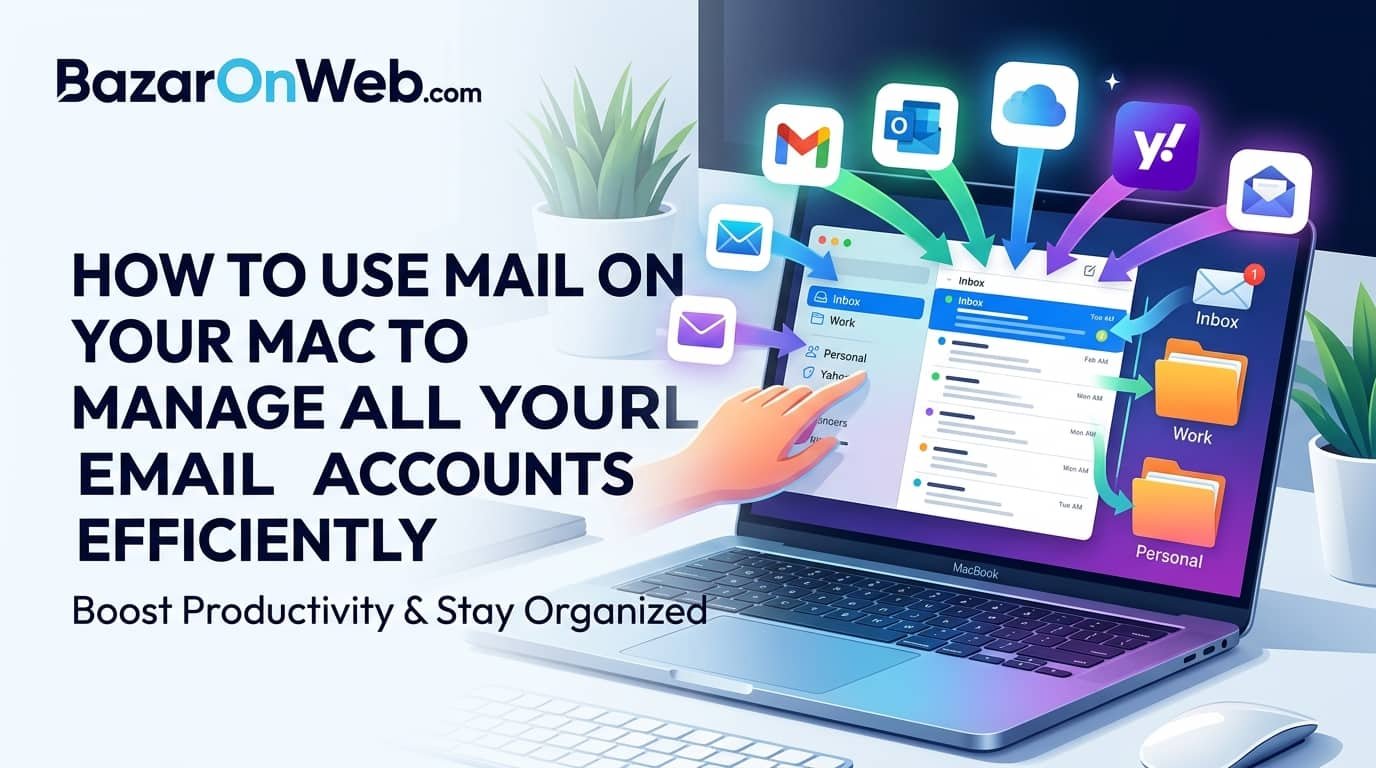
Apple Mail solves this problem by combining all your accounts into one unified interface. To add another account, open Mail settings and select the Accounts tab. From there, click the add button and choose your email provider again. The process works similarly to the initial setup and allows you to connect additional accounts within minutes.
Once connected, each email account keeps its own folders and structure while still being accessible from the same app. You can view individual inboxes separately or use the unified inbox feature to see all incoming messages together. This flexibility helps users stay organized while reducing the mental clutter caused by managing multiple platforms.
Another useful feature is account-specific customization. You can assign unique signatures, notification preferences, mailbox behaviors, and sending addresses to each account. For example, you may want professional signatures for work emails while keeping personal accounts more casual. These settings ensure better communication consistency and help avoid sending messages from the wrong account accidentally.
Using multiple accounts inside Mail creates a smoother workflow and reduces unnecessary distractions. Instead of constantly logging in and out of different services, everything becomes centralized and easier to manage throughout the day.
Understanding the Mail Interface and Navigation Tools
At first glance, the Mail interface on macOS appears clean and minimalistic, but it contains many powerful navigation tools designed to improve productivity. Understanding the layout properly can make managing large volumes of email far less stressful and significantly more efficient over time.
The sidebar on the left displays your mailboxes, folders, smart folders, and account categories. This area helps you switch quickly between inboxes, drafts, sent messages, flagged emails, and archived conversations. If you use multiple accounts, the sidebar becomes especially important because it organizes everything in one accessible structure.
The center section shows your email list. Here, you can view sender names, subject lines, timestamps, attachment indicators, and preview snippets. Apple allows users to customize how much information appears in this list. You can also group emails by conversation threads, making it easier to follow long discussions without opening every individual message separately.
On the right side is the reading pane where selected emails appear. This area supports images, attachments, links, formatting, and quick reply actions. Users can resize panes or switch to full-screen reading depending on their workflow preferences. The top toolbar contains frequently used options such as compose, reply, archive, delete, search, and filtering tools.
Mail also includes gesture support on Mac trackpads. Swiping actions can archive or delete emails quickly, helping users process inboxes faster. Once you become comfortable with the interface and shortcuts, everyday email management feels significantly smoother and less time-consuming than relying entirely on web-based inboxes.
Organizing Your Inbox with Mailboxes and Smart Folders
Inbox clutter is one of the biggest productivity problems for modern email users. Important conversations often get buried under promotional messages, notifications, newsletters, and automated alerts. Fortunately, Apple Mail provides several organizational tools that help users regain control over their inboxes without requiring complicated third-party apps.
Mailboxes work similarly to folders and allow users to categorize emails manually. You can create custom mailboxes for clients, projects, finances, travel, receipts, or personal communication. Simply drag emails into these folders or set up rules that automatically organize messages for you. This system creates a cleaner inbox and helps users locate older conversations much faster.
Smart Mailboxes take organization even further. Instead of storing emails physically in one folder, Smart Mailboxes automatically collect messages based on specific criteria. For example, you can create a Smart Mailbox that displays all unread work emails from the last seven days or all messages containing attachments larger than a certain size. These folders update dynamically without requiring manual sorting.
Flags and VIP settings also improve organization. Flagging important emails highlights them for later attention, while VIP contacts ensure priority messages remain visible. Users who receive high volumes of email can especially benefit from these tools because they reduce the chances of missing urgent communication.
Maintaining an organized inbox improves focus and reduces stress throughout the workday. Rather than constantly searching through thousands of messages, you gain a structured system that supports faster decision-making and better communication management on your Mac.
Using Search Features to Find Emails Faster
Searching for old emails can become frustrating when inboxes contain thousands of messages accumulated over several years. Fortunately, Apple Mail includes a surprisingly advanced search system that helps users locate conversations, attachments, contacts, and keywords quickly without endless scrolling.
The search bar at the top of the Mail app acts as the central hub for finding information. You can search by sender name, subject line, email address, phrase, attachment type, or even date ranges. As you type, Mail automatically suggests filters and categories that refine results in real time. This predictive functionality speeds up the process considerably.
One particularly useful feature is natural language search. Instead of relying solely on exact keywords, users can type phrases like “emails from John last month” or “PDF attachments from finance team.” Mail interprets these requests intelligently and displays relevant results almost instantly. This makes searching far more accessible for everyday users.
Search tokens and filters also allow advanced refinement. You can narrow results based on unread status, flagged emails, account source, or attachment presence. For business professionals who manage high email volumes daily, these filters can save significant amounts of time and improve workflow efficiency.
Spotlight integration further enhances Mail search functionality. Since macOS indexes emails system-wide, users can search directly from Spotlight without even opening the Mail app first. This integration creates a seamless experience across the operating system and makes retrieving information faster than many webmail alternatives.
Mastering Mail’s search capabilities transforms email from a cluttered archive into a searchable knowledge database that supports productivity instead of slowing it down.
Managing Attachments and File Sharing Efficiently
Email attachments are an essential part of modern communication, especially for professionals, students, freelancers, and remote teams. Apple Mail provides several convenient tools for managing attachments efficiently while keeping conversations organized and accessible across devices.
When composing an email, adding attachments is straightforward. Users can drag and drop files directly into the message window or use the attachment button in the toolbar. Mail supports documents, spreadsheets, images, videos, PDFs, and compressed folders. macOS also integrates with Finder and iCloud Drive, making file selection seamless and fast.
Large attachments often create delivery issues with traditional email providers, but Apple addresses this problem using Mail Drop. This feature automatically uploads oversized files to iCloud and sends recipients a download link instead of attaching the file directly. It allows users to share much larger files without worrying about mailbox size limitations or rejected messages.
Attachment previews inside Mail are another productivity advantage. Instead of downloading every file separately, users can quickly preview documents and images directly within the reading pane. This saves time and reduces unnecessary file clutter on the Mac’s storage system.
Search tools also help users locate attachment-based emails quickly. For example, you can search specifically for emails containing PDFs, presentations, or image files. This becomes extremely useful when trying to retrieve contracts, invoices, project documents, or shared media from older conversations.
Efficient attachment handling improves workflow consistency and makes communication smoother, particularly when collaborating with teams or managing important personal and professional documents through Mail on macOS.
Creating Email Rules and Automations for Better Productivity
One of the most underrated features in Apple Mail is its ability to automate repetitive inbox tasks using rules and filters. Users who receive large numbers of emails daily can dramatically reduce manual organization by setting up intelligent automation systems directly within the app.
Mail Rules allow users to define specific actions based on conditions. For example, you can automatically move emails from a particular sender into a dedicated mailbox, flag messages containing important keywords, or mark newsletters as read instantly. These automations help maintain inbox cleanliness without requiring constant manual sorting.
Creating a rule is relatively simple. Inside Mail settings, users can access the Rules section and define conditions such as sender address, subject content, recipient fields, or attachment presence. After setting conditions, you choose actions like moving messages, changing colors, forwarding emails, or triggering notifications.
Business users often benefit significantly from automation. Client communications can be separated automatically from promotional emails, invoices can move into finance folders instantly, and urgent project emails can receive high-priority flags. This creates a more structured workflow and minimizes the risk of overlooking important messages during busy periods.
Automation also improves focus by reducing inbox distractions. Instead of constantly reacting to every incoming email, users can prioritize only the messages that genuinely matter. Over time, these small efficiencies add up and contribute to better productivity and reduced mental fatigue.
Apple Mail’s automation tools may not appear flashy initially, but they provide practical everyday benefits that help users manage communication more intelligently and efficiently across personal and professional email accounts.
Using Mail Privacy and Security Features on macOS
Email security and privacy have become major concerns in recent years as phishing attacks, tracking pixels, spam campaigns, and data breaches continue increasing worldwide. Apple has responded by integrating several strong privacy and security features directly into the Mail app on macOS.
One important feature is Mail Privacy Protection. This tool prevents senders from tracking whether you opened an email by hiding your IP address and loading remote content privately in the background. Many marketing emails rely on invisible tracking pixels to monitor user behavior, but this feature limits that data collection significantly.
Spam filtering inside Mail also helps reduce exposure to suspicious or malicious messages. Apple automatically detects many junk emails and moves them into a separate folder. Users can manually train the filter further by marking messages as junk or legitimate, improving accuracy over time.
Security warnings are another helpful protection layer. If Mail detects suspicious links, encryption issues, or potentially dangerous content, users receive visible alerts before interacting with those elements. This reduces the likelihood of accidentally clicking harmful phishing links disguised as legitimate communication.
For users managing sensitive business or personal data, encrypted email support adds another layer of security. Some email providers allow encrypted transmission protocols that help protect communication during delivery. Apple’s Keychain integration also securely stores passwords while simplifying account authentication.
Strong privacy and security practices are essential for modern digital communication. By using Mail’s built-in protection tools properly, users can reduce risks, improve online safety, and maintain greater control over their personal information while managing email on a Mac.
Syncing Mail Across iPhone, iPad, and Mac Devices
One of the strongest advantages of Apple’s ecosystem is seamless synchronization between devices. When using Mail on a Mac alongside an iPhone or iPad, users gain access to a highly connected communication experience that keeps inboxes updated automatically across all platforms.
Once email accounts are connected through iCloud or compatible providers, synchronization happens in real time. Emails read on an iPhone appear as read on the Mac, deleted messages disappear across devices, and drafted replies remain accessible regardless of where they were started. This continuity helps users stay productive while switching between desktop and mobile environments.
Notification syncing also creates consistency. Users receive alerts for important emails regardless of which Apple device they are actively using. This becomes particularly useful for professionals who move frequently between office workstations, travel environments, and remote work settings throughout the day.
Shared mailbox organization is another significant benefit. Mailboxes, flags, VIP lists, and smart folders often remain synchronized across devices, preserving workflow consistency everywhere. This eliminates confusion and reduces the need to reorganize emails separately on each device manually.
Handoff functionality further improves integration. If you begin writing an email on your iPhone, you can continue composing it instantly on your Mac without restarting the process. Features like Universal Clipboard and AirDrop complement this ecosystem and simplify attachment sharing between Apple devices.
The synchronization capabilities of Apple Mail create a fluid communication environment that supports modern multitasking lifestyles while maintaining consistency, accessibility, and productivity across the entire Apple ecosystem.
Tips to Keep Your Mail App Fast and Organized Long-Term
Over time, even a well-managed Mail app can become cluttered if users do not maintain healthy email habits. Thousands of messages, oversized attachments, unused accounts, and excessive notifications can gradually slow performance and create unnecessary stress. Fortunately, a few consistent maintenance practices can keep Mail running smoothly for years.
Regular inbox cleanup is one of the most important habits. Deleting unnecessary newsletters, promotional messages, and outdated conversations reduces storage usage and makes navigation easier. Archiving older emails instead of keeping everything inside the inbox also improves organization significantly.
Managing attachments carefully helps preserve storage space. Large downloaded files can accumulate quickly on Macs, especially for users receiving media-heavy emails regularly. Reviewing attachment storage periodically and removing unnecessary downloads helps maintain better system performance.
Notification management is equally important. Constant alerts for every incoming message create distractions and reduce focus. Instead, users should prioritize notifications only for important accounts, VIP contacts, or critical work communications. This creates a calmer and more productive workflow throughout the day.
Keeping macOS updated also improves Mail stability and security. Apple frequently releases updates that fix bugs, improve syncing reliability, and enhance privacy protections. Ignoring updates for extended periods may eventually lead to compatibility or performance problems.
Finally, developing a consistent email routine makes long-term management easier. Spending a few minutes daily organizing, archiving, and responding to messages prevents inbox overload and helps maintain a cleaner, faster, and more efficient Mail experience on your Mac.
Disclaimer
This article is for informational and educational purposes only. Features and settings within the Mail app on macOS may vary depending on your Mac model, macOS version, and email service provider. Always verify account configurations, security settings, and synchronization preferences directly through official Apple documentation or your email provider’s support resources before making significant changes to your system or email accounts.
Written by Bazaronweb
Latest Tech Articles
- How to Use Mail on Your Mac to Manage All Your Email Accounts Efficiently

- Internet Kill Switch Explained: How This Digital Panic Button Protects Your Privacy and Security

- How to Disable Hyper-V in Windows 11 to Improve Performance and Avoid Virtualization Conflicts

- How to Check Your Phone’s Real Charging Speed and Understand Fast Charging Performance

- How to Update Audio Drivers in Windows 11 for Better Sound Performance and Stability

Products
-
Apple Watch Ultra 3 [GPS + Cellular 49mm] Running & Multisport Smartwatch w/Rugged Titanium Case w/Black Titanium Milanese Loop - M. Satellite Communications, Advanced Health & Fitness Tracking
-

Apple iPad mini (A17 Pro): Apple Intelligence, 8.3-inch Liquid Retina Display, 256GB, Wi-Fi 6E, 12MP Front/12MP Back Camera, Touch ID, All-Day Battery Life — Purple
-

Apple AirPods Max Wireless Over-Ear Headphones, Active Noise Cancelling, Transparency Mode, Personalized Spatial Audio, Dolby Atmos, Bluetooth Headphones for iPhone – Space Gray
-

Apple AirPods Pro 2 Wireless Earbuds, Active Noise Cancellation, Hearing Aid Feature, Bluetooth Headphones, Transparency, Personalized Spatial Audio, High-Fidelity Sound, H2 Chip, USB-C Charging
-
Leo Creation 144 TC Cotton Double Jaipuri Prints Flat Bedsheet(Pack of 1, Blue, Gree, Red, Grey, Light Grey)
₹2,999.00Original price was: ₹2,999.00.₹329.00Current price is: ₹329.00.
Leave a Reply