Category
Popular Articles
- AI (20)
- Air Tag (1)
- Android (53)
- App Suggest (13)
- Apple (46)
- Apple TV (4)
- Bluetooth (3)
- Cars (2)
- ChatGpt (1)
- Chrome (3)
- Did you know? (1)
- E-Commerce News (1)
- Ecommerce Websites business (7)
- Electronics Shopping (5)
- Fashion Tips (3)
- Gaming (7)
- Google Gemini (3)
- Hair Care Tips (2)
- How to (13)
- iCloud (1)
- Infotainment System (1)
- Iphone (169)
- Job Posting (1)
- Lifestyle (3)
- MacBook (37)
- Mobile Games (1)
- Netflix (1)
- Online Shopping Websites (2)
- Personal Finance Management (3)
- Product Reviews (3)
- Roku TV (4)
- Samsung (10)
- Shopping Tips (13)
- Spotify (1)
- Tech (162)
- VPN (2)
- Whatsapp (1)
- Windows 11 (110)
- Youtube (1)
- Zero Waste (3)
Discounted Products
-

Leo Creation 144 TC Cotton Double Jaipuri Prints Flat Bedsheet(Pack of 1, Blue, Gree, Red, Grey, Light Grey)
₹2,999.00Original price was: ₹2,999.00.₹329.00Current price is: ₹329.00. -
Home Garage 210 TC Cotton King Floral Fitted (Elastic) Bedsheet(Pack of 1, Grey)
₹999.00Original price was: ₹999.00.₹299.00Current price is: ₹299.00. -

Goodrik 140 TC Cotton Double 3D Printed Flat Bedsheet(Pack of 1, Brown)
₹499.00Original price was: ₹499.00.₹229.00Current price is: ₹229.00. -

GLOBALSHOP 350 TC Microfiber Double Floral Flat Bedsheet(Pack of 1, Multicolor)
₹1,250.00Original price was: ₹1,250.00.₹263.00Current price is: ₹263.00. -

RisingStar 250 TC Microfiber King Printed Fitted (Elastic) Bedsheet(Pack of 1, FITTED-ROUND-CIRCLES-PREMIUM)
₹2,299.00Original price was: ₹2,299.00.₹299.00Current price is: ₹299.00. -

Home Garage 210 TC Cotton King Floral Fitted (Elastic) Bedsheet(Pack of 1, Fitted Black Green)
₹1,299.00Original price was: ₹1,299.00.₹299.00Current price is: ₹299.00. -

Home Garage 180 TC Cotton King 3D Printed Flat Bedsheet(Pack of 1, White)
₹999.00Original price was: ₹999.00.₹229.00Current price is: ₹229.00. -

Home Sizzler 153 cm (5 ft) Polyester Room Darkening Window Curtain (Pack Of 2)(Floral, Maroon)
₹799.00Original price was: ₹799.00.₹299.00Current price is: ₹299.00. -

Panipat Textile Hub 152.4 cm (5 ft) Polyester Window Curtain (Pack Of 2)(Solid, Aqua)
₹1,899.00Original price was: ₹1,899.00.₹299.00Current price is: ₹299.00. -
Home Sizzler 214 cm (7 ft) Polyester Semi Transparent Door Curtain (Pack Of 2)(Floral, Maroon)
₹1,199.00Original price was: ₹1,199.00.₹399.00Current price is: ₹399.00. -

Home Sizzler 153 cm (5 ft) Polyester Room Darkening Window Curtain (Pack Of 2)(Floral, Brown)
₹799.00Original price was: ₹799.00.₹299.00Current price is: ₹299.00. -

Stella Creations 214 cm (7 ft) Polyester Room Darkening Door Curtain (Pack Of 2)(Abstract, Brown)
₹1,299.00Original price was: ₹1,299.00.₹449.00Current price is: ₹449.00. -

Homefab India 152.5 cm (5 ft) Polyester Room Darkening Window Curtain (Pack Of 2)(Floral, Light Blue)
₹1,199.00Original price was: ₹1,199.00.₹319.00Current price is: ₹319.00. -

Urban Home 214 cm (7 ft) PVC Transparent Door Curtain Single Curtain(Solid, Off White)
₹699.00Original price was: ₹699.00.₹203.00Current price is: ₹203.00. -

Panipat Textile Hub 213 cm (7 ft) Polyester Door Curtain (Pack Of 2)(Solid, Brown)
₹1,199.00Original price was: ₹1,199.00.₹349.00Current price is: ₹349.00.
Affiliate Links
Promotion
Hi, I’m Jessica,
WiFi Calling is one of the most useful features available on modern iPhones, especially for people who experience weak cellular signals at home, in offices, or while traveling. Instead of relying solely on your mobile network, WiFi Calling uses a connected WiFi network to place and receive calls, helping improve call quality, reduce dropped calls, and speed up call connections. Whether you live in a rural area with limited coverage or simply want more reliable communication indoors, enabling WiFi Calling can significantly enhance your calling experience. In this guide, you’ll learn everything about WiFi Calling on iPhone, including how it works, its benefits, requirements, setup process, troubleshooting tips, and how to disable it when needed.
Discover how to activate or deactivate WiFi Calling on your iPhone for clearer voice calls and improved connectivity. Learn setup requirements, carrier compatibility, troubleshooting methods, security considerations, and best practices to maximize communication quality wherever a WiFi connection is available.
What Is WiFi Calling on an iPhone?
WiFi Calling is a technology that allows your iPhone to make and receive voice calls using a WiFi internet connection instead of relying entirely on a cellular network. This feature becomes especially useful when cellular coverage is weak or unavailable. Once enabled, your iPhone automatically determines whether a WiFi connection can provide a better calling experience than the mobile network.
Many users encounter situations where cellular signals struggle to penetrate thick building walls, underground offices, apartments, or remote locations. In these circumstances, WiFi Calling acts as a bridge, enabling uninterrupted communication through available wireless internet networks. The transition is generally seamless, and users often do not notice whether a call is being routed through cellular towers or WiFi.
Apple has integrated WiFi Calling deeply into iOS, making activation straightforward for supported carriers. Calls made using WiFi Calling generally behave like traditional phone calls, allowing users to call standard phone numbers rather than relying on separate messaging or calling applications.
The feature is particularly beneficial for professionals working from home, students living in dormitories, travelers staying in hotels, and families residing in areas with inconsistent cellular coverage. By leveraging existing internet connections, WiFi Calling improves reliability and ensures important conversations are not interrupted by poor network reception.
Benefits of Using WiFi Calling on iPhone
WiFi Calling offers numerous advantages beyond simply making calls when cellular service is weak. One of the most significant benefits is improved audio quality. Because WiFi networks often provide more stable bandwidth than weak cellular connections, conversations can sound clearer and more natural.
Another major advantage is faster call connection times. Traditional cellular calls may experience delays when signals fluctuate or networks are congested. WiFi Calling can often establish calls more quickly, improving the overall communication experience.
Users living in buildings with thick concrete walls frequently experience signal challenges. WiFi Calling eliminates many of these problems by routing calls through the building’s internet connection rather than relying exclusively on cellular towers outside. This can significantly reduce dropped calls and missed communications.
The feature is also valuable while traveling internationally. In many cases, users can connect to hotel or public WiFi networks and continue making calls according to their carrier’s WiFi Calling policies. This may reduce roaming-related communication difficulties and help maintain connectivity abroad.
Additionally, WiFi Calling provides a backup communication method during network congestion. During emergencies, severe weather events, or large gatherings where cellular networks become overloaded, a strong WiFi connection may continue supporting reliable voice communication. These practical benefits make WiFi Calling one of the most useful features available on modern smartphones.
Requirements Before Enabling WiFi Calling
Before activating WiFi Calling on your iPhone, certain requirements must be met to ensure the feature functions properly. The most important requirement is carrier support. Not every mobile carrier offers WiFi Calling, although most major providers now support the feature.
Your iPhone must also be running a compatible version of iOS. Apple regularly updates network-related features, so keeping your device updated improves compatibility and performance. Checking for software updates before enabling WiFi Calling is always recommended.
A stable and reasonably fast WiFi connection is another essential requirement. Since calls are transmitted through internet connectivity, unreliable WiFi can negatively impact voice quality. A strong home, office, or public WiFi network typically provides the best experience.
Users should also verify that their carrier account is configured correctly. Some carriers require emergency address registration before allowing WiFi Calling activation. This information helps emergency services determine your location if emergency assistance is needed.
In addition, WiFi Calling may require certain network settings to be updated automatically through carrier settings updates. If your iPhone prompts you to install carrier updates, completing them can help ensure optimal functionality.
Meeting these requirements beforehand reduces setup complications and helps users enjoy a smooth activation process with minimal troubleshooting later.
How to Enable WiFi Calling on iPhone
Enabling WiFi Calling on an iPhone is a straightforward process that can usually be completed in less than a minute. Apple has designed the feature to be user-friendly, allowing most users to activate it without technical expertise.
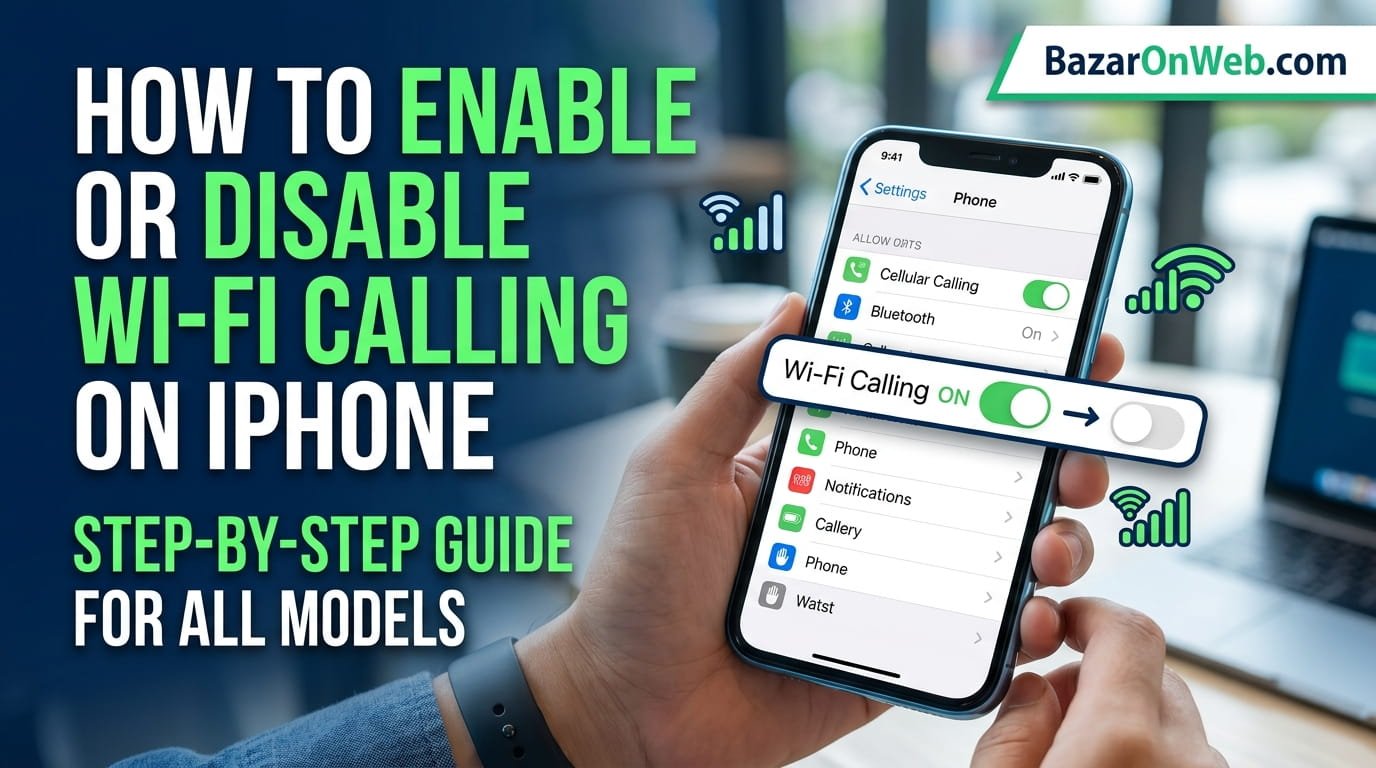
Begin by opening the Settings application on your iPhone. Scroll down and tap on Phone. Within the Phone settings menu, locate the option labeled WiFi Calling. Tapping this option opens the configuration screen for the feature.
Next, toggle the switch labeled WiFi Calling on This iPhone to the enabled position. Your carrier may display terms and conditions that must be accepted before activation can proceed. Carefully review any prompts presented on the screen and complete the required confirmations.
Some carriers request an emergency services address during setup. This address assists emergency responders in identifying your location if emergency calls are placed over WiFi. Providing accurate information is extremely important.
After activation is complete, your iPhone automatically manages call routing based on available connectivity. When cellular reception becomes weak and a reliable WiFi network is available, the device may prioritize WiFi Calling to maintain call quality.
Many users notice improved call clarity almost immediately after enabling the feature. Once configured, WiFi Calling generally operates in the background without requiring additional user intervention, making it a convenient enhancement for everyday communication.
How to Disable WiFi Calling on iPhone
Although WiFi Calling is beneficial for many users, there may be situations where disabling it becomes necessary. Some users prefer relying exclusively on cellular networks, while others may experience network-specific issues that make temporary deactivation helpful.
To disable WiFi Calling, open the Settings application and navigate to Phone. Tap on WiFi Calling to access the feature settings. Locate the switch labeled WiFi Calling on This iPhone and toggle it off.
Once disabled, your iPhone will return to using traditional cellular networks for voice calls whenever possible. Calls will no longer be routed through WiFi networks, even when connected to wireless internet.
Users may choose to disable WiFi Calling when troubleshooting call quality issues, changing carriers, updating network settings, or testing connectivity problems. In certain enterprise environments, organizations may also recommend disabling specific network-related features for compliance or security reasons.
Disabling WiFi Calling does not affect internet browsing, messaging applications, email functionality, or other WiFi-based services on the device. The change only impacts how standard voice calls are handled.
Fortunately, the feature can be re-enabled at any time by following the same steps used during activation. This flexibility allows users to experiment with different configurations and determine which setup provides the best communication experience for their specific circumstances.
Understanding WiFi Calling Indicators and Status Messages
After enabling WiFi Calling, users often wonder how to verify that the feature is working correctly. Apple provides several indicators that help confirm when calls are being routed through WiFi networks.
The most noticeable indicator appears in the status bar near the carrier name. Depending on your carrier and iOS version, you may see text such as “WiFi Calling” or a similar network status indicator. This confirms that your device is prepared to use WiFi connectivity for calls.
When placing or receiving calls, the transition between cellular and WiFi networks is generally seamless. Many users do not notice any difference except improved call quality and reliability. However, status indicators help verify that the feature remains active.
Certain carriers provide additional notifications during activation or network transitions. These messages may explain emergency calling limitations, address registration requirements, or temporary service adjustments.
Users should also understand that seeing a WiFi connection icon alone does not necessarily confirm active WiFi Calling usage. The dedicated carrier-related indicator provides a more reliable confirmation.
Monitoring these indicators can help users troubleshoot issues and verify that their iPhone is utilizing available WiFi networks effectively. Understanding what the status messages mean contributes to a smoother overall experience and greater confidence in the feature’s operation.
Common WiFi Calling Problems and Solutions
Despite its convenience, WiFi Calling can occasionally experience technical issues. Fortunately, many problems can be resolved with basic troubleshooting steps.
One common issue occurs when the WiFi Calling option does not appear in settings. This often indicates that the carrier does not support the feature, carrier settings need updating, or account-level activation has not been completed.
Poor call quality is another frequent concern. In many cases, the issue stems from weak or unstable WiFi connectivity rather than the feature itself. Restarting the router, moving closer to the access point, or switching to a more reliable network can improve performance.
Users sometimes encounter activation failures. Restarting the iPhone, updating iOS, resetting network settings, and verifying carrier support often resolve these issues. Carrier-specific support teams can also help diagnose account-related restrictions.
Dropped calls may occur when transitioning between WiFi and cellular networks. Maintaining a stable internet connection and ensuring software updates are installed can reduce such interruptions.
Occasionally, emergency address verification problems prevent activation. Reviewing and updating the registered address through carrier account settings typically resolves these concerns.
Most WiFi Calling issues are relatively minor and can be corrected through simple troubleshooting. Understanding common causes helps users restore functionality quickly and continue enjoying improved communication performance.
Security and Privacy Considerations
Many users wonder whether WiFi Calling is secure. Fortunately, modern WiFi Calling implementations include robust security measures designed to protect voice communications during transmission.
Carriers and smartphone manufacturers typically use encrypted communication channels to safeguard calls from interception. This encryption helps ensure that conversations remain private while traveling through internet networks.
However, users should still exercise caution when connecting to public WiFi networks. While WiFi Calling itself is generally secure, public networks may present broader cybersecurity risks. Using trusted networks whenever possible remains a recommended practice.
Privacy-conscious users should also understand how emergency services information is handled. Carriers may require a registered emergency address because location determination through WiFi differs from traditional cellular tower-based systems. Providing accurate information enhances emergency response capabilities.
Software updates play an important role in maintaining security. Apple regularly releases updates that address vulnerabilities, improve network reliability, and enhance device protection. Keeping iOS updated contributes to a safer WiFi Calling experience.
Understanding these security considerations helps users make informed decisions about network usage while benefiting from the convenience and reliability offered by WiFi Calling technology on modern iPhones.
WiFi Calling While Traveling
Travelers often discover that WiFi Calling becomes even more valuable when away from home. Hotels, airports, conference centers, and vacation rentals frequently provide WiFi access, creating opportunities to maintain communication despite fluctuating cellular coverage.
International travelers may benefit significantly from WiFi Calling because it can provide access to familiar calling functionality through internet connectivity. Depending on carrier policies, users may be able to communicate effectively without relying entirely on expensive roaming services.
Business travelers frequently use WiFi Calling in office buildings, convention centers, and remote locations where cellular signals struggle to penetrate large structures. The feature helps maintain professional communication and reduces missed calls during important trips.
Vacationers staying in mountain regions, islands, or rural destinations may also find WiFi Calling useful when traditional cellular networks are less reliable. As long as a stable WiFi connection is available, voice communication often remains accessible.
Travelers should review carrier-specific policies before departure because WiFi Calling behavior can vary between providers and regions. Understanding potential limitations in advance helps avoid surprises while abroad.
For many users, WiFi Calling serves as a dependable communication backup during travel, ensuring they remain connected regardless of location or cellular network availability.
Best Practices for Getting the Most from WiFi Calling
Maximizing the benefits of WiFi Calling involves more than simply enabling the feature. Following a few best practices can significantly improve performance and reliability.
Maintaining a strong WiFi signal is one of the most important considerations. Positioning your router strategically and reducing interference from walls or electronic devices can improve call quality. Reliable broadband internet service also contributes to better voice performance.
Regularly updating your iPhone ensures compatibility with carrier improvements and Apple enhancements. Software updates frequently include network optimizations that improve communication stability.
Users should periodically verify that emergency address information remains accurate, especially after moving to a new residence. Keeping account details current helps maintain compliance with carrier requirements.
Monitoring network congestion can also be beneficial. During peak usage periods, heavily loaded WiFi networks may affect call performance. Switching to a less congested network can often resolve quality issues.
Finally, understanding when to use WiFi Calling versus cellular service helps optimize communication. In strong cellular coverage areas, traditional mobile networks may perform perfectly. In weaker coverage zones, WiFi Calling often provides a superior experience.
By combining proper setup, strong network connectivity, and routine maintenance, users can enjoy consistently reliable and high-quality voice communication on their iPhones.
Disclaimer
This article is intended for informational and educational purposes only. Features, settings, carrier support, menu locations, and WiFi Calling availability may vary depending on your iPhone model, iOS version, mobile carrier, country, and network configuration. Always refer to Apple documentation and your mobile service provider’s official guidance for the most accurate and up-to-date information. The author and publisher are not responsible for any service interruptions, configuration issues, carrier charges, emergency calling limitations, or device-related problems that may arise from following the information provided in this article.
Written by Bazaronweb
Latest Tech Articles
- How to Enable or Disable WiFi Calling on iPhone: A Complete Guide for Better Call Quality and Connectivity

- How to Start Chrome Without Extensions on Windows 11 and Fix Browser Startup Problems

- How to Unlock Locked Out Accounts in Windows 11: Complete Guide to Restoring Access and Managing Account Lockout Policies

- Windows 11 Keeps Installing the Same Update? 6 Proven Fixes to Stop Repeated Updates

- How to Add, Remove or Reset Quick Settings in Windows 11: Complete Guide to Fix Missing Quick Settings Problems

Products
-
Apple Watch Ultra 3 [GPS + Cellular 49mm] Running & Multisport Smartwatch w/Rugged Titanium Case w/Black Titanium Milanese Loop - M. Satellite Communications, Advanced Health & Fitness Tracking
-

Apple iPad mini (A17 Pro): Apple Intelligence, 8.3-inch Liquid Retina Display, 256GB, Wi-Fi 6E, 12MP Front/12MP Back Camera, Touch ID, All-Day Battery Life — Purple
-

Apple AirPods Max Wireless Over-Ear Headphones, Active Noise Cancelling, Transparency Mode, Personalized Spatial Audio, Dolby Atmos, Bluetooth Headphones for iPhone – Space Gray
-

Apple AirPods Pro 2 Wireless Earbuds, Active Noise Cancellation, Hearing Aid Feature, Bluetooth Headphones, Transparency, Personalized Spatial Audio, High-Fidelity Sound, H2 Chip, USB-C Charging
-
Leo Creation 144 TC Cotton Double Jaipuri Prints Flat Bedsheet(Pack of 1, Blue, Gree, Red, Grey, Light Grey)
₹2,999.00Original price was: ₹2,999.00.₹329.00Current price is: ₹329.00.
Leave a Reply