Discounted Products
-
 Home Garage 210 TC Cotton King Floral Fitted (Elastic) Bedsheet(Pack of 1, Grey)
Original price was: ₹999.00.₹299.00Current price is: ₹299.00.
Home Garage 210 TC Cotton King Floral Fitted (Elastic) Bedsheet(Pack of 1, Grey)
Original price was: ₹999.00.₹299.00Current price is: ₹299.00.
-
 Goodrik 140 TC Cotton Double 3D Printed Flat Bedsheet(Pack of 1, Brown)
Original price was: ₹499.00.₹229.00Current price is: ₹229.00.
Goodrik 140 TC Cotton Double 3D Printed Flat Bedsheet(Pack of 1, Brown)
Original price was: ₹499.00.₹229.00Current price is: ₹229.00.
-
 GLOBALSHOP 350 TC Microfiber Double Floral Flat Bedsheet(Pack of 1, Multicolor)
Original price was: ₹1,250.00.₹263.00Current price is: ₹263.00.
GLOBALSHOP 350 TC Microfiber Double Floral Flat Bedsheet(Pack of 1, Multicolor)
Original price was: ₹1,250.00.₹263.00Current price is: ₹263.00.
-
 RisingStar 250 TC Microfiber King Printed Fitted (Elastic) Bedsheet(Pack of 1, FITTED-ROUND-CIRCLES-PREMIUM)
Original price was: ₹2,299.00.₹299.00Current price is: ₹299.00.
RisingStar 250 TC Microfiber King Printed Fitted (Elastic) Bedsheet(Pack of 1, FITTED-ROUND-CIRCLES-PREMIUM)
Original price was: ₹2,299.00.₹299.00Current price is: ₹299.00.
-
 Home Garage 210 TC Cotton King Floral Fitted (Elastic) Bedsheet(Pack of 1, Fitted Black Green)
Original price was: ₹1,299.00.₹299.00Current price is: ₹299.00.
Home Garage 210 TC Cotton King Floral Fitted (Elastic) Bedsheet(Pack of 1, Fitted Black Green)
Original price was: ₹1,299.00.₹299.00Current price is: ₹299.00.
-
 Home Garage 180 TC Cotton King 3D Printed Flat Bedsheet(Pack of 1, White)
Original price was: ₹999.00.₹229.00Current price is: ₹229.00.
Home Garage 180 TC Cotton King 3D Printed Flat Bedsheet(Pack of 1, White)
Original price was: ₹999.00.₹229.00Current price is: ₹229.00.
-
 Panipat Textile Hub 152.4 cm (5 ft) Polyester Window Curtain (Pack Of 2)(Solid, Aqua)
Original price was: ₹1,899.00.₹299.00Current price is: ₹299.00.
Panipat Textile Hub 152.4 cm (5 ft) Polyester Window Curtain (Pack Of 2)(Solid, Aqua)
Original price was: ₹1,899.00.₹299.00Current price is: ₹299.00.
-
 Home Sizzler 214 cm (7 ft) Polyester Semi Transparent Door Curtain (Pack Of 2)(Floral, Maroon)
Original price was: ₹1,199.00.₹399.00Current price is: ₹399.00.
Home Sizzler 214 cm (7 ft) Polyester Semi Transparent Door Curtain (Pack Of 2)(Floral, Maroon)
Original price was: ₹1,199.00.₹399.00Current price is: ₹399.00.
-
 Home Sizzler 153 cm (5 ft) Polyester Room Darkening Window Curtain (Pack Of 2)(Floral, Brown)
Original price was: ₹799.00.₹299.00Current price is: ₹299.00.
Home Sizzler 153 cm (5 ft) Polyester Room Darkening Window Curtain (Pack Of 2)(Floral, Brown)
Original price was: ₹799.00.₹299.00Current price is: ₹299.00.
-
 Stella Creations 214 cm (7 ft) Polyester Room Darkening Door Curtain (Pack Of 2)(Abstract, Brown)
Original price was: ₹1,299.00.₹449.00Current price is: ₹449.00.
Stella Creations 214 cm (7 ft) Polyester Room Darkening Door Curtain (Pack Of 2)(Abstract, Brown)
Original price was: ₹1,299.00.₹449.00Current price is: ₹449.00.
-
 Homefab India 152.5 cm (5 ft) Polyester Room Darkening Window Curtain (Pack Of 2)(Floral, Light Blue)
Original price was: ₹1,199.00.₹319.00Current price is: ₹319.00.
Homefab India 152.5 cm (5 ft) Polyester Room Darkening Window Curtain (Pack Of 2)(Floral, Light Blue)
Original price was: ₹1,199.00.₹319.00Current price is: ₹319.00.
-
 Urban Home 214 cm (7 ft) PVC Transparent Door Curtain Single Curtain(Solid, Off White)
Original price was: ₹699.00.₹203.00Current price is: ₹203.00.
Urban Home 214 cm (7 ft) PVC Transparent Door Curtain Single Curtain(Solid, Off White)
Original price was: ₹699.00.₹203.00Current price is: ₹203.00.
-
 Panipat Textile Hub 213 cm (7 ft) Polyester Door Curtain (Pack Of 2)(Solid, Brown)
Original price was: ₹1,199.00.₹349.00Current price is: ₹349.00.
Panipat Textile Hub 213 cm (7 ft) Polyester Door Curtain (Pack Of 2)(Solid, Brown)
Original price was: ₹1,199.00.₹349.00Current price is: ₹349.00.
-
 Home Sizzler 214 cm (7 ft) Polyester Semi Transparent Door Curtain (Pack Of 2)(Floral, Brown)
Original price was: ₹999.00.₹349.00Current price is: ₹349.00.
Home Sizzler 214 cm (7 ft) Polyester Semi Transparent Door Curtain (Pack Of 2)(Floral, Brown)
Original price was: ₹999.00.₹349.00Current price is: ₹349.00.
-
 Panipat Textile Hub 213 cm (7 ft) Polyester Semi Transparent Door Curtain (Pack Of 2)(Floral, Brown)
Original price was: ₹899.00.₹299.00Current price is: ₹299.00.
Panipat Textile Hub 213 cm (7 ft) Polyester Semi Transparent Door Curtain (Pack Of 2)(Floral, Brown)
Original price was: ₹899.00.₹299.00Current price is: ₹299.00.
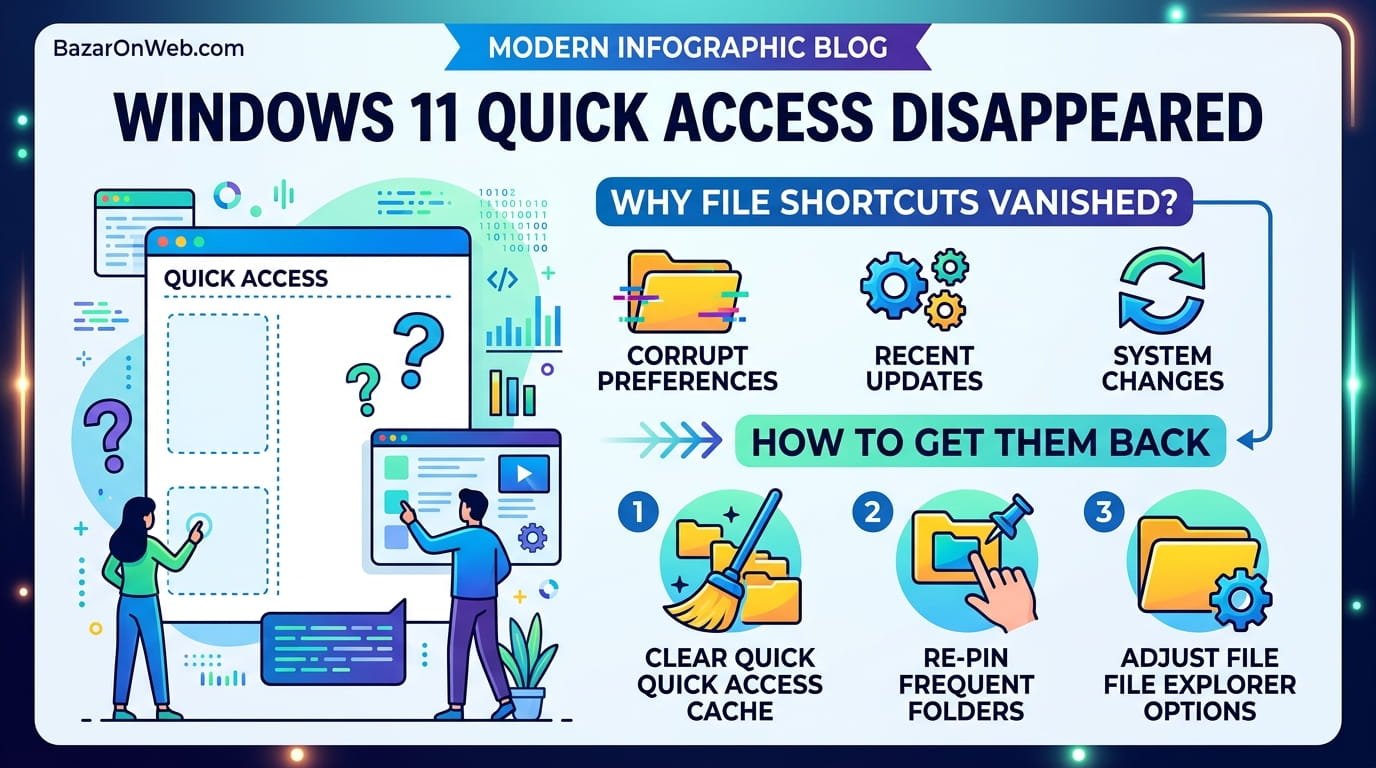
The Day Your File Shortcuts Just… Evaporated
I opened File Explorer to grab a file I access constantly. The Quick Access section at the top was just gone. Not minimized. Not hidden. Completely absent. I have dozens of folders and files pinned there for exactly this reason—quick access to the stuff I use daily. Without it, finding anything required navigating through nested folder structures that take forever.
At first I thought maybe I accidentally deleted something. Then I realized I couldn’t even find the Quick Access section anymore. It wasn’t collapsed. It wasn’t in a different location. It was just… missing from the interface entirely.
I spent twenty minutes looking for it. Checked View options. Searched through settings. Nothing. Quick Access had vanished, and I had no idea why or how to bring it back. This shouldn’t be complicated. It’s one of Windows 11’s built-in features. But here I was, unable to access it.
After some investigation, I discovered there are actually multiple reasons Quick Access disappears, and several ways to restore it depending on what caused it to vanish in the first place. Some are simple fixes. Some require digging into File Explorer settings you probably didn’t know existed.
The frustrating part is that Microsoft doesn’t explain where Quick Access goes when it disappears or provide obvious ways to restore it. It’s just gone, and you’re left guessing.
What Quick Access Actually Is (And Why You’d Want It)
Before troubleshooting a missing Quick Access section, understanding what it does helps explain why people rely on it so heavily.
Quick Access is a feature in File Explorer that displays your most frequently accessed folders and recently opened files at the top of the window. Instead of navigating This PC > C: Drive > Users > [Username] > Documents > [Folder] > [Subfolder], you can just click the folder in Quick Access.
The feature has two components: frequent folders (places you open regularly) and recent files (things you’ve opened recently). Windows learns your patterns and automatically suggests folders you use a lot. You can also manually pin specific folders or files to Quick Access, ensuring they’re always available regardless of how often you use them.
For power users who work with multiple projects or access files across different folder hierarchies, Quick Access saves enormous amounts of time. Instead of navigating folder structures constantly, everything you need is one click away at the top of File Explorer.
The problem is that it’s so convenient you don’t realize how dependent you are on it until it’s gone. Then suddenly finding anything feels like it takes forever.
Why Quick Access Disappears: The Common Culprits
Quick Access doesn’t vanish randomly. Something happened to make it disappear. Understanding the cause helps you restore it properly.
Windows Update shenanigans: Updates sometimes reset File Explorer preferences or hide Quick Access. You install an update, restart your computer, and suddenly Quick Access is gone. The setting might be disabled by default after the update, or the feature might be hidden behind another setting that got reset.
Accidental hiding through View options: File Explorer has View options that control what displays. Quick Access might be disabled through these View settings without you realizing it. You’re looking for it, can’t find it, assume it’s broken, when really it’s just hidden.
Corrupted File Explorer preferences: File Explorer stores its preferences in a registry file. If this file gets corrupted (usually through system file corruption or specific application interference), Quick Access and other File Explorer features can stop displaying properly.
Specific View settings interfering: Some View configurations in File Explorer conflict with Quick Access display, causing it to not appear even though the feature is enabled.
Third-party application interference: Occasionally, third-party file manager applications or system optimization tools interfere with Windows File Explorer settings, hiding Quick Access.
Group Policy restrictions (on managed computers): If your computer is managed by a domain or Group Policy, an administrator might have disabled Quick Access through Group Policy. On personal computers, this isn’t usually the issue, but it’s possible on work devices.
Understanding what likely caused Quick Access to disappear guides your troubleshooting approach.
The Quick Fix: Enable Quick Access Through View Options
The most common reason Quick Access disappears is that it’s simply been hidden through File Explorer’s View options. This is easy to fix.
Open File Explorer. Look at the top menu bar. You should see View option. Click it.
A dropdown menu appears with various view settings. Look for an option that says “Navigation pane” or “Quick Access.” The exact wording varies by Windows 11 build, but it’s in this menu.
If Quick Access is listed here, check whether it’s enabled. There should be a checkbox next to it. If the checkbox is unchecked, click it to enable Quick Access.
Immediately, Quick Access should reappear on the left side of File Explorer.
This fixes the problem in probably seventy percent of cases where users report Quick Access is missing. It’s not broken or corrupted. It’s just disabled through View options.
The Slightly More Complex Fix: Checking File Explorer Options
If enabling through View options doesn’t restore Quick Access, the setting might be in File Explorer’s full Options menu.
Open File Explorer. Click the three dots (menu) in the top right corner. Select “Options” or “Settings” (naming varies slightly).
This opens File Explorer Options dialog. Look for tabs or sections. There’s usually a “View” tab and a “Privacy” tab or similar.
In the View tab, look for options related to Quick Access. You might see checkboxes for:
- “Show recently used files in Quick Access”
- “Show frequently used folders in Quick Access”
Make sure these are checked. If they’re unchecked, check them. Click OK or Apply.
This might restore Quick Access if it was disabled through these specific settings rather than the simpler View menu.
Additionally, in the same Options dialog, there might be a section about what displays when File Explorer opens. Make sure “Quick Access” is selected as the default view rather than “This PC” or another option.
The Registry Fix: When File Explorer Settings Are Corrupted
If Quick Access still isn’t appearing despite being enabled in View options and File Explorer Options, the problem might be corrupted registry entries storing File Explorer preferences.
This requires editing the Windows Registry, which is more technical. Make absolutely sure you back up your registry before making changes. If you’re not comfortable with registry editing, skip this section and try other troubleshooting steps.
Press Windows Key + R to open Run dialog. Type “regedit” and press Enter to open Registry Editor.
Navigate to: HKEY_CURRENT_USER\Software\Microsoft\Windows\CurrentVersion\Explorer\Advanced
Look for a value called “ShowRecent.” If it exists and is set to 0, that’s disabling recent files in Quick Access. Double-click it and change the value to 1.
Additionally, look for “ShowFrequent.” Same thing—if it’s 0, change it to 1.
Close Registry Editor. Restart File Explorer or restart your computer. Quick Access should now appear.
This registry approach is more nuclear than other options, but it fixes cases where File Explorer’s preference files are corrupted or stuck in disabled state.
Why Quick Access Pinned Items Keep Disappearing
Sometimes the issue isn’t Quick Access itself missing, but rather pinned items disappearing from Quick Access. You pin a folder, it shows up, then later it’s gone.
This usually happens because:
Windows Update resets preferences: Updates sometimes clear pinned items as part of resetting File Explorer preferences.
Folder was deleted: If you pinned a folder and later deleted it, that item disappears from Quick Access automatically.
Windows account sync issues: If you use multiple Windows accounts or sync across devices, pinned items sometimes sync incorrectly between accounts.
File Explorer data corruption: Corrupted Quick Access data might cause pinned items to not display properly.
To re-pin items, open File Explorer, navigate to the folder you want to pin, right-click it, and select “Pin to Quick Access.” The folder immediately appears in Quick Access.
To unpin something that’s in Quick Access, right-click it and select “Unpin from Quick Access.”
If items keep unpinning themselves automatically, you have data corruption. Try clearing File Explorer cache by:
- Close File Explorer completely
- Open Settings > Apps > Apps & features > search “File Explorer”
- Click File Explorer, then click “Advanced options”
- Click “Reset” button
- Confirm the reset
- Restart your computer
This resets File Explorer to default settings, which will clear your Quick Access pins. You’ll need to re-pin everything you want. But it fixes the underlying corruption causing items to disappear.
The Nuclear Option: Resetting File Explorer Completely
If nothing else has worked, resetting File Explorer entirely sometimes resolves Quick Access issues. This resets all File Explorer settings to Windows defaults.
Open Settings. Navigate to Apps > Apps & features. Search for “File Explorer.”
Click “File Explorer” in the results. You’ll see an “Advanced options” link. Click it.
On the Advanced options page, you’ll see a “Reset” button. Click it. Windows shows a confirmation dialog warning that this will reset all File Explorer settings to default.
Click “Reset” to confirm. File Explorer closes and resets. When it restarts, Quick Access is restored to default state.
The downside is that this clears all your File Explorer customizations:
- Quick Access pins are cleared (you’ll need to re-pin folders)
- View preferences are reset to default
- Folder-specific view settings are cleared
- Any other File Explorer customizations are gone
But if Quick Access was broken due to corruption, reset usually fixes it completely.
Preventing Quick Access From Disappearing Again
After restoring Quick Access, preventing it from disappearing again involves avoiding the conditions that caused it to vanish.
Before installing Windows updates: Check if any updates are available for File Explorer specifically. While updates are usually safe, the rare corrupted update can cause issues. Reading Windows Update release notes sometimes warns of known problems with specific updates.
Avoid third-party file managers that interfere: Some file manager applications (like Total Commander or other specialized file managers) can interfere with Windows File Explorer settings. If you install one and Quick Access disappears, that app is likely the culprit. Uninstalling it usually restores Quick Access.
Don’t disable accessibility features: Some system optimization utilities or accessibility tools can interfere with File Explorer’s interface. Avoid using tools that claim to “clean up” or “optimize” File Explorer specifically.
Backup your registry regularly: If you do manual registry modifications for other reasons, backup your registry. If something goes wrong, you can restore from backup. Start > Search > “Create a restore point” > click Create a restore point button.
Keep Windows updated: While updates occasionally cause issues, staying current with Windows updates usually fixes more problems than they create. Updates include bug fixes for File Explorer issues.
Troubleshooting Specific Quick Access Problems
Beyond complete disappearance, Quick Access sometimes has specific issues worth addressing.
Quick Access shows wrong files/folders: Windows learns what you frequently access. Sometimes it suggests folders you don’t actually use or misses ones you do. You can’t directly control what displays, but you can pin specific items. Pin what you want, and Windows’s automatic suggestions become less prominent.
Quick Access takes forever to load: If File Explorer is sluggish opening Quick Access, you might have corruption in the Quick Access data. Clearing File Explorer cache (through the reset process above) usually fixes this.
Quick Access pinned items won’t stay pinned: This indicates data corruption. The reset process above is the best fix.
Pinned network locations disappear: Network locations (mapped drives, network shares) pinned to Quick Access sometimes disappear, particularly after restarts or network changes. This is usually temporary. Re-pin them if they disappear.
Quick Access Versus This PC: Understanding the Difference
Windows 11 File Explorer has multiple ways to browse files. Understanding the difference prevents confusion if you’re not seeing what you expect.
Quick Access shows recently used files and frequently accessed folders. It’s personalized to your usage patterns and manually pinned items.
This PC shows your drives (C: drive, D: drive, etc.) and standard Windows folders (Documents, Downloads, Pictures, etc.). It’s the same for every user and doesn’t change based on what you access.
By default, File Explorer might open to This PC instead of Quick Access if Quick Access isn’t configured yet or if it’s been reset. You can change the default by opening File Explorer Options and selecting “Quick Access” as the default view when File Explorer opens.
Many people prefer Quick Access for convenience but occasionally need This PC to navigate drives. Both exist for different purposes.
When Quick Access Behaves Strangely (And What That Means)
Sometimes Quick Access displays, but its behavior is weird. Understanding what’s happening helps you fix it.
Quick Access shows folders you never use: Windows’s algorithm for determining “frequent” folders sometimes gets it wrong. You can manually pin folders you actually want and unpin things it’s suggesting that you don’t need.
Quick Access won’t accept new pins: If you right-click a folder and “Pin to Quick Access” is grayed out or doesn’t appear, the folder location might be inaccessible to Quick Access (certain protected system folders, for example) or Quick Access is corrupted. Try resetting File Explorer.
Quick Access pins disappear after restart: Corrupted preference data. Run the reset process to fix it.
Quick Access is extremely slow to load: File Explorer is struggling to process your Quick Access data, usually due to corruption or having too many items pinned. Delete some pinned items or reset File Explorer.
Quick Access shows duplicate entries: Visual glitch or corruption. Clearing File Explorer cache usually fixes this.
For Work Computers: Group Policy Restrictions
If you’re on a work computer and Quick Access is completely disabled despite trying all troubleshooting steps, an administrator might have disabled it through Group Policy.
You can’t override Group Policy restrictions yourself—they’re enforced by your IT department. You’d need to contact them and request that Quick Access be enabled, or request an exception for your account.
Group Policy restrictions exist on managed networks to enforce consistent environments and limit user customization. If Quick Access is disabled this way, there’s no workaround you can implement yourself.
Alternative Ways to Quickly Access Frequently Used Files (When Quick Access Fails)
If Quick Access is broken and you can’t get it working, alternatives let you quickly access frequently used files.
Use Favorites in applications: Most applications (Word, Excel, etc.) have their own Favorites or Recent Files features. These are independent of Windows Quick Access and often more reliable.
Create desktop shortcuts: Put shortcuts to frequently accessed folders directly on your desktop. Less elegant than Quick Access, but functional.
Use Start Menu pinning: Pin folders to your Start Menu. While not as quick as Quick Access, it’s faster than navigating File Explorer.
Windows Search: Search for files by name using Windows Search. Often faster than navigating folder structures anyway if you know what you’re looking for.
Third-party file managers: Applications like Total Commander or Directory Opus have their own quick-access features independent of Windows File Explorer.
These alternatives aren’t as convenient as Quick Access, but they work if Quick Access is broken and you’re stuck using File Explorer for file navigation.
The Frustrating Reality
Quick Access disappearing is annoying because it’s so convenient when it works that you notice immediately when it’s gone. But it’s usually fixable with relatively simple troubleshooting.
Most of the time it’s just disabled in View options. Sometimes it’s corrupted and needs resetting. Rarely it’s a deeper problem requiring registry editing.
Work through the fixes systematically. Start with the simple View options check. Move to File Explorer Options. Try resetting File Explorer if needed. Most of the time, one of these restores Quick Access completely.
The key takeaway: Quick Access probably isn’t actually broken. It’s just disabled or hidden. It’s just a matter of finding where Windows hid it and re-enabling it.
Quick Reference: Troubleshooting Priority
If Quick Access disappeared:
- Check View menu > Navigation pane > Quick Access (enable if disabled)
- Open File Explorer Options > View tab > enable Quick Access options
- Check if File Explorer is set to open to Quick Access by default (not This PC)
- Restart your computer and see if Quick Access reappears
- Clear File Explorer cache through Settings > Apps > File Explorer > Advanced options > Reset
- For pinned items issues specifically, re-pin folders you need after clearing cache
- If nothing works, reset File Explorer entirely through Advanced options > Reset
- As last resort, check for corrupted registry entries and edit if comfortable
One of these will almost certainly restore Quick Access.

- How to Run a Safety Check in Google Chrome and Protect Your Browser

- Samsung Phone’s Keyboard Not Working? Here’s How to Fix It

- How to Take Screenshot While in Gaming on My Windows 11 PC

- Microsoft Store Blocked on Windows 11 Error 0x800704EC, How to Fix It

- What Is Spotlight Search on Mac and How Do You Open It?

Products
-
![Apple Watch Ultra 3 [GPS + Cellular 49mm] Running & Multisport Smartwatch w/Rugged Titanium Case w/Black Titanium Milanese Loop - M. Satellite Communications, Advanced Health & Fitness Tracking](https://bazaronweb.com/retailstores/wp-content/uploads/2025/09/apple-watch-320x320.jpg) Apple Watch Ultra 3 [GPS + Cellular 49mm] Running & Multisport Smartwatch w/Rugged Titanium Case w/Black Titanium Milanese Loop - M. Satellite Communications, Advanced Health & Fitness Tracking
Apple Watch Ultra 3 [GPS + Cellular 49mm] Running & Multisport Smartwatch w/Rugged Titanium Case w/Black Titanium Milanese Loop - M. Satellite Communications, Advanced Health & Fitness Tracking
-
 Apple iPad mini (A17 Pro): Apple Intelligence, 8.3-inch Liquid Retina Display, 256GB, Wi-Fi 6E, 12MP Front/12MP Back Camera, Touch ID, All-Day Battery Life — Purple
-
 Apple AirPods Max Wireless Over-Ear Headphones, Active Noise Cancelling, Transparency Mode, Personalized Spatial Audio, Dolby Atmos, Bluetooth Headphones for iPhone – Space Gray
-
 Apple AirPods Pro 2 Wireless Earbuds, Active Noise Cancellation, Hearing Aid Feature, Bluetooth Headphones, Transparency, Personalized Spatial Audio, High-Fidelity Sound, H2 Chip, USB-C Charging
-
Home Garage 210 TC Cotton King Floral Fitted (Elastic) Bedsheet(Pack of 1, Grey)
Original price was: ₹999.00.₹299.00Current price is: ₹299.00.
Leave a Reply