Discounted Products
-
 Home Garage 210 TC Cotton King Floral Fitted (Elastic) Bedsheet(Pack of 1, Grey)
Original price was: ₹999.00.₹299.00Current price is: ₹299.00.
Home Garage 210 TC Cotton King Floral Fitted (Elastic) Bedsheet(Pack of 1, Grey)
Original price was: ₹999.00.₹299.00Current price is: ₹299.00.
-
 Goodrik 140 TC Cotton Double 3D Printed Flat Bedsheet(Pack of 1, Brown)
Original price was: ₹499.00.₹229.00Current price is: ₹229.00.
Goodrik 140 TC Cotton Double 3D Printed Flat Bedsheet(Pack of 1, Brown)
Original price was: ₹499.00.₹229.00Current price is: ₹229.00.
-
 GLOBALSHOP 350 TC Microfiber Double Floral Flat Bedsheet(Pack of 1, Multicolor)
Original price was: ₹1,250.00.₹263.00Current price is: ₹263.00.
GLOBALSHOP 350 TC Microfiber Double Floral Flat Bedsheet(Pack of 1, Multicolor)
Original price was: ₹1,250.00.₹263.00Current price is: ₹263.00.
-
 RisingStar 250 TC Microfiber King Printed Fitted (Elastic) Bedsheet(Pack of 1, FITTED-ROUND-CIRCLES-PREMIUM)
Original price was: ₹2,299.00.₹299.00Current price is: ₹299.00.
RisingStar 250 TC Microfiber King Printed Fitted (Elastic) Bedsheet(Pack of 1, FITTED-ROUND-CIRCLES-PREMIUM)
Original price was: ₹2,299.00.₹299.00Current price is: ₹299.00.
-
 Home Garage 210 TC Cotton King Floral Fitted (Elastic) Bedsheet(Pack of 1, Fitted Black Green)
Original price was: ₹1,299.00.₹299.00Current price is: ₹299.00.
Home Garage 210 TC Cotton King Floral Fitted (Elastic) Bedsheet(Pack of 1, Fitted Black Green)
Original price was: ₹1,299.00.₹299.00Current price is: ₹299.00.
-
 Home Garage 180 TC Cotton King 3D Printed Flat Bedsheet(Pack of 1, White)
Original price was: ₹999.00.₹229.00Current price is: ₹229.00.
Home Garage 180 TC Cotton King 3D Printed Flat Bedsheet(Pack of 1, White)
Original price was: ₹999.00.₹229.00Current price is: ₹229.00.
-
 Panipat Textile Hub 152.4 cm (5 ft) Polyester Window Curtain (Pack Of 2)(Solid, Aqua)
Original price was: ₹1,899.00.₹299.00Current price is: ₹299.00.
Panipat Textile Hub 152.4 cm (5 ft) Polyester Window Curtain (Pack Of 2)(Solid, Aqua)
Original price was: ₹1,899.00.₹299.00Current price is: ₹299.00.
-
 Home Sizzler 214 cm (7 ft) Polyester Semi Transparent Door Curtain (Pack Of 2)(Floral, Maroon)
Original price was: ₹1,199.00.₹399.00Current price is: ₹399.00.
Home Sizzler 214 cm (7 ft) Polyester Semi Transparent Door Curtain (Pack Of 2)(Floral, Maroon)
Original price was: ₹1,199.00.₹399.00Current price is: ₹399.00.
-
 Home Sizzler 153 cm (5 ft) Polyester Room Darkening Window Curtain (Pack Of 2)(Floral, Brown)
Original price was: ₹799.00.₹299.00Current price is: ₹299.00.
Home Sizzler 153 cm (5 ft) Polyester Room Darkening Window Curtain (Pack Of 2)(Floral, Brown)
Original price was: ₹799.00.₹299.00Current price is: ₹299.00.
-
 Stella Creations 214 cm (7 ft) Polyester Room Darkening Door Curtain (Pack Of 2)(Abstract, Brown)
Original price was: ₹1,299.00.₹449.00Current price is: ₹449.00.
Stella Creations 214 cm (7 ft) Polyester Room Darkening Door Curtain (Pack Of 2)(Abstract, Brown)
Original price was: ₹1,299.00.₹449.00Current price is: ₹449.00.
-
 Homefab India 152.5 cm (5 ft) Polyester Room Darkening Window Curtain (Pack Of 2)(Floral, Light Blue)
Original price was: ₹1,199.00.₹319.00Current price is: ₹319.00.
Homefab India 152.5 cm (5 ft) Polyester Room Darkening Window Curtain (Pack Of 2)(Floral, Light Blue)
Original price was: ₹1,199.00.₹319.00Current price is: ₹319.00.
-
 Urban Home 214 cm (7 ft) PVC Transparent Door Curtain Single Curtain(Solid, Off White)
Original price was: ₹699.00.₹203.00Current price is: ₹203.00.
Urban Home 214 cm (7 ft) PVC Transparent Door Curtain Single Curtain(Solid, Off White)
Original price was: ₹699.00.₹203.00Current price is: ₹203.00.
-
 Panipat Textile Hub 213 cm (7 ft) Polyester Door Curtain (Pack Of 2)(Solid, Brown)
Original price was: ₹1,199.00.₹349.00Current price is: ₹349.00.
Panipat Textile Hub 213 cm (7 ft) Polyester Door Curtain (Pack Of 2)(Solid, Brown)
Original price was: ₹1,199.00.₹349.00Current price is: ₹349.00.
-
 Home Sizzler 214 cm (7 ft) Polyester Semi Transparent Door Curtain (Pack Of 2)(Floral, Brown)
Original price was: ₹999.00.₹349.00Current price is: ₹349.00.
Home Sizzler 214 cm (7 ft) Polyester Semi Transparent Door Curtain (Pack Of 2)(Floral, Brown)
Original price was: ₹999.00.₹349.00Current price is: ₹349.00.
-
 Panipat Textile Hub 213 cm (7 ft) Polyester Semi Transparent Door Curtain (Pack Of 2)(Floral, Brown)
Original price was: ₹899.00.₹299.00Current price is: ₹299.00.
Panipat Textile Hub 213 cm (7 ft) Polyester Semi Transparent Door Curtain (Pack Of 2)(Floral, Brown)
Original price was: ₹899.00.₹299.00Current price is: ₹299.00.
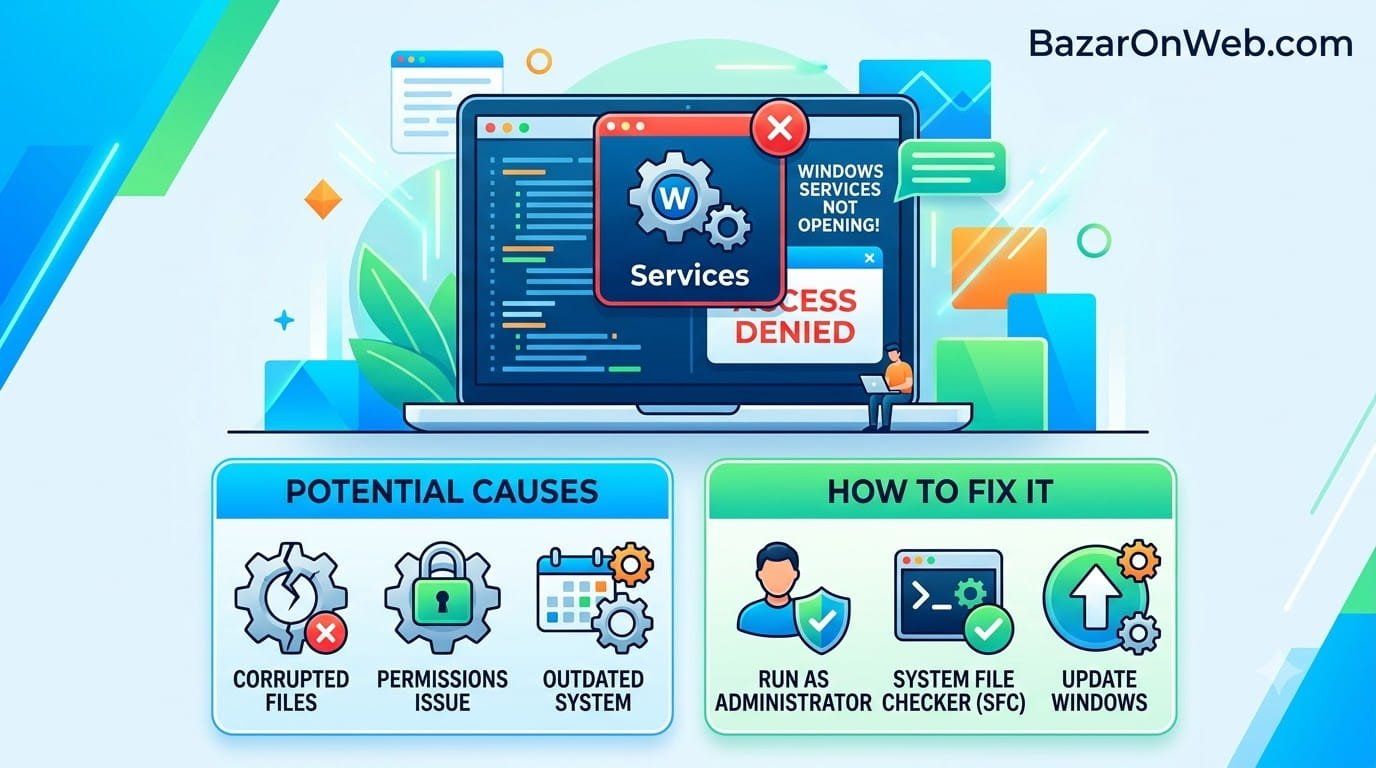
I was troubleshooting a startup problem. Something was launching automatically that I didn’t want launching. I needed to access Windows Services to disable it. Simple enough. Services app should be straightforward to open and modify.
Except it wouldn’t open. I right-clicked Start, searched for “Services,” and clicked it. The window appeared for a second, then closed immediately. Just vanished. Like it was rejecting my attempt to access it.
I tried again. Same thing. Open for a millisecond, then gone.
Third attempt, I tried waiting. Maybe it was loading slowly. After 30 seconds of nothing, I gave up on that approach. I opened Task Manager and looked for the Services process to see if I could force it. But even launching it from Task Manager produced the same result—instant crash.
I was locked out of Windows Services for no obvious reason. And unlike some Windows features that are just inconvenient to access, Services is genuinely important. Without it, you can’t disable programs running at startup, can’t control background services, can’t manage critical system processes.
Turns out this happens to enough people that Microsoft probably should have documented solutions better. The Services app failing to open is rare but recoverable if you know what to try.
What Windows Services Actually Does (And Why You’d Need to Access It)
Before troubleshooting a broken Services app, understanding what it does explains why accessing it matters.
Windows Services are background processes that run continuously regardless of whether you’re using your computer or logged in. Some are essential system services. Some are optional programs. Some are bloatware nobody asked for.
Services control things like:
- Network connectivity
- Windows Update
- Print spooler
- Antivirus protection
- Backup processes
- Cloud sync services
- Device drivers
- Security features
Some services launch at startup. Some only when needed. Some run constantly in the background.
If something is launching at startup that you don’t want, you usually disable it through Services. If a background service is consuming resources, you might disable it through Services. If something is misbehaving, sometimes restarting it through Services fixes it.
The Windows Services app is where you manage all this. You can start, stop, restart, enable, or disable any service. It’s powerful and important.
When it won’t open or won’t let you modify things, you’re essentially locked out of system-level control.
Why Services App Fails to Open (The Common Culprits)
Services app can fail to open for several reasons. Understanding the likely cause guides your fix.
Permission issues: Services requires administrator privileges. If something prevents you from running as administrator, Services won’t open. This is the most common culprit.
Corrupted installation: The Services app’s files might be corrupted, preventing it from launching.
Group Policy restrictions: On managed computers, administrators might have restricted access to Services.
Antivirus interference: Security software sometimes blocks access to Services believing it’s a threat.
Malware: Malicious software sometimes disables or blocks access to Services to prevent users from removing it.
Conflicting processes: Something else might be locking the Services database, preventing it from opening.
Windows Update issues: Incomplete or corrupted updates sometimes break Services access.
Registry corruption: The registry entries for Services might be corrupted.
Most of these are fixable. Some require nuclear options. But starting with the simple fixes prevents unnecessary escalation.
The Quick Fix: Run As Administrator
The simplest reason Services won’t open is that you’re not running it with administrator privileges.
Press Windows Key + R to open Run dialog. Type services.msc and press Enter.
If Services still won’t open, try this: press Windows Key + R, type services.msc, then press Ctrl+Shift+Enter instead of just Enter.
This forces Services to run as administrator with elevated privileges.
Ctrl+Shift+Enter is the keyboard shortcut for “run as administrator” in Windows Run dialog. It’s faster than right-click > Run as administrator.
If this opens Services successfully, you’ve found your culprit—permissions issue. Services works fine when you have proper administrator access.
From now on, always use Ctrl+Shift+Enter when opening services.msc from Run dialog, or right-click always select “Run as administrator” instead of just double-clicking.
Method 1: Computer Management Alternative Access
If services.msc won’t open even as administrator, Computer Management provides access to Services through a different interface.
Right-click Start and select “Computer Management.” (Or search for “Computer Management” in Start menu.)
Computer Management opens. In the left sidebar, navigate to System Tools > Services.
This shows the same Services list in a different application. If services.msc is broken, Computer Management’s Services view often still works because it’s technically accessing Services through a different method.
From here, you can manage services just like you would in services.msc—start, stop, restart, enable, disable services.
This is a useful workaround when the dedicated Services app is broken.
Method 2: Task Manager’s Services Tab (Limited But Functional)
Task Manager has a Services tab that shows running services and allows basic control.
Press Ctrl+Shift+Esc to open Task Manager. Click the “Services” tab at the bottom. (You might need to expand the window or scroll to see it.)
You’ll see a list of services. Right-click any service to see options: Start, Stop, Restart.
This is more limited than Services app or Computer Management. You can’t configure startup type (automatic, manual, disabled) or see detailed properties. But you can start and stop services, which is useful for immediate troubleshooting.
Use this as a temporary workaround if the full Services app is broken.
Method 3: PowerShell Commands (When GUI Apps Fail)
If graphical interfaces won’t work, PowerShell can manage services through command line.
Right-click Start and select “Windows Terminal (Admin).” (Or “PowerShell (Admin)” if you don’t have Windows Terminal.)
To view all services: Get-Service | Sort-Object Name
To stop a service: Stop-Service -Name "ServiceName" -Force
To start a service: Start-Service -Name "ServiceName"
To restart a service: Restart-Service -Name "ServiceName"
To disable a service: Set-Service -Name "ServiceName" -StartupType Disabled
To enable a service: Set-Service -Name "ServiceName" -StartupType Automatic
For example, to disable Print Spooler: Set-Service -Name "Spooler" -StartupType Disabled
PowerShell is powerful and doesn’t rely on GUI components that might be broken. If graphical Services access fails, command line usually works.
The downside is you need to know service names. Service names differ from display names. “Print Spooler” is displayed name; “Spooler” is the actual service name.
Get the full service list first, find the exact service name, then use PowerShell to manage it.
Method 4: Registry Editing (For Changing Startup Types Directly)
If you need to change whether a service starts automatically but can’t access Services through any GUI, you can modify the registry directly.
This is more technical and riskier, but it works when everything else fails.
Press Windows Key + R, type regedit, press Enter to open Registry Editor.
Navigate to: HKEY_LOCAL_MACHINE\SYSTEM\CurrentControlSet\Services
You’ll see all your services listed as folders. Find the service you want to modify.
Look for the “Start” value in the service’s registry entry. Double-click it to edit.
Value meanings:
- 0 = Boot
- 1 = System
- 2 = Automatic (starts at login)
- 3 = Manual (starts when needed)
- 4 = Disabled (won’t start)
Change the value to what you want. For example, change 2 to 4 to disable an automatic service.
Click OK. The change takes effect immediately.
This is direct registry modification, so errors can cause problems. But if done correctly, it’s effective for changing service startup behavior.
When Antivirus Is Blocking Services Access
Sometimes antivirus software blocks access to Services believing it’s a security threat.
Temporarily disable your third-party antivirus (keep Windows Defender on). Try accessing Services. If it works, antivirus was blocking it.
You can then either:
- Configure your antivirus to allow Services access (consult antivirus documentation)
- Uninstall the antivirus if you don’t want its restrictions
- Switch to Windows Defender which is less restrictive
This is rare on modern antivirus, but it happens, especially with aggressive security programs.
When Malware Is Blocking Services Access
More sinister possibility: malware might be deliberately blocking Services access to prevent you from removing it.
If you suspect malware, run full malware scan:
Settings > Privacy & Security > Virus & threat protection > Manage Virus & Threat Protection > Scan options > Full Scan.
Let it complete. Malware removal might restore Services access.
Alternatively, use Malwarebytes or Windows Defender offline scans (available through Windows Recovery Environment).
If malware is blocking Services, it’s serious and warrants professional attention or complete system clean.
The Nuclear Option: Reset This PC
If nothing else has worked and you genuinely need to access Services, you can reset Windows.
Settings > System > Recovery > Reset this PC > Keep my files.
This resets Windows to clean state, which usually fixes corrupted Services access.
You’ll lose installed programs but keep personal files. It’s drastic but effective for corruption issues.
Only do this after genuinely trying everything else.
Checking If Group Policy Is Restricting Services
On managed computers (work devices, school computers), administrators might have restricted Services access through Group Policy.
Try accessing Services. If you get error saying “You don’t have authorization to access Services,” Group Policy is likely blocking it.
You can’t override Group Policy yourself. You need to contact the person managing your computer (IT department, administrator) and request Services access.
On personal computers, Group Policy restrictions are unlikely unless you’ve specifically configured them.
Verifying Services Actually Exist and Aren’t Corrupted
Sometimes Services app won’t open because the Services database itself is corrupted.
From Command Prompt (as administrator), run: sfc /scannow
This scans for corrupted system files and repairs them. It takes 15-30 minutes.
If corruption is found and repaired, Services might start working.
For more aggressive repair: DISM /Online /Cleanup-Image /RestoreHealth
This uses Windows Deployment Image Servicing and Management to repair system integrity. Also takes significant time.
After running either command, restart your computer and try accessing Services.
When Services App Just Needs Updating
Sometimes Windows Update includes updates to the Services app itself. If the installed version is broken or outdated, updating might fix it.
Settings > System > Windows Update > Check for updates.
Install any available updates and restart.
This is simple but sometimes overlooked. An update might have introduced a bug that subsequent update fixes.
Document What You’re Trying to Do
If you’ve tried multiple methods to access Services and nothing works, document what you were trying to accomplish.
Were you trying to disable a specific service? Start a service? Enable automatic startup?
This information helps if you need to contact support or ask for help. Different problems require different solutions, and knowing your goal helps others help you.
Additionally, sometimes you don’t actually need Services. You might accomplish the same goal another way:
- Use Settings app instead of Services for some configurations
- Use Task Manager for startup program control
- Use Control Panel for some service settings
You don’t always need the Services app specifically.
After Services Works Again
Once you’ve restored Services access, take preventive measures:
Keep Windows updated: Updates fix bugs that break Services.
Keep antivirus updated: Older antivirus definitions sometimes falsely block Services.
Monitor for malware: Run regular scans to catch malware before it disables critical features.
Don’t disable critical services: Only modify services you actually understand. Disabling wrong service can break Windows.
Document changes: If you disable services, document why. Future you will appreciate knowing what was changed and why.
The Reality
Services app failing to open is rare, but when it happens, you’re locked out of important system control.
Most of the time it’s permissions issue fixed by running as administrator. Sometimes it’s antivirus or malware. Rarely it’s actual corruption requiring system repair.
Work through solutions methodically. Start simple (run as administrator), escalate to workarounds (Computer Management, Task Manager, PowerShell), and only resort to nuclear options (registry editing, system reset) if nothing else works.
You don’t need Services constantly. But when you do need it, you really need it. Having backup methods of accessing service control (PowerShell, Computer Management, Registry) ensures you’re never completely locked out.
Disclaimer: This article provides troubleshooting guidance for Windows Services access issues. Results vary by OS version, configuration, and cause of failure. Modifying services incorrectly can break Windows functionality. Always back up system and document changes. If unsure about service modifications, seek professional support. Users assume responsibility for understanding services before disabling them.

- How to Run a Safety Check in Google Chrome and Protect Your Browser

- Samsung Phone’s Keyboard Not Working? Here’s How to Fix It

- How to Take Screenshot While in Gaming on My Windows 11 PC

- Microsoft Store Blocked on Windows 11 Error 0x800704EC, How to Fix It

- What Is Spotlight Search on Mac and How Do You Open It?

Products
-
![Apple Watch Ultra 3 [GPS + Cellular 49mm] Running & Multisport Smartwatch w/Rugged Titanium Case w/Black Titanium Milanese Loop - M. Satellite Communications, Advanced Health & Fitness Tracking](https://bazaronweb.com/retailstores/wp-content/uploads/2025/09/apple-watch-320x320.jpg) Apple Watch Ultra 3 [GPS + Cellular 49mm] Running & Multisport Smartwatch w/Rugged Titanium Case w/Black Titanium Milanese Loop - M. Satellite Communications, Advanced Health & Fitness Tracking
Apple Watch Ultra 3 [GPS + Cellular 49mm] Running & Multisport Smartwatch w/Rugged Titanium Case w/Black Titanium Milanese Loop - M. Satellite Communications, Advanced Health & Fitness Tracking
-
 Apple iPad mini (A17 Pro): Apple Intelligence, 8.3-inch Liquid Retina Display, 256GB, Wi-Fi 6E, 12MP Front/12MP Back Camera, Touch ID, All-Day Battery Life — Purple
-
 Apple AirPods Max Wireless Over-Ear Headphones, Active Noise Cancelling, Transparency Mode, Personalized Spatial Audio, Dolby Atmos, Bluetooth Headphones for iPhone – Space Gray
-
 Apple AirPods Pro 2 Wireless Earbuds, Active Noise Cancellation, Hearing Aid Feature, Bluetooth Headphones, Transparency, Personalized Spatial Audio, High-Fidelity Sound, H2 Chip, USB-C Charging
-
Home Garage 210 TC Cotton King Floral Fitted (Elastic) Bedsheet(Pack of 1, Grey)
Original price was: ₹999.00.₹299.00Current price is: ₹299.00.
Leave a Reply