Discounted Products
-
 Home Garage 210 TC Cotton King Floral Fitted (Elastic) Bedsheet(Pack of 1, Grey)
Original price was: ₹999.00.₹299.00Current price is: ₹299.00.
Home Garage 210 TC Cotton King Floral Fitted (Elastic) Bedsheet(Pack of 1, Grey)
Original price was: ₹999.00.₹299.00Current price is: ₹299.00.
-
 Goodrik 140 TC Cotton Double 3D Printed Flat Bedsheet(Pack of 1, Brown)
Original price was: ₹499.00.₹229.00Current price is: ₹229.00.
Goodrik 140 TC Cotton Double 3D Printed Flat Bedsheet(Pack of 1, Brown)
Original price was: ₹499.00.₹229.00Current price is: ₹229.00.
-
 GLOBALSHOP 350 TC Microfiber Double Floral Flat Bedsheet(Pack of 1, Multicolor)
Original price was: ₹1,250.00.₹263.00Current price is: ₹263.00.
GLOBALSHOP 350 TC Microfiber Double Floral Flat Bedsheet(Pack of 1, Multicolor)
Original price was: ₹1,250.00.₹263.00Current price is: ₹263.00.
-
 RisingStar 250 TC Microfiber King Printed Fitted (Elastic) Bedsheet(Pack of 1, FITTED-ROUND-CIRCLES-PREMIUM)
Original price was: ₹2,299.00.₹299.00Current price is: ₹299.00.
RisingStar 250 TC Microfiber King Printed Fitted (Elastic) Bedsheet(Pack of 1, FITTED-ROUND-CIRCLES-PREMIUM)
Original price was: ₹2,299.00.₹299.00Current price is: ₹299.00.
-
 Home Garage 210 TC Cotton King Floral Fitted (Elastic) Bedsheet(Pack of 1, Fitted Black Green)
Original price was: ₹1,299.00.₹299.00Current price is: ₹299.00.
Home Garage 210 TC Cotton King Floral Fitted (Elastic) Bedsheet(Pack of 1, Fitted Black Green)
Original price was: ₹1,299.00.₹299.00Current price is: ₹299.00.
-
 Home Garage 180 TC Cotton King 3D Printed Flat Bedsheet(Pack of 1, White)
Original price was: ₹999.00.₹229.00Current price is: ₹229.00.
Home Garage 180 TC Cotton King 3D Printed Flat Bedsheet(Pack of 1, White)
Original price was: ₹999.00.₹229.00Current price is: ₹229.00.
-
 Panipat Textile Hub 152.4 cm (5 ft) Polyester Window Curtain (Pack Of 2)(Solid, Aqua)
Original price was: ₹1,899.00.₹299.00Current price is: ₹299.00.
Panipat Textile Hub 152.4 cm (5 ft) Polyester Window Curtain (Pack Of 2)(Solid, Aqua)
Original price was: ₹1,899.00.₹299.00Current price is: ₹299.00.
-
 Home Sizzler 214 cm (7 ft) Polyester Semi Transparent Door Curtain (Pack Of 2)(Floral, Maroon)
Original price was: ₹1,199.00.₹399.00Current price is: ₹399.00.
Home Sizzler 214 cm (7 ft) Polyester Semi Transparent Door Curtain (Pack Of 2)(Floral, Maroon)
Original price was: ₹1,199.00.₹399.00Current price is: ₹399.00.
-
 Home Sizzler 153 cm (5 ft) Polyester Room Darkening Window Curtain (Pack Of 2)(Floral, Brown)
Original price was: ₹799.00.₹299.00Current price is: ₹299.00.
Home Sizzler 153 cm (5 ft) Polyester Room Darkening Window Curtain (Pack Of 2)(Floral, Brown)
Original price was: ₹799.00.₹299.00Current price is: ₹299.00.
-
 Stella Creations 214 cm (7 ft) Polyester Room Darkening Door Curtain (Pack Of 2)(Abstract, Brown)
Original price was: ₹1,299.00.₹449.00Current price is: ₹449.00.
Stella Creations 214 cm (7 ft) Polyester Room Darkening Door Curtain (Pack Of 2)(Abstract, Brown)
Original price was: ₹1,299.00.₹449.00Current price is: ₹449.00.
-
 Homefab India 152.5 cm (5 ft) Polyester Room Darkening Window Curtain (Pack Of 2)(Floral, Light Blue)
Original price was: ₹1,199.00.₹319.00Current price is: ₹319.00.
Homefab India 152.5 cm (5 ft) Polyester Room Darkening Window Curtain (Pack Of 2)(Floral, Light Blue)
Original price was: ₹1,199.00.₹319.00Current price is: ₹319.00.
-
 Urban Home 214 cm (7 ft) PVC Transparent Door Curtain Single Curtain(Solid, Off White)
Original price was: ₹699.00.₹203.00Current price is: ₹203.00.
Urban Home 214 cm (7 ft) PVC Transparent Door Curtain Single Curtain(Solid, Off White)
Original price was: ₹699.00.₹203.00Current price is: ₹203.00.
-
 Panipat Textile Hub 213 cm (7 ft) Polyester Door Curtain (Pack Of 2)(Solid, Brown)
Original price was: ₹1,199.00.₹349.00Current price is: ₹349.00.
Panipat Textile Hub 213 cm (7 ft) Polyester Door Curtain (Pack Of 2)(Solid, Brown)
Original price was: ₹1,199.00.₹349.00Current price is: ₹349.00.
-
 Home Sizzler 214 cm (7 ft) Polyester Semi Transparent Door Curtain (Pack Of 2)(Floral, Brown)
Original price was: ₹999.00.₹349.00Current price is: ₹349.00.
Home Sizzler 214 cm (7 ft) Polyester Semi Transparent Door Curtain (Pack Of 2)(Floral, Brown)
Original price was: ₹999.00.₹349.00Current price is: ₹349.00.
-
 Panipat Textile Hub 213 cm (7 ft) Polyester Semi Transparent Door Curtain (Pack Of 2)(Floral, Brown)
Original price was: ₹899.00.₹299.00Current price is: ₹299.00.
Panipat Textile Hub 213 cm (7 ft) Polyester Semi Transparent Door Curtain (Pack Of 2)(Floral, Brown)
Original price was: ₹899.00.₹299.00Current price is: ₹299.00.
Using a VPN is one of the easiest ways to improve privacy while browsing the internet. A Virtual Private Network, or VPN, routes your internet connection through a VPN server and can hide your real IP address from websites. It can also be useful when you are connected to public Wi-Fi or when you want to browse the web from a different virtual location.
If you primarily use Google Chrome on your Windows PC, you do not always need to install a full desktop VPN application. Many VPN providers offer Chrome browser extensions that can be installed directly from the Chrome Web Store.
However, there is an important difference between a VPN browser extension and a full VPN application. A browser extension generally protects or routes traffic generated through the browser, while a desktop VPN application can protect traffic from other applications on your computer as well. Proton VPN, for example, specifically explains that its Chrome extension protects browser traffic, whereas its VPN app protects internet traffic across the device.
In this guide, I will look at five popular VPN extensions for Chrome and explain how to add and enable each one on a Windows PC.
What Is a Chrome VPN Extension?
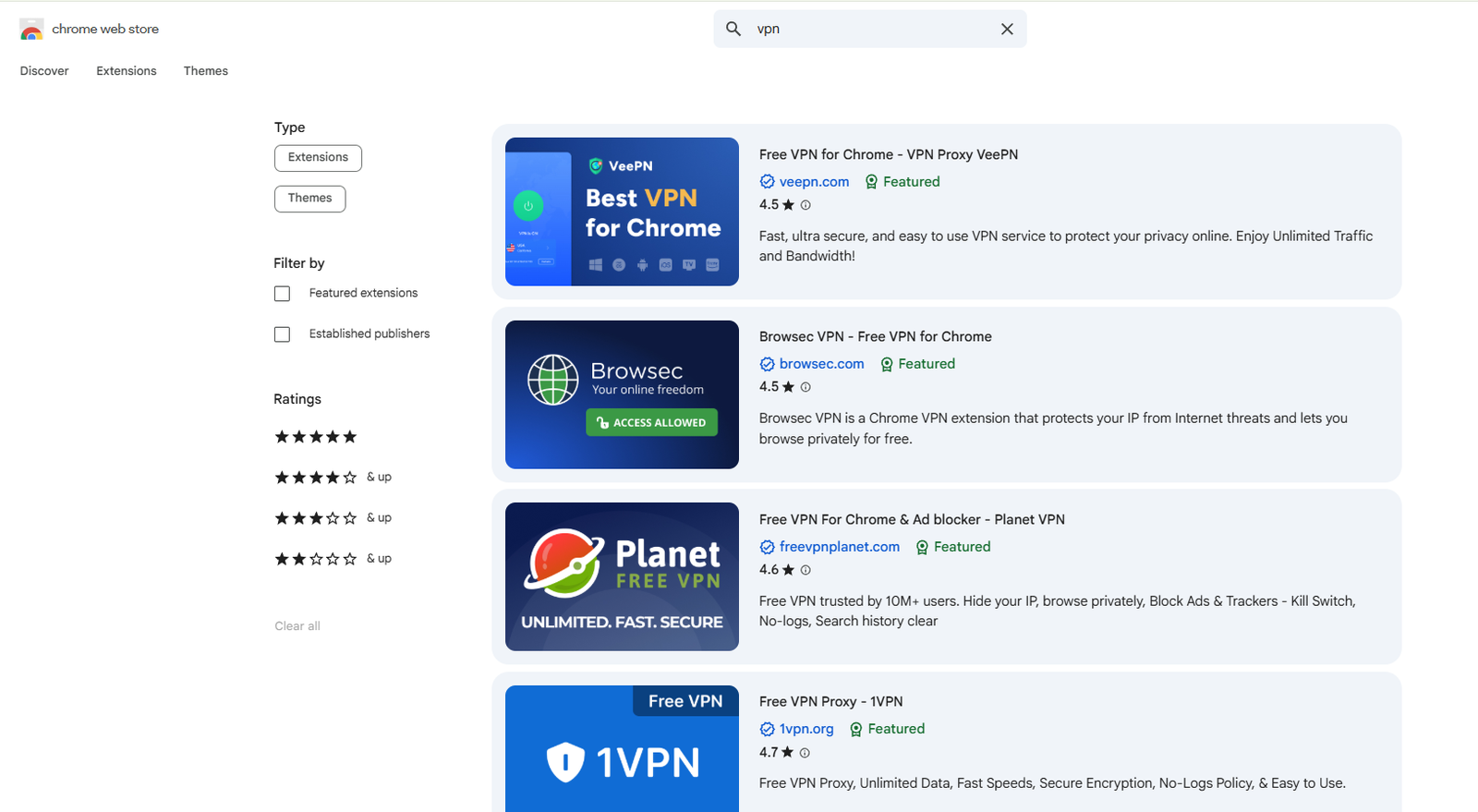
A Chrome VPN extension is an add-on that integrates VPN or VPN-proxy functionality into your browser. After installation, you can usually open the extension from Chrome’s toolbar, sign in to your account, select a server location and connect.
This can be particularly convenient if you only want VPN protection while browsing websites.
Chrome VPN extensions are also lightweight compared with installing a complete desktop application. Depending on the provider, the extension may offer features such as IP-address masking, location selection, tracker blocking, WebRTC protection or website-specific routing.
Before installing any VPN extension, however, make sure you download the official extension from the provider or the official Chrome Web Store listing. Avoid installing random extensions simply because their names contain words such as “Free VPN” or “Unlimited VPN.”
1. NordVPN Chrome Extension
NordVPN is one of the most widely recognized VPN services, and its Chrome extension is designed for users who want convenient VPN access directly from the browser.
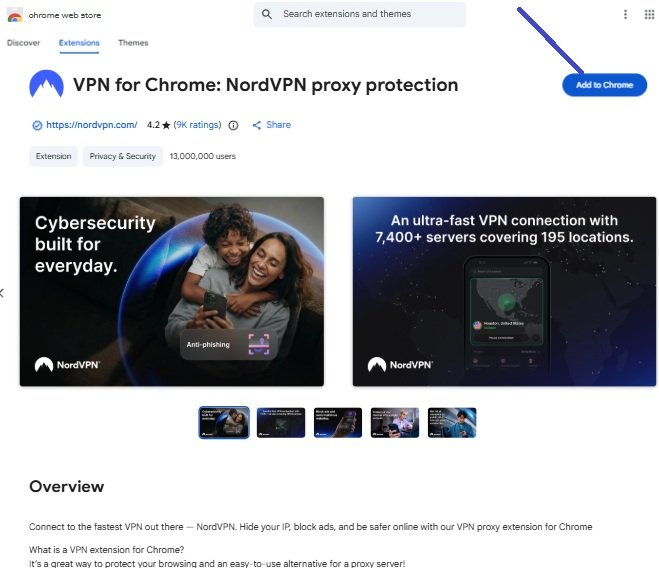
The extension allows you to sign in to your Nord Account and connect to a VPN server from the Chrome interface. NordVPN’s current setup instructions recommend opening the Chrome Web Store, searching for the NordVPN extension, selecting Add to Chrome, and confirming the installation.
How to Add NordVPN to Chrome
- Open Google Chrome on your Windows PC.
- Open the Chrome Web Store.
- Search for NordVPN.
- Select the official NordVPN extension.
- Click Add to Chrome.
- When Chrome displays the confirmation window, click Add extension.
- Wait for Chrome to finish installing the extension.
- Click the Extensions puzzle-piece icon in the top-right corner.
- Find NordVPN in the list.
- Click the Pin icon to place it directly on the Chrome toolbar.
- Click the NordVPN icon.
- Sign in using your Nord Account.
- Click Secure my connection to connect automatically, or select a specific country or server.
Once connected, your Chrome browsing traffic will be routed through the VPN connection according to the extension’s operating mode.
NordVPN’s browser extension can be useful if you want a quick connection without opening the full VPN application every time.
2. ExpressVPN Chrome Extension
ExpressVPN is another popular choice for Chrome users. Its browser extension has an important feature that makes it somewhat different from a basic browser-only proxy.
ExpressVPN currently supports two modes: Remote Control Mode and Proxy Mode. Remote Control Mode controls the ExpressVPN desktop application and can therefore provide device-wide VPN protection through the app. Proxy Mode operates independently and protects browser traffic only.
How to Add ExpressVPN to Chrome
- Open Chrome on your Windows PC.
- Visit the official ExpressVPN setup page or open the Chrome Web Store.
- Search for the official ExpressVPN browser extension.
- Click Add to Chrome.
- Confirm by clicking Add extension.
- Click the Chrome Extensions icon.
- Locate ExpressVPN.
- Click the Pin icon if you want it permanently visible.
- Open the ExpressVPN extension.
- Sign in with your ExpressVPN account.
- Choose a VPN location.
- Click the connection button.
If the ExpressVPN desktop application is installed, the extension can detect it and offer the option to use the app for full-device protection. If the application is not installed, ExpressVPN says users can continue with Proxy Mode, although the company recommends installing the desktop app for full protection.
This makes ExpressVPN particularly interesting for people who want to control their desktop VPN connection directly from Chrome.
3. Surfshark VPN Extension
Surfshark is another well-known VPN service with a Chrome browser extension. Its extension can be useful for users who want a simple interface for connecting their browser to a VPN server.
Surfshark’s official Chrome setup instructions say that you need an active Surfshark subscription and Google Chrome installed. The installation process involves adding the extension through the Chrome Web Store and then pinning it to the toolbar for convenient access.
How to Add Surfshark to Chrome
- Launch Google Chrome.
- Open the Chrome Web Store.
- Search for Surfshark VPN.
- Select the official Surfshark extension.
- Click Add to Chrome.
- Click Add extension when Chrome asks for confirmation.
- Click the Extensions puzzle-piece icon.
- Find Surfshark in the installed extensions list.
- Click the Pin icon.
- Click the Surfshark icon from your Chrome toolbar.
- Sign in to your Surfshark account.
- Select your preferred location.
- Click the connection button.
After the connection is established, you can continue browsing Chrome through the selected VPN connection.
Surfshark also provides privacy-oriented browser features. Independent testing and reviews commonly highlight features such as tracker and cookie blocking, although exact features can vary between the browser extension and full desktop application.
4. Proton VPN Chrome Extension
Proton VPN is a strong option for users who are particularly interested in privacy. One useful advantage is that Proton VPN offers a Chrome extension that can be used with a free Proton account, although available locations and features depend on the plan.
The Proton VPN extension is also compatible with Chromium-based browsers such as Chrome, Edge, Brave, Opera and Vivaldi.
How to Add Proton VPN to Chrome
- Open Google Chrome.
- Go to the Chrome Web Store.
- Search for Proton VPN.
- Select the official Proton VPN extension.
- Click Add to Chrome.
- Confirm by clicking Add extension.
- Click the Chrome Extensions button.
- Find Proton VPN.
- Click the Pin icon to add it to the toolbar.
- Open the Proton VPN extension.
- Sign in using your Proton account.
- Click Quick Connect to automatically connect to an appropriate server.
- Alternatively, select a country and connect manually.
Proton VPN says Quick Connect can connect you to a suitable or fastest available server, while users can also search for specific countries, cities or servers depending on their plan.
One important point is that the Proton VPN Chrome extension does not automatically protect other applications running on your PC. If you need protection for applications outside Chrome, the desktop VPN application is the more appropriate choice.
5. Windscribe VPN Chrome Extension
Windscribe is a useful option for people looking for a Chrome VPN extension with a free tier. Windscribe says its free VPN service includes access to selected global locations and does not require a credit card. Free usage is subject to the provider’s applicable limits and policies.
The Windscribe Chrome extension can also provide features such as location masking and blocking for ads and trackers.
How to Add Windscribe to Chrome
- Open Google Chrome.
- Go to the Chrome Web Store.
- Search for Windscribe.
- Select the official Windscribe extension.
- Click Add to Chrome.
- Confirm the installation by selecting Add extension.
- Click the Chrome Extensions icon.
- Locate Windscribe.
- Click the Pin icon.
- Open Windscribe from the toolbar.
- Create a Windscribe account or sign in.
- Select a server location.
- Click the large ON button.
- Wait for the extension to show that you are connected.
Windscribe’s current Chrome instructions follow this same basic process: create an account, install the extension, pin it, sign in and then connect using the ON button or a selected location.
How to Enable a VPN Extension After Installing It
Installing an extension does not necessarily mean you are connected to a VPN. You normally need to open the extension and activate the connection.
The general process is almost identical for all five extensions.
First, click the Extensions icon in Chrome. This looks like a small puzzle piece and is located near the top-right corner of the browser.
Next, locate the VPN extension you installed. If you use the VPN regularly, click the Pin icon beside it. The VPN logo will then appear directly on your Chrome toolbar.
Click the VPN icon and sign in if required.
Most VPN extensions provide a prominent Connect, Secure, Power or similar button. Click it and wait for the extension to confirm that the VPN connection is active.
You can then choose a particular country or server if you need a specific location.
How to Check Whether the VPN Is Working
After connecting, you can perform a simple IP-address check.
Open a new Chrome tab and search for “What is my IP address?” Before connecting, note the displayed IP location. Connect to the VPN and refresh the page.
If the VPN is functioning correctly, the public IP address and apparent location should generally change to those associated with the VPN connection.
Keep in mind that a VPN is not a complete anonymity solution. Websites can still identify users through accounts, cookies, browser fingerprinting and other techniques.
VPN Extension vs. Full VPN Application
This is one of the most important things to understand before installing a Chrome VPN extension.
A browser extension generally operates within the browser. If you connect to a VPN through the extension, other applications on your Windows PC may continue using your normal internet connection.
For example, imagine you have Chrome, Outlook and a separate file-transfer application running simultaneously. A browser-only VPN extension may protect Chrome traffic while the other applications continue using the regular network connection.
A full VPN application works at the device level and can protect traffic generated by multiple applications.
ExpressVPN explicitly describes this distinction: Proxy Mode protects browser traffic, while Remote Control Mode can control its desktop application for device-wide VPN protection.
Therefore, choose a browser extension if your requirement is mainly Chrome browsing. Choose a desktop VPN application when you want broader protection across your PC.
Which Chrome VPN Extension Should You Choose?
There is no single VPN that is perfect for every user.
NordVPN is a strong choice for users who want a mature VPN service and a straightforward Chrome experience.
ExpressVPN is worth considering if you want the Chrome extension to work alongside a full desktop VPN application.
Surfshark is a good option for users interested in a feature-rich browser experience and broader device support.
Proton VPN is particularly attractive to privacy-conscious users and people who want a reputable provider with a free Chrome extension option.
Windscribe stands out for users who want a free option and a relatively simple browser-based VPN experience.
When choosing between them, don’t focus only on the number of servers or the advertised speed. Consider privacy policies, account requirements, available locations, browser permissions, whether a free plan is offered and whether you need browser-only or full-device protection.
Important Safety Tips Before Installing a VPN Extension
Always install VPN extensions from the official provider or a verified Chrome Web Store listing.
Avoid unknown VPN extensions with suspicious names, excessive permissions or unclear privacy policies.
Also remember that a VPN does not replace antivirus software, safe browsing habits or strong passwords.
Do not enter sensitive information into suspicious websites simply because a VPN is enabled. A VPN can encrypt or route your connection, but it cannot make a malicious website trustworthy.
Finally, keep Chrome and your VPN extension updated. Browser extensions can receive security fixes, compatibility updates and feature improvements over time.
Final Words
VPN browser extensions make it easy to add an extra layer of privacy to Chrome without configuring complicated network settings. NordVPN, ExpressVPN, Surfshark, Proton VPN and Windscribe are five popular options worth considering in 2026.
Adding one is generally straightforward: open the Chrome Web Store, install the official extension, pin it to the toolbar, sign in and click the connection button.
However, remember that a Chrome VPN extension is not always the same as a full VPN application. If you only want to route your Chrome browsing through a VPN, an extension may be sufficient. If you want to protect other applications and connections on your Windows PC, install and use the provider’s full desktop VPN application where available.
Most importantly, choose a trusted VPN provider and verify that you are installing the genuine extension. Your VPN provider becomes an important part of your internet privacy setup, so it is worth taking a few minutes to check its reputation, privacy practices and features before connecting.
Disclaimer: This article is for informational and educational purposes only. VPN features, pricing, server availability, free-plan limits, browser compatibility, privacy policies, and installation procedures may change over time. Always download browser extensions from official sources and review the provider’s current terms, privacy policy, and permissions before installation. A VPN does not guarantee complete anonymity or protection from malware, phishing, scams, tracking, or unsafe websites. Browser VPN extensions may protect only browser traffic and may not protect other applications on your PC. Choose a VPN service based on your own privacy, security, performance, and usage requirements.

- How to Remotely Control Another Computer Using Windows Quick Assist

- 5 Must-Have Electronics Gadgets for a More Comfortable Living Room

- How to Create a Windows 11 System Backup on an External Hard Drive

- 10 Smart Home Ideas That Make Everyday Life Easier

- Gemini Live Avatar: How to Talk to Gemini Face-to-Face

Products
-
![Apple Watch Ultra 3 [GPS + Cellular 49mm] Running & Multisport Smartwatch w/Rugged Titanium Case w/Black Titanium Milanese Loop - M. Satellite Communications, Advanced Health & Fitness Tracking](https://bazaronweb.com/retailstores/wp-content/uploads/2025/09/apple-watch-320x320.jpg) Apple Watch Ultra 3 [GPS + Cellular 49mm] Running & Multisport Smartwatch w/Rugged Titanium Case w/Black Titanium Milanese Loop - M. Satellite Communications, Advanced Health & Fitness Tracking
Apple Watch Ultra 3 [GPS + Cellular 49mm] Running & Multisport Smartwatch w/Rugged Titanium Case w/Black Titanium Milanese Loop - M. Satellite Communications, Advanced Health & Fitness Tracking
-
 Apple iPad mini (A17 Pro): Apple Intelligence, 8.3-inch Liquid Retina Display, 256GB, Wi-Fi 6E, 12MP Front/12MP Back Camera, Touch ID, All-Day Battery Life — Purple
-
 Apple AirPods Max Wireless Over-Ear Headphones, Active Noise Cancelling, Transparency Mode, Personalized Spatial Audio, Dolby Atmos, Bluetooth Headphones for iPhone – Space Gray
-
 Apple AirPods Pro 2 Wireless Earbuds, Active Noise Cancellation, Hearing Aid Feature, Bluetooth Headphones, Transparency, Personalized Spatial Audio, High-Fidelity Sound, H2 Chip, USB-C Charging
-
Home Garage 210 TC Cotton King Floral Fitted (Elastic) Bedsheet(Pack of 1, Grey)
Original price was: ₹999.00.₹299.00Current price is: ₹299.00.
Leave a Reply