Discounted Products
-
 Home Garage 210 TC Cotton King Floral Fitted (Elastic) Bedsheet(Pack of 1, Grey)
Original price was: ₹999.00.₹299.00Current price is: ₹299.00.
Home Garage 210 TC Cotton King Floral Fitted (Elastic) Bedsheet(Pack of 1, Grey)
Original price was: ₹999.00.₹299.00Current price is: ₹299.00.
-
 Goodrik 140 TC Cotton Double 3D Printed Flat Bedsheet(Pack of 1, Brown)
Original price was: ₹499.00.₹229.00Current price is: ₹229.00.
Goodrik 140 TC Cotton Double 3D Printed Flat Bedsheet(Pack of 1, Brown)
Original price was: ₹499.00.₹229.00Current price is: ₹229.00.
-
 GLOBALSHOP 350 TC Microfiber Double Floral Flat Bedsheet(Pack of 1, Multicolor)
Original price was: ₹1,250.00.₹263.00Current price is: ₹263.00.
GLOBALSHOP 350 TC Microfiber Double Floral Flat Bedsheet(Pack of 1, Multicolor)
Original price was: ₹1,250.00.₹263.00Current price is: ₹263.00.
-
 RisingStar 250 TC Microfiber King Printed Fitted (Elastic) Bedsheet(Pack of 1, FITTED-ROUND-CIRCLES-PREMIUM)
Original price was: ₹2,299.00.₹299.00Current price is: ₹299.00.
RisingStar 250 TC Microfiber King Printed Fitted (Elastic) Bedsheet(Pack of 1, FITTED-ROUND-CIRCLES-PREMIUM)
Original price was: ₹2,299.00.₹299.00Current price is: ₹299.00.
-
 Home Garage 210 TC Cotton King Floral Fitted (Elastic) Bedsheet(Pack of 1, Fitted Black Green)
Original price was: ₹1,299.00.₹299.00Current price is: ₹299.00.
Home Garage 210 TC Cotton King Floral Fitted (Elastic) Bedsheet(Pack of 1, Fitted Black Green)
Original price was: ₹1,299.00.₹299.00Current price is: ₹299.00.
-
 Home Garage 180 TC Cotton King 3D Printed Flat Bedsheet(Pack of 1, White)
Original price was: ₹999.00.₹229.00Current price is: ₹229.00.
Home Garage 180 TC Cotton King 3D Printed Flat Bedsheet(Pack of 1, White)
Original price was: ₹999.00.₹229.00Current price is: ₹229.00.
-
 Panipat Textile Hub 152.4 cm (5 ft) Polyester Window Curtain (Pack Of 2)(Solid, Aqua)
Original price was: ₹1,899.00.₹299.00Current price is: ₹299.00.
Panipat Textile Hub 152.4 cm (5 ft) Polyester Window Curtain (Pack Of 2)(Solid, Aqua)
Original price was: ₹1,899.00.₹299.00Current price is: ₹299.00.
-
 Home Sizzler 214 cm (7 ft) Polyester Semi Transparent Door Curtain (Pack Of 2)(Floral, Maroon)
Original price was: ₹1,199.00.₹399.00Current price is: ₹399.00.
Home Sizzler 214 cm (7 ft) Polyester Semi Transparent Door Curtain (Pack Of 2)(Floral, Maroon)
Original price was: ₹1,199.00.₹399.00Current price is: ₹399.00.
-
 Home Sizzler 153 cm (5 ft) Polyester Room Darkening Window Curtain (Pack Of 2)(Floral, Brown)
Original price was: ₹799.00.₹299.00Current price is: ₹299.00.
Home Sizzler 153 cm (5 ft) Polyester Room Darkening Window Curtain (Pack Of 2)(Floral, Brown)
Original price was: ₹799.00.₹299.00Current price is: ₹299.00.
-
 Stella Creations 214 cm (7 ft) Polyester Room Darkening Door Curtain (Pack Of 2)(Abstract, Brown)
Original price was: ₹1,299.00.₹449.00Current price is: ₹449.00.
Stella Creations 214 cm (7 ft) Polyester Room Darkening Door Curtain (Pack Of 2)(Abstract, Brown)
Original price was: ₹1,299.00.₹449.00Current price is: ₹449.00.
-
 Homefab India 152.5 cm (5 ft) Polyester Room Darkening Window Curtain (Pack Of 2)(Floral, Light Blue)
Original price was: ₹1,199.00.₹319.00Current price is: ₹319.00.
Homefab India 152.5 cm (5 ft) Polyester Room Darkening Window Curtain (Pack Of 2)(Floral, Light Blue)
Original price was: ₹1,199.00.₹319.00Current price is: ₹319.00.
-
 Urban Home 214 cm (7 ft) PVC Transparent Door Curtain Single Curtain(Solid, Off White)
Original price was: ₹699.00.₹203.00Current price is: ₹203.00.
Urban Home 214 cm (7 ft) PVC Transparent Door Curtain Single Curtain(Solid, Off White)
Original price was: ₹699.00.₹203.00Current price is: ₹203.00.
-
 Panipat Textile Hub 213 cm (7 ft) Polyester Door Curtain (Pack Of 2)(Solid, Brown)
Original price was: ₹1,199.00.₹349.00Current price is: ₹349.00.
Panipat Textile Hub 213 cm (7 ft) Polyester Door Curtain (Pack Of 2)(Solid, Brown)
Original price was: ₹1,199.00.₹349.00Current price is: ₹349.00.
-
 Home Sizzler 214 cm (7 ft) Polyester Semi Transparent Door Curtain (Pack Of 2)(Floral, Brown)
Original price was: ₹999.00.₹349.00Current price is: ₹349.00.
Home Sizzler 214 cm (7 ft) Polyester Semi Transparent Door Curtain (Pack Of 2)(Floral, Brown)
Original price was: ₹999.00.₹349.00Current price is: ₹349.00.
-
 Panipat Textile Hub 213 cm (7 ft) Polyester Semi Transparent Door Curtain (Pack Of 2)(Floral, Brown)
Original price was: ₹899.00.₹299.00Current price is: ₹299.00.
Panipat Textile Hub 213 cm (7 ft) Polyester Semi Transparent Door Curtain (Pack Of 2)(Floral, Brown)
Original price was: ₹899.00.₹299.00Current price is: ₹299.00.
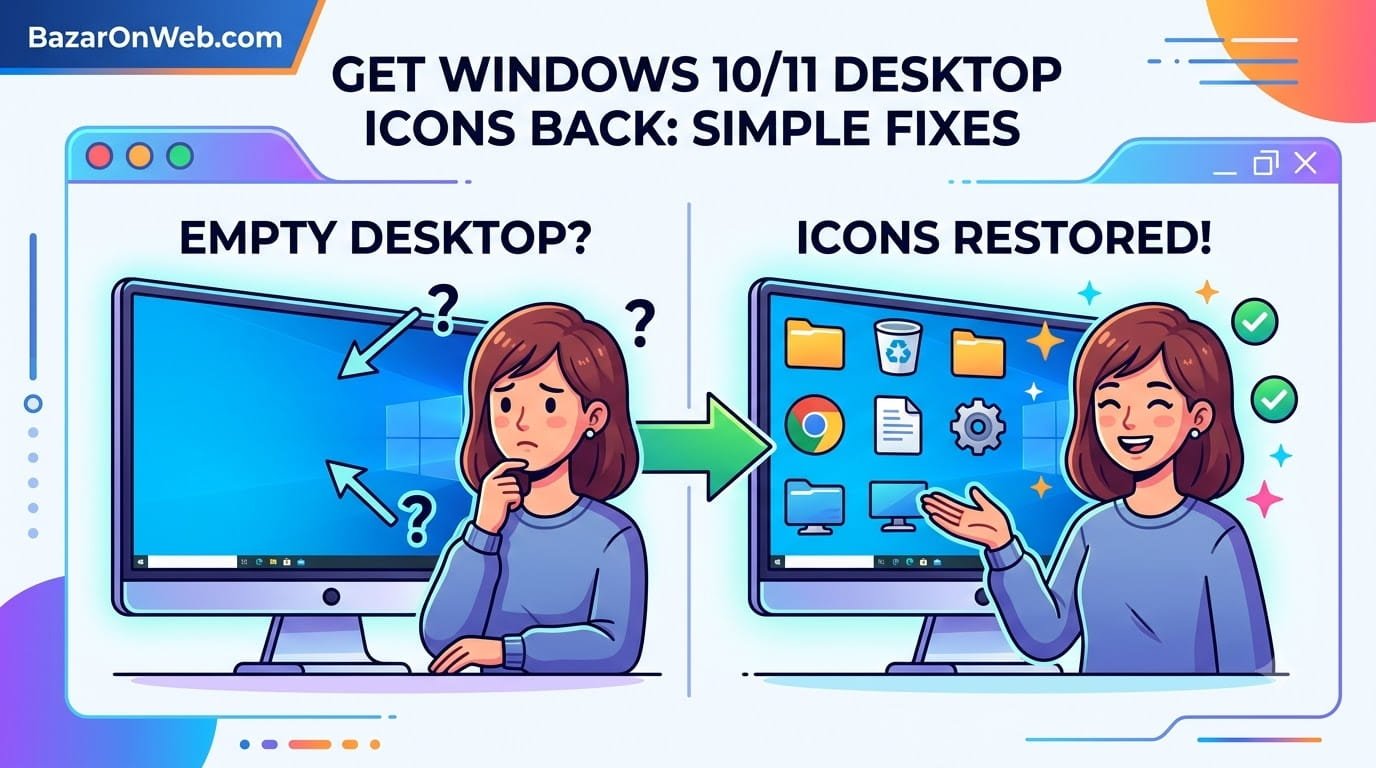
When My Desktop Became Completely Bare!
I turned on my Windows 11 laptop expecting to see my usual desktop setup. My Documents folder icon. My Downloads folder. My Recycle Bin. My shortcuts to frequently used applications.
Instead, I saw a completely empty desktop. Just a blank wallpaper with nothing on it.
I thought maybe I accidentally moved everything or hidden them somehow. I moved my mouse around looking for icons. Nothing. The desktop was completely barren.
I restarted my computer thinking maybe it was just a temporary display glitch. After restart, the desktop was still empty. No icons whatsoever.
At first, I wasn’t too concerned. I can access everything from the Start menu or File Explorer. But having an empty desktop is unsettling. I was used to having quick access to important folders and applications right there on the desktop.
I started researching why this might have happened. Did I accidentally enable some setting that hides desktop icons? Did an update cause this? Was it a system file corruption?
After investigation, I discovered there are actually multiple reasons desktop icons can disappear. Some are simple settings that hide icons but don’t delete them. Others are actual system file corruption that requires more involved fixes.
Once I understood the causes, getting my desktop icons back was straightforward. The frustrating part was that Windows doesn’t make it obvious why the icons disappeared or how to restore them.
A frustrated reader emailed: “All my desktop icons disappeared overnight. I didn’t change any settings. My Desktop folder still has all my files but they’re not showing on my actual desktop. How do I get them to display again?”
I walked them through the different methods to restore desktop icons. Their reply: “I changed the View settings in File Explorer and everything appeared again. I can’t believe it was that simple. Thank you.”
Most Windows users assume their desktop icons are deleted when they disappear. They don’t realize the icons are usually still there, just hidden by system settings. Understanding the difference and knowing how to unhide them means the difference between panic and a quick fix.
Understanding Desktop Icons: What Actually Happened
Before troubleshooting, understanding how desktop icons work and why they disappear helps explain the problem.
Your Windows desktop can display two types of items:
System icons: Recycle Bin, This PC (or My Computer), Network, and other built-in Windows icons.
User files and shortcuts: Folders, documents, application shortcuts, or other items you place on your desktop.
These items are managed by multiple systems. Some settings hide them. Some settings prevent them from displaying properly. Some system file corruption prevents the desktop from rendering icons at all.
The good news is that disappearing desktop icons doesn’t mean the icons or files are deleted. They’re usually just hidden or not displaying properly due to a setting or system issue.
Multiple things cause this:
View settings turned off: Windows has a setting to show or hide desktop icons. This setting can be accidentally disabled.
Icon cache corruption: Windows stores icon images in a cache. If this cache becomes corrupted, icons won’t display properly.
Display driver issues: Graphics driver problems prevent desktop icons from rendering.
System file corruption: Critical desktop system files are corrupted.
Explorer.exe crashed: The Windows Explorer process that manages the desktop crashed and didn’t restart properly.
Third-party software interference: Some applications interfere with desktop icon display.
Windows Update issues: An update caused the problem.
Each of these has different solutions. The key is identifying which cause applies to your situation.
Quick Diagnosis: Are Your Icons Actually Gone or Just Hidden?
Before troubleshooting, verify whether your icons are actually deleted or just hidden.
Open File Explorer (Windows Key + E).
Navigate to your Desktop folder. It’s usually at C:\Users[YourUsername]\Desktop.
Look at the folder contents. If you see files and folders here, your desktop items aren’t deleted. They’re just not displaying on your actual desktop. The problem is a display or visibility issue, not file deletion.
If the Desktop folder is empty, your files might actually be deleted. But before panicking, check:
- Recycle Bin (right-click desktop > Recycle Bin or look in File Explorer)
- File recovery software if files were deleted recently
Most of the time, files are still in the Desktop folder. They’re just not showing on your screen.
Method 1: Enable Desktop Icon View Settings
The most common cause is that desktop icon display is simply disabled in settings.
Right-click empty space on your desktop.
Look for an option like “View” or “Display options” in the context menu.
If you see “Show desktop icons” option, click it to enable it.
Your desktop icons immediately reappear.
This simple setting can be accidentally disabled and is the first thing to check.
Method 2: Check View Settings in File Explorer
Windows View settings can hide desktop items.
Open File Explorer (Windows Key + E).
Navigate to your Desktop folder (C:\Users[YourUsername]\Desktop).
Click the “View” menu at the top (or look for View options).
Look for “Hidden items” or “Show hidden files” option.
Make sure it’s checked/enabled.
Also look for “View options” or “Display options” and ensure “Show desktop items” or similar is enabled.
After enabling these settings, your desktop icons should reappear.
Method 3: Restart Windows Explorer
Sometimes Windows Explorer (the process that manages your desktop) crashes and doesn’t restart properly.
Right-click the taskbar.
Select “Task Manager” (or press Ctrl+Shift+Esc).
Find “Windows Explorer” in the list of processes.
Right-click it and select “Restart.”
Windows Explorer restarts and your desktop refreshes. Icons often reappear immediately.
This simple restart fixes the problem about 30% of the time because a crashed Explorer process is surprisingly common.
Method 4: Clear Icon Cache
Windows stores icon images in a cache. If this cache becomes corrupted, icons won’t display.
Open File Explorer.
Press Ctrl+H to show hidden files and folders.
Navigate to: C:\Users[YourUsername]\AppData\Local\IconCache.db
Delete the IconCache.db file (it will be recreated automatically).
Also delete any other icon cache files you find.
Restart your computer.
Windows rebuilds the icon cache with fresh files. Your desktop icons often reappear.
Method 5: Run System File Checker
System file corruption can prevent desktop icons from displaying.
Right-click Start and select “Windows Terminal (Admin)” or “Command Prompt (Admin).”
Type: sfc /scannow
System File Checker scans for corrupted system files and repairs them.
This takes 15-20 minutes. Let it complete fully.
Restart your computer.
System file repair often fixes desktop display issues.
Method 6: Update Graphics Driver
Graphics driver issues can prevent desktop icons from rendering properly.
Device Manager > Display adapters > right-click your graphics card > Update driver > Search automatically for drivers.
Windows searches for and installs the latest driver.
Restart your computer.
Updated graphics drivers often fix display-related issues including missing desktop icons.
Method 7: Check Desktop Properties
Windows Desktop properties control how the desktop displays.
Right-click empty desktop space > Personalize (or go to Settings > Personalization > Desktop).
Look for options related to desktop items or icons.
Ensure “Show icons on the desktop” is enabled.
Check if there are any settings preventing icon display.
Adjust as needed and apply changes.
Sometimes a specific desktop property is disabled, hiding all icons.
Method 8: Restore Desktop Icons from Backup
If you recently experienced system issues, restoring from System Restore might help.
Settings > System > Recovery > Advanced recovery options > System Restore.
Select a restore point from before your desktop icons disappeared.
Confirm and let Windows restore.
This restores your system to a previous working state, including desktop icons.
System Restore doesn’t affect your personal files, just system settings and installed programs.
Method 9: Disable Desktop Composition Temporarily
Desktop Composition is the visual effects system. Disabling it temporarily can identify if it’s causing the problem.
Right-click desktop > Personalize > Colors > scroll down to “Transparency effects” > toggle OFF.
Restart your computer.
Test if desktop icons appear.
If they do, re-enable transparency effects. The problem was display-related.
If they don’t, try other methods.
Method 10: Reset Windows Settings Specific to Desktop
Advanced troubleshooting for persistent icon disappearance.
Right-click Start > Windows Terminal (Admin).
Type: taskkill /F /IM explorer.exe
This stops Windows Explorer.
Type: del "%appdata%\Microsoft\Windows\Recent\AutomaticDestinations"
This deletes recent file shortcuts cache.
Type: explorer.exe
This restarts Windows Explorer.
Restart your computer.
Desktop icons often reappear after resetting these files.
Real User Scenario: The Complete Solution
A reader named Patricia emailed: “My desktop completely disappeared. All my icons, folders, everything. It’s all gone. Did someone hack me or did my computer get infected? I can see everything in File Explorer but nothing on my desktop.”
Diagnosis process:
- Checked File Explorer Desktop folder: All files were still there
- Identified that files exist but aren’t displaying
- Right-clicked desktop looking for “Show desktop icons” option
- Option wasn’t available in context menu
- Checked View settings in File Explorer
- Found “Hidden items” was disabled
- Enabled “Hidden items” and “Show desktop items”
- Desktop icons immediately reappeared
Result: Simple View setting was disabled. No files were deleted or missing.
Patricia’s reply: “I’m so relieved. I thought I was hacked or my files were deleted. They were just hidden. Thank you so much for helping me find that simple setting.”
When Desktop Icons Won’t Return
If desktop icons still don’t appear after trying multiple methods:
Check if you’re in a different user account: Make sure you’re logged into the same Windows user account where your desktop files are.
Verify Desktop folder location: Your Desktop folder location in File Explorer should match where Windows looks for desktop items.
Disable all visual effects temporarily: Settings > System > Display > Advanced display settings > Graphics settings > Performance options > Disable all visual effects.
This identifies if visual effects are causing the problem.
Perform clean boot: Boot Windows with minimal services to identify if third-party software is interfering.
Factory reset Windows: As last resort, reset Windows to factory state. This erases everything but solves any persistent system issues.
Prevention: Stopping This Problem
After restoring your desktop icons:
Don’t accidentally hide desktop items: Be careful with right-click context menu options. Don’t enable “Hide desktop items” accidentally.
Keep graphics drivers updated: Monthly, check for graphics driver updates to prevent display issues.
Monitor View settings: Occasionally check that View settings in File Explorer haven’t been changed.
Keep Windows updated: Windows Updates often include fixes for desktop-related issues.
Be cautious with system settings: When changing system settings, understand what they do before enabling/disabling.
The Reality
Desktop icons disappearing is usually a settings issue, not data loss. Your files are almost always still there. They’re just not displaying properly.
The most common fix is enabling “Show desktop icons” or unhiding hidden files. That single action restores the desktop icons about 50% of the time.
For the remaining cases, clearing icon cache, restarting Windows Explorer, or updating graphics drivers usually solves the problem.
Only rarely is it a serious system file corruption requiring professional service.
Your desktop icons will return. Usually within 5 minutes of proper troubleshooting.
Quick Priority List: Desktop Icons Disappeared
Desktop icons missing?
- Check File Explorer Desktop folder to verify files still exist
- Right-click desktop and look for “Show desktop icons” option
- Enable “Hidden items” in File Explorer View settings
- Restart Windows Explorer (Task Manager > restart explorer.exe)
- Clear icon cache (delete IconCache.db from AppData)
- Update graphics driver (Device Manager > Display adapters)
- Run System File Checker (Command Prompt: sfc /scannow)
- Disable and re-enable transparency effects
- Use System Restore to restore from earlier working state
- Factory reset Windows as absolute last resort
One of these will almost certainly restore your desktop icons.
Disclaimer: This article provides troubleshooting guidance for missing Windows desktop icons. Icon disappearance has multiple causes varying by Windows version, configuration, and system state. Most causes are settings-related rather than indicating data loss. Icon files are typically still present on your computer even when not displaying. Accessing AppData folder requires enabling hidden files in File Explorer. System File Checker requires administrator access and takes 15-20 minutes to complete. Graphics driver updates can be rolled back if they cause issues. System Restore doesn’t affect personal files but removes system changes made after the restore point. Factory reset erases all data and installed applications. Users assume responsibility for understanding troubleshooting steps and their consequences. Seek professional support if uncomfortable with technical procedures or if icons remain missing after troubleshooting.






Products
-
![Apple Watch Ultra 3 [GPS + Cellular 49mm] Running & Multisport Smartwatch w/Rugged Titanium Case w/Black Titanium Milanese Loop - M. Satellite Communications, Advanced Health & Fitness Tracking](https://bazaronweb.com/retailstores/wp-content/uploads/2025/09/apple-watch-320x320.jpg) Apple Watch Ultra 3 [GPS + Cellular 49mm] Running & Multisport Smartwatch w/Rugged Titanium Case w/Black Titanium Milanese Loop - M. Satellite Communications, Advanced Health & Fitness Tracking
Apple Watch Ultra 3 [GPS + Cellular 49mm] Running & Multisport Smartwatch w/Rugged Titanium Case w/Black Titanium Milanese Loop - M. Satellite Communications, Advanced Health & Fitness Tracking
-
 Apple iPad mini (A17 Pro): Apple Intelligence, 8.3-inch Liquid Retina Display, 256GB, Wi-Fi 6E, 12MP Front/12MP Back Camera, Touch ID, All-Day Battery Life — Purple
-
 Apple AirPods Max Wireless Over-Ear Headphones, Active Noise Cancelling, Transparency Mode, Personalized Spatial Audio, Dolby Atmos, Bluetooth Headphones for iPhone – Space Gray
-
 Apple AirPods Pro 2 Wireless Earbuds, Active Noise Cancellation, Hearing Aid Feature, Bluetooth Headphones, Transparency, Personalized Spatial Audio, High-Fidelity Sound, H2 Chip, USB-C Charging
-
Home Garage 210 TC Cotton King Floral Fitted (Elastic) Bedsheet(Pack of 1, Grey)
Original price was: ₹999.00.₹299.00Current price is: ₹299.00.
Leave a Reply