Discounted Products
-
 Home Garage 210 TC Cotton King Floral Fitted (Elastic) Bedsheet(Pack of 1, Grey)
Original price was: ₹999.00.₹299.00Current price is: ₹299.00.
Home Garage 210 TC Cotton King Floral Fitted (Elastic) Bedsheet(Pack of 1, Grey)
Original price was: ₹999.00.₹299.00Current price is: ₹299.00.
-
 Goodrik 140 TC Cotton Double 3D Printed Flat Bedsheet(Pack of 1, Brown)
Original price was: ₹499.00.₹229.00Current price is: ₹229.00.
Goodrik 140 TC Cotton Double 3D Printed Flat Bedsheet(Pack of 1, Brown)
Original price was: ₹499.00.₹229.00Current price is: ₹229.00.
-
 GLOBALSHOP 350 TC Microfiber Double Floral Flat Bedsheet(Pack of 1, Multicolor)
Original price was: ₹1,250.00.₹263.00Current price is: ₹263.00.
GLOBALSHOP 350 TC Microfiber Double Floral Flat Bedsheet(Pack of 1, Multicolor)
Original price was: ₹1,250.00.₹263.00Current price is: ₹263.00.
-
 RisingStar 250 TC Microfiber King Printed Fitted (Elastic) Bedsheet(Pack of 1, FITTED-ROUND-CIRCLES-PREMIUM)
Original price was: ₹2,299.00.₹299.00Current price is: ₹299.00.
RisingStar 250 TC Microfiber King Printed Fitted (Elastic) Bedsheet(Pack of 1, FITTED-ROUND-CIRCLES-PREMIUM)
Original price was: ₹2,299.00.₹299.00Current price is: ₹299.00.
-
 Home Garage 210 TC Cotton King Floral Fitted (Elastic) Bedsheet(Pack of 1, Fitted Black Green)
Original price was: ₹1,299.00.₹299.00Current price is: ₹299.00.
Home Garage 210 TC Cotton King Floral Fitted (Elastic) Bedsheet(Pack of 1, Fitted Black Green)
Original price was: ₹1,299.00.₹299.00Current price is: ₹299.00.
-
 Home Garage 180 TC Cotton King 3D Printed Flat Bedsheet(Pack of 1, White)
Original price was: ₹999.00.₹229.00Current price is: ₹229.00.
Home Garage 180 TC Cotton King 3D Printed Flat Bedsheet(Pack of 1, White)
Original price was: ₹999.00.₹229.00Current price is: ₹229.00.
-
 Panipat Textile Hub 152.4 cm (5 ft) Polyester Window Curtain (Pack Of 2)(Solid, Aqua)
Original price was: ₹1,899.00.₹299.00Current price is: ₹299.00.
Panipat Textile Hub 152.4 cm (5 ft) Polyester Window Curtain (Pack Of 2)(Solid, Aqua)
Original price was: ₹1,899.00.₹299.00Current price is: ₹299.00.
-
 Home Sizzler 214 cm (7 ft) Polyester Semi Transparent Door Curtain (Pack Of 2)(Floral, Maroon)
Original price was: ₹1,199.00.₹399.00Current price is: ₹399.00.
Home Sizzler 214 cm (7 ft) Polyester Semi Transparent Door Curtain (Pack Of 2)(Floral, Maroon)
Original price was: ₹1,199.00.₹399.00Current price is: ₹399.00.
-
 Home Sizzler 153 cm (5 ft) Polyester Room Darkening Window Curtain (Pack Of 2)(Floral, Brown)
Original price was: ₹799.00.₹299.00Current price is: ₹299.00.
Home Sizzler 153 cm (5 ft) Polyester Room Darkening Window Curtain (Pack Of 2)(Floral, Brown)
Original price was: ₹799.00.₹299.00Current price is: ₹299.00.
-
 Stella Creations 214 cm (7 ft) Polyester Room Darkening Door Curtain (Pack Of 2)(Abstract, Brown)
Original price was: ₹1,299.00.₹449.00Current price is: ₹449.00.
Stella Creations 214 cm (7 ft) Polyester Room Darkening Door Curtain (Pack Of 2)(Abstract, Brown)
Original price was: ₹1,299.00.₹449.00Current price is: ₹449.00.
-
 Homefab India 152.5 cm (5 ft) Polyester Room Darkening Window Curtain (Pack Of 2)(Floral, Light Blue)
Original price was: ₹1,199.00.₹319.00Current price is: ₹319.00.
Homefab India 152.5 cm (5 ft) Polyester Room Darkening Window Curtain (Pack Of 2)(Floral, Light Blue)
Original price was: ₹1,199.00.₹319.00Current price is: ₹319.00.
-
 Urban Home 214 cm (7 ft) PVC Transparent Door Curtain Single Curtain(Solid, Off White)
Original price was: ₹699.00.₹203.00Current price is: ₹203.00.
Urban Home 214 cm (7 ft) PVC Transparent Door Curtain Single Curtain(Solid, Off White)
Original price was: ₹699.00.₹203.00Current price is: ₹203.00.
-
 Panipat Textile Hub 213 cm (7 ft) Polyester Door Curtain (Pack Of 2)(Solid, Brown)
Original price was: ₹1,199.00.₹349.00Current price is: ₹349.00.
Panipat Textile Hub 213 cm (7 ft) Polyester Door Curtain (Pack Of 2)(Solid, Brown)
Original price was: ₹1,199.00.₹349.00Current price is: ₹349.00.
-
 Home Sizzler 214 cm (7 ft) Polyester Semi Transparent Door Curtain (Pack Of 2)(Floral, Brown)
Original price was: ₹999.00.₹349.00Current price is: ₹349.00.
Home Sizzler 214 cm (7 ft) Polyester Semi Transparent Door Curtain (Pack Of 2)(Floral, Brown)
Original price was: ₹999.00.₹349.00Current price is: ₹349.00.
-
 Panipat Textile Hub 213 cm (7 ft) Polyester Semi Transparent Door Curtain (Pack Of 2)(Floral, Brown)
Original price was: ₹899.00.₹299.00Current price is: ₹299.00.
Panipat Textile Hub 213 cm (7 ft) Polyester Semi Transparent Door Curtain (Pack Of 2)(Floral, Brown)
Original price was: ₹899.00.₹299.00Current price is: ₹299.00.
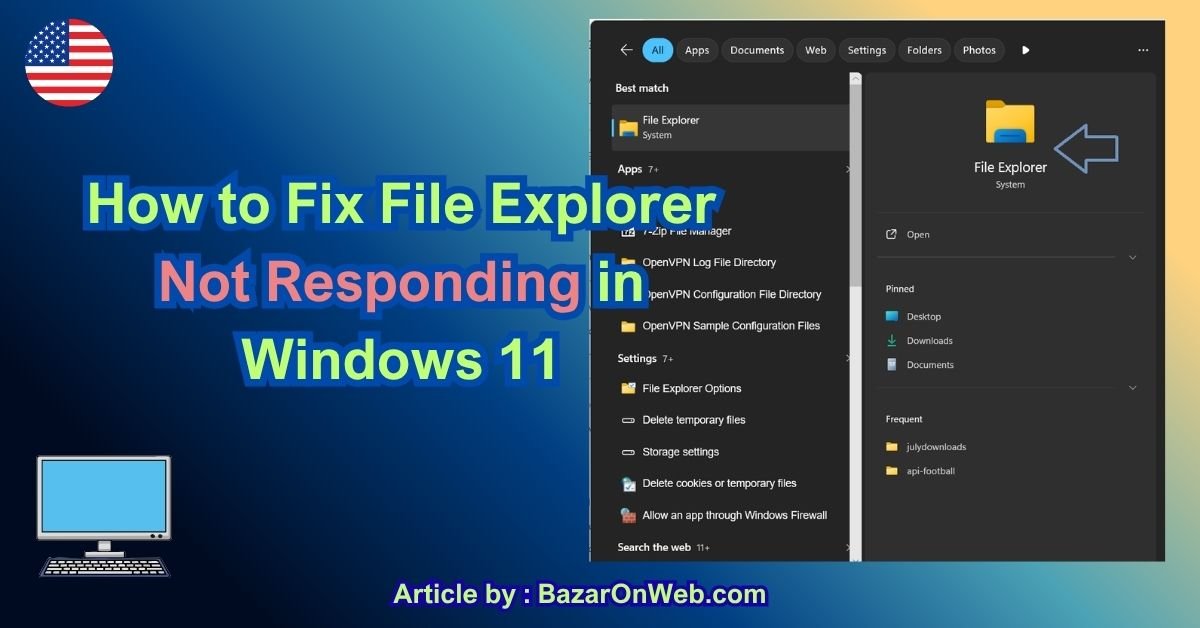
File Explorer is one of the most important parts of Windows 11. You use it to open folders, access downloads, move files, browse drives, and manage documents, photos, videos, and other data. So when File Explorer suddenly stops responding, freezes, crashes, or takes forever to open, it can make your entire computer feel broken.
The problem can be particularly frustrating if you have just installed Windows 11 or recently upgraded from an older version of Windows. Fortunately, File Explorer problems are often caused by software issues that you can fix yourself.
In this guide, I’ll walk you through several ways to fix File Explorer when it is not responding in Windows 11. Start with the simpler solutions and move toward the more advanced ones if the problem continues.
Why Is File Explorer Not Responding?
There isn’t one single reason why File Explorer may stop responding. Windows 11 can experience File Explorer problems because of temporary system glitches, corrupted system files, problematic background applications, outdated drivers, damaged cache files, or issues with Windows updates.
Sometimes File Explorer freezes only when you open a particular folder. In other cases, it may become unresponsive immediately after you click its icon.
Common symptoms include:
- File Explorer takes a long time to open.
- The window becomes completely frozen.
- You see a “Not Responding” message.
- Right-clicking files causes Explorer to freeze.
- Folders take several seconds or minutes to load.
- File Explorer repeatedly crashes.
- The taskbar or desktop may temporarily disappear.
- File Explorer works after restarting Windows but freezes again later.
The good news is that most of these problems can be diagnosed without reinstalling Windows.
1. Restart File Explorer
The first thing I recommend doing is restarting File Explorer from Task Manager.
This is one of the easiest fixes because Windows treats File Explorer as a system process. Restarting it can clear a temporary glitch without requiring you to restart the entire computer.
Press Ctrl + Shift + Esc to open Task Manager.
If Task Manager opens in its simplified view, click More details.
Look for Windows Explorer under the Processes section.

Right-click Windows Explorer and select Restart.
Your taskbar and open File Explorer windows may disappear for a moment. This is normal. Windows should reload the Explorer process automatically.
Once it comes back, try opening File Explorer again.
If the problem was caused by a temporary Explorer process error, this may be enough to fix it.
2. Restart Your Computer
It sounds obvious, but don’t skip this step.
Windows 11 can accumulate temporary processes and background tasks during normal use. A restart gives Windows a clean session and can resolve problems caused by temporary system conflicts.
Click Start > Power > Restart.
After Windows starts again, open File Explorer and check whether it is responding normally.
If File Explorer works immediately after restarting but becomes unresponsive again later, that can be a useful clue. It may indicate that a particular startup program, background service, driver, or Windows process is causing the issue.
3. Clear File Explorer History
Windows stores information about recently accessed files, folders, and locations. In some situations, corrupted or problematic File Explorer history can contribute to slow loading or freezing.
To clear it, press Windows + R.
Type:
control folders
Press Enter.
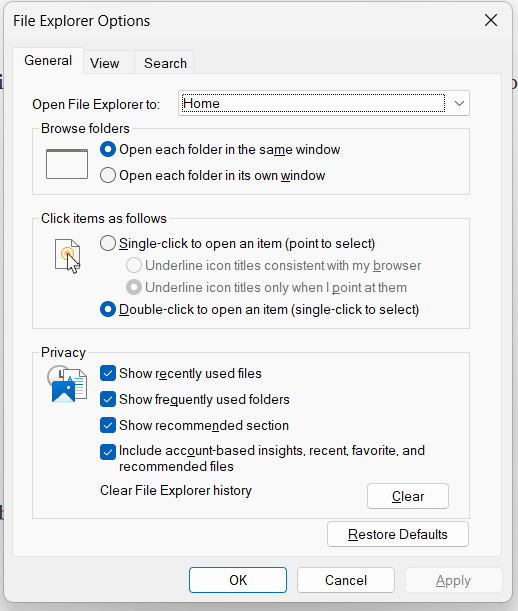
The File Explorer Options window will appear.
Under the General tab, find the Privacy section.
Click Clear to remove File Explorer history.
You can also change the Open File Explorer to option if needed. For troubleshooting, you can try opening File Explorer to This PC instead of Quick access/Home.
Click Apply and then OK.
Now try opening File Explorer again.
4. Disable Recently Used Files and Folders
If File Explorer freezes while loading Home or Quick access, the problem may involve one of the locations or files Windows is trying to display.
Open File Explorer Options again by pressing Windows + R, entering control folders, and pressing Enter.
Under the General tab, look at the Privacy section.
Temporarily disable the options that display recently used files and frequently used folders.
Click Apply and OK.
Open File Explorer again.
If Explorer starts working normally, the issue may have been related to its recent-items list rather than Windows itself.
You can later re-enable the options one at a time.
5. Check Whether One Folder Is Causing the Problem
Sometimes File Explorer itself isn’t the real problem.
A particular folder may contain thousands of files, damaged files, unusual media files, or content that takes Windows a long time to process.
For example, a folder containing a large number of high-resolution photos or videos may take longer to load because Windows attempts to generate thumbnails and other information.
Try opening different locations:
- This PC
- Documents
- Downloads
- Pictures
- Desktop
- A USB drive
- Another internal drive
If File Explorer works everywhere except one particular folder, you’ve narrowed down the problem considerably.
You can try switching the folder to a simpler view and disabling thumbnail previews.
In File Explorer, open View > Show > Details and see whether the folder becomes more responsive.
6. Turn Off Thumbnail Previews
Thumbnail generation can occasionally contribute to File Explorer performance problems, particularly when you have folders containing many large images or videos.
Open File Explorer Options.
Go to the View tab.
Enable Always show icons, never thumbnails.
Click Apply and then OK.
Now test the folder that was causing problems.
You won’t see image and video previews while this option is enabled, but File Explorer may become more responsive.
If this fixes the issue, you can leave thumbnails disabled or investigate which files are causing the slowdown.
7. Run System File Checker
If Windows system files are corrupted, File Explorer may behave unpredictably.
Windows includes a built-in utility called System File Checker, or SFC, that can scan protected system files and repair certain problems.
Right-click the Start button and select Terminal (Admin) or Windows PowerShell (Admin), depending on what your Windows installation displays.
When User Account Control appears, select Yes.
Run:
sfc /scannow
Press Enter.
The scan can take some time, so don’t close the Terminal window while it is running.
When the scan finishes, Windows will report whether it found and repaired corrupted files.
Restart your computer afterward and test File Explorer again.
8. Use DISM to Repair the Windows Image
If SFC cannot resolve the issue, you can use Microsoft’s Deployment Image Servicing and Management tool, commonly called DISM.
Open Terminal as administrator again.
Run:
DISM /Online /Cleanup-Image /RestoreHealth
Press Enter.
DISM checks the Windows component store and attempts to repair problems that can prevent Windows system components from working correctly.
The process may take a while. It can also appear to pause at certain percentages. Avoid closing the window simply because the percentage doesn’t change for a few minutes.
After DISM completes, run:
sfc /scannow
again.
Then restart Windows.
Using DISM followed by SFC is a useful combination when system corruption is suspected.
9. Install Pending Windows Updates
If you’re running a newly installed version of Windows 11, make sure Windows Update has finished installing available updates.
Open:
Settings > Windows Update
Click Check for updates.
Install available updates and restart your computer if Windows asks you to.
This is particularly important after a clean Windows installation because additional updates, drivers, and fixes may still need to be installed.
If File Explorer started malfunctioning immediately after a particular Windows update, however, the situation can be different. In that case, check whether Microsoft has released a subsequent update that addresses the problem before considering more drastic changes.
10. Check Your Storage Drive
A drive that is almost full or experiencing errors can affect File Explorer performance.
Open Settings > System > Storage and check how much free space is available on your Windows drive.
If your system drive is nearly full, remove unnecessary temporary files and other data you no longer need.
You can use Settings > System > Storage > Temporary files to review files Windows considers safe to remove.
Be careful when deleting files manually. Don’t remove folders simply because you don’t recognize them.
11. Check Windows for Drive Errors
If File Explorer freezes while accessing a particular drive, the storage device itself could be worth checking.
Open This PC.
Right-click the affected drive and select Properties.
Open the Tools tab.
Under Error checking, select Check.
Follow the instructions provided by Windows.
If you repeatedly experience problems accessing the same drive, don’t ignore them. Important files should be backed up before performing extensive troubleshooting.
A failing storage drive can cause symptoms that look like a File Explorer problem.
12. Disable Problematic Startup Applications
If File Explorer works normally after restarting Windows but starts freezing after a few minutes, a background application could be responsible.
Open Task Manager with Ctrl + Shift + Esc.
Select Startup apps.
Review the applications that launch automatically with Windows.
You don’t need to disable everything. Instead, look for recently installed utilities, file-management tools, customization applications, cloud-storage software, or other programs that interact with files and folders.
You can right-click a non-essential application and select Disable.
Restart Windows and test File Explorer.
If the problem disappears, re-enable applications individually to identify the one causing the conflict.
13. Check Third-Party Context Menu Extensions
Here’s a slightly more advanced possibility.
When you right-click a file or folder, Windows loads additional options provided by other applications. Programs such as compression utilities, cloud-storage services, antivirus software, and file-management tools can add their own context-menu entries.
If File Explorer freezes specifically when you right-click something, a third-party shell extension could be responsible.
Think about any software you installed shortly before the problem started.
Temporarily disabling or uninstalling the suspected application can help determine whether it is responsible.
Don’t randomly delete registry entries or system files to remove shell extensions unless you know exactly what you’re changing. Registry modifications can create additional Windows problems.
14. Perform a Clean Boot
If you still can’t determine what’s causing the problem, a clean boot can help identify whether a third-party service is interfering with Windows.
Press Windows + R.
Type:
msconfig
Press Enter.
Open the Services tab.
Select Hide all Microsoft services.
Then click Disable all.
Next, open Task Manager from the Startup section and disable unnecessary startup applications.
Restart Windows.
A clean boot starts Windows with a minimal set of drivers and startup programs. If File Explorer works normally in this state, a third-party application or service is likely involved.
You can then re-enable services and startup programs gradually until you identify the source.
15. Create a New Windows User Account
Sometimes the problem is specific to your Windows user profile.
If you’ve tried the other solutions and File Explorer still freezes, create a temporary local user account and test Explorer there.
Go to:
Settings > Accounts > Other users
Select Add account and follow the instructions.
After creating the account, sign into it and test File Explorer.
If File Explorer works normally in the new account, your original Windows profile may contain corrupted settings or configuration data.
At that point, you can consider repairing the existing profile or moving your files and settings to the new account.
16. Use Windows Recovery Options
If File Explorer became unresponsive after a recent application installation, driver change, or system modification, Windows Recovery options may help.
You can access recovery options through:
Settings > System > Recovery
Depending on your situation, available options may include uninstalling recent updates, using System Restore, or resetting Windows.
Don’t jump straight to Reset this PC.
A reset is much more disruptive than restarting Explorer, repairing system files, or removing a problematic application. Treat it as a last resort after you’ve backed up your important data.
Final Thoughts
File Explorer not responding doesn’t necessarily mean your Windows 11 installation is damaged. In many cases, the problem is temporary and can be resolved by restarting Windows Explorer, clearing its history, disabling problematic thumbnails, or restarting the computer.
If those basic solutions don’t work, move on to system-level troubleshooting. Running DISM and System File Checker, installing Windows updates, checking storage health, and identifying problematic startup applications can help uncover deeper issues.
The most important thing is to troubleshoot systematically. Don’t change ten different settings at once. Start with the simplest fix, test File Explorer, and then move to the next step if necessary.
And if File Explorer freezes only when accessing a particular folder or drive, pay close attention to that clue. It may indicate that the problem isn’t Explorer itself but the files, storage device, or third-party software associated with that location.
With a little troubleshooting, you can usually get Windows 11 File Explorer back to normal without reinstalling the operating system.
Disclaimer
This guide is provided for general informational and educational purposes. Windows 11 features, menus, troubleshooting options, and system behavior may vary depending on your Windows version, installed updates, hardware, drivers, and configuration.
Before making significant system changes, disabling services, modifying settings, or troubleshooting storage devices, back up important personal data. Commands such as DISM and System File Checker are built into Windows, but they should still be used carefully and exactly as instructed.
If you suspect a failing hard drive or SSD, prioritize backing up your important files before attempting extensive troubleshooting. If a Windows problem persists or you are uncomfortable performing advanced troubleshooting, consider contacting Microsoft Support or a qualified technician.

- How to Remotely Control Another Computer Using Windows Quick Assist

- 5 Must-Have Electronics Gadgets for a More Comfortable Living Room

- How to Create a Windows 11 System Backup on an External Hard Drive

- 10 Smart Home Ideas That Make Everyday Life Easier

- Gemini Live Avatar: How to Talk to Gemini Face-to-Face

Products
-
![Apple Watch Ultra 3 [GPS + Cellular 49mm] Running & Multisport Smartwatch w/Rugged Titanium Case w/Black Titanium Milanese Loop - M. Satellite Communications, Advanced Health & Fitness Tracking](https://bazaronweb.com/retailstores/wp-content/uploads/2025/09/apple-watch-320x320.jpg) Apple Watch Ultra 3 [GPS + Cellular 49mm] Running & Multisport Smartwatch w/Rugged Titanium Case w/Black Titanium Milanese Loop - M. Satellite Communications, Advanced Health & Fitness Tracking
Apple Watch Ultra 3 [GPS + Cellular 49mm] Running & Multisport Smartwatch w/Rugged Titanium Case w/Black Titanium Milanese Loop - M. Satellite Communications, Advanced Health & Fitness Tracking
-
 Apple iPad mini (A17 Pro): Apple Intelligence, 8.3-inch Liquid Retina Display, 256GB, Wi-Fi 6E, 12MP Front/12MP Back Camera, Touch ID, All-Day Battery Life — Purple
-
 Apple AirPods Max Wireless Over-Ear Headphones, Active Noise Cancelling, Transparency Mode, Personalized Spatial Audio, Dolby Atmos, Bluetooth Headphones for iPhone – Space Gray
-
 Apple AirPods Pro 2 Wireless Earbuds, Active Noise Cancellation, Hearing Aid Feature, Bluetooth Headphones, Transparency, Personalized Spatial Audio, High-Fidelity Sound, H2 Chip, USB-C Charging
-
Home Garage 210 TC Cotton King Floral Fitted (Elastic) Bedsheet(Pack of 1, Grey)
Original price was: ₹999.00.₹299.00Current price is: ₹299.00.
Leave a Reply