Discounted Products
-
 Home Garage 210 TC Cotton King Floral Fitted (Elastic) Bedsheet(Pack of 1, Grey)
Original price was: ₹999.00.₹299.00Current price is: ₹299.00.
Home Garage 210 TC Cotton King Floral Fitted (Elastic) Bedsheet(Pack of 1, Grey)
Original price was: ₹999.00.₹299.00Current price is: ₹299.00.
-
 Goodrik 140 TC Cotton Double 3D Printed Flat Bedsheet(Pack of 1, Brown)
Original price was: ₹499.00.₹229.00Current price is: ₹229.00.
Goodrik 140 TC Cotton Double 3D Printed Flat Bedsheet(Pack of 1, Brown)
Original price was: ₹499.00.₹229.00Current price is: ₹229.00.
-
 GLOBALSHOP 350 TC Microfiber Double Floral Flat Bedsheet(Pack of 1, Multicolor)
Original price was: ₹1,250.00.₹263.00Current price is: ₹263.00.
GLOBALSHOP 350 TC Microfiber Double Floral Flat Bedsheet(Pack of 1, Multicolor)
Original price was: ₹1,250.00.₹263.00Current price is: ₹263.00.
-
 RisingStar 250 TC Microfiber King Printed Fitted (Elastic) Bedsheet(Pack of 1, FITTED-ROUND-CIRCLES-PREMIUM)
Original price was: ₹2,299.00.₹299.00Current price is: ₹299.00.
RisingStar 250 TC Microfiber King Printed Fitted (Elastic) Bedsheet(Pack of 1, FITTED-ROUND-CIRCLES-PREMIUM)
Original price was: ₹2,299.00.₹299.00Current price is: ₹299.00.
-
 Home Garage 210 TC Cotton King Floral Fitted (Elastic) Bedsheet(Pack of 1, Fitted Black Green)
Original price was: ₹1,299.00.₹299.00Current price is: ₹299.00.
Home Garage 210 TC Cotton King Floral Fitted (Elastic) Bedsheet(Pack of 1, Fitted Black Green)
Original price was: ₹1,299.00.₹299.00Current price is: ₹299.00.
-
 Home Garage 180 TC Cotton King 3D Printed Flat Bedsheet(Pack of 1, White)
Original price was: ₹999.00.₹229.00Current price is: ₹229.00.
Home Garage 180 TC Cotton King 3D Printed Flat Bedsheet(Pack of 1, White)
Original price was: ₹999.00.₹229.00Current price is: ₹229.00.
-
 Panipat Textile Hub 152.4 cm (5 ft) Polyester Window Curtain (Pack Of 2)(Solid, Aqua)
Original price was: ₹1,899.00.₹299.00Current price is: ₹299.00.
Panipat Textile Hub 152.4 cm (5 ft) Polyester Window Curtain (Pack Of 2)(Solid, Aqua)
Original price was: ₹1,899.00.₹299.00Current price is: ₹299.00.
-
 Home Sizzler 214 cm (7 ft) Polyester Semi Transparent Door Curtain (Pack Of 2)(Floral, Maroon)
Original price was: ₹1,199.00.₹399.00Current price is: ₹399.00.
Home Sizzler 214 cm (7 ft) Polyester Semi Transparent Door Curtain (Pack Of 2)(Floral, Maroon)
Original price was: ₹1,199.00.₹399.00Current price is: ₹399.00.
-
 Home Sizzler 153 cm (5 ft) Polyester Room Darkening Window Curtain (Pack Of 2)(Floral, Brown)
Original price was: ₹799.00.₹299.00Current price is: ₹299.00.
Home Sizzler 153 cm (5 ft) Polyester Room Darkening Window Curtain (Pack Of 2)(Floral, Brown)
Original price was: ₹799.00.₹299.00Current price is: ₹299.00.
-
 Stella Creations 214 cm (7 ft) Polyester Room Darkening Door Curtain (Pack Of 2)(Abstract, Brown)
Original price was: ₹1,299.00.₹449.00Current price is: ₹449.00.
Stella Creations 214 cm (7 ft) Polyester Room Darkening Door Curtain (Pack Of 2)(Abstract, Brown)
Original price was: ₹1,299.00.₹449.00Current price is: ₹449.00.
-
 Homefab India 152.5 cm (5 ft) Polyester Room Darkening Window Curtain (Pack Of 2)(Floral, Light Blue)
Original price was: ₹1,199.00.₹319.00Current price is: ₹319.00.
Homefab India 152.5 cm (5 ft) Polyester Room Darkening Window Curtain (Pack Of 2)(Floral, Light Blue)
Original price was: ₹1,199.00.₹319.00Current price is: ₹319.00.
-
 Urban Home 214 cm (7 ft) PVC Transparent Door Curtain Single Curtain(Solid, Off White)
Original price was: ₹699.00.₹203.00Current price is: ₹203.00.
Urban Home 214 cm (7 ft) PVC Transparent Door Curtain Single Curtain(Solid, Off White)
Original price was: ₹699.00.₹203.00Current price is: ₹203.00.
-
 Panipat Textile Hub 213 cm (7 ft) Polyester Door Curtain (Pack Of 2)(Solid, Brown)
Original price was: ₹1,199.00.₹349.00Current price is: ₹349.00.
Panipat Textile Hub 213 cm (7 ft) Polyester Door Curtain (Pack Of 2)(Solid, Brown)
Original price was: ₹1,199.00.₹349.00Current price is: ₹349.00.
-
 Home Sizzler 214 cm (7 ft) Polyester Semi Transparent Door Curtain (Pack Of 2)(Floral, Brown)
Original price was: ₹999.00.₹349.00Current price is: ₹349.00.
Home Sizzler 214 cm (7 ft) Polyester Semi Transparent Door Curtain (Pack Of 2)(Floral, Brown)
Original price was: ₹999.00.₹349.00Current price is: ₹349.00.
-
 Panipat Textile Hub 213 cm (7 ft) Polyester Semi Transparent Door Curtain (Pack Of 2)(Floral, Brown)
Original price was: ₹899.00.₹299.00Current price is: ₹299.00.
Panipat Textile Hub 213 cm (7 ft) Polyester Semi Transparent Door Curtain (Pack Of 2)(Floral, Brown)
Original price was: ₹899.00.₹299.00Current price is: ₹299.00.
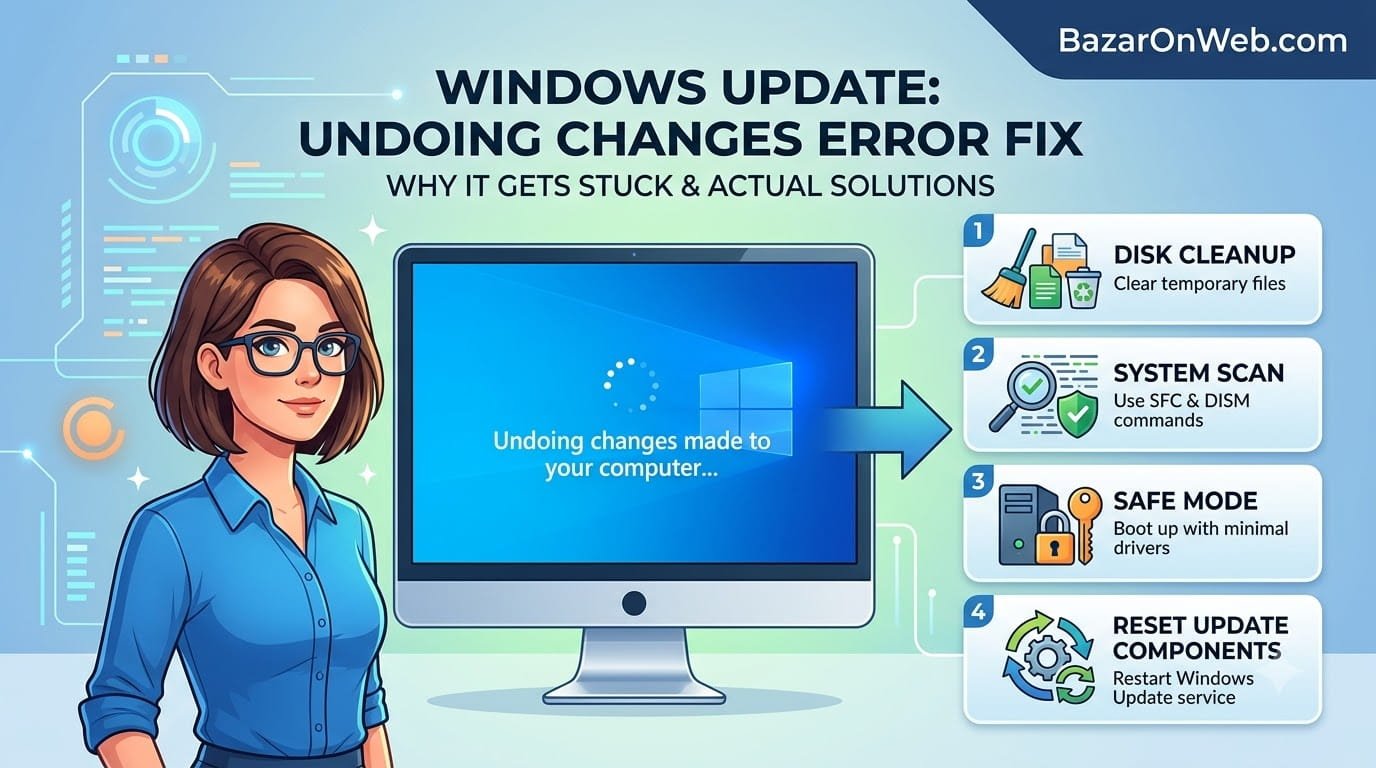
When My Windows Update Became a Nightmare!
My Windows 10 computer needed an update. Standard procedure. I clicked “Update and Restart” and went to get coffee while it installed.
I came back 15 minutes later expecting to see my desktop. Instead, my screen showed a black background with white text: “Undoing changes made to your computer. Please do not turn off your computer.”
I thought it was just a normal part of the update process. These things take time. I waited.
Five minutes passed. Still undoing. Ten minutes. Still undoing. Thirty minutes. The screen never changed. Still undoing.
Something was wrong. The progress bar wasn’t moving. The percentage indicator was stuck. Windows seemed frozen in some kind of broken update state.
I waited another hour. Nothing changed. At that point, I made a decision that would make things worse: I held the power button and forced my computer to shut down.
The computer restarted. I expected to see my desktop. Instead, I got the same “Undoing changes” message again. It seemed to be trying to undo the update from scratch.
This time it ran for two hours before I couldn’t take it anymore. I force shut down again.
The third restart showed the same message. Now I had a problem. My computer was stuck in a loop where every restart showed this “Undoing changes” message. I couldn’t get to Windows. I couldn’t access anything. My computer was completely broken.
A blue screen of death appeared briefly during one restart showing an error code: 0x800f0922. I frantically wrote down the code. It seemed important.
After three days of research and troubleshooting, I discovered the problem: my Windows Update cache had become corrupted, my Windows Recovery Partition had issues, and there were incompatible drivers installed. The combination caused the update to fail and get stuck undoing changes.
After fixing the Windows Update cache and rolling back the failed update, my computer finally booted normally again.
A frustrated reader emailed: “My computer is stuck on ‘Undoing changes made to your computer’ for over an hour. I’m panicking. Is my computer broken permanently?”
I walked them through recovery options. Their reply: “I booted into recovery mode and reset the update. It took three hours but my computer works again. I almost threw it out the window.”
Most Windows users panic when they see this error. They think their computer is permanently broken. But usually, the problem is recoverable. Understanding what’s happening and how to fix it means the difference between a frustrating few hours and a completely destroyed Windows installation.
Understanding the “Undoing Changes” Error: What’s Actually Happening
Before troubleshooting, understanding what this error means helps explain why it’s so serious and how to fix it.
The “Undoing changes made to your computer” message appears when Windows Update fails partway through installation and is attempting to roll back to the previous working state.
Windows Update process:
- Downloads update files
- Stops most system services
- Backs up critical system files
- Begins replacing system files with update versions
- Tests that everything works
- Completes the update
If something goes wrong at any point during this process, Windows enters “Undo” mode. It attempts to restore all the files it changed back to their pre-update state. This rollback process is supposed to recover your system to a working state.
The problem is that the undo process itself sometimes fails. When the undo process gets stuck, Windows can’t finish undoing, and it can’t continue with the update. You’re left in a broken state where Windows won’t start normally.
Multiple things cause this:
Corrupted Windows Update cache: The cached update files are damaged or incomplete. Windows can’t properly apply or undo the update.
Incompatible drivers: A driver installed on your system is incompatible with the update. The update installs but then tries to roll back when it detects the incompatibility.
Insufficient storage: Your drive doesn’t have enough free space to complete the update or undo process.
Corrupted system files: Critical Windows system files are already corrupted before the update even starts.
Third-party security software: Antivirus or security software interferes with the update process.
Hardware issues: Failing hard drive or RAM causes the update process to fail.
UEFI/BIOS issues: Outdated BIOS firmware causes compatibility problems with Windows Update.
The BSOD error codes like 0x800f0922 or 0x800f0988 are specific error codes indicating update failures. These codes help identify the exact cause.
Cause 1: Windows Update Cache Corruption
The most common cause of “Undoing changes” errors is a corrupted Windows Update cache.
Windows stores temporary update files in a cache folder. If these files become corrupted, the update fails and gets stuck undoing.
Solution: Delete Windows Update Cache
Right-click Start and select “Windows Terminal (Admin)” or “Command Prompt (Admin).”
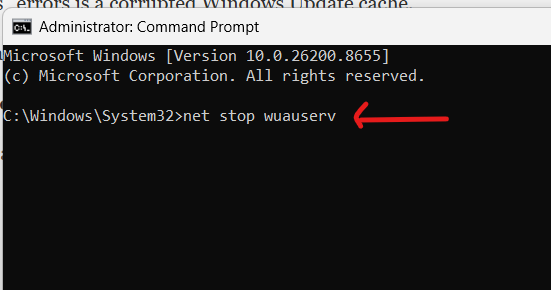
Type: net stop wuauserv
This stops the Windows Update service.
Type: net stop cryptsvc
This stops the Cryptographic service.
Type: Ren C:\Windows\SoftwareDistribution SoftwareDistribution.old
This renames the Windows Update cache folder.
Type: net start wuauserv
Restart the Windows Update service.
Type: net start cryptsvc
Restart the Cryptographic service.
Windows automatically recreates the cache folder with fresh files.
This fixes approximately 60% of “Undoing changes” errors because most are caused by corrupted cache.
Cause 2: Windows Recovery Environment Issues
If your computer is currently stuck on “Undoing changes” message, you need to access the Windows Recovery Environment.
Accessing Windows Recovery:
If the “Undoing changes” message has been stuck for over 2 hours, force shut down your computer by holding the power button for 10 seconds.
Wait 30 seconds.
Power back on and immediately start pressing F8 or F11 repeatedly (or try Delete key, depending on your computer brand).
This enters the boot menu. Look for “Boot from USB” or “Repair your computer” option.
If you can’t get to boot menu, restart and try pressing Shift+F8 or Shift+Delete during startup.
Eventually you’ll see “Choose an option” screen with options like “Troubleshoot,” “Reset this PC,” “Advanced options,” etc.
Click “Troubleshoot” > “Advanced options” > “Startup Repair” or “Repair your installation.”
Windows attempts to repair itself. This often fixes the stuck update.
Cause 3: Insufficient Storage Space
Windows Update requires significant free space to download, install, and undo if necessary.
If your drive is full or nearly full, the update process fails.
Solution: Free up storage space
If you can access Windows normally (the computer did eventually boot after the “Undoing changes” message), free up space:
Settings > System > Storage > Delete unnecessary files
Delete Downloads folder contents if safe.
Uninstall unused programs: Settings > Apps > Apps & features > select program > Uninstall.
Empty Trash: Right-click Trash > Empty Trash.
Aim for at least 20GB free space before attempting Windows Update again.
Method 1: Restart and Wait Longer
If your computer is showing “Undoing changes” right now, sometimes it just needs time.
Do not force restart. Do not interrupt. Let the undo process complete.
The “Undoing changes” process can legitimately take 2-3 hours depending on how many files were changed and how much the update progressed before failing.
Set your computer aside and come back in 3 hours.
If it still shows the message after 3 hours, then proceed to Method 2.
Method 2: Force Restart and Attempt Repair
If the undo process is genuinely stuck after 3+ hours:
Hold the power button for 10 seconds to force shut down.
Wait 30 seconds.
Power back on.
Rapidly press F8 (or try F11, Delete, or other boot keys depending on manufacturer).
Select “Repair your computer” or “Troubleshoot.”
Windows attempts automatic repair.
This often fixes the broken update state and allows Windows to boot normally.
Method 3: Reset Windows Update Service
Use Command Prompt to reset all Windows Update services and caches.
Right-click Start > Windows Terminal (Admin).
Type: net stop wuauserv
Type: net stop cryptsvc
Type: net stop bits
Type: net stop msiserver
Type: Ren C:\Windows\SoftwareDistribution SoftwareDistribution.old
Type: Ren C:\Windows\System32\catroot2 Catroot2.old
Type: net start msiserver
Type: net start bits
Type: net start cryptsvc
Type: net start wuauserv
Windows Update services restart with fresh caches and configuration.
Try Windows Update again: Settings > Update & Security > Windows Update > Check for updates.
Method 4: Disable Third-Party Security Software
Antivirus and security software sometimes interferes with Windows Update.
Temporarily disable your antivirus software entirely (not just pause, actually disable).
Uninstall third-party security software if you have it installed.
Attempt Windows Update again.
If it succeeds, the security software was interfering. Either update it to Windows 11 compatible version or remove it.
Method 5: Update BIOS/UEFI Firmware
Outdated BIOS can cause Windows Update failures.
Visit your computer manufacturer’s website (Dell, HP, Lenovo, ASUS, etc.).
Download the latest BIOS firmware for your specific computer model.
Follow their BIOS update instructions carefully. BIOS updates are technical and require caution.
After updating BIOS, attempt Windows Update again.
Method 6: Check Hard Drive Health
A failing hard drive causes Windows Update failures and undo loops.
Download CrystalDiskInfo (free utility) and check your hard drive’s SMART status.
If it shows “Caution” or “Critical,” your hard drive is failing and needs replacement.
If hard drive is failing, Windows Update can’t reliably read/write files, causing update failures.
Replace the failing hard drive. Then attempt Windows Update on new hardware.
Real User Scenario: The Complete Solution
A reader named James emailed: “Windows update got stuck on ‘Undoing changes made to your computer’ for 4 hours. I force restarted and now it won’t boot past a blue screen with error 0x800f0922. I need my computer working for work tomorrow. What do I do?”
Diagnosis process:
- Computer stuck in update fail/undo loop showing BSOD 0x800f0922
- Accessed Windows Recovery Environment by pressing F8 during boot
- Ran “Startup Repair” which attempted automatic fix but failed
- Used advanced recovery to access Command Prompt
- Ran Windows Update cache cleanup commands
- Rebooted from recovery
- Windows started normally but showed update failed
- Disabled antivirus software
- Attempted fresh Windows Update, which succeeded
Result: Windows Update completed successfully. Computer works normally.
James’s reply: “You saved me. My antivirus was blocking the update. I removed it and the update installed fine. I’m installing Windows Defender instead of third-party software.”
When You Need Professional Help
If you’ve tried multiple methods and your computer still won’t boot:
Error codes indicate specific problems:
0x800f0922: Windows Update service issues or cache corruption 0x800f0988: Driver compatibility problems 0xc1900101: System file corruption 0x80070570: Corrupted system files on disk
Research your specific error code online. Different codes have different solutions.
Consider factory reset:
If nothing else works, you might need to reset Windows to factory state. This erases everything and reinstalls Windows fresh.
Settings > System > Recovery > Reset this PC > Remove everything.
This takes 1-2 hours and erases all your data, but it solves any Windows corruption issue.
Contact manufacturer support:
If you can’t fix it yourself, contact your computer manufacturer’s support. They can provide remote assistance.
Prevention: Stopping This Error Before It Happens
After successfully updating Windows:
Keep storage space free: Maintain at least 20GB free space for future updates.
Disable security software during updates: Temporarily turn off third-party antivirus before Windows Update.
Update BIOS regularly: Check manufacturer website yearly for BIOS updates.
Don’t force restart during updates: Let Windows Update complete even if it takes hours.
Monitor hard drive health: Run CrystalDiskInfo monthly to catch failing drives early.
Keep Windows Update cache clean: Periodically delete the SoftwareDistribution cache folder.
The Reality
The “Undoing changes” error is serious and frustrating. It makes you think your computer is permanently broken. But usually, it’s fixable with proper troubleshooting.
Most of the time, deleting the Windows Update cache solves the problem. That single step fixes the majority of cases.
Only rarely do you need to resort to factory reset or professional service.
Your computer will work again. Usually within an hour of proper troubleshooting.
Quick Priority List: “Undoing Changes” Error
Stuck on “Undoing changes made to your computer”?
- Wait up to 3 hours (genuine undo processes take time)
- If still stuck after 3 hours, force restart (hold power button 10 seconds)
- Boot into Windows Recovery (press F8 during startup)
- Run Startup Repair in Recovery Environment
- If that fails, access Command Prompt and delete Windows Update cache
- Disable third-party security software
- Update Windows BIOS firmware
- Check hard drive health with CrystalDiskInfo
- Clear temporary files and free up storage space
- Factory reset Windows as last resort
One of these will almost certainly fix it.
Disclaimer: This article provides troubleshooting guidance for Windows Update “Undoing changes” errors. Error causes vary by system configuration, installed software, and hardware condition. Some fixes require administrator access and technical knowledge. Accessing boot menus varies by computer manufacturer and requires specific key pressing during startup. Command line operations can affect system stability if done incorrectly. BIOS updates require careful attention as incorrect BIOS modifications can render computers unbootable. Hard drive replacement requires technical skill or professional service. Factory reset erases all data and removes all installed applications. Users assume responsibility for understanding troubleshooting steps and their consequences. Seek professional support if uncomfortable with technical procedures or if computer remains unbootable after troubleshooting. Backup important data before attempting major system changes.

- How to Remotely Control Another Computer Using Windows Quick Assist

- 5 Must-Have Electronics Gadgets for a More Comfortable Living Room

- How to Create a Windows 11 System Backup on an External Hard Drive

- 10 Smart Home Ideas That Make Everyday Life Easier

- Gemini Live Avatar: How to Talk to Gemini Face-to-Face

Products
-
![Apple Watch Ultra 3 [GPS + Cellular 49mm] Running & Multisport Smartwatch w/Rugged Titanium Case w/Black Titanium Milanese Loop - M. Satellite Communications, Advanced Health & Fitness Tracking](https://bazaronweb.com/retailstores/wp-content/uploads/2025/09/apple-watch-320x320.jpg) Apple Watch Ultra 3 [GPS + Cellular 49mm] Running & Multisport Smartwatch w/Rugged Titanium Case w/Black Titanium Milanese Loop - M. Satellite Communications, Advanced Health & Fitness Tracking
Apple Watch Ultra 3 [GPS + Cellular 49mm] Running & Multisport Smartwatch w/Rugged Titanium Case w/Black Titanium Milanese Loop - M. Satellite Communications, Advanced Health & Fitness Tracking
-
 Apple iPad mini (A17 Pro): Apple Intelligence, 8.3-inch Liquid Retina Display, 256GB, Wi-Fi 6E, 12MP Front/12MP Back Camera, Touch ID, All-Day Battery Life — Purple
-
 Apple AirPods Max Wireless Over-Ear Headphones, Active Noise Cancelling, Transparency Mode, Personalized Spatial Audio, Dolby Atmos, Bluetooth Headphones for iPhone – Space Gray
-
 Apple AirPods Pro 2 Wireless Earbuds, Active Noise Cancellation, Hearing Aid Feature, Bluetooth Headphones, Transparency, Personalized Spatial Audio, High-Fidelity Sound, H2 Chip, USB-C Charging
-
Home Garage 210 TC Cotton King Floral Fitted (Elastic) Bedsheet(Pack of 1, Grey)
Original price was: ₹999.00.₹299.00Current price is: ₹299.00.
Leave a Reply