Discounted Products
-
 Home Garage 210 TC Cotton King Floral Fitted (Elastic) Bedsheet(Pack of 1, Grey)
Original price was: ₹999.00.₹299.00Current price is: ₹299.00.
Home Garage 210 TC Cotton King Floral Fitted (Elastic) Bedsheet(Pack of 1, Grey)
Original price was: ₹999.00.₹299.00Current price is: ₹299.00.
-
 Goodrik 140 TC Cotton Double 3D Printed Flat Bedsheet(Pack of 1, Brown)
Original price was: ₹499.00.₹229.00Current price is: ₹229.00.
Goodrik 140 TC Cotton Double 3D Printed Flat Bedsheet(Pack of 1, Brown)
Original price was: ₹499.00.₹229.00Current price is: ₹229.00.
-
 GLOBALSHOP 350 TC Microfiber Double Floral Flat Bedsheet(Pack of 1, Multicolor)
Original price was: ₹1,250.00.₹263.00Current price is: ₹263.00.
GLOBALSHOP 350 TC Microfiber Double Floral Flat Bedsheet(Pack of 1, Multicolor)
Original price was: ₹1,250.00.₹263.00Current price is: ₹263.00.
-
 RisingStar 250 TC Microfiber King Printed Fitted (Elastic) Bedsheet(Pack of 1, FITTED-ROUND-CIRCLES-PREMIUM)
Original price was: ₹2,299.00.₹299.00Current price is: ₹299.00.
RisingStar 250 TC Microfiber King Printed Fitted (Elastic) Bedsheet(Pack of 1, FITTED-ROUND-CIRCLES-PREMIUM)
Original price was: ₹2,299.00.₹299.00Current price is: ₹299.00.
-
 Home Garage 210 TC Cotton King Floral Fitted (Elastic) Bedsheet(Pack of 1, Fitted Black Green)
Original price was: ₹1,299.00.₹299.00Current price is: ₹299.00.
Home Garage 210 TC Cotton King Floral Fitted (Elastic) Bedsheet(Pack of 1, Fitted Black Green)
Original price was: ₹1,299.00.₹299.00Current price is: ₹299.00.
-
 Home Garage 180 TC Cotton King 3D Printed Flat Bedsheet(Pack of 1, White)
Original price was: ₹999.00.₹229.00Current price is: ₹229.00.
Home Garage 180 TC Cotton King 3D Printed Flat Bedsheet(Pack of 1, White)
Original price was: ₹999.00.₹229.00Current price is: ₹229.00.
-
 Panipat Textile Hub 152.4 cm (5 ft) Polyester Window Curtain (Pack Of 2)(Solid, Aqua)
Original price was: ₹1,899.00.₹299.00Current price is: ₹299.00.
Panipat Textile Hub 152.4 cm (5 ft) Polyester Window Curtain (Pack Of 2)(Solid, Aqua)
Original price was: ₹1,899.00.₹299.00Current price is: ₹299.00.
-
 Home Sizzler 214 cm (7 ft) Polyester Semi Transparent Door Curtain (Pack Of 2)(Floral, Maroon)
Original price was: ₹1,199.00.₹399.00Current price is: ₹399.00.
Home Sizzler 214 cm (7 ft) Polyester Semi Transparent Door Curtain (Pack Of 2)(Floral, Maroon)
Original price was: ₹1,199.00.₹399.00Current price is: ₹399.00.
-
 Home Sizzler 153 cm (5 ft) Polyester Room Darkening Window Curtain (Pack Of 2)(Floral, Brown)
Original price was: ₹799.00.₹299.00Current price is: ₹299.00.
Home Sizzler 153 cm (5 ft) Polyester Room Darkening Window Curtain (Pack Of 2)(Floral, Brown)
Original price was: ₹799.00.₹299.00Current price is: ₹299.00.
-
 Stella Creations 214 cm (7 ft) Polyester Room Darkening Door Curtain (Pack Of 2)(Abstract, Brown)
Original price was: ₹1,299.00.₹449.00Current price is: ₹449.00.
Stella Creations 214 cm (7 ft) Polyester Room Darkening Door Curtain (Pack Of 2)(Abstract, Brown)
Original price was: ₹1,299.00.₹449.00Current price is: ₹449.00.
-
 Homefab India 152.5 cm (5 ft) Polyester Room Darkening Window Curtain (Pack Of 2)(Floral, Light Blue)
Original price was: ₹1,199.00.₹319.00Current price is: ₹319.00.
Homefab India 152.5 cm (5 ft) Polyester Room Darkening Window Curtain (Pack Of 2)(Floral, Light Blue)
Original price was: ₹1,199.00.₹319.00Current price is: ₹319.00.
-
 Urban Home 214 cm (7 ft) PVC Transparent Door Curtain Single Curtain(Solid, Off White)
Original price was: ₹699.00.₹203.00Current price is: ₹203.00.
Urban Home 214 cm (7 ft) PVC Transparent Door Curtain Single Curtain(Solid, Off White)
Original price was: ₹699.00.₹203.00Current price is: ₹203.00.
-
 Panipat Textile Hub 213 cm (7 ft) Polyester Door Curtain (Pack Of 2)(Solid, Brown)
Original price was: ₹1,199.00.₹349.00Current price is: ₹349.00.
Panipat Textile Hub 213 cm (7 ft) Polyester Door Curtain (Pack Of 2)(Solid, Brown)
Original price was: ₹1,199.00.₹349.00Current price is: ₹349.00.
-
 Home Sizzler 214 cm (7 ft) Polyester Semi Transparent Door Curtain (Pack Of 2)(Floral, Brown)
Original price was: ₹999.00.₹349.00Current price is: ₹349.00.
Home Sizzler 214 cm (7 ft) Polyester Semi Transparent Door Curtain (Pack Of 2)(Floral, Brown)
Original price was: ₹999.00.₹349.00Current price is: ₹349.00.
-
 Panipat Textile Hub 213 cm (7 ft) Polyester Semi Transparent Door Curtain (Pack Of 2)(Floral, Brown)
Original price was: ₹899.00.₹299.00Current price is: ₹299.00.
Panipat Textile Hub 213 cm (7 ft) Polyester Semi Transparent Door Curtain (Pack Of 2)(Floral, Brown)
Original price was: ₹899.00.₹299.00Current price is: ₹299.00.
Your web browser knows a lot about you. It may remember your passwords, store cookies, save payment information, keep you signed in to websites, and even hold extensions that can access certain parts of your browsing experience. That makes browser security something you should not ignore.
Google Chrome includes a built-in feature called Safety Check that makes it easier to review some of the most important security settings in one place.
Safety Check can look for compromised passwords, potentially unsafe extensions, outdated Chrome versions, and other security-related issues. It can also remind you when certain browser permissions or settings need your attention.
The good news is that you don’t need to be a security expert to use it.
In this guide, I’ll show you how to run Safety Check in Google Chrome, what each result means, and what you should do if Chrome finds a problem.
What Is Safety Check in Google Chrome?
Safety Check is a Chrome feature designed to help you review important security and privacy settings.
Instead of checking your passwords, extensions, updates, and browsing protections individually, Chrome brings several of these checks together in one place.
Depending on your Chrome version and account settings, Safety Check can check areas such as:
- Whether your saved passwords have been compromised
- Whether any passwords are weak or reused
- Whether Chrome needs an update
- Whether installed extensions may be harmful
- Whether Safe Browsing is enabled
- Whether Chrome has detected potentially unwanted or problematic settings
- Whether you need to take action on certain security recommendations
Think of Safety Check as a quick browser security review.
It isn’t a complete security scan of your Windows PC or Mac, and it doesn’t replace antivirus software. Instead, it focuses specifically on important Chrome-related security settings.
Why Should You Run a Chrome Safety Check?
Many people install Chrome and then forget about browser security.
That’s understandable. When everything works normally, there doesn’t seem to be a reason to open the security settings.
However, problems can develop quietly.
For example, you might continue using a password that appeared in a previous data breach without realizing it. An extension you installed months ago may later become unsafe. Chrome may also have an important update waiting to be installed.
Safety Check gives you a convenient place to review these issues.
I recommend running it occasionally, especially if you use Chrome for online banking, shopping, email, work, or other accounts containing sensitive information.
How to Run Safety Check in Google Chrome
Running Safety Check is straightforward.
Step 1: Open Google Chrome
First, launch Google Chrome on your computer.
Make sure you’re using the Chrome profile you normally use for browsing. If you have multiple Chrome profiles, remember that saved passwords, extensions, and other settings can differ between profiles.
Step 2: Open Chrome Settings
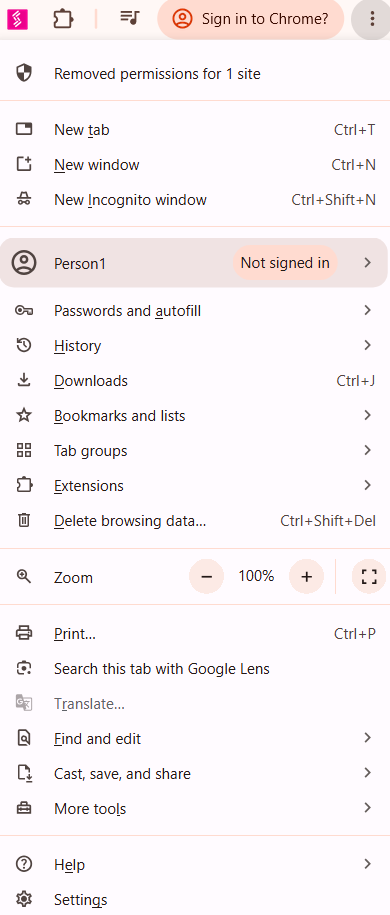
Look at the upper-right corner of the Chrome window.
Click the three-dot menu.
A menu will appear.
Select Settings.
You can also type the following into Chrome’s address bar:
chrome://settings/
and press Enter.
Step 3: Find Safety Check
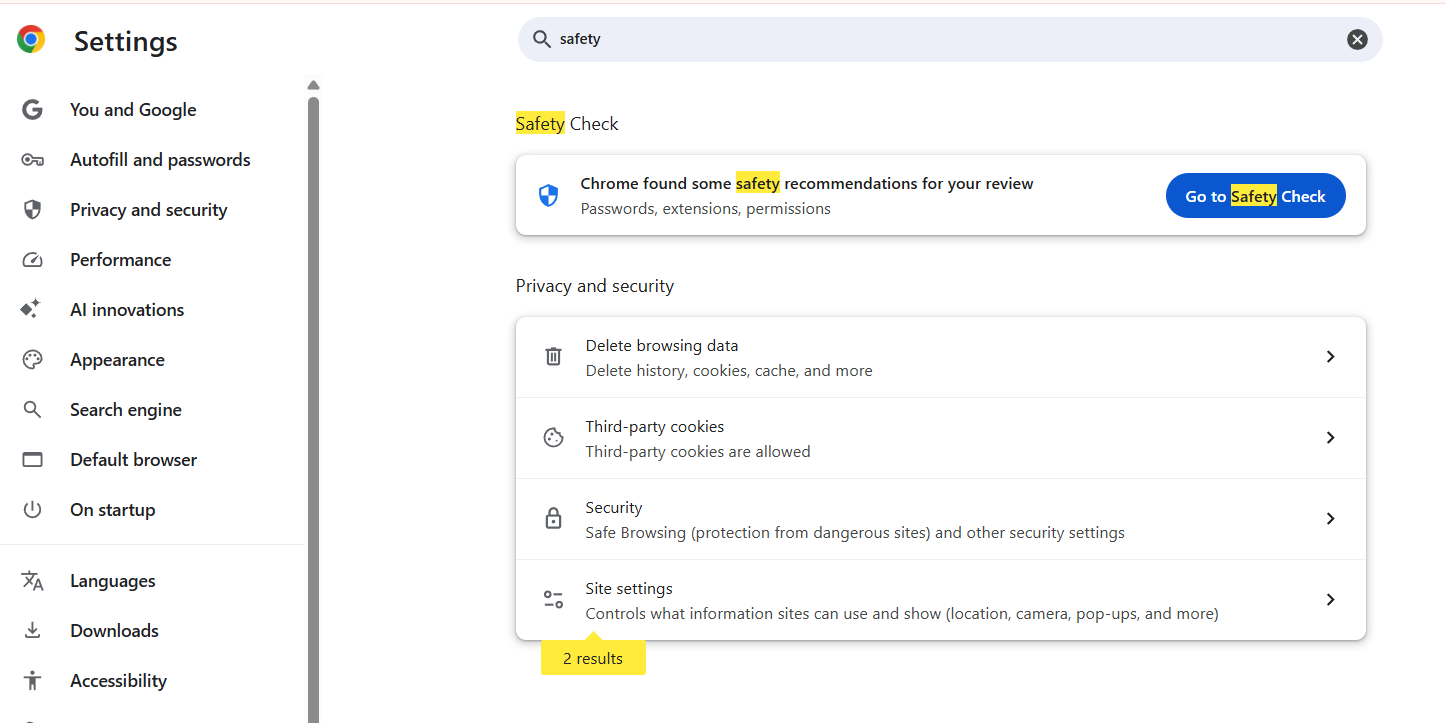
Inside Chrome Settings, look for the Privacy and security section.
Click it.
You should see an option called Safety Check.
Select Safety Check to begin reviewing Chrome’s security status.
Step 4: Let Chrome Complete the Check
Chrome will check several security-related areas.
The exact checks and recommendations can vary depending on your Chrome version and configuration.
You may see results related to:
Updates: Chrome checks whether you’re running a current version.
Passwords: Chrome can alert you about saved credentials that may have been compromised.
Safe Browsing: Chrome checks your browsing protection settings.
Extensions: Chrome can identify extensions that may no longer be considered safe or may violate Chrome’s policies.
Once the check is complete, Chrome will display recommendations if it finds anything that needs your attention.
What Does a Compromised Password Mean?
One of the most useful parts of Safety Check is its password review.
If Chrome tells you that one or more passwords have been compromised, don’t panic.
A compromised password generally means that credentials associated with a website have appeared in information connected with a known data breach or security incident.
It does not necessarily mean that someone has hacked your computer.
For example, imagine you created an account on a website several years ago. That website later suffered a data breach. Your email address and password may have been exposed.
If you still use that password, an attacker could potentially try it on that website or other services.
That’s why compromised passwords deserve immediate attention.
What to Do If Chrome Finds a Compromised Password
If Safety Check reports a compromised password, the safest response is to change it.
Start by selecting the affected account from Chrome’s password or security recommendations.
Chrome may provide an option to change or review the password.
Visit the affected website directly rather than clicking suspicious links in emails or messages.
Sign in and change the password.
If you reused the same password on other websites, change it there as well.
This is extremely important.
For example, suppose you used the same password for your shopping account, email account, and social media account.
If that password becomes exposed through one service, the other accounts using the same password may also be at risk.
Use a unique password for every important account.
A password manager can make this much easier because you don’t have to memorize dozens of different passwords.
What If Chrome Says Your Password Is Weak?
A weak password isn’t necessarily a password that has already been exposed.
It may simply be too easy to guess.
Passwords such as:
password12312345678qwerty123- Your name followed by a number
- Your birthday
- A simple word
should not be used for important accounts.
Instead, create strong, unique passwords that are difficult to guess.
For especially important accounts, such as your primary email, banking, cloud storage, and Google account, also enable two-factor authentication or another form of multi-factor authentication whenever available.
That gives your account another layer of protection even if someone discovers your password.
What If Chrome Finds a Dangerous Extension?
Chrome extensions can be incredibly useful.
You can use them for productivity, screenshots, password management, shopping, writing, accessibility, and countless other tasks.
But extensions can also create security and privacy risks because some extensions have access to information on websites you visit.
If Safety Check warns you about an extension, take the recommendation seriously.
How to Remove a Suspicious Chrome Extension
Click the three-dot menu in Chrome.
Go to:
Extensions → Manage Extensions
You’ll see the extensions currently installed in your browser.
Find the extension Chrome has flagged.
If you don’t recognize it, don’t need it, or no longer trust it, consider removing it.
Click Remove and confirm.
You should also periodically review your complete extension list.
Ask yourself:
Do I actually use this extension?
If the answer is no, removing it reduces unnecessary software and permissions from your browser.
Don’t Install Extensions Just Because They Look Useful
One mistake I see frequently is installing extensions without checking who developed them.
Before installing an extension, look at its developer information, reviews, number of users, permissions, and overall reputation.
Be particularly careful with extensions that request permissions that don’t seem necessary for their purpose.
For example, if a simple utility asks for extensive access to your browsing activity, take a moment to understand why.
More permissions don’t automatically mean an extension is malicious, but unnecessary permissions deserve scrutiny.
Check Whether Chrome Is Up to Date
Another important part of Safety Check is Chrome’s update status.
Browser updates aren’t just about getting new features.
They frequently include security fixes.
If Chrome tells you that an update is available, install it.
To manually check:
- Click the three-dot menu.
- Select Help.
- Click About Google Chrome.
- Chrome will check for updates.
- If an update is available, Chrome will download it.
- Restart Chrome when prompted.
If Chrome is already updated, you’ll see that you’re using the latest available version for your installation.
Review Safe Browsing Settings
Chrome’s Safe Browsing feature helps protect users from dangerous websites, downloads, and other online threats.
You can find its settings under:
Settings → Privacy and security → Security
Here you’ll find Chrome’s Safe Browsing options.
For most people, keeping Safe Browsing enabled is a good idea.
Chrome provides different levels of protection, and the available options can change as Google updates Chrome.
If you’re unsure which option to choose, don’t disable Safe Browsing simply because you don’t understand a warning.
Browser security features are there to provide an additional layer of protection when you encounter potentially dangerous content online.
What If Safety Check Says Everything Is Fine?
You may run Safety Check and see that there are no major issues.
That’s good news.
It means Chrome didn’t identify the particular security problems covered by the check that require your attention at that moment.
However, don’t interpret that as:
“My computer is completely secure.”
Safety Check is not a full security audit.
It doesn’t guarantee that every website you visit is safe, that every account you own is secure, or that your entire computer is free from malware.
Think of it as one part of your overall security routine.
How Often Should You Run Chrome Safety Check?
There isn’t a strict schedule that everyone needs to follow.
For most people, running Safety Check every few weeks or once a month is a reasonable habit.
You should also check it after a major security incident, such as discovering that one of your online accounts was compromised.
If you install lots of extensions or regularly use Chrome for sensitive activities, checking your browser security settings more frequently can also make sense.
Chrome may also surface security recommendations on its own, so you don’t necessarily have to remember to check manually every time.
Other Chrome Security Habits You Should Follow
Safety Check is useful, but browser security involves more than clicking one button.
Here are several habits worth adopting.
Use Unique Passwords
Don’t reuse your most important password across multiple websites.
A password manager can generate and store unique passwords for you.
Turn On Two-Factor Authentication
Enable two-factor authentication on important accounts whenever possible.
Your email account deserves particular attention because someone who gains access to it may be able to reset passwords for other services.
Keep Chrome Updated
Don’t ignore Chrome’s update notifications.
Security updates can fix vulnerabilities that attackers could otherwise exploit.
Remove Unused Extensions
Every extension you install adds another component to your browser.
If you don’t use an extension anymore, remove it.
Be Careful With Downloads
Don’t download software simply because a website tells you that you need it.
Be particularly suspicious of unexpected browser warnings, fake update messages, and pop-ups claiming that your computer is infected.
Don’t Ignore Security Warnings
If Chrome warns you about a dangerous website or download, don’t immediately look for a way around the warning.
Stop and consider why Chrome is showing it.
Can Safety Check Protect You From Data Breaches?
This is an important distinction.
Safety Check can help identify certain compromised saved passwords, but it cannot prevent a company from suffering a data breach.
If a website you use gets hacked, Chrome cannot stop that company’s servers from being compromised.
What Chrome can do is help you identify credentials that may have been exposed so that you can change them.
That’s why password hygiene is so important.
If you receive a breach notification from a company, change the affected password immediately. If you’ve reused it elsewhere, change those accounts too.
What About Malware?
Chrome Safety Check should not be confused with a complete malware scanner.
If you believe your Windows PC or Mac has malware, you should use appropriate operating-system security tools and reputable security software.
On Windows, for example, Microsoft Defender provides built-in protection.
You should also be cautious about browser behavior such as:
- Unexpected redirects
- New tabs opening by themselves
- Search results changing unexpectedly
- Unknown extensions appearing
- Excessive pop-ups
- A browser homepage changing without your permission
- Software being installed without your knowledge
These symptoms don’t automatically mean malware is present, but they deserve investigation.
Safety Check Is Worth Using
Google Chrome’s Safety Check is one of those features that is easy to overlook because it doesn’t sit in front of you every time you browse.
But it can be genuinely useful.
With just a few clicks, you can review important areas such as your passwords, extensions, Chrome updates, and browsing protection.
The most important thing is what you do after Chrome finds a problem.
If it reports a compromised password, change it.
If it flags an extension you don’t trust, remove it.
If Chrome needs an update, install it.
And if your security settings need attention, review them instead of ignoring the recommendation.
At the same time, remember that Safety Check isn’t a magic security button. It doesn’t protect every account, detect every piece of malware, or prevent every type of online attack.
Your best defense is a combination of updated software, unique passwords, multi-factor authentication, careful browsing habits, and regular security reviews.
So, if you haven’t checked Chrome’s security settings recently, open Chrome Settings → Privacy and security → Safety Check and give your browser a quick security review.
It only takes a few moments, and you may discover an issue that you didn’t know was there.
Disclaimer
The information provided in this article is intended for general informational and educational purposes only. Google Chrome features, security options, menus, and Safety Check functionality may change as Google releases new browser updates. Some options may also vary depending on your device, Chrome version, operating system, or account settings.
While Chrome Safety Check can help identify certain security issues, including compromised passwords, potentially harmful extensions, and available updates, it is not a complete cybersecurity solution and cannot guarantee that your device or online accounts are completely secure.
Always verify security warnings carefully and use official websites and trusted security software when taking corrective action. We are not responsible for any loss, damage, account compromise, or other issues resulting from actions taken based on the information provided in this article.

- How to Run a Safety Check in Google Chrome and Protect Your Browser
- Samsung Phone’s Keyboard Not Working? Here’s How to Fix It

- How to Take Screenshot While in Gaming on My Windows 11 PC

- Microsoft Store Blocked on Windows 11 Error 0x800704EC, How to Fix It

- What Is Spotlight Search on Mac and How Do You Open It?

Products
-
![Apple Watch Ultra 3 [GPS + Cellular 49mm] Running & Multisport Smartwatch w/Rugged Titanium Case w/Black Titanium Milanese Loop - M. Satellite Communications, Advanced Health & Fitness Tracking](https://bazaronweb.com/retailstores/wp-content/uploads/2025/09/apple-watch-320x320.jpg) Apple Watch Ultra 3 [GPS + Cellular 49mm] Running & Multisport Smartwatch w/Rugged Titanium Case w/Black Titanium Milanese Loop - M. Satellite Communications, Advanced Health & Fitness Tracking
Apple Watch Ultra 3 [GPS + Cellular 49mm] Running & Multisport Smartwatch w/Rugged Titanium Case w/Black Titanium Milanese Loop - M. Satellite Communications, Advanced Health & Fitness Tracking
-
 Apple iPad mini (A17 Pro): Apple Intelligence, 8.3-inch Liquid Retina Display, 256GB, Wi-Fi 6E, 12MP Front/12MP Back Camera, Touch ID, All-Day Battery Life — Purple
-
 Apple AirPods Max Wireless Over-Ear Headphones, Active Noise Cancelling, Transparency Mode, Personalized Spatial Audio, Dolby Atmos, Bluetooth Headphones for iPhone – Space Gray
-
 Apple AirPods Pro 2 Wireless Earbuds, Active Noise Cancellation, Hearing Aid Feature, Bluetooth Headphones, Transparency, Personalized Spatial Audio, High-Fidelity Sound, H2 Chip, USB-C Charging
-
Home Garage 210 TC Cotton King Floral Fitted (Elastic) Bedsheet(Pack of 1, Grey)
Original price was: ₹999.00.₹299.00Current price is: ₹299.00.
Leave a Reply