Discounted Products
-
 Home Garage 210 TC Cotton King Floral Fitted (Elastic) Bedsheet(Pack of 1, Grey)
Original price was: ₹999.00.₹299.00Current price is: ₹299.00.
Home Garage 210 TC Cotton King Floral Fitted (Elastic) Bedsheet(Pack of 1, Grey)
Original price was: ₹999.00.₹299.00Current price is: ₹299.00.
-
 Goodrik 140 TC Cotton Double 3D Printed Flat Bedsheet(Pack of 1, Brown)
Original price was: ₹499.00.₹229.00Current price is: ₹229.00.
Goodrik 140 TC Cotton Double 3D Printed Flat Bedsheet(Pack of 1, Brown)
Original price was: ₹499.00.₹229.00Current price is: ₹229.00.
-
 GLOBALSHOP 350 TC Microfiber Double Floral Flat Bedsheet(Pack of 1, Multicolor)
Original price was: ₹1,250.00.₹263.00Current price is: ₹263.00.
GLOBALSHOP 350 TC Microfiber Double Floral Flat Bedsheet(Pack of 1, Multicolor)
Original price was: ₹1,250.00.₹263.00Current price is: ₹263.00.
-
 RisingStar 250 TC Microfiber King Printed Fitted (Elastic) Bedsheet(Pack of 1, FITTED-ROUND-CIRCLES-PREMIUM)
Original price was: ₹2,299.00.₹299.00Current price is: ₹299.00.
RisingStar 250 TC Microfiber King Printed Fitted (Elastic) Bedsheet(Pack of 1, FITTED-ROUND-CIRCLES-PREMIUM)
Original price was: ₹2,299.00.₹299.00Current price is: ₹299.00.
-
 Home Garage 210 TC Cotton King Floral Fitted (Elastic) Bedsheet(Pack of 1, Fitted Black Green)
Original price was: ₹1,299.00.₹299.00Current price is: ₹299.00.
Home Garage 210 TC Cotton King Floral Fitted (Elastic) Bedsheet(Pack of 1, Fitted Black Green)
Original price was: ₹1,299.00.₹299.00Current price is: ₹299.00.
-
 Home Garage 180 TC Cotton King 3D Printed Flat Bedsheet(Pack of 1, White)
Original price was: ₹999.00.₹229.00Current price is: ₹229.00.
Home Garage 180 TC Cotton King 3D Printed Flat Bedsheet(Pack of 1, White)
Original price was: ₹999.00.₹229.00Current price is: ₹229.00.
-
 Panipat Textile Hub 152.4 cm (5 ft) Polyester Window Curtain (Pack Of 2)(Solid, Aqua)
Original price was: ₹1,899.00.₹299.00Current price is: ₹299.00.
Panipat Textile Hub 152.4 cm (5 ft) Polyester Window Curtain (Pack Of 2)(Solid, Aqua)
Original price was: ₹1,899.00.₹299.00Current price is: ₹299.00.
-
 Home Sizzler 214 cm (7 ft) Polyester Semi Transparent Door Curtain (Pack Of 2)(Floral, Maroon)
Original price was: ₹1,199.00.₹399.00Current price is: ₹399.00.
Home Sizzler 214 cm (7 ft) Polyester Semi Transparent Door Curtain (Pack Of 2)(Floral, Maroon)
Original price was: ₹1,199.00.₹399.00Current price is: ₹399.00.
-
 Home Sizzler 153 cm (5 ft) Polyester Room Darkening Window Curtain (Pack Of 2)(Floral, Brown)
Original price was: ₹799.00.₹299.00Current price is: ₹299.00.
Home Sizzler 153 cm (5 ft) Polyester Room Darkening Window Curtain (Pack Of 2)(Floral, Brown)
Original price was: ₹799.00.₹299.00Current price is: ₹299.00.
-
 Stella Creations 214 cm (7 ft) Polyester Room Darkening Door Curtain (Pack Of 2)(Abstract, Brown)
Original price was: ₹1,299.00.₹449.00Current price is: ₹449.00.
Stella Creations 214 cm (7 ft) Polyester Room Darkening Door Curtain (Pack Of 2)(Abstract, Brown)
Original price was: ₹1,299.00.₹449.00Current price is: ₹449.00.
-
 Homefab India 152.5 cm (5 ft) Polyester Room Darkening Window Curtain (Pack Of 2)(Floral, Light Blue)
Original price was: ₹1,199.00.₹319.00Current price is: ₹319.00.
Homefab India 152.5 cm (5 ft) Polyester Room Darkening Window Curtain (Pack Of 2)(Floral, Light Blue)
Original price was: ₹1,199.00.₹319.00Current price is: ₹319.00.
-
 Urban Home 214 cm (7 ft) PVC Transparent Door Curtain Single Curtain(Solid, Off White)
Original price was: ₹699.00.₹203.00Current price is: ₹203.00.
Urban Home 214 cm (7 ft) PVC Transparent Door Curtain Single Curtain(Solid, Off White)
Original price was: ₹699.00.₹203.00Current price is: ₹203.00.
-
 Panipat Textile Hub 213 cm (7 ft) Polyester Door Curtain (Pack Of 2)(Solid, Brown)
Original price was: ₹1,199.00.₹349.00Current price is: ₹349.00.
Panipat Textile Hub 213 cm (7 ft) Polyester Door Curtain (Pack Of 2)(Solid, Brown)
Original price was: ₹1,199.00.₹349.00Current price is: ₹349.00.
-
 Home Sizzler 214 cm (7 ft) Polyester Semi Transparent Door Curtain (Pack Of 2)(Floral, Brown)
Original price was: ₹999.00.₹349.00Current price is: ₹349.00.
Home Sizzler 214 cm (7 ft) Polyester Semi Transparent Door Curtain (Pack Of 2)(Floral, Brown)
Original price was: ₹999.00.₹349.00Current price is: ₹349.00.
-
 Panipat Textile Hub 213 cm (7 ft) Polyester Semi Transparent Door Curtain (Pack Of 2)(Floral, Brown)
Original price was: ₹899.00.₹299.00Current price is: ₹299.00.
Panipat Textile Hub 213 cm (7 ft) Polyester Semi Transparent Door Curtain (Pack Of 2)(Floral, Brown)
Original price was: ₹899.00.₹299.00Current price is: ₹299.00.
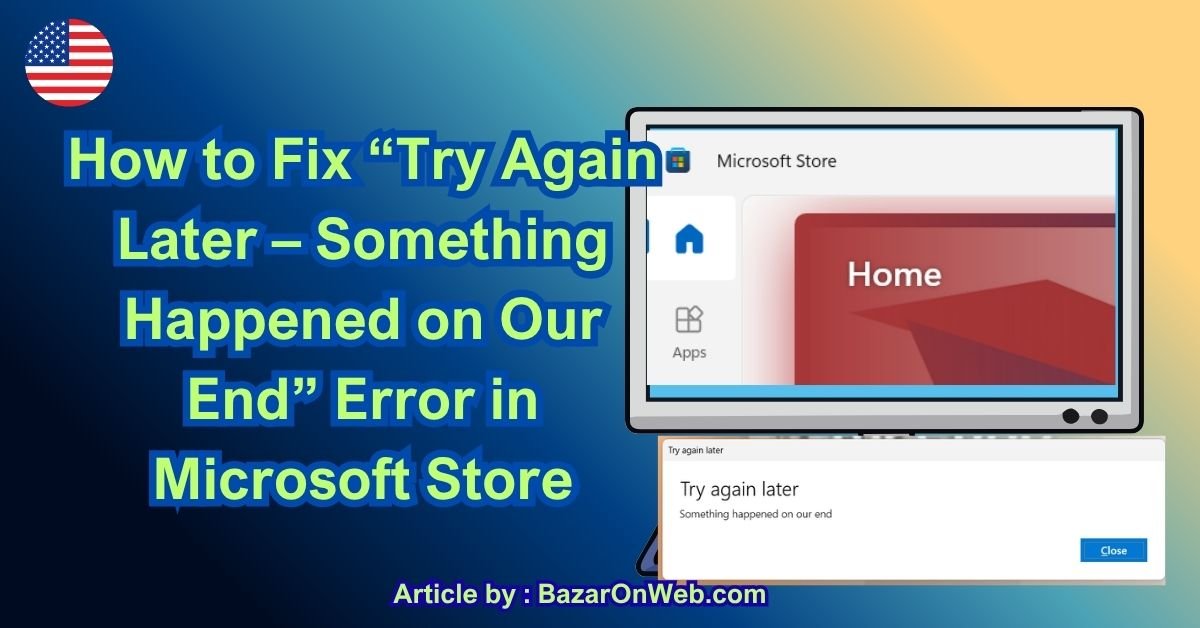
If you use Windows 11, you may occasionally run into a frustrating message that says “Try again later” followed by “Something happened on our end.” The error is especially common when using the Microsoft Store, where it can prevent you from downloading, installing, updating, or even viewing apps.
The problem can appear suddenly without explaining what actually went wrong. In some cases, the Microsoft Store itself is experiencing a temporary service problem. However, corrupted Store cache, incorrect date and time settings, account issues, Windows Update problems, network configuration, or damaged system files can also cause the error.
The good news is that you usually don’t need to reinstall Windows 11 to fix it.
In this guide, we’ll walk through several solutions, starting with the easiest ones. You don’t necessarily need to try every method. After completing each solution, open the Microsoft Store again and check whether the error has disappeared.
Why Does Windows 11 Show “Something Happened on Our End”?
The “Something happened on our end” message is intentionally vague. Windows doesn’t always provide enough information to identify the exact cause.
Some common reasons include:
- A temporary Microsoft Store server problem
- Corrupted Microsoft Store cache
- Problems with the Microsoft Store app
- Incorrect Windows date, time, or region settings
- A Microsoft account synchronization problem
- Unstable internet connectivity
- VPN or proxy interference
- Pending Windows updates
- Damaged Windows system files
- Problems with Microsoft Store services
- A corrupted user profile
- Temporary authentication issues
Before making major changes to Windows, start with the simpler solutions below.
1. Check Your Internet Connection
The Microsoft Store requires an active internet connection to communicate with Microsoft’s servers.
If your internet connection is unstable, the Store may display the “Try again later” message even though other websites appear to work.
Open your browser and visit a few websites to confirm that your connection is working.
If possible, try these quick steps:
- Disconnect from your Wi-Fi network.
- Wait a few seconds.
- Connect again.
- Restart your router if necessary.
- Open Microsoft Store and try again.
If you’re using a VPN, temporarily disconnect it and test the Store again.
A corporate, school, or public network may also block certain Microsoft services, so testing the computer on another network or a mobile hotspot can help determine whether the network is responsible.
2. Restart Your Windows 11 PC
It sounds basic, but don’t skip this step.
Temporary Windows services can sometimes become stuck, and restarting the computer can reload the services required by Microsoft Store.
Click Start > Power > Restart.
After Windows starts again, open the Microsoft Store and repeat whatever you were trying to do.
If the error continues, move to the next solution.
3. Check Windows Date and Time
Incorrect date or time settings can interfere with secure connections and Microsoft account authentication.
Windows 11 normally updates the time automatically, but it’s worth checking.
Go to:
Settings > Time & language > Date & time
Turn on:
Set time automatically
Also turn on:
Set time zone automatically
If your time is still incorrect, click Sync now under additional settings.
Then close Settings and reopen Microsoft Store.
Try downloading or updating the app again.
4. Reset the Microsoft Store Cache
One of the most useful fixes for Microsoft Store problems is clearing its cache.
Windows includes a built-in command called WSReset specifically for this purpose.
Press:
Windows + R
The Run dialog will appear.
Type:
wsreset.exeThen press Enter.
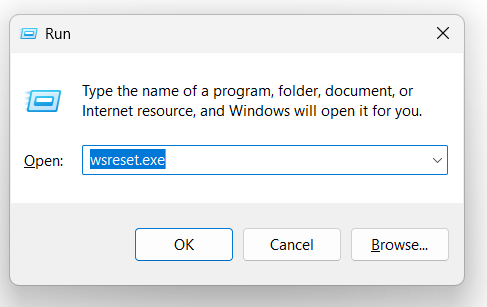
You may see a blank Command Prompt window for a short time. Don’t close it manually.
After a while, Windows should automatically open Microsoft Store.
Try the Store again.
Why does this help?
The Microsoft Store stores temporary data locally. If that cache becomes corrupted or contains outdated information, the Store may fail to communicate correctly with Microsoft’s services.
Resetting the cache doesn’t normally remove your installed applications. It simply clears the Store’s temporary cached data.
5. Repair the Microsoft Store App
Windows 11 includes repair options for many built-in applications.
To repair Microsoft Store:
- Open Settings.
- Select Apps.
- Click Installed apps.
- Search for Microsoft Store.
- Click the three-dot menu next to it.
- Select Advanced options.
- Scroll down to the Reset section.
- Click Repair.
Windows will attempt to repair the application without deleting its data.
Once the process finishes, open Microsoft Store again.
If the error remains, return to the same screen.
6. Reset Microsoft Store
If repairing the Store didn’t work, you can try the Reset option.
Go to:
Settings > Apps > Installed apps > Microsoft Store > Advanced options
Under Reset, click:
Reset
Windows will display a warning that the app’s data will be deleted.
Confirm the reset.
This is a stronger solution than simply repairing the application because Windows essentially resets the Store’s local application data.
Afterward, launch Microsoft Store and sign in again if necessary.
Then check whether the “Something happened on our end” message has disappeared.
7. Run the Windows Store Apps Troubleshooter
Windows 11 has built-in troubleshooting tools that can automatically detect certain application problems.
Depending on your Windows 11 version, the exact troubleshooting options may vary.
Open:
Settings > System > Troubleshoot > Other troubleshooters
Look for a relevant troubleshooter for Windows Store apps if it is available on your system.
Run it and follow the instructions on screen.
The troubleshooter may identify problems related to:
- Microsoft Store configuration
- Account settings
- Application permissions
- Windows services
- Cached data
After the troubleshooter finishes, restart the computer and test the Store again.
8. Sign Out and Sign Back Into Microsoft Store
Sometimes the Store is working correctly, but the Microsoft account session has become corrupted or expired.
Open Microsoft Store.
Click your profile icon and sign out of your Microsoft account.
Close the Store completely.
Then reopen it and sign in again using your Microsoft account.
Try downloading an app or checking for updates.
This solution is particularly useful if the Store opens normally but displays the error when you attempt to download something.
9. Check for Windows 11 Updates
Microsoft Store problems can sometimes be caused by outdated Windows components.
To check for updates:
- Open Settings.
- Select Windows Update.
- Click Check for updates.
- Install available updates.
- Restart your PC.
If Windows says a restart is required, restart the computer before testing Microsoft Store again.
Keeping Windows updated is important because Microsoft Store depends on several Windows components and services.
10. Check Microsoft Store Updates
The Store itself may also need an update.
Open Microsoft Store.
Select Library from the sidebar.
Click:
Get updates
Windows will check for updates to Microsoft Store and other installed Microsoft applications.
If the Store is unable to update because you’re already receiving the “Something happened on our end” error, continue with the other solutions in this guide.
11. Disable VPN or Proxy Temporarily
A VPN or proxy can sometimes interfere with connections to Microsoft services.
If you’re using a VPN, disconnect it temporarily.
You can also check your Windows proxy settings.
Go to:
Settings > Network & internet > Proxy
If you manually configured a proxy, temporarily disable it and test Microsoft Store again.
Don’t change proxy settings if your workplace or organization requires them. In that situation, contact your network administrator instead.
12. Reset Your Network Configuration
If the Microsoft Store cannot communicate with Microsoft’s servers properly, resetting the network configuration may help.
Open Settings > Network & internet > Advanced network settings > Network reset.
Select Reset now.
Windows will warn you that your network adapters will be removed and reinstalled and that you may need to reconnect to Wi-Fi afterward.
Because this affects your network configuration, use this method only after trying the simpler solutions.
Restart Windows when prompted and reconnect to your network.
Then test Microsoft Store.
13. Check Microsoft Store Services
Windows relies on background services to handle various Store and application functions.
Press:
Windows + R
Type:
services.mscPress Enter.
The Services window will open.
Look for Microsoft-related services associated with app installation, updates, licensing, and Windows Update.
Don’t randomly change service startup settings. Changing Windows services incorrectly can create additional problems.
If a relevant service has stopped unexpectedly, restarting it may help, but leave services alone if you’re unsure about their purpose.
14. Run System File Checker
If Windows system files are damaged, Microsoft Store may not function properly.
You can use System File Checker (SFC) to scan Windows.
Right-click the Start button and select Terminal (Admin).
Then run:
sfc /scannowPress Enter.
Wait for the scan to reach 100%.
Depending on your computer, this can take some time.
If Windows finds damaged system files, it will attempt to repair them automatically.
Restart the computer afterward and test Microsoft Store.
15. Use DISM to Repair the Windows Image
If SFC doesn’t solve the problem, Microsoft’s Deployment Image Servicing and Management tool can repair the underlying Windows image.
Open Terminal as administrator again.
Run:
DISM /Online /Cleanup-Image /RestoreHealthPress Enter.
Allow the command to finish completely.
Once it has finished, restart your computer.
You can then run SFC again:
sfc /scannowRestart Windows one more time and check Microsoft Store.
Using DISM followed by SFC can be useful when Windows components themselves are damaged.
16. Check Your Microsoft Account
If you’re seeing the error only when downloading or updating applications, the issue may be related to your Microsoft account.
Go to:
Settings > Accounts
Check whether Windows reports any problems with your account.
If Windows asks you to verify your identity or sign in again, complete the verification.
Also make sure that the Microsoft account you’re using in Windows and the account being used by Microsoft Store are configured correctly.
17. Try a Different Microsoft Store App
Before assuming that the entire Store is broken, try downloading a different free application.
For example, if one particular application produces the error, the problem could be related to that app rather than Microsoft Store itself.
If every application produces:
“Try again later – Something happened on our end”
then the problem is more likely to involve the Store, Windows, your account, or Microsoft’s services.
18. Check Whether Microsoft Services Are Experiencing an Outage
Sometimes the problem isn’t your PC at all.
Microsoft Store relies on Microsoft’s online services. If those services are temporarily experiencing an outage or maintenance issue, you may receive a generic message such as “Something happened on our end.”
If you’ve already tried the basic fixes and nothing works, wait for a while and try again later.
This is especially worth considering if:
- Microsoft Store suddenly stopped working
- You haven’t changed anything on your PC
- Multiple Microsoft services are failing
- Other users are reporting similar problems
In such situations, changing Windows settings won’t necessarily fix the problem because the issue is occurring on Microsoft’s side.
What If Nothing Worked?
If you’ve tried the solutions above and Microsoft Store still displays the same message, the problem may involve a deeper Windows configuration issue.
You can try creating a new Windows user account and checking whether Microsoft Store works there.
If the Store works normally under the new account, your original Windows user profile may be damaged.
However, don’t immediately delete your existing account. First, verify that your files, applications, and settings are safely backed up.
A Windows repair installation can also be considered if multiple Windows components are malfunctioning, but this should be a later step rather than the first solution.
Which Solution Should You Try First?
If you don’t want to go through all the methods, follow this order:
- Check your internet connection
- Restart Windows 11
- Check date and time
- Run
wsreset.exe - Repair Microsoft Store
- Reset Microsoft Store
- Sign out and sign back in
- Install Windows updates
- Disable VPN/proxy temporarily
- Run the Windows Store troubleshooter if available
- Reset network settings
- Run
sfc /scannow - Run DISM
- Check whether Microsoft services are experiencing an outage
For many users, WSReset, repairing/resetting Microsoft Store, signing back into the Microsoft account, or installing pending Windows updates is enough to resolve the problem.
Final Thoughts
The “Try again later – Something happened on our end” message in Windows 11 can be annoying because it doesn’t tell you what actually went wrong. Fortunately, the error doesn’t automatically mean that your Windows installation is damaged.
Start with the simple fixes: check your internet connection, restart your PC, verify the date and time, and reset the Microsoft Store cache using wsreset.exe. If those don’t work, repair or reset Microsoft Store from Windows Settings.
For persistent problems, update Windows, check your Microsoft account and network configuration, and then use SFC and DISM to repair potentially damaged Windows components.
And remember: if everything on your computer appears normal but the Store suddenly stops working, there is always a possibility that the problem is temporarily on Microsoft’s side. In that situation, waiting and trying again later may genuinely be the correct solution.

- How to Fix “Unable to Initialize Windows App SDK” Error in Windows 11

- How to Fix “Try Again Later – Something Happened on Our End” Error in Microsoft Store

- What Are iPhone Background Sounds? Their Uses and How to Enable Them
- How to Run a Safety Check in Google Chrome and Protect Your Browser

- Samsung Phone’s Keyboard Not Working? Here’s How to Fix It

Products
-
![Apple Watch Ultra 3 [GPS + Cellular 49mm] Running & Multisport Smartwatch w/Rugged Titanium Case w/Black Titanium Milanese Loop - M. Satellite Communications, Advanced Health & Fitness Tracking](https://bazaronweb.com/retailstores/wp-content/uploads/2025/09/apple-watch-320x320.jpg) Apple Watch Ultra 3 [GPS + Cellular 49mm] Running & Multisport Smartwatch w/Rugged Titanium Case w/Black Titanium Milanese Loop - M. Satellite Communications, Advanced Health & Fitness Tracking
Apple Watch Ultra 3 [GPS + Cellular 49mm] Running & Multisport Smartwatch w/Rugged Titanium Case w/Black Titanium Milanese Loop - M. Satellite Communications, Advanced Health & Fitness Tracking
-
 Apple iPad mini (A17 Pro): Apple Intelligence, 8.3-inch Liquid Retina Display, 256GB, Wi-Fi 6E, 12MP Front/12MP Back Camera, Touch ID, All-Day Battery Life — Purple
-
 Apple AirPods Max Wireless Over-Ear Headphones, Active Noise Cancelling, Transparency Mode, Personalized Spatial Audio, Dolby Atmos, Bluetooth Headphones for iPhone – Space Gray
-
 Apple AirPods Pro 2 Wireless Earbuds, Active Noise Cancellation, Hearing Aid Feature, Bluetooth Headphones, Transparency, Personalized Spatial Audio, High-Fidelity Sound, H2 Chip, USB-C Charging
-
Home Garage 210 TC Cotton King Floral Fitted (Elastic) Bedsheet(Pack of 1, Grey)
Original price was: ₹999.00.₹299.00Current price is: ₹299.00.
Leave a Reply