Discounted Products
-
 Home Garage 210 TC Cotton King Floral Fitted (Elastic) Bedsheet(Pack of 1, Grey)
Original price was: ₹999.00.₹299.00Current price is: ₹299.00.
Home Garage 210 TC Cotton King Floral Fitted (Elastic) Bedsheet(Pack of 1, Grey)
Original price was: ₹999.00.₹299.00Current price is: ₹299.00.
-
 Goodrik 140 TC Cotton Double 3D Printed Flat Bedsheet(Pack of 1, Brown)
Original price was: ₹499.00.₹229.00Current price is: ₹229.00.
Goodrik 140 TC Cotton Double 3D Printed Flat Bedsheet(Pack of 1, Brown)
Original price was: ₹499.00.₹229.00Current price is: ₹229.00.
-
 GLOBALSHOP 350 TC Microfiber Double Floral Flat Bedsheet(Pack of 1, Multicolor)
Original price was: ₹1,250.00.₹263.00Current price is: ₹263.00.
GLOBALSHOP 350 TC Microfiber Double Floral Flat Bedsheet(Pack of 1, Multicolor)
Original price was: ₹1,250.00.₹263.00Current price is: ₹263.00.
-
 RisingStar 250 TC Microfiber King Printed Fitted (Elastic) Bedsheet(Pack of 1, FITTED-ROUND-CIRCLES-PREMIUM)
Original price was: ₹2,299.00.₹299.00Current price is: ₹299.00.
RisingStar 250 TC Microfiber King Printed Fitted (Elastic) Bedsheet(Pack of 1, FITTED-ROUND-CIRCLES-PREMIUM)
Original price was: ₹2,299.00.₹299.00Current price is: ₹299.00.
-
 Home Garage 210 TC Cotton King Floral Fitted (Elastic) Bedsheet(Pack of 1, Fitted Black Green)
Original price was: ₹1,299.00.₹299.00Current price is: ₹299.00.
Home Garage 210 TC Cotton King Floral Fitted (Elastic) Bedsheet(Pack of 1, Fitted Black Green)
Original price was: ₹1,299.00.₹299.00Current price is: ₹299.00.
-
 Home Garage 180 TC Cotton King 3D Printed Flat Bedsheet(Pack of 1, White)
Original price was: ₹999.00.₹229.00Current price is: ₹229.00.
Home Garage 180 TC Cotton King 3D Printed Flat Bedsheet(Pack of 1, White)
Original price was: ₹999.00.₹229.00Current price is: ₹229.00.
-
 Panipat Textile Hub 152.4 cm (5 ft) Polyester Window Curtain (Pack Of 2)(Solid, Aqua)
Original price was: ₹1,899.00.₹299.00Current price is: ₹299.00.
Panipat Textile Hub 152.4 cm (5 ft) Polyester Window Curtain (Pack Of 2)(Solid, Aqua)
Original price was: ₹1,899.00.₹299.00Current price is: ₹299.00.
-
 Home Sizzler 214 cm (7 ft) Polyester Semi Transparent Door Curtain (Pack Of 2)(Floral, Maroon)
Original price was: ₹1,199.00.₹399.00Current price is: ₹399.00.
Home Sizzler 214 cm (7 ft) Polyester Semi Transparent Door Curtain (Pack Of 2)(Floral, Maroon)
Original price was: ₹1,199.00.₹399.00Current price is: ₹399.00.
-
 Home Sizzler 153 cm (5 ft) Polyester Room Darkening Window Curtain (Pack Of 2)(Floral, Brown)
Original price was: ₹799.00.₹299.00Current price is: ₹299.00.
Home Sizzler 153 cm (5 ft) Polyester Room Darkening Window Curtain (Pack Of 2)(Floral, Brown)
Original price was: ₹799.00.₹299.00Current price is: ₹299.00.
-
 Stella Creations 214 cm (7 ft) Polyester Room Darkening Door Curtain (Pack Of 2)(Abstract, Brown)
Original price was: ₹1,299.00.₹449.00Current price is: ₹449.00.
Stella Creations 214 cm (7 ft) Polyester Room Darkening Door Curtain (Pack Of 2)(Abstract, Brown)
Original price was: ₹1,299.00.₹449.00Current price is: ₹449.00.
-
 Homefab India 152.5 cm (5 ft) Polyester Room Darkening Window Curtain (Pack Of 2)(Floral, Light Blue)
Original price was: ₹1,199.00.₹319.00Current price is: ₹319.00.
Homefab India 152.5 cm (5 ft) Polyester Room Darkening Window Curtain (Pack Of 2)(Floral, Light Blue)
Original price was: ₹1,199.00.₹319.00Current price is: ₹319.00.
-
 Urban Home 214 cm (7 ft) PVC Transparent Door Curtain Single Curtain(Solid, Off White)
Original price was: ₹699.00.₹203.00Current price is: ₹203.00.
Urban Home 214 cm (7 ft) PVC Transparent Door Curtain Single Curtain(Solid, Off White)
Original price was: ₹699.00.₹203.00Current price is: ₹203.00.
-
 Panipat Textile Hub 213 cm (7 ft) Polyester Door Curtain (Pack Of 2)(Solid, Brown)
Original price was: ₹1,199.00.₹349.00Current price is: ₹349.00.
Panipat Textile Hub 213 cm (7 ft) Polyester Door Curtain (Pack Of 2)(Solid, Brown)
Original price was: ₹1,199.00.₹349.00Current price is: ₹349.00.
-
 Home Sizzler 214 cm (7 ft) Polyester Semi Transparent Door Curtain (Pack Of 2)(Floral, Brown)
Original price was: ₹999.00.₹349.00Current price is: ₹349.00.
Home Sizzler 214 cm (7 ft) Polyester Semi Transparent Door Curtain (Pack Of 2)(Floral, Brown)
Original price was: ₹999.00.₹349.00Current price is: ₹349.00.
-
 Panipat Textile Hub 213 cm (7 ft) Polyester Semi Transparent Door Curtain (Pack Of 2)(Floral, Brown)
Original price was: ₹899.00.₹299.00Current price is: ₹299.00.
Panipat Textile Hub 213 cm (7 ft) Polyester Semi Transparent Door Curtain (Pack Of 2)(Floral, Brown)
Original price was: ₹899.00.₹299.00Current price is: ₹299.00.
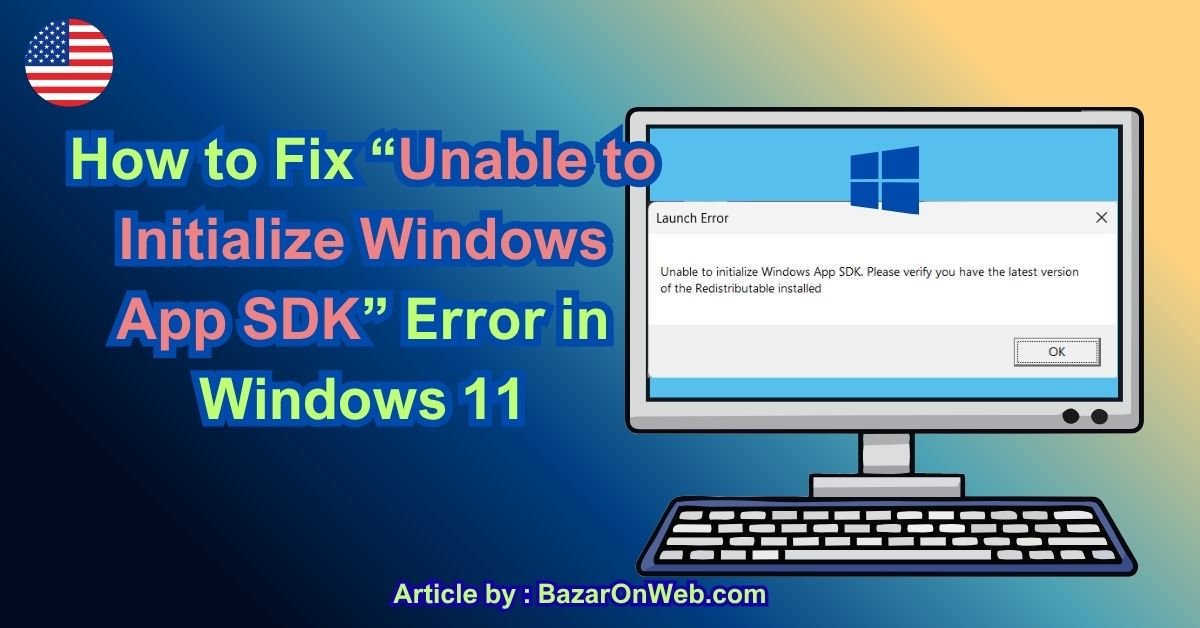
If you see the following message when launching an application on Windows 11:
Launch Error
Unable to initialize Windows App SDK. Please verify you have the latest version of the Redistributable installed.
the problem usually means that the application cannot find, load, or initialize the Windows App SDK Runtime it requires.
This does not necessarily mean Windows 11 itself is damaged. The application may simply be missing the required Windows App SDK runtime, have an incompatible version installed, or have a corrupted runtime installation.
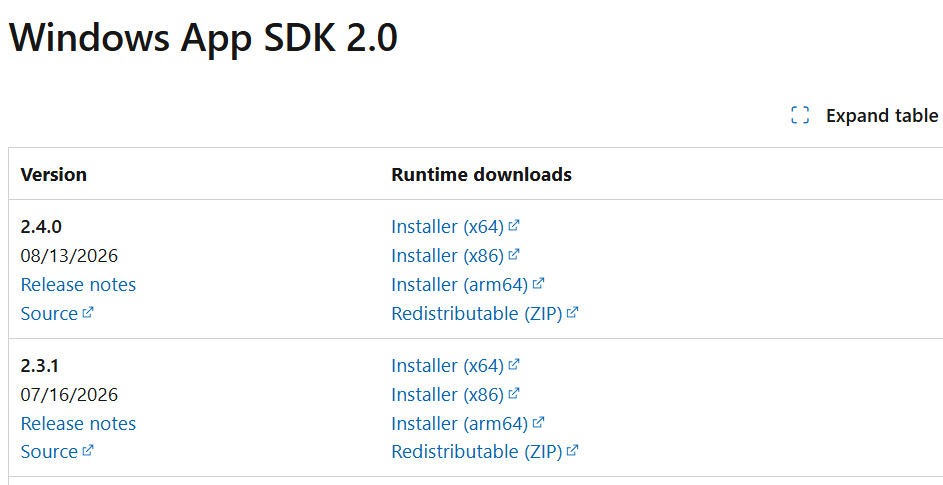
Microsoft currently lists Windows App SDK 2.4.0 as the latest stable release, released in August 2026.
Here are the best ways to fix the problem.
1. Restart Your Windows 11 PC
Before reinstalling anything, restart your computer.
A Windows App SDK installation may not be completely registered until Windows has restarted.
- Close the application showing the error.
- Click Start.
- Select Power.
- Click Restart.
- Try launching the application again.
If the error returns, continue with the steps below.
2. Install the Latest Windows App SDK Runtime
This is the most important fix.
Microsoft provides the Windows App Runtime installer separately from the Windows SDK. The runtime installer installs the components required by applications using Windows App SDK, including the Framework, Main, Singleton, and DDLM packages.
Go to Microsoft’s official Windows App SDK downloads page:
Windows App SDK Downloads — Microsoft Learn
Under Stable release, download the appropriate Installer for your computer.
The current stable release is Windows App SDK 2.4.0. Microsoft provides separate installers for:
- x64
- x86
- ARM64
Which one should you choose?
Most Windows 11 PCs with Intel or AMD processors use x64.
If you’re unsure:
- Press Windows + I.
- Go to System > About.
- Look for System type.
You will normally see something similar to:
64-bit operating system, x64-based processor
For that system, use the x64 Windows App SDK installer.
3. Install the Runtime as Administrator
After downloading the installer:
- Open your Downloads folder.
- Right-click the Windows App Runtime installer.
- Select Run as administrator.
- Follow the installation instructions.
- Restart Windows 11.
- Open the application again.
Microsoft specifically recommends installing the Windows App SDK Runtime on machines where an unpackaged Windows App SDK application will run.
4. Don’t Confuse Windows App SDK With Windows SDK
This is an important distinction.
You might search Microsoft’s website and find something called the Windows SDK. Installing that isn’t necessarily the solution to this particular error.
The Windows SDK is primarily a developer SDK containing headers, libraries, metadata, and build tools.
The Windows App SDK Runtime, on the other hand, contains runtime components that applications need when they run.
So if your application says:
Unable to initialize Windows App SDK
you should specifically look for the Windows App SDK Runtime/Installer, rather than simply installing the Windows SDK.
5. Install the Microsoft Visual C++ Redistributable
If installing the Windows App SDK Runtime doesn’t solve the problem, install or repair the Microsoft Visual C++ Redistributable.
This is particularly important because Microsoft’s deployment documentation lists the Visual C++ Redistributable as a requirement for unpackaged Windows App SDK applications.
Download it from Microsoft’s official page:
Latest supported Visual C++ Redistributable downloads — Microsoft Learn
For most Windows 11 PCs, download:
X64: vc_redist.x64.exe
Then:
- Run the installer.
- If you see Repair, select it.
- If you see Install, install it.
- Restart your PC.
- Try the affected application again.
Should you install x86 too?
If you’re dealing with an older 32-bit application, installing the x86 Visual C++ Redistributable can also help.
You can install both x64 and x86 versions without a problem.
6. Repair the Windows App SDK Installation
If the runtime is already installed, it may be corrupted.
You can check installed applications from Windows Settings.
- Press Windows + I.
- Select Apps.
- Select Installed apps.
- Search for:
Windows App Runtime
Look for entries associated with Microsoft.WindowsAppRuntime.
If Windows provides a repair option:
- Click the three dots next to the entry.
- Select Advanced options, if available.
- Click Repair.
- Launch the application again.
If there is no Repair option, uninstalling and reinstalling the appropriate runtime can be more effective.
7. Uninstall and Reinstall Windows App Runtime
A damaged runtime installation can cause initialization failures.
If you already have Windows App Runtime installed:
- Open Settings.
- Go to Apps > Installed apps.
- Search for Windows App Runtime.
- Remove the relevant runtime installation.
- Restart Windows.
- Download the current runtime from Microsoft.
- Install it again.
- Restart your computer.
Microsoft notes that the Windows App Runtime consists of several runtime packages, so simply removing one component may not always resolve a broken installation.
8. Check Whether the Required Runtime Is Installed
You can also check the Windows App SDK runtime through PowerShell.
Right-click the Start button and choose:
Terminal (Admin)
Then run:
Get-AppxPackage *appruntime*Microsoft recommends this command for checking installed Windows App SDK runtime versions.
You should see Windows App Runtime packages in the results.
You can also use:
(Get-AppxPackage micro*win*appruntime*).PackageFullNameIf nothing relevant appears, the required Windows App SDK runtime may not be installed correctly.
9. Make Sure the Runtime Version Matches the Application
Installing the newest runtime isn’t always enough.
Some applications were built against a particular Windows App SDK version. Microsoft recommends using a runtime version that matches the version and release channel used by the application, particularly for development and unpackaged applications.
For example, an application could require an older Windows App SDK runtime rather than the newest version.
If the application’s developer specifically says that it requires:
Windows App SDK 1.8.x
don’t assume that installing version 2.4.0 will necessarily solve the problem.
Microsoft maintains an archive of older Windows App SDK releases.
This is especially important if the error started immediately after updating the application.
10. Update Windows 11
An outdated Windows 11 installation can also create compatibility problems.
To check for updates:
- Press Windows + I.
- Select Windows Update.
- Click Check for updates.
- Install available updates.
- Restart your computer.
Also install optional updates if the affected application specifically requires a newer Windows component.
11. Repair Windows System Files
If the Windows App SDK installation repeatedly fails or Windows components are damaged, run Microsoft’s built-in system repair tools.
Open Terminal (Admin) and run:
DISM /Online /Cleanup-Image /RestoreHealthWait until the process completes.
Then run:
sfc /scannowAllow the scan to finish.
After both commands complete, restart Windows 11 and test the application again.
Why run DISM first?
DISM repairs the Windows component store that Windows uses to repair system files. SFC can then use those components to replace damaged system files.
12. Check the Application’s Own Requirements
If the error appears only with one particular application, the problem may actually be with that application rather than Windows 11.
For example, if:
- Chrome works normally
- Microsoft Store works normally
- other applications work normally
- only one application produces the Windows App SDK error
then check that application’s official support page.
The developer may require a particular:
- Windows App SDK version
- Visual C++ Redistributable
- .NET runtime
- Windows version
- application update
If the application includes its own runtime installer, run that installer as well.
13. Reinstall the Problematic Application
If you’ve installed the correct Windows App SDK Runtime and Visual C++ Redistributable but the application still won’t launch, reinstall the application.
First uninstall it:
Settings → Apps → Installed apps → [Application] → Uninstall
Restart Windows.
Then download the latest version from the application’s official website or Microsoft Store.
Install it again and test it.
This can fix cases where the application installation itself is missing runtime files or has an incorrect registration.
14. Don’t Randomly Download DLL Files
You may find websites offering individual DLL files as a solution.
Avoid this.
For example, don’t download random files such as:
WindowsAppRuntime.dll
Microsoft.UI.Xaml.dll
from unofficial DLL websites and copy them into:
C:\Windows\System32or the application’s installation folder.
The Windows App SDK is made up of multiple components and dependencies. Installing individual DLLs manually can create additional compatibility and security problems.
Use Microsoft’s official Windows App SDK Runtime installer instead.
15. What If the Error Appears After an Application Update?
If the application worked yesterday and suddenly started showing this error after an update, there are two possibilities:
- The application update introduced a runtime dependency problem.
- The application now requires a newer Windows App SDK version.
First install the latest runtime recommended by the application developer.
If that doesn’t work, check the application’s release notes or support page for the exact Windows App SDK version it requires.
Microsoft currently lists Windows App SDK 2.4.0 as the latest stable release, but applications can still depend on earlier supported versions.
16. The Quickest Fix to Try First
If you don’t want to go through all the troubleshooting steps, try these in order:
Step 1
Install the latest Windows App SDK Runtime from Microsoft.
Step 2
Install or repair the Microsoft Visual C++ Redistributable x64.
Step 3
Restart Windows 11.
Step 4
Run:
DISM /Online /Cleanup-Image /RestoreHealthThen:
sfc /scannowStep 5
Restart Windows again.
Step 6
Reinstall the application producing the error.
For most users, the first two steps are the most important because the message specifically indicates a missing or unsuitable Windows App SDK Redistributable.
Final Thoughts
The “Unable to initialize Windows App SDK” error in Windows 11 generally means the application cannot initialize the Windows App SDK runtime it depends on. Installing the appropriate Windows App SDK Runtime, repairing the Visual C++ Redistributable, updating Windows, and reinstalling the affected application are the most practical solutions.
If the problem continues after installing the latest runtime, don’t keep installing random versions. Check which Windows App SDK version the application actually requires. Microsoft provides both current and archived runtime downloads, so you can install the version that matches the application’s requirements.
Tip: If only one application is affected, the application’s own runtime requirements are more likely to be the problem. If several Windows App SDK applications fail, focus on repairing the Windows App Runtime and Visual C++ Redistributable installation.
Disclaimer
This guide is intended for general Windows 11 troubleshooting. Runtime requirements can vary between applications, so always use the official Microsoft or application developer download when installing system components.

- How to Fix “Unable to Initialize Windows App SDK” Error in Windows 11

- How to Fix “Try Again Later – Something Happened on Our End” Error in Microsoft Store

- What Are iPhone Background Sounds? Their Uses and How to Enable Them

- How to Run a Safety Check in Google Chrome and Protect Your Browser

- Samsung Phone’s Keyboard Not Working? Here’s How to Fix It

Products
-
![Apple Watch Ultra 3 [GPS + Cellular 49mm] Running & Multisport Smartwatch w/Rugged Titanium Case w/Black Titanium Milanese Loop - M. Satellite Communications, Advanced Health & Fitness Tracking](https://bazaronweb.com/retailstores/wp-content/uploads/2025/09/apple-watch-320x320.jpg) Apple Watch Ultra 3 [GPS + Cellular 49mm] Running & Multisport Smartwatch w/Rugged Titanium Case w/Black Titanium Milanese Loop - M. Satellite Communications, Advanced Health & Fitness Tracking
Apple Watch Ultra 3 [GPS + Cellular 49mm] Running & Multisport Smartwatch w/Rugged Titanium Case w/Black Titanium Milanese Loop - M. Satellite Communications, Advanced Health & Fitness Tracking
-
 Apple iPad mini (A17 Pro): Apple Intelligence, 8.3-inch Liquid Retina Display, 256GB, Wi-Fi 6E, 12MP Front/12MP Back Camera, Touch ID, All-Day Battery Life — Purple
-
 Apple AirPods Max Wireless Over-Ear Headphones, Active Noise Cancelling, Transparency Mode, Personalized Spatial Audio, Dolby Atmos, Bluetooth Headphones for iPhone – Space Gray
-
 Apple AirPods Pro 2 Wireless Earbuds, Active Noise Cancellation, Hearing Aid Feature, Bluetooth Headphones, Transparency, Personalized Spatial Audio, High-Fidelity Sound, H2 Chip, USB-C Charging
-
Home Garage 210 TC Cotton King Floral Fitted (Elastic) Bedsheet(Pack of 1, Grey)
Original price was: ₹999.00.₹299.00Current price is: ₹299.00.
Leave a Reply