Discounted Products
-
 Home Garage 210 TC Cotton King Floral Fitted (Elastic) Bedsheet(Pack of 1, Grey)
Original price was: ₹999.00.₹299.00Current price is: ₹299.00.
Home Garage 210 TC Cotton King Floral Fitted (Elastic) Bedsheet(Pack of 1, Grey)
Original price was: ₹999.00.₹299.00Current price is: ₹299.00.
-
 Goodrik 140 TC Cotton Double 3D Printed Flat Bedsheet(Pack of 1, Brown)
Original price was: ₹499.00.₹229.00Current price is: ₹229.00.
Goodrik 140 TC Cotton Double 3D Printed Flat Bedsheet(Pack of 1, Brown)
Original price was: ₹499.00.₹229.00Current price is: ₹229.00.
-
 GLOBALSHOP 350 TC Microfiber Double Floral Flat Bedsheet(Pack of 1, Multicolor)
Original price was: ₹1,250.00.₹263.00Current price is: ₹263.00.
GLOBALSHOP 350 TC Microfiber Double Floral Flat Bedsheet(Pack of 1, Multicolor)
Original price was: ₹1,250.00.₹263.00Current price is: ₹263.00.
-
 RisingStar 250 TC Microfiber King Printed Fitted (Elastic) Bedsheet(Pack of 1, FITTED-ROUND-CIRCLES-PREMIUM)
Original price was: ₹2,299.00.₹299.00Current price is: ₹299.00.
RisingStar 250 TC Microfiber King Printed Fitted (Elastic) Bedsheet(Pack of 1, FITTED-ROUND-CIRCLES-PREMIUM)
Original price was: ₹2,299.00.₹299.00Current price is: ₹299.00.
-
 Home Garage 210 TC Cotton King Floral Fitted (Elastic) Bedsheet(Pack of 1, Fitted Black Green)
Original price was: ₹1,299.00.₹299.00Current price is: ₹299.00.
Home Garage 210 TC Cotton King Floral Fitted (Elastic) Bedsheet(Pack of 1, Fitted Black Green)
Original price was: ₹1,299.00.₹299.00Current price is: ₹299.00.
-
 Home Garage 180 TC Cotton King 3D Printed Flat Bedsheet(Pack of 1, White)
Original price was: ₹999.00.₹229.00Current price is: ₹229.00.
Home Garage 180 TC Cotton King 3D Printed Flat Bedsheet(Pack of 1, White)
Original price was: ₹999.00.₹229.00Current price is: ₹229.00.
-
 Panipat Textile Hub 152.4 cm (5 ft) Polyester Window Curtain (Pack Of 2)(Solid, Aqua)
Original price was: ₹1,899.00.₹299.00Current price is: ₹299.00.
Panipat Textile Hub 152.4 cm (5 ft) Polyester Window Curtain (Pack Of 2)(Solid, Aqua)
Original price was: ₹1,899.00.₹299.00Current price is: ₹299.00.
-
 Home Sizzler 214 cm (7 ft) Polyester Semi Transparent Door Curtain (Pack Of 2)(Floral, Maroon)
Original price was: ₹1,199.00.₹399.00Current price is: ₹399.00.
Home Sizzler 214 cm (7 ft) Polyester Semi Transparent Door Curtain (Pack Of 2)(Floral, Maroon)
Original price was: ₹1,199.00.₹399.00Current price is: ₹399.00.
-
 Home Sizzler 153 cm (5 ft) Polyester Room Darkening Window Curtain (Pack Of 2)(Floral, Brown)
Original price was: ₹799.00.₹299.00Current price is: ₹299.00.
Home Sizzler 153 cm (5 ft) Polyester Room Darkening Window Curtain (Pack Of 2)(Floral, Brown)
Original price was: ₹799.00.₹299.00Current price is: ₹299.00.
-
 Stella Creations 214 cm (7 ft) Polyester Room Darkening Door Curtain (Pack Of 2)(Abstract, Brown)
Original price was: ₹1,299.00.₹449.00Current price is: ₹449.00.
Stella Creations 214 cm (7 ft) Polyester Room Darkening Door Curtain (Pack Of 2)(Abstract, Brown)
Original price was: ₹1,299.00.₹449.00Current price is: ₹449.00.
-
 Homefab India 152.5 cm (5 ft) Polyester Room Darkening Window Curtain (Pack Of 2)(Floral, Light Blue)
Original price was: ₹1,199.00.₹319.00Current price is: ₹319.00.
Homefab India 152.5 cm (5 ft) Polyester Room Darkening Window Curtain (Pack Of 2)(Floral, Light Blue)
Original price was: ₹1,199.00.₹319.00Current price is: ₹319.00.
-
 Urban Home 214 cm (7 ft) PVC Transparent Door Curtain Single Curtain(Solid, Off White)
Original price was: ₹699.00.₹203.00Current price is: ₹203.00.
Urban Home 214 cm (7 ft) PVC Transparent Door Curtain Single Curtain(Solid, Off White)
Original price was: ₹699.00.₹203.00Current price is: ₹203.00.
-
 Panipat Textile Hub 213 cm (7 ft) Polyester Door Curtain (Pack Of 2)(Solid, Brown)
Original price was: ₹1,199.00.₹349.00Current price is: ₹349.00.
Panipat Textile Hub 213 cm (7 ft) Polyester Door Curtain (Pack Of 2)(Solid, Brown)
Original price was: ₹1,199.00.₹349.00Current price is: ₹349.00.
-
 Home Sizzler 214 cm (7 ft) Polyester Semi Transparent Door Curtain (Pack Of 2)(Floral, Brown)
Original price was: ₹999.00.₹349.00Current price is: ₹349.00.
Home Sizzler 214 cm (7 ft) Polyester Semi Transparent Door Curtain (Pack Of 2)(Floral, Brown)
Original price was: ₹999.00.₹349.00Current price is: ₹349.00.
-
 Panipat Textile Hub 213 cm (7 ft) Polyester Semi Transparent Door Curtain (Pack Of 2)(Floral, Brown)
Original price was: ₹899.00.₹299.00Current price is: ₹299.00.
Panipat Textile Hub 213 cm (7 ft) Polyester Semi Transparent Door Curtain (Pack Of 2)(Floral, Brown)
Original price was: ₹899.00.₹299.00Current price is: ₹299.00.
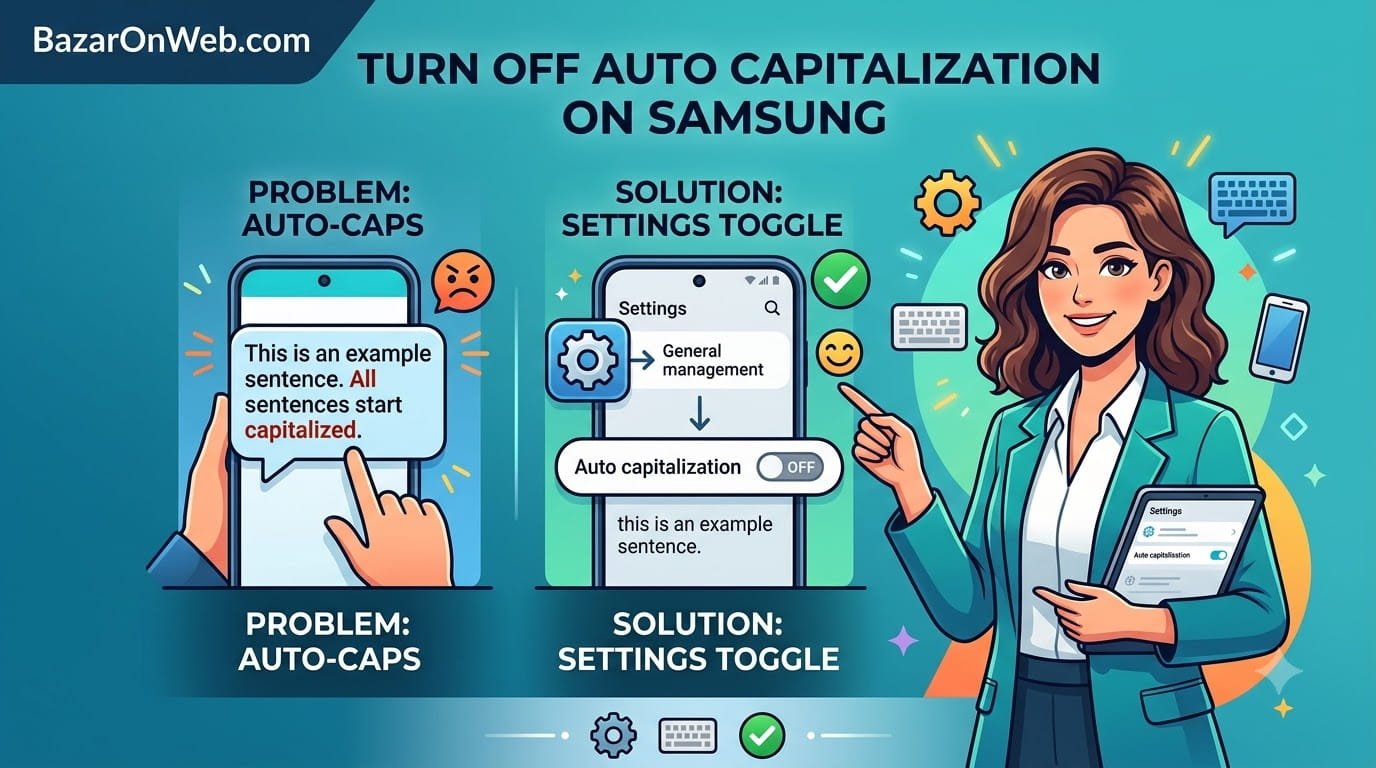
Auto Capitalization is a useful feature on most smartphones because it automatically changes the first letter of a sentence to uppercase. It can make everyday typing faster and help messages look more polished without requiring you to manually press the Shift key.
However, Auto Capitalization isn’t convenient for everyone.
If you regularly type in multiple languages, use abbreviations, write usernames, enter technical terms, or prefer a particular writing style, automatic capitalization can sometimes become annoying. Samsung’s keyboard may change letters that you intentionally typed in lowercase, forcing you to correct them repeatedly.
For example, you might type a word or abbreviation in lowercase and Samsung Keyboard automatically change the first letter to uppercase. This can be particularly frustrating when you’re entering usernames, commands, product names, hashtags, or other text where capitalization matters.
The good news is that Samsung provides an option to turn off Auto Capitalization. Once disabled, the keyboard will stop automatically capitalizing the first letter of new sentences.
Here’s how you can turn off Auto Capitalization on a Samsung Galaxy phone.
Why Turn Off Auto Capitalization?
Before changing the setting, it’s worth understanding why someone might want to disable this feature.
For many people, automatic capitalization works perfectly well. If you primarily type standard English sentences, it can save time and make your messages look more consistent.
But typing habits vary from person to person.
If you communicate in multiple languages, capitalization rules may differ between languages. Automatic corrections can sometimes interfere with the way you naturally type.
The same applies to people who frequently enter technical content. Programmers, developers, IT professionals, gamers, social media managers, and content creators often use text that doesn’t follow conventional capitalization rules.
You may also want all your messages to follow a particular visual style. Some people intentionally type everything in lowercase, while others use specific capitalization for branding or social media content.
Disabling Auto Capitalization gives you more control over what you type.
Samsung Keyboard vs Other Keyboards
The instructions below are primarily for Samsung Keyboard, which is the default keyboard available on many Samsung Galaxy smartphones.
If you use a different keyboard, such as Gboard, the setting will be located somewhere else.
This distinction is important because changing Samsung Keyboard settings won’t affect another keyboard application.
You can check which keyboard you’re currently using by opening your phone’s keyboard and looking at the keyboard settings or by going through the device’s general keyboard settings.
If you’re using Samsung Keyboard, follow the steps below.
Method 1: Turn Off Auto Capitalization Through Settings
The easiest way to disable Auto Capitalization is through your Samsung phone’s Settings app.
Open Settings on your Samsung Galaxy phone.
Scroll down and tap General management.
Next, tap Samsung Keyboard settings.
You’ll now see several options related to Samsung Keyboard.
Look for a section related to typing or smart typing. Depending on your Samsung phone model and One UI version, the exact organization of these options may be slightly different.
Look for the option called Auto capitalize.
Tap the switch next to it to turn the feature off.
Once the switch is disabled, Samsung Keyboard should stop automatically capitalizing the first letter when you begin a new sentence.
You can now return to any messaging application and test the change.
Open an app such as Messages, WhatsApp, Gmail, or Notes and start typing.
Type a sentence, press the space bar or punctuation key, and begin another sentence. The first letter should remain lowercase unless you manually capitalize it.
Method 2: Open Samsung Keyboard Settings From the Keyboard
There’s another way to access the same settings without navigating through the Settings app.
Open any application where you can type.
For example, open Samsung Messages and start a new message.
When the Samsung Keyboard appears, look for the Settings icon on the keyboard toolbar.
Tap it.
This will open the Samsung Keyboard settings page.
You may see options such as:
- Language and types
- Predictive text
- Auto replace
- Suggest emojis
- Suggest stickers
- Auto capitalize
- More typing options
Find Auto capitalize.
Tap the toggle to disable it.
This method can be quicker if you frequently adjust keyboard settings because you don’t have to navigate through several Settings menus.
What Happens After You Disable It?
Turning off Auto Capitalization doesn’t disable other Samsung Keyboard features.
For example, you can continue using predictive text, spell checking, emoji suggestions, and other keyboard functions.
The main difference is that Samsung Keyboard will no longer automatically capitalize the beginning of sentences.
Suppose you type:
“hello, how are you?”
With Auto Capitalization enabled, Samsung Keyboard may automatically change it to:
“Hello, how are you?”
After disabling the feature, it should remain:
“hello, how are you?”
You can still manually capitalize the first letter whenever you want.
This makes the feature useful for people who want more direct control over capitalization without necessarily disabling the rest of Samsung Keyboard’s smart typing features.
Auto Capitalization and Multiple Languages
One of the biggest reasons people disable Auto Capitalization is multilingual typing.
If you regularly switch between English and another language, automatic capitalization may not always behave the way you expect.
Different languages have different capitalization rules and writing conventions. In addition, people who mix languages within the same conversation may intentionally use lowercase or uppercase words for stylistic reasons.
For example, you might type a combination of English and another language in the same message. Samsung Keyboard’s automatic capitalization can sometimes make changes that don’t match your intended style.
Disabling Auto Capitalization means you can decide exactly when a word should begin with a capital letter.
This can make multilingual conversations more comfortable, especially if you already know when capitalization is appropriate.
Auto Capitalization for Professional and Technical Text
The feature can also become inconvenient when working with technical text.
Developers and IT professionals frequently type commands, file names, programming syntax, URLs, usernames, variables, and other text where capitalization can have a specific meaning.
Although Samsung Keyboard provides several smart typing features, automatic capitalization isn’t always appropriate for these situations.
For example, changing the capitalization of a technical term may make it inconsistent with the original spelling.
The same applies to social media usernames, hashtags, product names, and brand names.
If you frequently copy technical content from your phone or communicate with colleagues about software and technology, manually controlling capitalization can be more convenient.
What If Auto Capitalization Turns Back On?
If you’ve disabled Auto Capitalization but notice that the keyboard starts capitalizing words again, don’t assume the setting has necessarily failed.
First, check whether you’re actually using Samsung Keyboard.
Your phone may have switched to another keyboard.
You can check your keyboard settings through Settings > General management > Keyboard list and default.
Check the keyboard selected under the default keyboard option.
If Samsung Keyboard isn’t selected, the capitalization behavior may be controlled by the keyboard you’re currently using.
For example, Gboard has its own keyboard settings, including its own capitalization controls.
Therefore, changing a Samsung Keyboard setting won’t necessarily change how another keyboard behaves.
Check the Keyboard Language Settings
Language settings can also influence how your keyboard behaves.
Open Settings > General management > Samsung Keyboard settings.
Tap Languages and types.
Review the languages installed on your keyboard.
If you frequently switch between languages, make sure the languages you actually use are enabled.
You can usually switch between configured keyboard languages using the language key or by swiping across the space bar, depending on your keyboard configuration.
If capitalization behaves differently between languages, check the settings after selecting the language you’re using.
Auto Replace Is Different From Auto Capitalization
It’s important not to confuse Auto capitalize with Auto replace.
These are separate Samsung Keyboard features.
Auto Capitalization changes capitalization, usually at the beginning of a sentence.
Auto Replace can automatically replace words as you type.
For example, if Samsung Keyboard thinks you’ve made a spelling mistake, it may replace what you typed with another word.
If your problem is that Samsung Keyboard keeps changing entire words rather than just capitalizing the first letter, disabling Auto Capitalization won’t necessarily solve it.
In that situation, you may need to review the Auto replace setting separately.
You can keep Auto Replace enabled while disabling Auto Capitalization, or turn both off depending on your typing preferences.
Predictive Text Is Also Separate
Another setting that users sometimes confuse with Auto Capitalization is Predictive text.
Predictive text suggests words as you type based on the letters you’ve entered and your previous typing behavior.
Turning off Auto Capitalization doesn’t automatically disable Predictive text.
If you like word suggestions but don’t want Samsung Keyboard to change the first letter of your sentences, you can generally keep Predictive text enabled while switching off Auto capitalize.
This allows you to customize the keyboard rather than disabling useful features unnecessarily.
How to Turn Auto Capitalization Back On
If you change your mind later, you can easily restore the feature.
Open:
Settings > General management > Samsung Keyboard settings
Find Auto capitalize and turn the switch back on.
Alternatively, open Samsung Keyboard while typing, tap the Settings icon, and locate the same option.
Once enabled, Samsung Keyboard will again automatically capitalize the first letter where appropriate.
You don’t need to restart your phone for the change to take effect.
What If You Can’t Find the Setting?
Samsung changes the layout and names of some settings across different One UI versions and Galaxy models.
If you don’t see Samsung Keyboard settings directly under General management, use the Settings search feature.
Open Settings and tap the search icon.
Type:
Samsung Keyboard
Select the relevant keyboard settings from the results.
Once inside Samsung Keyboard settings, search for Auto capitalize or look under the typing-related options.
The exact menu structure may differ depending on your device model, One UI version, and keyboard version.
Should You Disable Auto Capitalization?
There’s no single correct setting for everyone.
If you mostly type conventional sentences and want Samsung Keyboard to automatically make your messages look polished, Auto Capitalization can be helpful.
On the other hand, if you type multiple languages, technical content, commands, usernames, hashtags, or intentionally use lowercase writing, disabling it can give you more control.
The important advantage is that Samsung allows you to customize the keyboard according to your own typing habits.
You don’t have to disable predictive text, spell checking, or other smart typing features just because you don’t want automatic capitalization.
Final Thoughts
Samsung Keyboard’s Auto Capitalization feature is designed to make typing easier, but automatic corrections aren’t always convenient.
If Samsung Keyboard keeps changing the first letter of your sentences and you prefer to control capitalization yourself, you can disable the feature from your phone’s keyboard settings.
The quickest route is usually Settings > General management > Samsung Keyboard settings, followed by disabling Auto capitalize.
You can also access Samsung Keyboard settings directly from the keyboard while typing.
Remember that the exact menu names can vary slightly depending on your Galaxy phone and One UI version. If you can’t find the option, use the Settings search function and search for Samsung Keyboard.
Once Auto Capitalization is disabled, you’ll have greater control over how your text appears. You can still use predictive text, emoji suggestions, spell checking, and other keyboard features while deciding yourself when to use uppercase letters.
For people who frequently switch languages or type technical and informal content, this small adjustment can make everyday typing considerably more comfortable.
Disclaimer: This article is for informational purposes only. Try the steps mentioned at your own risk. We do not guarantee that these methods will work on every Samsung device or One UI version, and we are not responsible for any damage, data loss, or other issues that may occur while following the instructions. For the most accurate and up-to-date information, refer to Samsung’s official documentation and support resources for your specific device.

- How to Turn Off Auto Capitalization on a Samsung Phone

- How to Fix Windows 11 When You Can’t Eject an External Hard Drive or Pen Drive

- How to Fix iPhone Updates Not Installing Overnight

- How to Add Notes or Comments to Folders in Windows 11

- How to Fix “Unable to Initialize Windows App SDK” Error in Windows 11

Products
-
![Apple Watch Ultra 3 [GPS + Cellular 49mm] Running & Multisport Smartwatch w/Rugged Titanium Case w/Black Titanium Milanese Loop - M. Satellite Communications, Advanced Health & Fitness Tracking](https://bazaronweb.com/retailstores/wp-content/uploads/2025/09/apple-watch-320x320.jpg) Apple Watch Ultra 3 [GPS + Cellular 49mm] Running & Multisport Smartwatch w/Rugged Titanium Case w/Black Titanium Milanese Loop - M. Satellite Communications, Advanced Health & Fitness Tracking
Apple Watch Ultra 3 [GPS + Cellular 49mm] Running & Multisport Smartwatch w/Rugged Titanium Case w/Black Titanium Milanese Loop - M. Satellite Communications, Advanced Health & Fitness Tracking
-
 Apple iPad mini (A17 Pro): Apple Intelligence, 8.3-inch Liquid Retina Display, 256GB, Wi-Fi 6E, 12MP Front/12MP Back Camera, Touch ID, All-Day Battery Life — Purple
-
 Apple AirPods Max Wireless Over-Ear Headphones, Active Noise Cancelling, Transparency Mode, Personalized Spatial Audio, Dolby Atmos, Bluetooth Headphones for iPhone – Space Gray
-
 Apple AirPods Pro 2 Wireless Earbuds, Active Noise Cancellation, Hearing Aid Feature, Bluetooth Headphones, Transparency, Personalized Spatial Audio, High-Fidelity Sound, H2 Chip, USB-C Charging
-
Home Garage 210 TC Cotton King Floral Fitted (Elastic) Bedsheet(Pack of 1, Grey)
Original price was: ₹999.00.₹299.00Current price is: ₹299.00.
Leave a Reply