Discounted Products
-
 Home Garage 210 TC Cotton King Floral Fitted (Elastic) Bedsheet(Pack of 1, Grey)
Original price was: ₹999.00.₹299.00Current price is: ₹299.00.
Home Garage 210 TC Cotton King Floral Fitted (Elastic) Bedsheet(Pack of 1, Grey)
Original price was: ₹999.00.₹299.00Current price is: ₹299.00.
-
 Goodrik 140 TC Cotton Double 3D Printed Flat Bedsheet(Pack of 1, Brown)
Original price was: ₹499.00.₹229.00Current price is: ₹229.00.
Goodrik 140 TC Cotton Double 3D Printed Flat Bedsheet(Pack of 1, Brown)
Original price was: ₹499.00.₹229.00Current price is: ₹229.00.
-
 GLOBALSHOP 350 TC Microfiber Double Floral Flat Bedsheet(Pack of 1, Multicolor)
Original price was: ₹1,250.00.₹263.00Current price is: ₹263.00.
GLOBALSHOP 350 TC Microfiber Double Floral Flat Bedsheet(Pack of 1, Multicolor)
Original price was: ₹1,250.00.₹263.00Current price is: ₹263.00.
-
 RisingStar 250 TC Microfiber King Printed Fitted (Elastic) Bedsheet(Pack of 1, FITTED-ROUND-CIRCLES-PREMIUM)
Original price was: ₹2,299.00.₹299.00Current price is: ₹299.00.
RisingStar 250 TC Microfiber King Printed Fitted (Elastic) Bedsheet(Pack of 1, FITTED-ROUND-CIRCLES-PREMIUM)
Original price was: ₹2,299.00.₹299.00Current price is: ₹299.00.
-
 Home Garage 210 TC Cotton King Floral Fitted (Elastic) Bedsheet(Pack of 1, Fitted Black Green)
Original price was: ₹1,299.00.₹299.00Current price is: ₹299.00.
Home Garage 210 TC Cotton King Floral Fitted (Elastic) Bedsheet(Pack of 1, Fitted Black Green)
Original price was: ₹1,299.00.₹299.00Current price is: ₹299.00.
-
 Home Garage 180 TC Cotton King 3D Printed Flat Bedsheet(Pack of 1, White)
Original price was: ₹999.00.₹229.00Current price is: ₹229.00.
Home Garage 180 TC Cotton King 3D Printed Flat Bedsheet(Pack of 1, White)
Original price was: ₹999.00.₹229.00Current price is: ₹229.00.
-
 Panipat Textile Hub 152.4 cm (5 ft) Polyester Window Curtain (Pack Of 2)(Solid, Aqua)
Original price was: ₹1,899.00.₹299.00Current price is: ₹299.00.
Panipat Textile Hub 152.4 cm (5 ft) Polyester Window Curtain (Pack Of 2)(Solid, Aqua)
Original price was: ₹1,899.00.₹299.00Current price is: ₹299.00.
-
 Home Sizzler 214 cm (7 ft) Polyester Semi Transparent Door Curtain (Pack Of 2)(Floral, Maroon)
Original price was: ₹1,199.00.₹399.00Current price is: ₹399.00.
Home Sizzler 214 cm (7 ft) Polyester Semi Transparent Door Curtain (Pack Of 2)(Floral, Maroon)
Original price was: ₹1,199.00.₹399.00Current price is: ₹399.00.
-
 Home Sizzler 153 cm (5 ft) Polyester Room Darkening Window Curtain (Pack Of 2)(Floral, Brown)
Original price was: ₹799.00.₹299.00Current price is: ₹299.00.
Home Sizzler 153 cm (5 ft) Polyester Room Darkening Window Curtain (Pack Of 2)(Floral, Brown)
Original price was: ₹799.00.₹299.00Current price is: ₹299.00.
-
 Stella Creations 214 cm (7 ft) Polyester Room Darkening Door Curtain (Pack Of 2)(Abstract, Brown)
Original price was: ₹1,299.00.₹449.00Current price is: ₹449.00.
Stella Creations 214 cm (7 ft) Polyester Room Darkening Door Curtain (Pack Of 2)(Abstract, Brown)
Original price was: ₹1,299.00.₹449.00Current price is: ₹449.00.
-
 Homefab India 152.5 cm (5 ft) Polyester Room Darkening Window Curtain (Pack Of 2)(Floral, Light Blue)
Original price was: ₹1,199.00.₹319.00Current price is: ₹319.00.
Homefab India 152.5 cm (5 ft) Polyester Room Darkening Window Curtain (Pack Of 2)(Floral, Light Blue)
Original price was: ₹1,199.00.₹319.00Current price is: ₹319.00.
-
 Urban Home 214 cm (7 ft) PVC Transparent Door Curtain Single Curtain(Solid, Off White)
Original price was: ₹699.00.₹203.00Current price is: ₹203.00.
Urban Home 214 cm (7 ft) PVC Transparent Door Curtain Single Curtain(Solid, Off White)
Original price was: ₹699.00.₹203.00Current price is: ₹203.00.
-
 Panipat Textile Hub 213 cm (7 ft) Polyester Door Curtain (Pack Of 2)(Solid, Brown)
Original price was: ₹1,199.00.₹349.00Current price is: ₹349.00.
Panipat Textile Hub 213 cm (7 ft) Polyester Door Curtain (Pack Of 2)(Solid, Brown)
Original price was: ₹1,199.00.₹349.00Current price is: ₹349.00.
-
 Home Sizzler 214 cm (7 ft) Polyester Semi Transparent Door Curtain (Pack Of 2)(Floral, Brown)
Original price was: ₹999.00.₹349.00Current price is: ₹349.00.
Home Sizzler 214 cm (7 ft) Polyester Semi Transparent Door Curtain (Pack Of 2)(Floral, Brown)
Original price was: ₹999.00.₹349.00Current price is: ₹349.00.
-
 Panipat Textile Hub 213 cm (7 ft) Polyester Semi Transparent Door Curtain (Pack Of 2)(Floral, Brown)
Original price was: ₹899.00.₹299.00Current price is: ₹299.00.
Panipat Textile Hub 213 cm (7 ft) Polyester Semi Transparent Door Curtain (Pack Of 2)(Floral, Brown)
Original price was: ₹899.00.₹299.00Current price is: ₹299.00.
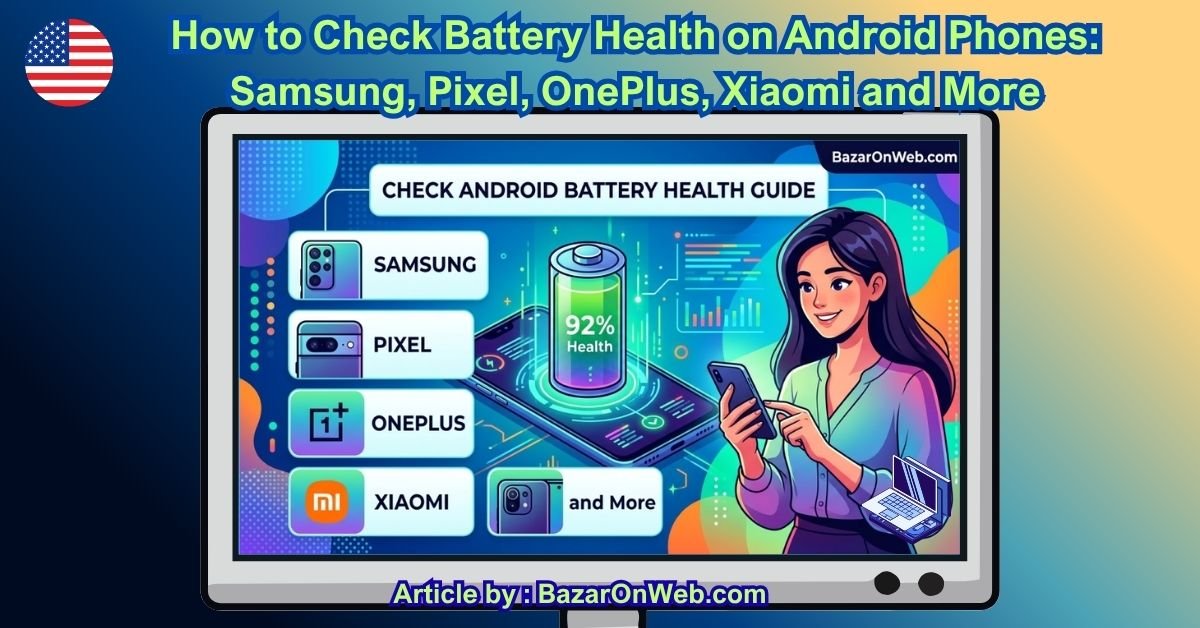
Your phone’s battery doesn’t stay exactly the same forever. Every charging cycle, long gaming session, high temperature, and extended period of heavy use can gradually affect the battery’s capacity and performance.
You may notice that your phone no longer lasts through the day, the battery percentage drops unusually quickly, charging takes longer, or the device shuts down when there is still some battery percentage remaining.
But how do you know whether the battery is actually degrading?
The good news is that many Android phones provide built-in battery information or diagnostic tools. Depending on the brand and model, you may be able to check battery health, estimated capacity, battery usage, charging behavior, temperature, and other information directly from the phone.
The exact options are different across manufacturers, though. Samsung, Google Pixel, OnePlus, Xiaomi, Motorola, Nothing, and other brands don’t necessarily provide the same battery-health screen.
Here’s how to check your Android phone’s battery health based on its brand.
Before Checking Battery Health, Know What You’re Looking For
First, it helps to understand the difference between battery usage and battery health.
Battery usage tells you how quickly your current charge is being consumed. For example, you may discover that YouTube, Instagram, a game, or another application is using a large percentage of your battery.
Battery health is different. It refers to the condition and remaining capacity of the physical battery compared with when it was new.
For example, if a phone originally had a battery capacity of 5,000mAh, its usable capacity can gradually decrease as the battery ages. The exact remaining capacity depends on many factors, including charging habits, temperature, usage, and battery age.
This is why simply looking at the current battery percentage doesn’t tell you whether your battery is healthy.
How to Check Battery Health on Samsung Galaxy Phones
Samsung Galaxy phones don’t all provide a traditional percentage-based battery-health reading. Instead, Samsung provides a battery diagnostic through the Samsung Members application.
This is one of the easiest ways to check the general condition of a Galaxy battery.
Open the Samsung Members app on your Galaxy phone.
Then open the Support section and look for Phone diagnostics. Depending on your software version, the diagnostics option may appear under a slightly different location or name.
Start the diagnostics and select Battery status.
Samsung’s diagnostic can report the battery condition as Normal, Weak, or Bad. Samsung explains that “Weak” can indicate reduced battery efficiency, while “Bad” indicates significant battery degradation.
If your Galaxy reports Normal, there isn’t an obvious battery condition problem according to the diagnostic.
If it reports Weak, you may notice reduced battery life compared with when the phone was newer.
If it reports Bad, Samsung recommends seeking further assistance and considering professional inspection or replacement.
You can also use Settings > Device care > Battery to examine battery usage and see which apps are consuming the most power. Samsung says Device Care can help you monitor battery usage and overall device performance.
Remember that Samsung’s menus can change depending on your Galaxy model and One UI version.
A Useful Samsung Battery Setting
If your Galaxy supports it, you can also look for Battery protection under Settings > Battery.
On compatible devices running One UI 6.1 or later, Samsung provides Basic, Adaptive, and Maximum battery-protection modes. Maximum can stop charging at 80%, while other modes manage charging differently.
This doesn’t tell you your current battery health, but it can help reduce battery wear over the long term.
How to Check Battery Health on Google Pixel
Google provides more detailed battery-health information on newer Pixel phones.
If you have a Pixel 8a or later, open:
Settings > Battery > Battery health
Google says this feature shows whether the battery’s health is Normal or Reduced. You can also check the estimated battery capacity from the Battery health section.
This is particularly useful because you don’t have to estimate battery degradation based only on how quickly the percentage drops.
Google also provides battery diagnostics on Pixel 6 and later, including Pixel Fold models. To access diagnostics, go to:
Settings > Battery > Battery Diagnostics
The diagnostic tools can help identify battery-related issues and provide information intended to help you determine when the battery may need attention.
Keep in mind that the availability of specific battery-health information depends on the Pixel model.
So if you have an older Pixel and don’t see a Battery health option, that doesn’t necessarily mean something is wrong with your phone.
How to Check Battery Health on OnePlus Phones
OnePlus phones can provide useful battery information, although the exact menus depend on the OxygenOS version and device.
Start by opening:
Settings > Battery
Look for options related to Battery health, Battery usage, or Battery health and charging.
On supported models, you may see information related to the battery’s maximum capacity or charging behavior.
If your particular OnePlus phone doesn’t show a battery-health percentage, don’t assume the feature is missing because of a problem. OnePlus changes its interface between OxygenOS versions and different models.
Instead, use the Battery section to examine battery usage and charging-related information.
You can also search Settings for battery health. This is often faster than looking through several menus.
If your phone doesn’t expose the information directly, you can use a reputable battery diagnostic application to estimate capacity, but remember that third-party apps generally estimate battery condition rather than replacing the manufacturer’s diagnostic tools.
How to Check Battery Health on Xiaomi, Redmi and POCO Phones
Xiaomi, Redmi, and POCO phones can display different battery information depending on the device and HyperOS or MIUI version.
Start with:
Settings > Battery
Then look for options such as Battery protection, Battery saver, Battery usage, or other battery-related information.
On some models, you may also find charging-related information and battery protection features.
If your phone provides a battery-health or battery-capacity reading, use that information as your primary reference.
If it doesn’t, check the battery usage screen instead. Look for applications that are consuming unusually large amounts of power.
For example, if a social-media application is constantly running in the background, it may create the impression that your battery has degraded when the actual problem is excessive app activity.
You can also search the Settings app for Battery health or Battery protection, because HyperOS interfaces can vary between models.
How to Check Battery Health on Motorola Phones
Motorola phones can vary considerably depending on the model and Android version.
Open:
Settings > Battery
Here, you can review battery usage and related battery-management options.
If your model provides a dedicated battery-health option, it should appear within the battery settings.
If you don’t see a health percentage, check your battery usage graph instead.
Pay attention to how quickly the battery percentage falls during normal usage.
For example, if your phone previously lasted most of a day with your normal usage but now loses a large percentage within a few hours without any major change in your habits, that can be a sign that something has changed.
However, don’t immediately blame the physical battery.
Recent software updates, weak cellular signals, high screen brightness, background synchronization, GPS, and demanding applications can all increase battery consumption.
How to Check Battery Health on Nothing Phones
Nothing phones also provide battery-related information through the Settings app, although the exact options can depend on the Nothing OS version and device.
Open:
Settings > Battery
Review the available battery information and look for battery usage, charging, and battery-health-related options.
If a battery-health percentage or capacity estimate is available on your particular model, use that information.
If it isn’t available, the battery-usage screen is still useful.
Look at your screen-on time and identify applications that consume an unusually large amount of power.
You should also check whether an application is running continuously in the background.
What About OPPO and Realme Phones?
OPPO and Realme phones can also expose battery information through their respective battery settings.
On many supported devices, start with:
Settings > Battery
Then look for options related to Battery health, Battery usage, or Battery protection.
Because both brands offer multiple devices and software versions, the exact menu names can differ.
If you can’t find the option, use the Settings search function and type battery health.
If your phone doesn’t provide a health percentage, check the battery usage statistics and charging behavior instead.
This can still tell you a lot about whether your phone’s battery performance has changed.
What If Your Android Phone Doesn’t Show Battery Health?
This is where things become slightly more complicated.
Android isn’t identical across every manufacturer. A Samsung Galaxy, Pixel, Xiaomi phone, and Motorola phone can all use Android while offering completely different battery-management interfaces.
If your phone doesn’t provide an official battery-health percentage, you have a few alternatives.
First, check your battery usage.
Go to:
Settings > Battery
Look at the battery graph and see which applications are consuming power.
Next, monitor your phone’s behavior over several days.
A single day of poor battery life doesn’t necessarily indicate battery degradation. Maybe you were traveling, using mobile data more than usual, playing games, recording videos, or using navigation.
Instead, look for a consistent pattern.
If your phone has suddenly started losing battery much faster under the same usage conditions, investigate the software side before assuming the battery needs replacement.
You can also use a reputable third-party battery-monitoring application to estimate battery capacity and charging behavior.
However, don’t treat a third-party percentage as an official measurement.
These applications generally estimate battery capacity using information available to Android and may require multiple charging and discharging cycles before their estimates become more useful.
Don’t Confuse Fast Battery Drain With Bad Battery Health
This is one of the most important things to remember.
Your battery can be perfectly healthy while your phone consumes power unusually quickly.
For example, suppose you install a new application that constantly runs in the background.
Your phone may suddenly lose 20% or 30% more battery during the day.
That doesn’t necessarily mean the physical battery has degraded.
Similarly, poor cellular reception can increase power consumption because the phone works harder to maintain a connection.
High screen brightness, high refresh rates, GPS, Bluetooth, hotspot usage, gaming, video recording, and demanding applications can also increase battery consumption.
That’s why checking battery usage is just as important as checking battery health.
Signs That Your Battery May Be Aging
There are several warning signs worth watching.
Your phone may drain much faster immediately after charging.
You may notice that the percentage drops unusually quickly during light usage.
The phone may unexpectedly shut down even though the battery indicator still shows some charge.
Charging may also behave differently than it used to.
Samsung specifically identifies rapid battery drain after charging and unexpected shutdowns as possible signs of battery aging.
However, these symptoms don’t automatically prove that the battery needs replacement.
Software problems, extreme temperatures, faulty chargers, damaged charging cables, background applications, and other hardware problems can create similar symptoms.
When Should You Consider Replacing the Battery?
Don’t replace your battery simply because your phone is a few years old.
Instead, consider the combination of battery-health information and real-world behavior.
If your phone’s manufacturer diagnostic reports significantly degraded battery health and you’re also experiencing very short battery life or unexpected shutdowns, it’s reasonable to have the battery professionally inspected.
For example, Samsung’s official diagnostic categorizes battery condition as Normal, Weak, or Bad and recommends professional assistance when the battery has significantly degraded.
For Pixel phones, Google says a battery-health status of Reduced indicates that the battery’s capacity has dropped and recommends battery replacement.
When replacement is necessary, use the manufacturer’s recommended service route rather than attempting to open the phone yourself.
Modern smartphones contain lithium-ion batteries, and physically damaging or improperly handling a battery can be dangerous.
The Bottom Line
Checking your Android phone’s battery health doesn’t always involve finding one universal percentage.
On a newer Google Pixel, you may get a direct health status and estimated capacity. Samsung provides battery diagnostics through Samsung Members. Other manufacturers may provide battery-health information, charging controls, or detailed battery-usage statistics depending on the model and software version.
So, start by opening Settings > Battery and looking for battery-health or diagnostic options.
If you don’t find a health percentage, don’t panic. Check battery usage, monitor how quickly your phone discharges under normal conditions, and look for unusual behavior.
And remember: battery drain and battery health are not the same thing.
If the manufacturer’s diagnostic reports degradation and you’re experiencing noticeably shorter battery life or unexpected shutdowns, that’s a much stronger reason to investigate the battery than a single day of poor battery performance.
Finally, menu names can change with Android updates and differ between phone models. Before replacing a battery or attempting any repair, check the official support documentation for your exact phone model and, when necessary, contact an authorized service provider.
Disclaimer: Battery menus and diagnostic results vary by phone model and software version. Try these steps at your own risk, and always refer to your phone manufacturer’s official documentation before changing battery settings, opening the device, or replacing its battery.

- How to Check Battery Health on Android Phones: Samsung, Pixel, OnePlus, Xiaomi and More

- How to Turn Off Auto Capitalization on a Samsung Phone

- How to Fix Windows 11 When You Can’t Eject an External Hard Drive or Pen Drive

- How to Fix iPhone Updates Not Installing Overnight

- How to Add Notes or Comments to Folders in Windows 11

Products
-
![Apple Watch Ultra 3 [GPS + Cellular 49mm] Running & Multisport Smartwatch w/Rugged Titanium Case w/Black Titanium Milanese Loop - M. Satellite Communications, Advanced Health & Fitness Tracking](https://bazaronweb.com/retailstores/wp-content/uploads/2025/09/apple-watch-320x320.jpg) Apple Watch Ultra 3 [GPS + Cellular 49mm] Running & Multisport Smartwatch w/Rugged Titanium Case w/Black Titanium Milanese Loop - M. Satellite Communications, Advanced Health & Fitness Tracking
Apple Watch Ultra 3 [GPS + Cellular 49mm] Running & Multisport Smartwatch w/Rugged Titanium Case w/Black Titanium Milanese Loop - M. Satellite Communications, Advanced Health & Fitness Tracking
-
 Apple iPad mini (A17 Pro): Apple Intelligence, 8.3-inch Liquid Retina Display, 256GB, Wi-Fi 6E, 12MP Front/12MP Back Camera, Touch ID, All-Day Battery Life — Purple
-
 Apple AirPods Max Wireless Over-Ear Headphones, Active Noise Cancelling, Transparency Mode, Personalized Spatial Audio, Dolby Atmos, Bluetooth Headphones for iPhone – Space Gray
-
 Apple AirPods Pro 2 Wireless Earbuds, Active Noise Cancellation, Hearing Aid Feature, Bluetooth Headphones, Transparency, Personalized Spatial Audio, High-Fidelity Sound, H2 Chip, USB-C Charging
-
Home Garage 210 TC Cotton King Floral Fitted (Elastic) Bedsheet(Pack of 1, Grey)
Original price was: ₹999.00.₹299.00Current price is: ₹299.00.
Leave a Reply