Discounted Products
-
 Home Garage 210 TC Cotton King Floral Fitted (Elastic) Bedsheet(Pack of 1, Grey)
Original price was: ₹999.00.₹299.00Current price is: ₹299.00.
Home Garage 210 TC Cotton King Floral Fitted (Elastic) Bedsheet(Pack of 1, Grey)
Original price was: ₹999.00.₹299.00Current price is: ₹299.00.
-
 Goodrik 140 TC Cotton Double 3D Printed Flat Bedsheet(Pack of 1, Brown)
Original price was: ₹499.00.₹229.00Current price is: ₹229.00.
Goodrik 140 TC Cotton Double 3D Printed Flat Bedsheet(Pack of 1, Brown)
Original price was: ₹499.00.₹229.00Current price is: ₹229.00.
-
 GLOBALSHOP 350 TC Microfiber Double Floral Flat Bedsheet(Pack of 1, Multicolor)
Original price was: ₹1,250.00.₹263.00Current price is: ₹263.00.
GLOBALSHOP 350 TC Microfiber Double Floral Flat Bedsheet(Pack of 1, Multicolor)
Original price was: ₹1,250.00.₹263.00Current price is: ₹263.00.
-
 RisingStar 250 TC Microfiber King Printed Fitted (Elastic) Bedsheet(Pack of 1, FITTED-ROUND-CIRCLES-PREMIUM)
Original price was: ₹2,299.00.₹299.00Current price is: ₹299.00.
RisingStar 250 TC Microfiber King Printed Fitted (Elastic) Bedsheet(Pack of 1, FITTED-ROUND-CIRCLES-PREMIUM)
Original price was: ₹2,299.00.₹299.00Current price is: ₹299.00.
-
 Home Garage 210 TC Cotton King Floral Fitted (Elastic) Bedsheet(Pack of 1, Fitted Black Green)
Original price was: ₹1,299.00.₹299.00Current price is: ₹299.00.
Home Garage 210 TC Cotton King Floral Fitted (Elastic) Bedsheet(Pack of 1, Fitted Black Green)
Original price was: ₹1,299.00.₹299.00Current price is: ₹299.00.
-
 Home Garage 180 TC Cotton King 3D Printed Flat Bedsheet(Pack of 1, White)
Original price was: ₹999.00.₹229.00Current price is: ₹229.00.
Home Garage 180 TC Cotton King 3D Printed Flat Bedsheet(Pack of 1, White)
Original price was: ₹999.00.₹229.00Current price is: ₹229.00.
-
 Panipat Textile Hub 152.4 cm (5 ft) Polyester Window Curtain (Pack Of 2)(Solid, Aqua)
Original price was: ₹1,899.00.₹299.00Current price is: ₹299.00.
Panipat Textile Hub 152.4 cm (5 ft) Polyester Window Curtain (Pack Of 2)(Solid, Aqua)
Original price was: ₹1,899.00.₹299.00Current price is: ₹299.00.
-
 Home Sizzler 214 cm (7 ft) Polyester Semi Transparent Door Curtain (Pack Of 2)(Floral, Maroon)
Original price was: ₹1,199.00.₹399.00Current price is: ₹399.00.
Home Sizzler 214 cm (7 ft) Polyester Semi Transparent Door Curtain (Pack Of 2)(Floral, Maroon)
Original price was: ₹1,199.00.₹399.00Current price is: ₹399.00.
-
 Home Sizzler 153 cm (5 ft) Polyester Room Darkening Window Curtain (Pack Of 2)(Floral, Brown)
Original price was: ₹799.00.₹299.00Current price is: ₹299.00.
Home Sizzler 153 cm (5 ft) Polyester Room Darkening Window Curtain (Pack Of 2)(Floral, Brown)
Original price was: ₹799.00.₹299.00Current price is: ₹299.00.
-
 Stella Creations 214 cm (7 ft) Polyester Room Darkening Door Curtain (Pack Of 2)(Abstract, Brown)
Original price was: ₹1,299.00.₹449.00Current price is: ₹449.00.
Stella Creations 214 cm (7 ft) Polyester Room Darkening Door Curtain (Pack Of 2)(Abstract, Brown)
Original price was: ₹1,299.00.₹449.00Current price is: ₹449.00.
-
 Homefab India 152.5 cm (5 ft) Polyester Room Darkening Window Curtain (Pack Of 2)(Floral, Light Blue)
Original price was: ₹1,199.00.₹319.00Current price is: ₹319.00.
Homefab India 152.5 cm (5 ft) Polyester Room Darkening Window Curtain (Pack Of 2)(Floral, Light Blue)
Original price was: ₹1,199.00.₹319.00Current price is: ₹319.00.
-
 Urban Home 214 cm (7 ft) PVC Transparent Door Curtain Single Curtain(Solid, Off White)
Original price was: ₹699.00.₹203.00Current price is: ₹203.00.
Urban Home 214 cm (7 ft) PVC Transparent Door Curtain Single Curtain(Solid, Off White)
Original price was: ₹699.00.₹203.00Current price is: ₹203.00.
-
 Panipat Textile Hub 213 cm (7 ft) Polyester Door Curtain (Pack Of 2)(Solid, Brown)
Original price was: ₹1,199.00.₹349.00Current price is: ₹349.00.
Panipat Textile Hub 213 cm (7 ft) Polyester Door Curtain (Pack Of 2)(Solid, Brown)
Original price was: ₹1,199.00.₹349.00Current price is: ₹349.00.
-
 Home Sizzler 214 cm (7 ft) Polyester Semi Transparent Door Curtain (Pack Of 2)(Floral, Brown)
Original price was: ₹999.00.₹349.00Current price is: ₹349.00.
Home Sizzler 214 cm (7 ft) Polyester Semi Transparent Door Curtain (Pack Of 2)(Floral, Brown)
Original price was: ₹999.00.₹349.00Current price is: ₹349.00.
-
 Panipat Textile Hub 213 cm (7 ft) Polyester Semi Transparent Door Curtain (Pack Of 2)(Floral, Brown)
Original price was: ₹899.00.₹299.00Current price is: ₹299.00.
Panipat Textile Hub 213 cm (7 ft) Polyester Semi Transparent Door Curtain (Pack Of 2)(Floral, Brown)
Original price was: ₹899.00.₹299.00Current price is: ₹299.00.
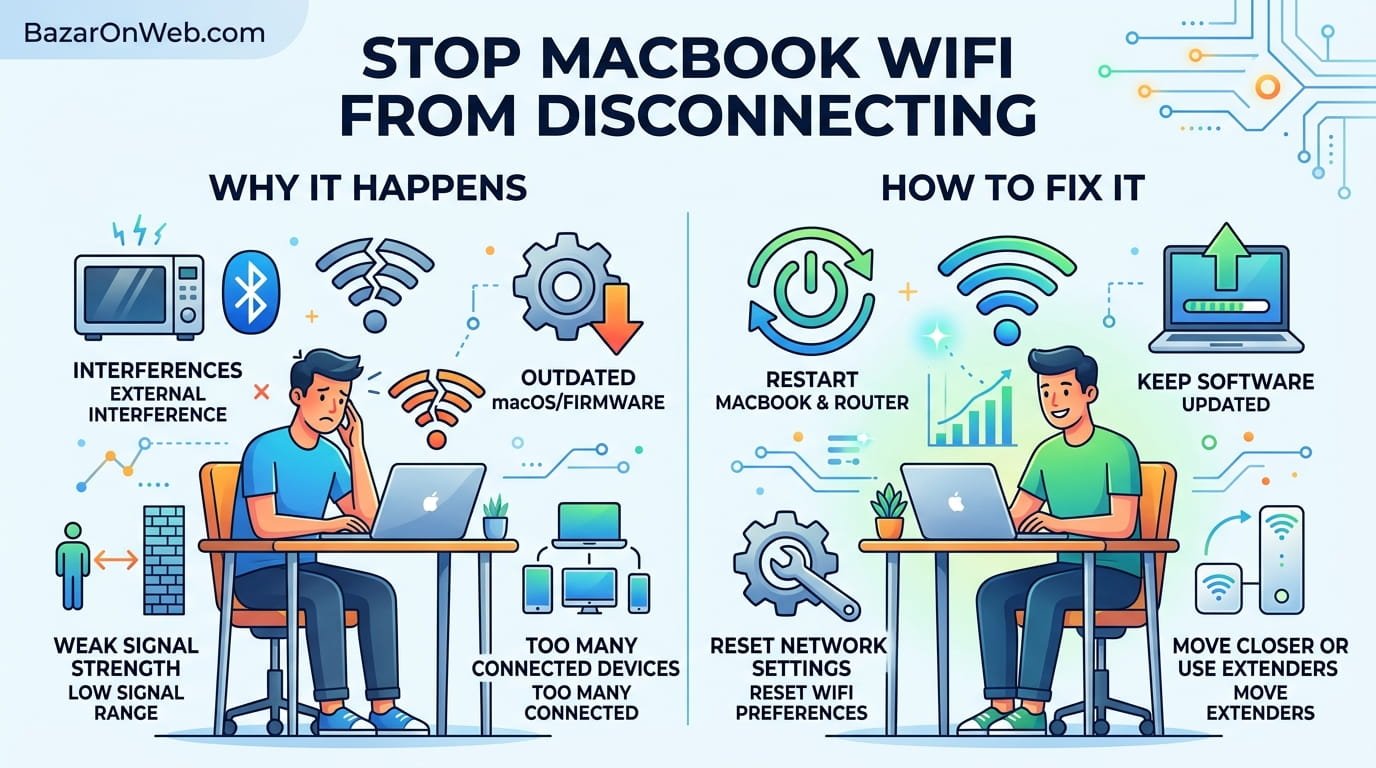
When Your Internet Becomes Unreliable For No Reason
Nothing’s more frustrating than being in the middle of something important and your MacBook suddenly loses internet connection. You’re typing an email, it stops. You’re watching a video, it buffers. You’re in a video call, you freeze mid-sentence. Then, after a few seconds or sometimes minutes, connection magically returns. Only to drop again minutes later.
This started happening to me seemingly out of nowhere. I wasn’t doing anything different. My router hadn’t changed. But suddenly my MacBook’s WiFi was completely unreliable. I’d connect, it’d work fine for maybe five minutes, then drop. Reconnect, same thing. This pattern repeated endlessly.
What made it more infuriating was that my iPhone and iPad had zero problems. They stayed connected all day. My neighbor’s devices worked fine. It was specifically my MacBook’s WiFi that was misbehaving. So the problem wasn’t my router or internet service. Something about my MacBook’s WiFi was broken.
I spent hours troubleshooting. Restart the router. Restart the MacBook. Forget the network and reconnect. Check for updates. Move closer to the router. Try a different network. Nothing worked consistently. The pattern continued—connect, five minutes of usability, disconnect, reconnect, repeat.
After testing multiple potential causes, I eventually found the issue. And once I found it, the fix was surprisingly simple. But getting there required systematic troubleshooting because Apple doesn’t make it obvious what’s causing the problem.
Why MacBooks Lose WiFi Connection (Multiple Possible Reasons)
Understanding potential causes helps guide your troubleshooting. MacBook WiFi disconnections can result from numerous issues, making it tricky to identify the actual culprit without methodical investigation.
Power management interference: MacOS aggressively manages power to extend battery life. Sometimes this power management puts WiFi into low-power mode or disconnects it to conserve energy. This usually only happens when running on battery, but misconfigured settings can cause it plugged in too.
Router compatibility issues: Some MacBooks struggle with specific router models. Your router broadcasts WiFi fine to other devices, but your Mac’s WiFi hardware doesn’t play nicely with that specific router. This isn’t your fault or Apple’s fault necessarily—just compatibility weirdness.
Interference from other devices: Microwaves, cordless phones, baby monitors, Bluetooth devices, and other electronics operate on the 2.4GHz frequency where WiFi lives. Interference from these devices can cause your MacBook to lose connection while other devices handle the interference fine.
Corrupted WiFi settings: Your MacBook’s stored WiFi settings might become corrupted, causing connection instability.
WiFi driver or firmware issues: The software controlling your Mac’s WiFi hardware might have bugs or need updates.
Background process interference: Something running on your MacBook might be interfering with WiFi connectivity. Less common, but possible.
Security software conflicts: Antivirus or firewall software (if you use it) might interfere with WiFi.
DHCP lease issues: Problems obtaining or renewing IP address from your router.
This list explains why casual troubleshooting often fails—there are so many potential causes that random fixes don’t reliably work.
The First Step: Check If It’s Really Your MacBook
Before assuming your MacBook’s WiFi is broken, verify the problem isn’t your router or internet service.
Do other devices (phone, tablet, laptop) stay connected to the same WiFi without dropping? If yes, your router and internet are fine. The problem is your MacBook specifically.
Try connecting to a different WiFi network. Go to a friend’s house or a coffee shop. Does your MacBook hold that connection consistently? If yes, the problem might be your specific router. If no, the problem is likely your MacBook’s WiFi.
Test your connection using ethernet if you have an ethernet adapter. Plug in directly via USB-C to ethernet adapter. Does internet stay stable? If yes, your MacBook’s WiFi hardware or software is the problem.
This diagnostic process narrows down whether the issue is network-wide (router/internet problem) or Mac-specific (WiFi problem on your MacBook).
The Quick Fix: Forget and Reconnect
Sometimes MacBook WiFi issues resolve through the simplest possible solution: forgetting the network and reconnecting.
Click the WiFi icon in your menu bar (top right of screen). Select your network, then look for an option to “Forget this Network” or similar. Click it.
Your MacBook forgets the stored connection information for that network. Now reconnect: click WiFi again, select your network, enter the password. Your MacBook establishes a fresh connection.
This clears any corrupted settings stored for that specific network. Many intermittent WiFi issues resolve this way because the stored settings might have gotten corrupted somehow.
If this doesn’t solve it permanently but temporarily improves things, do it again. You might need to repeat this process occasionally if settings keep getting corrupted.
Power Management: The Sneaky WiFi Killer
MacOS has aggressive power management that sometimes disconnects WiFi to save power. This usually only affects battery-powered Macs trying to extend runtime, but misconfigured settings can cause it even when plugged in.
Check your power settings. Click the Apple menu > System Settings > Battery (or Energy Saver on older Macs).
Look for settings related to WiFi or network. Different MacOS versions name these differently, but look for options like:
- “Turn off WiFi when inactive”
- “WiFi standby”
- “Disable WiFi to save power”
If any of these are enabled and you’re experiencing WiFi disconnections, disable them. Restart your MacBook. See if WiFi stays connected.
Additionally, check if your MacBook is set to sleep when inactive. System Settings > Lock Screen > “Turn display off after [time].” Your Mac might be putting itself to sleep, which disconnects WiFi. If you want to stay connected, increase the sleep timer or disable sleep entirely.
For laptops, also check System Settings > Battery > Battery Health Management. If this is configured aggressively, it might be limiting WiFi power usage. Reset it or adjust settings.
Location Services Interference: The Overlooked Culprit
This sounds unrelated, but Location Services sometimes interferes with WiFi. When enabled, Location Services uses WiFi to triangulate your position. Sometimes this process causes WiFi to temporarily disconnect.
Try disabling Location Services: System Settings > Privacy & Security > Location Services > toggle off.
Test your WiFi stability with Location Services disabled. If disconnections stop, Location Services was the culprit.
You can also disable Location Services for specific apps instead of system-wide. System Settings > Privacy & Security > Location Services > click each app and choose “Never” for apps that don’t need location data.
This is an obscure issue most people wouldn’t suspect, but it causes real WiFi problems for some users.
WiFi Channel Interference: When Your Router Is Screaming Over Other Noise
Your router broadcasts WiFi on a specific channel (numbered 1-11 on 2.4GHz, different numbers on 5GHz). If your channel overlaps with a neighbor’s router or other wireless devices, interference causes connection instability.
On your MacBook, you can’t directly control WiFi channels—your router does that. But you can check what channels are in use:
Download WiFi Scanner or similar app that shows available networks and their channels. Open it and see what channels nearby networks use.
Then log into your router’s admin settings (usually 192.168.1.1 in a browser, though varies by router). Find WiFi channel settings. If your channel overlaps with nearby networks, try switching to a less-congested channel.
For 2.4GHz, channels 1, 6, and 11 are standard non-overlapping channels. Try switching to whichever of these is least used by nearby networks.
If your router supports 5GHz, switching to 5GHz eliminates interference from most 2.4GHz devices (microwaves, cordless phones, etc. are usually 2.4GHz only).
This isn’t a MacBook-specific issue, but improving your router’s channel reduces interference your MacBook experiences.
Corrupted WiFi Preferences: The Nuclear Registry Fix
MacOS stores WiFi preferences in preference files. If these become corrupted, WiFi behavior becomes erratic. Sometimes clearing these preferences forces MacOS to rebuild them fresh.
Open Terminal (Command+Space, search “Terminal”).
Type this command:
rm ~/Library/Preferences/SystemConfiguration/com.apple.wifi.plist
This deletes your WiFi preferences file. MacOS will rebuild it automatically, hopefully without corruption.
Restart your MacBook.
You’ll lose saved networks and need to reconnect to them, but corrupted preferences are cleared. This fixes WiFi issues for some users.
If you want to be more cautious, back up the file first:
cp ~/Library/Preferences/SystemConfiguration/com.apple.wifi.plist ~/Desktop/wifi_backup.plist
This creates a backup on your desktop. If deleting preferences doesn’t help, you can restore the backup.
DNS Issues: When Your MacBook Can’t Find Websites
Sometimes WiFi stays connected but you can’t access websites. This usually means DNS (the system that translates website names into IP addresses) isn’t working properly.
If you’re connected to WiFi but can’t load websites, try changing your DNS.
System Settings > Network > WiFi > Details (or Advanced) > DNS.
You’ll see current DNS servers. Try replacing them with public DNS:
- Google DNS: 8.8.8.8 and 8.8.4.4
- Cloudflare DNS: 1.1.1.1 and 1.0.0.1
Enter these addresses and test. If websites now work, your router’s DNS was the problem.
If you can’t access System Settings (which might happen if you don’t have internet), restart your router. This usually resets DNS issues.
Outdated Router Firmware: The Forgotten Problem
Your router has its own software that occasionally needs updating. Outdated router firmware sometimes causes compatibility issues with specific devices like MacBooks.
Log into your router’s admin panel. Look for Firmware Update option. Check if an update is available.
If yes, update your router. This takes 5-10 minutes and usually fixes compatibility issues.
You can also restart your router: unplug it, wait 30 seconds, plug it back in. Restarting sometimes fixes temporary issues without needing firmware updates.
Bluetooth Interference: When Your Bluetooth Devices Sabotage WiFi
Bluetooth and WiFi operate on the same 2.4GHz frequency. If you have Bluetooth devices actively connected, they can interfere with WiFi stability.
Try disconnecting all Bluetooth devices and disabling Bluetooth entirely. System Settings > Bluetooth > toggle off.
Test WiFi stability without Bluetooth. If disconnections stop, Bluetooth was interfering.
If you need Bluetooth, move Bluetooth devices farther from your MacBook, or upgrade to a router that handles 5GHz (which has less Bluetooth interference).
System Activity Monitor: Finding What’s Interfering
Sometimes something running on your MacBook interferes with WiFi. Activity Monitor shows running processes.
Open Activity Monitor and look for processes using high network activity. Unusual processes consuming bandwidth might be interfering with WiFi stability.
Common culprits:
- Spotlight indexing (mds) – disable Spotlight indexing temporarily
- Cloud sync services – temporarily pause iCloud, Dropbox, etc.
- Backup software – pause Time Machine or other backup
- System updates downloading – check Software Update in System Settings
- VPN applications – temporarily disable VPN
- BitTorrent or other P2P – these consume network resources aggressively
Disable each one temporarily and test WiFi stability. If stability improves when something’s disabled, that process was interfering.
When It’s Actually Your MacBook Hardware
Sometimes WiFi problems indicate actual hardware failure. Your MacBook’s WiFi radio might be failing, especially if it’s several years old.
Signs of hardware failure:
- WiFi works occasionally but mostly doesn’t
- Extremely short range (WiFi only works within feet of router)
- Only specific frequencies work (5GHz works fine but 2.4GHz doesn’t, or vice versa)
- Problems occur on multiple different networks
- Problems existed before you changed anything
- Other devices have no similar issues
If you suspect hardware failure, Apple Service can test your MacBook’s WiFi hardware. This requires professional service and potentially hardware replacement, which is expensive if not under warranty.
Before assuming hardware failure, exhaust software troubleshooting first. Hardware issues are rare compared to software misconfigurations.
The Nuclear Option: Reset Network Settings
If nothing has worked, completely resetting all network settings sometimes fixes stubborn WiFi issues. This erases all network configurations and starts fresh.
System Settings > General > Reset > Reset Network Settings.
MacOS warns you this erases all WiFi networks, VPN connections, and other network settings. You’ll need to reconfigure everything.
After resetting, reconnect to your WiFi network fresh. Sometimes this complete reset fixes underlying corruption that other troubleshooting doesn’t address.
When Professional Help Makes Sense
If you’ve tried everything and WiFi still disconnects constantly, professional service is appropriate:
- Apple Service can test WiFi hardware and identify hardware failure
- They can run diagnostics on your MacBook’s WiFi system
- They can check for software issues you might have missed
- If hardware replacement is needed, they can do it properly
Before going to Apple, document what you’ve tried. This helps technicians focus on actual problems.
Prevention: Keep WiFi Healthy Long-Term
After fixing WiFi issues, prevention helps avoid problems recurring:
Keep your MacBook updated: System updates include WiFi stability improvements.
Restart occasionally: Weekly restarts clear temporary network issues.
Update your router firmware: Check your router monthly for available updates.
Monitor WiFi from menu bar: Keep an eye on connection status. Frequent disconnects warrant investigation before they become severe problems.
Avoid leaving MacBook on sleep mode overnight: Give your MacBook full shutdowns regularly.
Keep your MacBook near your router: Distance and obstructions cause connection instability. Maintain reasonable proximity.
The Frustrating Reality
MacBook WiFi disconnection issues are annoying because multiple things could cause them. Your router, your MacBook, interference, software, hardware—troubleshooting requires eliminating possibilities systematically.
Most of the time it’s software misconfigurations or power management settings causing the problem, not hardware failure. But the variety of potential causes makes this frustrating to troubleshoot.
Work through the fixes in order. Most issues resolve with one of these approaches. If nothing works after trying everything, then consider professional service for potential hardware issues.
Your MacBook’s WiFi was probably fine before. It’ll probably be fine again once you identify what changed.
Quick Reference: Troubleshooting Priority
MacBook keeps dropping WiFi?
- Forget network and reconnect
- Check power management settings—disable WiFi power saving
- Disable Location Services temporarily
- Test with Bluetooth disabled
- Check for router firmware updates
- Change WiFi channel on your router (use channels 1, 6, or 11)
- Delete corrupted WiFi preferences through Terminal
- Reset network settings entirely through System Settings
- If nothing works, test with ethernet adapter to confirm WiFi is the issue
- Contact Apple Service if hardware failure is suspected
One of these will usually resolve the issue.

- How to Run a Safety Check in Google Chrome and Protect Your Browser

- Samsung Phone’s Keyboard Not Working? Here’s How to Fix It

- How to Take Screenshot While in Gaming on My Windows 11 PC

- Microsoft Store Blocked on Windows 11 Error 0x800704EC, How to Fix It

- What Is Spotlight Search on Mac and How Do You Open It?

Products
-
![Apple Watch Ultra 3 [GPS + Cellular 49mm] Running & Multisport Smartwatch w/Rugged Titanium Case w/Black Titanium Milanese Loop - M. Satellite Communications, Advanced Health & Fitness Tracking](https://bazaronweb.com/retailstores/wp-content/uploads/2025/09/apple-watch-320x320.jpg) Apple Watch Ultra 3 [GPS + Cellular 49mm] Running & Multisport Smartwatch w/Rugged Titanium Case w/Black Titanium Milanese Loop - M. Satellite Communications, Advanced Health & Fitness Tracking
Apple Watch Ultra 3 [GPS + Cellular 49mm] Running & Multisport Smartwatch w/Rugged Titanium Case w/Black Titanium Milanese Loop - M. Satellite Communications, Advanced Health & Fitness Tracking
-
 Apple iPad mini (A17 Pro): Apple Intelligence, 8.3-inch Liquid Retina Display, 256GB, Wi-Fi 6E, 12MP Front/12MP Back Camera, Touch ID, All-Day Battery Life — Purple
-
 Apple AirPods Max Wireless Over-Ear Headphones, Active Noise Cancelling, Transparency Mode, Personalized Spatial Audio, Dolby Atmos, Bluetooth Headphones for iPhone – Space Gray
-
 Apple AirPods Pro 2 Wireless Earbuds, Active Noise Cancellation, Hearing Aid Feature, Bluetooth Headphones, Transparency, Personalized Spatial Audio, High-Fidelity Sound, H2 Chip, USB-C Charging
-
Home Garage 210 TC Cotton King Floral Fitted (Elastic) Bedsheet(Pack of 1, Grey)
Original price was: ₹999.00.₹299.00Current price is: ₹299.00.
Leave a Reply